

If you’ve ever dreamed of editing your YouTube videos without being tied to a bulky desktop, the 10.5in iPad Pro might just be your best creative companion. Compact yet incredibly powerful, it bridges the gap between portability and performance – something every modern creator values. Whether you’re editing travel vlogs on the go or fine-tuning a cinematic short film, this iPad delivers the horsepower needed for professional-quality work.
At its core, the 10.5in iPad Pro is built around Apple’s A10X Fusion chip – a processor that was years ahead of its time when launched and still punches above its weight. It handles multitrack 4K video editing, color grading, and transitions without the frustrating lag you might experience on cheaper tablets. Combined with Apple’s seamless hardware-software integration, it makes editing not only fast but genuinely enjoyable.
The 120Hz ProMotion display is another huge win. Every frame feels fluid, whether you’re scrubbing through footage or fine-tuning color correction. The high brightness and P3 color gamut give you vivid, accurate visuals – crucial for ensuring your videos look professional on YouTube’s playback screens. If you’ve ever been frustrated by over-saturated or dull renders, you’ll appreciate the precision this display offers.
In short, the 10.5in iPad Pro isn’t just a portable device; it’s a creative workstation. Its combination of speed, screen quality, and optimized apps makes it a compelling choice for both aspiring and professional YouTubers.
And once you understand how to pair this hardware with the right editing tools, you’ll unlock its full potential – which brings us to the next section.
Choosing the Right Apps for 10.5in iPad Pro YouTube Editing
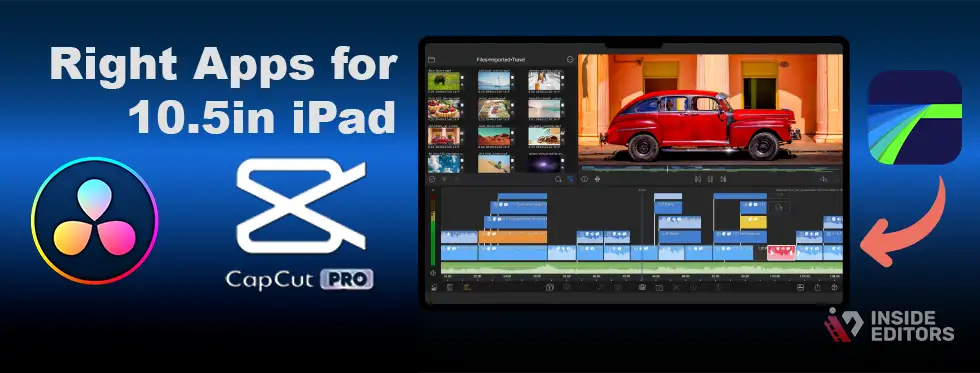
Software makes or breaks your editing experience. The right app can turn your iPad into a production powerhouse, while the wrong one can limit your workflow. Thankfully, iPadOS has evolved to support professional-grade editing tools – meaning you’re not sacrificing capability for portability.
LumaFusion – The Gold Standard for iPad Editing
Ask any seasoned mobile editor, and LumaFusion will likely top their list. Designed specifically for iPad creators, it offers multi-track editing, advanced effects, and even keyframe-based animation – all within a touch-optimized interface. The app can handle 4K timelines, chroma keying, and LUTs (Look-Up Tables) for color grading, which used to be reserved for desktop platforms like Final Cut Pro or DaVinci Resolve.
For YouTube creators, LumaFusion’s real strength lies in speed and stability. You can edit, color-correct, and export videos directly to YouTube without transferring files back and forth. It’s a self-contained workflow – ideal for content creators who value efficiency.
CapCut Pro – Fast, Creative, and Social-Ready
If your channel leans toward short-form content like YouTube Shorts or Reels, CapCut Pro is a great choice. Its intuitive timeline, AI-assisted effects, and ready-made templates make it easy to produce professional-looking edits quickly. It’s particularly strong for creators who want dynamic cuts, motion text, and trendy transitions without diving into complex timelines.
The 10.5in iPad Pro’s fluid screen response enhances this app’s tap-and-swipe editing. You’ll notice that trimming clips or syncing music feels faster and more tactile than on phones or PCs.
VN Video Editor & DaVinci Resolve for iPad (2025 Update)
VN remains one of the best free editors for quick projects, offering a clean interface and strong export settings. But as of 2025, DaVinci Resolve for iPad has changed the game – bringing desktop-level color grading and professional tools to iPadOS. While the 10.5in model may not handle its full power as smoothly as the M2 iPads, it still runs the cut page beautifully for fast edits.
When selecting an app, think about your workflow:
Do you prioritize speed, advanced control, or effects? The 10.5in iPad Pro can handle them all – but pairing it with the right software ensures the best experience.
Next, let’s walk through how to set up a smooth, professional workflow right from your iPad.
Step-by-Step Workflow: Editing YouTube Videos on iPad Pro
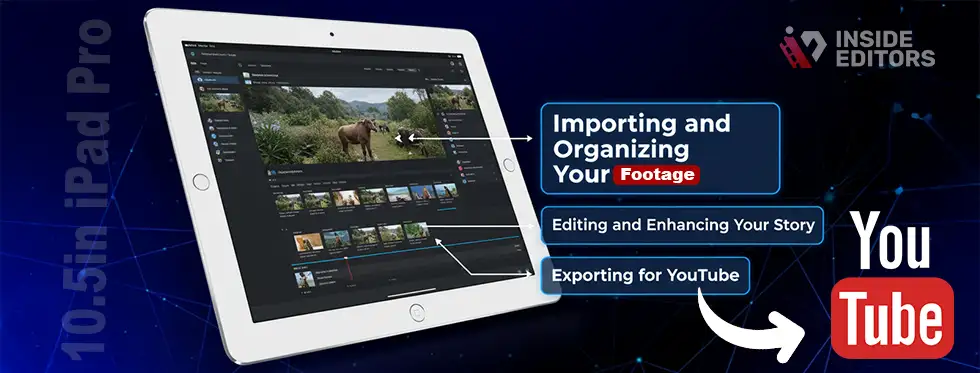
The editing process on iPad Pro isn’t just convenient – it’s empowering. You can shoot, import, edit, and upload without ever touching another device. Here’s a proven workflow that mirrors how professional editors manage their projects efficiently.
Importing and Organizing Your Footage
Start by transferring your clips. If you shoot on an iPhone or camera, use AirDrop, USB-C adapters, or a cloud service like iCloud Drive or Google Drive. Once imported into your chosen editing app, create labeled folders and timelines for each segment – for example, Intro, Main, Outro.
The iPad’s multitouch gestures make this setup intuitive. You can drag and drop clips with precision, making it surprisingly efficient compared to a mouse-based workflow. A small step like naming your layers early on can save hours later when refining your edits.
Editing and Enhancing Your Story
Here’s where creativity takes over. Cut your clips, adjust pacing, and align transitions to your background music. For color grading, apps like LumaFusion or DaVinci offer adjustable LUTs and exposure curves that help achieve a cinematic look – even if your footage was shot on a smartphone.
The 10.5in iPad Pro’s A10X Fusion processor handles this without major slowdown, but keeping background apps closed helps maintain smooth playback. You’ll also notice that using the Apple Pencil gives unmatched precision for trimming frames or applying effects.
Exporting for YouTube
Once your edit feels complete, set your export parameters. For YouTube, 4K resolution with a bitrate between 16–24 Mbps offers excellent results. LumaFusion and CapCut allow direct upload to YouTube – complete with title, thumbnail, and description entry. This eliminates the extra step of re-uploading from your desktop.
After exporting, double-check your render for audio sync and compression artifacts. It’s a small but essential step to maintain professional polish before publishing.
Now that your editing pipeline is set, let’s explore how to work even faster – without compromising quality.
Pro Tips to Boost Your Editing Speed and Quality
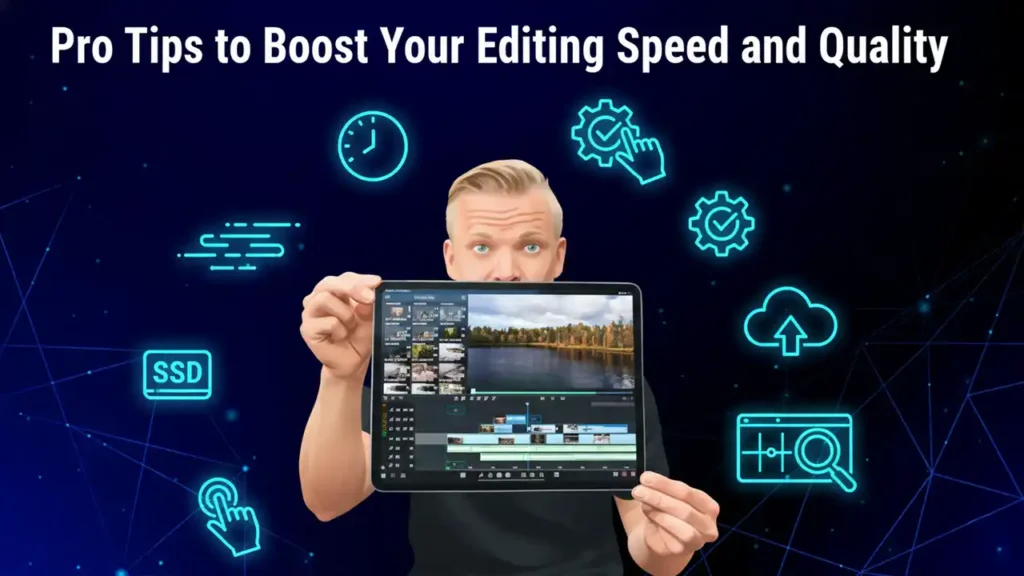
Editing on a tablet may sound limited at first, but the right approach can make it faster than desktop workflows. The 10.5in iPad Pro’s versatility allows for both quick edits and detailed, frame-by-frame adjustments.
Use Gestures and Shortcuts Like a Pro
One of the iPad’s biggest strengths is its intuitive interface. You can pinch to zoom, swipe to undo, or use two-finger taps to adjust clip length. Pairing the iPad Pro with the Apple Magic Keyboard gives you desktop-style shortcuts – like splitting clips with Command + B or jumping between frames with arrow keys.
Small habits like these can save minutes per edit, adding up to hours across multiple projects.
Optimize Your Storage and Power Usage
Video editing eats storage fast. Always back up finished projects to cloud storage or external SSDs via USB-C. This keeps your local drive lean and responsive. Also, editing while plugged in helps prevent slowdowns from thermal throttling – something older iPad Pros occasionally experience under load.
If you’re using LumaFusion, enable proxy editing. This feature temporarily uses lower-resolution files during editing and swaps them with full-resolution ones at export – dramatically speeding up performance.
Fine-Tune Your Workspace
A well-organized workspace enhances creativity. Set up your iPad at eye level using a stand, connect Bluetooth headphones for precise audio editing, and work in a well-lit area to maintain consistent color judgment. Even small ergonomic changes reduce fatigue, helping you stay focused during long sessions.
Mastering these optimizations turns the iPad from a backup device into your main editing hub – and the next step is making it even more powerful with accessories.
Recommended Setup for YouTube Editing on iPad Pro
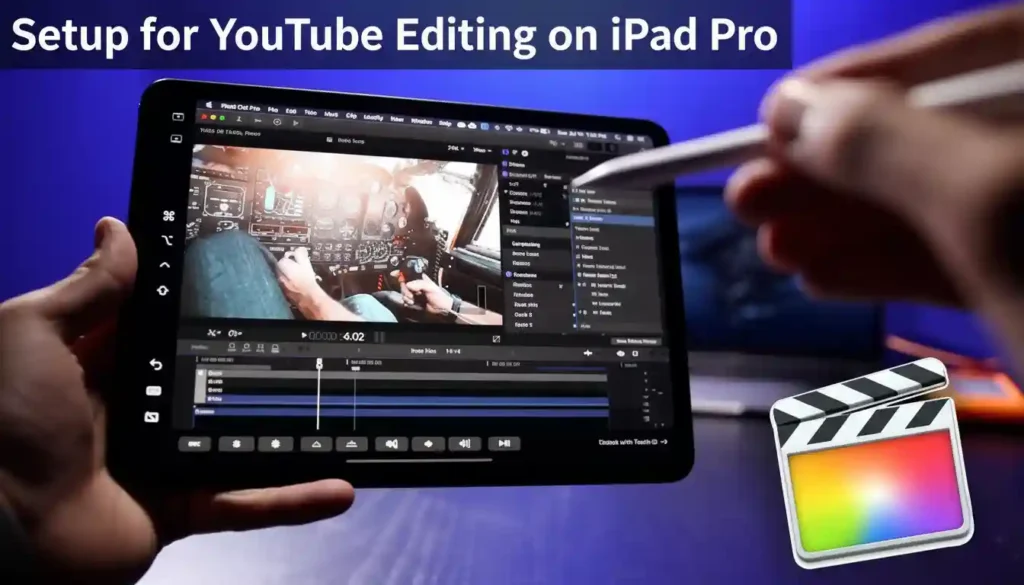
Your 10.5in iPad Pro can handle serious editing tasks – but with the right accessories, it becomes a fully functional studio. Think of these tools as extensions of your workflow that improve both comfort and efficiency.
Essential Hardware Add-ons
An external SSD like the Samsung T7 ensures fast file transfers and extra storage, while a USB-C hub lets you connect drives, microphones, and HDMI displays. For creators who travel, these compact tools make it possible to edit anywhere – from airports to cafés.
Pair that with the Apple Pencil (1st Gen), which offers precision editing when scrubbing through tight frames or masking details. For long sessions, the Magic Keyboard provides tactile control, turning your iPad into a near-laptop setup.
Ideal Lighting and Audio Setup
Editing requires accurate color perception. Use a neutral-lit workspace or a portable LED light like the Neewer 5600K panel to reduce glare and maintain visual consistency. For sound editing, over-ear headphones like the Sony WH-1000XM5 help isolate noise, letting you catch imperfections that casual earbuds might miss.
Professional Tip: External Monitor Support
The iPad Pro supports external displays through AirPlay or USB-C adapters. This lets you preview your edits on a larger screen – essential when evaluating visual details for YouTube delivery. It’s a subtle upgrade that can significantly enhance your editing precision.
Once your setup is optimized, it’s time to learn what not to do. Avoiding common mistakes ensures your videos consistently look and sound professional.
Common Mistakes to Avoid When Editing on iPad Pro
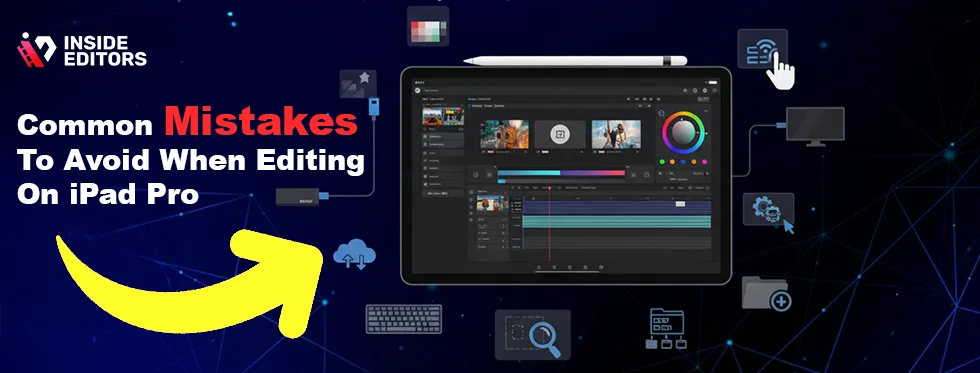
Every creator has learning moments – but some errors can easily be avoided once you know where to look. Understanding these pitfalls helps maintain quality while saving time.
Overusing Effects or Transitions
It’s tempting to try every transition or filter available, especially with touch-based editing. But overdoing it often distracts viewers. Keep transitions subtle – your audience should notice your story, not your software. The best edits feel invisible, blending scenes seamlessly without drawing attention to the cuts themselves.
Ignoring File Management
Many creators lose hours because of poor organization. Always label your clips and keep backups. Cloud syncing tools like Google Drive, Dropbox, or iCloud can save your projects automatically. Losing your timeline due to a crash is frustrating – and completely avoidable.
Skipping Audio Balancing
Even beautifully shot footage can fall flat if your sound isn’t balanced. Use built-in equalizers or volume keyframes to ensure dialogue and background music blend naturally. Remember: YouTube viewers often forgive imperfect visuals, but not bad audio.
Avoiding these mistakes keeps your workflow clean and your videos polished – positioning you closer to professional results.
Can You Replace a Laptop with an iPad Pro for Video Editing?
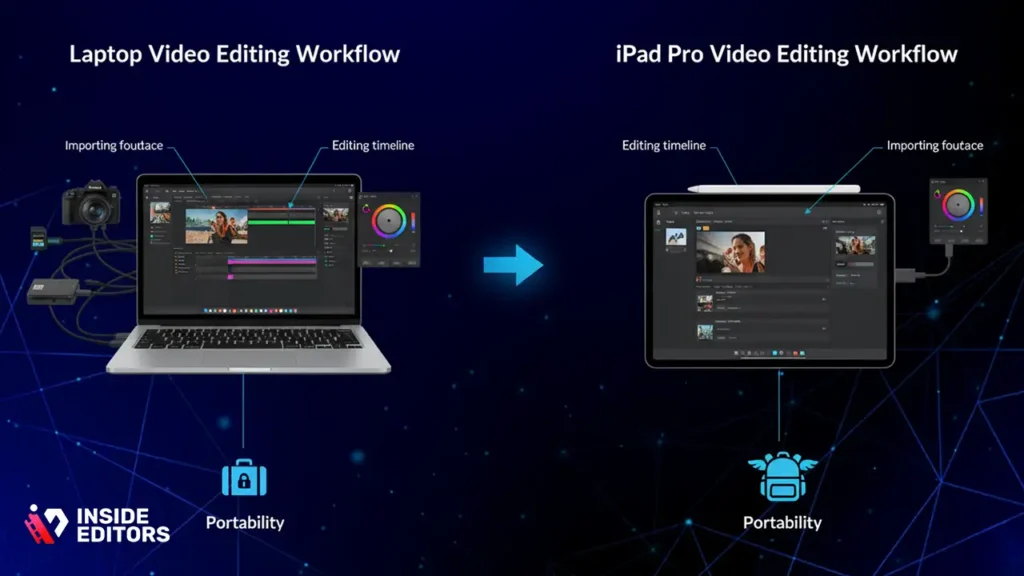
One of the most common questions YouTubers ask is: Can an iPad Pro really replace a laptop for editing? The short answer is yes – for most creators, it absolutely can.
The 10.5in iPad Pro bridges a unique gap between portability and creative capability. For solo YouTubers, travel vloggers, educators, and short-form content creators, it can handle nearly everything – from raw footage import to final export – without compromise.
The only time you might miss your laptop is during highly complex, multi-layer projects involving advanced motion graphics or massive color-grading workflows. Those tasks still benefit from the power and cooling of a MacBook or desktop setup. However, if your content revolves around talking-head videos, tutorials, or product reviews, the iPad Pro’s efficiency easily outweighs its few limitations.
Real-World Workflow Comparison
Let’s compare what editing looks like on a laptop vs. the 10.5in iPad Pro:
| Task | Laptop Workflow | iPad Pro Workflow |
| Importing footage | SD card – Finder – Editor | AirDrop or USB-C hub – Direct import into app |
| Editing timeline | Keyboard + mouse controls | Touch gestures + Pencil precision |
| Color grading | LUTs via desktop app | Built-in LUTs, curves, and sliders in LumaFusion |
| Exporting | Manual render – upload | Direct export to YouTube from within app |
| Portability | Limited to desk setup | Fully mobile – edit anywhere |
While laptops still win in raw multitasking, the iPad’s speed, focus, and simplicity give it a major advantage for creators who value agility. You spend less time configuring and more time creating.
Once you adapt to gesture-based editing and cloud workflows, you’ll likely find the iPad’s editing process more intuitive than traditional setups. And with external display support improving yearly, the distinction between laptop and tablet continues to blur.
Professional Insights: Getting the Most Out of Mobile Editing
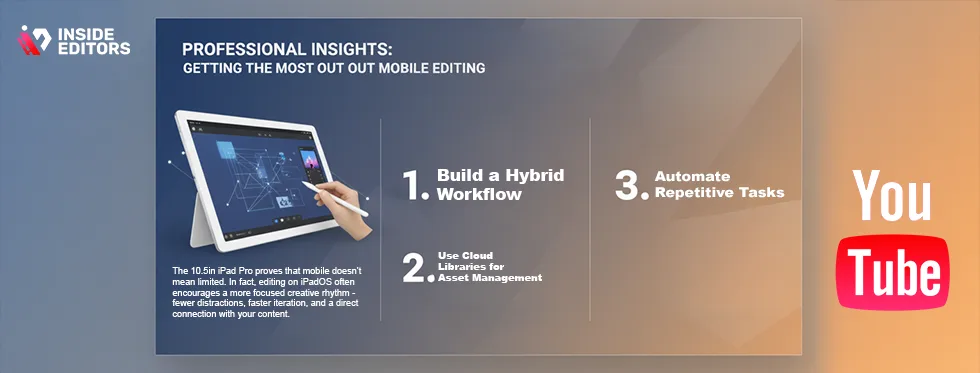
The 10.5in iPad Pro proves that mobile doesn’t mean limited. In fact, editing on iPadOS often encourages a more focused creative rhythm – fewer distractions, faster iteration, and a direct connection with your content.
1. Build a Hybrid Workflow
If you use both iPad and desktop systems, think of them as a connected ecosystem. Start rough cuts or assembly edits on your iPad Pro, then finish color grading or sound design on your Mac or PC if needed.
Apps like LumaFusion export XML project files directly to Final Cut Pro, making this transition seamless. You can literally start an edit on your flight and finish it in the studio without losing a beat.
2. Use Cloud Libraries for Asset Management
Keeping your sound effects, transitions, and visual templates in a shared cloud library (via Dropbox or Google Drive) saves hours. You can access your assets across devices and avoid hunting for missing files. This practice not only improves consistency but also strengthens your backup safety net – something every professional editor values.
3. Automate Repetitive Tasks
AI-assisted tools are now part of every serious editor’s toolkit. LumaFusion’s “Auto Color” or CapCut’s “Auto Captions” can handle tedious tasks in seconds. Don’t view automation as cheating – think of it as reclaiming time for storytelling.
In 2025, many creators combine manual editing with AI refinements, balancing control and efficiency. You focus on the creative decisions while the software handles the grunt work.
These habits align with what professionals do every day – they simplify their tools so creativity flows uninterrupted.
Editing Mistakes That Hurt Your YouTube Performance
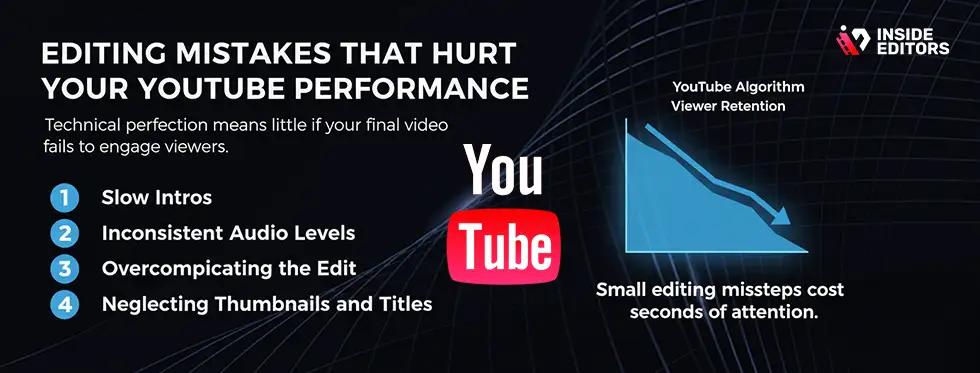
Technical perfection means little if your final video fails to engage viewers. YouTube’s algorithm values retention – the longer people watch, the more your content gets recommended. And often, small editing missteps can cost you those extra seconds of attention.
1. Slow Intros
Your video’s first 10 seconds determine whether viewers stay or scroll. Avoid lengthy logo animations or talking before showing context. Start with action, energy, or a question that pulls viewers in. You can always introduce yourself afterward.
2. Inconsistent Audio Levels
Uneven sound levels are one of the biggest turn-offs for audiences. Use audio meters inside LumaFusion or VN to keep your peaks between -6 and -3 dB. Balanced audio ensures that your viewers don’t reach for the volume button – or worse, click away.
3. Overcomplicating the Edit
Transitions, effects, and filters can enhance storytelling – but only when used with intent. Simple, confident cuts often feel more professional than flashy effects. Remember, the best editing draws attention to the story, not the editor.
4. Neglecting Thumbnails and Titles
After spending hours editing, many creators rush the final steps: thumbnail and title design. Don’t underestimate their impact. A compelling thumbnail with consistent color tones and clear subject focus can double your click-through rate. Try capturing a still from your timeline and enhancing it in Canva or Affinity Photo for best results.
Avoiding these pitfalls ensures your technical effort translates into viewer retention and real growth – which is, after all, the point of good editing.
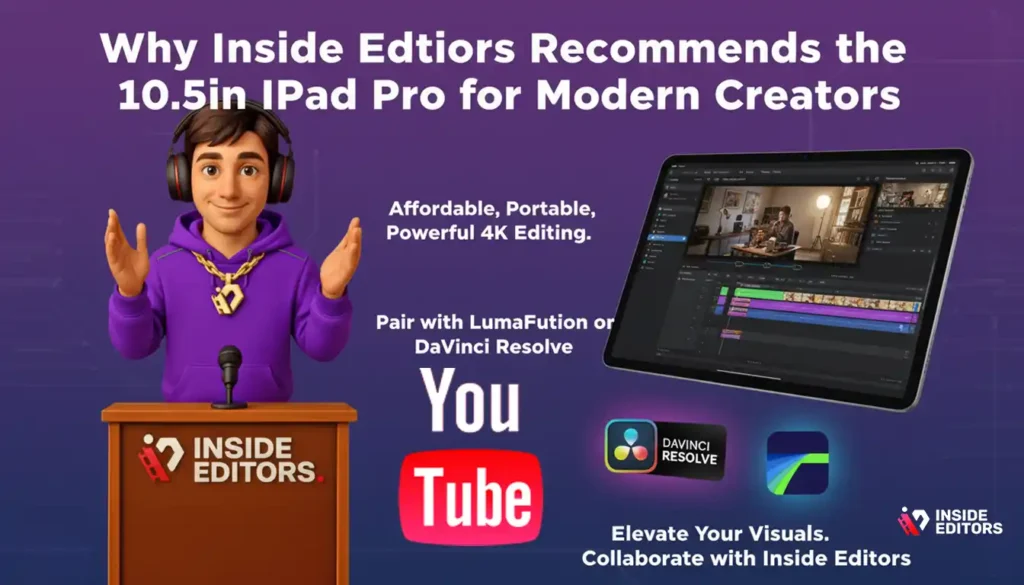
Why Inside Editors Recommends the 10.5in iPad Pro for Modern Creators
At Inside Editors, we’ve worked with thousands of creators across YouTube, TikTok, and Instagram. Many began editing on laptops but transitioned to iPads once they realized how capable modern mobile workflows had become.
The 10.5in iPad Pro strikes the ideal balance: it’s affordable, portable, and still delivers exceptional performance for 4K editing. When paired with LumaFusion or DaVinci Resolve, it becomes a serious production tool – not just a mobile toy.
But where many creators struggle is post-production polish. Even with the right device, achieving studio-level storytelling requires experience – from pacing and transitions to sound design and color harmony. That’s where our team at Inside Editors steps in.
We specialize in professional YouTube video editing services that complement your DIY workflow. Whether you’re a solo creator building your brand or a business scaling video content, our editors ensure every second of your video keeps viewers engaged.
So, if you’ve mastered the basics on your iPad but want to elevate your visuals, you can always collaborate with us for that professional finish. Explore Inside Editors’ Video Editing Services
Real-World Example: Turning a Mobile Edit into a Viral Hit
Consider Lina, a travel vlogger who switched from laptop editing to the 10.5in iPad Pro during her backpacking trip across Southeast Asia. Her previous workflow required heavy gear and long render times. But once she moved her process entirely to LumaFusion, she started editing on trains, flights, and even beaches.
The results? She produced and uploaded three times more videos – with better viewer engagement. Her “48 Hours in Bali” vlog, edited entirely on iPad, gained over 1.2 million views, thanks to faster production cycles and consistent uploads.
This story isn’t unique. Across the creator community, mobile-first workflows are helping YouTubers maintain quality without sacrificing speed – the secret ingredient for growth in 2025.
Advanced Workflow: Integrating AI, Plug-ins, and Cloud Tools

To keep up with evolving technology, modern creators use AI and cloud tools to streamline editing – and the 10.5in iPad Pro supports many of these innovations.
AI for Editing Speed
Apps like CapCut and LumaFusion now use AI-driven tools for tasks like scene detection, auto reframing, and intelligent cropping. These features save valuable time, especially when repurposing long YouTube videos into Shorts or Reels.
By combining human creativity with AI precision, you create a hybrid workflow that balances speed and quality.
Cloud Collaboration
For creators who work with editors or teams, cloud syncing is a game-changer. LumaFusion’s “Frame.io” integration (recently added in its 2025 update) allows you to upload timelines directly to collaborators for feedback. This means no more exporting and re-sending heavy files.
Plug-ins and Templates
Professional templates – lower-thirds, transitions, and LUT packs – can be stored in iCloud or Dropbox for easy access across projects. Building your own preset library saves time and ensures brand consistency across your videos.
These features align perfectly with Inside Editors’ philosophy: edit smarter, not harder.
Expert Advice: How to Future-Proof Your Editing Setup
Even though the 10.5in iPad Pro remains powerful, planning for future upgrades ensures you stay ahead of the curve.
- Keep Your iPad Updated – Each iPadOS release adds performance boosts and new editing capabilities. Staying current maximizes compatibility with apps and plug-ins.
- Invest in External Storage – High-speed SSDs future-proof your setup for 6K footage and larger projects.
- Learn Cross-Platform Skills – Understanding both desktop and tablet workflows makes you more adaptable – and marketable as an editor.
The more flexible your workflow, the easier it becomes to handle evolving trends like vertical formats, AI-assisted editing, and hybrid publishing.
Final Thoughts: The iPad Era of Video Editing Has Arrived
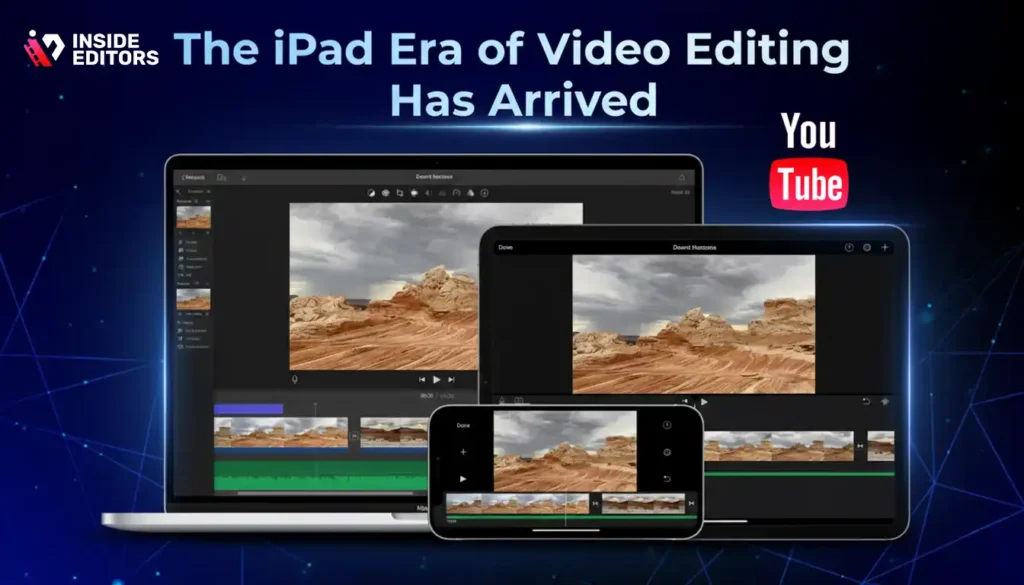
The 10.5in iPad Pro proves that professional video editing no longer requires a bulky machine or a fixed desk. You can create, refine, and publish full YouTube videos from anywhere – whether you’re traveling, teaching, or building your personal brand.
With the right apps, accessories, and workflow, it’s a device that democratizes creativity – putting professional storytelling within reach of anyone who has a vision and the drive to share it.
If you’re serious about growing your channel, the next step isn’t just about better gear – it’s about better editing. And that’s where our expertise can help.
Ready to elevate your YouTube videos?
Explore Inside Editors’ Video Editing Services and discover how our team can transform your footage into professional, high-performing content.
FAQs Best 10.5in iPad Pro YouTube Video Editing Guide
How can I trust Inside Editors with my footage and revisions?
You can trust Inside Editors because we keep client ownership and privacy front and center: you retain full rights to your footage and final files, and we sign NDAs on request. Our standard process includes at least one free revision and paid revision tiers for deeper changes, and we share progress clips so you can verify quality before final delivery. If privacy is a top concern, request encrypted file transfer and confirm revision limits up front.
What’s the quality difference between editing on a 10.5in iPad Pro and a desktop?
The 10.5in iPad Pro delivers surprisingly professional results for most YouTube formats: color-corrected 4K, clean cuts, and polished audio are all achievable. Desktops still edge out tablets for very large, multi-track projects or heavy motion graphics, but for talking-heads, vlogs, and short-form content the difference is minimal when using apps like LumaFusion or DaVinci. In practice, workflow and skill matter more than raw hardware for viewer-facing quality.
Should I edit on the iPad myself or hire a pro?
DIY editing on a 10.5in iPad Pro is ideal for quick uploads and learning; you’ll save money and maintain creative control. Hiring professional editors is worth it when you need consistent branding, advanced audio work, or regular output – pros save time (often hours per video) and improve retention through pacing and polish. If budget is tight, consider a hybrid: rough cut on iPad, hand off finishing to a pro.
How do editing service packages and tiers usually compare?
Packages typically scale by complexity: a basic tier covers trimming, simple color correction, and a thumbnail; mid tiers add sound mixing, motion graphics, and revisions; premium tiers include full storytelling edits, custom graphics, and priority turnaround. Expect typical prices to vary widely (e.g., $50–$300+ per video depending on length and services). Always confirm what’s included – number of revisions, raw file handling, and source-file storage.
What should I budget for professional YouTube editing services?
Pricing ranges depend on video length, complexity, and turnaround. For short-form or basic edits expect roughly $50–$150 per video; mid-level edits with color grading and motion graphics often fall in the $150–$400 range; fully produced episodes or branded work can exceed $500. Always ask for an itemized quote – track count, revisions, and asset sourcing are common extras that affect cost.
How long does a typical edit take and are rush options available?
Standard turnaround for a 6–12 minute YouTube video is usually 3–7 business days depending on complexity and revision rounds. Rush services are common – expect extra fees for 24–48 hour delivery and limits on rounds of revision. Delivery depends on how quickly you provide organized assets, clear notes, and thumbnails; faster, cleaner input typically shortens timelines considerably.
What simple steps should I follow to edit on a 10.5in iPad Pro?
Start by organizing footage into labeled folders (Intro, Main, B-roll), then create a rough cut to establish pacing before polishing audio and color. Use proxy files if projects lag, apply LUTs or simple curves for consistent color, then export using YouTube-friendly settings (e.g., 4K H.264/H.265, 16–24 Mbps for 4K). Finally, back up the project to cloud storage and keep an editable copy for future tweaks.
Who owns the final video and how are revisions handled?
You retain copyright and ownership of final deliverables; most reputable services transfer final files and grant all usage rights upon final payment. Revisions are usually included in the package (commonly 1–3 rounds) with extra rounds billed hourly or per revision; clarify revision scope (minor vs. major changes) before starting. For sensitive footage, request contract clauses on data deletion and return policies.


