


If you’ve ever tried editing high-resolution footage on an underpowered computer, you already know the frustration: the timeline lags, effects take forever to render, and simple playback becomes a stuttering mess. As creators shift into 2026, more editors are dealing with heavier files -from 4K 10-bit to high-frame-rate slow-motion clips. Choosing the right 4k video editing pc is no longer optional; it’s the foundation of a smooth, professional workflow. This guide is designed to help you build or buy the perfect system with real-world advice backed by hands-on experience from the team at Inside Editors.
According to a 2025 Statista report, over 82% of global video creators now work with 4K content, and the number is growing every year. This shift is only increasing the demand for properly optimized editing machines. Understanding what makes a PC “4K-ready” is the first step toward building a setup that keeps up with your creative ambition.
Understanding Why 4K Editing Demands More Power Than You Think
Why High-Resolution Workloads Push Your Hardware to the Limit

Moving from 1080p to 4K increases pixel data exponentially. A single 4K frame contains more than eight million pixels -and your system must process that in real time while applying effects, decoding footage, and handling background tasks. Software like Adobe Premiere Pro uses both CPU and GPU acceleration heavily, and according to Adobe’s official hardware guidelines, 4K workloads require significantly more processing power and faster storage than standard HD projects.
Many editors don’t realize how much strain 4K places on their system until the timeline starts freezing. A properly built PC doesn’t just make editing faster -it makes creativity uninterrupted.
The Difference Between Smooth Editing and Constant Lag

Smooth editing is not just about having the “fastest” part. It is about balance -CPU, GPU, storage, and RAM operating together without bottlenecks. For instance, even if you buy a high-end graphics card, slow storage can make your timeline feel sluggish. This is why professionals often use multiple SSDs to spread the workload. A balanced editing machine feels fluid, responsive, and predictable -the exact environment you want when crafting stories for clients, brands, or personal projects.
How Your Workflow Shapes the PC You Need
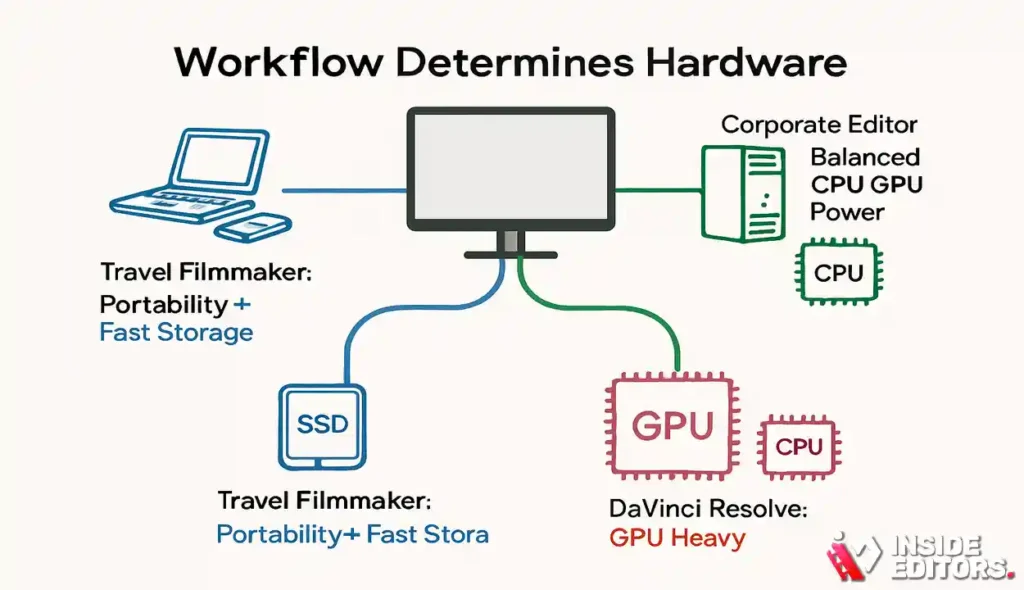
A travel filmmaker doesn’t need the same setup as a corporate editor. A daily vlogger has different requirements than someone editing for commercial clients. Your editing software matters too. DaVinci Resolve leans heavily on GPUs, while Adobe Premiere Pro distributes tasks across CPU and GPU. Understanding your workflow helps you avoid overspending or buying unnecessary components.
Whatever your specialty -vlogging, commercial work, travel films, or social media editing -teams like Inside Editors rely on optimized systems tailored to each category of content.
The Processor: The Heart of Every 4K Editing Machine
Why the CPU Determines Your Day-to-Day Editing Experience

Your CPU handles decoding, scrubbing, timeline responsiveness, and multitasking. For 2026, 12- to 16-core CPUs hit the sweet spot for most editors. Intel’s 14th-gen line and AMD’s Ryzen 7000-series are excellent performers. The key is ensuring your CPU aligns with the software you use most. A powerful processor ensures timeline fluidity and reduces stutters when navigating heavy projects.
Real-World Example: How the Right CPU Cuts Editing Time in Half

Imagine editing a product review video -trimming clips, stacking transitions, applying color adjustments. On a weaker 6-core CPU, your previews stutter and exports slow to a crawl. Moving to a 12-core processor can cut render times by up to 40% (based on TechRadar’s 2025 editing benchmarks) and dramatically reduce playback lag. Faster previews help you stay in the creative flow instead of waiting for the system to catch up.
Avoiding the “Overbuying” Trap
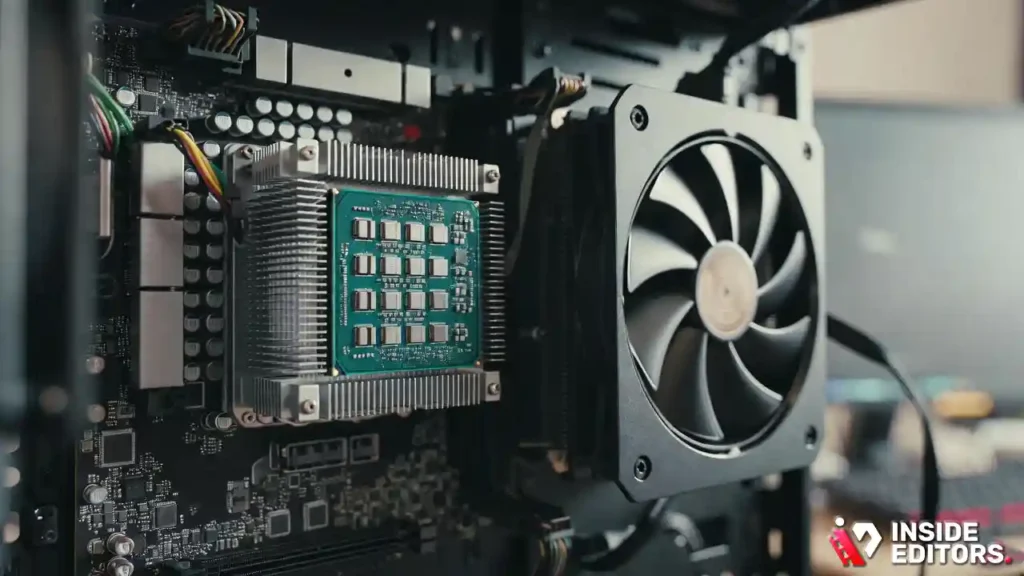
Not every editor needs a 24-core or 32-core CPU. Some software simply won’t use all those cores. If your workflow is mostly YouTube-style content, a 12-core processor paired with a strong GPU is often more efficient. Overspending happens when buyers chase numbers rather than evaluating their real needs. Balance always beats raw power.
Graphics Cards: The Engine Behind Smooth Playback and Fast Rendering
Why the GPU Matters More Than Ever in 2026 Workflows

Modern video editors rely heavily on GPUs for color grading, transitions, stabilization, and real-time playback. If you use DaVinci Resolve or work with multiple effects layers, GPU performance becomes critical. NVIDIA’s RTX series continues dominating for CUDA performance, while AMD GPUs shine in Resolve thanks to strong OpenCL support.
CUDA, OpenCL, and Hardware Decoding: What You Should Know
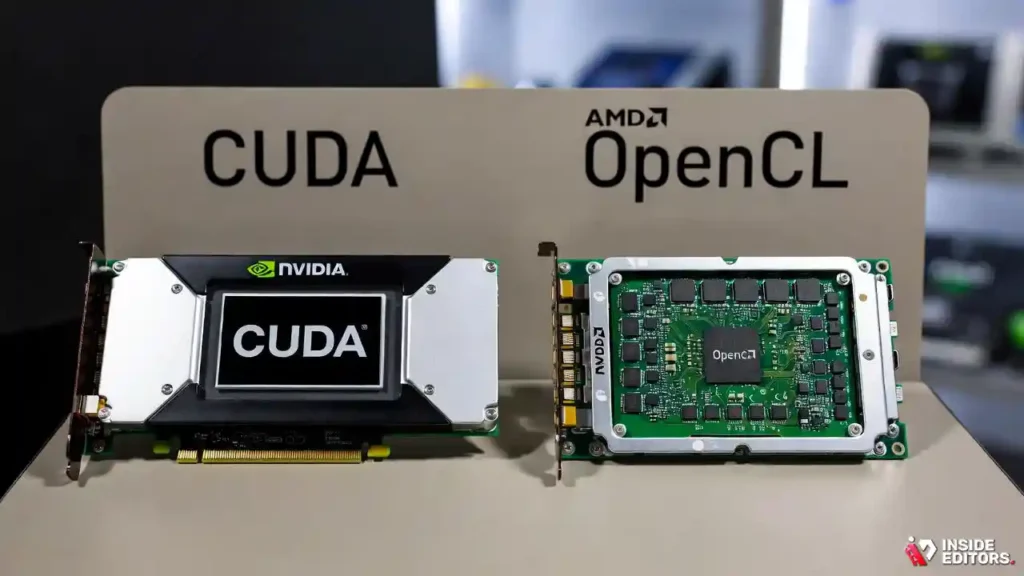
Most cameras shoot in H.264 or H.265, highly compressed formats that require efficient decoding. Modern GPUs accelerate this task, reducing CPU load and improving timeline performance. Premiere Pro users benefit greatly from NVIDIA GPUs with CUDA acceleration, while Resolve users enjoy excellent results from both NVIDIA and AMD depending on budget.
Choosing the Right GPU Based on Your Editing Style

If your workflow includes color grading, motion graphics, or multi-layered compositions, a mid-range or high-end GPU will serve you well. Editors working on lightweight travel vlogs or simple corporate videos may not need top-tier cards. The right GPU helps you work faster and focus on storytelling rather than struggling with lag -which is why many professionals who send raw footage to Inside Editors emphasize timeline speed as their top priority.
Memory (RAM): The Multitasking Lifeline of Every Editing PC
Why 32GB Has Become the New Standard for 4K Editing
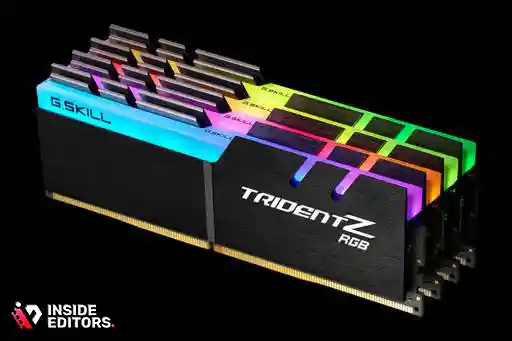
With growing file sizes, AI tools, advanced effects, and background caching, 16GB RAM is no longer enough for smooth editing in 2026. Most professionals now consider 32GB the minimum. It allows your system to run editing software, browser tabs, and resource-heavy tools without freezing. If you regularly edit travel or adventure footage with multiple layers, RAM capacity becomes even more crucial.
When You Should Upgrade to 64GB or More
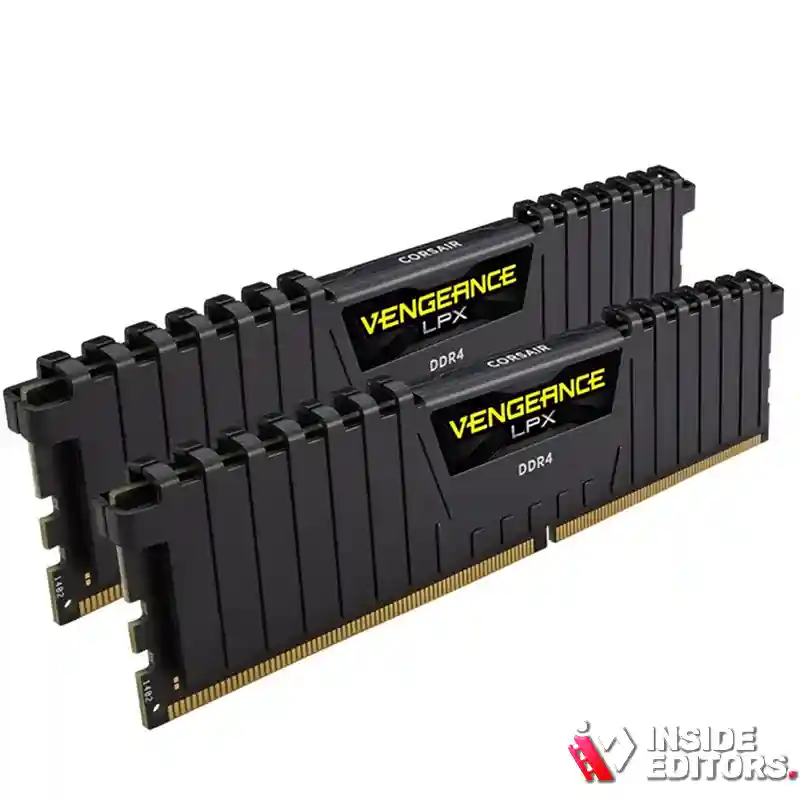
If you handle RAW footage, multi-cam projects, or cinematic color grading, 64GB RAM provides extra breathing room. Larger memory pools make your system more stable during long editing sessions. Many editors who cut action or adventure content -such as those handled by Inside Editors -benefit from this added headroom, especially when working with large timelines.
Memory Speed and Channels: What Actually Matters
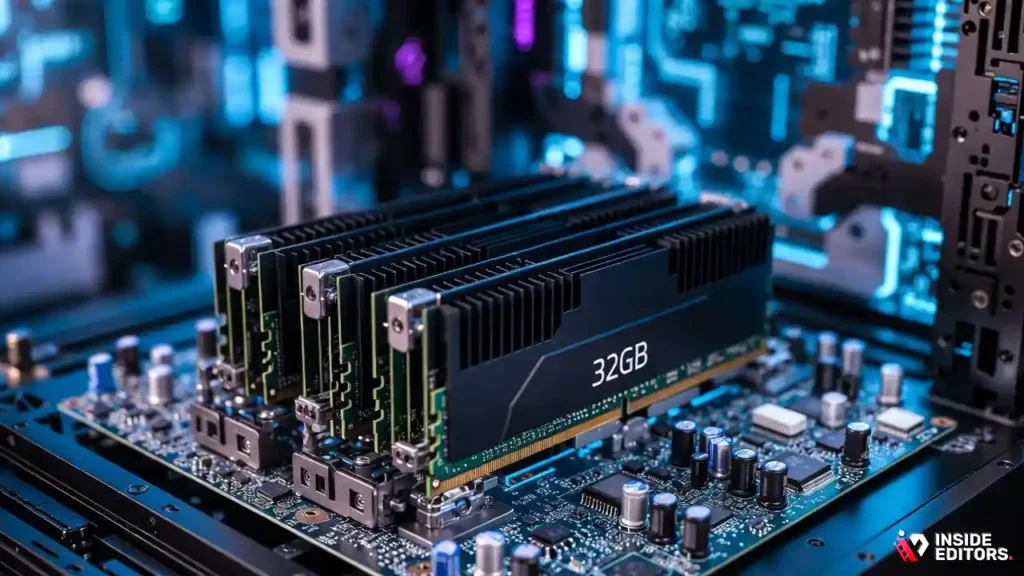
Dual-channel memory boosts communication between the CPU and RAM. Higher speeds offer performance gains, but capacity matters more. If you’re building a new system, prioritize at least 32GB RAM, then upgrade speed if budget allows.
Storage: The Backbone of Fast Loading, Rendering, and File Transfers

Why SSDs Are Mandatory for Modern 4K Workflows
Traditional hard drives simply cannot keep up with the speed required for smooth 4K editing. Solid-state drives (SSDs) dramatically reduce load times, improve timeline responsiveness, and allow faster imports and exports. When you’re handling large files -especially if you work with long travel footage or multi-cam interviews -SSDs remove bottlenecks. Adobe’s 2025 hardware analysis confirms that SSD storage is among the top three factors affecting 4K editing speed.
The Ideal Storage Setup for Editors in 2026
Most editing professionals rely on a three-drive configuration: one SSD for the operating system, one for active project files, and a larger HDD or SSD for long-term storage. This structure keeps your workflow organized and prevents your system drive from filling up. Editors who create consistent content, such as business explainers or corporate videos handled by Inside Editors, benefit greatly from this setup because it ensures stable performance during large batch edits.
NVMe vs SATA SSDs: What’s Worth the Upgrade
NVMe SSDs deliver significantly faster read/write speeds than SATA models. This means quicker project loading, smoother scrubbing across heavy timelines, and faster proxy generation. As prices continue dropping in 2026, NVMe drives have become the preferred choice for most creators looking to future-proof their editing rigs.
Motherboards: The Silent Foundation of Performance and Stability

Why the Motherboard Matters More Than Most Editors Realize
Your motherboard determines what components your system can use and how efficiently they communicate. It influences your upgrade path, RAM compatibility, storage capacity, and overall stability. Buying a weak motherboard is like building a studio on shaky ground. Creators who plan on expanding their storage or upgrading their GPU later should choose a motherboard with multiple PCIe and M.2 slots.
Connectivity, Ports, and Expansion for Editors
Thunderbolt 4, USB-C, and HDMI 2.1 ports are essential for modern workflows -especially if you use multiple monitors or external drives. Editors who handle product videos or ads, like those produced by Inside Editors, often rely on fast external storage and color-accurate monitors. A well-equipped motherboard supports these devices seamlessly.
How a Good Motherboard Supports System Longevity
Better motherboards feature improved power delivery, which ensures consistent performance during long render sessions. High-quality VRMs (Voltage Regulator Modules) help your CPU and GPU maintain stable speeds, preventing unexpected crashes during demanding edits.
Power Supply and Cooling: Protecting Your Investment
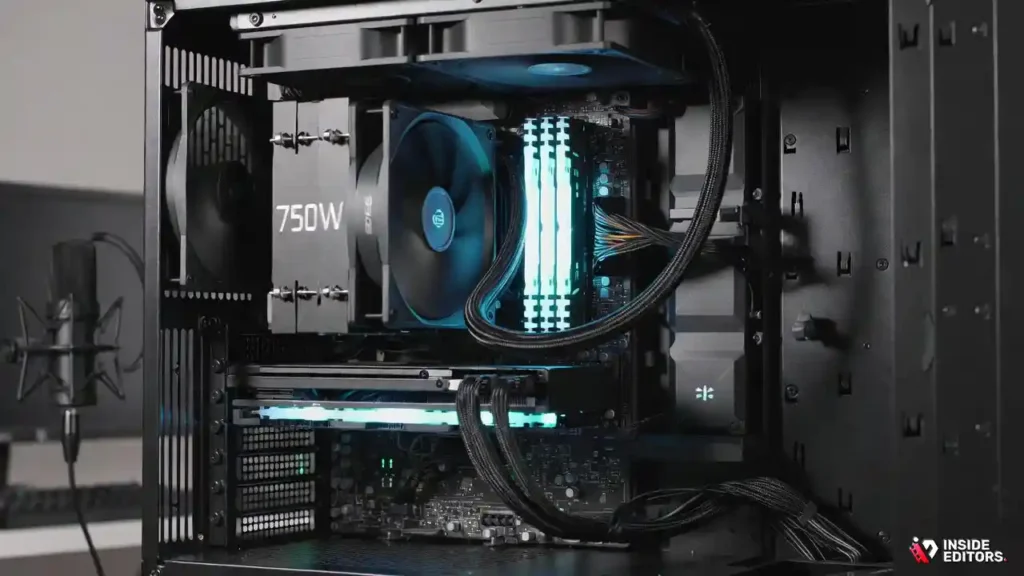
Why a Reliable PSU Is Non-Negotiable
A strong power supply ensures your system remains stable during playback, exporting, and heavy multitasking. Choosing a reputable 650W–850W PSU protects against sudden shutdowns and voltage fluctuations. If you plan on upgrading your GPU in the future, opting for a slightly higher wattage is a smart investment.
Cooling and Thermals for Continuous Editing Workloads
Long editing sessions generate significant heat. Proper cooling -whether through air coolers or liquid cooling solutions -prevents thermal throttling, ensuring your CPU and GPU sustain high performance. Quiet cooling systems also enhance your working environment, reducing distraction and fatigue.
Noise Considerations for Home and Studio Setups
If you film voiceovers or work in a studio, a loud PC can be disruptive. Modern editing cases now include noise-dampening materials and efficient airflow layouts, keeping your workspace quiet and comfortable.
Prebuilt vs Custom PC: Which Is Better for 2026 Content Creators?
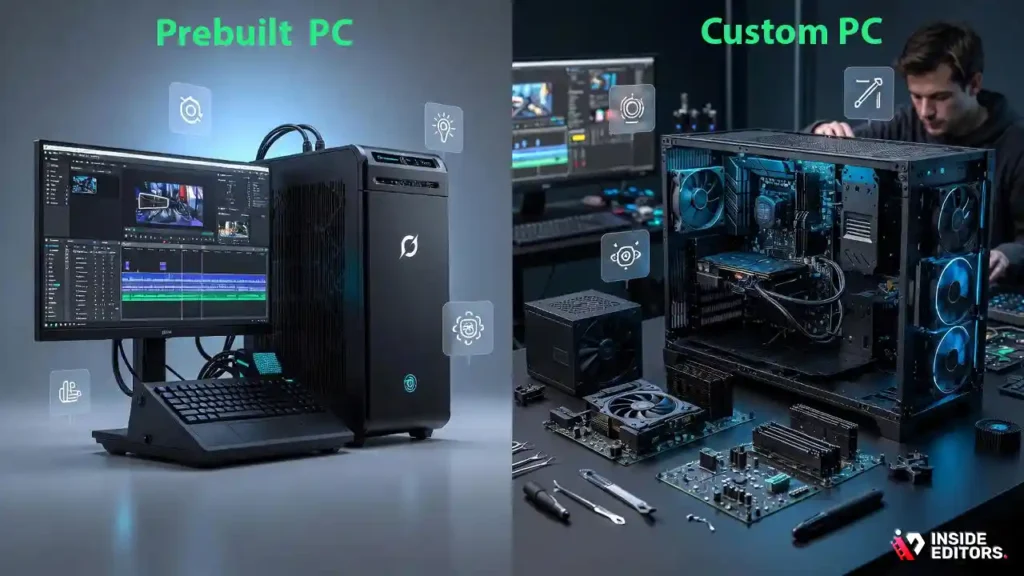
Why Creators Often Prefer Custom Builds
Custom PCs allow you to tailor your system exactly to your workflow. Whether you’re editing travel videos, commercials, or doc-style vlogs, the ability to choose each component means you can optimize performance without overspending.
When Buying a Prebuilt PC Makes More Sense
Prebuilt systems offer plug-and-play convenience. They come optimized, tested, and often include warranty support. For editors who want a strong machine without researching parts, a prebuilt can be the easiest option. Many freelancers reach out to professional teams like Inside Editors to understand which setup works best for their content goals.
Which Option Is Right for You?
If you enjoy customizing and want maximum performance per dollar, choose a custom build. If simplicity and reliability matter more, a prebuilt might be the smarter move. Both can deliver smooth 4K editing as long as the components are balanced.
Budget Ranges: What You Get at Different Price Points

Entry-Level Editing (Under $1,000)
These systems can edit 4K footage using optimized media or proxies. They suit beginners, students, or creators working with straightforward videos. Even at this level, using an SSD and a mid-range GPU makes editing significantly smoother.
Mid-Range Editing ($1,000 to $1,800)
This is where most editors find the best value. These PCs include strong CPUs, reliable GPUs, and faster storage -ideal for YouTubers, content creators, and freelance editors. If you’re producing travel content, adventure edits, or social reels like those managed by Inside Editors, mid-range systems handle these workflows beautifully.
Professional Workstations ($2,000 to $4,000+)
For heavy color grading, RAW footage, or agency-level content, high-end workstations are worth the investment. They offer powerful GPUs, 64GB+ RAM, and extremely fast NVMe storage -ensuring seamless performance even on demanding multi-layered timelines.
Common Mistakes to Avoid When Choosing a 4K Editing PC

Focusing Only on One Component
A fast GPU alone won’t fix a slow hard drive. A powerful CPU won’t matter if your RAM is too low. Performance comes from balance, not individual parts.
Not Considering Future Upgrades
Creators often underestimate how quickly storage fills up. Choosing a motherboard with extra M.2 slots or a higher-wattage PSU prevents headaches later on.
Ignoring Software Requirements
Premiere Pro, DaVinci Resolve, and Final Cut all behave differently. Match your hardware to the software you use most to avoid compatibility issues.
Final Thoughts: Building the Ideal 4K Editing PC in 2026

Choosing the right 4k video editing pc is one of the smartest investments you can make in your creative journey. When your system responds instantly, your workflow becomes faster, smoother, and more enjoyable. A good PC doesn’t just save time -it actually improves your storytelling because you’re free to focus on creativity, not troubleshooting.
If you want help polishing your content or need a professional team to edit your footage, the experts at Inside Editors are here to make your videos shine. Whether you create travel vlogs, commercial ads, social content, or cinematic stories, our editors help transform raw footage into professional-grade results.
Explore our services at Inside Editors and unlock your full creative potential -one frame at a time.
FAQs For 4k Video Editing PC
1. What specs matter most when choosing a 4K video editing PC?
A good 4k video editing pc depends on balanced components -a strong CPU, a capable GPU, fast NVMe storage, and at least 32GB of RAM. These parts affect timeline smoothness, render speeds, and playback quality. If one component is weak, the entire system slows down. Starting with a balanced setup ensures long-term reliability.
2. How much does a professional 4K editing PC typically cost?
Most 4K-ready editing PCs cost between $1,000 and $1,800 for mid-range builds and $2,000–$4,000 for workstation-level performance. Prices depend on GPU class, CPU generation, storage type, and RAM capacity. Extra features like color-accurate monitors or RAID storage add to the budget. Buyers should focus on performance per dollar rather than chasing the highest specs.
3. Should I build my own editing PC or buy a prebuilt one?
Building your own system offers better value and full control over each component, especially if you want a truly optimized 4k video editing pc. Prebuilt machines, however, offer convenience, warranty coverage, and less technical risk. If you’re new to hardware, a well-reviewed prebuilt is safer. If you want maximum flexibility, custom is best.
4. How long does a 4K editing PC last before needing upgrades?
A well-specced 4K editing machine typically lasts 4–6 years before major upgrades become necessary. Storage and GPUs often need replacing sooner due to evolving codecs and software demands. Adding RAM or NVMe drives can extend lifespan affordably. Regular maintenance also keeps performance consistent.
5. What’s the typical turnaround time for editing projects on a 4K-ready PC?
Most editors complete projects faster on a properly optimized PC, often reducing turnaround time by 20–40% compared to older systems. Timelines vary: simple videos may take hours, while multi-layered or long-form content can take days. Render speed depends heavily on GPU power and storage type. Rush delivery is possible when hardware isn’t a bottleneck.
6. Can beginners edit 4K footage without expensive hardware?
Yes, beginners can edit 4K footage using proxy workflows, which create lighter versions of the clips. However, playback will still feel slower on low-end hardware, and renders may take longer. Upgrading storage and RAM offers the biggest performance boost for starters. A mid-range GPU makes the experience noticeably smoother.
7. What’s the difference between editing 4K on a PC versus a Mac?
Both platforms handle 4K editing well, but PCs offer more customization and affordable upgrades. Macs provide tighter optimization and smoother software integration, especially with Final Cut Pro. PC users can tailor systems around specific workflows, while Mac users benefit from simplicity and reliability. Choice depends on budget and preferred software ecosystem.
8. How do I know if my current PC is strong enough for 4K editing?
If your timeline stutters, scrubbing feels delayed, or renders take unusually long, your PC may be underpowered for 4K work. Checking CPU usage, RAM consumption, and disk speed can help identify bottlenecks. Tools like Adobe’s hardware monitor show where limitations occur. Upgrading storage or RAM often gives an immediate improvement.


