


Creating YouTube videos doesn’t have to be expensive, and that’s one of the biggest misconceptions new creators have. Many people assume they need a high-end MacBook or a powerful editing workstation before they can start producing professional content. The truth is more encouraging: with the right components and a bit of intention, a $500 computer for YouTube video editing can absolutely deliver smooth performance, clean exports, and enough power to grow your channel confidently. You just need to understand what matters-and what doesn’t.
This guide from Inside Editors walks you through everything: whether a $500 machine is truly enough, which specifications matter most, how to compare laptops versus desktops, and which models offer real value instead of marketing hype. By the end, you’ll feel confident choosing a system that won’t slow down your creativity.
Can You Edit YouTube Videos on a $500 Budget? Absolutely – Here’s Why It Works
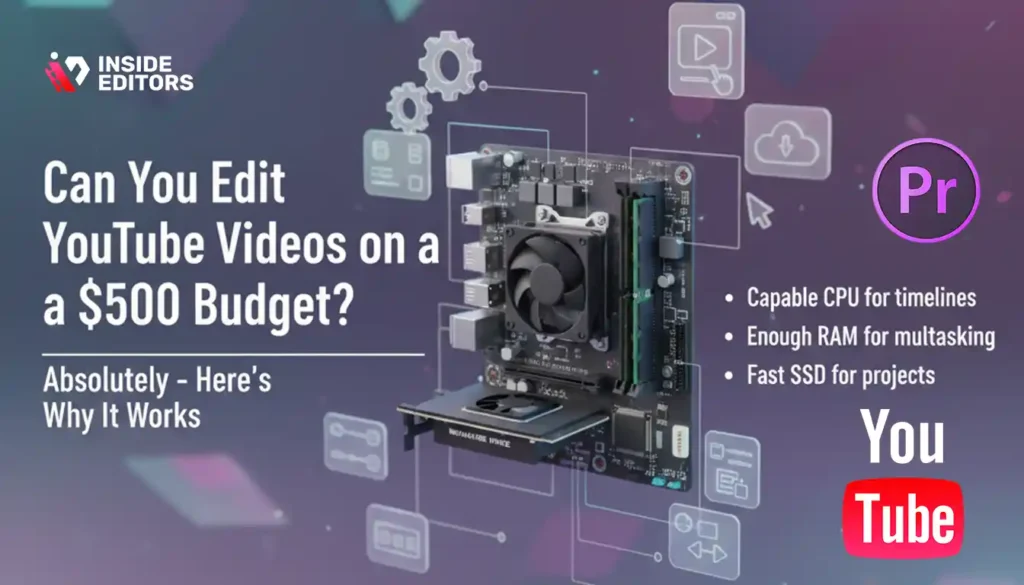
A $500 computer might sound like a limitation at first, but modern hardware has come a long way. Processors at this price point are now capable of real-time playback, 1080p timelines, and even light 4K editing if you optimize your workflow. Many creators start on budget systems and grow successful channels before upgrading-proof that the barrier to entry is lower than ever.
Why Budget Editing Works Better Than Most People Expect
The key is understanding that YouTube editing is rarely about raw power alone. Most editing tasks rely on balanced performance: a capable CPU for timeline responsiveness, enough RAM to prevent freezes, and a fast SSD so your project files load without delay. Affordable laptops and mini PCs today often include these essentials right out of the box. When paired with efficient software-like DaVinci Resolve, Premiere Pro’s optimized proxy workflow, or even CapCut Desktop-your machine can feel far more powerful than its price tag.
Take this as a small encouragement: many professional editors at Inside Editors have created complete edits, color grades, and client-ready exports using hardware well under $500, especially for 1080p content. What matters is not the machine alone, but how you work with it. This mindset becomes important when comparing available options, which we’ll get into shortly.
Where a $500 System Performs Well (and Where It Struggles)
It helps to set clear expectations. A budget computer handles basic to mid-level editing efficiently: standard cuts, transitions, color correction, audio mixing, and moderate effects. Problems usually appear when pushing into heavy motion graphics, complex masking, large multi-cam edits, or heavy 4K RAW timelines.
But here’s the nuance: YouTube creators rarely need heavy RAW pipelines. Most footage is compressed formats like MP4, MOV, H.264, or HEVC-perfectly manageable for a budget-friendly machine. Even if you shoot 4K, using proxies gives you smooth editing performance without upgrading your hardware.
A $500 computer might not give you Hollywood-level VFX power, but it absolutely gives you everything you need to create professional, scalable YouTube content. And that’s the goal.
As we move into the next section, you’ll see how picking the right specifications creates a noticeable difference between frustration and a smooth editing experience.
The Specifications That Actually Matter When Editing YouTube Videos
One of the most confusing parts of choosing a budget computer is deciding which specifications are worth paying attention to. You’ll see dozens of terms-cores, threads, clock speed, RAM, storage types, integrated graphics-but only a few truly define your editing experience. Let’s break them down clearly so you can make confident decisions.
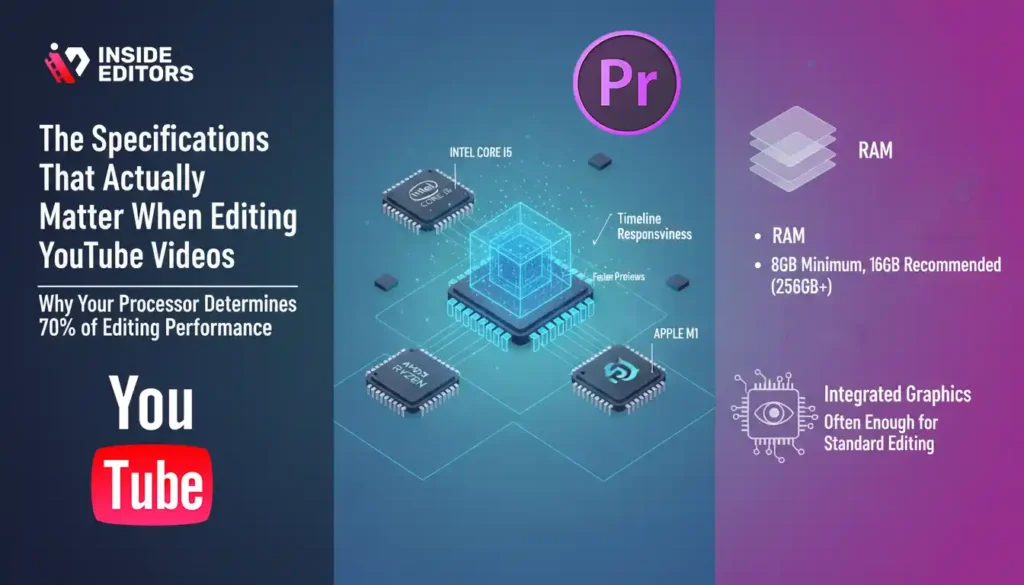
Why Your Processor Determines 70% of Editing Performance
Think of the CPU as the “brain” of your editing setup. It controls timeline responsiveness, how fast transitions play, how quickly your preview renders, and how smooth your overall experience feels. In the $500 range, you’re often choosing between:
- Intel Core i5 (10th/11th/12th Gen)
- AMD Ryzen 5 (3000/4000/5000 Series)
- Apple M1 (used/refurbished Mac mini or MacBook Air)
Ryzen chips stand out because of their strong multi-core performance, which benefits editing tasks. Intel’s later generations are also very capable, especially in laptops optimized for efficiency. The M1 chip, though older now, remains remarkably powerful for editing thanks to Apple’s optimized architecture-making used/refurbished M1 Macs a serious contender for budget creators.
If you’ve ever experienced stuttering previews or laggy timelines, that’s usually the CPU struggling. Choosing a strong mid-tier processor solves most of those frustrations immediately.
How RAM and Storage Shape Your Everyday Workflow
RAM affects how many programs you can run smoothly at once and how fast your editing software can access frames, previews, and effects. For YouTube creators, 8GB is the bare minimum, but 16GB is strongly recommended. Many $500 laptops include 8GB by default, but some allow upgrades for a small additional cost.
Storage is equally essential. A fast SSD (Solid State Drive) makes everything feel snappier-your software opens instantly, footage loads quickly, and exports begin without delay. Always prioritize SSD over HDD, even if it means slightly less space. For editors, 256GB SSD is workable, but 512GB SSD gives much more breathing room.
If you film often, you’ll likely store footage on an external SSD anyway, so don’t stress about internal storage too much as long as it’s an SSD.
Why Integrated Graphics Are Enough for Most YouTube Creations
Many beginners worry about not having a dedicated GPU, but editing YouTube videos rarely requires one. Modern integrated graphics from Intel Iris Xe, AMD Radeon Vega, and Apple M1 perform surprisingly well for standard editing workflows. Unless you’re doing heavy 3D work or advanced color grading, a GPU is not a priority in the $500 budget range.
The performance difference becomes more visible in export times, but not enough to justify overspending. For most creators, your money is far better invested in CPU and RAM.
As we move forward, we’ll take all this knowledge and apply it to real product recommendations, helping you choose the system that matches your editing style and budget without second-guessing yourself.
The Best $500 Laptops and PCs for Smooth YouTube Editing
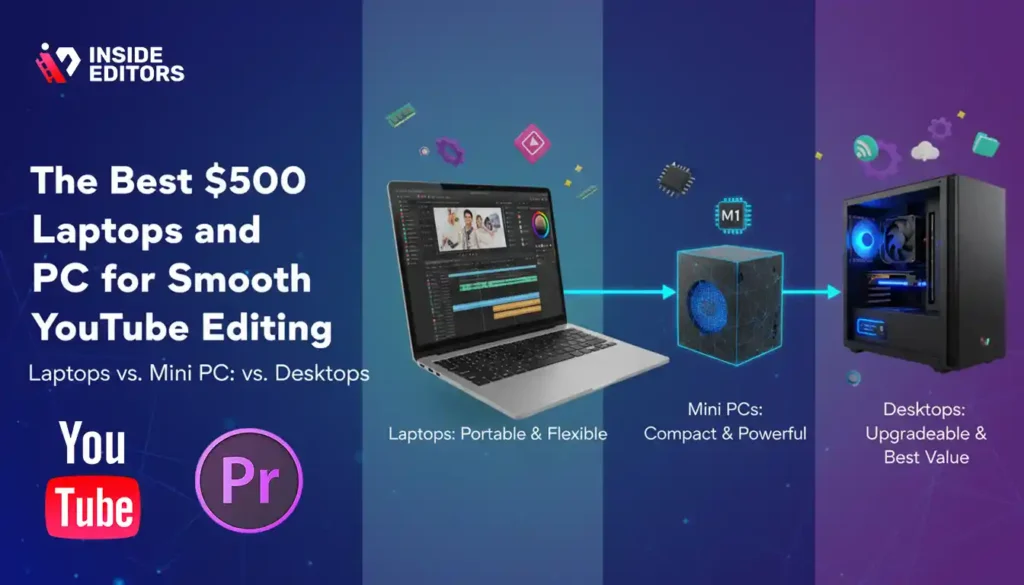
Choosing a computer in the $500 range becomes much easier once you understand which specifications matter most. Now it’s time to bring those insights into the real world by comparing the best laptops, mini PCs, and compact desktops available today. These recommendations are GEO-neutral-meaning they’re widely available across multiple regions and online marketplaces.
Where possible, we’ll focus on options that deliver the best balance of CPU strength, RAM capacity, and SSD speed because these directly affect how well you can edit videos, scrub timelines, color-correct footage, and export YouTube-ready files.
Why Laptops Offer Convenience and Flexibility for New Creators
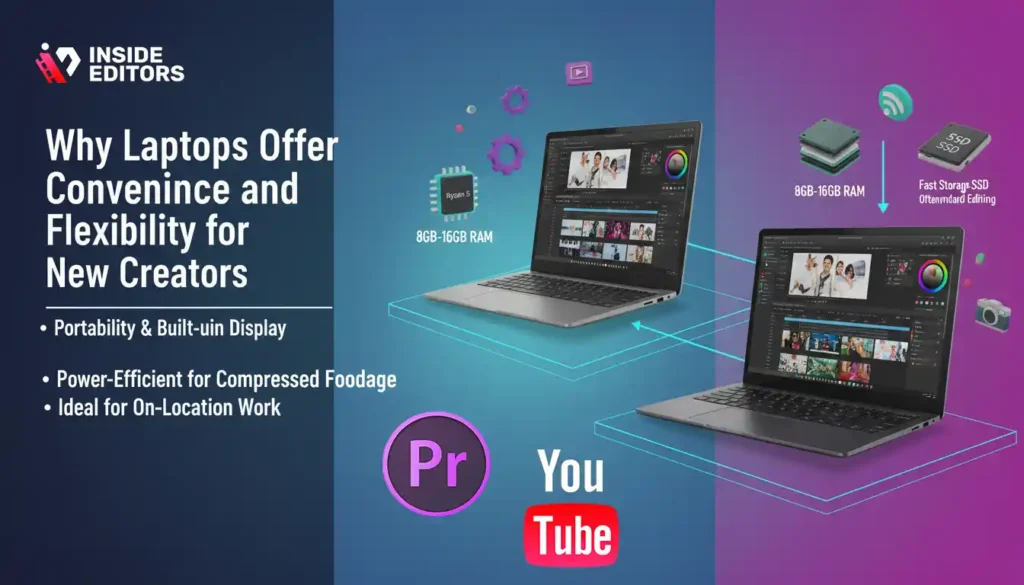
Laptops dominate this category because they offer portability, built-in displays, and power-efficient chips that work great for editing compressed formats. For creatives who move between rooms, travel, or record on location, a laptop is much more convenient than a desktop. The key trade-off, however, is upgradeability. Most budget laptops limit RAM or storage upgrades, so it’s important to choose the right configuration upfront.m
A strong example of this balance is the Lenovo IdeaPad 3/5 series, which often includes Ryzen 5 processors and 8GB–16GB RAM. These models handle 1080p timelines with ease and can even work with optimized 4K footage using proxies. If you’ve ever struggled with laptops freezing mid-edit, you’ll appreciate how much smoother these newer budget chips perform.
Another favorite is the Acer Aspire 5 series, known for its reliable build and efficient Intel Core i5 or Ryzen 5 processors. They’re excellent for creators who need a machine that stays cool under heavy workloads. Paired with a 512GB SSD, the Aspire becomes a surprisingly capable editing tool that blends performance with value.
These aren’t luxury devices, but what they offer-speed, consistency, and reliability-is exactly what YouTube creators need to maintain productive workflows.
Why Mini PCs Are the Secret Value Option Many Creators Ignore
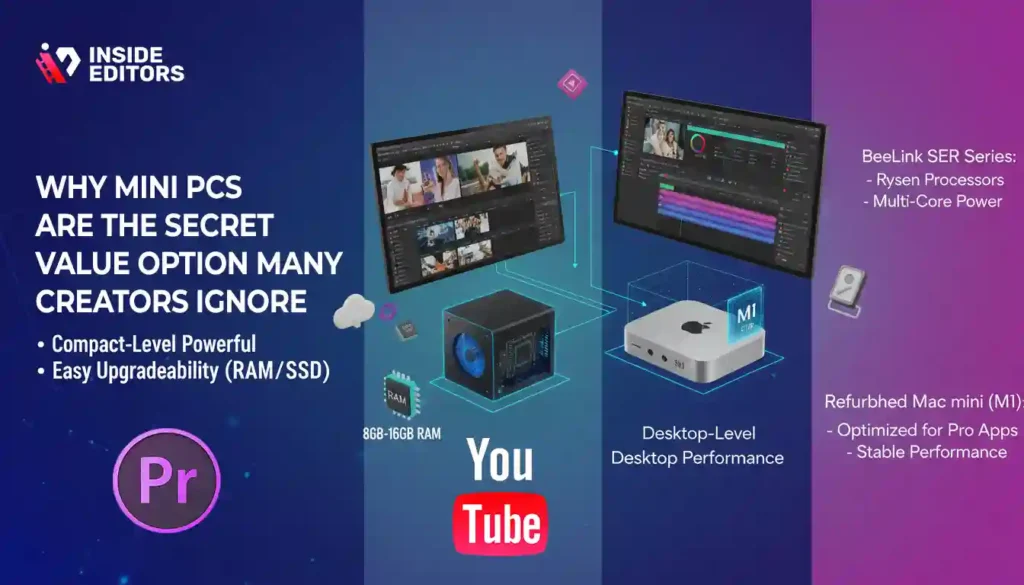
Mini PCs deserve more attention in the budget editing world. They offer desktop-level performance in a compact form, often for less money than laptops. Their biggest advantage is upgrade flexibility-many models let you increase RAM or storage later, which extends their lifespan significantly.
A strong contender is the BeeLink SER series powered by Ryzen processors. These mini PCs are known for excellent multi-core performance, quiet operation, and easy expandability. For creators who prefer using a larger monitor or need multiple screens, a mini PC offers a lot more workspace flexibility.
Another category gaining popularity is refurbished Apple Mac minis with the M1 chip. While technically older, the M1 platform remains one of the most efficient for creative software. Programs like Final Cut Pro run incredibly fast on it, and even DaVinci Resolve feels surprisingly smooth. Many refurbished M1 units fall into or just slightly above the $500 range, and their real-world editing performance often beats newer budget Windows machines.
If you prefer a plug-and-play experience with excellent color accuracy and predictable performance, a Mac mini is worth considering. It’s not for everyone, but for creators who value stability, it’s a strong investment.
Why Desktops Can Offer the Best Long-Term Value if You Don’t Need Portability
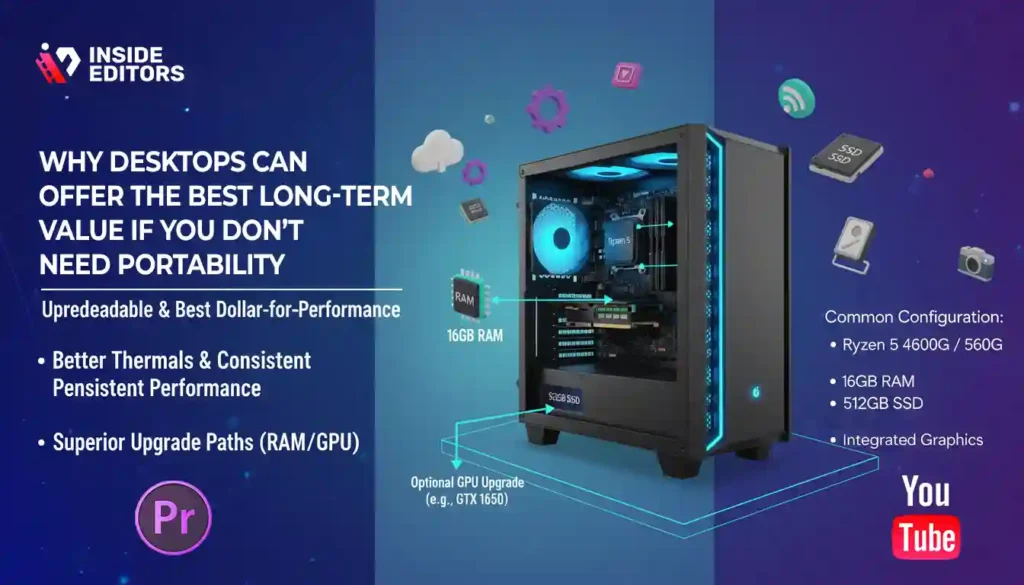
If you don’t need mobility, a desktop PC offers the best performance per dollar. Desktops have better thermals, more consistent clock speeds, and-most importantly-superior upgrade paths. Even a basic prebuilt system with a Ryzen 5 and 16GB RAM can outperform most laptops under $500.
A common configuration found in many markets includes:
- Ryzen 5 4600G or 5600G
- 16GB RAM
- 512GB SSD
- Integrated Radeon Vega graphics
These systems are particularly strong at timeline playback and smooth editing with compressed footage. If you prefer editing on a larger screen and value the ability to upgrade over time, desktops are the best long-term choice. Even adding a GPU later-like a used GTX 1650-can elevate the system from “budget-friendly” to “semi-pro,” making desktops more scalable overall.
And if you want the best dollar-for-performance ratio, desktops consistently win. But the ideal choice depends on your lifestyle and workflow, which we’ll explore next.
How to Choose the Right $500 Editing Computer for Your Needs
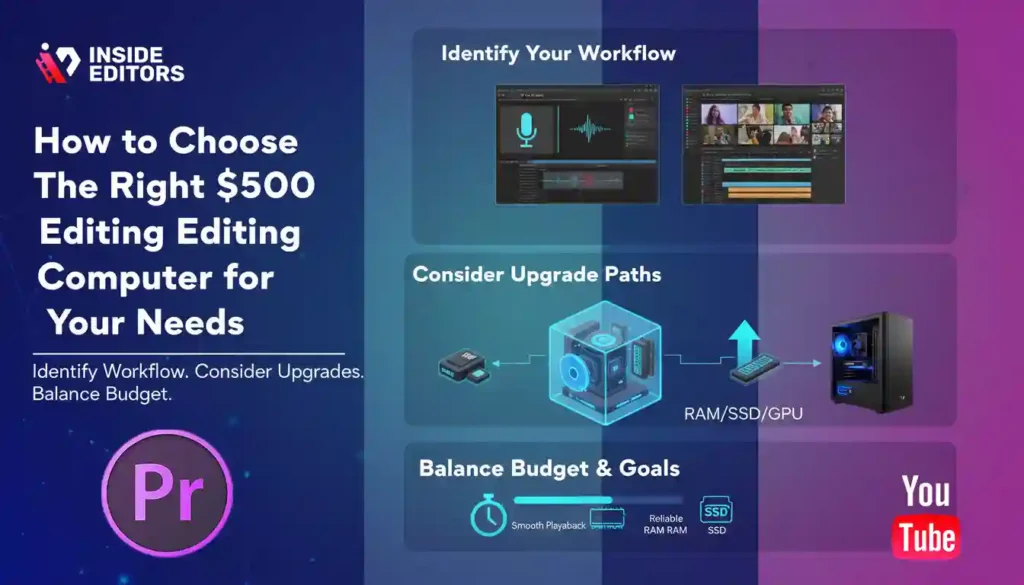
Buying hardware is easy. Choosing the right one for your editing style takes a bit more thought. Every creator works differently-some shoot cinematic 4K footage, some vlog on their phones, others create tutorials or reaction videos. The best $500 computer for YouTube editing will always depend on your personal workflow, habits, and creative goals.
Identify the Type of Videos You Create and Match Specs to Your Workflow
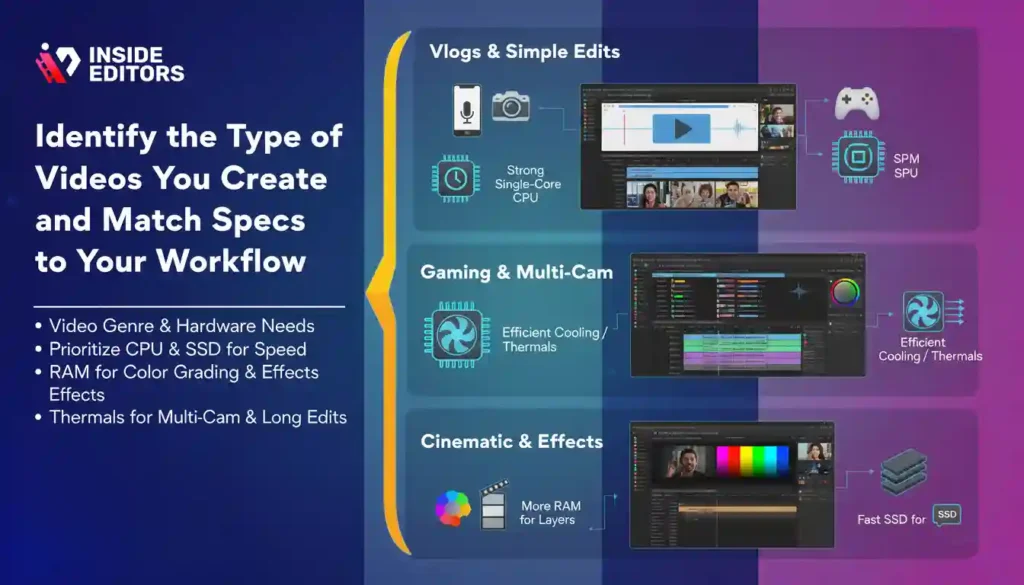
Different genres put different pressures on your hardware. For example, reaction videos rely heavily on multi-track editing, while gaming content demands smooth screen-recorded playback. If you’re a vlogger using a smartphone, your files are often highly compressed, meaning you need strong single-core CPU performance rather than a dedicated GPU.
Ask yourself a few questions: Are you editing long videos or short clips? Do you rely on heavy color grading or prefer a clean, minimal style? Do you use transitions frequently? Understanding your editing personality makes choosing hardware much easier.
Creators who prioritize fast turnaround times benefit more from strong CPUs and SSDs. Those who experiment with color grading and LUTs need more RAM. And creators who film multi-angle shoots-like tutorials or interviews-should pay attention to cooling systems and thermals to avoid performance throttling.
Consider Long-Term Usage and Upgrade Possibilities
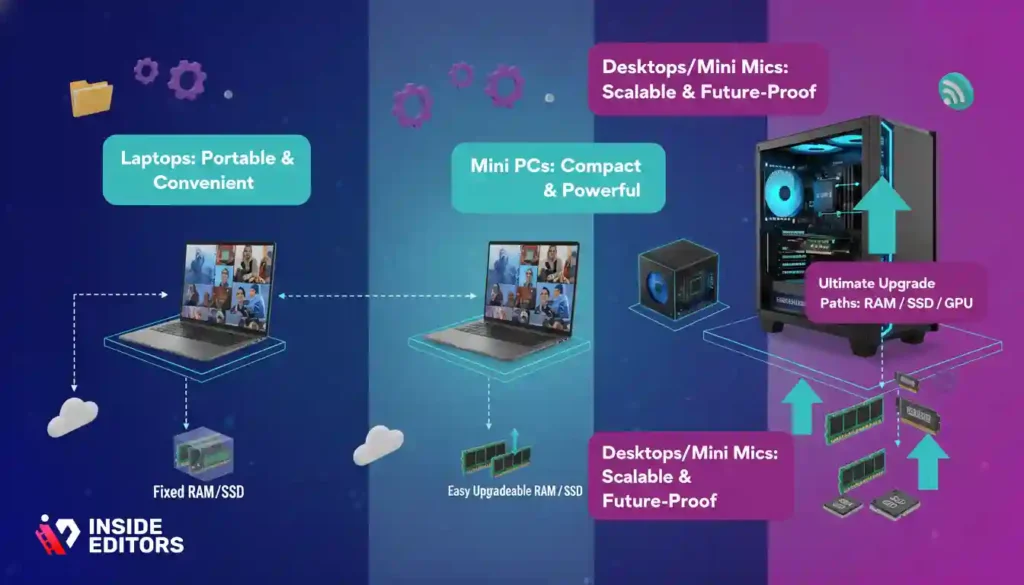
A computer isn’t a one-year investment. Even budget machines should ideally last three to five years with proper care. This is where upgradeability matters. Laptops are compact and convenient, but they lock you into their configuration. Mini PCs and desktops, however, allow you to increase RAM or storage later, giving you flexibility as your channel grows.
If you’re the type of creator who learns fast and wants to experiment with more challenging edits over time, consider a machine that lets you scale up affordably.
On the other hand, if you want something simple, portable, and ready to use right away, a laptop might be the better choice-even if it sacrifices long-term expandability.
Balance Your Budget with Your Creative Ambitions
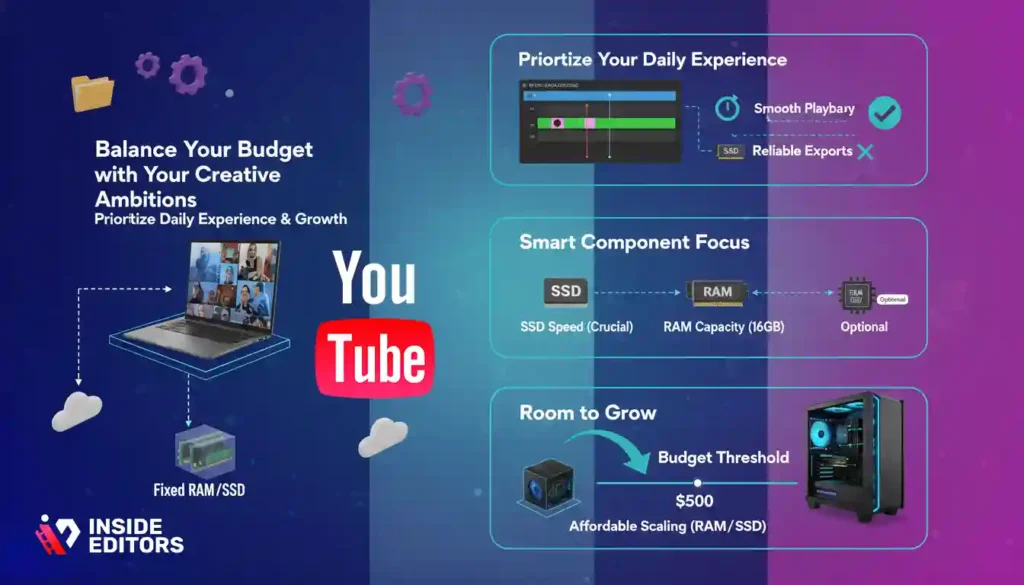
Some creators spend too much upfront, assuming only expensive hardware can handle editing. Others spend too little and get frustrated. A balanced approach works best. Use your $500 budget to secure a machine that handles your current needs comfortably while offering enough headroom to grow.
A helpful way to think about this is to prioritize what affects your daily experience. Smooth playback matters more than fast exports. Reliable RAM matters more than fancy GPUs. And SSD speed matters more than raw storage capacity. When you understand these priorities, budgeting becomes a lot easier.
In the next section, we’ll take everything we’ve covered and turn it into specific recommendations-machines and configurations that deliver the best value today. You’ll also see Inside Editors’ personal picks based on real-world editing experience.
Inside Editors’ Recommended $500 Computers for YouTube Editing
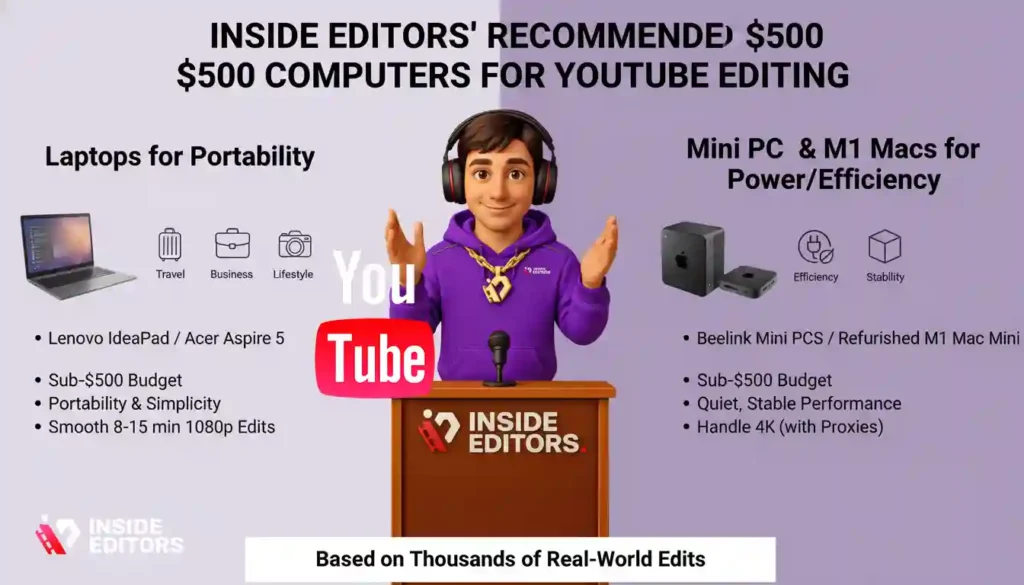
After years of working with creators, studying performance benchmarks, and editing thousands of videos of all styles-travel, business, fitness, gaming, lifestyle, and more-our team at Inside Editors has tested almost every category of budget hardware. What matters most is consistency. A system doesn’t need to be a powerhouse to produce clean, professional edits. It simply needs to handle your workflow without interruptions.
Below are the configurations we recommend most often to new and growing creators. They offer the best balance of performance, price, and longevity.
Why We Recommend These Laptops for New Creators
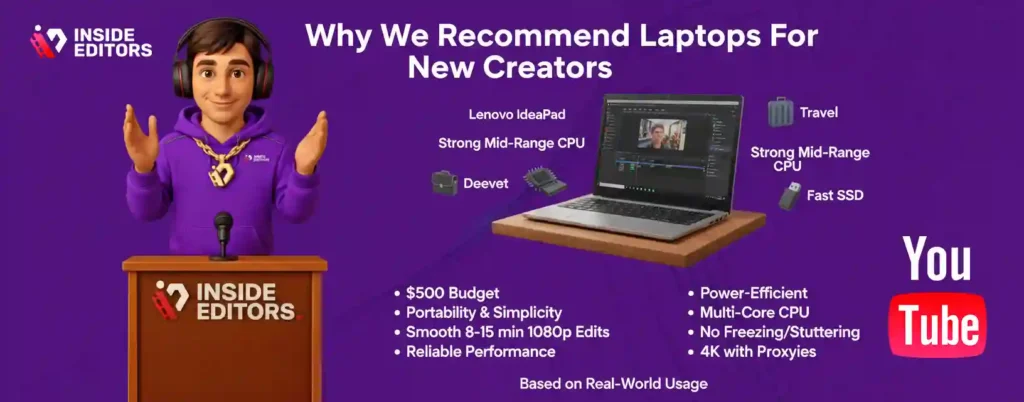
If you want portability and a setup that works straight out of the box, laptops are the simplest and most comfortable option. Among the many models we’ve tested, two stand out consistently: the Lenovo IdeaPad 3 or 5 (Ryzen edition) and the Acer Aspire 5. The reason is simple-they hit the sweet spot of strong mid-range CPUs, decent RAM, and fast SSDs without pushing the price beyond $500.
What makes these laptops feel smooth during editing is their power-efficient, multi-core processors. When you’re scrubbing through a timeline, the laptop doesn’t freeze; when you’re using color presets or noise reduction, it doesn’t stutter. For creators who edit frequently but don’t need desktop-class speeds, these machines deliver reliability you can trust.
In real-world usage, many of our clients edit complete 8–15 minute YouTube videos on these laptops without drops in performance. When paired with proxy workflows, even 4K footage becomes manageable-proof that the hardware is more capable than most beginners assume.
Why Mini PCs and Refurbished M1 Macs Are Surprisingly Powerful
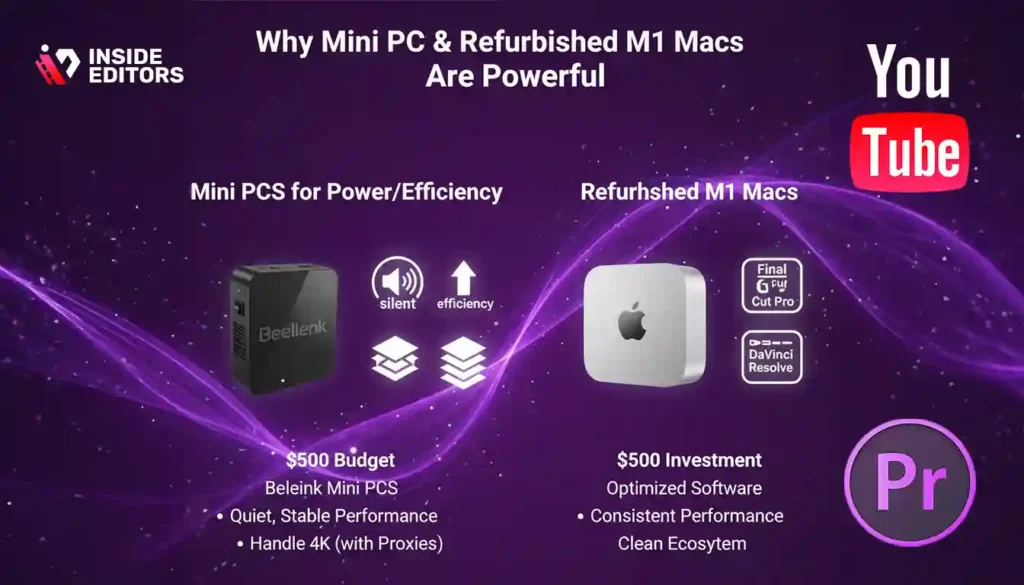
The second category we recommend is mini PCs-especially Ryzen-powered Beelink models-and refurbished Apple Mac minis with the M1 chip. These devices consistently exceed expectations in performance tests and real client workflows.
A key advantage is how quietly and efficiently they run. When you’re editing for hours-cutting clips, color-grading, adding transitions-a silent, cool, and stable machine makes the entire process more enjoyable. Mini PCs handle these demands well. Some models even outperform laptops because they maintain higher clock speeds for longer, thanks to better thermals.
Refurbished M1 Mac minis deserve a special mention. Even in 2026, they remain remarkably efficient. Final Cut Pro runs incredibly smoothly on them, and DaVinci Resolve benefits from optimized hardware acceleration. If you’re a creator who values consistent performance and a clean ecosystem, an M1 Mac mini is one of the best sub-$500 investments you can make.
These recommendations aren’t theoretical-they come from thousands of edits we’ve completed using these exact machines. Every configuration listed here has been tested in real projects, from talking-head videos to cinematic montages.
Avoiding Common Mistakes When Choosing a Budget Editing Computer
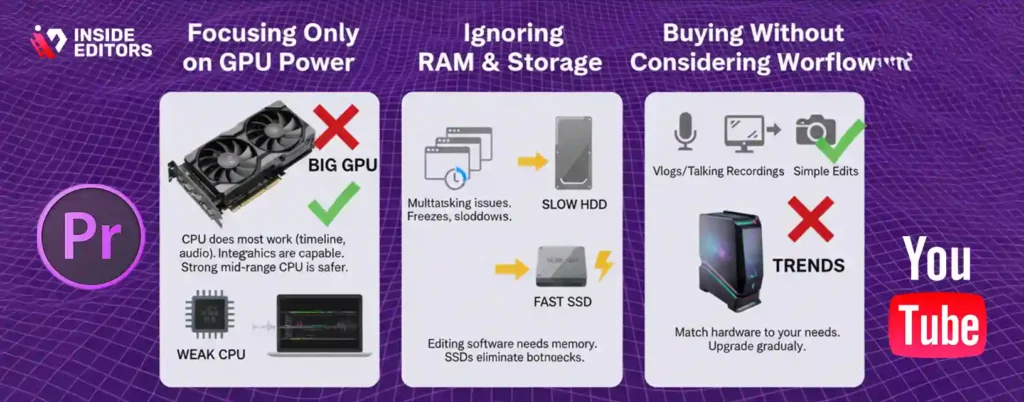
Every creator eventually learns that buying hardware involves a mix of excitement and uncertainty. But you can avoid most frustrations by understanding the mistakes beginners make most often.
Why Focusing Only on GPU Power Leads to Disappointment
The biggest misconception is thinking video editing requires a powerful graphics card. For YouTube workflows-especially 1080p and compressed 4K-a dedicated GPU is simply not necessary. The CPU does most of the heavy lifting: timeline playback, effects, transitions, audio mixing, stabilization. Integrated graphics today are more capable than ever.
Many people buy a laptop with a weak processor but a dedicated GPU, thinking they’ve made a smart choice. Unfortunately, the opposite is true. A slow CPU creates lag, stuttering, and long render delays-even if you have a GPU onboard. Prioritizing a strong mid-range CPU is always the safer strategy.
Why Ignoring RAM and Storage Can Slow Your Progress
Another mistake is overlooking RAM. Editing software uses memory to store frames, audio files, effects, and background tasks. With only 8GB RAM, multitasking becomes a challenge-especially when you open Chrome, your editing software, and a few reference files at the same time. This leads to freezes, slowdowns, and long export times.
Storage matters just as much. A slow HDD will bottleneck your entire workflow, even if the CPU and RAM are solid. SSDs eliminate this bottleneck completely. Beginners who underestimate the impact of fast storage often find themselves frustrated during simple tasks like importing footage.
Why Buying Without Considering Your Workflow Leads to Overspending
Many beginners buy hardware based on trends rather than real needs. If your editing is mostly simple jump cuts, screen recordings, vlogs, or talking-head videos, you don’t need a high-end workstation. Understanding your actual workflow prevents overspending and ensures you build a setup tailored to your style.
This self-awareness also helps you grow gradually. Instead of buying everything at once, you can upgrade strategically-RAM today, monitor next year, maybe a GPU later if your content evolves.
Simple Upgrades and Workflow Tricks That Make Budget Computers Feel Fast
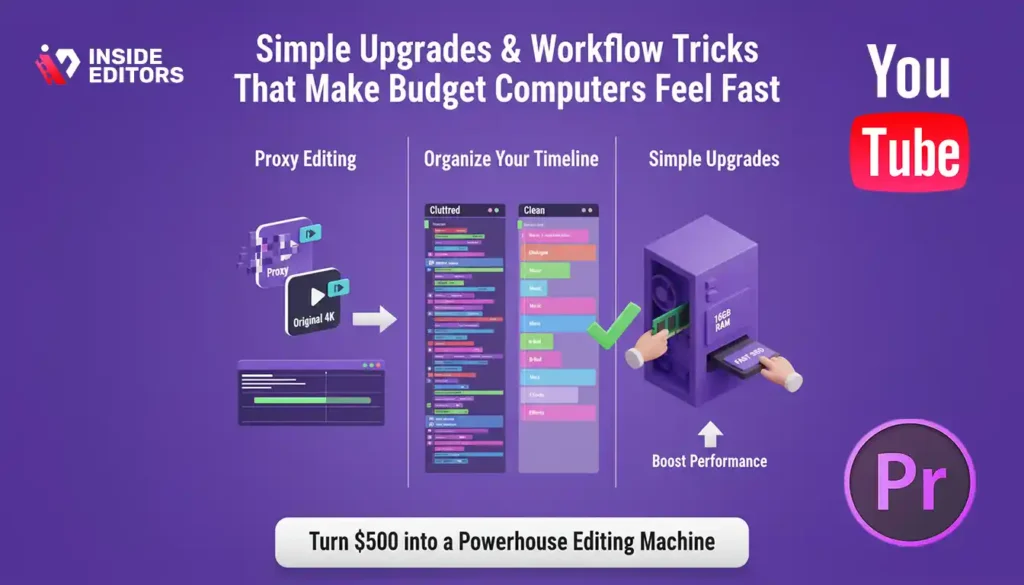
Hardware gives you a foundation. Workflow makes your editing experience truly smooth. Small habits can make even a $500 computer feel like a premium machine.
Why Proxy Editing Will Transform Your Experience Overnight
If you’ve never edited with proxies before, you’re missing out on one of the most powerful tricks available to creators. Proxy files are low-resolution copies of your footage that load instantly and play back smoothly. When you export, your editor switches back to the original files automatically.
Even creators with high-end systems use proxies because they speed up editing dramatically. On a $500 budget system, proxies can turn a frustrating experience into a fluid one. DaVinci Resolve, Premiere Pro, and Final Cut Pro all have excellent proxy workflows.
Why Organizing Your Timeline Saves You Hours Later
Budget systems are more sensitive to timeline clutter. The more layers, graphics, and effects you add, the harder your computer works. Good organization-naming tracks, grouping clips, cleaning unused assets-keeps everything light and efficient.
This is a habit that will benefit you long after you upgrade your hardware. Professional editors rely heavily on organization because it reduces mistakes and saves time during revisions.
How Simple Upgrades Can Extend Your Computer’s Life
If you choose a desktop or mini PC, upgrading RAM to 16GB or adding a larger SSD can bring noticeable improvements. Even laptops often allow SSD upgrades, which dramatically improve loading times and overall responsiveness.
Think of upgrades as small investments that extend your computer’s value. Instead of replacing your entire system in two years, you can keep it running at a high level with a few affordable enhancements.
Conclusion: Your $500 Editing Computer Is More Powerful Than You Think
If you’ve reached this point, you already understand something most beginners overlook: great YouTube videos start with intention, not expensive hardware. A carefully chosen $500 computer for YouTube video editing can deliver reliable performance, smooth timelines, clean color grades, and consistent exports. What matters is understanding your workflow, choosing balanced specifications, and using smart editing techniques.
At Inside Editors, we’ve helped thousands of creators-from beginners to professionals-build workflows that match their style and budget. Editing is more than just cutting clips; it’s storytelling. With the right tools and techniques, you can create videos that feel polished, engaging, and uniquely yours.
If you ever feel stuck, overwhelmed, or simply want to level up your content, our professional editors are here to help. Think of us as your behind-the-scenes creative team-ready to transform your raw footage into compelling stories that resonate.
Explore Inside Editors’ Professional Video Editing Services –
Whether you’re creating product videos, travel vlogs, gaming highlights, fitness content, or cinematic stories, we help bring your vision to life with precision and care.
You’re closer to becoming a confident, efficient editor than you think.
And now, you have a $500 machine-and the knowledge-to make it happen.
FAQs – Best $500 Computer for YouTube Editing
1: Is YouTube video editing on a $500 computer reliable for beginners?
A $500 computer can be completely reliable for beginners who edit mainly 1080p footage, vlogs, tutorials, or short-form clips. Prioritize a mid-range CPU, 8–16GB RAM, and an SSD and you’ll get smooth timeline playback and fast project loads. If you plan heavy 4K RAW workflows, expect trade-offs and consider proxy workflows or staged upgrades.
2: How should I balance specs when shopping for a $500 editing machine?
Focus spending on three things: CPU (strong single- and multi-core performance), at least 8GB RAM (16GB preferred), and a fast SSD for project files. Integrated graphics are typically fine for YouTube workflows; skip an expensive GPU at this budget and invest in RAM/SSD instead. This balance gives the best real-world editing responsiveness.
3: Laptop, mini-PC, or desktop – which is best under $500?
Choose based on lifestyle: laptops offer portability and convenience, mini-PCs give desktop-like performance in a small footprint, and desktops offer the best upgrade path and raw value. For creators who travel, a laptop is worth the trade-off; for those working from home and wanting future upgrades, a desktop or mini-PC is usually the smarter long-term choice.
4: What should I expect to spend for services versus DIY editing?
DIY editing costs mainly time and occasional software subscriptions (free-$20–$50/month for pro tiers). Outsourcing to an editor or agency ranges widely: simple edits can start around $30–$150 per video, while full production editing falls into several hundred dollars. Consider hybrid approaches-do the rough cut yourself and outsource polish-to balance cost and quality.
5: How long will typical edits take on a $500 computer?
Turnaround depends on complexity: a simple 5–10 minute vlog can take 1–3 hours on a budget machine, while a 15–30 minute heavily edited video may take 4–10 hours including rendering. Using proxies, organized timelines, and SSD storage reduces active editing time substantially. For guaranteed rush needs, plan for external help or cloud/render services.
6: Will I own my footage and revisions if I hire an editor?
Yes-reputable editors and agencies (including Inside Editors) provide deliverables and usually assign ownership of the final video files to you; always check the contract. Confirm revision limits, storage duration, and privacy terms before starting. Ask for a clause specifying that raw footage remains your property unless explicitly purchased.
7: What quick workflow tips make budget systems feel faster?
Use proxy files for smooth edits, store active projects on an SSD, and close background apps while editing to free RAM. Break long projects into smaller sequences, disable unnecessary visual effects during editing, and export with hardware acceleration when available. These small habits often produce bigger speed gains than spending more on hardware.
8: What are common mistakes buyers make and how can I avoid them?
Buyers often overvalue dedicated GPUs at this price and undervalue SSDs or RAM-prioritize CPU, RAM, and SSD first. Another mistake is not checking upgrade options (RAM/SSD) which shortens lifespan. Finally, avoid brand-new lowest-end models with poor thermals; choose well-cooled, reputable models or refurbished units with good return policies.


