

If you’ve ever recorded an epic gaming session only to realize your video doesn’t look or sound as great as you imagined, you’re not alone. Editing gaming footage isn’t just about trimming clips – it’s about storytelling, pacing, and giving every frame the energy your gameplay deserves. Choosing the right gaming video editing software can make the difference between a video that looks amateur and one that feels cinematic, polished, and share-worthy.
The challenge? In 2026, there are dozens of options – from free tools with AI shortcuts to professional-grade editors designed for full production teams. This guide will help you cut through the noise, understand what truly matters, and find software that fits your editing style, budget, and goals.
Understanding What “Best” Really Means for Gaming Editors
Before diving into tools and features, let’s define what “best” actually means in your context. Not everyone edits the same kind of content. A competitive streamer might prioritize speed and overlays, while a cinematic creator may care more about color grading and audio mixing.
The Role of Your Editing Goals
Ask yourself: What’s the main purpose of your gaming videos?
Are you highlighting skills, entertaining viewers, or building a brand?
- Entertainment-focused creators (e.g., Let’s Players, storytellers) benefit from humor, pacing, and easy access to memes, effects, and captions.
- Skill-based creators (e.g., eSports players, speedrunners) need precise frame control, smooth transitions, and performance-friendly rendering.
- Cinematic editors (e.g., short film producers, machinima creators) rely on advanced layering, color correction, and multi-track audio control.
The “best” software aligns with your creative goal – not just the features list.
Balancing Power and Ease of Use
In 2026, even beginner tools come with AI-assisted editing and cloud syncing, but that doesn’t always mean they’re intuitive. The real balance lies in usability vs. control – enough automation to speed up work without losing creative precision.
A strong choice lets you edit comfortably now and scale up as your skills grow. This combination of flexibility and accessibility defines true long-term value for any gaming editor.

Why Choosing the Right Software Saves You Time and Money
If you’ve ever spent hours syncing audio, cutting clips, or fixing laggy exports, you know editing efficiency matters as much as creativity. The right gaming video editing software can streamline your entire workflow – saving time, improving output quality, and preventing costly mistakes.
Workflow Efficiency
Editing software designed for gaming creators typically includes real-time preview rendering, hotkey mapping, and GPU optimization. These may sound technical, but they directly affect how fast you can turn raw footage into finished content. A few seconds saved per clip adds up to hours over multiple videos.
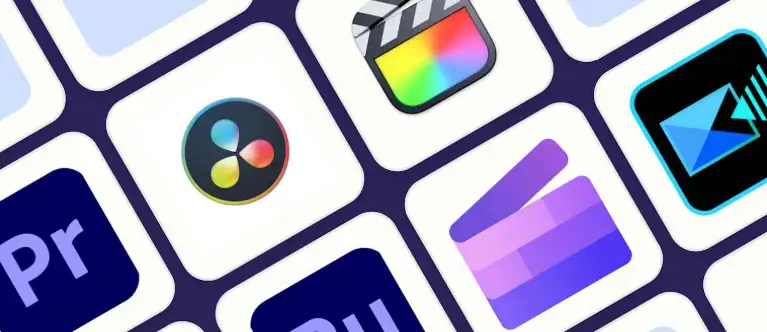
For instance, Adobe Premiere Pro 2026 introduced real-time scene recognition that automatically marks highlights during gameplay. Meanwhile, DaVinci Resolve continues to dominate color correction workflows with seamless AI-driven lighting balance.
Cost-Effectiveness Over Time
Free software like HitFilm or CapCut may seem appealing upfront, but many have feature limits, watermarks, or slower export speeds. Paid tools like Premiere Pro or Final Cut Pro might seem expensive, yet they often pay off in performance and stability – crucial when producing high-volume content.
Investing in a reliable editor is less about price and more about how much frustration and wasted time it eliminates.
The Key Editing Tools That Make Your Videos Stand Out
No matter your skill level, there are specific tools that separate professional gaming edits from the rest. Let’s explore the core capabilities to look for – and why they matter.
1. Multi-Layer Timeline Editing
This feature allows you to overlay gameplay, webcam reactions, sound effects, and transitions simultaneously. Software like Vegas Pro and Premiere Pro let you manage multiple layers smoothly, ensuring every visual and sound element aligns perfectly.
Without this flexibility, you’ll struggle to add depth and polish – essential for dynamic gaming content.
2. Real-Time Playback and Rendering
Lag is every editor’s nightmare. Real-time playback helps you preview complex edits instantly without constant pre-rendering. Programs optimized for GPU acceleration (like DaVinci Resolve 19) handle heavy effects while maintaining smooth playback, even on 4K footage.
3. Advanced Audio Control
Audio tells half the story. Great gaming videos rely on crisp commentary and balanced sound effects. Look for equalizers, noise reduction, and auto-ducking tools that lower background music during speech. Editors like Premiere Pro now include adaptive audio AI to make this process effortless.
4. Color Grading and Visual Effects
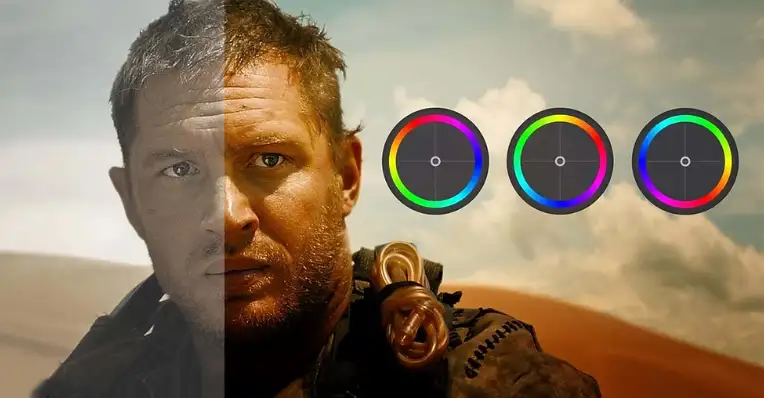
If you want your videos to look cinematic or brand-consistent, color grading tools are essential. Resolve and After Effects lead in this area, letting you adjust tones and match lighting across clips – a must for visually cohesive storytelling.
5. AI-Powered Automation
AI features can now trim silences, auto-sync camera feeds, and suggest transitions. While not perfect, they’re great for speeding up rough cuts. For example, CapCut Pro 2026 offers AI-generated highlight reels – ideal for streamers looking to post clips quickly to platforms like YouTube Shorts or TikTok.
Comparing the Top Gaming Video Editing Software in 2026
Below is a concise look at leading editors and what they offer for gamers.
| Software | Best For | Key Features | Pricing (2026) | Platform |
| Adobe Premiere Pro 2026 | Professional creators | AI scene edit, advanced timeline, GPU optimization | $20.99/month | Windows, macOS |
| DaVinci Resolve 19 | Cinematic & color-heavy projects | Industry-grade color tools, fairlight audio, collaboration suite | Free / $295 Studio | Windows, macOS, Linux |
| Final Cut Pro X (2026) | Apple users | Magnetic timeline, optimized for M-series chips | $299 one-time | macOS |
| HitFilm Pro 2026 | Semi-pro editors | VFX tools, compositing, templates | $12.99/month | Windows, macOS |
| CapCut Pro 2026 | Streamers & social creators | Auto-cutting, mobile sync, trending templates | Free / $9.99 Pro | Windows, macOS, iOS, Android |
| Vegas Pro 22 | Long-form and YouTube creators | Fast rendering, sound mixing, custom macros | $19.99/month | Windows |
Choosing among them depends on your specific workflow – whether you need speed, cinematic quality, or platform flexibility.

How AI and Cloud Tech Are Changing Editing in 2026
A few years ago, editing was entirely manual – now AI tools handle half the heavy lifting. But automation doesn’t mean losing creative control; it means getting to the fun parts faster.
Smarter Editing Assistants
Today’s editors include integrated AI assistants that analyze gameplay to detect highlights, emotions, and even exciting kills or victories. Premiere’s Sensei AI, for example, can auto-tag your best clips, while CapCut’s Smart Reframe ensures your content fits any platform aspect ratio instantly.
Cloud Collaboration and Accessibility
Cloud syncing has become a game-changer for teams and solo editors alike. Whether you’re working across multiple devices or collaborating with a professional service like Inside Editors, cloud-based storage allows seamless version control and feedback exchange.
This evolution ensures that no matter where you are, your editing setup follows you – perfect for traveling streamers and content creators.
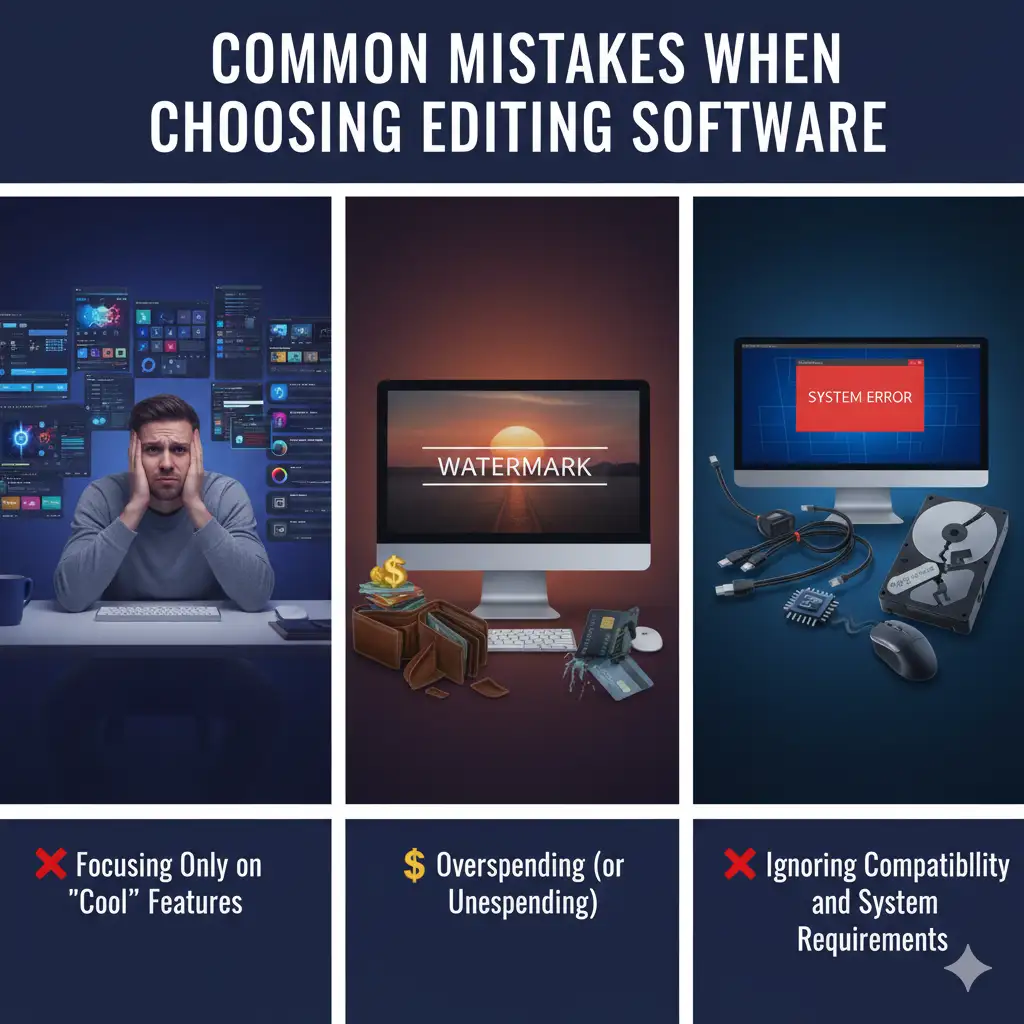
Common Mistakes When Choosing Editing Software
Even experienced creators sometimes pick tools based on popularity rather than fit. Here are some of the most frequent missteps – and how to avoid them.
Mistake #1: Ignoring Hardware Compatibility
Not every software performs equally on every system. High-end tools like Resolve require strong GPUs, while lighter apps like CapCut or Filmora work better on modest setups. Always test free versions before subscribing to ensure smooth performance.
Mistake #2: Focusing Only on Features, Not Workflow
It’s easy to be impressed by flashy features, but what really matters is how they integrate into your daily process. If you spend more time figuring out where tools are than actually editing, you’re losing efficiency.
Mistake #3: Overlooking Export Flexibility
Gaming creators often publish across multiple platforms – YouTube, Twitch, TikTok, and Instagram. The ability to export in various formats and aspect ratios without re-editing is vital. Cloud-enabled editors like CapCut or Premiere make this much easier.
Avoiding these pitfalls ensures you choose software that grows with you instead of limiting you later.
How to Match Software Features to Your Editing Style
Every editor has a unique rhythm. Some thrive on experimentation; others prefer structured workflows. Understanding your creative style helps you choose software that supports – not fights – your process.
For the Streamer and Fast Publisher
If your priority is quick turnaround – cutting, captioning, and uploading highlights daily – focus on speed and automation. Tools like CapCut Pro 2026 and Vegas Pro 22 shine here. Their real-time rendering and auto-captioning tools let you transform gameplay into short-form clips within minutes.
These platforms are built for social-first creators, syncing directly to YouTube, TikTok, or Twitch. Instead of manually resizing clips or reformatting overlays, you can automate the process and stay focused on engagement and storytelling.
For the Storyteller and Cinematic Editor
If you craft long-form, narrative-driven videos, precision and color control take center stage. DaVinci Resolve 19 remains unmatched for detailed color grading, while Premiere Pro 2026 leads in multi-camera editing and sound design.
These editors handle complex sequences – intros, montages, and transitions – while offering control over every lighting curve and sound wave. Yes, they have steeper learning curves, but the payoff is professional-grade polish that separates cinematic creators from casual editors.
For the Content Collaborator
Working with a team or outsourcing post-production? Cloud collaboration is essential. Modern software like Premiere Pro integrates with Frame.io, enabling real-time comments and version history. This setup pairs beautifully with services like Inside Editors, where professionals can jump into your project, refine visuals, and return polished versions in hours – all without lost files or mismatched versions.
When you edit collaboratively, think of your software as a hub for creative teamwork – one that supports both solo creativity and professional input.
Evaluating Performance and Hardware Compatibilit
Even the best editor fails if your PC or laptop can’t handle it. Performance optimization is one of the most overlooked parts of choosing a gaming video editing software, especially for 4K or 60fps footage.
System Requirements and Real-World Performance
Before buying, compare minimum and recommended specs for your hardware. For example:
| Software | Recommended GPU | RAM | Storage Needs |
| Premiere Pro 2026 | NVIDIA RTX 3070 / M2 Pro | 16 GB | 10 GB+ project space |
| DaVinci Resolve 19 | NVIDIA RTX 3080 / M3 Max | 32 GB | 20 GB+ project space |
| Final Cut Pro | M2 or later | 16 GB | 8 GB+ |
| CapCut Pro | Integrated GPU | 8 GB | 5 GB+ |
While these are published specs, real-world performance depends on optimization. For example, Final Cut Pro is fine-tuned for Apple Silicon, giving Mac users seamless playback even on heavy projects. On Windows, Premiere and Resolve leverage NVIDIA and AMD GPUs for similar stability.
Storage, Backup, and Data Workflow
Gaming recordings are massive – sometimes hundreds of gigabytes. Your editor should integrate easily with cloud drives or external SSDs. Tools like DaVinci’s Project Server or Premiere’s Auto-Save to Cloud protect progress automatically, avoiding catastrophic data loss mid-edit.
Also, think long-term: if your projects grow in scale, a tool with scalable cloud storage ensures you’ll never have to sacrifice quality for disk space.
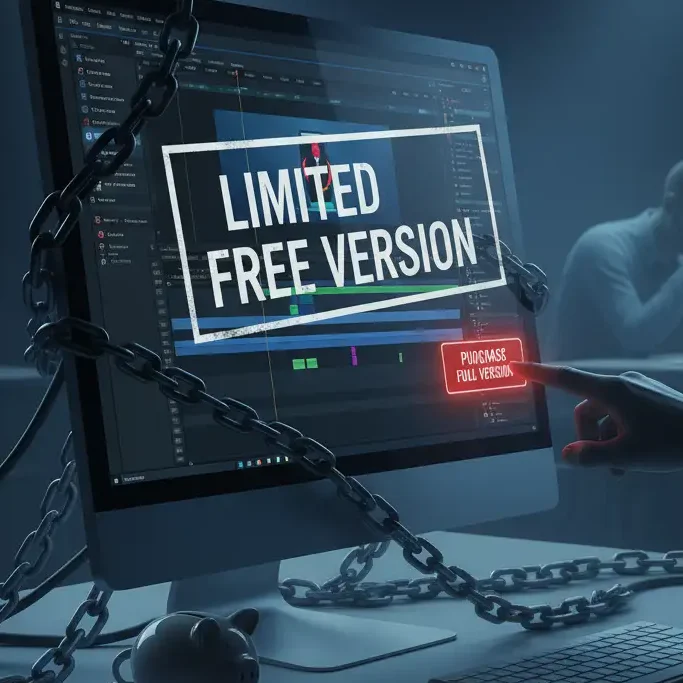
The Hidden Cost of Free Software
Let’s address the big question: Is free editing software enough?
Sometimes yes – but often not for professional growth. Free tools like HitFilm Express or CapCut Free are perfect for beginners, yet they usually limit export formats, layer counts, or frame rate control.
Where Free Editors Work Well
If you’re testing the waters or creating hobby-level content, these apps can produce excellent results. They’re great for experimentation, especially with prebuilt templates or AI-driven tools.
However, once your channel or client base grows, you’ll notice bottlenecks – longer render times, missing pro codecs, and limited audio mixing. Upgrading to paid tiers or full suites becomes less about luxury and more about unlocking speed, stability, and flexibility.
Why Paid Tools Offer Better ROI
Professional software developers continuously update compatibility, security, and AI models. Subscriptions fund that innovation. More importantly, they reduce downtime. Crashes or export issues can cost hours – and for creators working on deadlines, time literally equals money.
Choosing a paid option isn’t just buying software; it’s investing in reliability and long-term creative control.
Once you’ve chosen your software, success depends on how you use it. A well-structured workflow keeps projects consistent and repeatable – especially if you produce videos weekly or collaborate with others.
Building a Smooth Editing Workflow
Once you’ve chosen your software, success depends on how you use it. A well-structured workflow keeps projects consistent and repeatable – especially if you produce videos weekly or collaborate with others.
Step 1: Organize Before You Edit
Label all your recordings, audio files, overlays, and effects before importing them. It sounds tedious, but it saves enormous time later. Create folders by game, date, or type of content – “Apex_Clips_2026_01,” for instance – so nothing gets lost.
Step 2: Use Templates and Presets
Most modern editors allow custom templates for intros, lower thirds, and transitions. Setting these up once can cut future editing time in half. CapCut and Premiere even let you store templates in the cloud, so you can reuse them from any device.
Step 3: Master Shortcuts and Automation
Learning hotkeys might not sound glamorous, but it’s a true time-saver. Many pros reduce edit time by 30-40% simply by mastering keyboard shortcuts. Combine that with automation features – like auto-sync, auto-transcribe, and auto-color-match – and you’ll see your workflow accelerate dramatically.
Step 4: Review, Refine, and Collaborate
After your first draft, take a break and rewatch with fresh eyes. Ask: Does the pacing feel right? Are transitions smooth? Is the music balanced? Then, if possible, collaborate with another editor or service for final polishing.
Professional editors, such as those at Inside Editors, can take your near-finished project and enhance it with pro color grading, cinematic sound design, and export optimization – ensuring it shines across every platform.
Avoiding Common Editing Pitfalls
Even with great software, poor habits can undermine results. Let’s look at frequent mistakes and how to prevent them.
Overusing Effects and Transitions
It’s tempting to use every flashy transition available, but subtlety often looks more professional. Overediting distracts from gameplay. Aim for clean, purposeful cuts – your audience wants to follow your action, not your effects library.
Neglecting Audio Quality
Audio issues are the #1 reason viewers click away. Always check commentary balance, remove background noise, and ensure game sound complements dialogue instead of overpowering it. If possible, use compression and EQ presets built into your software.
Ignoring Platform-Specific Formatting
A video perfect for YouTube might flop on TikTok or Instagram. Aspect ratios matter – use 16:9 for YouTube and 9:16 for vertical platforms. Modern tools now include automatic reframing to fix this, but always preview exports before publishing.
Fixing these small but critical mistakes instantly improves professionalism – and viewer retention.
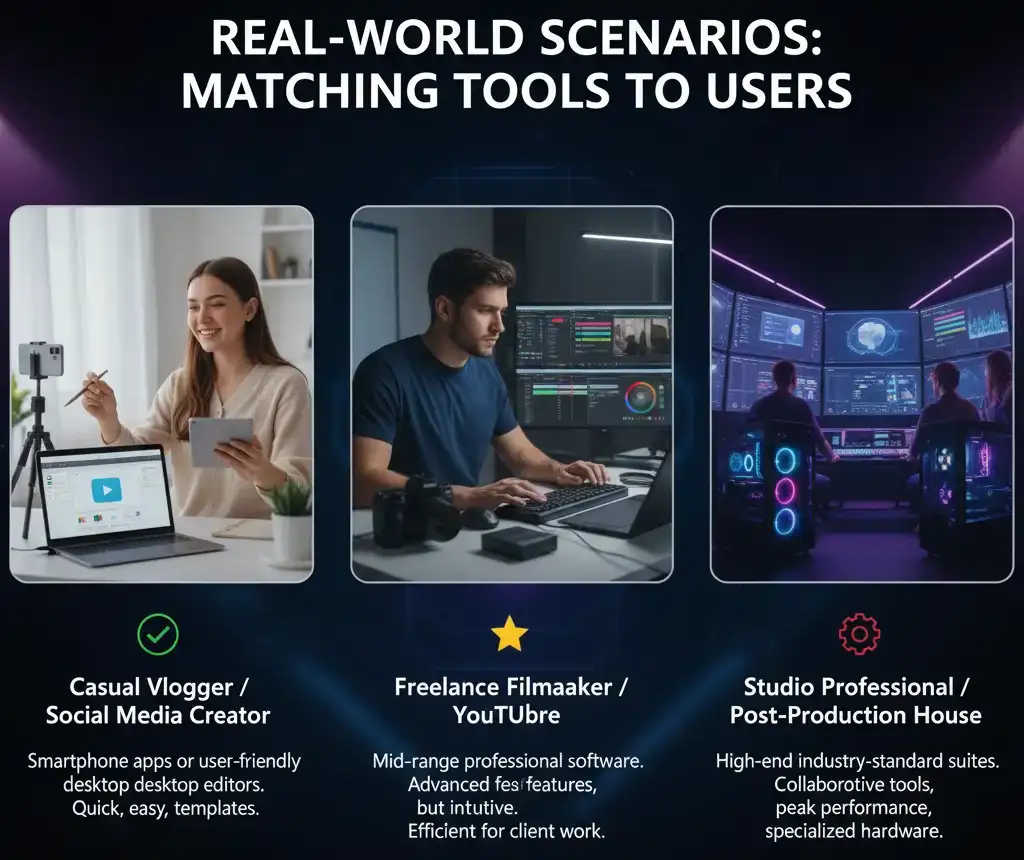
Real-World Scenarios: Matching Tools to Users
Let’s bring this to life with quick examples of how different creators use their tools effectively.
The Solo Streamer
Lena, a Twitch streamer, records 3-hour sessions of competitive Apex Legends. She uses CapCut Pro for clipping highlights and overlaying chat reactions, exporting daily to Shorts. Her workflow relies on AI auto-cuts and caption templates, letting her publish multiple clips per day without burnout.
The YouTube Storyteller
Marcus, a YouTube creator with 500K subscribers, edits cinematic montages. Using DaVinci Resolve Studio, he color grades each frame to create a film-like tone. Resolve’s fusion engine helps him composite dynamic titles and particle effects – turning gameplay into emotional storytelling.
The Production Team
A small gaming media company uses Premiere Pro with Frame.io integration to manage multiple editors remotely. Footage is uploaded to a shared drive, reviewed collaboratively, and finalized by professional editors at Inside Editors for consistency. This hybrid workflow keeps quality high while meeting tight deadlines.
These real-world setups demonstrate that the “best” editor isn’t universal – it’s the one that fits your creative and operational needs.
Expert Insights: Preparing for the Future of Editing
The future of gaming video editing will merge human creativity with machine precision. Expect deeper AI integration, real-time translation, and even emotion-driven visual effects. But these tools will still need human direction.
In short, editing mastery will shift from manual skills to creative decision-making – knowing what to change, not just how to do it.
According to a 2025 Statista report, over 82% of content creators now rely on AI-assisted tools for editing, yet 65% still prefer to manually finalize creative decisions. This hybrid model – fast automation, human touch – defines the 2026 editing landscape.
That’s why understanding the fundamentals of storytelling, pacing, and sound design remains essential. Software will evolve, but your creative judgment will always be the real advantage.
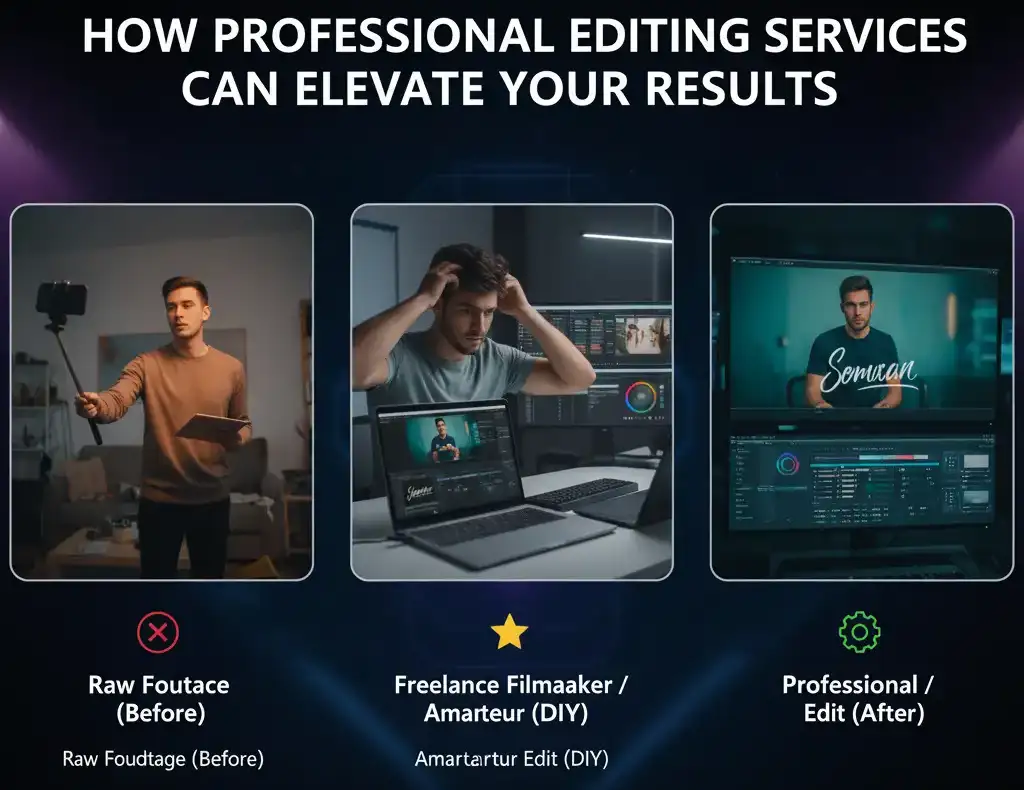
How Professional Editing Services Can Elevate Your Results
Even the best tools can’t replace professional experience. Sometimes, outsourcing your final edits saves more time – and achieves far better results – than doing it all alone.
Inside Editors specializes in transforming raw gaming footage into polished, high-impact videos. Whether you’re building your YouTube brand, streaming full-time, or producing commercial gaming content, their team handles everything from motion graphics to platform optimization.
They don’t just “edit videos.” They help creators tell stories that resonate – balancing creativity with algorithm-friendly polish. By collaborating with professionals, you free yourself to focus on gameplay and audience growth while ensuring each video reflects your unique style.
👉 Explore Inside Editors’ Gaming Video Editing Services →
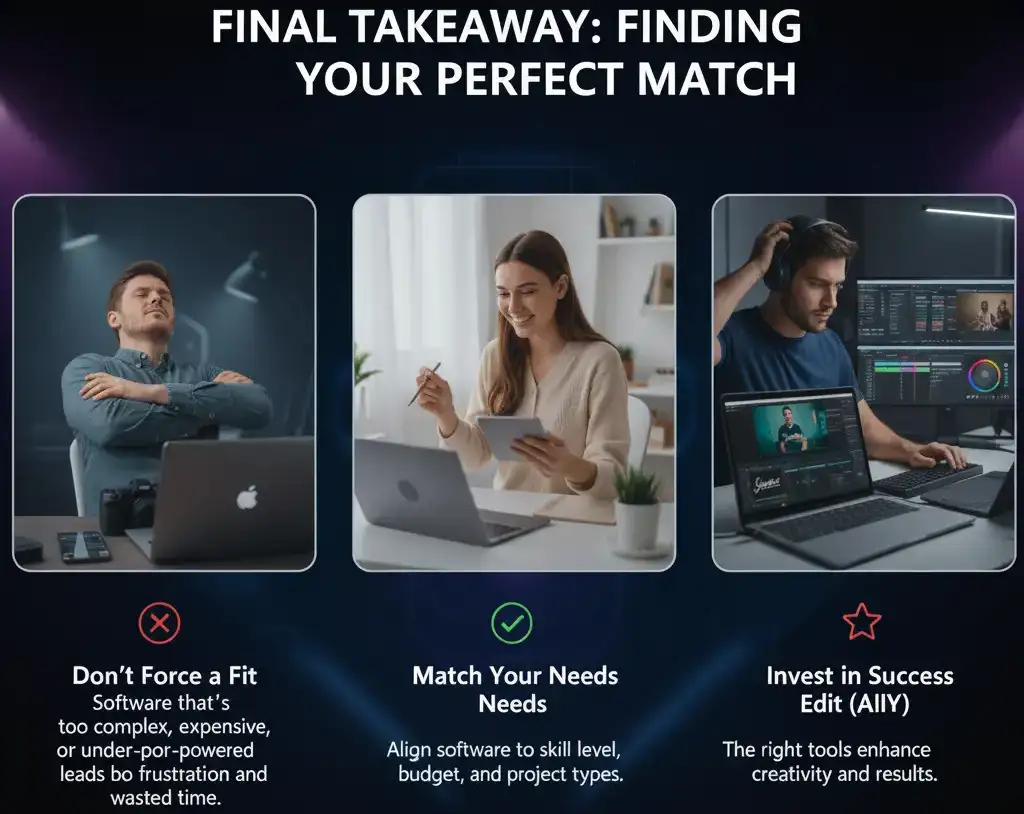
Final Takeaway: Finding Your Perfect Match
Choosing the right gaming video editing software in 2026 isn’t about following trends – it’s about finding what helps you tell better stories, faster.
If you value control and precision, tools like DaVinci Resolve or Premiere Pro deliver unmatched creative freedom. If you prioritize speed, automation, and mobile integration, CapCut Pro or HitFilm are hard to beat. And if you want the confidence of professional results without the learning curve, Inside Editors bridges that gap perfectly.
At the end of the day, the “best” software isn’t the one with the most features – it’s the one that feels invisible when you’re in your creative zone. When your editing tool fades into the background and your story takes the spotlight, that’s when you know you’ve chosen right.
Frequently Asked Questions (FAQ)
1. What is the best gaming video editing software for beginners in 2026?
For beginners, CapCut Pro 2026 and HitFilm Express offer the best mix of simplicity and automation. They include drag-and-drop timelines, AI-powered highlight detection, and built-in templates for YouTube and TikTok. Both help new creators achieve professional results without a steep learning curve.
2. Which editing software do professional gaming creators use?
Most professionals use Adobe Premiere Pro, DaVinci Resolve Studio, or Final Cut Pro. These platforms deliver advanced color grading, layered timelines, and full creative control for cinematic content. Many hybrid creators also combine AI-assisted tools like CapCut Pro for quick social clips alongside their primary editors for long-form videos.
3. Do I need an expensive computer for gaming video editing?
Not necessarily. If you’re editing short clips or 1080p footage, mid-range laptops with 8-16 GB RAM and integrated GPUs work fine. For 4K, HDR, or complex effects, aim for at least an RTX 3070 or Apple M2 Pro chip with 32 GB RAM. Optimize your workflow with proxies or cloud rendering to balance performance and cost.
4. How can I make my gaming videos look more professional
Focus on storytelling, pacing, and sound design. Use consistent color grading, maintain balanced audio levels, and add branded intros or overlays. Professional services like Inside Editors can help polish your footage with cinematic effects, smooth transitions, and optimized exports for each platform.
5. Should I use free or paid video editing software?
Free tools are perfect for learning, but paid options save time and offer greater stability. If you edit regularly or earn from your content, investing in professional software (or partnering with an editing service) delivers better ROI through faster workflows, higher output quality, and fewer crashes.


