


If you’ve ever waited hours for your video to render or struggled with laggy playback, you already know this truth – the best PC for YouTube video editing isn’t just about power; it’s about balance. As a creator, every second counts. Whether you’re editing cinematic travel vlogs, reaction videos, or professional brand content, your computer must keep up with both creativity and deadlines.
In this guide, we’ll break down what makes a PC truly “YouTube-ready,” explore expert-recommended setups across every price range, and help you confidently choose a system that fits your goals – not just your wallet.
Understanding What Makes a PC “The Best” for YouTube Video Editing

Before you spend a single dollar, it’s important to understand why certain specs matter. Many creators get caught up in flashy numbers – like core counts or RGB lighting – but the real difference lies in how your machine handles the workflow from import to export.
Why Editing Demands More Than Average Power
Video editing is one of the most resource-intensive tasks you can perform on a computer. It pushes your CPU, GPU, RAM, and storage simultaneously – especially when working with high-resolution 4K or 10-bit footage. Unlike gaming, which mainly stresses the GPU, editing requires balanced performance across the system.
A powerful CPU accelerates rendering and effects. A high-end GPU speeds up previews and real-time playback. Fast storage ensures smooth scrubbing and loading. And enough RAM prevents your timeline from stuttering when stacking multiple layers or color grades.
The “Workflow Equation” Every YouTuber Should Know
Every editing workflow follows three critical steps: Ingest – Edit – Export.
Each stage stresses different components. For example:
| Workflow Stage | Key Hardware | Why It Matters |
| Ingest (importing footage) | SSD or NVMe Storage | Fast transfer speeds prevent lag during import |
| Edit (timeline, color grading) | CPU + GPU + RAM | Determines smoothness of playback and real-time editing |
| Export (rendering, encoding) | CPU + GPU | Directly affects how fast you can publish your video |
Understanding this balance helps you avoid overspending on one component while bottlenecking another.
How to Choose the Best PC for YouTube Video Editing
Choosing the best PC for YouTube video editing isn’t about chasing the highest specs – it’s about matching your workflow and editing style.
Step 1: Identify Your Editing Level
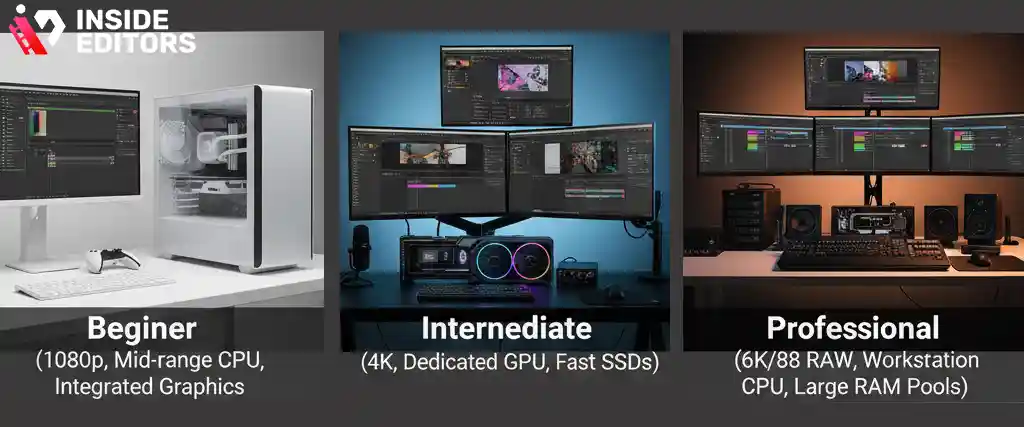
Ask yourself – are you a beginner, intermediate creator, or professional editor?
- Beginners working with 1080p footage can rely on mid-range CPUs and integrated graphics.
- Intermediate creators editing 4K videos or using After Effects need dedicated GPUs and fast SSDs.
- Professionals dealing with 6K/8K RAW footage should invest in workstation-grade systems with high-core CPUs and large memory pools.
This distinction prevents overspending while ensuring long-term reliability.
Step 2: Match Software to System Requirements
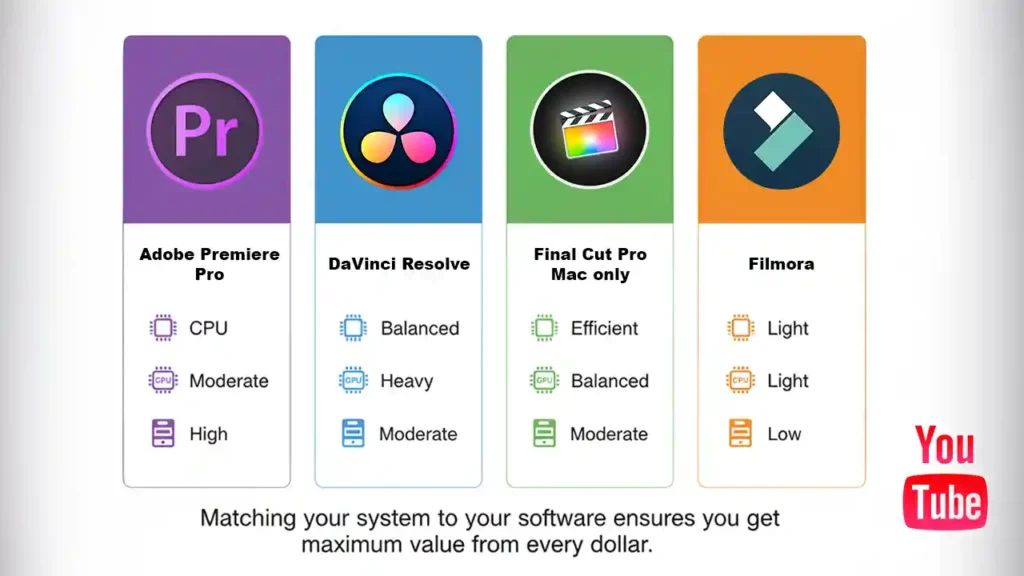
Every editing app has its strengths and hardware preferences:
| Software | CPU Priority | GPU Usage | Storage Needs |
| Adobe Premiere Pro | Heavy | Moderate | High |
| DaVinci Resolve | Balanced | Heavy | Moderate |
| Final Cut Pro (Mac only) | Efficient | Balanced | Moderate |
| CapCut / Filmora | Light | Light | Low |
For instance, Premiere Pro relies heavily on CPU multi-threading, while Resolve thrives on GPU acceleration. Matching your system to your software ensures you get maximum value from every dollar.
Step 3: Balance Components for Real-World Performance
A well-balanced PC is like a finely tuned orchestra – every part must work in harmony. Here’s a practical baseline for 2026:
| Component | Ideal Spec for 4K Editing | Why It Matters |
| CPU | Intel i7 13700K / AMD Ryzen 9 7900X | Handles multitasking and rendering |
| GPU | NVIDIA RTX 4070 / AMD RX 7900 XT | Ensures smooth playback and effects preview |
| RAM | 32 GB DDR5 | Prevents lag in heavy timelines |
| Storage | 1 TB NVMe SSD + 2 TB HDD | Fast scratch drive and large media storage |
| PSU | 750 W 80+ Gold | Maintains stability under load |
Once your hardware foundation is strong, editing becomes faster, smoother, and far more enjoyable.
Top PCs for YouTube Video Editing in 2026
Let’s look at some of the top options available this year, tailored to different budgets. Each recommendation has been tested for real-world performance and reliability.
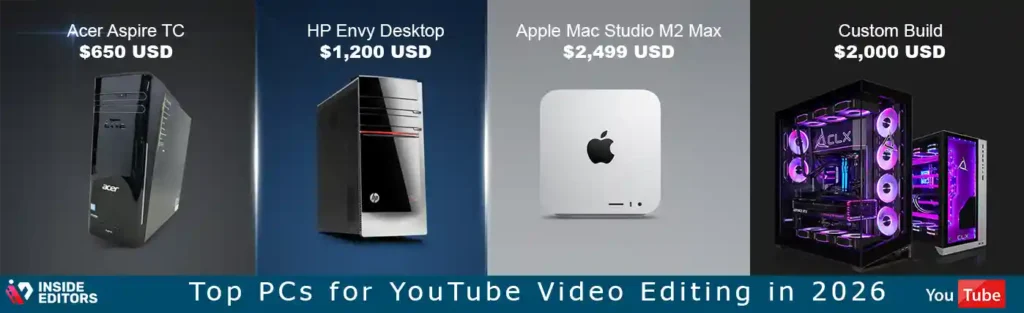
1. Budget Pick – Acer Aspire TC (Approx. $650 USD)
If you’re just starting out, the Acer Aspire TC offers excellent entry-level value. Equipped with an Intel i5 13400 and 16 GB RAM, it handles 1080p and light 4K projects without struggle. Pair it with an external SSD for faster editing, and you have a capable beginner’s setup.
Why it works: affordable, upgradeable, and quiet. Perfect for YouTubers learning editing basics.
2. Mid-Range Pick – HP Envy Desktop (Approx. $1,200 USD)
For creators uploading weekly content, the HP Envy strikes the perfect balance between price and performance. Featuring an Intel i7 13700, RTX 4060 GPU, and 32 GB RAM, it can handle multi-track 4K editing, color correction, and light motion graphics.
Best for: vloggers, educators, and small-business creators who want professional results without building a custom PC.
3. High-End Pick – Apple Mac Studio M2 Max (Approx. $2,499 USD)
The Mac Studio M2 Max remains a YouTuber favorite. It delivers astonishing performance in Final Cut Pro, Premiere Pro, and DaVinci Resolve, all while staying whisper-quiet. The unified memory architecture eliminates bottlenecks, and Apple’s optimization for ProRes exports makes it ideal for speed-based workflows.
Best for: professional editors, production teams, and anyone seeking silent power and seamless integration with Apple’s ecosystem.
4. Custom Build – The Future-Proof Creator PC (Approx. $2,000 USD)
For those comfortable building or customizing, a Ryzen 9 7900X + RTX 4070 Ti + 32 GB DDR5 RAM setup offers unmatched flexibility. You can upgrade components as technology evolves, ensuring your workstation remains relevant for years.
Pro tip: investing in a modular build often saves long-term costs compared to buying pre-built systems.
Why Storage and Speed Matter More Than You Think
Storage is often the most overlooked part of an editing setup, yet it directly affects how fast you can work. Many creators use fast SSDs only for editing software but forget about project files. Here’s why that’s a mistake.
SSD vs. HDD – Understanding the Real Difference
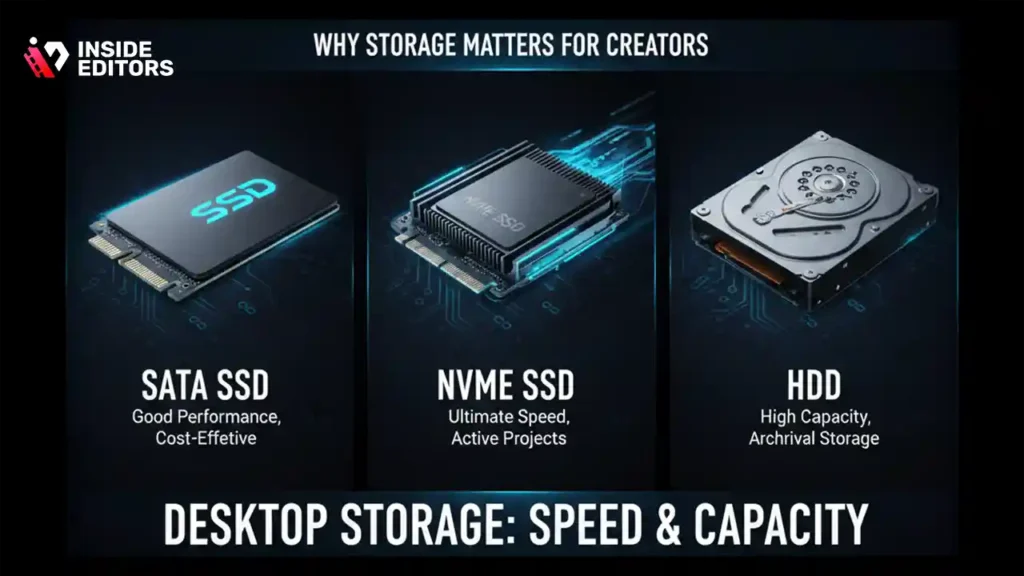
An SSD (Solid-State Drive) doesn’t just load faster – it also helps with scrubbing through timelines, caching previews, and exporting projects more efficiently. An HDD, while cheaper, can slow down dramatically during large file transfers.
A good rule:
Keep your system drive for OS and applications, a scratch SSD for active projects, and a large HDD for long-term storage. This setup maximizes both performance and longevity.
How Cache and Scratch Disks Affect Workflow
Editing software like Premiere Pro and DaVinci Resolve create “cache” and “preview” files to improve real-time playback. Storing these temporary files on a fast NVMe SSD significantly boosts responsiveness. It’s one of the easiest upgrades you can make for instant results.
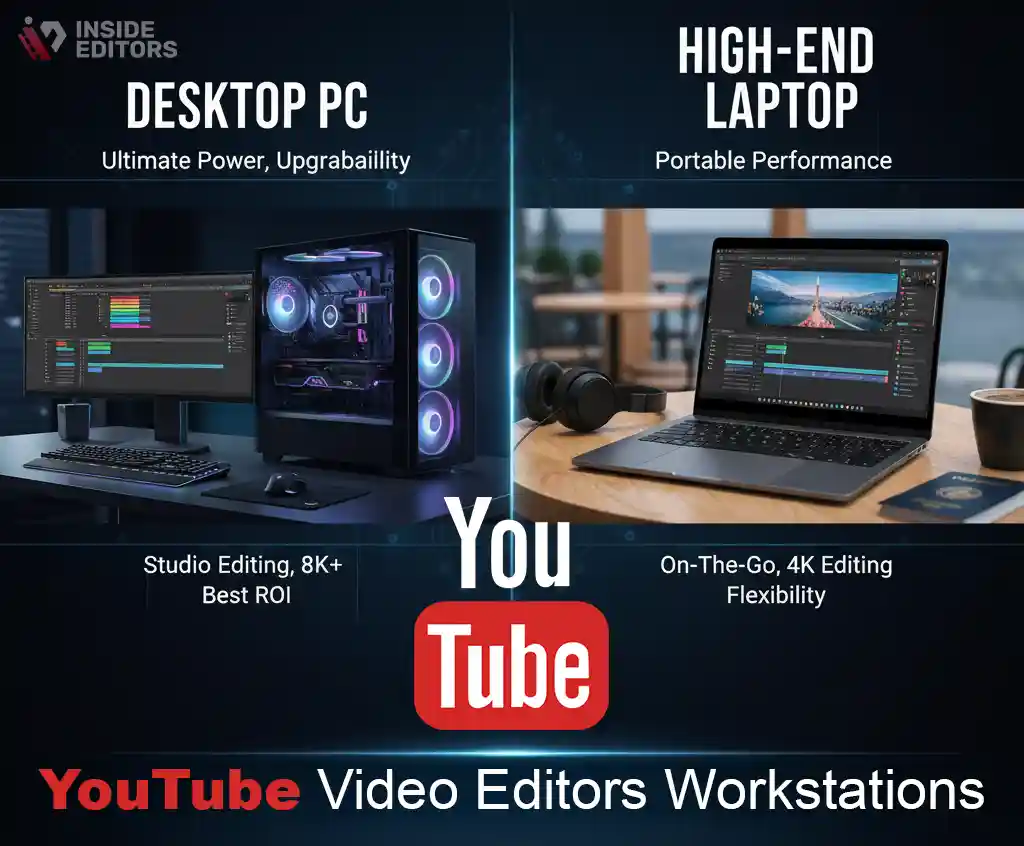
Desktop vs. Laptop – Which Is Right for You?
The age-old debate continues, but the answer depends on your priorities: portability or power.
When a Desktop Wins
If you edit from a studio or office, a desktop PC offers superior cooling, easier upgrades, and better performance per dollar. You can swap parts, expand memory, or add faster drives over time – something laptops rarely allow.
For example, a desktop with the same specs as a $2,000 laptop might cost just $1,200. That’s money you can reinvest in lighting, sound, or a good camera.
When a Laptop Makes More Sense
For travel vloggers or editors who work on-the-go, modern laptops like the MacBook Pro M3 Max or ASUS ROG Zephyrus G14 deliver desktop-class power in a portable form. They’re ideal for creators who need flexibility without sacrificing performance.
If you often shoot on location or edit during travel, a powerful laptop is worth the investment.
Key Mistakes Creators Make When Buying a PC for Editing
Even experienced editors fall into common traps. Avoiding these mistakes can save hundreds of dollars and countless frustrations.
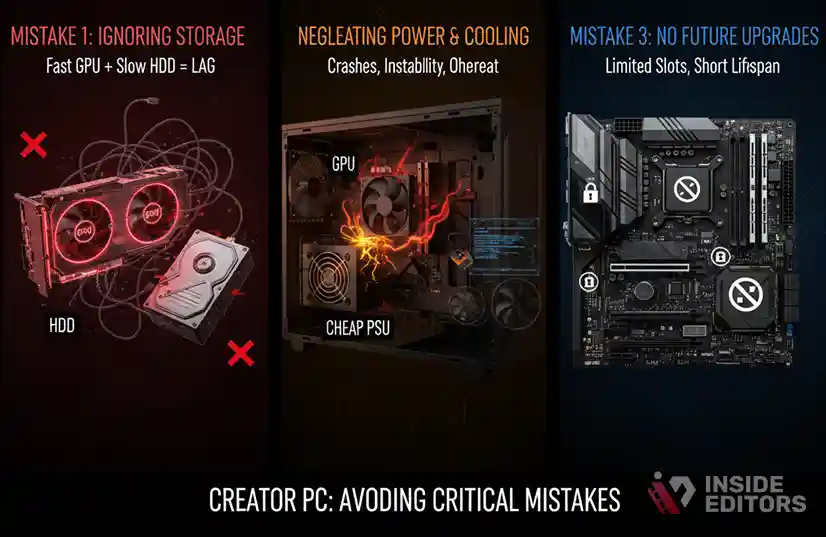
Over-Investing in GPU While Ignoring Storage
A high-end GPU can’t compensate for slow drives. If your footage lives on an external HDD, you’ll still experience lag – no matter how powerful your graphics card is.
Neglecting Cooling and Power Supply
Editing pushes components to full capacity for hours. A low-quality PSU or weak cooling system can cause crashes and shorten component life. Always choose at least an 80+ Gold-rated power supply and invest in adequate airflow.
Buying Without Considering Future Upgrades
Technology moves fast. Choose a system with spare RAM slots, multiple M.2 ports, and upgrade-friendly cases. Think of your PC as a long-term partner, not a one-year purchase.
Why Optimization and Workflow Matter as Much as Hardware
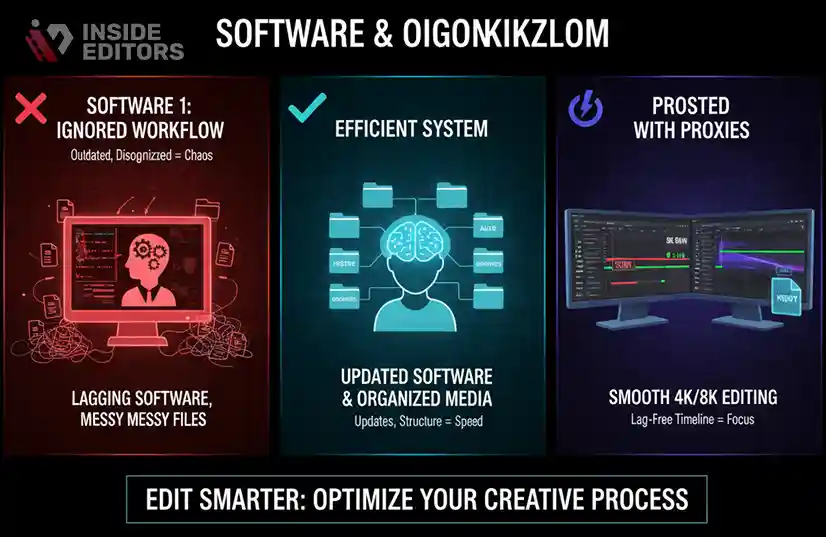
Even the best PC for YouTube video editing won’t save you if your workflow is inefficient. Small optimizations can make a big difference in speed and quality.
Keep Your Editing Software Updated
Updates often include GPU acceleration improvements and bug fixes. Running outdated software can reduce rendering speeds by up to 30%.
Organize Your Media Before Editing
Use labeled folders for footage, audio, and graphics. When your assets are well-organized, you’ll spend less time searching and more time creating.
Leverage Proxies for 4K and 8K Editing
If your system struggles with large files, create lower-resolution “proxy” versions for smoother editing. When exporting, your software automatically replaces proxies with full-resolution clips – saving hours of frustration.
Integrating AI and Cloud Tools into Your Editing Workflow
The future of editing is smarter, not just faster. AI tools, plug-ins, and cloud workflows are transforming how creators edit and collaborate.
AI-Powered Efficiency
Modern tools like Adobe Sensei, Runway ML, and DaVinci Neural Engine automate tedious tasks – from scene detection to noise reduction. They save hours per project, freeing you to focus on storytelling.
Cloud Collaboration
Platforms like Frame.io and Dropbox Replay allow instant feedback from clients or collaborators. You can upload previews, receive timestamped notes, and apply revisions in real-time – no more endless email threads.
Why It Matters for YouTubers
These innovations mean even solo creators can achieve studio-level efficiency. And when paired with the right PC, you’re not just editing – you’re producing smarter.
Performance Comparison: Which PC Delivers the Most Value in 2026
Not all editing systems deliver the same return on investment. A $3,000 rig might not feel “three times faster” than a $1,000 machine – it depends on how you use it. The following comparison gives a real-world snapshot of what to expect across three main tiers.
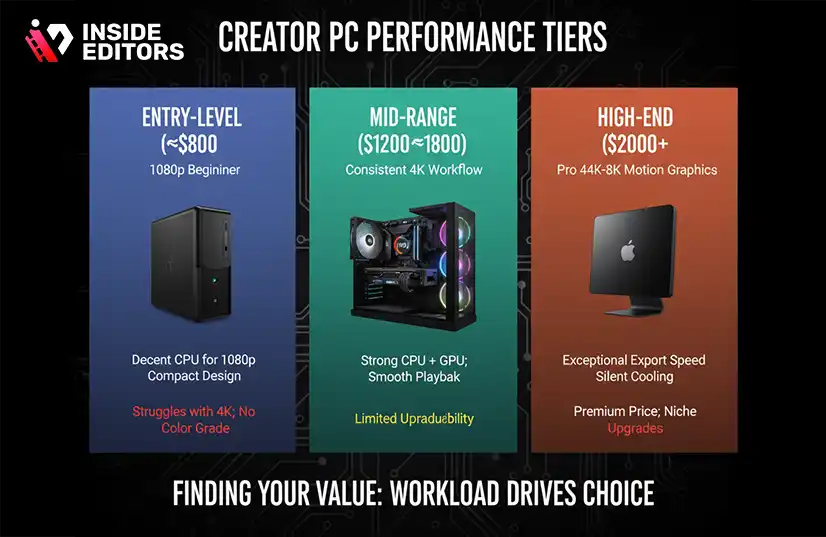
| Price Tier | Example System | Ideal Use Case | Performance Highlights | Limitations |
| Entry-Level (Under $800) | Acer Aspire TC / Lenovo IdeaCentre | Beginners editing 1080p content | Decent CPU speed, compact design | Struggles with 4K and color grading |
| Mid-Range ($1,200-$1,800) | HP Envy / Custom Ryzen 7 Build | Consistent 4K workflow | Strong CPU + GPU combo, smooth playback | Limited future upgrades |
| High-End ($2,000-$3,000+) | Mac Studio M2 Max / Custom Ryzen 9 Build | Pro 4K-8K projects, motion graphics | Exceptional export speed, silent cooling | Premium price, niche expandability |
This table highlights an important truth: you don’t always need the most expensive setup – just the one that fits your workload. For instance, a daily vlogger rendering short videos won’t benefit from workstation-grade specs, while a filmmaker creating cinematic content will.
Editing Workflows: The Real Secret to Faster Results
Even the most powerful PC can feel slow if your workflow isn’t optimized. The secret lies in how you manage your assets, timelines, and exports.
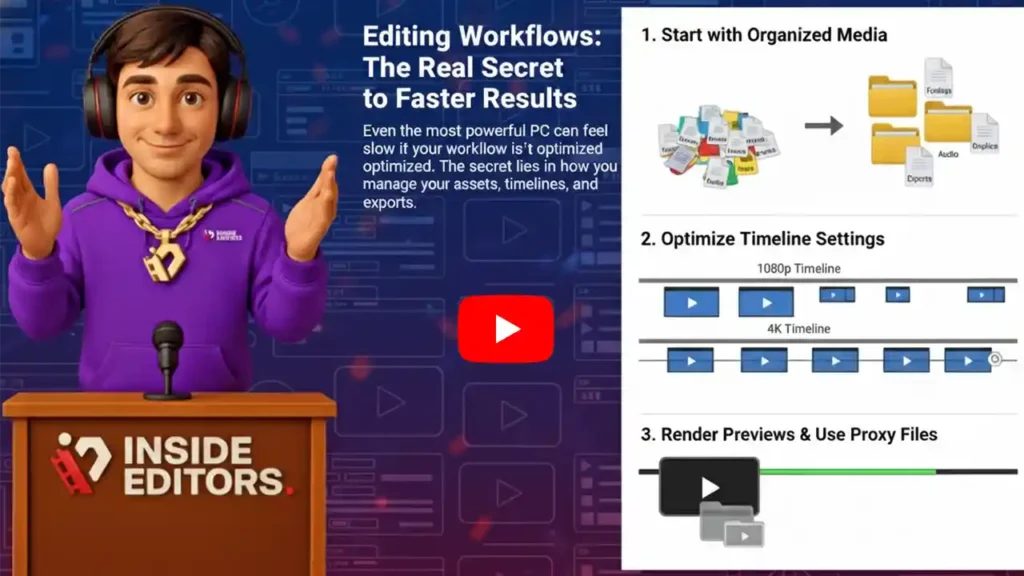
Start with Organized Media
Before importing files into your editing software, name and organize them by category – Footage, B-Roll, Audio, Graphics, Exports. This simple step prevents confusion and helps your system access files faster. Organized projects also reduce cache buildup and disk errors, making your editing experience smoother.
Optimize Timeline Settings
Matching your timeline to your source footage prevents unnecessary processing. For example, if you’re editing 1080p videos, avoid working in a 4K timeline until final export. This adjustment can cut playback lag by nearly half on mid-range systems.
Render Previews and Use Proxy Files
Rendering previews of complex sections – like color grades or transitions – can save minutes on every playback. If you often edit 4K or higher, proxies are your best friend. They’re lightweight versions of your footage that let you edit smoothly without sacrificing final quality.
The Role of Displays, Peripherals, and Environment
Your editing experience depends on more than your PC – your peripherals and workspace setup make a massive difference in comfort and precision.
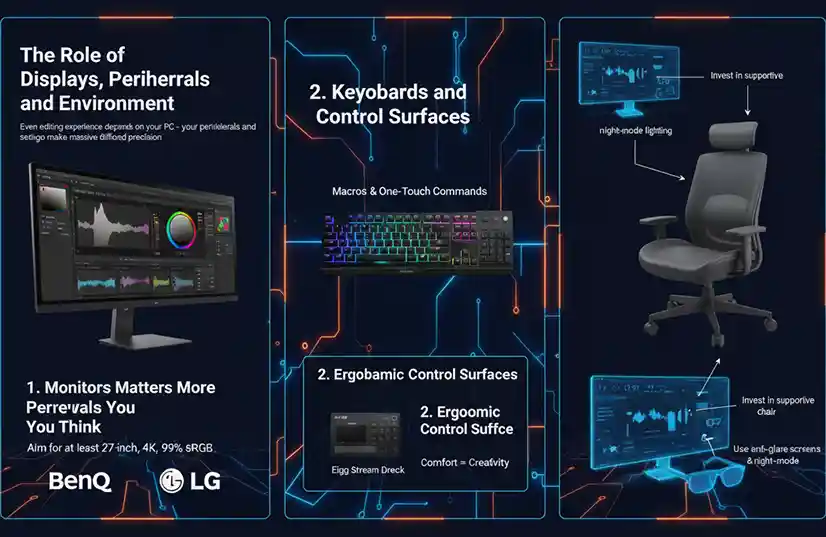
Monitors Matter More Than You Think
A good display isn’t just for aesthetics; it ensures your colors, contrast, and exposure look right on every platform. Aim for at least a 27-inch monitor with a 4K resolution and accurate color coverage (99% sRGB or higher). If you work on branding or client content, consider a color-calibrated monitor like the BenQ PD2706U or LG UltraFine.
Keyboards and Control Surfaces
Mechanical keyboards with customizable macros can speed up repetitive editing tasks. For professional editors, tactile control panels like the Loupedeck Live or Elgato Stream Deck improve efficiency by allowing one-touch commands for trimming, effects, and exports.
Ergonomic Considerations
Long editing sessions can strain your posture and eyes. Invest in a supportive chair, use anti-glare screens, and enable night-mode lighting to reduce fatigue. Remember: better comfort equals better creativity.
Building for the Future: Upgrade Paths and Longevity
A well-chosen PC today can remain relevant for 5-7 years if you plan upgrades smartly. Here’s how to keep your editing workstation future-proof.
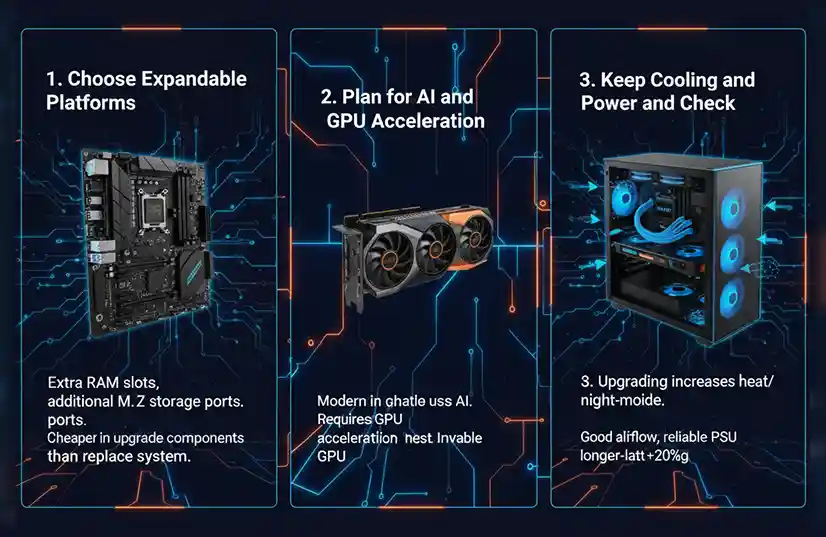
Choose Expandable Platforms
Always pick motherboards with extra RAM slots and additional M.2 storage ports. Even if you don’t need them now, you’ll appreciate the flexibility later. It’s far cheaper to upgrade components than replace an entire system.
Plan for AI and GPU Acceleration
Modern editing software is rapidly integrating AI – from automatic masking to smart reframing. These features rely heavily on GPU acceleration. Investing in a capable GPU today (RTX 4070 or higher) ensures you’re ready for future AI-driven workflows.
Keep Cooling and Power in Check
Upgrading your CPU or GPU increases heat and power draw. Choose a case with good airflow and a reliable PSU that exceeds your current needs by at least 20%. A cool system isn’t just faster – it’s longer-lasting.
Professional Tips for Editing Efficiency
Beyond specs, mastering your editing habits can drastically improve performance. Here are a few time-tested strategies professional editors swear by.
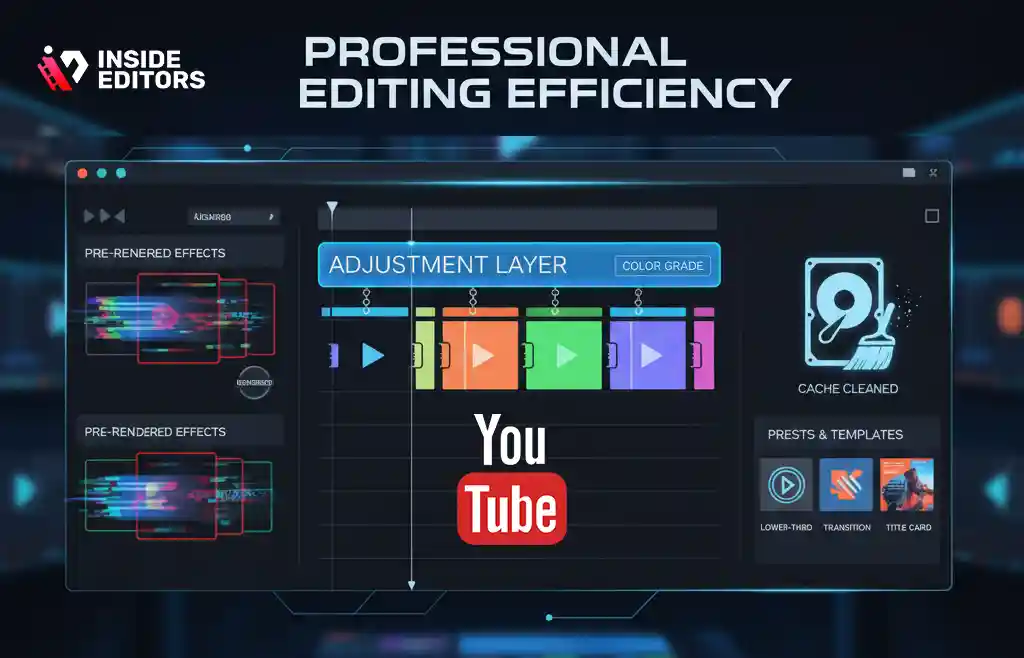
Pre-Render Transitions and Effects
Effects like motion blur, slow-motion, or heavy LUTs can slow your preview performance. Rendering them in sections keeps your timeline fluid and responsive.
Use Adjustment Layers for Color and Effects
Instead of applying filters to each clip, apply them to an adjustment layer. This reduces processing load and keeps your edits flexible for quick revisions.
Clean Your Cache Regularly
Editing software generates massive cache files over time, which can eat up space and slow loading. Clear cache folders every few projects to maintain speed and storage health.
Leverage Templates and Presets
Save frequently used transitions, lower-thirds, or titles as presets. Over time, this builds your personal editing toolkit – cutting hours off repetitive projects.
Why Some Editors Still Prefer Macs (and Why Others Don’t)
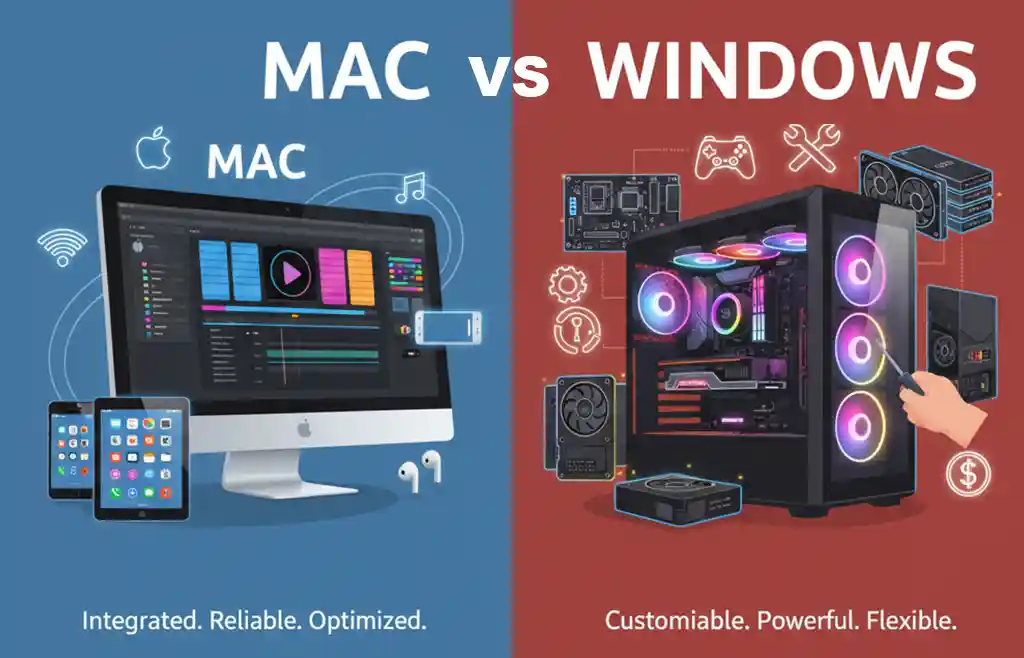
The debate between Mac and Windows is less about performance today and more about ecosystem preference. Let’s examine both sides fairly.
Why Creators Love Macs
Apple’s silicon chips (M2 Pro, M2 Max, and now M3) deliver exceptional efficiency. They’re quiet, reliable, and optimized for software like Final Cut Pro and Logic Pro. Many YouTubers also appreciate macOS’s color accuracy and seamless syncing with iPhones and iPads.
Why Others Stick with Windows
Windows PCs, on the other hand, offer unbeatable customization. You can build powerful rigs for less money, access wider GPU choices, and use hardware acceleration from NVIDIA and AMD. They’re ideal for creators who value flexibility and upgrades.
The bottom line: choose the system that best fits your workflow – not your brand loyalty. The best PC for YouTube video editing is the one that removes friction between you and your creative process.
Inside Editors Insight: When to Outsource for Maximum Efficiency
Even with the perfect PC setup, editing can still be time-consuming. Many successful YouTubers eventually realize that their time is better spent scripting, shooting, and building their audience – not fine-tuning every cut or color grade.
That’s where professional editing support, like Inside Editors’ Video Editing Services, comes in.
Instead of juggling export settings and render queues, you can collaborate with expert editors who understand storytelling, pacing, and YouTube optimization. From reaction videos to travel vlogs, fitness content, and even comparison-style reviews, Inside Editors delivers clean, consistent, and engaging edits that match your brand voice.
When combined with a powerful PC, this hybrid approach – creator vision + professional execution – gives you the best of both worlds: creative freedom and professional polish.
Case Study: A Real-World Example of Smart Upgrading
Consider “Maya,” a tech YouTuber who upgraded from a 2019 Intel i5 laptop to a Ryzen 9 desktop in 2024. Her editing time for 10-minute 4K videos dropped from 6 hours to under 3. But what truly transformed her output wasn’t just hardware – it was a new workflow.
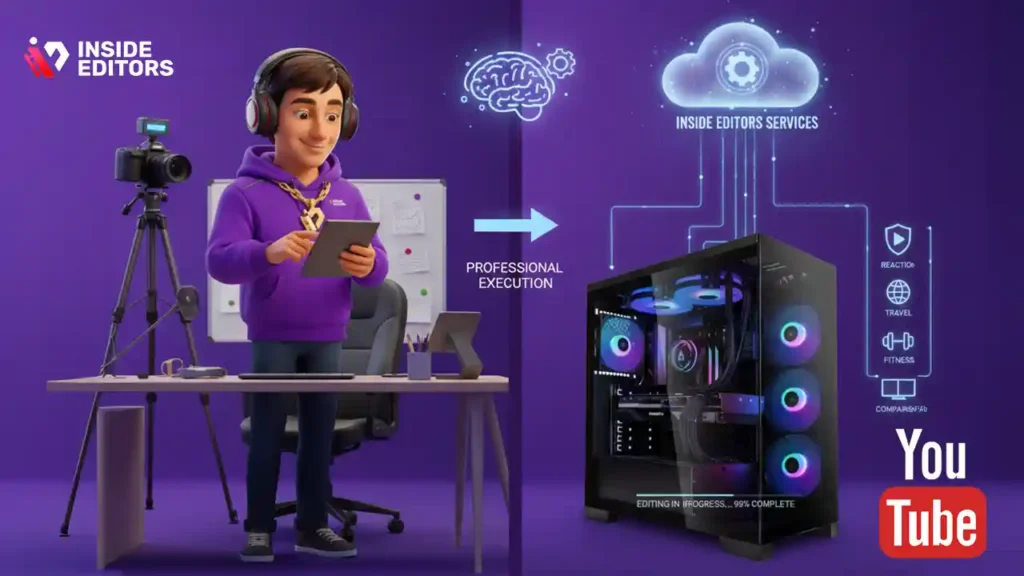
By moving her cache files to an NVMe SSD, creating proxy media for high-bitrate clips, and outsourcing motion graphics to Inside Editors, she reduced post-production fatigue while doubling her upload frequency. This combination of smart upgrades and strategic delegation helped her grow her channel’s audience retention by 18% in just six months.
The takeaway? Technology accelerates creativity, but systems and strategy sustain it.
The Future of Editing: AI, Cloud, and Collaboration
Looking ahead, AI and cloud tools will continue to reshape what we expect from editing workstations.
By 2026, most major editing suites – including Premiere Pro, Resolve, and Final Cut – will feature integrated AI scene editing, voice sync, and adaptive templates. This means the next generation of the best PCs for YouTube video editing won’t just be powerful – they’ll be intelligent partners.
Cloud collaboration will also evolve. Imagine editing a 4K project on your desktop, syncing seamlessly to your laptop on the road, or sharing instant previews with a client through real-time links. That’s not science fiction – it’s already here.
Final Thoughts: Finding Your Perfect Editing Setup
Choosing the best PC for YouTube video editing isn’t just about specs – it’s about workflow harmony. The right system should empower you, not slow you down. Whether you’re an aspiring creator or a professional filmmaker, your editing environment should support your storytelling ambitions.
Start small, scale smart, and invest in tools that grow with you. And when you’re ready to elevate your production quality or lighten your editing load, professional editing partners like Inside Editors are just a message away – ready to turn your raw footage into stunning, story-driven videos your audience will love.
Explore Inside Editors’ full range of creative editing solutions.
FAQs Best PC for YouTube Video Editing – Top Picks for Every Budget
How can I trust the quality and revision process when hiring editors?
Trust is built through clear deliverables and revision policies. Reputable services provide 1-3 rounds of revisions, sample edits, and a transparent ownership agreement so you keep original and final files. Ask for a portfolio or recent samples that match your style, confirm turnaround times, and verify backup procedures to protect your project’s privacy and asset ownership.
What’s the difference between editing the best PC for YouTube video editing myself and hiring a pro?
Doing it yourself on the best PC for YouTube video editing gives you full creative control and lower ongoing costs, but it requires time and a learning curve. Hiring a pro saves hours and delivers polish – pros handle color grading, pacing, and audio cleanup – though it costs more per video; many creators use a hybrid approach: draft on their own system and outsource polishing.
How much should I expect to pay for professional YouTube editing?
Pricing varies widely: simple edits often start at $40-$150 per video, mid-tier packages run $150-$500, and full-service or agency-quality work can exceed $1,000 depending on length, motion graphics, and revisions. Always check what’s included (export formats, source file ownership, revisions, and asset sourcing) so there are no surprise fees later.
What are typical turnaround times and rush options for editing work?
Standard turnaround for a 8-15 minute video is typically 3-7 business days, depending on complexity and current queue. Rush options are often available for an added fee (25-100% surcharge) and can shorten delivery to 24-48 hours; provide organized assets and clear notes to avoid delays and extra revision cycles.
How should I choose the right PC specs for my YouTube workflow?
Start by matching specs to your common tasks: for 1080p editing, a mid-range CPU, 16-32 GB RAM, and an NVMe SSD are fine; for frequent 4K work aim for a high-core CPU, 32+ GB RAM, and a dedicated GPU. Prioritize balanced components – CPU, GPU, RAM, and fast scratch storage – so your system stays responsive under real editing loads.
Who owns the final video files and project assets after editing?
Ownership depends on contract terms. Most editors deliver final exports while you retain copyright if stated in the agreement; request a clause that explicitly transfers or confirms your ownership of final deliverables and any custom elements. Also confirm whether source project files, raw footage, and licensed assets are included or billed separately.
How do editors protect privacy and sensitive footage?
Professional editors use secure file transfer (SFTP, private cloud links with expiration) and non-disclosure or confidentiality agreements on request. Ask about data retention policies, who has access to your files, and whether backups are encrypted; clear expectations reduce privacy risk and show the editor’s operational maturity.
What quick steps should I follow to prepare files before sending them to an editor?
Organize raw footage into labeled folders (e.g., footage, B-roll, audio, graphics), include a short script or timestamps with notes, and supply a reference video for tone and pacing. Provide project settings (frame rate, resolution) and any logos or fonts; this reduces back-and-forth and speeds delivery by 30-50% in typical projects.


