

Choosing the right free gaming video editing software can feel like a bigger challenge than the editing itself. If you’ve ever downloaded a “free editor” only to find it stuffed with watermarks, locked features, or painfully slow exports, you’re definitely not alone. Gaming creators today expect smoother workflows, cleaner effects, and tools that don’t require a high-end PC to function properly. And with platforms like YouTube, TikTok, and Twitch pushing gaming content harder than ever, editing isn’t optional anymore – it’s part of the craft.
In this guide, we’ll explore what truly makes a free editor worth using, how to compare different options, and which software stands out in 2025. More importantly, we’ll walk through the practical decisions behind choosing the right tool for your style, your hardware, and your goals – whether you’re a beginner uploading highlight clips or an emerging creator building your brand.
Let’s begin by understanding why your choice of software matters more than most people think.
Why the Right Video Editor Matters More Than Your Gear
A common misconception in the gaming world is that great videos require expensive software or a powerful editing machine. While fast hardware definitely helps, the reality is this: the editor you choose shapes your workflow long before you hit “Export.”
A good editor doesn’t just trim clips. It helps you tell a story – the difference between a chaotic match and a jaw-dropping montage comes down to how well your software supports your vision. The right tool speeds up tasks you would otherwise struggle with, such as matching audio levels, synchronizing game capture, or color-correcting dark scenes. And because gaming footage is often fast-paced, even small delays in rendering or preview lag can break your creative flow.
What surprises many new creators is that the biggest improvements in editing quality don’t come from expensive software upgrades. They come from using a tool that matches your workflow. Some creators need drag-and-drop simplicity; others prefer detailed control over effects, transitions, and keyframes. When these needs aren’t met, frustration rises – editing suddenly feels like a chore instead of a craft.
Once you understand what your editing style requires, choosing the best free gaming video editing software becomes far more intuitive. And that leads us naturally into the next question: what makes free editors different from professional ones, and what limitations should you realistically expect?
Understanding What “Free” Really Means for Gaming Editors
Not all “free” tools are created equal. Some offer unlimited editing features but restrict export formats. Others include advanced effects but sneak in small watermarks, hoping you’ll upgrade later. And then there are genuinely free editors – fully functional, well-supported, and open-source – that rival paid options.
To compare tools effectively, it helps to understand the typical differences:
Feature limitations:
Most free versions limit advanced tools such as motion tracking, multi-cam editing, AI-powered masking, or high-end color correction. That doesn’t mean they’re unusable – many creators never need these features – but knowing this helps you choose based on what you actually want to create.
Export restrictions:
Some free editors restrict 4K exports or limit frame rates. This matters especially for gaming videos where 60fps gameplay has become the standard. If your software can’t export smoothly, your content won’t match viewer expectations.
Performance on low-end PCs:
Free editors vary widely in how well they handle large gaming files. Some crash with 1080p footage, while others are built to run comfortably on older laptops. Matching software to your system specs is a crucial step many creators overlook.
User experience and learning curve:
Some editors are intentionally simplified, while others feel more like professional workstations. Your choice should reflect your editing confidence, not just the feature list.
The good news is that in 2025, free editors are more powerful than ever. Several popular options offer sophisticated tools without charging a cent. But before we dive into the top picks, it’s useful to understand the essential features every gaming editor must have – regardless of skill level – and how to evaluate them properly.
The Key Editing Tools That Make Your Gaming Videos Stand Out
Every editing tool promises a list of features, but only a handful truly matter when you’re working with gaming footage. Whether you’re cutting a Valorant montage or creating an Elden Ring walkthrough, these core features determine how smoothly you can produce content.
Smooth Timeline Performance for Long Recordings
Gaming footage files are massive, especially when recorded at 1080p or 4K. Many free editors struggle with preview lag or slow rendering, forcing creators to work blind or rewatch clips repeatedly. Your ideal editor should handle long recordings without choking – because nothing derails creativity like a stuttering timeline.
Clear, Flexible Audio Controls
Footsteps, voice chat, music, commentary – gaming audio is layered and complex. A good editor needs easy-to-use controls for balancing, fading, and syncing audio. Editors that offer built-in noise reduction or EQ controls save creators countless hours cleaning up background sounds or microphone inconsistencies.
Fast and Intuitive Cutting Tools
Most gaming videos rely heavily on precise cuts, whether you’re removing downtime, trimming replay clips, or synchronizing highlights with music. Tools that allow razor cuts, ripple deletes, and shortcut-based trimming can reduce your editing time dramatically.
Clean, Modern Effects and Transitions
Effects aren’t just for show – when used sparingly, they help guide a viewer’s attention. Slow motion, speed ramps, color grading, motion blur, and simple text animations can transform raw footage into a polished cinematic experience. Free editors vary widely in their effects libraries, so knowing what you want helps in making the right choice.
High-Quality Export Options
Gamers expect smooth playback, vibrant colors, and clear details. Your editor should allow at least 1080p 60fps exports without watermarks and ideally support 4K. Export presets for YouTube, TikTok, and YouTube Shorts are especially helpful for creators posting across multiple platforms.
Understanding these essential features sets the stage for evaluating actual tools. But before we dive into the top picks, it’s worth mentioning the hidden factor that determines whether a free editor is truly worth your time: how well it matches your long-term editing goals.
Matching Your Editing Style and Goals to the Right Software
Many new creators switch editors multiple times because they started with a tool that didn’t fit their workflow. That’s understandable – editing preferences evolve with experience – but choosing more thoughtfully from the beginning saves time and frustration.
If you’re new to editing, you may want a minimalist interface where you can drag, trim, and export without learning dozens of menus. But if you’re aiming to build cinematic montages, create shorts with advanced transitions, or publish detailed commentary videos, you’ll likely prefer an editor that offers more control and creative options.
Consider these factors:
How often you plan to edit:
Casual creators can thrive with simpler tools. Daily uploaders typically need something more robust.
The type of videos you want to create:
Walkthroughs, guides, commentary, reactions, shorts, and competitive highlights all require slightly different editing features.
Your current hardware:
This one matters the most. Powerful editors often require powerful machines. If you’re editing on a mid-range laptop, you’ll want software optimized for lower-end systems.
Whether you plan to upgrade to professional tools later:
Starting with an editor that teaches industry-standard workflows makes transitioning easier.
Once you know what kind of editor fits your goals, comparing actual tools becomes much easier. And surprisingly, several free options today offer professional-level features without charging a subscription or locking exports – especially useful for gaming creators on a budget.
This brings us to the heart of the guide: the best free gaming video editing software available right now, and how they actually perform in real-world use.
The Best Free Gaming Video Editing Software in 2025: A Clear Comparison
To help you choose confidently, here’s a practical comparison of the most popular free editors used by gaming creators today. The focus isn’t just on features – it’s on real workflow experience: speed, reliability, creative flexibility, and long-term usefulness.
| Software | Best For | Strengths | Limitations |
| DaVinci Resolve | Advanced creators | Hollywood-level color tools, fast editing space, great effects | Steep learning curve, requires strong GPU |
| HitFilm Express | Montages & effects-heavy videos | Visual effects, transitions, compositor tools | Slow on low-end PCs |
| CapCut Desktop | Beginners & TikTok/Shorts creators | Fast, simple, templates, AI tools | Limited control for advanced users |
| Shotcut | Low-end PC users | Lightweight, open-source, customizable | Less-polished interface |
| OpenShot | New editors | Very easy UI, stable basic tools | Fewer advanced features |
| Lightworks Free | Professional workflows | Fast trimming, good timeline management | Limits export formats |
Each of these editors shines in different ways. What makes the “best” software depends entirely on your workflow, goals, and hardware. But in terms of overall capability, DaVinci Resolve remains the most powerful free video editor on the market – provided your system can handle it. For newer editors or those creating Shorts-style content, CapCut Desktop is fast becoming the go-to because of its simplicity and automation.
Before diving deeper into each editor and how they fit different creator types, let’s explore something equally important: how to avoid the most common editing mistakes gaming creators make, especially when using free tools.
Avoiding Common Editing Mistakes That Ruin Gaming Videos
Even the best editor can’t fix poor editing decisions. Many gaming creators unknowingly fall into habits that make their content harder to watch – or harder to grow with. If you’ve ever uploaded a video and felt frustrated with the final result, these pitfalls may sound familiar.
Cutting Too Slowly or Too Quickly
Pacing is one of the trickiest parts of editing gaming footage. Cut too slowly and your viewer gets bored; cut too quickly and your clips lose context. The best pace often depends on the game itself – fast shooters need faster cuts, while strategy or story-driven games benefit from slower pacing.
Overusing Transitions and Effects
New editors often use every flashy transition available. But in gaming content, less is usually more. Clean cuts, a bit of motion blur, and occasional speed ramps often look far more professional than dozens of spinning or glowing effects.
Inconsistent Audio Levels
Few things annoy viewers more than sudden volume spikes. Whether it’s loud gunfire or quiet voice commentary, balancing audio is crucial. Free editors vary in their audio tools, but most include basic gain and EQ controls that help you maintain consistency.
Ignoring Color Correction
Gaming footage is usually vibrant, but different scenes can have drastically different brightness or color tones. A simple color correction pass – even something as basic as boosting contrast – can make your video feel polished.
Not Optimizing for the Platform
What works for YouTube doesn’t always work for TikTok or Instagram Reels. Free editors like CapCut make it easy to format content for vertical platforms, while others require manual adjustments. Export settings matter more than most creators realize.
Avoiding these mistakes sets the foundation for consistent improvement. But to truly level up your content, understanding how each editing tool aligns with different gaming styles is essential – and that’s what we’ll explore next.
Choosing the Best Free Editor for Your Style of Gaming Content
Now that you have a sense of what matters in an editor, the real question becomes: which tool is actually right for you? The “best” free gaming video editing software is the one that fits the way you record, edit, and publish – not the one with the longest feature list on paper. Different styles of gaming content put very different pressure on your editor, so it helps to think in terms of use cases rather than just tools.
If you’re making fast highlight montages with synced music and flashy transitions, you’ll lean towards editors with strong effects libraries and precise timeline controls. If you’re recording long-form walkthroughs or story-driven series, stability, audio controls, and easy cutting matter more than 3D effects. Meanwhile, Shorts and TikTok creators often care most about fast workflows, vertical formats, and smart templates to speed up editing.
Once you frame your decision this way, each editor starts to fall into place. Instead of asking “Which editor is best?” you ask, “Which editor is best for the kind of videos I actually make or want to make?” That simple shift will save you a lot of time, experiments, and reinstallations.
A Closer Look at the Top Free Editors for Gaming Creators
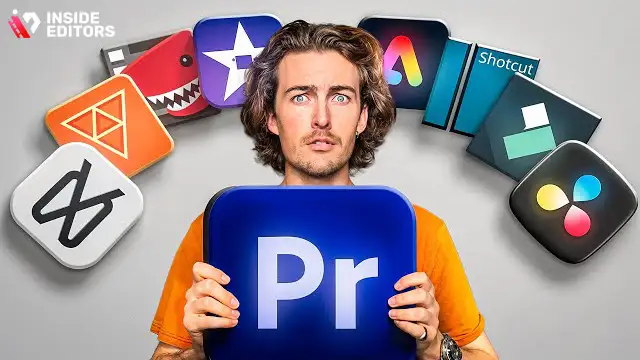
Let’s break down how the most popular tools perform in real-world gaming scenarios. Think of this as a shortcut to understanding which editor will feel natural to you.
DaVinci Resolve: For Ambitious Creators Who Want Pro-Level Control
If you’re serious about long-term growth and don’t mind a learning curve, DaVinci Resolve is about as close to a professional studio as you can get for free. It’s especially powerful for creators who want cinematic montages, deep color grading, and precise control over every frame.
Resolve shines when you’re editing complex projects: multi-layer timelines, speed ramps, synced music cuts, and advanced color correction for darker games or stylized visuals. Its Fairlight audio panel also makes it easier to clean up commentary, balance in-game sound, and shape the overall soundscape of your video.
The trade-off is that Resolve expects a reasonably powerful machine. If your PC struggles with modern games already, running a heavyweight editor on top may be painful. But if your hardware can handle it and you’re ready to learn, Resolve can easily carry you from beginner highlights to professional-level content without needing to switch tools later.
CapCut Desktop: For Creators Focused on Shorts, Clips, and Fast Turnaround
CapCut has become a favorite among creators who publish across TikTok, YouTube Shorts, and Reels. Its biggest strength is speed: templates, auto-captions, simple transitions, and vertical-video presets make it easy to produce content quickly.
For gaming creators, CapCut is ideal for short-form highlights, meme edits, and rapid-fire content that doesn’t require complex color grading or heavy compositing. You can import a long session, mark your favorite moments, apply a few transitions, add text and music, and export in a platform-ready format without wrestling with complicated settings.
The limitation is depth. If you fall in love with editing and begin dreaming of more cinematic or heavily stylized pieces, you may eventually outgrow CapCut’s simplicity. However, as a starting point – especially for mobile-first or short-form creators – it’s one of the most convenient tools available.
HitFilm, Shotcut, OpenShot, and Lightworks: Strong Alternatives for Different Needs
HitFilm Express is a great middle ground for creators who want more visual flair than CapCut but don’t want to dive fully into pro-grade complexity. It provides solid transitions, blending modes, and effects suitable for energetic montages and stylized edits. It can feel heavy on lower-end machines, but if your PC handles it well, HitFilm offers a powerful toolkit for free.
Shotcut and OpenShot are excellent for players editing on modest hardware. Both are open-source, relatively lightweight, and cover the essentials: trimming, transitions, basic text, and simple effects. Their interfaces aren’t as polished, but they get the job done, especially for walkthroughs, commentary videos, and simpler highlight reels.
Lightworks Free is closer to an old-school professional editor, with efficient timeline controls and solid performance. It’s a good fit if you’re used to traditional editing layouts or want to build habits that translate to paid, studio-level tools later. The main drawback is export limitations, so it’s worth checking whether the output formats match your publishing goals.
The key takeaway: there’s no single winner for every creator. Instead, each tool answers a slightly different version of the question, “What do you want your videos to look and feel like?”
Building a Smooth Workflow with Free Tools (Capture to Upload)
Even the best editor can feel clunky if the rest of your workflow is chaotic. A smooth process from recording to upload will do more for your sanity than any single feature upgrade. The good news is that you can create a professional-feeling workflow entirely with free tools if you plan it intentionally.
Recording Clean Gaming Footage from the Start
Editing is much easier when your raw footage is clean. Using reliable capture tools like OBS Studio, you can record at consistent frame rates and bitrates, making your footage easier to edit and process. Simple choices like reducing unnecessary overlays, turning off cluttered HUD elements, or using stable frame rates (for example, locking at 60fps) can dramatically improve the look of your final video.
If you’re recording commentary, capture your microphone to a separate audio track when possible. Many free editors handle multi-track audio well, and separate tracks make it far easier to control volume, remove background noise, or fix small mistakes in post-production.
Organizing Files So You Don’t Get Lost in Your Own Footage
One of the most underrated skills in editing is file organization. Name your recording sessions clearly, separate project folders by game or series, and save your project files in predictable locations. When your footage, thumbnails, sound effects, and music all live in logical folders, editing becomes less stressful and much faster.
This may sound basic, but many creators lose hours each month just hunting through random folders labeled “New Folder (3).”
Editing with a Repeatable Structure
As you produce more videos, you’ll notice patterns: intro styles, lower thirds, favorite transitions, or ways you like to end your videos. Most editors allow you to create templates, save presets, or reuse timelines. Leaning into those features turns editing from a puzzle into a repeatable process.
For example, you might build a standard layout for your gaming intros, with your logo animation, a short highlight teaser, and then a clean transition into gameplay. Once that template exists, every new video starts with structure already in place – and that’s where your choice of editor really shows its value.
When You Should Consider Moving Beyond Free Software
Free tools are more powerful than ever, and many creators grow huge channels without paying for editing software. Still, there comes a point, especially for monetized or brand-driven channels, where the limitations of free tools can slow you down.
You might consider upgrading to paid software or professional help when:
- Your editing time is blocking you from creating more content or streaming.
- You’re turning down collaborations or sponsorships because your editing pipeline is stretched.
- Your projects require consistent branding, advanced effects, or multi-platform campaigns.
- You want your content to match the visual standard of top-tier gaming channels.
Sometimes the upgrade isn’t a tool – it’s a team. That’s where professional editing services come into play, especially when you want to stay focused on gameplay, strategy, or community building instead of timelines and keyframes.
How Professional Editors Can Elevate Your Gaming Content
Even with the best free gaming video editing software, there’s a difference between “good enough” and “consistently excellent.” Professional editors live inside timelines every day. They understand pacing, transitions, motion, sound design, and platform-specific formatting in a way that can take years to master solo.
At Inside Editors, our team works with a wide range of creators – from casual streamers to brands who need polished, on-brand gaming content. A professional editor can help you:
- Turn long, messy sessions into tight, engaging narratives.
- Design recurring intros, transitions, and overlays that reinforce your channel identity.
- Adjust pacing to match your game genre and audience expectations.
- Format your content across multiple platforms, from full-length YouTube videos to Shorts, Reels, and more.
If you’re building a gaming-focused brand or simply want your content to look and sound sharper without spending all night editing, partnering with experts can be a natural next step. You stay in control of the vision; the editor handles the execution.
To see how this works in practice, you can explore our dedicated gaming video editing services, where we focus specifically on turning raw gameplay into polished, shareable stories.
Bringing It All Together: Choosing the Best Path for Your Gaming Videos
By now, you’ve seen that the “best” free editor isn’t a single app – it’s the tool that fits your content, your hardware, and your goals. If you’re just starting, something like CapCut or OpenShot can help you learn fundamentals without overwhelm. As your skills grow, DaVinci Resolve or HitFilm can open doors to more cinematic and complex edits.
The real key is clarity. When you know what you want your videos to achieve – whether that’s views, community building, or pure creative satisfaction – it becomes much easier to choose software that supports that vision. Remember that editing is a skill, not a magic button. The more you practice, the more you’ll get out of any tool you choose.
And if you ever feel stuck between wanting professional results and not having enough time to get there, you don’t have to choose between quality and burnout. Services like Inside Editors exist precisely to bridge that gap, taking your raw gameplay and turning it into content you’re proud to share.
In the end, the best free gaming video editing software is the one that makes your ideas easier to express – and the best setup is the one that lets you spend more time doing what you love: playing, creating, and connecting with your audience.
FAQs
1. What is the best free gaming video editing software for beginners?
Most beginners start with tools like CapCut or Shotcut because they’re lightweight, simple, and include the essentials without overwhelming menus. These editors handle trimming, basic effects, and 1080p exports well enough for gaming highlights. As you improve, you can transition to advanced tools like DaVinci Resolve for more control. The best choice depends on your workflow, hardware, and the type of videos you create.
2. Is free gaming video editing software good enough for YouTube?
Yes – many YouTubers use free editors successfully, especially for walkthroughs, commentary, and highlight clips. Tools like DaVinci Resolve and HitFilm offer pro-level features without cost, including color grading, smooth timelines, and high-quality exports. The key is learning a consistent workflow and optimizing your game recordings. If you need brand-level polish later, upgrading or hiring a professional editor can help.
3. What are the limitations of free editing tools?
Free tools often limit advanced features like motion tracking, detailed color grading, or 4K/60fps exports. Some apps also include small watermarks, slower rendering, or fewer templates compared to premium versions. These limits don’t block beginners, but they matter as your channel grows. If you need complex effects or faster turnaround, professional tools or editing services may be worth considering.
4. How do I choose the right free gaming editor for my PC?
Start by checking your system specs against the editor’s requirements – especially RAM, CPU, and GPU. Lightweight tools like Shotcut and OpenShot run well on older laptops, while DaVinci Resolve needs a stronger GPU. Choose based on your editing goals: fast clips, long walkthroughs, or cinematic montages. Try two or three tools to see which timeline feels smoothest for your footage.
5. Can I make professional-looking gaming videos using only free software?
Absolutely – high-quality editing comes from skill and workflow, not price tags. Many free editors include pro features like keyframing, color controls, and advanced transitions. What matters most is clean recording, stable cuts, and thoughtful storytelling. If you want studio-level polish, Inside Editors can help refine your style and handle complex edits.
6. How long does it take to edit a gaming video?
Simple highlight clips can take 30-90 minutes depending on footage length. More complex videos with voiceovers, effects, and pacing adjustments may take 3-6 hours or more. Turnaround depends on your experience, the editor you use, and your processing power. Professional services typically deliver within 24-72 hours, with rush options available.
7. Do I own the rights to my edited videos?
Yes – with free editors and professional services, you retain full ownership of your content and footage. Reputable platforms never claim rights to your gameplay, brand assets, or final videos. Always double-check licensing for music and plugins if you’re using external assets. Inside Editors provides full rights to all delivered edits with no restrictions.
8. Are my files safe when using an editing service?
Quality editing services use secure upload portals and encrypted storage to protect raw footage. Your files are kept private, shared only with the assigned editing team, and deleted on request after project completion. No content is ever reused or shared externally. If you prefer extra privacy, you can watermark raw clips before sending.
9. Should I edit my gaming videos myself or hire a professional?
Self-editing gives you control and helps you learn the craft, especially when using free gaming video editing software. But it can also take hours that could go into recording, streaming, or building your community. Professionals bring consistency, style, and faster turnaround – ideal for creators who want steady uploads or brand-quality videos. Many gamers use a hybrid approach: DIY for shorts, professional help for major uploads.
10. How much do professional gaming video editing services cost?
Editing services typically range from $30-$150 per video depending on length, complexity, and revision needs. Basic packages include trimming, color fixes, and simple effects, while premium tiers cover motion graphics, subtitles, and platform-specific formats. Revisions are usually included, with costs rising for advanced VFX or multi-cam edits. Inside Editors offers flexible pricing to match different creator levels.


