

If you’ve ever wished you could save a YouTube video for offline watching, reuse a clip in your project, or study a tutorial without buffering, you’re definitely not alone. In 2025-2026, downloading online videos is more common than ever – and surprisingly simple once you understand the safe, legal ways to do it. The challenge is that most tutorials either feel outdated, too technical, or filled with shady tools that risk your privacy.
That’s exactly why this Inside Editors guide exists. By the end of this article, you’ll know everything from the legal basics to the step-by-step process of saving a YouTube video on your device using clean, trusted methods. You’ll also learn how to choose the right format, resolution, and storage settings so your downloaded clips look great whether you’re watching, studying, or editing them later.
And yes – we’re doing all of this in plain, conversational language. Think of it as a knowledgeable friend walking you through the process, not a wall of tech jargon.
Understanding the Legal Side Before You Download

Before learning how to download a YouTube video, it’s important to clear up one thing: legality. YouTube’s Terms of Service technically allow downloading only when the button is provided (like YouTube Premium’s official offline mode). Downloading other videos without permission can raise copyright concerns, depending on the purpose and region.
However, personal offline use – such as studying tutorials or saving content you yourself uploaded – is typically considered low-risk. The key is avoiding redistribution, re-uploading, or using someone else’s content commercially.
This guide focuses on practical, responsible, and widely accepted methods for personal use – the same approach used by millions of creators who need quick offline access or reference clips.
Why Downloading Videos Still Matters in the Streaming Era
Streaming is everywhere, but downloading still solves real problems. Whether it’s a slow connection, traveling, a school project, or simply keeping your favorite tutorials close, downloading offers control that streaming can’t match. You don’t have to worry about buffering, ads, or data caps. You simply press “play” and enjoy.
This becomes especially valuable for editors, students, researchers, and creators. If you’re someone who collects references, color-grading inspiration, cinematography breakdowns, or educational videos, local storage becomes your best friend. It lets you create your own library of helpful clips that loads instantly whenever inspiration hits.
The Safest Ways to Download a YouTube Video in 2025-2026
Before diving into steps, let’s get one thing straight: not all download tools are created equal. Some are slow, filled with ads, or downright unsafe. In 2025-2026, the tools worth using fall into three main categories – online downloaders, dedicated software, and mobile apps.
To help you make sense of it, here’s a quick comparison:
Comparison Table: Best Downloading Methods in 2025-2026

| Method | Best For | Pros | Cons |
| Online Downloaders (web tools) | Quick one-off downloads | No installation, simple | Can be slow; some have ads |
| Desktop Software | Frequent downloads | Fast, stable, high-quality formats | Requires installation |
| Mobile Apps | On-device saving | Easy to use, portable | Limited formats depending on OS |
Each option works well depending on how often you download videos and what purpose you have in mind. If you download YouTube videos frequently or need high-resolution formats like 4K or 8K, dedicated software is usually your best bet. On the other hand, if you occasionally save a tutorial for offline study, a simple website tool may be all you need.
This brings us to the main event: the actual step-by-step process.
Step-by-Step Guide: How to Download a YouTube Video
This is the part most people come for – simple, clean instructions that anyone can follow. Whether you’re using a PC, Mac, Android, or iPhone, the steps below outline the most universal method.
Step 1 – Copy the YouTube Video Link

Start by opening the video you want to save. On a computer, simply right-click the URL bar and select “Copy.” On mobile, tap “Share,” then “Copy link.” It’s simple, but it matters – a clean link avoids download errors later.
Step 2 – Choose a Safe Download Tool
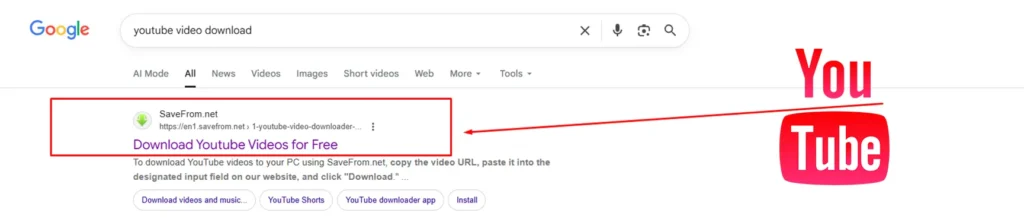
You’ll need a trusted website or app that does the actual conversion. Look for tools with a clean interface, HTTPS security, and consistent user reviews. Avoid sites filled with pop-ups; they tend to embed trackers or slow your device.
For high-quality downloads or recurring use, desktop apps like 4K Video Downloader, ClipGrab, or similar tools are often more efficient. For occasional downloads, online converters do the job just fine.
Step 3 – Paste the Link and Select Your Quality
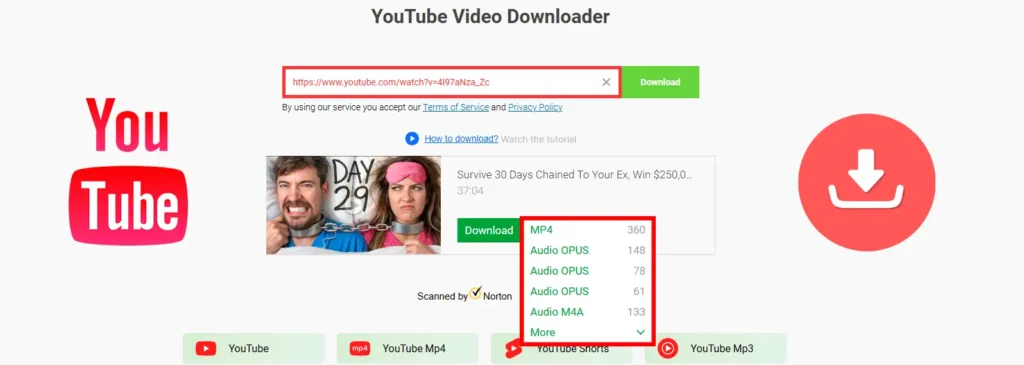
Once you’ve picked your downloader, paste your copied link into the tool’s input box. You’ll usually get a list of quality options such as 360p, 720p, 1080p, or even 4K. If you’re planning to edit the downloaded video later, always choose the highest quality available – you can compress it later if needed.
This is also where you can choose the format. MP4 is the safest choice because it works with almost every device and editor.
Step 4 – Download and Save

Once your format and quality are selected, click the download button. The file will either automatically save to your Downloads folder or ask you to choose a location. That’s all there is to it – one quick process and the video is yours.
But understanding the process isn’t enough. To really take advantage of downloading YouTube content, you need to think about what happens next: storage, formats, resolutions, and how the downloaded clip will fit into your workflow. That’s where many people hit roadblocks, especially if editing is part of their plan.
Choosing the Right Format and Resolution for Your Needs
Downloading a YouTube video isn’t just about getting the file – it’s about choosing the format and quality that actually serve your purpose. Too often, people grab the first option they see, only to end up with grainy footage, oversized files, or incompatible formats when they try to use the video later. Understanding formats and resolutions makes your workflow smoother and your viewing experience better.
Understanding File Formats
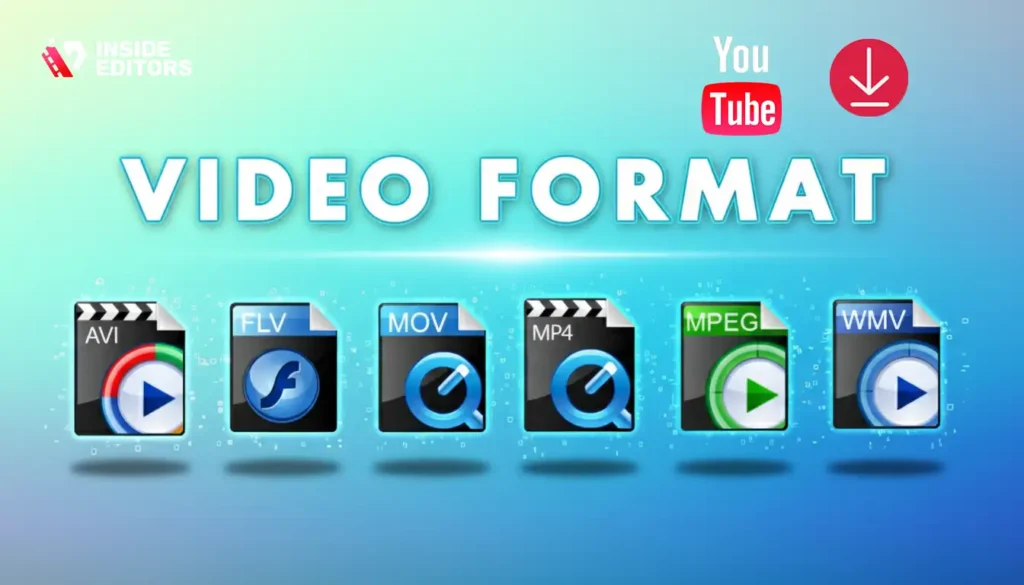
MP4 is the universal choice for a reason. It balances quality and file size while working across almost every device, browser, or editing software. If you plan to edit the video, MP4 ensures fewer compatibility issues. Some tools also offer WEBM or MKV formats, which are fine for archiving but may cause trouble with older devices. Sticking to MP4 keeps things simple and predictable, especially for beginners or anyone using basic editing tools.
Picking the Best Resolution for Your Purpose

Resolution determines how sharp your downloaded video looks. If you’re watching offline tutorials or entertainment videos, 720p is perfectly usable. For editing or reusing footage in your projects, you might prefer 1080p or higher. Keep in mind that high-resolution files take up more storage and require more processing power, so choose based on your device’s capabilities. If your laptop or phone struggles with large files, balancing quality with performance becomes essential.
When Higher Resolution Really Matters
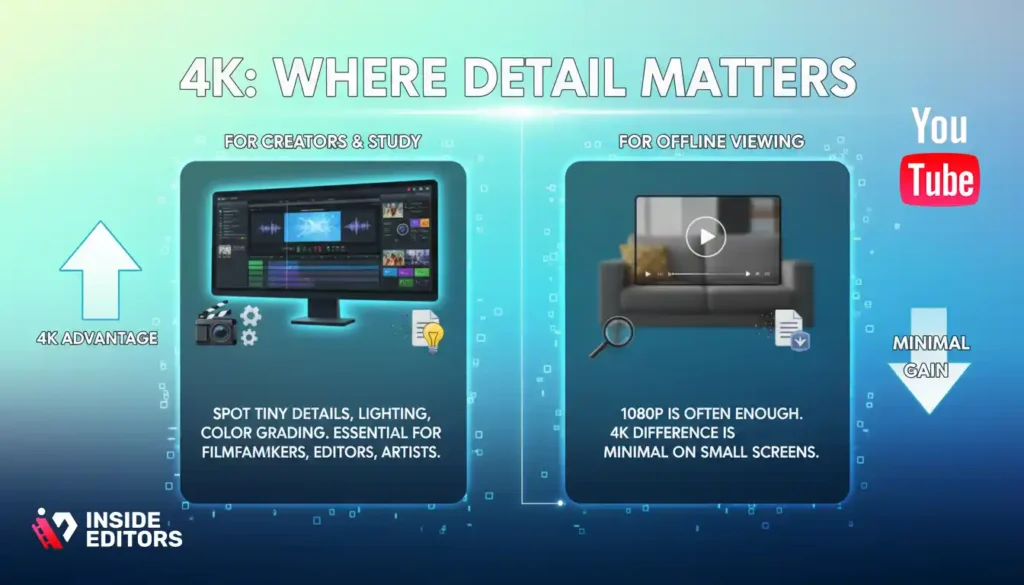
Creators who plan to use downloaded videos as references, inspiration, or educational material often prefer 4K downloads when available. The additional sharpness helps you notice details – lighting setups, camera movements, color tones – that lower resolutions simply don’t show. This is especially helpful if you’re studying filmmaking or improving your editing skills. However, if you’re downloading content strictly to watch offline, the difference between 1080p and 4K often goes unnoticed.
Common Mistakes to Avoid While Downloading Videos
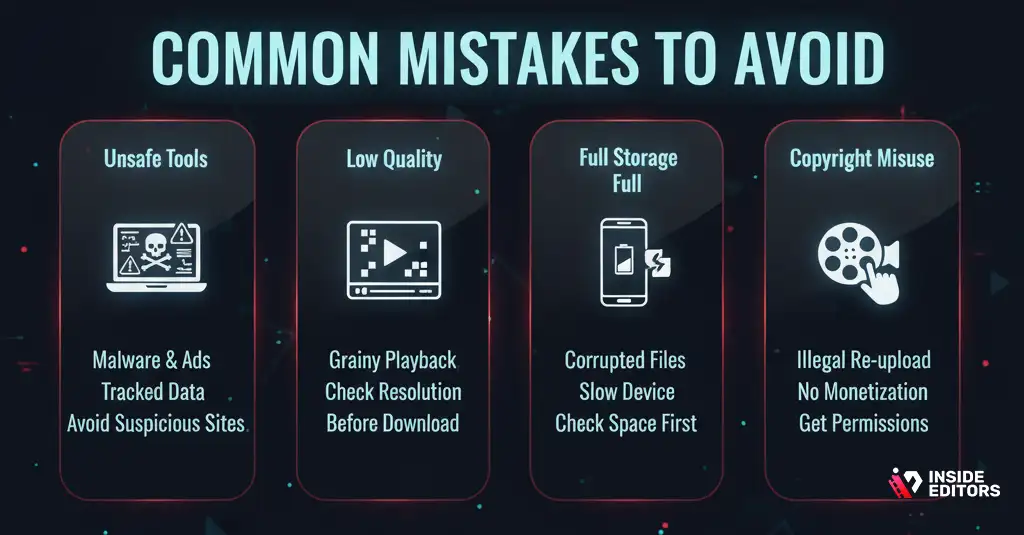
Many people run into problems not because the downloading process is complicated, but because of small oversights that are easy to avoid. These mistakes might slow your workflow, lower quality, or even expose you to unnecessary security risks.
Using Unsafe or Unverified Tools
One of the biggest mistakes is relying on random websites that appear in search results. Some are filled with ads or pop-ups, while others track user data. Always stick to tools with clean interfaces and secure connections. If a site feels suspicious, it probably is. Trust your instincts and prioritize safety – especially if you plan to download regularly.
Downloading Low-Quality Versions by Accident
Another common issue is accidentally selecting a low-resolution file. Many downloaders default to lower quality to reduce file size. Always manually choose your preferred resolution before clicking the download button. It takes an extra second but saves you from grainy playback or having to download the same video again.
Forgetting About Storage Requirements
High-quality videos take up significant space. A five-minute 4K clip can be several gigabytes. Before downloading multiple videos, check your available storage. Running out of space mid-download can corrupt the file or slow down your device. If you’re saving content long-term, consider organizing your files into folders or using external storage.
Misusing Copyrighted Content
While downloading for personal use is common, problems arise when people re-upload videos, use copyrighted clips without permission, or monetize someone else’s content. If your goal involves editing or repurposing videos for social media, always check usage rights or reach out to the original creator for permission.
How Downloaded Videos Fit Into an Editing Workflow
You might be downloading YouTube videos simply to watch offline – but a lot of readers download them to use as references or assets in their editing workflow. And that’s where things get interesting. Downloaded videos can help you learn faster, edit smarter, and improve your production quality – as long as they fit into your setup correctly.
Why Creators Download Videos for Study or Reference
Editors learn best by watching how others cut, color-grade, and construct videos. When you download a clip, you can pause, slow it down, analyze transitions, and rehearse your own version without relying on internet speed. This kind of hands-on study speeds up your growth, whether you’re a beginner or a pro sharpening your craft.
Editing Downloaded Videos on a Budget
Even if you’re using a basic laptop or mobile device, downloaded videos often play smoothly because you can adjust resolution or convert formats as needed. If your device struggles with large files, converting them to smaller sizes helps keep your editing software responsive. Starting small and upgrading over time is a realistic path that many creators follow – especially students or freelancers starting out on a budget.
Using the Right Software for Your Needs
Some editing software handles downloaded videos better than others. Lightweight editors like Clipchamp or CapCut are friendly to older or budget devices, while professional tools like Adobe Premiere Pro or DaVinci Resolve require more power. If you’re unsure which software to use, test how your device performs with a few short downloaded clips before committing to a long project.
Best Practices for Organizing and Managing Downloaded Content
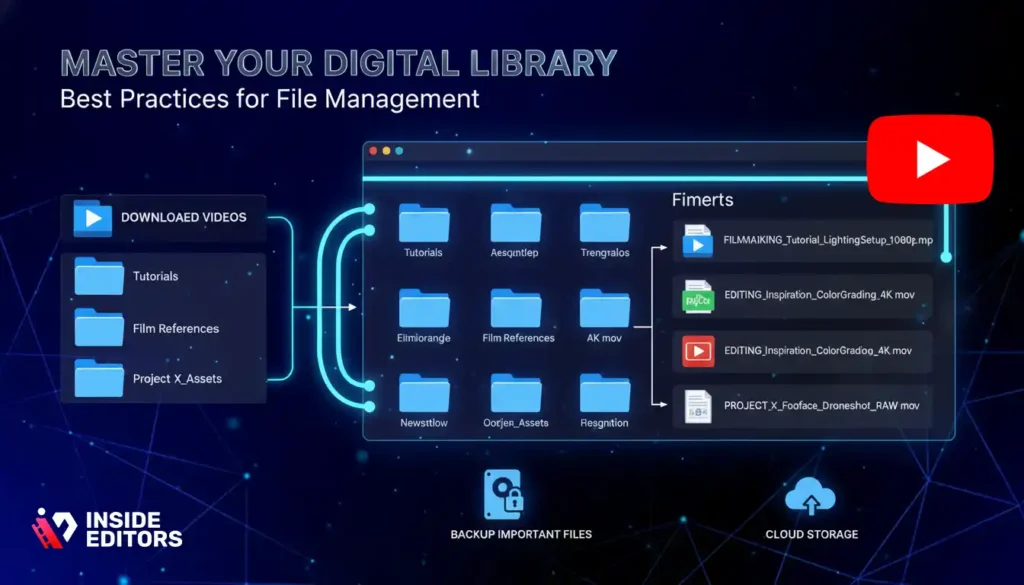
Over time, downloaded videos can clutter your device if you don’t organize them properly. Good file management helps you stay focused, find what you need quickly, and avoid redownloading files you already have.
Create a Clear Folder System
A simple folder structure works wonders. Create categories based on topics, creators, or project themes. For example, tutorials can go into one folder, references in another, and research materials in a third. This level of organization saves you time and reduces stress when you’re juggling multiple projects at once.
Label Files Properly
Rename your files when you download them. Default names often look like random numbers or characters, which makes finding them later difficult. A clear naming convention – such as “topic_creator_title_1080p.mp4” – helps you stay organized and efficient.
Back Up Important Videos
If you rely on certain downloaded videos for ongoing study or inspiration, consider backing them up to external drives or cloud storage. This ensures you won’t lose them during device updates or storage issues. A few minutes of preparation can save you hours of frustration.
When to Consider Professional Editing Help
Downloading videos is often just the first step in creating something meaningful. Whether you’re making reaction videos, travel edits, product explainers, or social media content, editing can take your idea from basic to brilliant. But editing well takes time, skill, and the right tools – and that’s where many creators feel stuck.
When Editing Becomes Overwhelming
If you’ve ever spent hours trying to trim a clip, sync audio, or color-match footage, you know how quickly editing can become frustrating. Many beginners assume editing is just about cutting clips, but refining pacing, lighting, and transitions takes practice. When you’re working on a deadline or lack experience, bringing in expert help can make the process smoother and more enjoyable.
How Inside Editors Can Transform Your Video
At Inside Editors, we help creators take downloaded or self-recorded footage and turn it into polished, professional content. Whether you’re creating reaction videos, business explainers, fitness content, travel edits, or gaming highlights, our editors handle everything from color grading to sound balancing. You stay in control of your story – we just help you tell it beautifully.
Conclusion: Downloading YouTube Videos the Right Way
Learning how to download a YouTube video is simple once you understand the tools, formats, and best practices that keep your files organized and your workflow smooth. Whether you’re saving videos for offline watching or using them for creative study, the right approach makes all the difference. As long as you download responsibly and use trusted tools, you’ll enjoy smoother viewing and a more productive creative process.
And if you ever decide to turn your downloaded clips into polished content, Inside Editors is here to help with professional editing support that brings your ideas to life.
FAQs How to Download a YouTube Video
1. Is it legal to download a YouTube video for offline use?
Downloading YouTube videos you don’t own can violate YouTube’s Terms of Service and, in many cases, copyright law. The safest approach is to only download your own uploads from YouTube Studio or use the official “Download” features in the YouTube app or YouTube Premium. When you search for how to download a YouTube video, always check the license and creator’s permissions first.
2. What is the safest way to download a YouTube video without risking my privacy?
The safest way is to use YouTube’s built-in tools: YouTube Studio for your own content or the official offline download feature in the mobile app. These options keep your Google account secure, avoid shady third-party sites, and respect YouTube’s rules. If you must use external tools, stick to reputable software, avoid installing unknown browser extensions, and never share your login details.
3. Should I download YouTube videos myself or hire a professional editor?
If you’re just saving clips for personal study, DIY tools are usually enough once you know how to download a YouTube video legally. But if you’re building a brand, business channel, or ad campaign, working with a professional editor gives you stronger storytelling, smoother pacing, and consistent quality. Inside Editors, for example, lets you collaborate with pro editors while you focus on content and strategy instead of timelines and keyframes.
4. How much does professional YouTube video editing cost after I download my footage?
Basic edits like trimming, simple transitions, and light color fixes can start around $50–$150 per video, depending on length and complexity. More advanced projects with motion graphics, captions, sound design, and multiple revision rounds can range from $200–$600+ per video. Inside Editors offers tiered packages so you only pay for what you actually need, whether that’s simple cleanup or full-scale production polish.
5. How long does professional editing take once I send in my downloaded YouTube video?
Most standard YouTube videos (5–10 minutes long) are turned around in about 2–4 business days, assuming your brief is clear and you don’t request heavy re-cuts. Larger projects, multi-video batches, or complex motion graphics can take 5–10 days so editors can maintain quality without rushing. Many teams, including Inside Editors, also offer rush options for time-sensitive campaigns at an additional fee.
6. How can I legally download my own YouTube video in a few simple steps?
To download your own upload, go to YouTube Studio, open Content, hover over the video, click the three dots, and choose Download. This gives you a high-quality file you’re fully allowed to edit and reuse across platforms. If you’re wondering how to download a YouTube video for reuse, this first-party method is the safest because it respects your ownership and YouTube’s rules.


