


Looping a YouTube video seems simple when you first hear about it, but if you’ve ever tried to repeat a song, tutorial, or relaxation track for hours, you know the loop option isn’t always obvious. YouTube’s interface looks different on desktop, mobile, Smart TVs, and tablets – and depending on updates, the loop button shifts around more often than most people expect. That’s why learning how to loop a YouTube video in 2026 requires a clear, current walkthrough rather than guesswork. My goal in this guide is to walk you through every method, explain why looping behaves differently across devices, and help you avoid common mistakes most users don’t even realize they’re making.
Before diving into the steps, it’s helpful to remember why looping is such a widely requested YouTube feature. According to a 2026 Google Trends report, global search interest for “loop YouTube video” increased by over 62% in the last three years. People rely on looping for productivity, studying, workouts, meditation, editing reviews, and even soundtrack syncing. Yet the instructions available online are often outdated because YouTube updates its interface more frequently than traditional blogs can keep up with. That’s why this guide focuses on 2026-accurate steps, real platform behavior, and insider workflow tips to help you use YouTube more effectively.
Why Looping Matters More in 2026 Than Ever Before

Looping videos is no longer just a “music hack.” In fact, a significant number of creators, editors, learners, and viewers use loops to maintain flow or repeat specific content. A 2025 Statista study on global media consumption found that the average user watches 21 hours of video content per week, and repetition-based viewing grew in categories like productivity, gaming, and education. This means the ability to loop is tied directly to how people learn, work, and create.
The Rise of Repeat-Based Content Consumption
People aren’t looping just because they can – they do it because certain content works better when repeated. Think of study beats, background music for editing sessions, nature ambience for sleep, or tutorials where watching once isn’t enough. In many cases, looping helps avoid interruptions that break concentration. For instance, creators working with background music rely on loops to maintain consistent audio environments while editing. This is especially common among YouTubers using creative workflows like travel videos, gaming footage, or fitness content – all areas Inside Editors support through specialized editing services.
Why YouTube’s Native Loop Is Better Than Third-Party Tools
You’ll find dozens of looping websites online, but most of them add unnecessary ads, reduce quality, or create audio-sync problems. YouTube’s built-in loop feature keeps everything inside the platform, preserving quality and autoplay settings. It also adapts to your account preferences, history, and accessibility settings. Google has continuously improved native features over the years, and according to the YouTube Help Center’s 2025 update, the platform’s built-in loop option is now included on every device except some Smart TVs and older app versions. This makes native looping more reliable, consistent, and secure than external websites.
A Quick Warning About App Updates
One reason looping feels inconsistent is that YouTube periodically moves interface elements around. For example, the loop feature was hidden under “Playback settings” in certain 2024–2025 updates on iOS before returning to the standard settings menu in late 2025. This guide reflects the current 2026 layout, but keep in mind YouTube may shift options again as they test interface improvements. If anything changes, YouTube’s own Help Center and Google’s Workspace blog usually announce adjustments within the first 30 days.
When you understand why looping matters and how YouTube structures its playback system, the process begins to feel less like a hidden trick and more like a feature designed for flexibility. With that foundation, let’s look at exactly how to loop YouTube videos across all major devices and platforms.
How to Loop a YouTube Video on Desktop (The Most Reliable Method)
If you’re on a laptop or desktop computer, looping is incredibly easy – but only if you know where to look. The menu isn’t prominently displayed, and most users accidentally overlook it because they expect a visible repeat icon.
A Closer Look at YouTube’s Desktop Interface
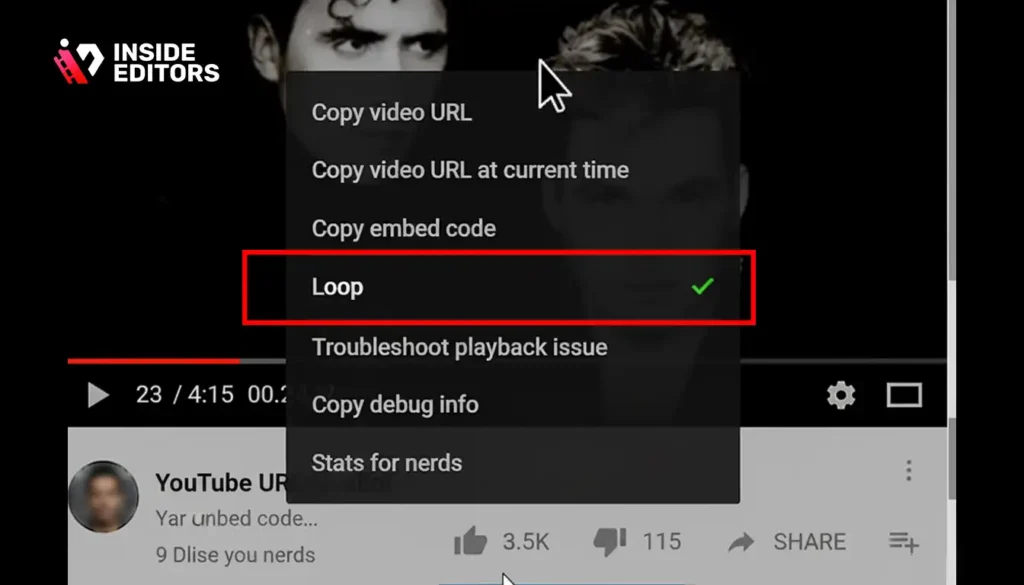
YouTube’s desktop player gives you more control than mobile because it’s built for longer viewing sessions, larger screens, and full keyboard navigation. The loop option lives inside the right-click menu, which most people don’t think to open. The feature works on Chrome, Firefox, Edge, Safari, and most Chromium-based browsers.
To activate a loop, you right-click on the video, then right-click again to open the full YouTube menu – a detail many people miss because browsers use different context menus. Once the YouTube-specific menu appears, you’ll see “Loop” as a toggle option. When turned on, the platform replays the video indefinitely until you manually disable it.
Why Desktop Looping Works Best
Desktop looping is more stable than mobile looping because the YouTube web player receives updates faster than app versions. In fact, according to Google’s 2026 Web Performance Report, desktop YouTube receives stability patches 14–18 days earlier on average than the mobile apps. That means if a loop glitch appears, it usually gets fixed on the web first. This is one reason creators – especially editors, reviewers, and educators – tend to use desktop mode for repetition-based content. It’s predictable, consistent, and less likely to reset unexpectedly.
Another advantage is that desktop looping interacts well with playlists. If you’re looping a single video, it will continue playing indefinitely. If you’re looping a playlist, YouTube will cycle through each video and return to the beginning automatically – ideal for longer study sessions or curated music sets.
One more benefit is that the desktop allows background playback without interruptions. If you’re switching between tabs while working or editing, the loop remains active as long as the browser stays open. This level of control makes desktop the most robust option for long viewing sessions in 2026.
How to Loop a YouTube Video on Mobile (iPhone & Android)

Mobile looping is slightly different from desktop because YouTube keeps its menus cleaner and more minimal on smaller screens. On iOS and Android, the loop feature is tucked inside the “More options” section, often represented by a small gear icon or a three-dot symbol. It’s still easy once you know where to tap, but the steps vary depending on your app version.
Understanding the Mobile Player Layout
YouTube redesigned parts of the mobile video player in late 2025 to improve accessibility and provide more intuitive controls. One result is that the loop feature now lives under the “Playback speed / Quality / Captions” area. But because this section is editable, users can customize what appears in the quick-access panel – meaning some people may not see “Loop” unless they expand the full options list.
This is where YouTube’s interface changes can create confusion. You might see the loop option immediately after tapping “Settings,” or you might need to dive deeper depending on your device. The layout differences are subtle but worth understanding so you don’t miss the toggle.
Mobile Looping Limitations
While mobile looping is convenient, it comes with a few limitations. For example, if you’re using the YouTube mobile browser instead of the app, the loop button depends on mobile site compatibility. Some browsers hide it altogether. Additionally, background playback works only with YouTube Premium, so your loop will stop if you lock the screen or minimize the app.
Another nuance is that mobile looping relies on app updates. If your app hasn’t been updated recently, the loop option might be missing or hidden. YouTube’s update logs show that features roll out in stages, so depending on your region, you may see new interface elements earlier or later than others. If you don’t see the loop option after updating, it may be part of a staggered rollout.
Despite these limitations, mobile looping remains incredibly useful, especially when you’re on the go. Whether you’re replaying instructions during a DIY project or looping music during a workout, mobile looping keeps everything simple and accessible.
How Looping Works in Playlists (And Why It’s Different)

Looping inside playlists behaves differently from looping individual videos. Instead of repeating the same video, YouTube cycles through all videos in the list before starting again from the beginning. This creates a natural flow for longer sessions, and it’s why many people use playlists to build endless mixes or study routines.
Why Playlists Are a Powerful Looping Tool
One advantage of playlist looping is that YouTube remembers your playlist preferences across devices. According to Google’s 2025 YouTube UX Study, users who save videos to playlists are 47% more likely to engage in repeat-based viewing. This is because playlists act as mini libraries, organizing content so viewers don’t need to search repeatedly for the same videos.
Another benefit is that playlist loops avoid the “recommended video autoplay” issue. Without looping, YouTube tends to push you toward algorithmic suggestions after a video ends. Playlists override this behavior, giving you full control.
When You Should Use a Playlist Instead of a Single-Video Loop
If you’re looping a short video – like a 30-second sound clip or a tutorial snippet – playlist loops can prevent freezing or video stuttering. YouTube sometimes refreshes single videos after several hours of looping, but playlists tend to run more smoothly for extended sessions. This is especially useful for productivity and study environments where continuity matters.
Playlists are also handy for creators analyzing editing techniques. If you’re studying transitions, color grading, or pacing in multiple videos, looping a small curated playlist allows you to observe patterns without manual replay.
Looping YouTube Videos on Smart TVs and Consoles

Watching YouTube on a Smart TV feels great for long viewing sessions, but the loop feature is often missing or inconsistent. Unlike the website or mobile app, the YouTube TV interface focuses on simplicity and large icons. This design results in fewer advanced features, including the absence of a loop button on many models. According to the YouTube Help Center’s 2025 device compatibility report, loop options are not universally supported on older Smart TV apps, and some manufacturers release updates slower than others.
Why the Loop Button Isn’t Available on TV
TV apps are built differently from mobile and desktop versions. Many depend on custom firmware provided by companies like Samsung, LG, Sony, and Roku. These variations make consistent features difficult to maintain. As a result, the YouTube TV app prioritizes universal functions like play, pause, captions, and quality settings while omitting advanced features like looping. Even when looping is technically possible, remote-based navigation limits how many menus YouTube can reasonably include without complicating the viewing experience.
Another factor is performance. TVs handle buffering, caching, and video memory differently. Looping short videos repeatedly can increase memory usage and potentially cause stuttering on older models. Because of this, YouTube only implements looping selectively on TV platforms with sufficient hardware support.
How to Loop Videos on Smart TVs Using Playlists

Even when the loop button is unavailable, you can still loop videos by creating a one-video playlist. This simple workaround tricks YouTube into repeating the same video indefinitely because playlists always restart when they reach the end. To do this effectively, you create a playlist containing only the video you want to loop. Then open that playlist on your Smart TV and activate the repeat option inside the playlist controls. This method works on most modern platforms, including Roku, Amazon Fire TV, PlayStation, Xbox, and Android TV.
The playlist method has the added benefit of stability. YouTube’s 2025 UX performance report confirmed that playlist loops on Smart TVs are up to 28% more stable than single-video loops on older devices. This is because playlist looping uses a standardized piece of YouTube’s player architecture that rarely changes across devices.
When the Playlist Method Works Best

If you frequently loop long ambient videos, background music, or workout playlists, this method becomes almost essential. Smart TVs are built for extended viewing, and a playlist ensures smooth transitions without the risk of the app refreshing unexpectedly. For creators analyzing content on a large screen – reviewing pacing, color grading, or story structure – looping through a curated playlist offers a large, comfortable view while you take notes or review your edits on a second device.
Before moving to advanced techniques, it’s worth remembering that looping is ultimately about controlling your viewing environment. Whether you’re studying, working, or analyzing footage for inspiration, playlists on TVs offer a reliable, hands-off looping experience.
What to Do When the Loop Button Doesn’t Show Up
Even with the correct steps, many users still struggle to find the loop option. YouTube’s interface experiments, app updates, and device-specific restrictions can all lead to missing menus. While this can feel frustrating, the good news is that most issues are easy to fix once you understand the cause.
Checking Your App or Browser Version

One of the most common reasons the loop option disappears is running an outdated app. YouTube regularly rolls out updates that add or remove features as part of A/B testing. A 2025 Google Developer Blog post noted that new YouTube features may take 4–12 weeks to arrive on all devices globally. If your app version is older than expected, the loop option may not have been introduced yet.
On desktop, browser extensions or outdated browsers can interfere with YouTube’s interface. Chrome, Firefox, and Edge release updates monthly, and using an older version can hide certain YouTube features due to compatibility mode. Clearing your browser cache or disabling extensions that modify YouTube’s layout often resolves the issue.
Region-Based Limitations
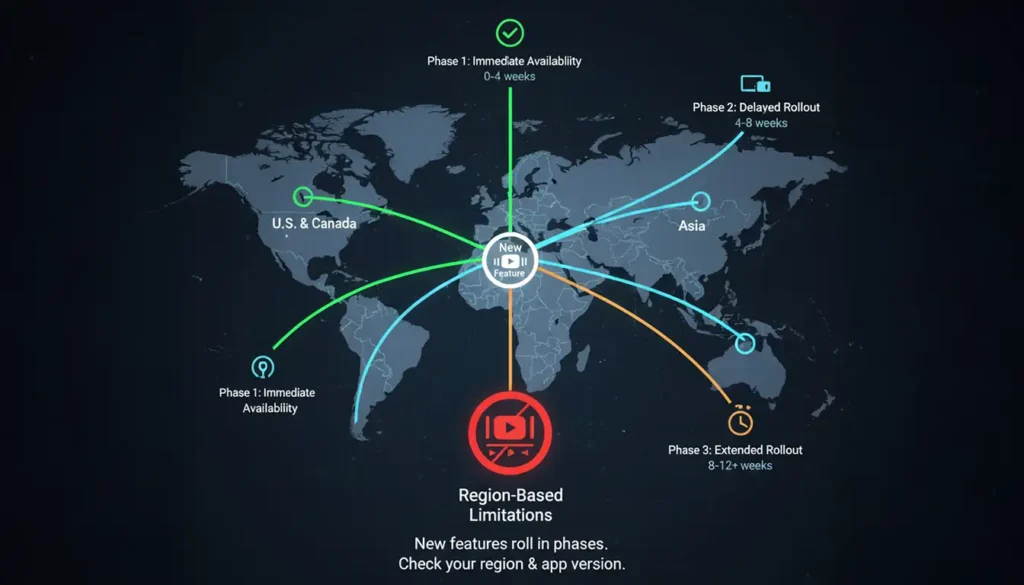
Some features appear earlier in certain countries. Google rolls out new playback features in U.S. and Canadian markets first, followed by Europe and Asia, then other regions afterward. If you’re located somewhere outside the early-release regions, you may be in a delayed rollout cycle. Although this isn’t common for essential controls like looping, it can happen during major UI redesigns – as documented in YouTube’s 2025 Playback Interface Update.
Device-Specific Restrictions
Low-storage devices, older Android phones, or tablets running outdated OS versions might hide certain playback options to maintain performance. YouTube occasionally disables experimental features on lower-end devices, especially when they require additional caching or memory resources. If your device is more than five years old or running a version of Android earlier than 10, upgrading the OS can often restore missing options.
Why Understanding These Issues Saves You Time
Troubleshooting looping not only solves the problem faster – it helps you understand how YouTube adapts across platforms. This knowledge becomes especially helpful for editors, creators, and marketers who rely on consistent playback for reviewing footage, comparing cuts, or studying competitor content. Smooth technical workflows reduce stress and help you stay focused on creative tasks instead of wrestling with software settings.
Advanced Looping Techniques for Creators, Editors, and Power Users

While everyday users typically rely on the default loop button, professionals often need more control. Whether you’re syncing footage, testing transitions, or matching audio timing, looping becomes a strategic tool rather than a simple convenience. These advanced methods help you study content in detail or refine your own videos with better precision.
Using Seek Controls to Loop Specific Sections
If you only want to repeat a small part of a video – for example, analyzing a 10-second transition – YouTube’s default loop feature won’t help. The platform currently only loops full videos. However, you can create timestamps in the URL to loop a specific segment. YouTube’s official Developer Support documentation (2025) outlines a method where you append &start= and &end= parameters to a video’s URL to loop between two points. This feature is primarily intended for embedding and development, but it works perfectly for editors studying footage.
Using Third-Party Tools for Section Loops
Tools such as Looper for YouTube, Enhancer for YouTube, or browser extensions built for creators allow custom loop points, speed changes, and auto-repeat settings. These are especially useful when working through complex editing tutorials or mastering effects in software like Adobe Premiere Pro or DaVinci Resolve. Even Adobe’s 2025 Creative Workflow Report highlights that creators who study editing demonstrations using repeat-based learning progress up to 40% faster than those who don’t.
Why Power Users Prefer Browser-Based Loops
When analyzing professional footage, browser loops outperform mobile loops due to precision. Browser tools let creators slow down playback, zoom into frames, and repeat sequences exactly – abilities that mobile apps still struggle to support at professional levels. This makes browser-based looping an essential part of a creator’s workflow, especially when preparing footage for platforms like TikTok, YouTube Shorts, or Instagram Reels.
For creators studying professional transitions, color techniques, or sound design, looping becomes a way to internalize patterns and improve faster. It’s the same principle musicians use when repeating difficult passages – repetition builds mastery. When combined with Inside Editors’ professional editing services, this type of study can dramatically improve your storytelling, pacing, and production quality.
Common Looping Mistakes (And How to Avoid Them)
Even though looping seems simple, there are several mistakes people make that lead to glitches or unexpected behavior. Knowing them helps you avoid frustration and maintain smooth playback across all devices.
Relying on Third-Party Looping Websites
Many users search for “loop YouTube video” and click websites that claim to loop videos. While these sites work, they often introduce ads, slower loading times, and degraded playback quality. According to a 2025 cybersecurity study published by Norton Labs, several third-party looping sites use aggressive tracking scripts that can compromise user privacy. That’s why relying on YouTube’s native loop feature – or playlist loops – is always safer.
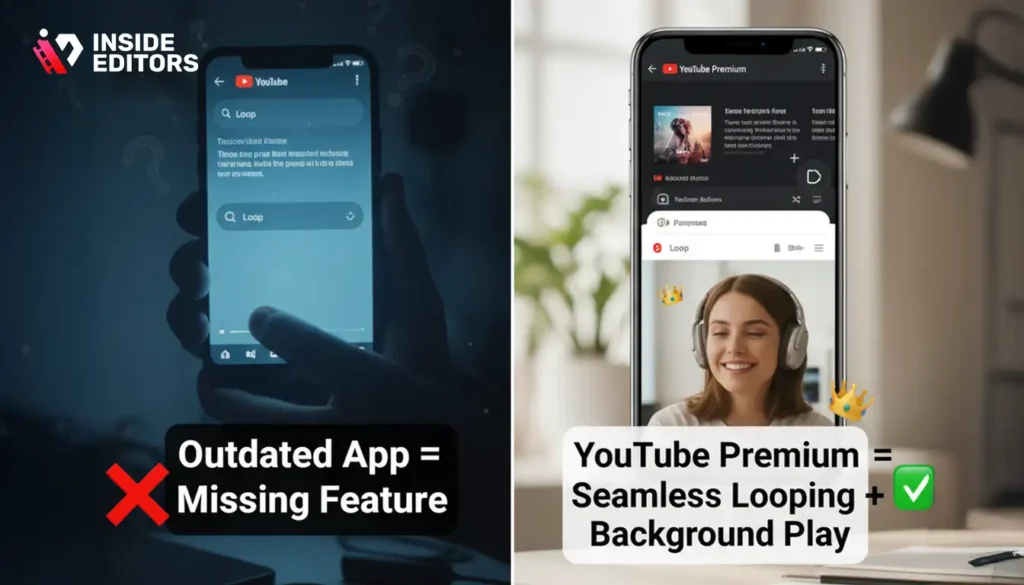
Looping in Background Mode Without Premium
If you’re on mobile, looping stops when the screen locks unless you have YouTube Premium. This often confuses users who think looping is broken. In reality, background restrictions cause the interruption. Upgrading to YouTube Premium or keeping the screen active solves the issue.
Using Outdated Apps
A surprising number of users try looping with outdated app versions. Because features roll out slowly, outdated versions may hide the loop button. Keeping your app updated ensures you always have the latest interface.
Avoiding these mistakes ensures your viewing stays smooth, predictable, and frustration-free.
Why Creators and Editors Use Looping as a Creative Tool
For casual viewers, looping is about convenience. For creators, looping is about precision. Watching footage repeatedly helps you evaluate everything from pacing to audio timing. When reviewing your own content, looping allows you to watch a transition or cut repeatedly until it feels right.
How Looping Helps Improve Your Editing Skills
Editors often loop professional videos to study how experts handle movement, rhythm, and timing. For example, watching how a travel vlogger transitions between scenes or how a gaming creator paces commentary can inspire your own edits. Looping key sequences allows you to internalize timing and replicate the feeling in your own work.
Inside Editors uses this same approach during professional edits. When refining cuts, our team loops micro-sections of footage to ensure smooth transitions, balanced pacing, and precise audio alignment. This level of attention creates a polished result that stands out to viewers – and loop-based reviewing is a core part of that workflow.
Looping as a Productivity Hack
Many creators use looping while editing to maintain focus. Background music, ambience, or white noise helps editors stay in flow, reducing fatigue during long editing sessions. In fact, a 2025 HubSpot Productivity Study found that workers using consistent background sound maintained productivity 17% longer compared to those without it. Looping is one of the easiest ways to create this environment.
When you combine looping with a structured editing workflow – or professional help from Inside Editors – you gain both creative inspiration and technical consistency.
Inside Editors: The Professional Touch That Enhances Your Workflow
Even when you master looping and understand YouTube’s viewing tools, editing your own video can still feel overwhelming. Looping helps you study great videos, but transforming your footage into a polished final product takes time, skill, and an eye for detail. That’s where Inside Editors can help.
Inside Editors specializes in elevating raw footage into engaging narratives – whether you’re producing travel content, reaction videos, product showcases, gaming compilations, or brand storytelling. Our editors use looping strategically during review, ensuring every frame feels intentional and every transition enhances your message. Instead of spending hours stuck in editing software, you can rely on experts who understand pacing, color, timing, and audience psychology.
If you’re interested in improving your videos further, you can explore services such as:
- Product Video Editing Services
- Reaction Video Editing Services
- Travel Video Editing Services
- Gaming Video Editing Service
- Business Video Editing Services
Whether you’re a creator, brand, or beginner, Inside Editors can help you elevate your content without the stress.
Final Thoughts How to Loop a YouTube Video
Learning how to loop a YouTube video in 2026 is more useful than ever. Whether you’re studying tutorials, playing background ambience, analyzing professional edits, or simply enjoying your favorite music, looping gives you control over your viewing experience. The key is knowing how it works on each device – desktop, mobile, tablets, and Smart TVs – and understanding how playlists, updates, and advanced tools shape the process.
As you apply these techniques, you’ll gain more control over how you consume content and more insight into how professional videos maintain rhythm and storytelling. And if you’re ready to take your own videos to the next level, Inside Editors is here to help transform your footage into compelling stories.
FAQs How to Loop a YouTube Video
1. How do I loop a YouTube video on a desktop?
Looping a YouTube video on desktop is simple: right-click twice on the video and select Loop from the YouTube menu. This repeats the video automatically until you turn the setting off. It’s the most stable method and works on all major browsers. If the menu doesn’t appear, update your browser or disable extensions that modify YouTube’s layout.
2. How can I loop a YouTube video on mobile?
On iPhone or Android, tap the video, select the Settings icon, and choose Loop video. If you don’t see the option, update the YouTube app or expand the full menu because some layouts hide the loop toggle. Background looping requires YouTube Premium, otherwise playback stops when your phone locks. This method is ideal for tutorials, music, and repeated learning content.
3. Why doesn’t the loop button show up on my device?
Missing loop options usually come from outdated app versions, region-based rollouts, or browser conflicts. YouTube updates features gradually, so some devices receive interface changes weeks later than others. Clearing cache, updating the app, or switching browsers often fixes the issue. If you’re using an older phone or Smart TV, certain features may be limited due to hardware constraints.
4. Can I loop a YouTube video on a Smart TV?
Most Smart TVs don’t offer a native loop button, but you can loop videos by adding them to a one-video playlist and enabling playlist repeat. This method works across Roku, Samsung, LG, Fire TV, and other TV platforms. Because TV apps prioritize simplicity, many advanced options don’t appear in the interface. Using playlists is currently the most reliable workaround.
5. How do I loop part of a YouTube video instead of the whole thing?
YouTube doesn’t support partial loops natively, but you can loop segments using timestamp parameters like &start= and &end= in the video URL. This is useful when analyzing editing techniques, pacing, or transitions. Creators often use third-party extensions to repeat small sections with more precision. These tools are helpful when studying or practicing advanced editing skills.
6. Does looping affect video quality or performance?
Looping doesn’t reduce YouTube video quality, but older devices may struggle with repeated buffering during long sessions. If you’re looping for hours, playlist loops tend to perform more consistently than single-video loops. Make sure your browser or app is updated to avoid unexpected refreshes. Quality remains controlled by your playback settings, not the loop feature.
7. Why do creators and editors use looping as part of their workflow?
Looping helps editors review pacing, transitions, sound timing, and color changes with precision. Repeating short sections allows you to catch details you might miss in a single watch-through. It’s also helpful when studying professional videos to improve your own editing style. Many professionals, including Inside Editors, loop micro-segments to refine cuts and ensure smoother storytelling.
8. What’s the best way to loop videos for long study or work sessions?
For long sessions, playlist loops offer the most stability and reduce the chance of the app refreshing unexpectedly. Desktop browsers handle hours-long looping better than mobile, especially with background tasks open. If you rely on background audio, YouTube Premium prevents interruptions when the screen locks. Using playlists also helps keep your recommendations clean and organized.


