

If you’ve ever tried editing a video on a slow laptop, you already know the pain – choppy playback, laggy timelines, endless rendering, and that uncomfortable fear that your system might crash before you hit “export.” Choosing the best laptop for video editing isn’t just a spec-comparison game; it’s the difference between a smooth creative flow and hours of frustration. In this guide, we’ll walk through the laptops that offer real-world editing power, not just flashy marketing. Think of this as a conversation with a friend who’s been in the trenches – cutting timelines, color grading footage, syncing audio, and meeting deadlines with hardware you can depend on.
This Inside Editors Guide breaks everything down with clarity, depth, and practical examples. Whether you’re a YouTuber, filmmaker, freelancer, or brand content creator, the goal is simple: help you choose a laptop that fits your workflow and future-proofs your creative journey. Let’s get into it.
Understanding What Makes a Laptop Great for Video Editing
Before comparing laptops, it helps to understand what truly impacts performance. Many buyers assume a high price automatically means high performance, but editing is a specialized task. The processor, GPU, RAM, and storage all play specific roles – and knowing which matters most can save you money and frustration.
Why Your Processor Determines How Fast You Can Actually Edit

Your CPU is basically the “brain” that handles timeline playback, scrubbing, effects, and compressing your footage. Modern editing programs like Adobe Premiere Pro, DaVinci Resolve, and Final Cut rely heavily on multi-core processors. A weak CPU means your footage stutters the moment you add transitions or LUTs. But a strong one? It feels like the video responds instantly to your every move.
For example, if you’re often working with 4K footage or multiple layers of B-roll, a processor like the Intel i9 or Apple M-series chipset will give you the smoothest experience. This is also where laptop thermal design matters – a strong CPU needs proper cooling to maintain consistent speeds.
How GPU Acceleration Transforms Your Workflow

Today’s editing apps use GPU acceleration for color grading, stabilizing footage, and rendering heavy effects. Even basic transitions can be GPU-dependent. A powerful GPU is like having a co-pilot who handles all the visually intense tasks so your CPU can focus on everything else.
Many beginners make the mistake of ignoring the GPU because they’re only thinking of gaming performance. But in editing, a strong GPU shortens your export times and makes real-time playback more reliable. It’s one of the biggest quality-of-life upgrades you can get.
Why RAM Is the Secret Ingredient for Smooth Multi-Tasking
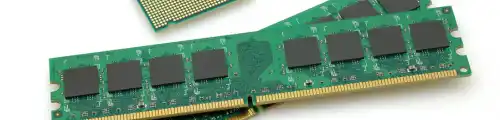
Video editing eats RAM like nothing else. Every frame, effect, audio track, and preview is temporarily stored in memory. If your laptop runs out of RAM, it starts relying on slower storage – and everything gets sluggish.
16GB is the minimum for serious editors, while 32GB gives you breathing room for bigger projects, especially if you work with multiple apps open – like After Effects, Lightroom, or Chrome (which is its own beast). The smoother the RAM capacity, the smoother your timeline feels.
Storage Speed Matters More Than Storage Size

Video files are huge, but storage speed affects your workflow more than you think. NVMe SSDs load previews faster, speed up app launching, and eliminate delays when scrubbing footage. A slower SSD or HDD will bottleneck even the fastest CPUs.
A good rule: 512GB is acceptable for lightweight projects, but 1TB+ is ideal if you’re working with 4K content regularly. You can always offload to external SSDs, but your primary drive should be fast and responsive.
With these key components in mind, let’s dive into the laptops that actually get the job done – starting with Apple’s editing powerhouse.
1. MacBook Pro 16-inch (M3 Pro / M3 Max): The Gold Standard for Creators
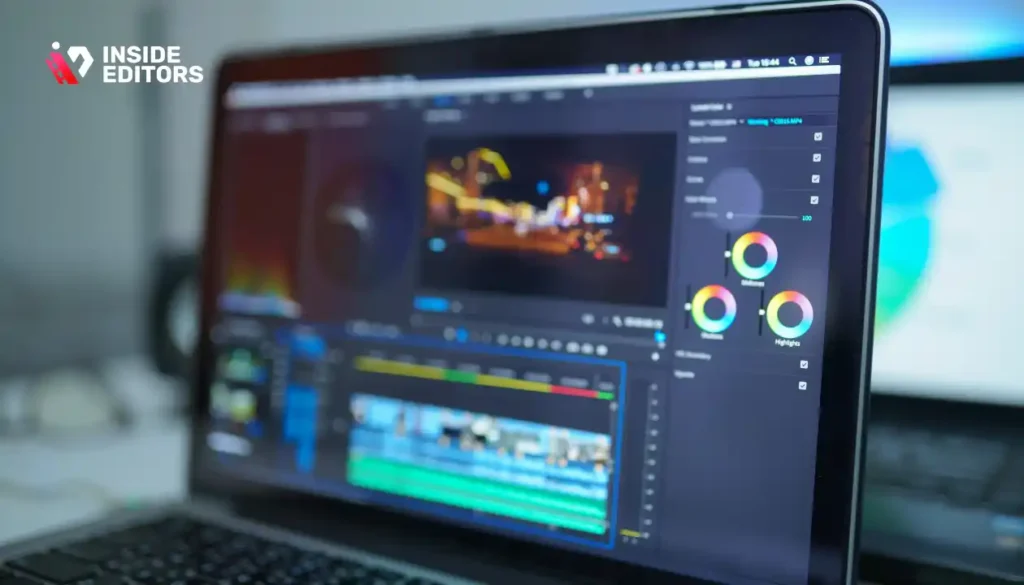
If you’ve watched any modern film-maker or YouTuber break down their gear, the 16-inch MacBook Pro appears so often it’s practically the industry standard. And it’s not just hype. Apple’s M-series chips – especially the M3 Pro and M3 Max – offer exceptional performance in real editing environments.
Why the MacBook Pro Dominates in Real-World Editing Workflows
Apple optimized their hardware and software to work together, which means editors feel the benefit instantly: faster playback, buttery-smooth scrubbing, instant previews, and incredible battery life. DaVinci Resolve and Final Cut Pro run especially well because they’re built to take advantage of the M-series architecture.
On heavy 4K and even 8K projects, the MacBook Pro maintains speed without sounding like a jet engine. Its thermal system is so effective that it rarely throttles performance. The display also deserves praise – the Liquid Retina XDR panel lets you color grade with confidence because the contrast and brightness are industry tier.
Who Will Benefit the Most from This Machine
The MacBook Pro is perfect for editors who value reliability and consistency above all else. If you’re working with high-end commercial projects, large raw footage, or color-critical content, this laptop is a game-changer. Its unified memory also ensures your workflow remains stable – even on long timelines with dozens of layers.
Another underrated advantage is the ecosystem. If you’re already using an iPhone, AirPods, or an external Mac Studio setup, the seamless integration makes file transfers and device switching ridiculously easy. Tools like AirDrop and Sidecar genuinely improve your workflow in ways specs alone can’t measure.
2. Dell XPS 15: A Balanced Windows Powerhouse for Creators
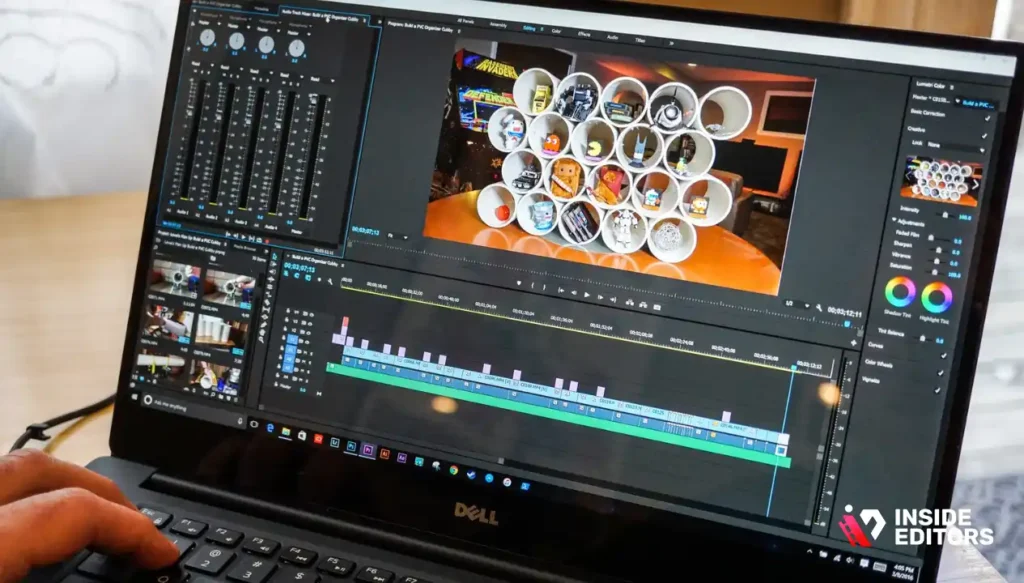
If you prefer Windows or need flexibility in your editing software, the Dell XPS 15 has long been a favorite among professionals. It’s powerful enough for demanding 4K editing, yet light and stylish enough to carry around daily – making it a great choice for hybrid creators who travel or shoot on-location.
Where the XPS 15 Truly Shines for Editors
The XPS 15 can be configured with Intel i7 or i9 processors and NVIDIA RTX GPUs, both of which make it a strong competitor to Apple’s lineup. The OLED display option is especially impressive for color work, offering rich blacks and high contrast.
But what many editors love is the balance – it offers strong performance without compromising portability or build quality. You can run Premiere Pro, After Effects, and DaVinci Resolve comfortably without worrying about lag.
Why Editors Choose This Over Other Windows Laptops
Upgradability is a major plus. Unlike many modern laptops, the XPS 15 allows upgrades to RAM and storage, extending its lifespan. If you value future-proofing or want to expand your system’s capabilities over time, this flexibility is a big advantage.
It also supports a wide range of professional workflows. Whether you’re editing long-form documentary content or producing short-form vertical videos, the XPS 15 can handle the variety without feeling overwhelmed.
3. ASUS ROG Zephyrus G16: A Surprise Favorite Among Video Editors
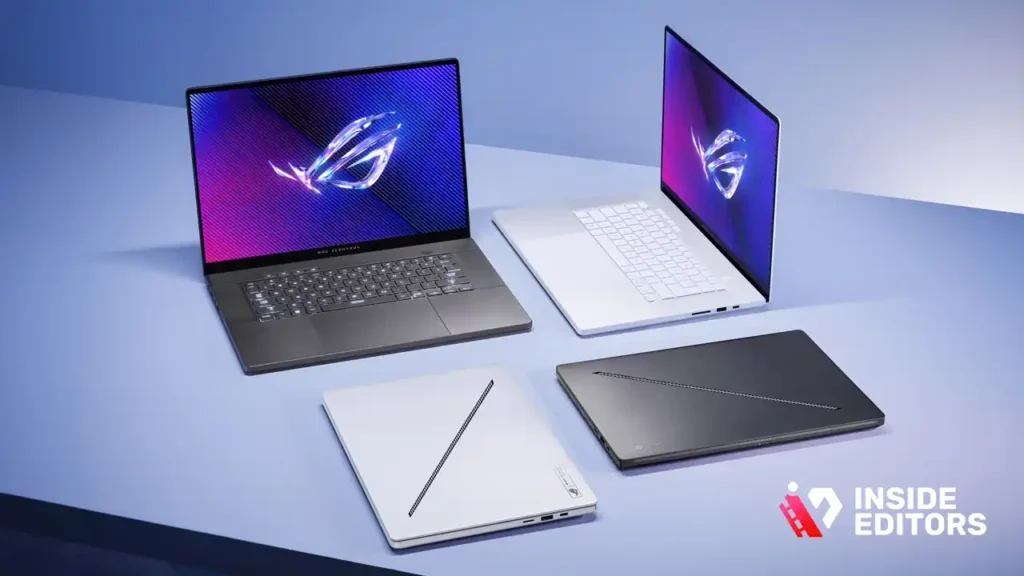
Although originally marketed to gamers, the ASUS Zephyrus line has become extremely popular among video editors – and there’s a good reason. Its cooling system, GPU performance, and price-to-performance ratio make it a surprisingly strong editing machine.
Gaming Laptop on Paper, Editing Beast in Reality
What makes the Zephyrus stand out is its NVIDIA RTX GPU paired with Intel or AMD processors. Effects-heavy workflows, AI-driven tools, and GPU-accelerated color grading run exceptionally well. Many creators working with 6K or slow-motion footage praise the Zephyrus for its ability to maintain consistent performance even during long exports.
Another unique bonus is the high refresh rate display. While not required for editing, it gives your timeline movement a smoother feel, helping with precise cuts and adjustments.
Why the Zephyrus Offers Amazing Value
The price-to-performance ratio is one of the best in the category. You get desktop-level power in a portable frame, often at a lower cost than many professional workstations. For editors who want premium performance without breaking the bank – especially freelancers or students – the Zephyrus is an excellent choice.
4. HP Spectre x360: Flexibility Meets Performance for Modern Creators
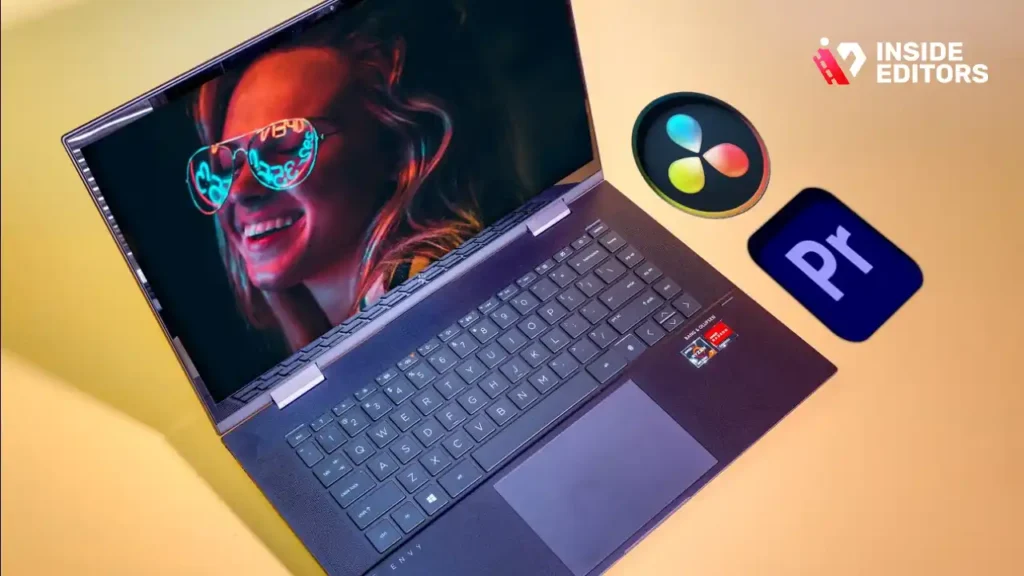
Not every editor wants a thick, heavy powerhouse. Some prefer a machine that feels elegant, flexible, and enjoyable to use – without sacrificing real editing capability. That’s where the HP Spectre x360 shines. It’s a premium 2-in-1 laptop that blends great performance with a lightweight convertible design, making it ideal for editors who like working on the go or reviewing cuts in tablet mode.
What Makes the Spectre x360 a Strong Choice for Creative Editors
The Spectre offers surprisingly strong hardware, especially the editions that include Intel’s latest H-series processors combined with Intel Arc or NVIDIA RTX GPUs. While it’s not the most powerful option on this list, it’s impressively stable for 1080p and 4K editing – especially in Premiere Pro and Filmora, which tend to run smoothly on mid-range GPUs when optimized well.
What many editors fall in love with is the display. HP uses OLED panels that deliver vibrant colors, incredible contrast, and deep blacks – a big perk for color-grading and fine-tuning skin tones. And because it’s a 2-in-1, you can flip it into tent mode for easier previewing when collaborating with clients.
Why Hybrid Creators Appreciate Its Versatility
The Spectre x360 is perfect for editors who want a laptop that’s not just powerful, but also enjoyable to use for everyday life – writing scripts, designing thumbnails, storyboarding, or browsing inspiration on Pinterest. Its touch interface works beautifully with drawing apps like Photoshop, letting you mark up frames or sketch transitions directly on screen.
If you’re someone who likes blending editing with note-taking, creative work, or multi-device workflows, this laptop gives you flexibility without forcing you to choose between power and portability. Think of it as a polished all-rounder that elevates how you work inside and outside your editing projects.
5. Lenovo Legion 7i: A True Workhorse for Heavy 4K and 6K Editing
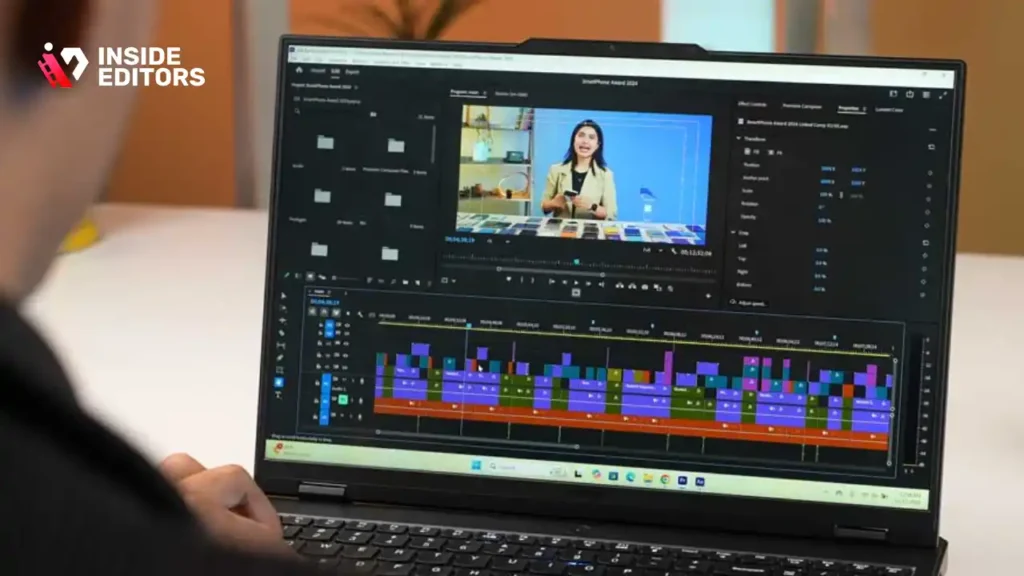
If you regularly work with massive RAW files, multi-layer timelines, or footage from Sony, Blackmagic, or RED cameras, you need a laptop that doesn’t choke under pressure. That’s the Lenovo Legion 7i. It’s built like a professional tank – stable, fast, and capable of running intensely demanding editing tasks without thermal throttling.
Why the Legion 7i Stands Out for Power Editors
The Legion 7i balances high-end Intel processors with NVIDIA RTX 4080 or 4090 options, making it one of the strongest Windows laptops for editing today. Heavy color grading, GPU-accelerated effects, and multi-cam editing become incredibly smooth on this machine. Its cooling system is one of the most advanced in the laptop market, preventing overheating during long exports – something many thin-and-light laptops still struggle with.
Its display is another highlight. Lenovo’s high-brightness, color-accurate screens give editors confidence when matching shots and fine-tuning looks. And because the Legion 7i is built with creators in mind, it supports multiple color spaces like sRGB and DCI-P3, which is essential for professional delivery.
The Ideal Choice for Editors Handling High-Intensity Workflows
If your projects are often long, complex, or involve large files, the Legion 7i gives you peace of mind. It’s also great for creators who want a dual-purpose machine capable of both editing and gaming. While gaming isn’t the focus of this guide, a GPU that handles 100 fps gameplay will absolutely breeze through your editing timeline.
For editors who need raw power without buying a desktop, the Legion 7i offers a workstation-level experience in a portable form – making it the perfect choice for filmmakers, colorists, and full-time video editors.
Side-by-Side Laptop Comparison
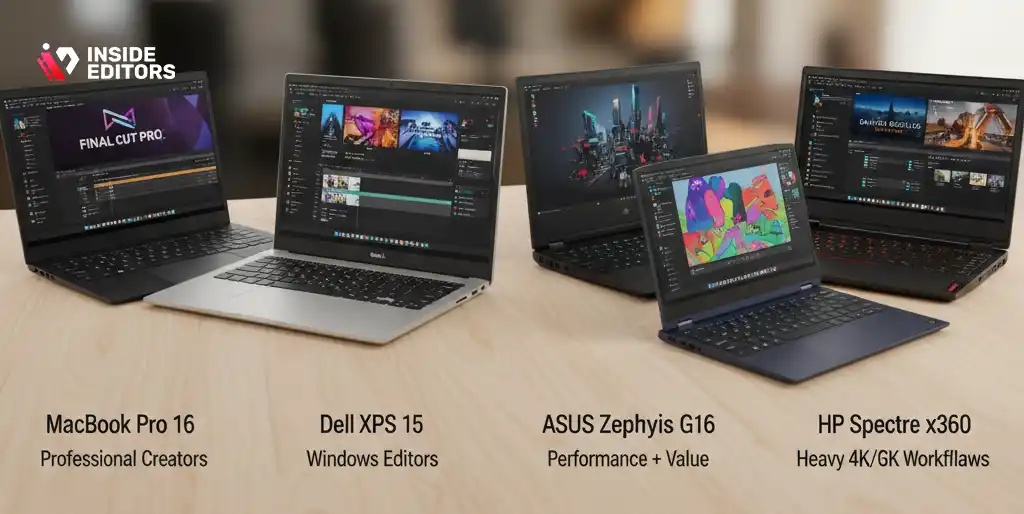
Here’s a quick table to help you compare these top 5 picks:
| Laptop Model | Best For | CPU/GPU Strength | Display Quality | Price Range |
| MacBook Pro 16 (M3 Pro/Max) | Professional creators | Exceptional unified chipset | Industry-leading XDR | $3,000–$6,50 |
| Dell XPS 15 | Windows editors | Strong Intel + RTX | OLED available | $1,800–$3,200 |
| ASUS Zephyrus G16 | Performance + value | High-power RTX | Fast refresh display | $1,600–$2,800 |
| HP Spectre x360 | Portability & flexibility | Mid-high performance | Vibrant OLED | $1,200–$1,900 |
| Lenovo Legion 7i | Heavy 4K/6K workflows | Extreme Intel + RTX | Accurate pro-grade screens | $2,500–$4,500 |
This table is not just a summary – it’s designed to help you visually match your editing style with the machine that suits you best.
Avoid These Common Mistakes When Choosing a Video Editing Laptop
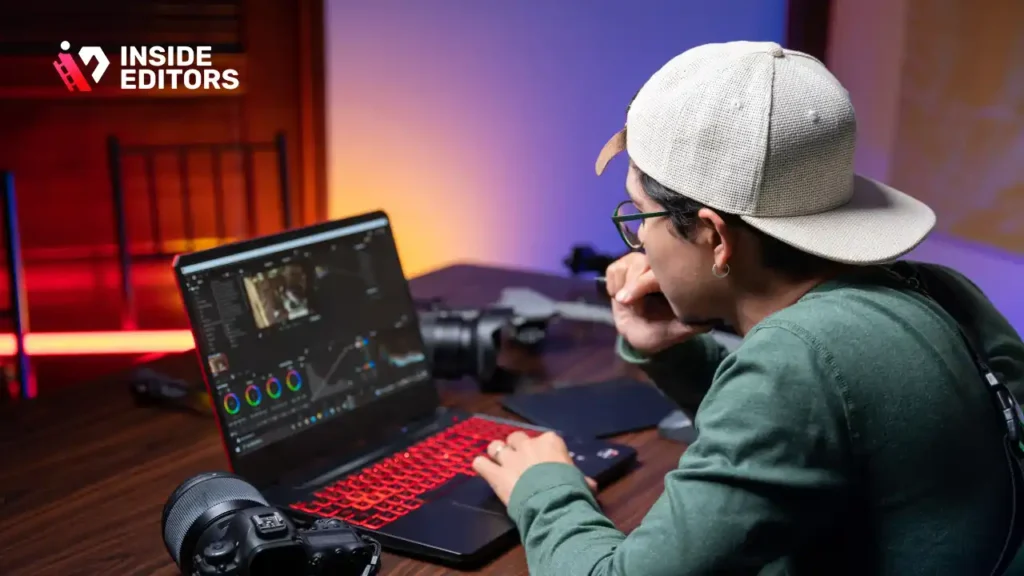
Every year, creators make the same buying mistakes – often costing them money or limiting their editing performance. Understanding these pitfalls helps you make smarter decisions and avoid the frustration many editors face.
Mistake #1: Choosing Gaming Specs Instead of Editing Specs
It’s easy to assume a gaming laptop = great editing laptop, but that’s not always true. Games rely on GPU and frame rates, while editing depends on balance: CPU threads, RAM, SSD speed, and thermals. Some gaming laptops over-prioritize GPU performance while ignoring color accuracy or thermal balance – two things crucial for video editing.
Mistake #2: Ignoring Storage Speed
A fast CPU and GPU don’t matter if your storage is slow. Editors often misunderstand bottlenecks, thinking lag comes from RAM or software. In reality, many timeline delays come from slow read/write speeds. That’s why NVMe SSDs make such a massive difference.
Mistake #3: Underestimating RAM Needs
If you’ve ever had Premiere Pro freeze during color grading, RAM was likely the culprit. Editors often buy 8GB or 16GB machines assuming they’ll upgrade later – then discover the RAM is soldered. Always check upgradeability before buying.
Mistake #4: Choosing a Low-Quality Display
A laptop with poor color reproduction makes grading harder. You might think your footage looks perfect until you export it and realize everything is too bright or too saturated. A high-quality display saves you from endless corrections.
Expert Advice: How to Choose the Right Laptop for Your Workflow

With so many strong options, your goal isn’t to find the “best machine ever” – it’s to find the machine that handles your specific editing workflow. Here’s how to think about it:
If You Edit Short-Form Content (TikTok, Reels, YouTube Shorts)
You don’t need maxed-out specs. Lightweight, portable machines like the Spectre x360 or Zephyrus G16 give you more mobility while still handling 4K edits comfortably.
If You Create Long-Form YouTube Videos
Stability, RAM, and processing power matter most. The Dell XPS 15 or MacBook Pro will handle long timelines and multiple layers without lag.
If You Work with 4K/6K RAW Footage or Multi-Cam Projects
You’ll want a powerhouse like the MacBook M3 Max or Lenovo Legion 7i. These machines minimize stuttering and long export times.
If You Travel Frequently
Lighter devices matter. The Spectre and Zephyrus are ideal for creators who edit in cafés, planes, or on the go.
By evaluating your editing style, you’ll quickly see which laptop fits your real usage – not just your budget.
Why Professional Editing Still Matters – Even With a Powerful Laptop
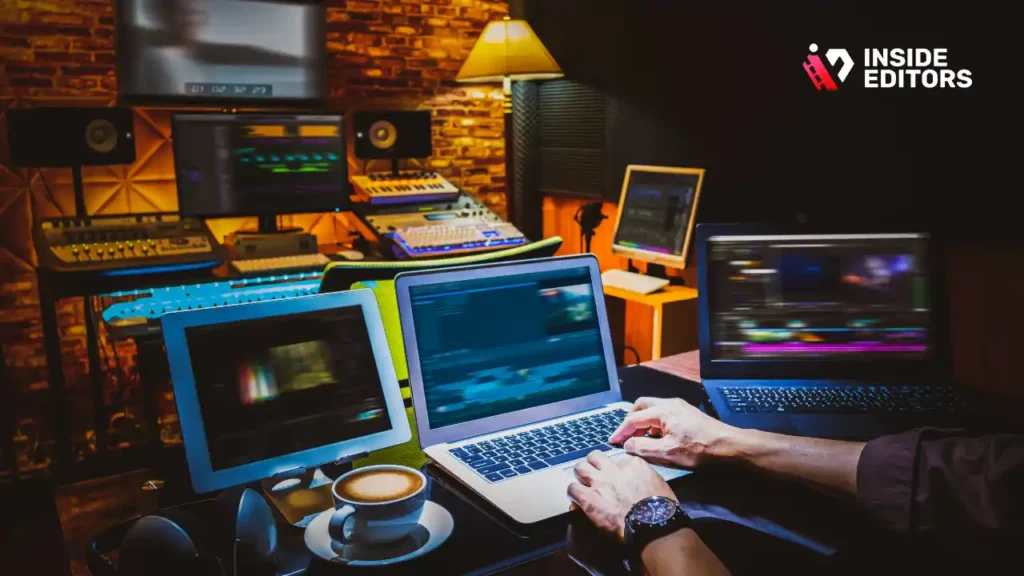
This might sound ironic in a hardware guide, but the truth is: even the best laptop can’t replace professional editing skills. Tools can make your workflow smoother, but storytelling, rhythm, sound design, and color grading still require expertise.
Where Professional Editors Make a Real Difference
If you’ve ever wondered why your footage doesn’t “look cinematic,” even with good equipment, this is where professionals come in. Skilled editors create cohesion in your story, match your shots perfectly, and elevate your whole production value. Even more importantly, they save you time – freeing you to focus on your creative vision instead of manual trimming, syncing, or fixing errors.
That’s why many creators, brands, and agencies use Inside Editors’ professional video editing services to transform raw footage into polished, audience-ready content. It’s the fastest way to take your videos from “good” to “unskippable.”
Each service is designed to meet specific workflow needs so you get consistent, professional results every time.
Final Takeaway: Choosing the Best Laptop for Video Editing

Picking the best laptop for video editing isn’t about chasing the most expensive model – it’s about understanding your workflow and choosing a machine that supports your creativity. Whether you want the unmatched smoothness of a MacBook Pro, the balanced performance of a Dell XPS, the value of the Zephyrus, the flexibility of the Spectre, or the raw power of the Legion, each laptop on this list is here for a reason.
Great editing is part tools, part talent. When your laptop works with you rather than against you, your creativity flows naturally – and your videos show it. Once you’ve chosen the right machine, the rest is practice, patience, and a little help from pros when you need it.
And if you’re ever ready to take your videos to the next level, Inside Editors is here to help bring your stories to life – smoothly, affordably, and professionally.
FAQs About Choosing the Best Laptop for Video Editing
1. What specs should I prioritize when choosing a laptop for video editing?
For smooth video editing, prioritize a modern multi-core CPU, a capable GPU, at least 16 GB of RAM, and a fast NVMe SSD. These four elements directly affect playback, render speed, and how easily your laptop handles multiple layers and effects. If you work with 4K footage or heavy color grading, 32 GB of RAM and 1 TB of storage provide a much more comfortable experience long-term.
2. Is 8 GB of RAM enough for video editing on a laptop?
Technically, you can open editing software with 8 GB of RAM, but you’ll quickly hit limits with modern codecs and 4K footage. Timelines stutter, preview quality drops, and exports take longer as the system leans on slower disk swapping. For most editors in 2025, 16 GB should be treated as the minimum, with 32 GB ideal for complex or professional projects.
3. Do I need a dedicated GPU for laptop video editing?
A dedicated GPU isn’t absolutely required for basic 1080p editing, but it makes a huge difference once you start adding effects, color grades, and AI-powered tools. Modern NLEs offload many tasks to the GPU, which means better playback and faster exports overall. If you care about future-proofing and regularly handle 4K or higher resolutions, a laptop with a strong GPU is a smart investment.
4. Which is better for video editing: Mac or Windows laptops?
Both Mac and Windows laptops can be excellent for editing; the best choice often depends on your software and ecosystem. Macs with Apple’s M-series chips shine with optimized apps like Final Cut Pro and run DaVinci Resolve and Premiere Pro very efficiently. Windows laptops offer more variety, stronger gaming options, and flexible hardware choices, which can be ideal if you prefer Adobe apps or need specific GPUs and configurations.
5. How much storage do I need on a video editing laptop?
Video files are large, especially at 4K, so internal storage fills up faster than most people expect. While 512 GB can work for lighter editing, 1 TB or more is far more practical if you keep multiple projects active at once. Pair your internal SSD with fast external SSDs for archives and backups, and you’ll have a setup that feels both responsive and manageable over time.


