


Saving a YouTube video is one of those tasks that seems simple until you actually need to do it. Maybe you’re trying to download a video for offline learning, keep a tutorial handy for later, or add clips to a project you’re editing. Whatever the reason, knowing how to save YouTube video safely, legally, and in high quality removes a lot of frustration-especially when you rely on these videos for work, creativity, or your daily routine. In this guide, I’ll walk you through the practical, trustworthy methods people actually use in 2025, and explain how to avoid the common mistakes that waste time or compromise your device’s security.
More importantly, this guide is structured to help you make smart decisions. You’ll learn how different tools work, what formats matter, how to keep audio-video quality intact, and when professional editing support makes a real difference. By the end, you’ll not only know how to save YouTube videos-you’ll understand how to use them more creatively and efficiently for your projects.
Why People Save YouTube Videos Today
If you’ve ever tried to follow a tutorial only to lose internet connection at the worst possible moment, you already know how useful offline video access can be. People save videos for many reasons: students want to rewatch lessons, editors need clips for projects, and travelers rely on offline entertainment. The demand has only grown with remote work and the rise of creator-driven learning. Having videos available offline lets you work faster, stay focused, and stay productive even when your environment isn’t perfect.
But beyond convenience, saving YouTube content has become part of a broader workflow. Creators often capture reference clips to guide their visual style. Businesses gather competitive content for analysis. And editors-even beginners-use downloaded footage to experiment with transitions, pacing, and visual storytelling. Saving videos isn’t just about storage; it’s about shaping your creative process.
Why understanding legality and quality is essential
With increased restrictions from YouTube and copyright protections, knowing the right way to save a YouTube video is more important than ever. Many users don’t realize that unsafe tools can infect a device with malware or drastically reduce video quality. Others don’t understand the difference between personal offline viewing (allowed under specific conditions) and re-uploading copyrighted content (not allowed). This guide will help you navigate these rules clearly so you feel confident and secure using the methods that fit your needs.
The next step is understanding how saving works-because once you grasp that, choosing tools becomes much easier. And that’s exactly what we’ll explore next.
How Saving a YouTube Video Works Behind the Scenes
Most people assume downloading a video simply means “copy this file to my device,” but the real process is more complex. When a tool downloads a YouTube video, it extracts the video stream and audio stream-usually delivered separately by YouTube-then merges them into one playable file. This is why some tools produce choppy or low-quality results: they compress both streams too aggressively, or fail to merge them properly.
High-quality tools, by contrast, detect the maximum resolution available-1080p, 4K, or even 8K-and allow you to select from the original streams. This ensures you get the same color depth, bitrate, and clarity you see on YouTube. Understanding this helps you choose better tools and avoid losing important visual detail.
Choosing between MP4, WEBM, and other formats
You’ll often see saving tools ask which file format you want. MP4 remains the most popular because it works everywhere, from laptops to phones to editing software. WEBM offers higher compression efficiency, which keeps file sizes smaller without significant quality loss. MOV, meanwhile, is preferred by professional editors because it preserves quality extremely well, though at a much larger file size.
When saving a YouTube video for editing-especially if you plan to trim, remaster, or repurpose it-choosing MP4 or MOV is usually smartest. It protects the footage during editing and reduces artifacts. This becomes especially important if you later use Inside Editors’ editing services, because higher-quality source footage always results in cleaner, more cinematic output.
Now that the basics are clear, let’s explore the safest and most effective methods for downloading videos today.
Safe and Legal Ways to Save YouTube Videos in 2025
Before diving into tools, it’s important to understand that downloading copyrighted content for redistribution is not allowed. However, saving videos for personal offline viewing, education, inspiration, or private use falls under widely accepted fair-use conditions when handled responsibly. Many creators even encourage viewers to save tutorials or lessons for reference as long as the content isn’t reuploaded.
This means the safest approach is always focused on personal, non-commercial use unless you have explicit permission from the creator. If your goal involves editing or publishing saved content-especially for professional projects-Inside Editors can help you navigate usage rights as part of the editing service workflow.
YouTube Premium’s built-in offline feature
One of the simplest and safest ways to save a YouTube video is using YouTube Premium’s offline download feature. This allows you to store videos inside the app, view them without internet, and maintain consistent quality. The limitation is that these videos are not stored as files on your device-they remain inside the YouTube app and cannot be imported into editing software. If you only want offline viewing, this method is ideal. If you need editable files, you’ll need another method.
What’s important here is understanding your purpose. Offline viewing and creative editing require very different solutions, and knowing the difference helps you avoid frustration later.
Comparing the Most Popular Tools for Saving YouTube Videos
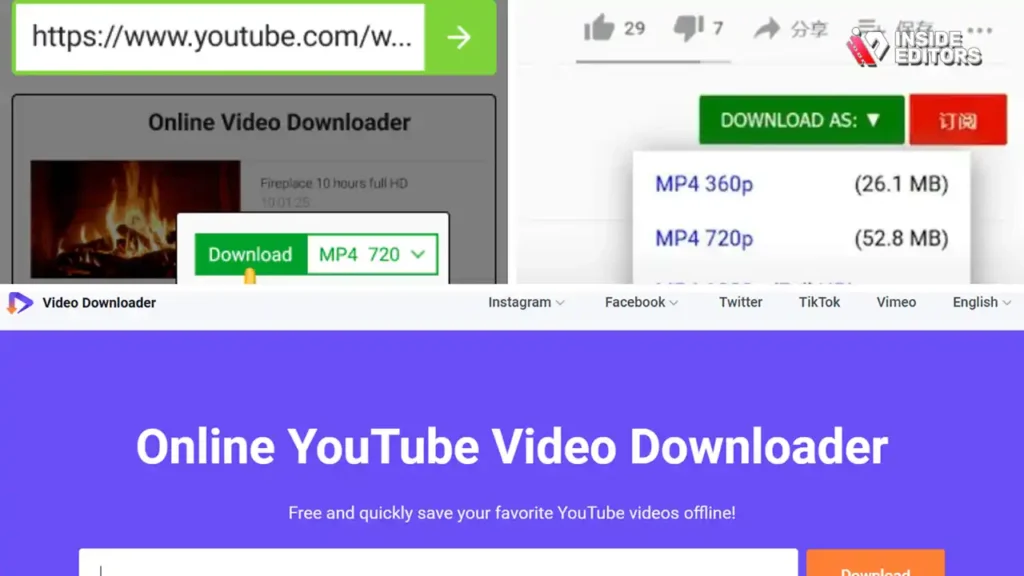
Web-based tools are some of the most frequently used options because they require no installation. You paste a YouTube link, choose your format, and download the file. These tools are great for quick, occasional saving-especially when you don’t want software on your computer. However, their reliability varies, and some sites contain intrusive ads or low-quality conversion engines.
A safe approach is using well-known tools with clean interfaces and long-standing reputations. If simplicity is your priority, these tools are often the fastest route. But if you’re working on a more serious project, the next category offers stronger consistency.
Desktop software: best for high-quality editing use
For creators, businesses, and editors, desktop tools are usually the preferred choice. Their advantage lies in handling higher resolutions, better audio merging, and more professional output formats. These tools also download faster and maintain original frame rates-critical for editing smooth cinematic footage.
Desktop tools also allow batch downloading, which is helpful when building a reference library or gathering clips for a complex editing project. It’s why professional teams often rely on these tools to ensure quality doesn’t slip during workflow.
Before we explore more advanced tips, let’s look at the mistakes many people make and how to avoid them.
Common Mistakes People Make When Saving YouTube Videos
A surprising number of users download videos in low resolution without realizing it. When a tool defaults to 360p or 480p, the resulting video looks soft, pixelated, and unprofessional. This becomes a major problem when you use the footage for editing, presentations, or tutorials. Always select the highest available resolution, even if the file size is larger-it preserves clarity, color depth, and motion detail.
This single adjustment often makes the biggest difference in your final result. Creators who prioritize quality early on save hours in post-production because their footage requires fewer corrections.
Using unsafe or unreliable tools
Because saving YouTube videos is a popular request, countless low-quality tools try to take advantage of users. Some bombard you with ads; others install malware or track your activity. A good rule of thumb is to avoid tools that force pop-ups, downloads you didn’t request, or apps that seem suspiciously free without any reputation. When in doubt, stick to trusted, widely-reviewed tools or desktop applications from reputable developers.
Avoiding unsafe tools protects your device, your privacy, and your workflow-especially if video editing is central to your content creation process.
Why Saving YouTube Videos Is Essential for Editors and Creators
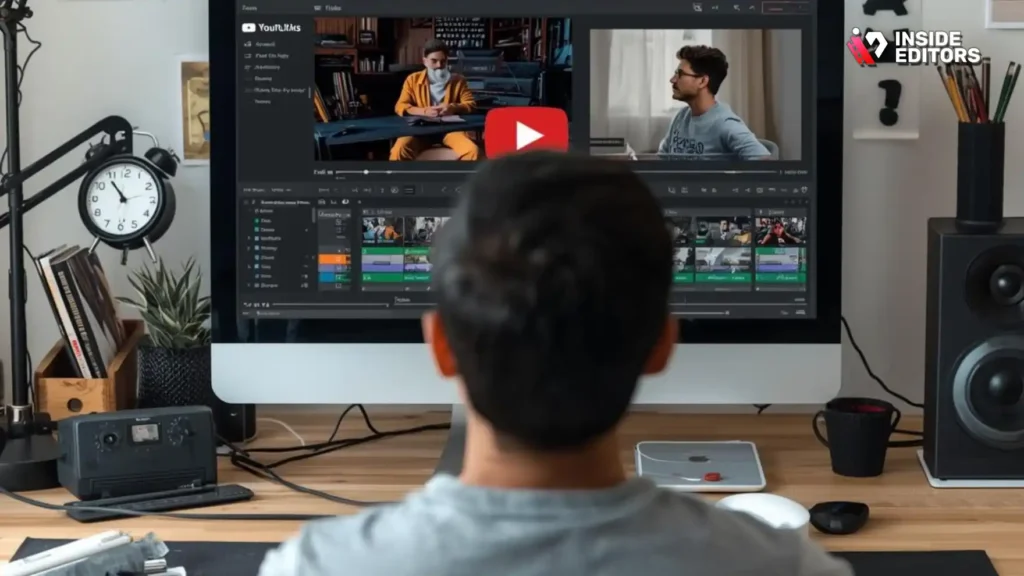
If you create videos for clients, social media, or business campaigns, saved YouTube clips can shape your creative decisions. Creators often download reference videos to analyze pacing, transitions, sound design, or storytelling techniques. Businesses use saved content to track trends, monitor competitors, or refine their brand style. Having these videos offline gives you the freedom to compare, deconstruct, and draw inspiration whenever you need.
Saved videos also support editors who need to test transitions or texture overlays, especially in travel, fashion, gaming, business, or product-based content. Even if you never use the footage directly, having quick access to reference clips improves your ability to deliver polished, professional work.
When professional editing support becomes invaluable
There’s only so much you can do with raw saved footage if you’re new to editing. Professional editors-like the team at Inside Editors-can take your assets, improve color, stabilize footage, enhance sound, and add cohesive storytelling. If you’re working on product videos, travel films, gaming montages, business explainers, or social content, having expert support dramatically improves your final output.
At this point, you now understand the fundamentals of saving YouTube videos. Next, we’ll dive deeper into formats, advanced tools, editing workflows, and the smartest ways to turn your saved videos into something truly impressive.
Choosing the Right Video Format for Editing and Offline Use

When saving a YouTube video, the format you choose influences everything from visual clarity to how easily the footage edits later. Many beginners don’t realize that formats like MP4, MOV, and WEBM don’t just store video-they determine compression, color accuracy, and compatibility across devices. MP4 remains the most universally accepted choice because it balances quality and file size, making it ideal for casual users and everyday devices.
MOV, on the other hand, preserves video quality extremely well but can create oversized files. Editors who want maximum detail often choose MOV because it provides more data for color correction, stabilization, and effects. WEBM is efficient and fast, producing small, easy-to-share files-but it’s not always supported in professional editing platforms. Understanding these differences helps you pick the best format based on your goals, whether you’re saving a tutorial for offline viewing or preparing clips for cinematic editing.
How resolution impacts the final result
Saving a YouTube video in the wrong resolution can ruin an otherwise clean piece of content. The key is matching the footage to its intended purpose. If you only need to rewatch a lesson on your phone, 720p may be perfectly fine and keeps file sizes manageable. But if you’re preparing footage for editing-especially on larger screens-1080p or 4K is a much better choice. Higher resolution gives you more flexibility to crop, zoom, or apply cinematic effects without losing sharpness.
Creators frequently underestimate this and end up frustrated when their footage looks soft or pixelated during post-production. Downloading at the highest resolution available ensures your final project maintains clarity and professionalism. As you get more comfortable with saving and editing videos, this attention to detail will pay off every time you start a new project.
Step-by-Step: How to Save a YouTube Video Safely and Efficiently

Regardless of the tool you choose, the steps for saving a YouTube video are usually similar. First, you copy the video URL from the YouTube address bar or share menu. Then, you paste it into a downloader or software interface. After selecting your preferred format and resolution, the tool retrieves the video and audio streams and merges them into a single file. Once the download completes, you can open, edit, transfer, or store the file as you wish.
What matters most is choosing reliable tools and adjusting settings correctly. Many users rush through the process and accept default settings without realizing they’re sacrificing quality. Spending an extra 10 seconds choosing the right format or resolution can dramatically improve the final result-especially if you plan to edit or repurpose the footage.
When advanced tools make a real difference
Basic online converters work well for quick downloads, but if you’re saving multiple videos or require consistent high quality, advanced tools offer significant advantages. These include batch downloads, built-in converters, speed optimization, and metadata preservation. Some professional software even supports 8K downloads, allowing creators to work with visually rich footage suitable for cinematic productions.
This type of reliability matters most when you’re producing client work or creating polished content for social platforms. Using advanced tools ensures you always start with the highest possible quality, giving you more creative control as you move into editing. It’s the difference between patching together rough footage and crafting a professional story your audience will remember.
The Risks of Low-Quality Tools and How to Avoid Them
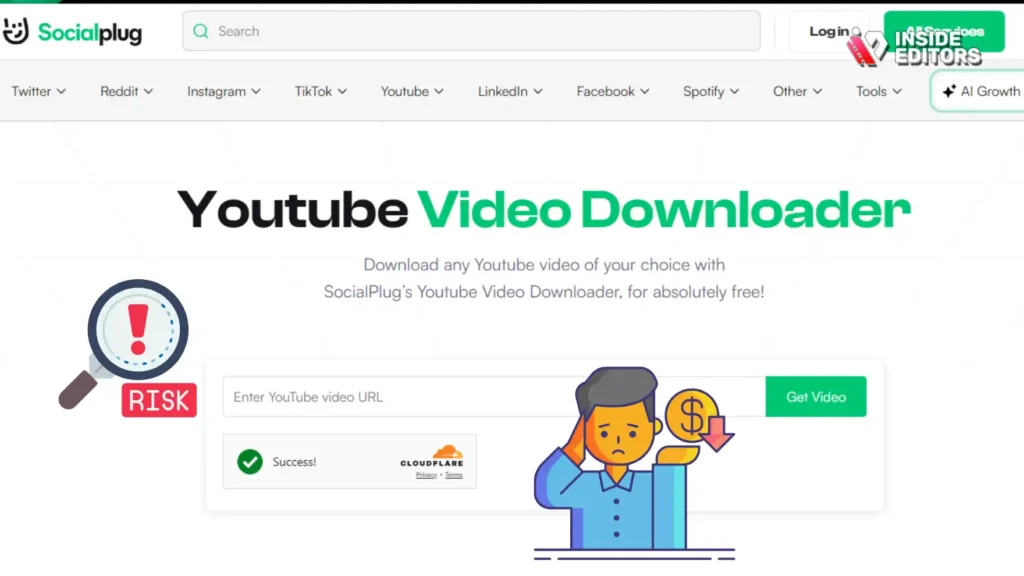
Not all YouTube downloaders are built the same, and some-especially suspicious free sites-pose real risks. Low-grade downloaders often compress video aggressively, resulting in blurry footage or distorted audio. Others bombard users with pop-ups, fake buttons, or malware that compromises your device. These issues may seem small at first, but they can slow your workflow, erase downloaded files, or even corrupt your system.
Creators who rely on saved videos for projects need stable, predictable tools they can trust. Using reputable downloaders reduces the chances of quality loss, security threats, and wasted time. If you’re planning to edit or publish professional videos, avoiding these pitfalls keeps your process smooth and stress-free.
What safe and reputable tools do differently
Reliable downloaders maintain high bitrate quality and preserve the original frame rate, which directly impacts how natural and smooth your footage looks. They also avoid intrusive ads and provide clear resolution options. More importantly, they regularly update their software to stay compatible with YouTube’s evolving protocols.
These details may seem subtle, but they make your workflow far more efficient. Whether you’re saving a video for research or preparing a project for Inside Editors’ editing services, safe download tools ensure your creative process starts on solid ground.
Turning Saved YouTube Videos Into Edited, Professional Content
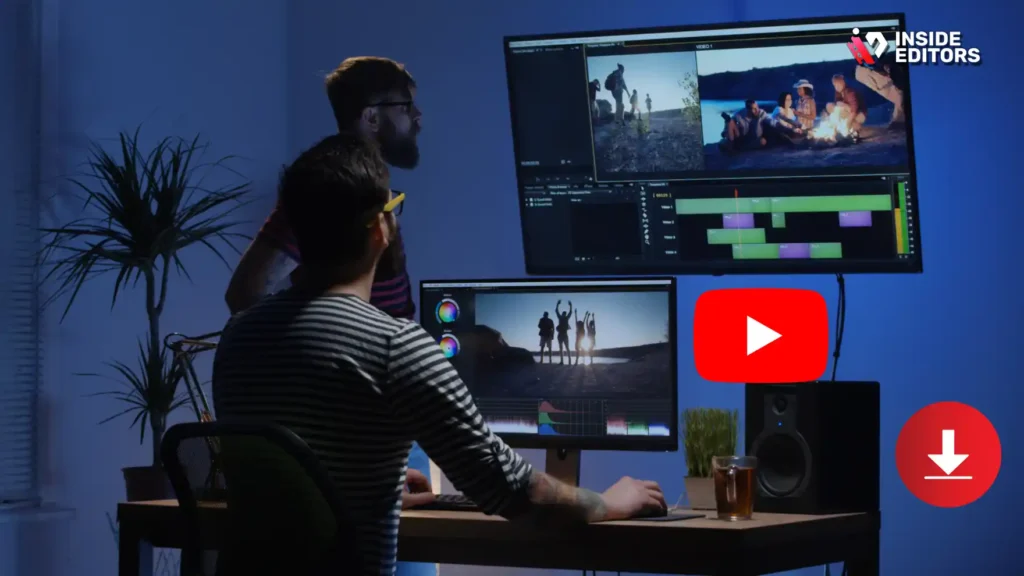
Once you learn how to save a YouTube video properly, you gain a new level of creative freedom. Saved videos can act as references, mood boards, teaching aids, or inspiration triggers for your own projects. You might analyze how a travel creator uses transitions, how a business channel structures storytelling, or how gaming editors synchronize action with sound effects. This type of reference work is invaluable for personal growth and professional content creation.
Saved videos also help you compare stylistic choices across creators. You can study pacing, lighting, color grading, audio mixing, and narrative structure. If you’re building your own brand, this knowledge helps you develop a consistent style that feels intentional. Knowing how different creators approach video production expands your creative toolkit and improves your ability to deliver work that resonates with viewers.
When to bring in a professional editor for support
Even with the best downloaded footage, editing can become overwhelming-especially when you’re working under deadlines or learning advanced techniques. That’s when professional editing support becomes a smart investment. Inside Editors’ professional editing services help transform raw clips, saved footage, and personal recordings into polished, eye-catching videos. Whether you’re producing product videos, business content, gaming montages, travel films, or social media clips, a skilled editor elevates your vision and saves hours of work.
The value of expert editing becomes clear when you compare rough footage with its final, polished version. Color grading enhances mood, transitions smooth out pacing, and audio cleanup makes dialogue crisp and engaging. Instead of spending weeks experimenting, you receive a refined product that meets professional standards. Having this support means you can focus more on creativity and storytelling while leaving the technical polish to experts.
If you’re curious how professional editing could elevate your saved YouTube content, explore Inside Editors’ full range of video editing services across categories such as product videos, reaction videos, travel videos, gaming videos, business videos, and more.
Organizing and Using Saved YouTube Videos Effectively

Saving YouTube videos is only the first step; organizing them makes your workflow far more efficient. Creators who build content regularly often sort saved videos by theme, style, or project type. For example, travel editors may keep collections of drone shots, time-lapses, or storytelling inspirations. Business creators might categorize motivational clips, presentation styles, or branding samples. Having a structured library lets you draw inspiration quickly without digging through random folders.
If you’re working with Inside Editors for ongoing editing support, an organized library also helps you share reference material with editors more efficiently. Instead of trying to describe your vision, you can point to saved videos that reflect your desired tone, pacing, or structure. This kind of visual communication speeds up collaboration and improves results.
Maintaining quality across devices
Once you save a YouTube video, consider where and how you’ll use it. If you edit on a laptop but review footage on a phone, maintaining consistent quality across devices is important. File transfers can sometimes compress or resize videos, so using cloud storage or direct file transfers preserves original clarity. Keeping your footage intact ensures your final edits, exports, and uploads maintain their intended quality.
Understanding these workflow details can feel overwhelming at first, but with practice, they become second nature. The more you work with saved videos, the more intuitive these decisions will become.
Final Thoughts: Saving YouTube Videos the Right Way
Learning how to save a YouTube video may seem simple, but doing it well-safely, legally, and at high quality-makes a huge difference in your creative workflow. Whether you’re a student building a learning library, a creator gathering inspiration, or a business preparing content for your next campaign, the right tools and decisions matter. High-quality downloads help you edit with confidence, maintain visual clarity, and build a more professional foundation for your projects.
And when the time comes to turn your footage into polished, engaging content, Inside Editors is ready to help. Our editors work with videos across every niche-from product films to gaming montages, travel adventures, business explainers, and personal projects. With expert color grading, storytelling structure, sound enhancement, and seamless transitions, we help your saved videos transform into something powerful and memorable.
If you’re ready to take your content to the next level, explore Inside Editors’ video editing services and see how professional editing can elevate your work-smoothly, affordably, and with uncompromising quality.
FAQ How to Save YouTube Video
1. Is it safe to save a YouTube video using online tools?
Saving a YouTube video is generally safe when you use trusted tools that don’t require suspicious downloads or intrusive permissions. Reputable platforms protect your privacy and keep the video’s original quality intact. However, low-quality sites may insert ads, trackers, or malware, so it’s worth choosing long-standing software or browser extensions. If you’re unsure, use tools with clear privacy policies and active updates.
2. What’s the best way to save a YouTube video in high quality?
The best method is using a desktop downloader because it preserves full resolution, higher bitrate, and stable audio-not the compressed output many web tools generate. Choose MP4 for compatibility or MOV if you plan to edit the footage. Higher resolutions like 1080p or 4K ensure cleaner details. Online tools work for speed, but desktop apps provide stronger reliability and control.
3. Do I own the video after downloading it?
No-downloading a YouTube video does not give you ownership rights. You can save it for personal, offline use, but redistribution, monetization, or re-uploading copyrighted content isn’t allowed without permission. If you plan to use clips in a project, check the creator’s license or seek explicit approval. Ownership stays with the original publisher even when the file is on your device.
4. Are there free ways to save a YouTube video without losing quality?
Yes, several free tools let you save a YouTube video at up to 1080p or 4K, but the trade-off is inconsistent speed and occasional compression. Look for tools that let you choose resolution and format manually. Free web tools are convenient for quick use, while free desktop apps typically maintain better quality. The key is selecting a tool that avoids aggressive recompression.
5. How long does it take to save a YouTube video?
Most downloads take between 5 seconds and 2 minutes depending on video length, internet speed, and resolution. Short 720p clips download almost instantly, while 4K videos or long tutorials take longer due to larger file sizes. If a site stalls or takes unusually long, switch to another tool or try a desktop downloader, which usually processes videos faster and more consistently.
6. Is YouTube Premium better than third-party downloaders?
YouTube Premium is safer and ad-free, but it only saves videos inside the YouTube app and doesn’t allow exporting files for editing. Third-party downloaders offer more flexibility, letting you choose file formats, resolutions, and storage options. If you want editable files or offline access outside the app, external tools are essential. If you only want viewing convenience, Premium works perfectly.
7. Can I save YouTube videos to edit later in my project?
Yes, but choose formats like MP4 or MOV to keep video quality high for editing. Lower-quality downloads limit your ability to color-grade, crop, or add effects cleanly. Professional editors often prefer 1080p or 4K sources to maintain detail. If you want polished results, consider having Inside Editors refine your footage with color grading, transitions, and sound enhancement.
8. What’s the difference between saving and screen recording a YouTube video?
Saving a video downloads the file directly, keeping original quality and frame rate. Screen recording captures whatever appears on your device, which adds compression, dropped frames, or background noise. Recording also requires more storage and may show notifications or cursor movement. For most uses-especially editing-a true download is cleaner and more reliable than screen capture.
9. Are mobile apps good for saving YouTube videos?
Mobile apps work well when you need quick, small downloads, but they’re limited in resolution options and sometimes inject ads or watermarks. They’re convenient for offline viewing but not ideal for professional editing because of quality loss. If you want full-resolution files or multiple format choices, desktop tools offer a stronger, more stable experience.
10. What format should I choose when saving a YouTube video?
Use MP4 for universal compatibility, especially if you plan to watch the video on multiple devices. Choose MOV when you need maximum quality for editing, as it preserves more visual data. WEBM offers small file sizes but isn’t always supported in editing software. Your choice depends on whether your priority is quality, file size, or workflow convenience.


