


Choosing the best processor for video editing in 2025 isn’t just about high numbers on a spec sheet – it’s about understanding how those number translate into real editing speed, smoother playback, faster renders, and a more reliable workflow. If you’ve ever stared at a spinning wheel in Premiere Pro or watched DaVinci Resolve struggle with 4K footage, you already know how essential the right CPU is. In this guide, we’ll walk through everything that actually matters when picking a processor, from understanding cores and clock speeds to comparing Intel, AMD, and Apple Silicon in real-world editing scenarios.
Whether you edit casual vlogs or full-scale documentaries, your CPU plays a bigger role than any other component in shaping your experience. And by the end of this article, you’ll know exactly which processors deliver the power you need – along with a few insider tips editors rely on to keep performance smooth during heavy workloads.
Why the Processor Matters Most in Video Editing

How the CPU Impacts Your Editing Speed and Workflow
When you import footage into your timeline, apply color correction, load transitions, or add effects, your processor is doing most of the heavy lifting. Even with modern GPUs taking on more work, CPUs remain the brain behind every real-time calculation. A strong processor helps you preview clips without lag, scrub through timelines without stuttering, and avoid common frustrations like slow proxies or delayed audio syncing.
Think of the CPU as the director of your entire editing system. It assigns tasks, prioritizes effects, and keeps applications responsive while you multitask. If you’ve ever tried editing a 4K clip on an older machine, you likely saw how quickly a weak processor becomes overwhelmed. As video standards move toward 6K and 8K in 2025, that difference becomes even more noticeable.
Why Higher Core Count and Clock Speed Matter More Than Ever
Modern video editing apps like Adobe Premiere Pro, DaVinci Resolve, and Final Cut Pro (on macOS) are optimized to take advantage of multiple CPU cores. More cores mean more simultaneous tasks – which is crucial for effects-heavy editing. At the same time, higher clock speeds improve performance in tasks that rely on single-core power, such as scrubbing the timeline or handling specific filters.
This balance is why choosing the best processor for video editing isn’t as simple as buying the one with the most cores. Some processors with fewer cores but higher clock speeds can outperform much larger chips in real-world use. The right choice depends on the type of projects you handle, your editing style, and how much time you want to save in rendering.
How CPU Architecture Has Shifted Editing Performance in 2025
In the past two years, processors have evolved dramatically. Both Intel and AMD have introduced hybrid architectures combining performance cores and efficiency cores. Apple has taken its M-series chips even further, integrating GPU and neural engines into a single unified design. These changes have significantly improved workstation performance, especially in programs optimized for them.
Today’s top CPUs process multiple streams of high-res video more efficiently, handle AI-powered tools better, and offer improved thermal stability – all factors that directly influence editing performance. This means your next upgrade isn’t just faster; it’s meaningfully smarter and more stable, especially during long sessions.
Essential CPU Features Every Video Editor Should Know

Why Core Count Is Still the Most Reliable Indicator of Performance
Core count determines how well your processor handles multitasking and parallel workloads. When you’re applying a LUT, stabilizing footage, and exporting files at the same time, your system splits tasks across multiple cores so you can keep editing without slowdowns.
For editors working with 4K and higher resolutions, 8 cores is now the minimum comfort zone in 2025. Many pros prefer 12 to 16 cores for a smoother experience, especially in DaVinci Resolve, which uses multi-threading more aggressively than other programs.
However, more cores don’t always equal better performance. Some software is optimized to use only a certain number of threads efficiently. This is why processors like the Intel Core i9-14900K and AMD Ryzen 9 7950X still dominate benchmarks even though enterprise CPUs may have twice as many cores.
How Clock Speed Affects Real-Time Editing and Timeline Responsiveness
Clock speed, measured in GHz, reflects how quickly each CPU core can execute tasks. When you move a clip, trim footage, or preview effects, single-core performance becomes critical. A processor with high GHz will feel much snappier even if it has fewer cores.
If your timeline feels sluggish or delayed, clock speed is often the culprit. Editors working with high frame-rate footage (like 120fps action shots) or demanding formats like RAW and ProRes benefit greatly from CPUs with strong single-core performance.
This is one area where Intel traditionally leads, though AMD has closed the gap significantly – giving editors strong options across both platforms.
The Role of Cache, Memory Support, and AI Acceleration
CPU cache works like short-term memory, allowing processors to store frequently used data for quick access. Larger cache sizes reduce bottlenecks in effects-heavy workloads. In 2025, many reviewers and pro editors note that processors with higher cache count deliver noticeably smoother playback when applying multiple color nodes or advanced tracking.
Memory support also matters. Processors compatible with faster DDR5 RAM significantly improve video editing responsiveness, especially when working with 4K+ timelines.
And finally, AI acceleration is becoming increasingly important. Modern editing apps use AI tools for noise removal, color matching, smart reframing, and speech-to-text captions. Some processors now include dedicated neural processing engines (NPU), which offload those tasks for much faster turnaround.
How Thermal Performance and Power Consumption Affect Stability
Even the fastest CPU can become a bottleneck if it overheats. Thermal throttling – when your processor slows down to prevent damage – can ruin render times and timeline stability. This is especially true in laptops, where cooling is more limited.
Desktop CPUs often maintain stable turbo frequencies longer thanks to larger cooling systems, but in 2025, high-end processors from both AMD and Intel can still push temperatures above 90°C under load. Choosing a processor should always include thinking about heat management, especially if you’re editing longer projects such as documentaries or wedding films.
Intel vs AMD vs Apple Silicon for Pro Editing in 2025

Why Intel Remains the Favorite for Many Adobe Editors
Intel has traditionally been a powerhouse in single-core performance, which gives it a visible edge in programs like Adobe Premiere Pro. Editors often notice smoother scrubbing, faster project loading, and more responsive timelines, especially when handling multiple layers of footage.
Intel’s hybrid architecture also allows background tasks – such as media caching, renders, or imports – to run on efficiency cores while heavy editing operations stay on performance cores. This separation creates a more fluid editing experience compared to older CPU designs.
If you primarily work in Premiere Pro or After Effects, Intel remains one of the safest and most stable choices. Its processors are also compatible with more motherboards, making them ideal for PC builders looking to create an affordable workstation.
Why AMD Dominates Multi-Core Performance and Heavy Rendering Tasks
AMD’s Ryzen processors are known for their exceptional multi-core power, which makes them a favorite among DaVinci Resolve users and anyone working with 4K–8K footage. Tasks like exporting long timelines, applying multiple Fusion nodes, or processing RAW files run faster on AMD’s 12- and 16-core processors.
Another major advantage is power efficiency. AMD’s chips often run cooler, meaning they can sustain high speeds longer – a major win for editors doing large batch exports or working with clients who need fast turnaround.
AMD also tends to offer better pricing per core, which means editors with tight budgets can build incredibly powerful workstations without overspending.
Where Apple M-Series Chips Excel for Mobile and Professional Creators
Apple Silicon has transformed editing performance on laptops. The M3 Pro, M3 Max, and newer M-series chips integrate powerful CPU cores, GPU cores, and neural engines into a unified system that handles video processing incredibly efficiently. Final Cut Pro, in particular, feels buttery smooth even with high-resolution footage.
And because Apple’s processors are optimized for both hardware and software, thermal performance is outstanding. Laptops maintain high speed for hours without throttling, something Windows laptops still struggle with.
For on-the-go editing, or for creators already invested in the Apple ecosystem, an M-series MacBook remains one of the best overall choices in 2025.
The Top Processors Editors Are Choosing in 2025

How We Evaluated Today’s Fastest CPUs for Real Editing Workflows
When comparing the best processors for video editing, synthetic benchmarks only tell part of the story. What really matters is how a CPU performs inside Premiere Pro, DaVinci Resolve, or Final Cut during real projects. To keep this guide practical, we consider timeline performance, playback smoothness, render times, effects processing, AI tool speed, and thermals under sustained workloads.
This hands-on approach gives editors the information that matters most – not abstract numbers. For example, a chip with excellent multi-core performance may still feel laggy in timeline edits if its single-core speed is weak. Meanwhile, a processor with fewer cores might outperform larger ones during scrubbing and real-time effects. These nuances help determine which CPUs genuinely save time and which look good only on paper.
Intel’s Leading Options for Editors and Content Creators
Intel’s latest generation chips continue to shine in single-core tasks, making them ideal for Premiere Pro and After Effects users. Editors who prefer quick timeline feedback, smooth scrubbing, and fast imports often gravitate toward Intel’s i7 and i9 lineup.
The Intel Core i9-14900K remains a favorite among YouTubers, wedding videographers, and editors who work with heavy effects. Its hybrid architecture balances background operations and editing performance so you can multitask without slowdowns. Meanwhile, the more affordable Intel Core i7-14700K still handles 4K and 6K projects extremely well, offering a strong middle ground for editors who want great performance without building a fully high-end workstation.
These processors also work well for freelancers balancing editing with other creative tasks like AI upscaling, Photoshop, or online streaming – thanks to Intel’s stable single-threaded power.
AMD’s Multi-Core Monsters for Long, Complex Projects
AMD Ryzen processors have become synonymous with brute-force rendering power. If your work involves documentaries, online courses, or cinematic projects with dozens of color nodes, AMD’s Ryzen 9 lineup is hard to beat. The Ryzen 9 7950X and 7950X3D, in particular, dominate exporting performance thanks to their high core counts and massive cache.
Editors who rely heavily on DaVinci Resolve – especially colorists who grade in HDR – often prefer AMD because of its ability to manage extended workloads with consistent speed. AMD chips also tend to run cooler than Intel’s high-end models, which helps maintain stable performance during long export sessions.
One practical advantage is cost efficiency. AMD has consistently offered more cores per dollar, making it easier for budget-conscious editors to build powerful workstations that don’t cut corners.
Apple’s M-Series Chips for Mobile Editors and Studio Pros
Apple’s latest M3 Pro and M3 Max processors blur the line between portable and pro editing power. Because Apple controls the whole hardware and software stack, these chips handle video editing with exceptional efficiency – especially in Final Cut Pro. Even ProRes RAW footage glides smoothly on a MacBook, something that once required expensive desktops.
For editors who travel often or work remotely, Apple Silicon has become the go-to choice. The unified memory architecture accelerates editing tasks without the bottlenecks seen in traditional PC hardware. Meanwhile, Apple’s neural engine gives the M-series a substantial advantage in AI-assisted tasks like automatic captions, motion tracking, and smart reframing.
Studio creators using Mac Studios or the latest iMac models enjoy performance that competes directly with high-end PC builds – often with quieter cooling, lower energy usage, and better stability during marathon editing sessions.
Which Processor Is Right for Your Editing Style and Budget?
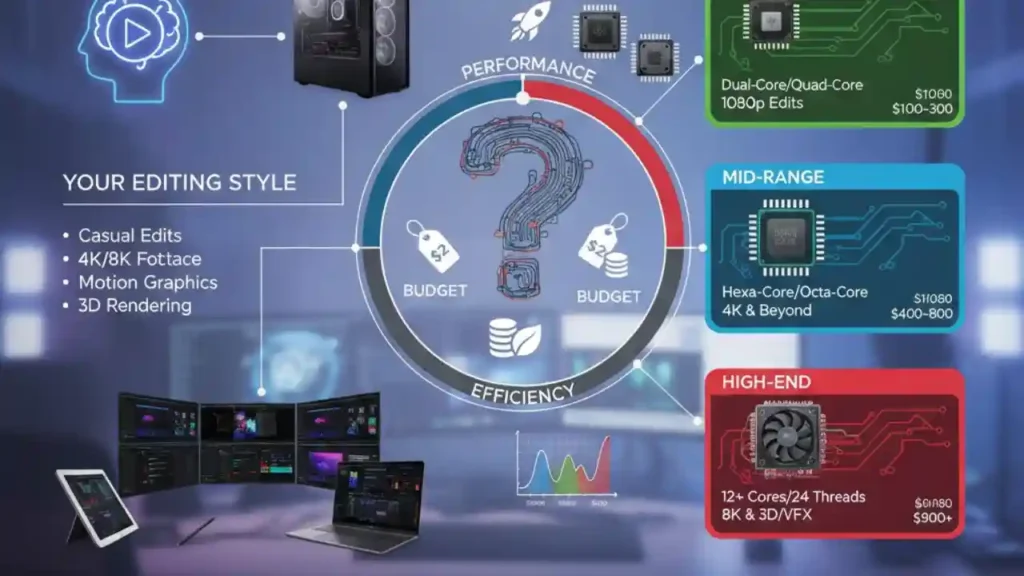
Best CPU for Casual Creators and Beginner Editors
If you’re just getting started with YouTube, travel vlogs, or social media content, you don’t need a top-tier workstation. A well-balanced mid-range processor can deliver smooth 4K editing and fast renders without overwhelming your budget.
The Intel Core i5 and AMD Ryzen 5 series provide more than enough power for light to moderate projects. Many new editors are surprised at how well a well-optimized mid-range chip performs when paired with a decent GPU and fast SSD. This combination keeps the system responsive without unnecessary spending on higher-end components.
For Mac users, the base M3 or M2 Pro MacBook is a fantastic entry point. Even these “basic” Apple Silicon models outperform many older desktops in timeline performance, making them ideal for new creators.
Best CPU for Intermediate Editors Working With 4K Timelines
If you’re producing client work, freelance videos, or long-form content, stepping into higher performance tiers becomes essential. Editors in this category often handle multicam projects, heavy color adjustments, and more complex audio mixes – all of which benefit from more cores and better thermals.
The Intel Core i7 and AMD Ryzen 7 processors strike an excellent balance between cost, speed, and future-proofing. They handle demanding effects and maintain smooth playback even when you stack multiple layers of footage. The experience feels noticeably faster compared to mid-range chips, especially during exports.
Meanwhile, Apple’s M3 Pro offers an efficient option for those who want minimal noise, long battery life, and the reliability of macOS for editing.
Best CPU for Professional Editors and Studio-Level Projects
If you work with 6K or 8K footage, RAW formats, or large commercial projects, you need workstation-grade performance. These workloads rely on multiple threads, large cache sizes, and strong sustained clock speeds. Editors handling weddings, documentaries, or commercial campaigns often fall into this category.
The Intel Core i9 and AMD Ryzen 9 processors remain the top-performing options for heavy desktop use. They excel in both timeline speed and exports, providing the stability needed for long hours of editing. For color-intensive work in DaVinci Resolve, Ryzen 9 typically pulls ahead due to superior multi-core scaling.
Apple’s M3 Max and desktop-grade M-series chips also compete strongly here. They deliver impressive ProRes performance and some of the best thermals in the industry, making them ideal for creative studios that value silence and energy efficiency.
A Practical Comparison: Intel vs. AMD vs. Apple for Editors

Below is a simplified comparison to help you decide based on workflow and platform preferences:
| Brand / Chipset | Best For | Strengths | Limitations |
| Intel i7 / i9 | Premiere Pro, After Effects, hybrid workflows | Best single-core speed, smooth timeline scrubbing, responsive apps | Runs hot under load, higher power draw |
| AMD Ryzen 7 / 9 | DaVinci Resolve, heavy renders, multicam editing | Excellent multi-core performance, cooler thermals, great value | Slightly weaker single-core performance in some apps |
| Apple M3 Pro / Max | Final Cut users, mobile editors, studios | Unified architecture, long battery life, unbeatable ProRes performance | Limited upgrade options, macOS-only workflow |
This table gives a quick snapshot, but choosing the right CPU is ultimately about how you edit day to day. If your priority is timeline responsiveness, Intel tends to shine. If speed and stability during long exports matter most, AMD is often the better bet. And if you value silent operation and mobility, Apple remains unmatched.
Ranked Recommendations by Editing Style
Below is a refined breakdown that aligns each processor with the type of editor it serves best:
1. Apple M3 Max (Mac Studio / MacBook Pro)
Best for editors working with ProRes, mobile workflows, or Final Cut Pro. Ideal for filmmakers and content creators who need high performance with near-silent cooling and long battery life.
2. Intel Core i9-14900K
Outstanding for Adobe editors. Perfect for those who rely on timeline responsiveness, motion graphics, and mixed workloads. Great for workstations that double as gaming or streaming PCs.
3. AMD Ryzen 9 7950X
Best for DaVinci Resolve users. Excels in multi-core rendering, Fusion effects, and long exports. Ideal for colorists and studios handling multi-hour content.
4. Intel Core i7-14700K / AMD Ryzen 7 7800X3D
Strong mid-range options for editors working with 4K timelines who want fast performance without the cost of top-tier chips.
5. Apple M3 Pro
A balanced choice for editing on the go. Great for freelancers and social creators who want reliable macOS performance.
This ranking provides a straightforward way to choose based on your reality, whether you’re editing daily for clients or creating content on the weekends.
Common Mistakes Editors Make When Choosing a Processor
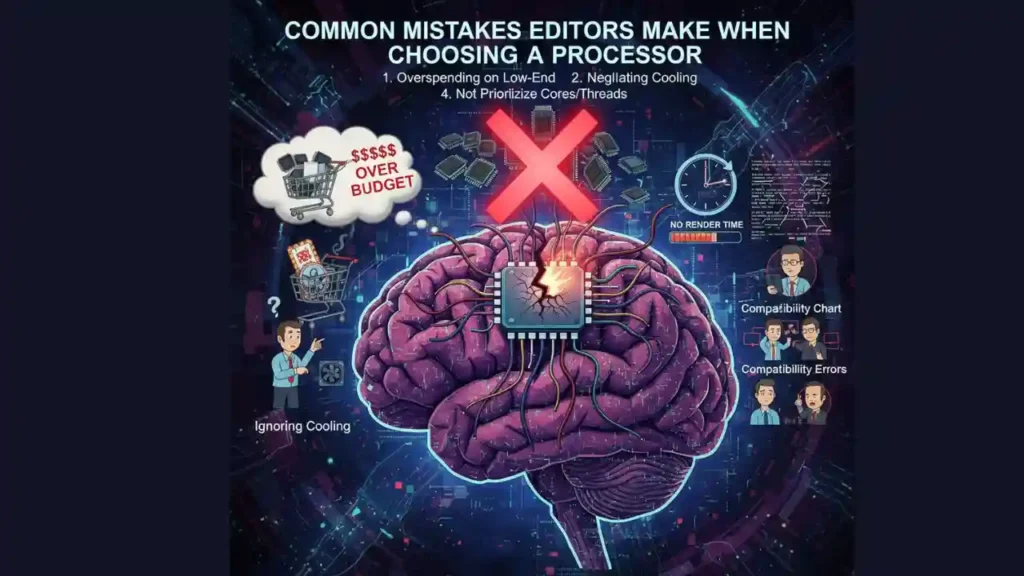
Overbuying Power You’ll Never Use
Many creators assume the most expensive CPU is best, but unless you’re editing in 6K or 8K RAW, high-end workstation chips may be unnecessary. Instead of chasing specs, match your CPU to your actual editing workload and software.
Ignoring Thermal Performance and Cooling
A fast processor that overheats becomes slow – simple as that. Cooling isn’t just about preventing damage; it’s about preserving high speeds during long editing sessions. Apple Silicon has an advantage here, but PC users can overcome thermal throttling with good cooling solutions.
Not Considering Software Optimization
Premiere Pro and After Effects benefit more from single-core speed, while DaVinci Resolve thrives on multi-core scaling. Choosing the wrong architecture for your software leads to bottlenecks and wasted money.
Forgetting Future-Proofing
Buying just enough for today often means upgrading sooner than expected. Looking ahead 2–3 years can save a lot of expense and frustration.
These mistakes are surprisingly common – but with a bit of strategy, your next CPU upgrade can become one of the most impactful improvements to your entire editing workflow.
Final Takeaway: Which Processor Should You Buy in 2025?

Choosing the best processor for video editing comes down to your apps, your workflow, and your future goals. Intel remains unmatched in timeline responsiveness for Adobe users. AMD continues to dominate rendering and complex workloads, especially in DaVinci Resolve. And Apple offers the smoothest mobile experience for creators who value stability, silence, and premium software integration.
There is no single universal winner – only the processor that aligns perfectly with the way you create.
With the insights from this guide, you can confidently choose a CPU that speeds up your workflow, eliminates bottlenecks, and supports the creative work you’re most passionate about. And when you’re ready to elevate your videos even further, the editing specialists at Inside Editors are here to help bring your stories to life with precision and style.
FAQs – Best Processor for Video Editing
Q: How can I trust Inside Editors with my footage and revisions?
A: Inside Editors protects your files with secure transfer and storage protocols, plus clear ownership rights: you retain copyright to your raw footage and final deliverables. We include a standard revision policy (usually 1–3 rounds depending on the package) and offer encrypted links for downloads; if you need custom revision terms, we’ll agree those before work starts.
Q: What’s the difference between DIY editing and hiring a pro like Inside Editors?
A: DIY saves money initially but costs time and often limits quality-editing tasks like color grading (creative look) and audio mixing take hours to master. Hiring a pro trades time for expertise: you get faster turnaround, consistent visual style, and fewer revisions, which typically increases conversion and viewer engagement for client or monetized projects.
Q: How do your packages and tiers compare for short-form vs long-form projects?
A: Packages usually split by length and complexity: short-form tiers (15–90 sec) focus on pacing and social optimization, while long-form tiers (10+ minutes) include multicam sync, advanced color grading, and chaptering. Expect higher tiers to include project files, added revisions, and faster delivery; we’ll recommend the tier that best matches your goals and distribution platform.
Q: What are typical pricing ranges and what’s included/excluded?
A: Pricing varies: quick social clips commonly start around $40–$150, standard edits $150–$600, and full-length or premium edits $600+. Most quotes include editing, one or two rounds of revisions, and export masters; extras such as stock footage, licensed music, or rush delivery are usually billed separately and specified up front.
Q: How long does a typical edit take and are rush options available?
A: Standard turnaround for an average 5–15 minute video is 3–7 business days depending on complexity and workload; rush delivery (24–48 hours) is usually possible for an added fee. Timelines depend on footage quality, number of revisions, and whether assets (logos, scripts, music) arrive with the first upload.
Q: What simple steps should I follow to prepare footage for editing?
A: Keep filenames descriptive, include a short shot list or script, and export camera logs or proxies if possible-this saves time. Upload raw files to a shared drive, provide brand assets (logos, fonts), and add a clear brief with timestamps for key moments so the editor can start with precise directions.
Q: Which processor should I choose for fast editing-what’s the best processor for video editing right now?
A: The right CPU depends on software and workflow: Adobe users often prefer Intel i7/i9 for single-core responsiveness, while DaVinci Resolve users get faster exports on AMD Ryzen 9-class chips; Mac users benefit from Apple M-series for ProRes and mobile editing. Choose based on your apps, typical footage (4K/8K), and whether you value timeline snappiness or multi-core render speed.


