


The landscape of video creation has changed dramatically, making professional-grade editing accessible to everyone from YouTube beginners to seasoned filmmakers. As technology evolves, so does the capability of portable machines. A question that frequently arises among aspiring and current content creators is fundamental: Is macbook air good for video editing? For years, the MacBook Air was firmly relegated to light office tasks, but the introduction of Apple Silicon (M-series chips) has blurred the lines between the Air and the professional-grade MacBook Pro.
In this comprehensive guide from Inside Editors, we will dive deep into the current capabilities of the latest MacBook Air models (specifically M2 and M3 generations, projecting into 2025 and 2026), examining performance benchmarks, software compatibility, and real-world workflows. We aim to provide an authoritative answer, helping you decide if this sleek, fanless machine can handle your creative demands. By the end of this article, you will have a clear understanding of whether the MacBook Air is the right tool for your video editing journey, or if professional assistance, such as our dedicated video editing services, might be a better fit for high-volume or complex projects.
The Apple Silicon Revolution: Redefining the MacBook Air
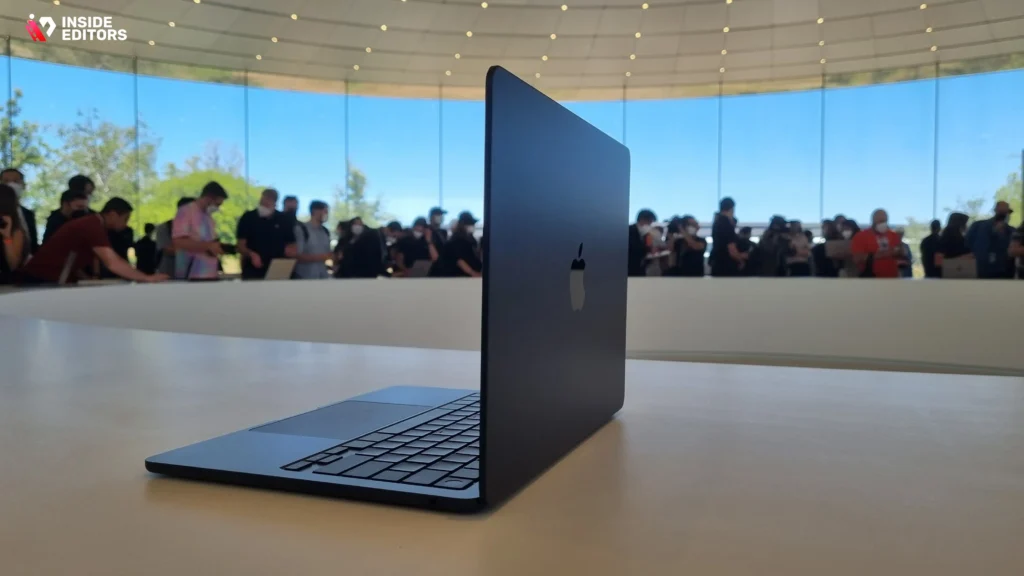
To understand whether is macbook air good for video editing today, we must first acknowledge the monumental shift brought about by Apple Silicon. The move from Intel processors to the custom-designed M-series chips fundamentally changed the performance profile of the entire Mac lineup, especially the fanless MacBook Air.
Understanding the M-Series Chip Architecture
Apple Silicon integrates the CPU, GPU, Neural Engine, and Unified Memory onto a single System on a Chip (SoC). This integration drastically reduces latency and increases efficiency, providing performance previously unheard of in a thin, passively cooled laptop.
The key components relevant to video editing are:
- Unified Memory: Unlike traditional systems where CPU and GPU share data via slower system memory, Unified Memory allows both processors instantaneous access to the same pool of high-bandwidth memory. This is critical for handling large video files and complex effects.
- Media Engines: The M-series chips include dedicated hardware accelerators-the Media Engine-specifically designed to encode and decode popular video codecs like H.264, HEVC (H.265), ProRes, and ProRes RAW. These engines offload intensive processing from the CPU/GPU, dramatically speeding up export times and improving playback smoothness.
- Efficiency: Because the M-series chips are incredibly power-efficient, they can sustain high performance for longer periods on battery power, a massive advantage for editors working on the go.
“The M-series chips didn’t just make laptops faster; they fundamentally changed the relationship between power consumption and creative output. For video editors, the dedicated media engines are a game-changer, democratizing high-performance workflows.” – Tim Higgins, Tech Analyst
MacBook Air vs. MacBook Pro: Where the Air Stands
Historically, the MacBook Pro was the only viable option for serious video work due to its active cooling system and higher-tier components. While the Pro still holds the edge for sustained, heavy-duty tasks (like 8K editing or complex motion graphics), the M-series MacBook Air now occupies a powerful middle ground.
The Air’s primary limitation is its fanless design. When pushed to maximum performance for extended periods (typically 10-15 minutes of heavy rendering), the chip must throttle its speed slightly to manage heat. For short bursts of editing, quick exports, and standard 4K timelines, this throttling is negligible. This is why the answer to is macbook air good for video editing depends heavily on the type of editing you plan to do.
Performance Benchmarks: What Can the Air Actually Handle?
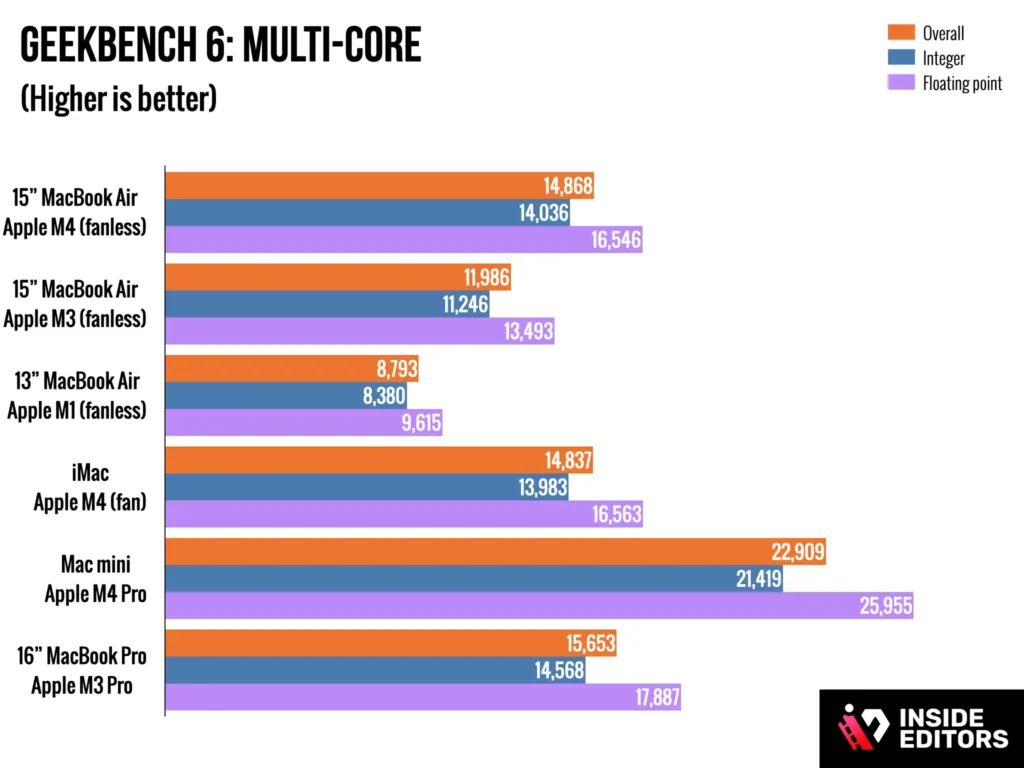
When evaluating the MacBook Air for video editing in 2025-2026, we look at three crucial areas: playback, rendering, and export.
1. Standard 4K Workflow (The Sweet Spot)
For the vast majority of content creators-including YouTubers, social media marketers, and course creators-editing 4K footage (up to 30fps or 60fps) is the standard.
The M2 and M3 MacBook Air models excel here. Thanks to the dedicated Media Engine, editing native 4K H.264 or HEVC footage in applications like Final Cut Pro, DaVinci Resolve, or Adobe Premiere Pro is remarkably smooth. You can typically run multiple video tracks, basic color correction, and simple transitions without dropping frames.
| Task | M2/M3 MacBook Air (8GB/16GB) | Performance Rating |
| 4K Playback (Single Stream) | Flawless | Excellent |
| 4K Playback (Multicam, 3 Streams) | Very Good (Requires 16GB RAM) | Good |
| 10-Minute 4K Export (H.264) | 3-5 Minutes | Excellent |
| Basic Color Grading/LUTs | Smooth | Excellent |
2. High-End and Professional Workflows (The Edge Cases)
If your work involves high bitrates, complex effects, or professional codecs, the limitations of the Air become more apparent.
- 8K Footage: While the Air can technically play 8K footage (especially if it’s ProRes), editing multiple streams or applying heavy effects will lead to noticeable slowdowns and thermal throttling. This is where the MacBook Pro’s active cooling and Pro/Max chips are necessary.
- Motion Graphics and VFX: Applications like After Effects require immense sustained CPU and GPU power. The Air can handle basic motion graphics, but complex 3D rendering or particle simulations will be slow.
If your primary goal is professional-grade, high-volume editing that requires constant rendering and fast turnaround, you may find that outsourcing these demanding tasks to a specialized team is more efficient. Inside Editors offers professional video editing services for businesses, ensuring that even the most complex projects are handled by powerful hardware and expert editors, freeing up your time for content creation.
3. The RAM and SSD Dilemma: Configuration Matters
When asking is macbook air good for video editing, the configuration you choose is almost as important as the chip itself.
Unified Memory (RAM)
While Apple Silicon is incredibly efficient with memory, 8GB of Unified Memory is the absolute minimum and can be a bottleneck for 4K editing.
- 8GB: Suitable for 1080p editing and very basic 4K projects (e.g., single track, short videos).
- 16GB (Recommended): The sweet spot. This allows the system to handle multi-track 4K timelines, moderate effects, and keep multiple applications open simultaneously without swapping data to the SSD.
- 24GB: Excellent for future-proofing and heavier 4K/light 6K work.
Storage (SSD)
The speed of the internal SSD is crucial for ingesting and exporting video files. The base model SSDs (especially in the M2 generation) sometimes feature slower read/write speeds than their higher-capacity counterparts. For video editing, we strongly recommend stepping up from the base 256GB storage to the 512GB configuration or higher to ensure optimal speed and sufficient space for project files and caches.
Software Compatibility and Optimization

One of the greatest strengths of the MacBook Air is its synergy with major video editing software, which has been highly optimized for Apple Silicon.
Final Cut Pro (FCP)
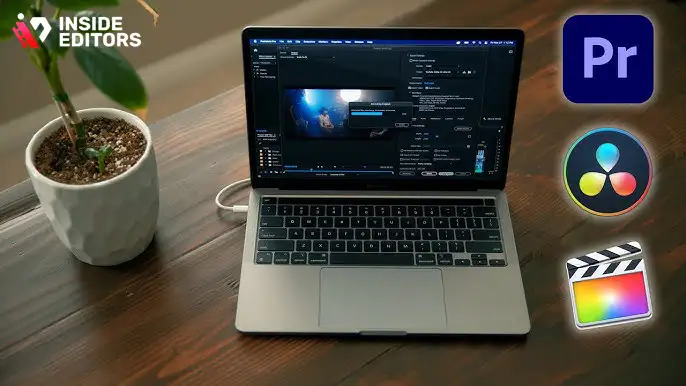
FCP is Apple’s native professional editing suite and runs flawlessly on the MacBook Air. It is designed to take full advantage of the Media Engines, resulting in incredibly fast exports and smooth timeline performance, even on the base M-series Air. If you primarily use FCP, the answer to is macbook air good for video editing is a resounding yes, assuming you have 16GB of RAM.
Adobe Premiere Pro
Adobe has significantly improved Premiere Pro’s performance on M-series chips. While it traditionally lagged behind FCP in optimization, modern versions are robust. However, Premiere Pro tends to be more resource-intensive, meaning the Air will throttle sooner under heavy load compared to FCP. For long-form Premiere projects, 16GB of RAM is mandatory.
DaVinci Resolve
Resolve is renowned for its incredible color grading capabilities and is highly scalable. The free version runs very well on the MacBook Air for standard editing and color work. Resolve heavily leverages the GPU, and while the Air’s integrated GPU is powerful, complex node trees and advanced noise reduction will tax the system quickly.
Essential Software Checklist
| Software | Air Performance (16GB RAM) | Best Use Case |
| Final Cut Pro | Excellent | Fast turnaround, native Apple ecosystem |
| Adobe Premiere Pro | Good to Very Good | Industry standard, collaborative projects |
| DaVinci Resolve | Good | Color grading, basic editing |
| Adobe After Effects | Fair | Simple motion graphics, short compositions |
If you are a beginner looking to understand the fundamentals of these powerful tools, Inside Editors also offers resources on video editing software tutorials to help you get started on the right foot with your new MacBook Air.
Practical Limitations and Workarounds for the Air
While the MacBook Air is a powerhouse for its size, it is important to be realistic about its limitations, especially when considering heavy professional use in 2025-2026.
The Thermal Throttling Factor
The primary limitation is heat. Since the Air lacks a fan, it relies on passive cooling. When rendering a long video (e.g., a 30-minute documentary) or applying heavy effects, the chip temperature will rise, forcing the system to reduce its clock speed to prevent damage. This thermal throttling means that while the Air can start a task very quickly, its sustained performance is lower than a comparable MacBook Pro.
Workaround: For long exports, consider breaking up complex projects into smaller segments. Alternatively, if sustained, high-speed rendering is your daily requirement, you might need to invest in a Pro model or delegate the rendering process.
The Port Constraint
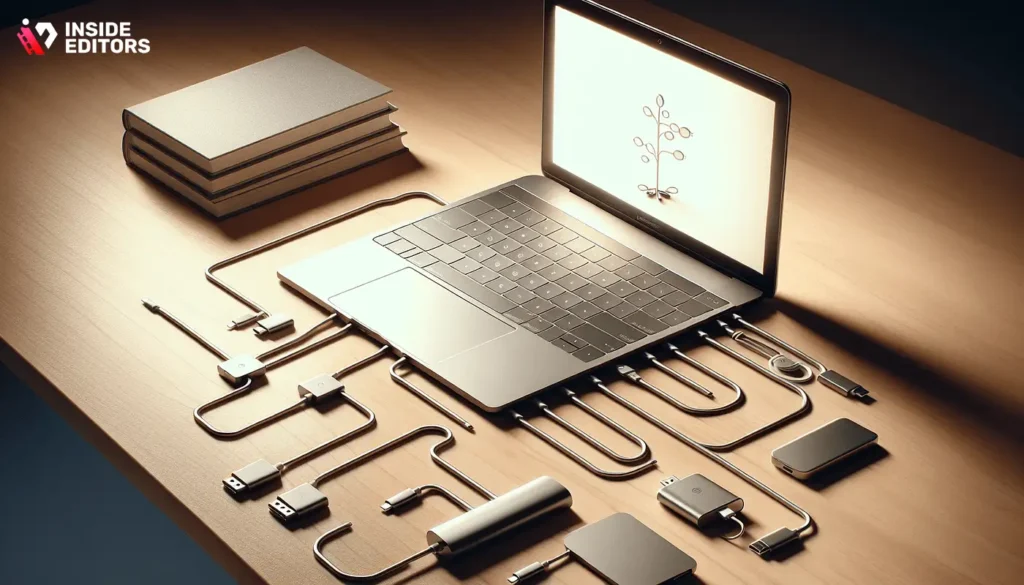
The MacBook Air (M2/M3) typically offers two Thunderbolt/USB 4 ports and a MagSafe charging port. For video editing, you often need to connect an external SSD for project files, an external monitor, and potentially other peripherals.
Workaround: A reliable Thunderbolt dock or hub is essential. Always edit your project files off a fast external NVMe SSD connected via Thunderbolt, not the internal drive, to preserve internal storage space and reduce wear.
The Display Limitation
The MacBook Air supports only one external display natively. If your workflow requires two or more external monitors (e.g., one for the timeline, one for the reference monitor), the Air will require third-party display adapters (like DisplayLink), which can add complexity and cost. This is a significant consideration for professional editors.
If these limitations sound like they will hinder your productivity, remember that professional editing services are designed to bypass these hardware constraints entirely. Our expert team at Inside Editors can handle complex, multi-monitor workflows and deliver high-quality results with fast turnaround times (24-72 hours), ensuring you never miss a deadline. This service is ideal for those who need professional quality without the hardware investment.
Is macbook air good for video editing? A Pros and Cons Analysis
Ultimately, the decision rests on balancing performance against portability and price. For many users, the MacBook Air offers the perfect ratio.
| Pros of Using MacBook Air for Video Editing | Cons of Using MacBook Air for Video Editing |
| Exceptional Portability: Extremely thin and light, ideal for travel and mobile editing. | Thermal Throttling: Sustained heavy tasks (long renders) will slow down due to fanless design. |
| Outstanding Battery Life: Can edit 4K footage for hours on battery power alone. | Limited External Display Support: Only supports one external monitor natively. |
| Dedicated Media Engines: Extremely fast encoding and decoding of ProRes, H.264, and HEVC. | Base Model RAM/SSD: 8GB RAM and 256GB SSD are insufficient for serious 4K work. |
| Silent Operation: Fanless design means zero noise, perfect for quiet environments. | Port Limitation: Requires a hub or dock for multiple peripherals. |
| Excellent Value: Provides near-Pro level performance at a much lower starting price. | Not Ideal for VFX/3D: Complex motion graphics and 3D rendering are better suited for Pro models. |
The question, is macbook air good for video editing, hinges on the definition of “good.” It is excellent for 90% of content creators editing 4K footage. It is adequate for light professional work. It is not recommended for cinema-level, sustained 8K editing or heavy visual effects.
Choosing the Right Configuration for Video Editing

If you have decided that the MacBook Air is the right machine for you, selecting the proper configuration is the next critical step to ensure longevity and performance through 2026.
The Essential Build Recommendations
- Chip: Start with the standard M3 chip (or M2 if budgeting). The efficiency cores are powerful enough for most tasks.
- Unified Memory (RAM): 16GB is the minimum recommendation. This is the single most important upgrade for video editing performance. Since RAM is unified and non-upgradeable later, maximize this investment.
- Storage (SSD): 512GB minimum. This ensures faster SSD speeds and enough space for the operating system, applications, and current project caches. Always use an external SSD for storing raw footage and finished projects.
- GPU Cores: If possible, upgrade to the higher core count GPU option (e.g., 10-core GPU vs. 8-core GPU). Video editing software heavily utilizes the GPU for effects, scaling, and rendering.
The Importance of External Storage
A common mistake new editors make is storing all their raw footage and projects on the internal drive. This quickly fills up the SSD and degrades performance.
Actionable Tip: Invest in a high-speed external NVMe SSD (e.g., Samsung T9 or SanDisk Extreme Pro) with Thunderbolt connectivity. Edit your projects directly from this external drive. This keeps your internal drive clear for the operating system and applications, ensuring the MacBook Air maintains peak performance.
If you are just starting out and need guidance on organizing your footage and projects, we recommend checking out our comprehensive guide on video editing tips and tricks to streamline your workflow.
When to Outsource: The Professional Alternative
Even with the impressive capabilities of the M3 MacBook Air, there are times when outsourcing your video editing is the smartest, most cost-effective decision. This is particularly true for businesses, busy marketers, and high-volume content creators.
Why Choose Inside Editors?
At Inside Editors, we bridge the gap between your creative vision and professional execution. While your MacBook Air is perfect for capturing footage and managing your channel, our dedicated team handles the intensive, time-consuming editing process.
Our Service Alignment:
- Expertise and Quality: Our professional editing team has over 10 years of experience, ensuring your videos meet the highest standards of quality, color grading, and audio enhancement.
- Scalability and Speed: Need 10 videos edited this week? Your MacBook Air might struggle, but our infrastructure is built for scale. We offer a fast turnaround (24-72 hours) regardless of project size.
- Cost-Effectiveness: Instead of spending thousands on a high-end MacBook Pro and countless hours editing, you benefit from affordable pricing starting at $29/video and unlimited revisions until you are satisfied.
- Focus on Creation: By delegating the editing, you save time and can focus entirely on what you do best: generating new content, engaging your audience, or running your business.
“Time is the most valuable currency for a content creator. If you spend 20 hours editing a video that takes 2 hours to film, you’ve optimized the wrong part of the process. Outsourcing editing is an investment in your growth.” – Sarah Chen, Marketing Strategist
If you are managing a brand or a large YouTube channel and need consistent, high-quality output, partnering with us is a guaranteed way to maintain a professional standard. Learn more about how we can help you scale your video production.
Final Verdict: Is macbook air good for video editing in 2025-2026?
The definitive answer to is macbook air good for video editing in the M-series era is a resounding YES, with critical caveats regarding configuration and workflow.
For the vast majority of users-students, vloggers, small business owners, and social media creators-the MacBook Air (especially with 16GB RAM) offers an unparalleled blend of performance, portability, and battery life. It handles standard 4K editing with ease and speed, making it a fantastic primary machine.
However, if your work involves daily, sustained, heavy rendering (e.g., cinema RAW, complex VFX, or 8K timelines), the fanless design will eventually necessitate an upgrade to the MacBook Pro.
If you find yourself constantly battling hardware limitations, or simply want to maximize your time creating content rather than rendering timelines, consider leveraging our professional expertise. We ensure your final product is polished, professional, and delivered on time.
Ready to elevate your video content without the hardware headache? Explore our comprehensive video editing services today and let our experts handle the heavy lifting.
Frequently Asked Questions
Is the MacBook Air good for video editing in 2025?
Yes, the current MacBook Air models (M2/M3 chips) are surprisingly capable for most video editing tasks, especially using apps like Final Cut Pro or DaVinci Resolve. They handle 1080p and even lightweight 4K projects well, thanks to the efficiency of Apple Silicon. However, sustained heavy rendering on the MacBook Air might lead to thermal throttling due to its fanless design, unlike the MacBook Pro.
Which MacBook Air chip is best for editing?
The M3 chip offers the best performance for video editing due to its improved efficiency and slightly faster media engines compared to the M2. For serious work, prioritize models with at least 16GB of unified memory and a 1TB SSD configuration. This memory upgrade is crucial for handling multiple video tracks and complex effects without constant swapping.
Can the MacBook Air handle 4K video editing?
The MacBook Air can handle single-stream 4K video editing efficiently, particularly if the footage is optimized (like ProRes). Multicam 4K editing or heavy color grading in 4K resolution will strain the system more significantly. For frequent, professional 4K workflows, a MacBook Pro with active cooling is generally recommended to maintain peak performance.
Does the fanless design affect editing performance?
Yes, the fanless design means the MacBook Air must throttle its performance sooner than a MacBook Pro during prolonged, intensive tasks like exporting long videos. While it handles short bursts excellently, sustained rendering causes the chip temperature to rise, reducing clock speeds to prevent overheating. This makes exports take longer than on actively cooled systems.
How much RAM do I need for video editing on Air?
For comfortable video editing on the MacBook Air, 16GB of unified memory is strongly recommended as the baseline. While 8GB can manage basic 1080p projects, 16GB allows smoother multitasking, better handling of 4K footage, and improved performance with demanding effects. Since RAM is not upgradeable later, choose wisely at purchase.
MacBook Air vs MacBook Pro for editing: What’s the difference?
The primary difference lies in sustained performance and display quality. The MacBook Pro features active cooling, allowing it to maintain peak speeds longer. It also offers a superior ProMotion display and more ports. The Air is better for portability and light-to-moderate editing, while the Pro is designed for professional, heavy-duty video production.
Should I use Final Cut Pro or Premiere Pro on Air?
Final Cut Pro is generally recommended for the MacBook Air because it is highly optimized for Apple Silicon, utilizing the media engines more efficiently than Adobe Premiere Pro. This optimization results in faster rendering and smoother playback, especially important for maximizing performance on the fanless MacBook Air hardware. Both are usable, but FCP provides better synergy.


