

The world of video production demands speed, reliability, and massive storage. Whether you’re a seasoned professional editing 8K footage or a burgeoning content creator tackling your first 4K project, the quality of your workflow hinges on one critical component: the drive where your media lives. Choosing the right external hard drive for video editing is not merely a matter of picking the largest capacity; it’s about balancing performance, portability, durability, and cost.
This comprehensive guide will navigate the complex landscape of storage solutions, helping you understand the technical specifications that truly matter, and ensuring you select the best possible external hard drive for video editing to future-proof your creative endeavors in 2026 and beyond.
Video Editing: Key Storage Requirements
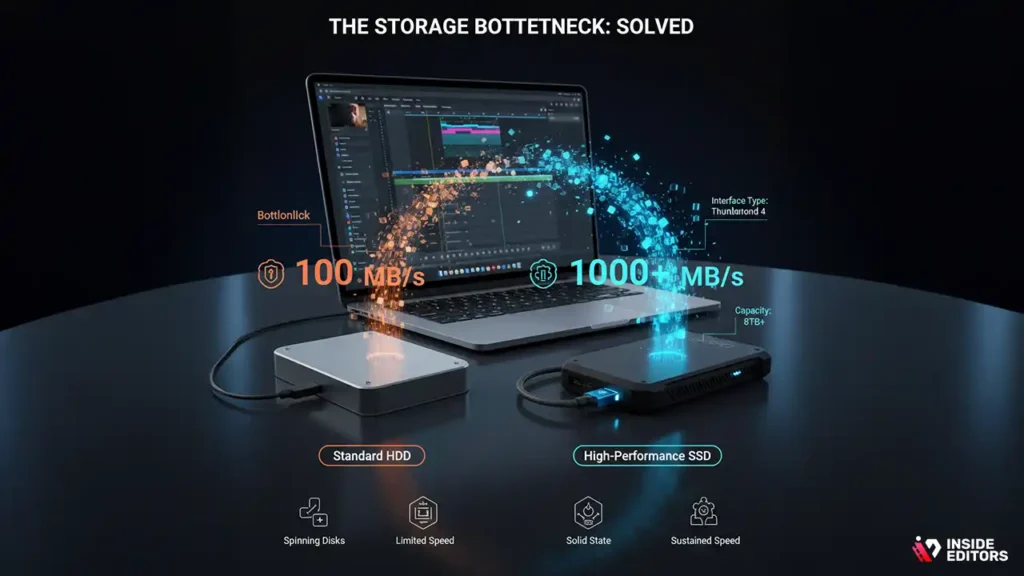
Video editing is perhaps the most demanding task you can throw at a computer system, especially concerning data transfer rates. Unlike simple file storage, editing requires constant, high-speed reading and writing of large, sequential data blocks. If your drive can’t keep up, you experience stuttering, dropped frames, and frustrating render times.
Why Standard Drives Aren’t Enough for Professional Workflows
Many consumers rely on standard external hard disk drives (HDDs) for backups. While these are inexpensive and offer vast storage, their mechanical nature-spinning platters and moving read/write heads-limits their sustained transfer speeds, often capping out around 100-150 MB/s.
For high-resolution video editing, particularly 4K and higher, these speeds are insufficient. Uncompressed 4K footage can easily demand sustained speeds of 300 MB/s or more. A dedicated external hard drive for video editing must be designed for sustained performance under heavy load.
“The bottleneck in modern video production is rarely the CPU or GPU; it’s almost always the storage. If your drive can’t feed the data fast enough, the entire system stalls.” – Lars Kjeldsen, Post-Production Workflow Specialist
Defining Key Performance Metrics
When evaluating an external hard drive for video editing, focus on these three critical metrics:
- Sustained Read/Write Speed (MB/s): This is the most crucial factor. It indicates how quickly the drive can continuously transfer data. Look for speeds above 500 MB/s for 4K editing and 1000 MB/s or more for multi-stream 6K/8K projects.
- Interface Type: The connection between the drive and your computer (USB 3.1/3.2, Thunderbolt 3/4). The fastest drive in the world is useless if the cable connection limits its speed.
- Capacity (TB): Measured in terabytes, this determines how much footage you can store. Modern video files are massive; 8TB to 16TB is becoming standard for long-term project storage.
SSD vs. HDD: The Fundamental Choice for Video Editors

The first major decision when selecting an external hard drive for video editing is whether to opt for a Solid State Drive (SSD) or a traditional Hard Disk Drive (HDD).
Solid State Drives (SSDs): Speed and Portability
SSDs use flash memory chips, similar to those in a smartphone, meaning they have no moving parts. This provides massive advantages in speed, durability, and size.
| Feature | SSD (Solid State Drive) | HDD (Hard Disk Drive) |
| Mechanism | Flash memory chips (No moving parts) | Spinning magnetic platters |
| Typical Speed | 500 MB/s to 3000 MB/s+ | 100 MB/s to 250 MB/s |
| Durability | Excellent; resistant to drops and shock | Fragile; susceptible to mechanical failure |
| Cost per TB | High | Low |
| Best Use Case | Active project editing, high-speed transfers, portability | Archiving, bulk storage, backup |
Pros of SSDs for Video Editing:
- Blazing Fast: Dramatically reduces loading times, scrubbing latency, and rendering.
- Silent Operation: No mechanical noise.
- Highly Durable: Ideal for editors who travel or work on location.
Cons of SSDs for Video Editing:
- Expensive: The cost per terabyte is significantly higher than HDDs.
- Capacity Limits: While capacities are growing, finding extremely high-capacity (30TB+) external SSDs is rare and prohibitively expensive.
Hard Disk Drives (HDDs): Capacity and Cost-Effectiveness
HDDs remain the champion of low-cost, high-capacity storage. They are essential for archival purposes and storing finished projects.
Pros of HDDs for Video Editing:
- Affordable Bulk Storage: The best option for storing massive media libraries.
- High Capacity: Easily find drives up to 20TB or more.
Cons of HDDs for Video Editing:
- Slower Speeds: Speeds are often too slow for smooth 4K multi-stream editing.
- Vulnerable: Moving parts make them sensitive to physical shock and vibration.
Expert Takeaway: For your active projects-the files you are currently editing-an external SSD is non-negotiable. For storing finished projects and raw footage archives, a large, reliable HDD or a RAID system is the most cost-effective solution.
Choosing the Right Interface: The Speed Highway
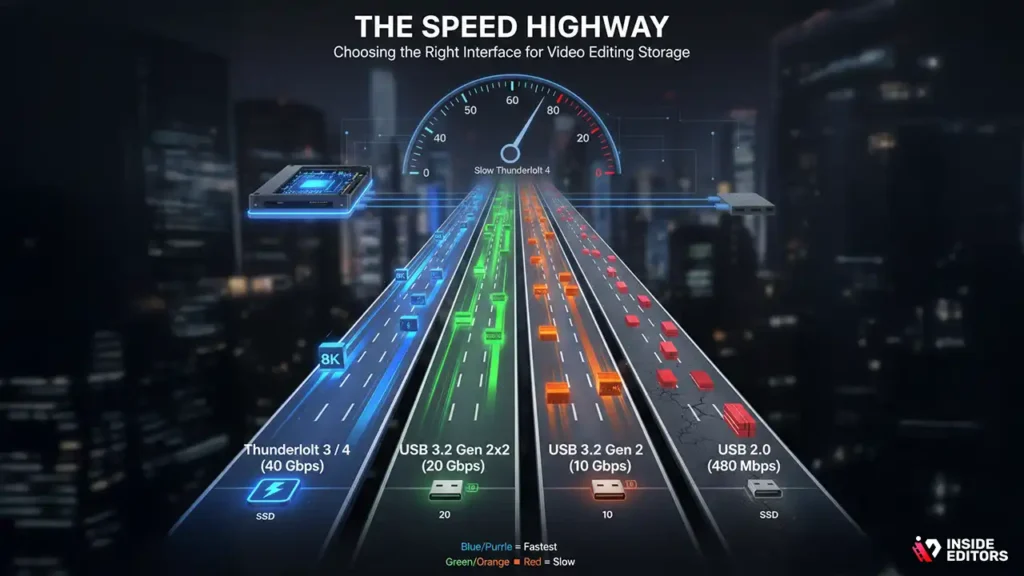
The connection interface dictates the maximum theoretical speed your external hard drive for video editing can achieve. A cutting-edge NVMe SSD connected via an outdated USB 2.0 port will perform no better than a decade-old mechanical drive.
Thunderbolt 3 and Thunderbolt 4
Thunderbolt is the gold standard for professional video editing workflows, particularly on modern Mac and high-end Windows machines.
- Thunderbolt 3/4: Offers a massive 40 Gbps (Gigabits per second) bandwidth, translating to theoretical speeds up to 2800 MB/s (Megabytes per second) after overhead. This is fast enough to handle multiple streams of high-bitrate footage simultaneously.
- Use Case: Essential for high-performance NVMe SSDs and multi-bay RAID enclosures.
USB 3.2 and USB 4
USB standards have become confusing, but they offer excellent compatibility and increasingly competitive speeds.
- USB 3.2 Gen 2 (10 Gbps): Capable of speeds up to 1000 MB/s. This is the sweet spot for many affordable, fast external SSDs.
- USB 3.2 Gen 2×2 (20 Gbps): Doubles the speed to 2000 MB/s, but requires specific ports on both the computer and the drive.
- USB 4 (40 Gbps): Often shares the same physical port and bandwidth as Thunderbolt 4, offering similar top-tier performance.
If you are working on a PC that doesn’t have Thunderbolt, a high-speed USB 3.2 Gen 2×2 or USB 4 external hard drive for video editing is an excellent choice.
The Role of RAID in Professional Storage
For editors requiring massive speed, redundancy, or both, a Redundant Array of Independent Disks (RAID) enclosure is the answer. A RAID enclosure houses multiple drives (HDDs or SSDs) that work together.
| RAID Level | Purpose | Drives Required | Benefits |
| RAID 0 (Striping) | Maximum Speed | Minimum 2 | Data is split across drives, doubling (or more) read/write speeds. No redundancy. |
| RAID 1 (Mirroring) | Maximum Redundancy | Minimum 2 | Data is duplicated on both drives. If one drive fails, the data is safe on the other. Halves capacity. |
| RAID 5 | Speed and Redundancy | Minimum 3 | Excellent balance of speed, capacity, and protection. Allows one drive failure without data loss. |
Insight: Many professional editors use a RAID 5 system for their active project storage, providing both the speed necessary for editing and the protection against catastrophic drive failure.
Choosing an External Drive for Video Editing
Beyond speed and interface, several practical factors influence the best choice for your specific workflow.
1. Durability and Portability
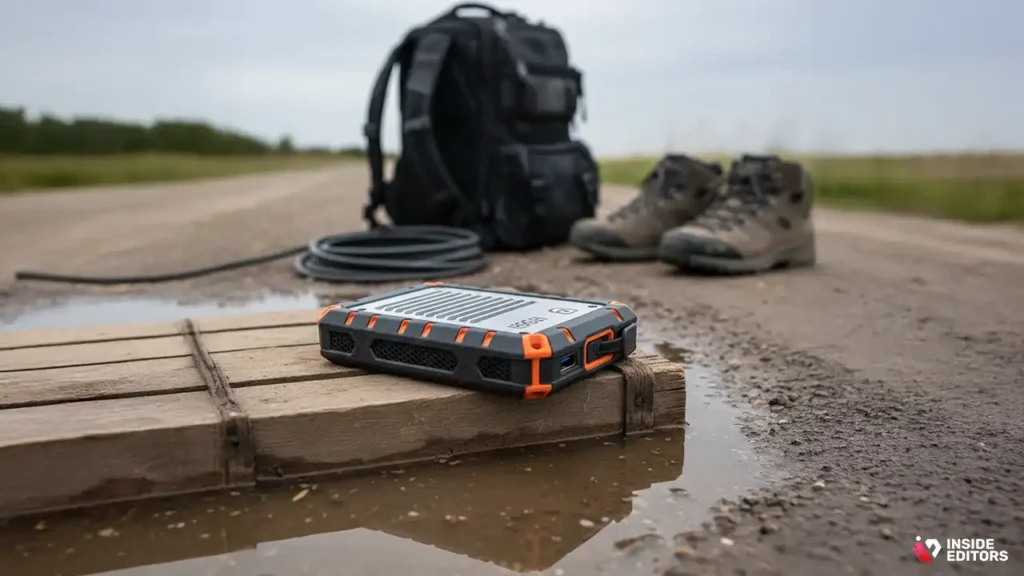
If you frequently shoot on location or move your drive between workstations, durability is paramount. Look for drives with:
- IP Ratings: Indicates resistance to dust and water (e.g., IP67).
- Shock Resistance: Internal dampening or ruggedized casings to withstand drops.
Portable SSDs are inherently more durable than portable HDDs due to the lack of moving parts. A rugged external hard drive for video editing ensures your project files survive the rigors of travel.
2. Thermal Management
High-speed drives generate significant heat, especially during long rendering sessions. Overheating can lead to “thermal throttling,” where the drive intentionally slows down to cool off, negating its high-speed advantage.
- Look for: Drives with aluminum casings or integrated heat sinks, which dissipate heat more effectively than plastic enclosures.
3. Pre-Formatted File Systems
The file system (how data is organized on the drive) must be compatible with your operating system.
- macOS: APFS (preferred for SSDs) or HFS+ (older standard).
- Windows: NTFS.
- Cross-Platform: exFAT is readable and writable by both, but is generally slower and less robust for large, professional projects.
Pro Tip: If you work exclusively on one platform (Mac or PC), format the drive to the native file system (APFS or NTFS) for maximum performance and stability.
4. Security Features
For editors handling sensitive client data or unreleased content, hardware encryption is a crucial feature.
- Look for: Drives offering 256-bit AES hardware encryption. This protects your data even if the physical drive is lost or stolen.
Case Study: Matching Drives to Editing Workflows
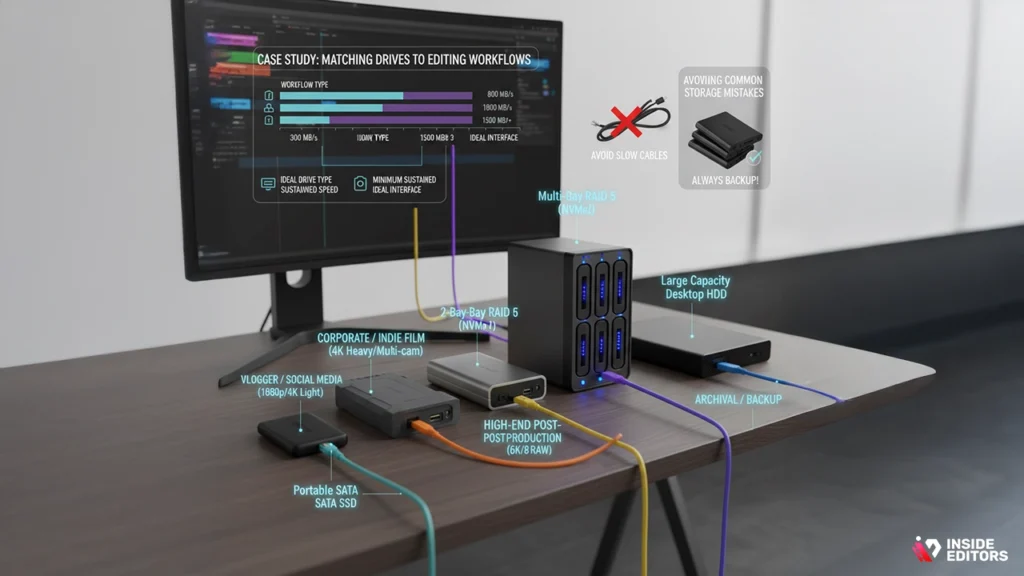
The best external hard drive for video editing depends entirely on the type of content you create.
| Workflow Type | Ideal Drive Type | Minimum Sustained Speed | Ideal Interface |
| Vlogger/Social Media (1080p/4K Light) | Portable SATA SSD | 300 MB/s | USB 3.2 Gen 1 (5 Gbps) |
| Corporate/Indie Film (4K Heavy/Multi-cam) | Portable NVMe SSD or 2-Bay RAID 0 | 800 MB/s | USB 3.2 Gen 2 (10 Gbps) or Thunderbolt 3 |
| High-End Post-Production (6K/8K RAW) | Multi-Bay RAID 5 (NVMe or Enterprise HDD) | 1500 MB/s+ | Thunderbolt 4 |
| Archival/Backup | Large Capacity Desktop HDD | 100 MB/s | USB 3.0 |
Avoiding Common Storage Mistakes
Many editors sabotage their workflow before they even start by making simple storage errors:
- Editing off the System Drive: Never edit directly from your computer’s internal drive if you can avoid it. This splits the bandwidth between running the OS, managing cache, and rendering, slowing everything down. Use a dedicated external hard drive for video editing.
- Using Slow Cables: A fast drive connected with a cheap, non-certified cable will revert to the cable’s slowest speed. Always use the high-quality, certified cables provided with your drive.
- Ignoring Redundancy: A single drive is not a backup. If you are using a single external hard drive for video editing, you must have a secondary backup copy of all raw footage and project files.
Deep Dive into NVMe Technology
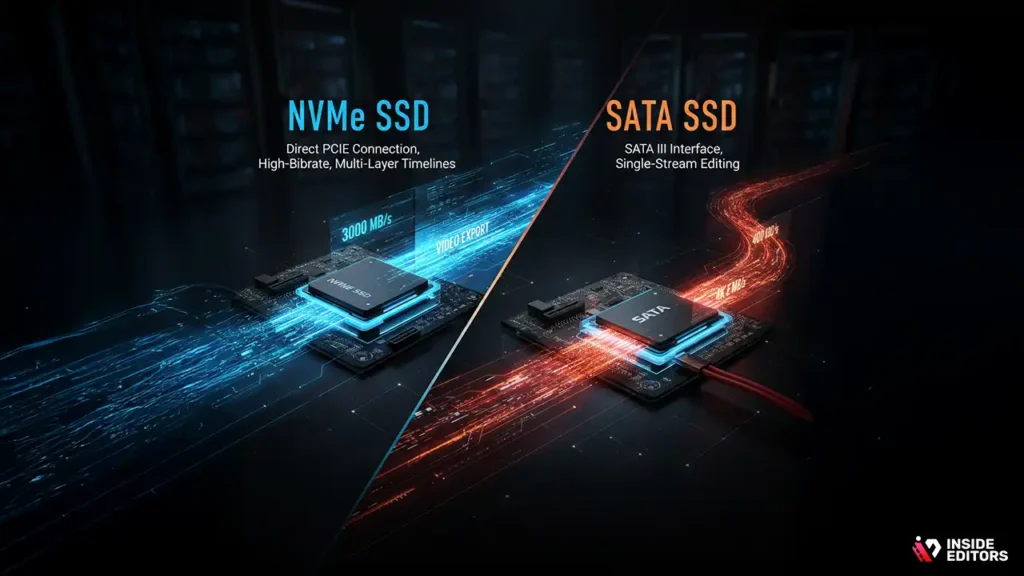
NVMe (Non-Volatile Memory Express) is the technology driving the current revolution in storage speed. NVMe SSDs communicate directly with the computer’s PCIe lanes, bypassing older bottlenecks.
When looking for the fastest external hard drive for video editing, ensure it utilizes an NVMe drive internally, not the older SATA SSD standard.
NVMe vs. SATA SSDs
While both are SSDs, their performance profiles are vastly different:
- SATA SSDs: Limited by the SATA III interface to a maximum theoretical speed of about 600 MB/s. This is fast enough for 4K single-stream editing but struggles with complex timelines.
- NVMe SSDs: Easily achieve speeds of 1000 MB/s to 3000 MB/s, making them ideal for high-bitrate, multi-layer timelines, and complex visual effects work.
The price difference between external SATA and NVMe drives has narrowed significantly, making NVMe the clear choice for any serious external hard drive for video editing purchase today.
The Importance of Consistent Performance
When reading specifications, look for sustained read/write speeds, not just peak speeds. Some budget drives might show impressive burst speeds but quickly drop performance when transferring large video files due to poor thermal management or inexpensive components. Professional drives are engineered to maintain high speeds over long periods, which is crucial when exporting a two-hour film.
External Drive Workflow Integration
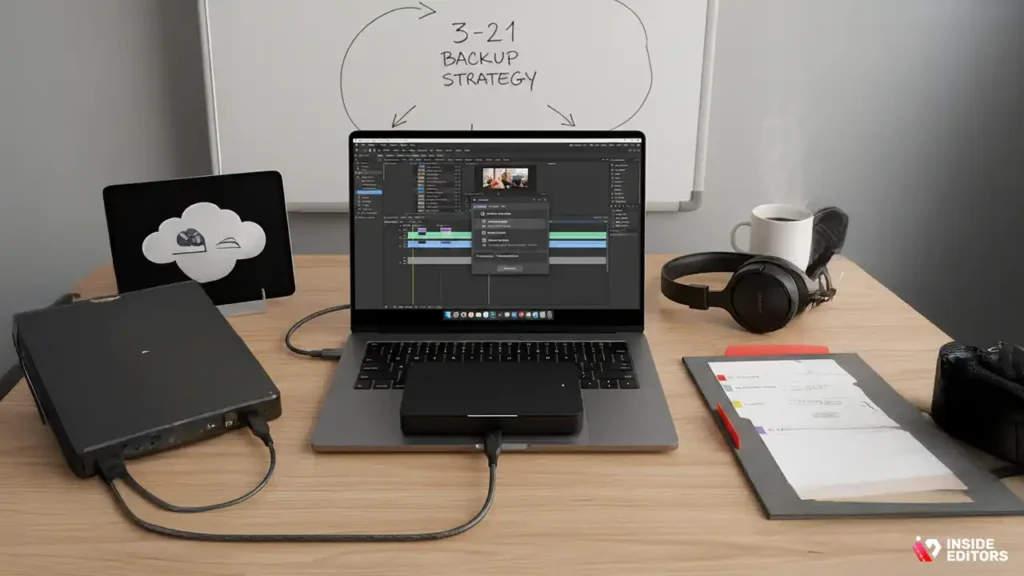
The best hardware is only as good as the workflow supporting it. Once you have selected your ideal external hard drive for video editing, integration is key.
Step-by-Step Drive Setup for Video Projects
- Format the Drive: Format the drive to the native file system (APFS or NTFS) for optimal performance.
- Create a Project Structure: Establish a consistent folder hierarchy (e.g., 01_Raw_Footage, 02_Project_Files, 03_Audio, 04_Exports).
- Set Scratch Disks: In your editing software (Premiere Pro, DaVinci Resolve, Final Cut Pro), designate the external drive as the location for scratch disks, media cache, and temporary render files. This offloads resource-intensive tasks from your internal system drive.
- Regular Backups: Implement a 3-2-1 backup strategy (3 copies of your data, on 2 different media types, with 1 copy off-site).
The Role of Cloud Storage and Collaboration
While an external hard drive for video editing handles the bulk of your active media, cloud storage plays an increasingly vital role in collaboration and off-site backup.
If you are working with a team, you might be sharing project files, graphics, or proxy media. Having a fast, local drive for the high-res media, while syncing project files via the cloud, provides the best of both worlds: local speed and remote accessibility.
When your projects become too large or complex to manage alone, or when deadlines demand professional speed, relying on expert assistance becomes necessary. For businesses, content creators, and marketers seeking high-quality output without the hassle of managing complex post-production pipelines, professional services are invaluable.
Inside Editors offers a robust solution for those who need reliable, fast, and high-quality video production support. Our professional video editing services are designed to take the post-production burden off your shoulders, allowing you to focus on content creation and strategy.
The Future of External Drives for Video Editing

As camera resolutions increase and codecs become more demanding, storage technology must evolve rapidly.
1. PCIe 5.0 and Beyond
The next generation of drives will leverage PCIe 5.0, pushing sustained read/write speeds well over 10,000 MB/s. While current interfaces (Thunderbolt 4) are the bottleneck, expect future Thunderbolt/USB standards to unlock these speeds, making 8K RAW editing effortless.
2. Increased Density and Lower Cost
As manufacturing processes improve, the cost per terabyte for high-speed NVMe SSDs will continue to drop, making large-capacity, all-SSD workflows accessible to a wider range of creators. We anticipate 8TB portable SSDs becoming the standard for mid-level professionals.
3. AI-Optimized Storage
Future drives may integrate AI processing capabilities to optimize data access patterns for specific editing software, further reducing latency and improving real-time playback performance.
“The drive of tomorrow won’t just store data; it will anticipate what data the editor needs next. Low latency and intelligent caching are the next frontiers.” – Dr. Anya Sharma, Data Storage Researcher
Drive Types Comparison for Editing Needs
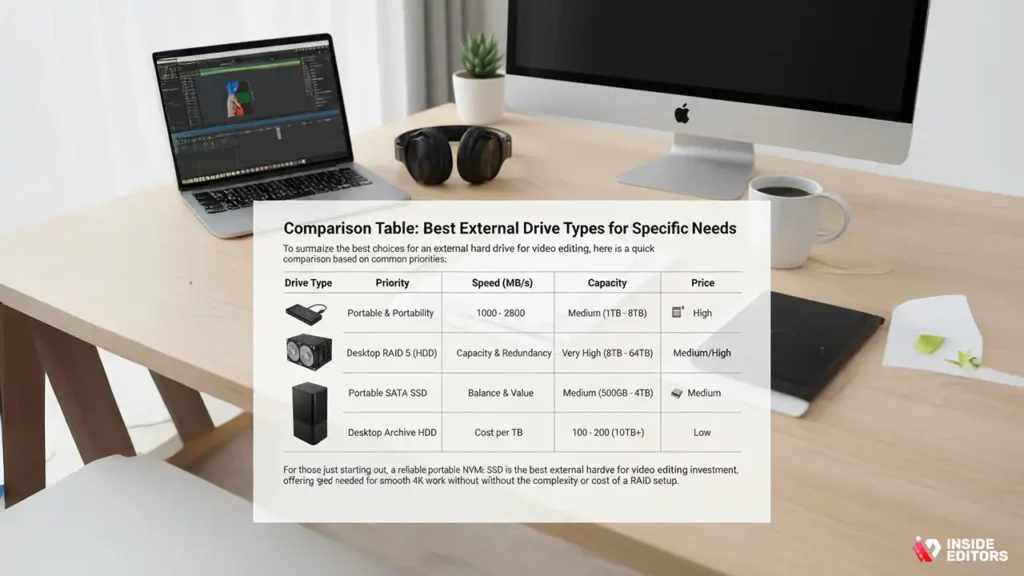
To summarize the best choices for an external hard drive for video editing, here is a quick comparison based on common priorities:
| Drive Type | Priority | Speed (MB/s) | Capacity | Price |
| Portable NVMe SSD | Speed & Portability | 1000 – 2800 | Medium (1TB – 8TB) | High |
| Desktop RAID 5 (HDD) | Capacity & Redundancy | 400 – 800 | Very High (8TB – 64TB) | Medium/High |
| Portable SATA SSD | Balance & Value | 400 – 550 | Medium (500GB – 4TB) | Medium |
| Desktop Archive HDD | Cost per TB | 100 – 200 | Extremely High (10TB+) | Low |
For those just starting out, a reliable portable NVMe SSD is the best external hard drive for video editing investment, offering the speed needed for smooth 4K work without the complexity or cost of a RAID setup.
When to Outsource Post-Production
Even with the fastest external hard drive for video editing, the post-production process remains time-consuming and technically demanding. Many creators reach a point where their time is better spent generating new content or focusing on business strategy rather than color grading and audio mixing.
This is where professional video editing services become a game-changer.
Why Choose Inside Editors for Your Video Needs?
Inside Editors specializes in providing high-quality, reliable, and scalable video editing solutions for creators, marketers, and businesses globally.
We understand that consistency and speed are paramount. Our service ensures your brand maintains a professional, uniform style across all platforms. Our team of professional editors, each with over 10 years of experience, handles everything from complex multi-cam setups to detailed color correction and audio enhancement.
Key Features of Inside Editors:
- Expertise and Experience: Our editors are subject-matter experts who understand the nuances of various editing software and codecs.
- Fast Turnaround: We offer rapid delivery, typically within 24 to 72 hours, ensuring you meet tight publishing schedules.
- Quality Assurance: We provide unlimited revisions until you are 100% satisfied.
- Affordable Pricing: Professional quality doesn’t have to break the bank, with affordable pricing starting at just $29 per video.
By choosing Inside Editors, you save valuable time and gain access to professional-grade quality that builds trust and engagement with your audience. Learn more about how we can transform your content strategy by visiting our video editing services for businesses.
We also understand that many creators need specialized support. For those focusing on short-form content, our video editing for social media service ensures your videos are perfectly optimized for platforms like TikTok, Instagram Reels, and YouTube Shorts.
Final Picks for Your Editing Drive
Selecting the right external hard drive for video editing is a strategic investment in your productivity. Do not compromise on speed for active projects; time saved in rendering and scrubbing quickly pays for the higher cost of an SSD.
Actionable Steps for Purchase
- Identify Your Needs: Are you editing 1080p, 4K, or 8K? This dictates the required sustained speed.
- Check Your Ports: Determine if your computer supports Thunderbolt 3/4 or USB 3.2 Gen 2×2. Buy a drive that matches your fastest port.
- Prioritize NVMe: If budget allows, always choose an external NVMe SSD over a SATA SSD for editing active projects.
- Plan for Backup: Allocate a separate, large-capacity HDD or RAID system for backing up your active external hard drive for video editing.
If you are a YouTube creator, managing the constant flow of content requires both efficient storage and reliable post-production. Our specialized service for video editing for YouTube can help streamline your output.
Remember, the goal is a seamless, frustration-free editing experience. A high-performance external hard drive for video editing is the foundation of that experience.
Resources and Next Steps
For advanced editors managing complex pipelines, understanding how to manage large media libraries is essential. Our guide on media management for video editors provides deeper insights into organization and archival strategies.
If you are looking to expand your team, you might need to find professional video editors who can integrate seamlessly into your workflow. Inside Editors can provide dedicated, reliable editing talent.
For those producing educational content, consistency and clarity are vital. Check out our specialized services for video editing for online courses to ensure your lessons are polished and engaging.
Finally, if you are working on a documentary or a feature-length project, the demands on storage and editing expertise are immense. Our comprehensive approach to documentary video editing ensures your long-form content is handled with the care and precision it deserves.
Choosing the ideal external hard drive for video editing is the first step toward a highly efficient post-production workflow. Once your hardware is optimized, consider how outsourcing the editing process to experts like Inside Editors can dramatically increase your output and quality, ensuring you maintain a competitive edge in the fast-paced digital landscape.
Frequently Asked Questions
SSD vs HDD: Which is better for video editing?
SSDs (Solid State Drives) are significantly faster, offering superior read/write speeds crucial for 4K and 8K video editing workflows. While HDDs (Hard Disk Drives) are cheaper per terabyte, an SSD is the recommended external hard drive for professional performance, especially when dealing with large project files and complex timelines.
What connection speed is best?
Thunderbolt 3/4 or USB 3.2 Gen 2 (10Gbps) are the best connection types. These protocols maximize the speed of modern external hard drives, preventing bottlenecks during large file transfers and ensuring smooth playback directly from the drive. Slower connections like standard USB 3.0 can severely limit performance.
How much storage do I need?
For serious video editing, 4TB is a practical minimum, but 8TB or more is safer, especially if you work with high-resolution footage (4K/6K). Uncompressed 4K footage consumes about 100-200GB per hour, so your external hard drive needs ample space for both project files and media caches.
Can I edit 4K video directly from the drive?
Yes, but only if you use a high-speed external SSD connected via Thunderbolt or fast USB-C. Editing 4K video requires sustained read speeds of 500 MB/s or higher. Trying this with a traditional spinning HDD will likely result in stuttering and dropped frames during playback.
Should I use RAID for video editing?
RAID configurations (like RAID 0 for speed or RAID 1 for redundancy) are highly beneficial for video editing professionals. RAID 0 doubles speed but risks data loss, while RAID 1 provides excellent backup. Many high-end external hard drive enclosures offer built-in RAID functionality for optimal data management.
What is drive latency?
Drive latency refers to the delay before the drive starts transferring data. Low latency is critical in video editing, particularly when scrubbing timelines or accessing small, fragmented files quickly. SSDs inherently have much lower latency than traditional mechanical HDDs, improving overall responsiveness.
Do portable drives work for editing?
Yes, many modern portable external hard drives are fast enough for editing, especially portable SSDs. They offer convenience and bus power (no separate cable), but they may lack the extreme capacity or active cooling found in larger desktop units, making them best suited for mobile work.
How important is cooling?
Cooling is very important, especially for sustained, high-intensity video editing tasks. Drives that overheat slow down significantly (thermal throttling). Look for external hard drive models with metal casings or active fans to maintain peak performance during long rendering sessions and large file transfers.


