

By Inside Editors – Expert Guide for Creators & Mobile Video Editors
Editing video on iPhone has become one of the most common creative workflows in 2026. Whether you’re a content creator, a vlogger, a small business owner, or simply someone who loves documenting life, your iPhone is now a surprisingly powerful editing machine. With faster A-series chips, upgraded camera pipelines, and tools like Apple ProRes and Cinematic Mode, more people than ever are producing professional-quality videos without touching a laptop. But with so many apps available, choosing the right one can feel overwhelming. This guide will help you understand what to look for, what each app does best, and how to pick the perfect fit for your goals.
Why Mobile Editing Has Become a Creator’s Secret Weapon in 2026
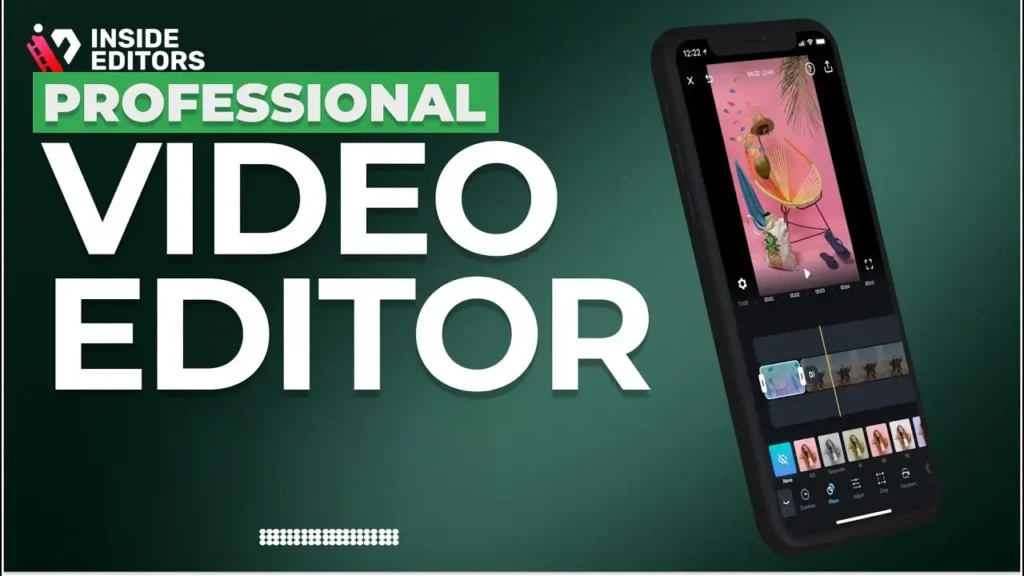
The Shift From Desktop to Pocket-Sized Production Studios
If you’ve been creating content for a while, you’ve probably noticed how workflows have changed. Five years ago, most people still relied on desktop programs like Adobe Premiere Pro or Final Cut Pro. In 2026, a huge portion of creators now claim that 70% or more of their content is edited directly on mobile, and the iPhone sits at the heart of this shift. Apple’s newer devices offer fast rendering, color-accurate displays, and AI-powered tools that make tasks like trimming, stabilizing, or color grading dramatically faster.
Instead of waiting until you get home to edit, you can now cut a vlog while riding in an Uber, style an Instagram Reel during lunch, or finalize a travel montage from your hotel bed. This freedom changes how creators produce and publish. It also reduces hesitation – the biggest enemy of consistent content. When editing feels lightweight and accessible, you take more creative risks and publish more frequently.
The Need for the Right App as Workflows Become More Demanding
Still, editing video on iPhone isn’t just about convenience. It’s about having tools that match your creative ambition. A travel vlogger needs different features from someone crafting TikTok transitions. A business owner producing product videos needs cleaner text tools and color control than a beginner experimenting with clips from their camera roll. Choosing the wrong app often leads to frustration – choppy playback, limited export options, ads, watermarks, or confusing timelines.
That’s why understanding your editing style and workflow is just as important as knowing what each app offers. In the next sections, we’ll walk through the standout apps of 2026 and how they help different types of creators produce better videos in less time.
How to Choose the Right iPhone Video Editing App for Your Goals
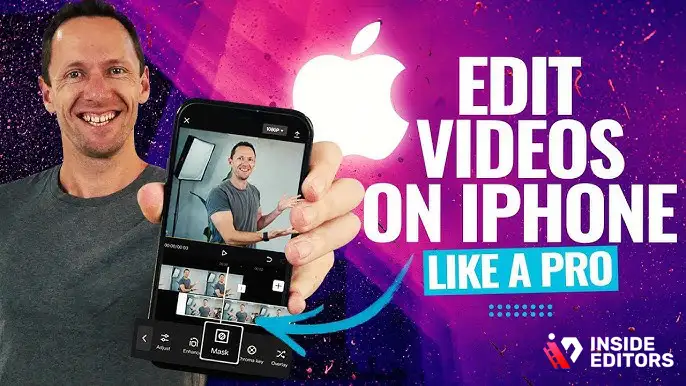
Start by Understanding the Editing Style You Want to Achieve
Most people assume that video editing apps are interchangeable, but they’re not. Each one is built around a certain editing style. Some are perfect for quick social clips, others for more cinematic storytelling. For example, an app like CapCut is focused on short-form, template-driven creativity. Meanwhile, LumaFusion offers a more traditional, desktop-like editing experience with multi-track timelines and advanced effects.
Before you pick an app, ask yourself: What kind of videos do I actually want to make?
If you want to produce seamless transitions, animated text, or fast-paced Reels, you’ll want tools that automate complexity. But if you’re planning to edit longer videos like travel documentaries or YouTube content, you’ll need more control – things like multi-layered audio, keyframes, advanced color grading, and the ability to import LUTs.
Performance Matters More on Mobile Than You Think
Editing on an iPhone means you’re working with limited screen real estate, battery life, and background processing. Apps that are poorly optimized feel slow or cluttered, especially when handling 4K or ProRes footage. Since most iPhone users shoot in high-resolution formats, performance becomes crucial. The best apps are those that load smoothly, play back clips without stuttering, and export quickly without overheating your phone.
Another factor is interface design. A well-designed mobile editor lets you move fast without tapping through endless menus. Tiny sliders or cramped toolbars can make simple edits take much longer than they should. In testing dozens of apps over the last year, we found that the most user-friendly ones strike a balance between clean layout and deep functionality.
Look for Flexibility in Exporting, Sharing, and Collaboration
In 2026, sharing workflows have become more complex. Many editors now publish across multiple platforms – TikTok, YouTube Shorts, Instagram Reels, LinkedIn, Pinterest, and more. If your app only exports in one aspect ratio or compresses your video too heavily, your final content suffers. The best apps allow you to export in multiple sizes and bitrates, ensuring your video looks its best wherever it’s shared.
Additionally, cloud syncing and collaboration have become major factors. Some apps allow multiple devices to sync timelines, while others let you hand off partial edits to a professional team – like Inside Editors’ own video editing services – for polishing, color work, or audio refinement. Whether you’re working alone or with a team, flexibility is key.
The Best Apps for Editing Video on iPhone in 2026 (Expert Picks)
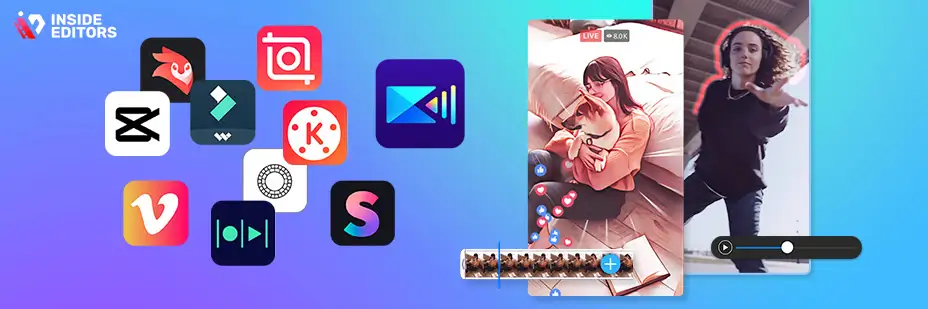
CapCut: The All-in-One Short-Form Powerhouse
CapCut remains one of the most widely used editing apps globally, especially for TikTok and Instagram creators. In 2026, it continues to dominate because of its blend of automation and customization. Beginners love that they can create polished videos quickly, while advanced users appreciate its depth of tools. The app offers strong text animation, transitions, AI cutouts, filters, and a library of trending templates.
One of CapCut’s biggest strengths is its integration with mobile-first platforms. If you’re creating short-form content regularly, this app dramatically shortens your editing time. However, CapCut isn’t ideal for longer or more complex projects. Its timeline is optimized for fast edits, not multi-layer storytelling. Still, as a free tool with no watermark, it’s an essential app for many creators.
LumaFusion: Desktop-Level Editing in Your Pocket
For creators who want a more professional editing experience, LumaFusion continues to set the standard on iPhone. This app is often described as the “Final Cut Pro for mobile,” thanks to its multi-track flexibility, precision tools, and advanced color grading. It’s especially popular among travel vloggers, documentary creators, and YouTubers who want more control without carrying a laptop.
LumaFusion handles large files gracefully, including 4K and ProRes footage. You can build layered timelines, sync audio, import LUTs, and add keyframed motion effects. It’s not as beginner-friendly as CapCut, but it delivers unmatched power. If you’re planning serious content creation in 2026, especially for YouTube, this app is worth mastering.
iMovie: The Cleanest and Easiest Option for Beginners
iMovie remains Apple’s most accessible editing tool, and it still excels for users who want a simple, reliable editor without distractions. In 2026, it supports Cinematic Mode, Magic Movie automation, and clean templates that make editing straightforward. Its interface is uncluttered and friendly for anyone starting their editing journey.
What makes iMovie appealing is its stability and seamless integration with the Apple ecosystem. Importing from Photos is effortless, and the app syncs smoothly across devices via iCloud. Its limitation is flexibility – it doesn’t offer advanced tools or deep customization. But if your goal is simple, clean videos, iMovie is still one of the best places to start.
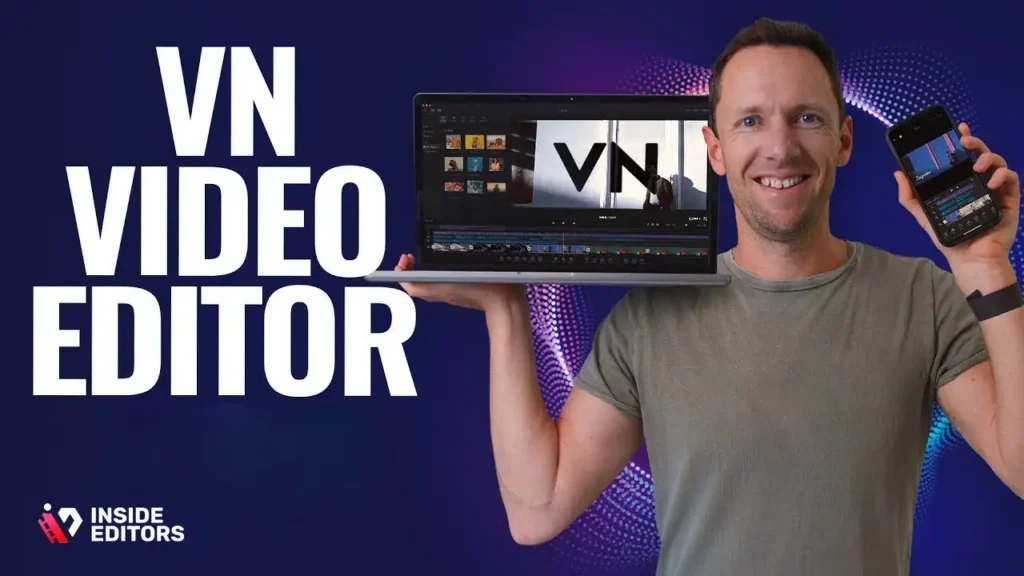
VN Video Editor: A Clean, Professional Experience Without the Learning Curve
Why VN Appeals to Both Beginners and Experienced Creators
VN Video Editor has become one of the go-to apps for creators who want more control than CapCut offers but without the complexity of LumaFusion. It strikes a rare balance: flexible timelines, strong color tools, clean text animations, and reliable exporting – all wrapped in a simple interface that feels intuitive even if you’re not used to editing video on iPhone professionally. Many creators appreciate that VN does not overwhelm them with pop-ups, ads, or paid templates, making the editing process feel smooth and distraction-free.
The reason VN works well for so many users is its ability to scale with your needs. You can create simple vertical videos for TikTok one day and a 5-minute montage the next without switching apps. Its multi-track editing is surprisingly powerful, and the app handles heavy footage far better than most free editors. This makes it a favorite among travel vloggers, fitness creators, and gaming highlight editors who frequently deal with lots of clips.
The Features That Make VN Stand Out in 2026
VN’s real strength in 2026 lies in its polish. Its timeline tools are responsive, previews are smooth, and exporting rarely causes the device to overheat – something creators editing longer videos really appreciate. The built-in transitions, overlays, and keyframes are strong enough to handle professional edits, while still being accessible to those exploring mobile editing. For users who want an editor that feels “grown-up” but not intimidating, VN is often the perfect middle-ground.
VN also allows easy sharing between devices through QR codes and cloud sync, making it easy to start a project on one phone and continue on another. This flexibility helps creators maintain consistency and workflow – especially those who travel or work with collaborators.
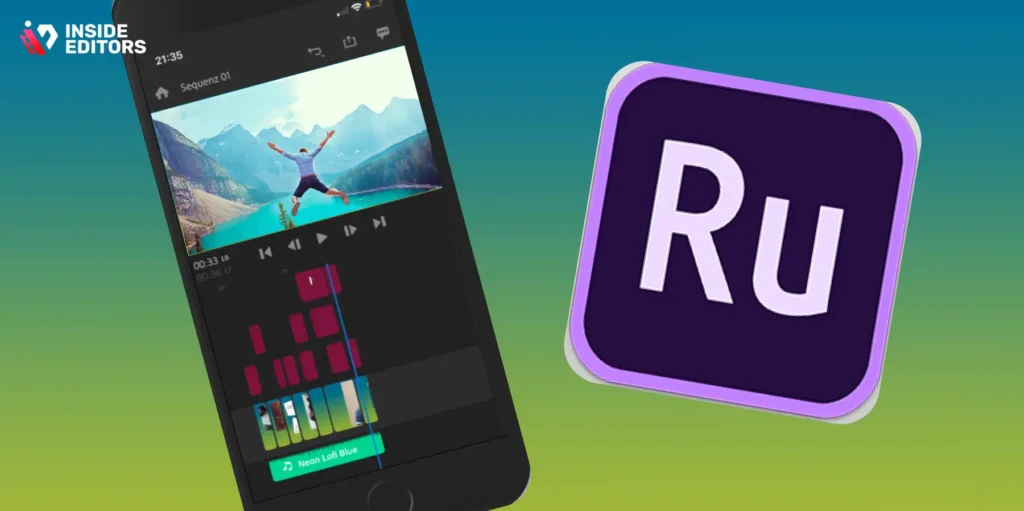
Adobe Premiere Rush: Simple, Sync-Friendly, and Perfect for Multi-Platform Publishing
Why Rush Still Matters in 2026 Despite Growing Competition
Premiere Rush hasn’t always been the trendiest app, but it remains incredibly useful for creators who publish across multiple platforms and want a familiar Adobe ecosystem experience. Its major advantage is cross-device syncing. You can start editing video on iPhone, switch to an iPad, and finish on a desktop – with your timeline staying perfectly intact. If you already use Adobe for design, photography, or business, this becomes a valuable workflow upgrade.
Rush focuses on streamlined editing: trimming, color presets, text overlays, and audio balancing. It doesn’t try to be everything – and that’s part of its appeal. You get a fast, simple editor that keeps projects organized, especially if you’re creating content weekly for YouTube, LinkedIn, or business campaigns. The interface feels clean, stable, and professional, without the sometimes chaotic energy of template-focused apps.
Where Rush Falls Short – and Why It Still Kicks Ass for Certain Users
Rush isn’t the most feature-rich option in 2026, especially compared to LumaFusion or CapCut. However, its reliability and cross-platform sync make it ideal for professionals who care about consistency more than creative effects. For example, businesses producing product videos or comparison videos benefit from Rush’s clean templates and dependable workflow. If you’re someone who wants minimal fuss and maximum clarity in your editing environment, Premiere Rush is still one of the best options available.
Final Cut Pro for iPhone: Professional-Level Editing Arrives on Mobile
The Most Powerful iPhone Editor for Serious Filmmakers
Final Cut Pro for iPhone made major headlines when it launched – and by 2026, it has matured into one of the most advanced mobile editors available. Apple has optimized it specifically for its hardware, which means editing feels incredibly fluid, even with ProRes or Cinematic Mode footage. It brings the magnetic timeline, color grading tools, advanced audio editing, and professional effects from the desktop version directly to your phone.
If you’re an experienced editor who already uses Final Cut Pro on Mac, the mobile version feels instantly familiar. You can build complex timelines, work with multiple clips at once, keyframe animations, and even handle multi-cam editing – all from your iPhone. For creators who shoot everything on their phone and want to maintain full creative control, this app is a game changer.
Why Final Cut Isn’t for Everyone – But Is Unmatched for Power
Of course, the power comes with a learning curve. Beginners may find it overwhelming, and casual users won’t need half of what it can do. But for professional creators, YouTubers, filmmakers, and editors working with Inside Editors’ team, Final Cut Pro for iPhone is the closest you can get to a full desktop editing suite in your pocket. If you want to maximize the capabilities of your iPhone camera in 2026, this app is worth mastering.
Side-by-Side Comparison of the Best iPhone Editing Apps in 2026
Here’s a quick comparison to help you decide which app fits your workflow best:
| App | Best For | Skill Level | Strengths | Weaknesses |
| CapCut | Short-form content, TikTok & Reels | Beginner-Advanced | Templates, effects, fast edits | Not ideal for long videos |
| VN Video Editor | Social creators, vlogs, clean edits | Beginner-Intermediate | Responsive timeline, strong tools | Less advanced than LumaFusion |
| LumaFusion | YouTube creators, complex projects | Intermediate-Pro | Multi-track editing, pro features | Learning curve |
| iMovie | Simple home videos & beginners | Beginner | Clean UI, easy to learn | Limited controls |
| Premiere Rush | Brands, cross-platform workflows | Beginner-Intermediate | Adobe sync, stable timeline | Fewer creative tools |
| Final Cut Pro (iPhone) | Filmmakers & serious creators | Pro | True desktop-level editing | Overkill for casual users |
This table should give you a clearer understanding of how the top apps compare, making it easier to choose the right one based on your style, budget, and goals.
Common Mistakes Creators Make When Editing on iPhone – and How to Avoid Them
Relying Too Much on Filters Instead of Color Correction
One of the biggest issues we see among new creators is overusing filters or presets. While they can make a video look polished instantly, they often reduce detail or flatten natural colors. A better approach is to start with simple color correction: adjusting brightness, contrast, and white balance. These foundational steps create a cleaner look before adding stylized color grading. When done well, your video will appear more professional – even if it’s shot on a smartphone.
Ignoring Audio Quality and Letting Editing Do All the Work
Another common mistake is assuming the app can “fix” poor audio. While many editors have noise reduction tools, they can’t restore clarity to muffled or distorted sound. The best way to prevent audio problems is during recording: speak closer to the microphone, reduce background noise, or use a small clip-on mic. Clean audio reduces editing time dramatically and helps maintain viewer retention across platforms.
Skipping Stabilization and Assuming Shaky Footage Is Fine
Even though iPhones have good optical stabilization, handheld footage can still look shaky – especially when zooming or walking. Most editing apps offer built-in stabilization tools, and using them can transform rough clips into smooth, cinematic shots. It’s a small step that dramatically enhances viewer experience, especially for travel or adventure footage.
When It’s Better to Hand Off Your Edits to a Professional Team
Editing video on iPhone is powerful – but it has limits. There are moments when your content needs extra polish, advanced color grading, expert sound design, or high-end storytelling. This is where a professional team, like Inside Editors, becomes invaluable. Whether you’re creating product videos for your brand, cinematic travel sequences, gaming highlights, fashion reels, or business content, our editors can help transform raw footage into clean, scroll-stopping visuals.
Many creators shoot on their iPhone but outsource editing when they want consistency, faster turnaround, or a more cinematic feel. If you’ve ever spent hours trying to perfect a transition or salvage bad lighting, you know how exhausting editing can be. A professional team removes that stress, allowing you to focus on creating and filming – not troubleshooting timelines.
For more types of specialized editing, explore our services:
- Travel Videos: https://insideeditors.com/travel-video-editing-services/
- Adventure Videos: https://insideeditors.com/adventure-video-editing-services/
- Fitness Training Videos: https://insideeditors.com/fitness-training-video-editing-services/
- Business Videos: https://insideeditors.com/business-video-editing-services/
- Fashion Videos: https://insideeditors.com/fashion-video-editing-services/
- Camping Videos: https://insideeditors.com/camping-video-editing-services/
Conclusion: The Best Editing App Is the One That Fits Your Storytelling Style
Editing video on iPhone in 2026 has never been more accessible or more powerful. Whether you want fast, template-driven content or advanced cinematic editing, there’s an app built for your creative goals. CapCut speeds up short-form production, VN balances simplicity with control, LumaFusion and Final Cut Pro deliver pro-grade editing, and iMovie and Rush provide clean, reliable workflows for everyday creators and businesses.
No matter which app you choose, remember that great editing isn’t just about features – it’s about telling stories that connect with people. And when you need help leveling up your content or polishing your footage, Inside Editors is here to bring your vision to life with expert precision and creativity.
FAQs
Q1: Can I trust apps to protect my footage and privacy when editing video on iPhone?
A1: Most reputable apps follow standard privacy practices-local edits stay on your device unless you choose cloud sync-however, always check an app’s privacy policy and storage settings before granting access. For sensitive projects, disable automatic cloud backups, review permission requests (camera, microphone, photos), and prefer paid or well-known apps with clear data policies. When in doubt, export locally and use secure transfer methods for sharing.
Q2: Who owns the final files and edits-me or the app company?
A2: Typically, you retain ownership of the media and final exports; apps commonly state this in their terms of service, but some free tools claim rights to user-generated content for promotional use. Always read the license and export terms before publishing, and prefer apps that explicitly state “you retain ownership” for any footage used in editing video on iPhone. Exported files on your device are the safest proof of ownership.
Q3: What’s the difference between editing video on iPhone myself and hiring a professional editor?
A3: DIY editing gives control, speed, and lower cost for simple projects, while professionals deliver consistent quality, advanced color grading, sound design, and storytelling that often require specialized software and experience. If your project needs brand polish, multi-camera sync, or a fast turnaround with revisions, outsourcing to a pro team will usually save time and improve results despite the higher cost. For social clips, DIY often suffices.
Q4: What pricing ranges should I expect for app subscriptions versus professional services?
A4: Mobile editing apps range from free to $5-$15/month for premium consumer tiers and $20-$50/month for pro or cloud-sync plans; one-time purchases (like LumaFusion) typically cost $25-$50. Professional editing services vary widely: simple social edits often start at $50-$150 per video, while cinematic projects or full production packages can run $500-$3,000+. Always confirm what’s included-revisions, source file handling, and delivery formats.
Q5: How long does a typical mobile edit take, and what affects turnaround times?
A5: A short social video (30-90s) usually takes 30-120 minutes for a competent mobile editor; a longer, polished piece (5-10 minutes) may take several hours to a day, depending on footage quality, required effects, and device performance. Factors that extend time include large ProRes files, extensive color grading, complex motion graphics, or waiting for client feedback. Faster CPUs and prepped footage consistently shorten turnaround.
Q6: Do apps offer rush options or faster exports for urgent projects?
A6: Most apps simply prioritize local exports-faster phones and lower export settings produce quicker results-but some cloud-based editors and pro services offer paid rush delivery (24–48 hours) for a fee. If you’re using an app, reduce export bitrate or resolution for quick drafts; for final polished work, contact a professional editor or service offering explicit rush options and guaranteed delivery windows.
Q7: What simple step-by-step process should I follow to edit a short social clip on my iPhone?
A7: Start by importing trimmed clips and arranging them on a timeline, then set your story arc (hook, body, CTA), apply light color correction (exposure, contrast, white balance), add concise titles or captions, clean audio, and finally export in the platform-appropriate aspect ratio. Save a high-quality master (4K/ProRes if available) and a compressed platform version for upload. This workflow makes editing video on iPhone fast and repeatable.
Q8: How do I choose the right app for my needs in 2026?
A8: Match app strengths to your primary goal: choose CapCut or VN for fast, template-driven social clips; pick LumaFusion or Final Cut Pro (mobile) for multi-track, long-form projects; use iMovie or Premiere Rush if you want simplicity with reliable exports. Consider device performance, export formats, cloud sync, and budget-then test one or two apps on a short project to confirm fit before committing.
Q9: What are common editing mistakes and how can I avoid them?
A9: Frequent mistakes include overusing filters, ignoring audio, and failing to stabilize footage-each degrades viewer retention and perceived quality. Avoid these by prioritizing simple color correction over heavy presets, recording and monitoring clean audio at source, and applying stabilization or gimbal techniques when filming. A short checklist before export (levels, captions, aspect ratio, watermark) prevents costly reworks.
Q10: When should I hand off my phone footage to Inside Editors?
A10: Consider outsourcing when you need consistent branding, cinematic color grading, advanced motion graphics, multi-camera assembly, or tight deadlines that don’t fit your schedule-these tasks often require desktop tools and experienced workflows. Inside Editors offers tiered packages and revision rounds, typically delivering polished social edits within 48-96 hours depending on scope; contact us with footage details for a precise quote.


