


Choosing the right Computer for Video Editing is perhaps the most critical decision a creator, marketer, or professional editor will make. The difference between a smooth, efficient workflow and hours of frustrating lag can hinge entirely on your hardware. Video editing demands immense processing power, fast storage, and robust graphics capabilities. Whether you are cutting 4K footage for YouTube, color grading a short film, or handling complex motion graphics, your machine needs to be a powerhouse. This guide breaks down the top five best machines available today, offering a smart investment roadmap to ensure your next Computer for Video Editing delivers performance and longevity.
We will explore the best options across different operating systems and form factors, focusing on the specifications that truly matter for demanding video workloads. We’ll help you understand why certain components are essential and how to match your budget to your creative goals.
Building a High-Performance Video Editing PC
Before diving into specific models, it’s crucial to understand the anatomy of a truly capable Computer for Video Editing. Unlike standard office tasks, video rendering and playback stress every major component simultaneously. Ignoring these core specifications leads to bottlenecks and lost productivity.
Processor (CPU): The Engine of Your Workflow
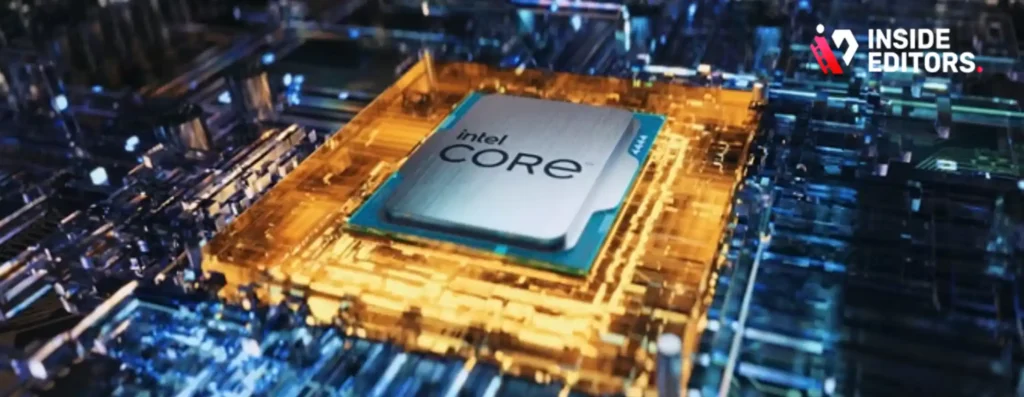
The CPU is the brain that handles encoding, decoding, and rendering. For video editing, you need high core counts and fast clock speeds. Modern editing software, like Adobe Premiere Pro and DaVinci Resolve, is increasingly optimized to utilize multiple cores efficiently. Look for Intel Core i7/i9 (12th generation or newer) or AMD Ryzen 7/9 processors.
“For professional 4K and 8K workflows, the CPU is non-negotiable. More cores mean faster rendering times, which directly translates to higher profitability for freelance editors.” – Linus Sebastian, Tech Reviewer
If you are working with high-resolution footage (4K and above), prioritize CPUs with 8 cores or more. This ensures smooth playback and rapid background rendering.
Graphics Card (GPU): Accelerating Effects and Playback
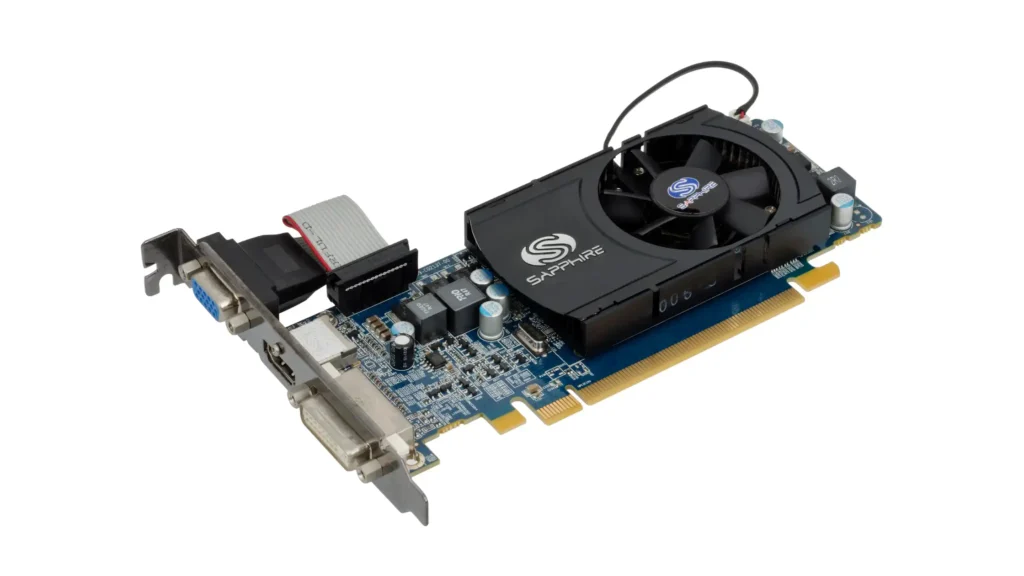
While the CPU handles the core rendering, the GPU accelerates effects, transitions, color grading, and real-time playback. A powerful dedicated GPU (NVIDIA GeForce RTX or AMD Radeon RX) is essential, especially if you use GPU-intensive effects or work in 3D. Aim for at least 8GB of VRAM, though 12GB or 16GB is ideal for complex projects.
RAM (Memory): Handling Large Project Files
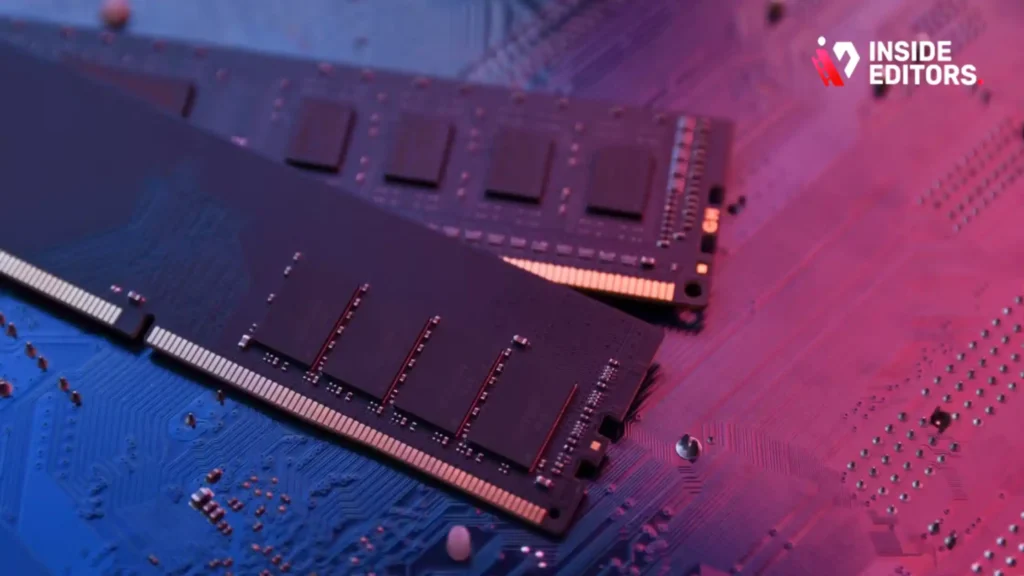
RAM is where your computer temporarily stores active project files and footage clips. Insufficient RAM causes constant disk swapping, slowing everything down. For HD editing, 16GB is the minimum. However, for 4K editing and multitasking (running Premiere Pro, After Effects, and a web browser simultaneously), 32GB is the industry standard. Professionals often opt for 64GB to future-proof their setup.
Storage: Speed and Capacity
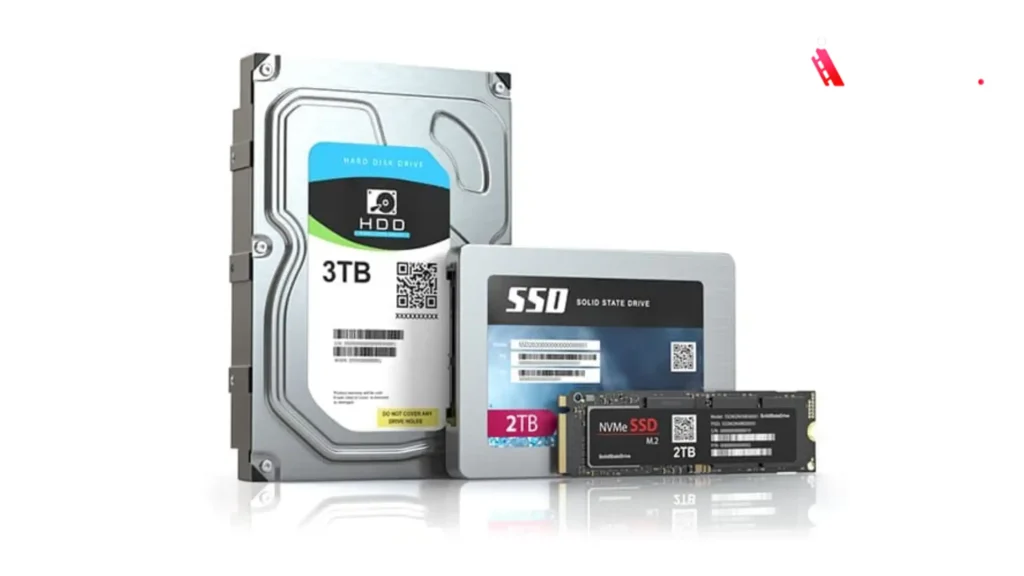
Storage speed is paramount for video editing. You need an NVMe Solid State Drive (SSD) for your operating system, applications, and current project files. These drives offer blazing-fast read/write speeds, drastically reducing load times and preventing dropped frames during playback. A typical setup includes a 1TB NVMe SSD for active work and a larger, slower HDD or external RAID array for archival storage.
Top 5 Computer for Video Editing: Detailed Reviews
We have selected five machines that represent the pinnacle of performance, value, and reliability for different types of video editors, from mobile professionals to dedicated studio users.
1. Apple MacBook Pro (M3 Max)
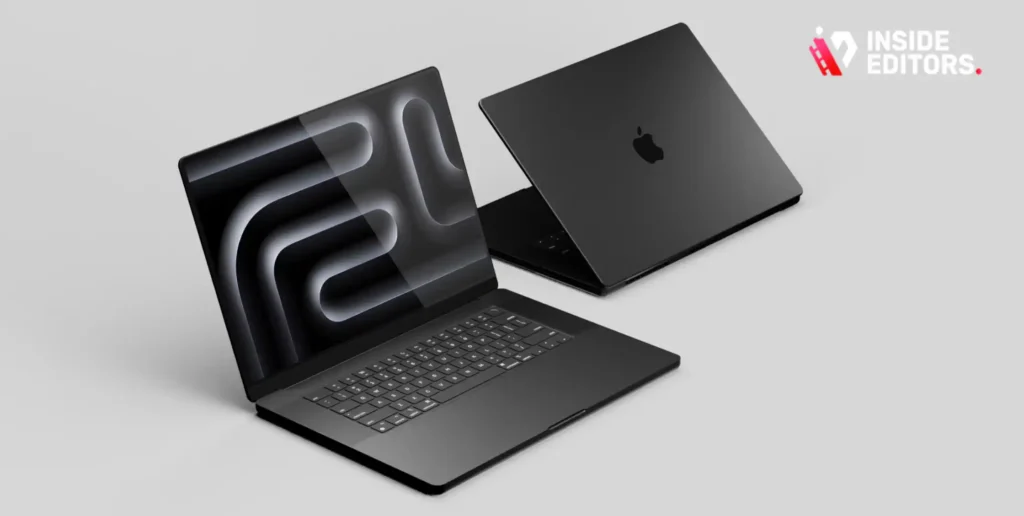
The latest MacBook Pro models, powered by Apple’s M3 Max chip, have fundamentally changed the landscape for mobile video editing. These machines offer an unparalleled combination of performance, battery life, and display quality, making them the ultimate portable Computer for Video Editing.
Performance and Features Deep Dive
The M3 Max chip integrates CPU, GPU, and unified memory onto a single die, providing incredible efficiency. Its dedicated media engines accelerate ProRes and H.264 encoding/decoding, which is a massive time saver for professional workflows. The Liquid Retina XDR display is arguably the best on the market, offering extreme brightness and perfect color accuracy-essential for critical color grading.
| Feature | Specification (Recommended) |
|---|---|
| Processor | Apple M3 Max (14-core CPU, 30-core GPU minimum) |
| RAM | 36GB Unified Memory |
| Storage | 1TB NVMe SSD |
| Display | 16-inch Liquid Retina XDR |
| Ports | Thunderbolt 4, HDMI, SDXC slot |
Pros and Cons of the MacBook Pro
- Pros:
- Industry-leading battery life under heavy load.
- Exceptional ProRes media engine acceleration.
- Stunning, color-accurate display.
- Silent operation due to highly efficient thermal design.
- Cons:
- High initial cost, especially for upgraded memory/storage.
- Limited upgradeability (unified memory).
2. Custom-Built PC (Intel i9/NVIDIA RTX)
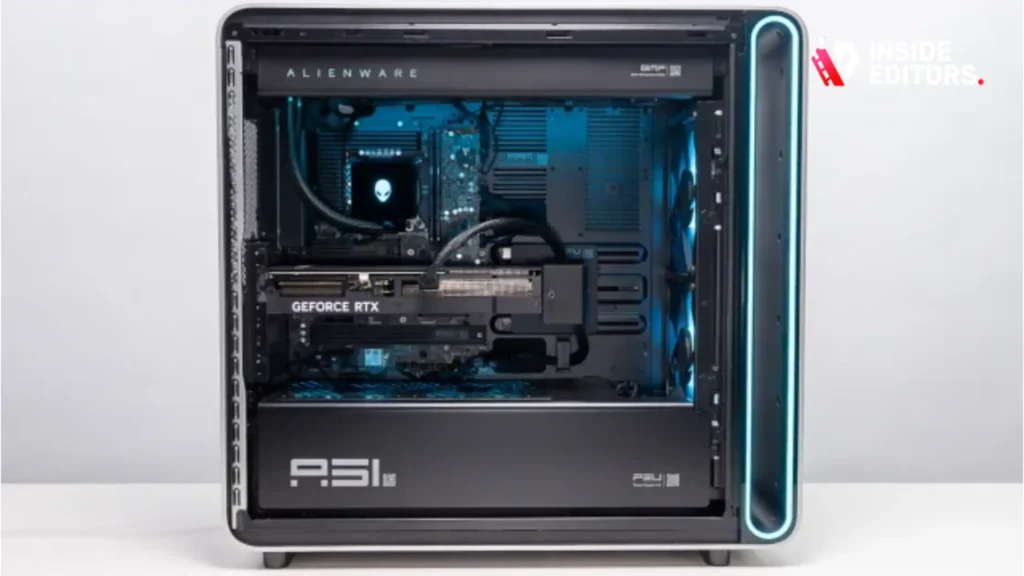
For editors who demand the absolute highest performance, the best Computer for Video Editing remains a custom-built desktop PC. This option provides maximum flexibility, scalability, and the best performance-to-dollar ratio, especially when targeting 6K or 8K resolution projects.
Why Custom Builds Excel
A custom-built machine allows you to perfectly balance the CPU and GPU to match your primary editing software. For instance, editors heavily relying on Adobe After Effects often prioritize a powerful Intel i9 and a high-end NVIDIA RTX card (like the RTX 4080 or 4090) due to their superior CUDA core performance. The ability to easily add more RAM, storage, and cooling solutions makes this the choice for dedicated studios.
“Building your own PC lets you allocate budget exactly where it matters most for your specific workflow-whether that’s more VRAM for DaVinci Resolve or faster clock speeds for single-threaded tasks.” – TechRadar Review, 2023
3. Apple Mac Studio (M2 Ultra): Dedicated Workstation
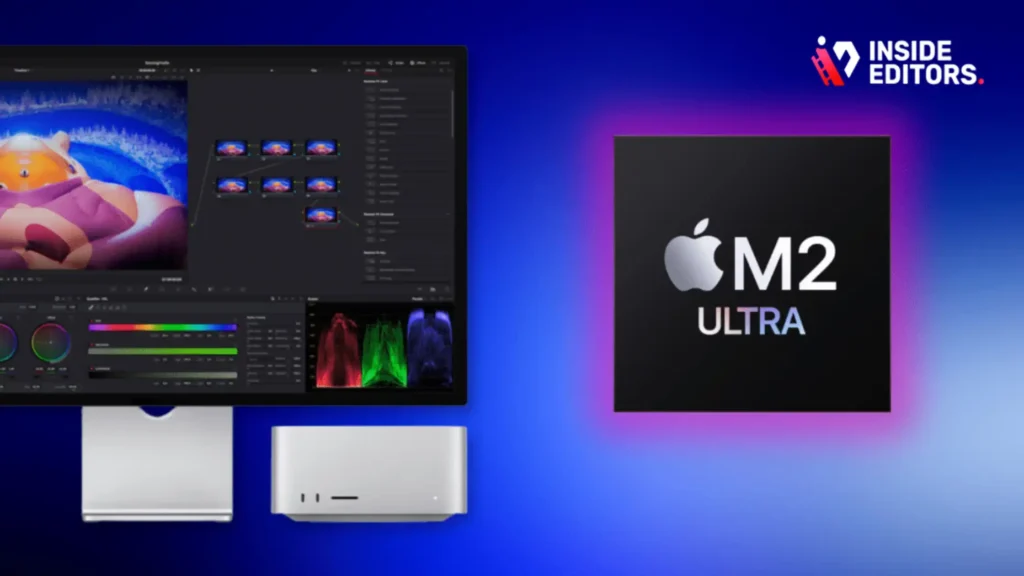
The Mac Studio is designed specifically for creative professionals who need desktop power without the bulk of a traditional tower. When configured with the M2 Ultra chip, it becomes one of the fastest and most power-efficient video editing machines ever created.
M2 Ultra Power and Efficiency
The M2 Ultra effectively doubles the M2 Max, featuring up to a 24-core CPU and a 76-core GPU, along with support for up to 192GB of unified memory. This immense power is packed into a compact, quiet chassis. It excels in handling multiple streams of 8K ProRes video simultaneously without breaking a sweat. If your work involves intensive color grading, VFX, or long-form documentary editing, the Mac Studio is a top-tier choice.
4. Dell XPS Desktop: Windows Reliability
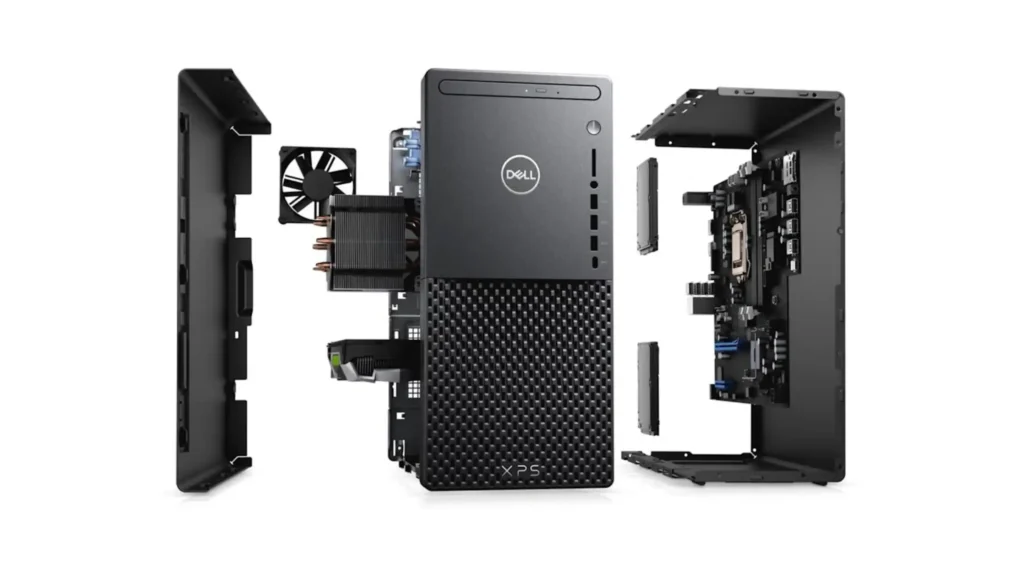
The Dell XPS Desktop, particularly the Creator Edition, offers a reliable, pre-built Windows solution that balances aesthetics and performance. It’s an excellent choice for editors who prefer the Windows ecosystem and need a machine that is ready to go out of the box.
Key Specifications for Video Work
Look for configurations featuring the latest Intel Core i9 processors and at least an NVIDIA RTX 4070 GPU. Dell integrates robust cooling solutions, ensuring that these components maintain peak performance during long rendering sessions. While less customizable than a DIY build, the Dell XPS provides strong customer support and guaranteed component compatibility.
5. Microsoft Surface Studio 2+ (All-in-One)
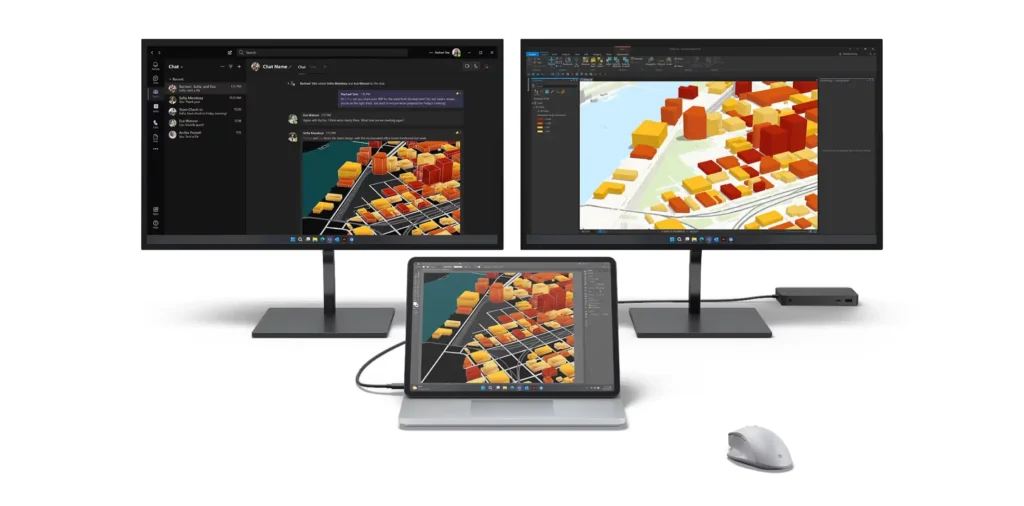
For editors who also incorporate graphic design, illustration, or motion sketching into their workflow, the Surface Studio 2+ offers a unique all-in-one solution. Its signature feature is the zero-gravity hinge, which transforms the massive, color-accurate display into a digital drafting table.
Balancing Form and Function
While its internal specs might lag slightly behind the raw power of a custom tower, the Surface Studio 2+ provides a seamless, integrated creative experience. It’s a fantastic Computer for Video Editing for content creators who need to quickly sketch storyboards or animate directly on the screen using the Surface Pen. It’s best suited for 4K workflows rather than heavy 8K production.
Comparison Table: Top Computer for Video Editing
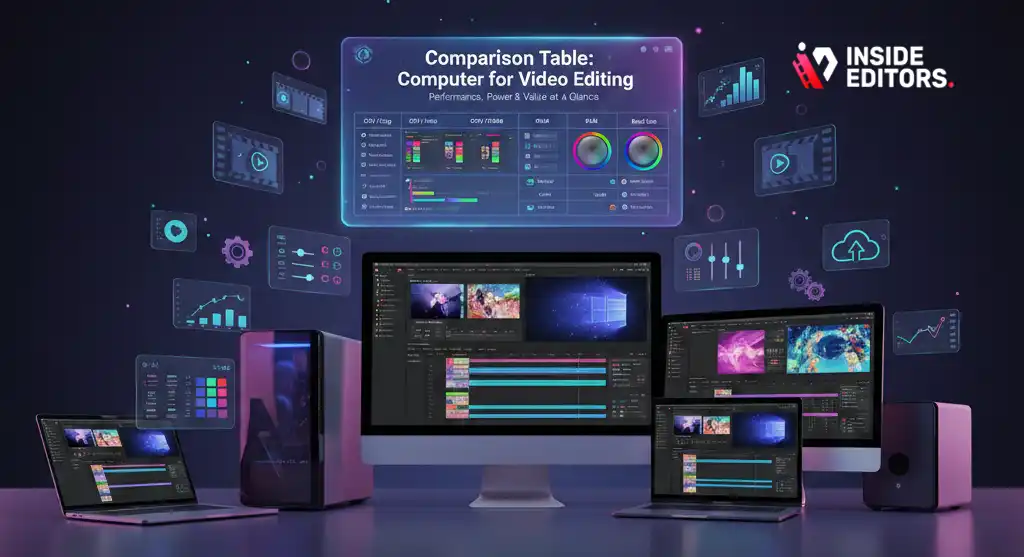
| Model | Best For | CPU/Chip | GPU (VRAM) | Starting RAM | Price Point |
|---|---|---|---|---|---|
| MacBook Pro M3 Max | Mobile Professionals, ProRes | M3 Max | Integrated (30-40 cores) | 36GB | High |
| Custom PC | Maximum Power, 8K, VFX | Intel i9/Ryzen 9 | RTX 4080/4090 (16GB+) | 64GB | Variable |
| Mac Studio M2 Ultra | Dedicated Studio, Efficiency | M2 Ultra | Integrated (60-76 cores) | 64GB | Premium |
| Dell XPS Desktop | Pre-Built Windows, Reliability | Intel i9 | RTX 4070 (12GB) | 32GB | Mid-High |
| Surface Studio 2+ | Integrated Design/Editing | Intel i7 (11th Gen) | RTX 3060 (6GB) | 32GB | High |
Smart Computer Choices for Video Editing
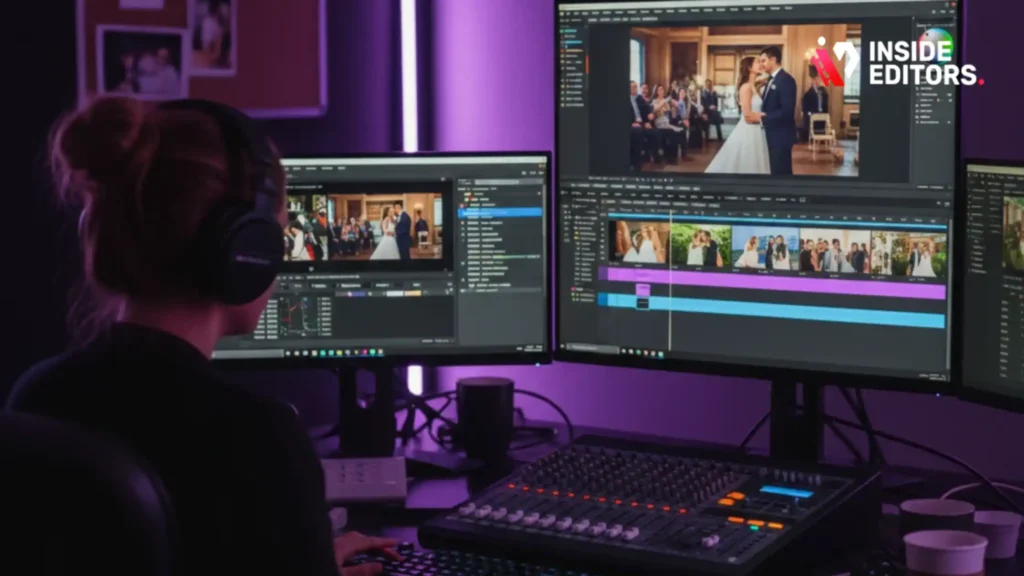
Selecting the right machine is less about buying the most expensive option and more about aligning the hardware with your specific needs and anticipated growth.
Assessing Your Workflow Needs
Are you a YouTube creator editing short, fast-paced vlogs in 1080p? A mid-range machine with 16GB of RAM and a decent CPU will suffice. Are you a corporate editor handling long-form, multi-cam 4K projects? You need 32GB+ RAM, a powerful CPU, and fast NVMe storage.
“The biggest mistake new editors make is underestimating storage speed. If your hard drive can’t feed the data fast enough, the best CPU in the world will still stutter.” – Tech Editor, Forbes, 2024
Future-Proofing Your Investment
Video resolution and complexity are constantly increasing. Investing slightly more now can save you from an expensive upgrade cycle in 18 months. When purchasing a Computer for Video Editing, prioritize the components that are hardest to upgrade later: the CPU/Motherboard (especially in laptops) and the GPU. If possible, choose a desktop where you can easily add more RAM and storage later on.
The Importance of the Display
Never skimp on the monitor. A high-quality display with 100% DCI-P3 or sRGB coverage is essential for accurate color grading. If your monitor shows colors inaccurately, your final video will look wrong on other devices. Look for monitors calibrated for professional use.
Outsourcing to Focus on Creation
Even with the best Computer for Video Editing, the process of editing can be incredibly time-consuming. For content creators, marketers, and businesses, time spent editing is time not spent generating new content, engaging with the audience, or focusing on core business operations.
This is where professional video editing services become invaluable. Imagine having a dedicated, expert team ready to take your raw footage and deliver polished, professional videos with rapid turnaround times.
Inside Editors: Your Professional Editing Partner
Inside Editors offers professional video editing services designed to free up your valuable time. We understand the demands of modern content creation. Our service is built around efficiency and quality assurance:
- Professional Expertise: Our team consists of professional editors with 10+ years of experience across various niches, ensuring your content meets broadcast-quality standards.
- Fast Turnaround: We offer a rapid turnaround time, typically 24-72 hours, allowing you to maintain a consistent publishing schedule without stress.
- Quality Assurance: Services include professional color grading and audio enhancement, ensuring every video looks and sounds its best.
- Affordable and Scalable: Pricing starts affordably (e.g., $29/video), providing a scalable solution whether you produce one video a month or thirty. You receive unlimited revisions until you are 100% satisfied.
By leveraging a service like Inside Editors, you can maximize the return on your investment in your camera gear and content strategy, while letting professionals handle the intensive post-production work. This allows you to focus on what you do best-creating compelling content.
Optimizing Software for Compatibility
The choice of your Computer for Video Editing is intrinsically linked to the software you use. Different programs favor different hardware architectures.
Adobe Premiere Pro and After Effects
Adobe products generally thrive on high clock speeds and benefit significantly from NVIDIA’s CUDA cores for rendering and effects acceleration. A Windows PC with a powerful Intel CPU and an RTX GPU often provides the best raw performance for the Adobe suite, especially when dealing with complex dynamic link projects between Premiere and After Effects.
DaVinci Resolve Studio
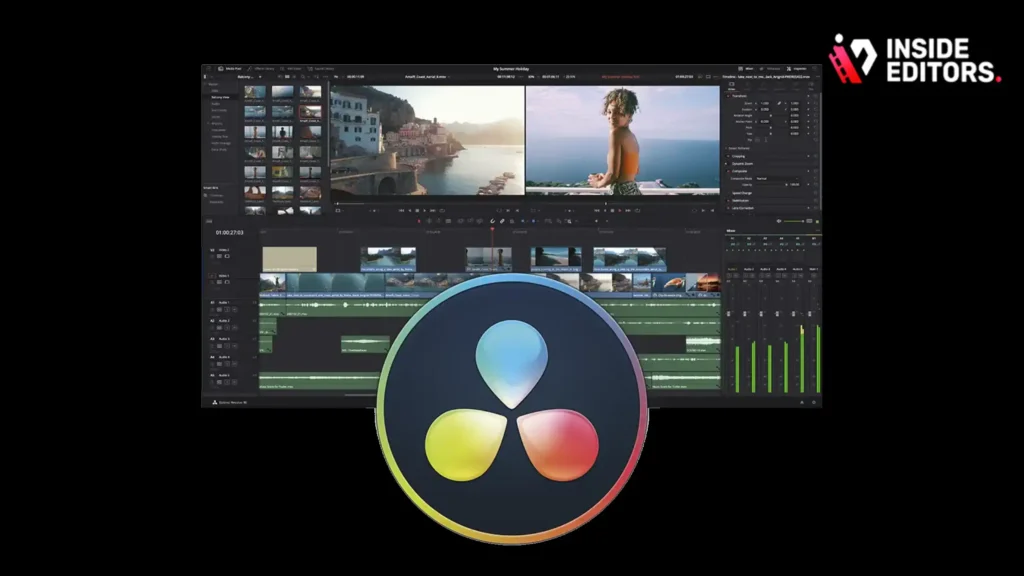
DaVinci Resolve is highly optimized for GPU performance. It uses the GPU heavily for color grading, noise reduction, and complex effects. Both NVIDIA and AMD GPUs perform well, but having a large amount of VRAM (12GB+) is crucial for smooth performance in the Color page. Apple Silicon (M-series chips) also performs exceptionally well in Resolve due to its unified memory architecture and dedicated media engines.
Final Cut Pro
Final Cut Pro is optimized exclusively for macOS and Apple Silicon. It leverages the unified memory and dedicated media engines better than any other editing software. If you primarily use Final Cut Pro, the MacBook Pro or Mac Studio will provide the most efficient and stable experience.
Case Study: The Freelancer’s Dilemma
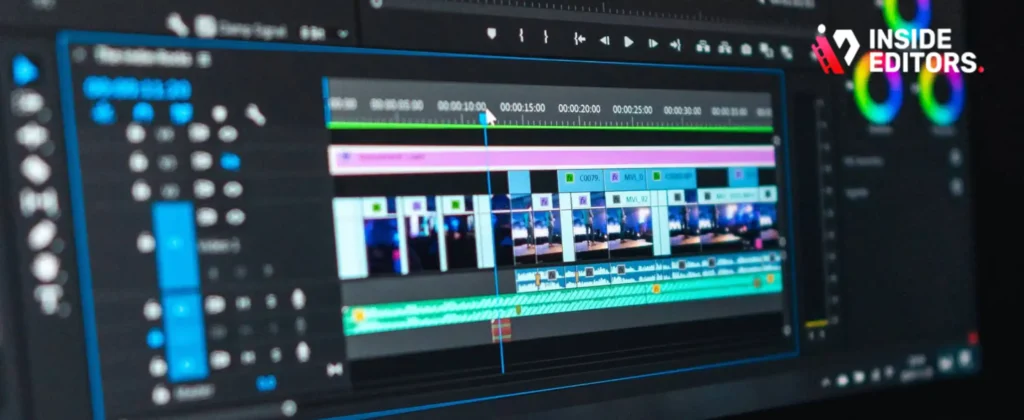
Consider Sarah, a freelance editor. She primarily works from home but occasionally needs to edit on location. Her initial Computer for Video Editing was an older desktop, which took 4 hours to render a 10-minute 4K video.
The Upgrade: Sarah invested in a MacBook Pro M3 Max (Option 1).
The Result: Her rendering time for the same project dropped to 45 minutes. More importantly, she can now edit complex 4K timelines smoothly on battery power while traveling. The investment paid for itself within six months due to the massive increase in productivity and the ability to take on more clients.
Common Pitfalls to Avoid
- Underestimating RAM: Thinking 16GB is enough for 4K. It isn’t. You will spend more time waiting than editing.
- Ignoring Storage Speed: Using a traditional HDD for active projects. This is a guaranteed bottleneck. Always use NVMe SSDs for your working files.
- Overspending on CPU, Underspending on GPU: If you use lots of effects (like warp stabilizer or Lumetri color), the GPU is often more important than the CPU. Balance is key.
Final Verdict: Making the Smart Choice
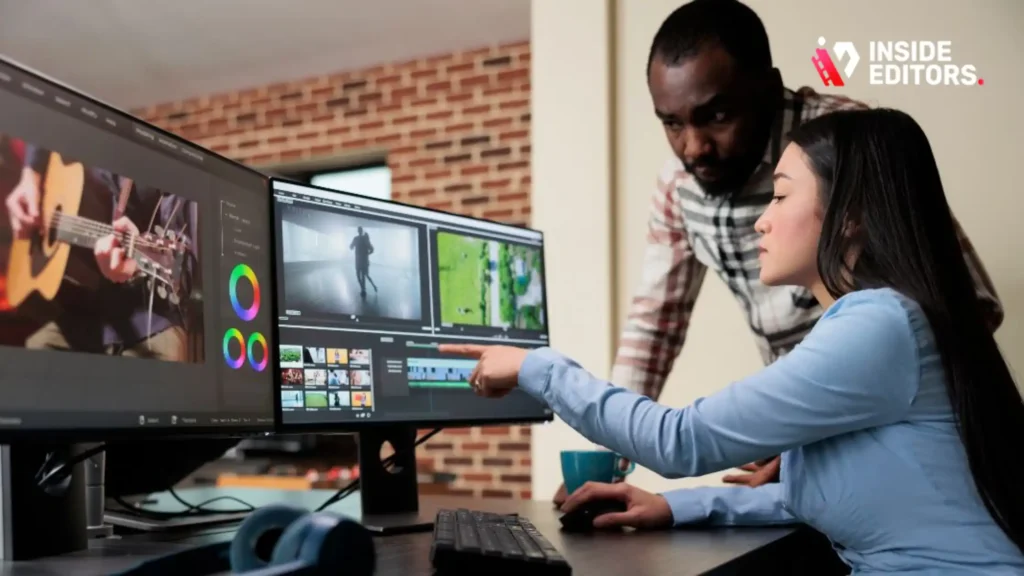
The best Computer for Video Editing ultimately depends on your budget, portability needs, and primary software.
- For the Professional Studio: The Custom-Built PC (Windows) or the Mac Studio (macOS) offers the highest ceiling for performance and scalability.
- For the Mobile Creator: The Apple MacBook Pro M3 Max is the undisputed champion, offering desktop-class performance in a portable format.
- For the Reliable All-Rounder: The Dell XPS Desktop provides a strong, reliable Windows experience right out of the box.
Remember that hardware is only half the battle. If you find yourself constantly battling deadlines, consider the strategic advantage of outsourcing the post-production work. By partnering with a professional service like Inside Editors, you ensure consistent quality, fast delivery, and the freedom to focus on your creative vision.
Internal Service Integration
For those who prioritize content creation over the technical demands of post-production, Inside Editors offers a seamless solution. Our professional video editing services are designed to manage the complexities of color grading, audio enhancement, and final delivery. We provide a professional editing team with 10+ years experience, guaranteeing high-quality results that build trust with your audience. With fast turnaround (24-72 hours) and affordable pricing starting at $29/video, we offer a scalable solution for growing channels, businesses, and course creators. You save time and gain professional quality that builds trust, allowing you to focus on your next great piece of content.
Frequently Asked Questions
What is the minimum RAM for 4K editing?
The absolute minimum RAM required for smooth 4K video editing is 32GB. While 16GB can handle basic HD, 32GB ensures you avoid constant bottlenecks and dropped frames when working with complex timelines in your Computer for Video Editing.
Should I prioritize CPU or GPU for editing?
It depends on your software. For rendering and encoding, the CPU is vital. However, for effects, color grading, and real-time playback, the GPU is often more critical. A balanced Computer for Video Editing setup with a strong CPU (8+ cores) and a dedicated GPU (12GB+ VRAM) is ideal.
Are pre-built PCs good for video editing?
Yes, high-end pre-built machines like the Dell XPS Creator Edition or Mac Studio are excellent for video editing. They offer guaranteed component compatibility and warranty support, though they might be slightly less cost-effective than a custom-built Computer for Video Editing.
Why is NVMe SSD storage essential?
NVMe SSD storage provides extremely fast read/write speeds, which is essential for loading large video files quickly and preventing dropped frames during playback. It eliminates the storage bottleneck common in older hard drives, making your Computer for Video Editing much more responsive.
How often should I upgrade my editing computer?
For professional use, plan a significant upgrade cycle every 3 to 5 years. However, incremental upgrades to RAM or GPU can extend the life of your Computer for Video Editing. Keep up with the demands of new codecs and higher resolutions.


