


In the modern digital landscape, video content is king. Whether you are creating dynamic presentations, engaging social media posts, or comprehensive educational materials, integrating video elevates your design. If you are looking for a straightforward, efficient method, mastering How to Add YouTube Video to Canva is an essential skill. This guide provides a comprehensive, step-by-step walkthrough detailing the various methods available, ensuring your designs are interactive, professional, and highly engaging.
Canva has revolutionized graphic design, making professional tools accessible to everyone. By combining Canva’s intuitive design features with the vast library of content on YouTube, you unlock incredible creative potential. Understanding precisely How to Add YouTube Video to Canva will transform your static designs into multimedia experiences.
Understanding How to Add YouTube Video to Canva
Adding external media to your Canva projects can seem complex, but Canva offers several streamlined methods specifically designed for YouTube integration. The primary goal is to embed the video so it plays directly within your presentation or design when viewed in presentation mode. We will focus on the two most effective techniques: using the Embed feature and utilizing the dedicated YouTube app integration within Canva.
Why Video Integration Matters for Design
Integrating video isn’t just a technical trick; it is a powerful communication strategy. Video captures attention faster than static images or text, making your message more memorable. For marketers, educators, and content creators, knowing How to Add YouTube Video to Canva means creating visually richer content that drives higher engagement rates.
“Video is the universal language of the web. If you aren’t using video in your design and marketing assets, you are leaving engagement on the table.” – Lia Haberman, Digital Strategy Consultant
Method 1: Using the Embed Feature
The Embed feature is the most reliable way to integrate content from almost any external source, including YouTube. This method relies on the video’s direct URL or embed code.
Step-by-Step Guide to Embedding a YouTube Video

This process is quick and effective, suitable for most Canva projects, including presentations and websites built within the platform.
- Locate the YouTube Video URL: Navigate to the desired YouTube video. Copy the URL directly from the browser’s address bar.
- Open Your Canva Project: Launch the Canva design where you wish to place the video.
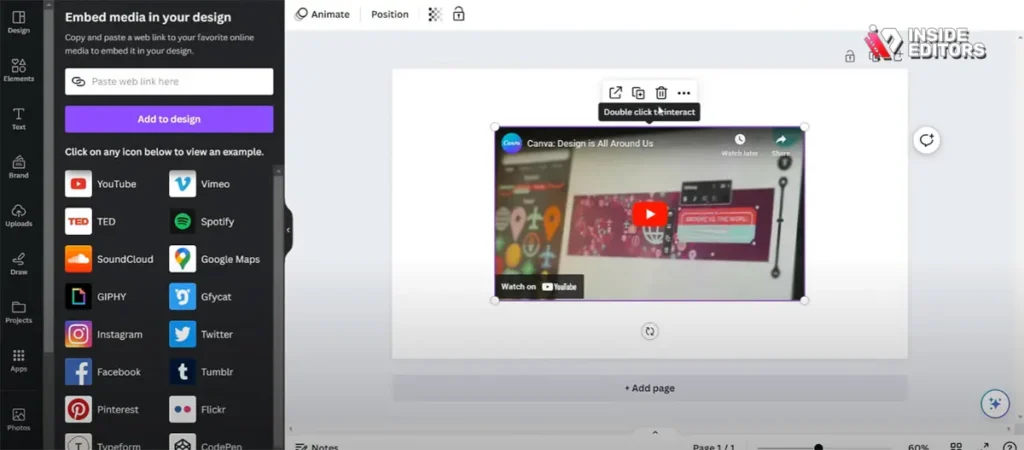
- Access the Embed Tool: In the left-hand editor menu, scroll down and click on the Apps tab. Search for “Embed” and select the tool.
- Paste the URL: Click the “Embed” tool and paste the copied YouTube URL into the designated field. Click Add to Design.
- Position and Resize: The video will appear as a playable element on your canvas. You can drag, resize, and position it just like any other design element.
When you present your design in Canva’s presentation mode, the video will be fully interactive and playable directly within the slide. This answers the fundamental question of How to Add YouTube Video to Canva using the most robust method.
Mastering the YouTube App Integration in Canva

While the Embed feature is versatile, Canva also provides a dedicated YouTube app integration that offers a slightly more streamlined workflow, especially if you plan to search for videos directly within the Canva interface.
Method 2: Utilizing the Dedicated YouTube App
The YouTube app integration allows you to search the entire YouTube library without ever leaving your Canva workspace. This saves time and keeps your creative flow uninterrupted.
Detailed Steps for App Integration
- Navigate to the Apps Section: On the left sidebar of your Canva editor, click the Apps icon.
- Find the YouTube App: Type “YouTube” into the search bar. Click on the official YouTube app icon to activate it.
- Search for Content: A search bar will appear within the YouTube app panel. Enter keywords related to the video content you need (e.g., “Canva tutorial,” “marketing trends”).
- Select and Insert: Browse the search results. Once you find the perfect video, simply click on it. It will instantly be added to your current slide or design.
- Final Adjustments: Adjust the size and placement of the video element. Remember that this method also ensures the video is fully playable when the design is viewed in presentation mode.
This method is particularly useful for educators or content curators who frequently need to search and insert external video resources. It offers a faster way to determine How to Add YouTube Video to Canva without constant switching between browser tabs.
Comparison of Integration Methods
| Feature | Embed Feature (URL/Code) | YouTube App Integration |
| Source Flexibility | High (Works with many platforms) | Low (Only works with YouTube) |
| Workflow | Requires switching to YouTube to copy URL | Fully integrated search within Canva |
| Speed for Known Videos | Fast (If URL is readily available) | Moderate (Requires search and selection) |
| Best For | Specific, known videos; universal content | Quick searching and content curation |
| Reliability | Excellent | Excellent |
Advanced Techniques for Video Placement and Design

Simply knowing How to Add YouTube Video to Canva is the first step. True mastery involves integrating the video seamlessly into your overall design aesthetic. This requires attention to layout, framing, and user experience.
Framing Your Video for Maximum Impact
When you insert a YouTube video, it appears as a standard rectangular frame. To make it look more professional, consider using Canva’s Frames feature.
- Select a Frame: Go to Elements and search for “Frames.” Choose a shape that complements your design (e.g., a rounded rectangle, a monitor shape, or a circle).
- Drag the Video into the Frame: Once the frame is placed on your canvas, drag the embedded YouTube video directly over the frame. Canva’s drag-and-drop technology will automatically crop the video to fit the frame’s shape.
- Add Context: Use text boxes and graphic elements to surround the video. Add a title, a brief description, or a call-to-action (CTA) right next to the embedded player.
This technique helps the video feel like an intentional part of the design, rather than just an afterthought.
Common Pitfalls When Adding YouTube Videos
Even experienced users sometimes encounter issues when learning How to Add YouTube Video to Canva. Avoiding these common mistakes ensures a smooth process:
- Using Screenshots Instead of Embeds: Some users mistakenly take a screenshot of the video and link the image. This breaks the user experience because the video does not play directly in the design. Always use the Embed or App feature.
- Private or Restricted Videos: If the YouTube video is set to private or has embedding restrictions enabled by the creator, it will not play correctly in Canva. Ensure the video is public or unlisted and allows embedding.
- Forgetting Presentation Mode: Embedded videos only play when the Canva design is viewed in presentation mode or as a website. They will not play when downloaded as a static PDF or image file. Always test your final design in the intended viewing format.
“The goal of integrated media is to reduce friction for the viewer. If they have to leave your design to watch the video, the integration has failed.” – Dr. Alan J. Weiss, Multimedia Design Expert
Troubleshooting and Ensuring Playback Quality
A successful integration means the video plays flawlessly every time. If you’ve followed the steps on How to Add YouTube Video to Canva but are experiencing issues, follow these troubleshooting tips.
Checking Video Permissions
The most frequent reason an embedded video fails to play is due to YouTube’s privacy settings.
- Verify Embedding is Allowed: If you own the video, go to YouTube Studio, select the video, and check the “Details” -> “More Options” section. Ensure the box labeled “Allow embedding” is checked.
- Check for Age Restrictions: Videos marked as “Made for Kids” or those with strict age restrictions may have limited embedding capabilities.
- Public vs. Unlisted: Public videos are the easiest to embed. Unlisted videos also work, provided the user has the link. Private videos will never embed and play for external users.
Optimizing Canva for Video Playback
While Canva handles the playback, your design file size can sometimes affect performance, especially in older browsers.
- Minimize Extra Elements: If the slide containing the video is slow, try reducing the number of high-resolution images, complex animations, or large graphic elements on that specific page.
- Test on Different Devices: Always test your final presentation on the device and browser your audience will use. A video that plays fine on a desktop might lag on a mobile device if the design is overly complex.
This rigorous checking process ensures that your expertise in How to Add YouTube Video to Canva translates into a seamless viewing experience for your audience.
When Your Own Videos Need Professional Polish
Many users learn How to Add YouTube Video to Canva because they want to showcase their own content-tutorials, product demos, or marketing spots. However, the quality of the video itself is paramount. A poorly edited video, even when perfectly embedded, can undermine your entire design.
The Need for Professional Video Editing
Creating high-quality video content demands significant time, skill, and specialized software. Many content creators and businesses find that outsourcing the editing process is the most efficient way to maintain professional standards and focus on content creation.
Inside Editors specializes in providing expert video editing services tailored for businesses, content creators, and marketers. We understand the high expectations of today’s digital audience.
Inside Editors: Your Video Editing Advantage
Our service is designed to take the burden of post-production off your shoulders, delivering polished, professional results quickly and affordably.
- Expertise You Can Trust: Our professional editing team boasts over 10 years of experience, ensuring every cut, transition, and color grade meets industry standards.
- Speed and Efficiency: We guarantee a fast turnaround, typically between 24 and 72 hours, so your content is ready when you need it.
- Quality and Satisfaction: We include color grading and audio enhancement in every project. We also offer unlimited revisions until you are completely satisfied with the final product.
- Affordable and Scalable: Our pricing is transparent and affordable, starting at just $29 per video. This makes us a scalable solution for growing YouTube channels or ongoing marketing campaigns.
By partnering with Inside Editors, you save valuable time that can be dedicated to scriptwriting, filming, or other core business activities. We ensure your videos have a consistent brand style, look professional, and build trust with your audience.
If you are a YouTube creator, a marketing team, or a course developer, professional editing ensures your embedded videos perform optimally when you use your knowledge of How to Add YouTube Video to Canva.
Integrating YouTube Videos into Specific Canva Projects

The method for embedding remains the same, but the application varies depending on your project type. Understanding these nuances helps maximize the impact of your integrated media.
Using Videos in Canva Presentations
Canva presentations are a prime use case for video embedding. Instead of simply switching to a separate screen to show a clip, the video plays directly on the slide, maintaining audience focus.
- Setting Autoplay: Currently, Canva does not natively support an “autoplay” feature for embedded YouTube videos. To manage the flow, place the video on its own slide and use the presenter notes to remind yourself to click play at the appropriate moment.
- Looping Backgrounds: For certain design elements, you might want a looping video background (though this usually requires uploading a short clip, not embedding YouTube). If you embed a YouTube video, use a static image for the background and reserve the embedded video for core content.
Adding Videos to Canva Websites and Mockups
Canva now allows users to create simple, functional websites. Knowing How to Add YouTube Video to Canva is crucial for these web projects, as videos significantly boost time-on-page and conversion rates.
- Placement Strategy: Place instructional or testimonial videos above the fold on landing pages. Ensure the video element is responsive and looks good on both desktop and mobile previews within Canva.
- Clear CTAs: If the video is a product demonstration, ensure a clear call-to-action button (like “Buy Now” or “Learn More”) is placed immediately below the embedded YouTube player.
“Interactive elements, like embedded video, transform passive viewing into active engagement. This dramatically improves learning retention and marketing effectiveness.” – Dr. Maya Chen, Instructional Design Specialist
The Future of Multimedia Design in Canva
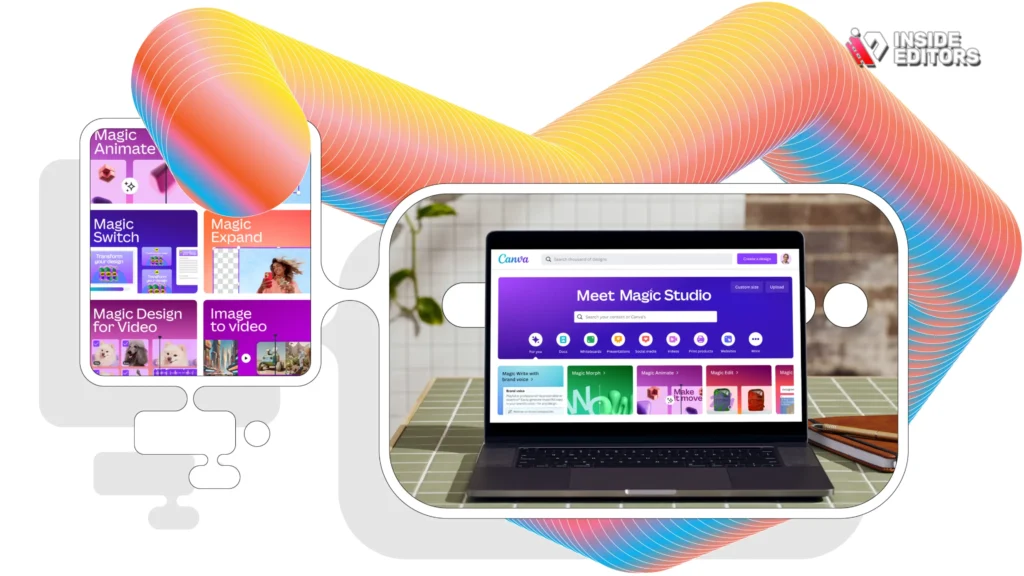
As Canva continues to evolve, the integration capabilities for external media are becoming even more sophisticated. Future updates will likely include more granular controls over playback, such as setting precise start and end times for embedded videos.
The Power of Seamless Integration
The ability to easily integrate high-quality, professionally edited video content into any design platform is a cornerstone of modern digital communication. Whether you are using the Embed link or the dedicated YouTube app, mastering How to Add YouTube Video to Canva is a skill that will pay dividends in engagement and professional presentation quality.
Remember that the technical execution (the how) is only half the battle. The content’s quality (the what) is what truly resonates. If your video content needs that professional edge-crisp editing, perfect color, and clear audio-consider leveraging the expertise of Inside Editors. Our team is ready to provide fast, affordable, and high-quality video editing services, ensuring your embedded YouTube videos always represent your brand at its best.
We empower you to focus on creating great content while we handle the polish. By combining your design prowess in Canva with our professional editing services, you create truly compelling multimedia experiences. Start transforming your designs today by confidently knowing How to Add YouTube Video to Canva and ensuring that video is always top-tier.
Frequently Asked Questions
What is the easiest way to add a YouTube video to Canva?
The easiest method is using the dedicated YouTube app within the Canva editor. Navigate to ‘Apps,’ search for ‘YouTube,’ and then search for your desired video. Click the video to instantly add YouTube video to Canva.
Do embedded YouTube videos play in a PDF download?
No, embedded YouTube videos will only play when the Canva design is viewed in Presentation Mode or as a Website. They are static images when downloaded as a PDF or image file.
Why won’t my YouTube video play after embedding?
The most common reason is that the video is set to Private or the owner has disabled embedding permissions. Ensure the video is Public or Unlisted and allows embedding to successfully add YouTube video to Canva.
Can I make the video autoplay in Canva?
Currently, Canva does not offer a native autoplay function for embedded YouTube videos. The user must manually click the play button when viewing the design in presentation mode.
How do I frame a YouTube video in Canva?
To frame the video, go to ‘Elements’ and search for ‘Frames.’ Select a frame shape, and then drag the embedded video element directly over the frame. Canva will automatically crop the video to fit the shape.


