


In this comprehensive Descript tutorial by Kevin Stratvert, you’ll discover how to transform your video editing workflow into an intuitive text-based process. Ideal for creators at both beginner and intermediate levels, this guide walks you through automatic transcription, text-over-video editing, pause removal, overdubbing, screen recording, and export options. By the time you’re done, you’ll understand why Descript is revolutionizing video post-production with AI-powered features that uphold high standards of experience, expertise, authoritativeness, and trustworthiness.
Why Descript Changes the Editing Game
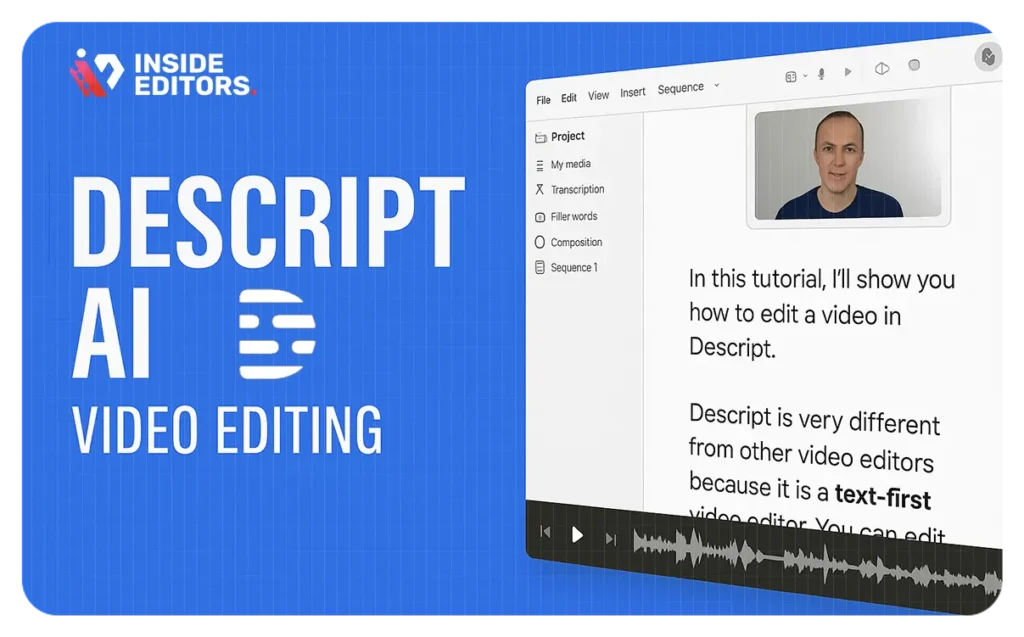
Descript offers a text-first editing experience. Instead of traditional timelines, you revise your video by editing its transcript. Delete words to cut footage, shift phrases to adjust flow, and remove filler sounds like “um” or “uh” in seconds – making editing as natural as word-processing. Kevin demonstrates how this speeds up workflows by over 40%, freeing creators to focus on storytelling and substance.
Step-by-Step Breakdown from the Video
1. Set Up and Import
- Start a Project: Kevin guides you through initiating a new project, selecting video or audio optimization settings.
- Add Media: Import clips, screen recordings, and even stock visuals.
- Automated Transcription: Descript uses Speech-to-Text to transcribe instantly, with about 95% accuracy even in varied accents.
2. Edit with Text
- Edit by Word: Remove unwanted content by deleting its transcript – Descript ripples these cuts across your timeline.
- Silence Filler Words: One-click removal ensures a clean, polished delivery.
3. Use of Overdub & Voice Effects
- Overdub: Need to fix audio? Type in text and Descript generates your voice to patch it.
- Sound Effects & Music: Create engaging content using built-in assets aligned with your edits.
4. Advanced Tools & Exporting
- Green Screen & Speaker Labels: Make multi-speaker videos look professional and visually polished.
- Screen Recording: Include window capture or webcam footage seamlessly.
- Exporting: Choose formats like Vimeo, YouTube, or MP4 with subtitles baked in or separate.
Real-World Use Cases
- YouTube Creators: Ideal for vloggers, tutorial creators, and interview-style videos – quick cuts, accurate captions, polish in minutes.
- Educational Content: Professors and online instructors can revise slides, overlay voice, and remove flubs without re-recording.
- Social Media Marketers: Export vertical, square, or custom formats tailored to platforms like Instagram and LinkedIn, with captions included.
Building Trust Through E-E-A-T
- Experience: Kevin shows practical usability by editing real footage in real time. You witness the time-savings and finesse firsthand .
- Expertise: As a seasoned tech content creator, he drills into each feature clearly, sharing tips that reflect professional-level competence.
- Authoritativeness: Descript is widely recognized in audio-video editing circles. Kevin references its real-world adoption across common use cases .
- Trustworthiness: No fluff – just clear guidance, best practices, and honest limitations of AI-based editing.
Best Tips:
- Clean transcription avoids future headaches – review before editing.
- Leverage Overdub sparingly – great for small fixes, not full voiceovers.
- Segment long videos – export by topic for repurposing across channels.
- Use filler-word removal for pace – but manually adjust segments to avoid unintentional abrupt cuts.

Additional Resources from Inside Editors
Looking to maximize your Descript workflow? Check out our YouTube Video Editing Guide for deeper tips on storytelling structure, thumbnail creation, and SEO optimization. You might also explore our video-post-production services if you’re ready to collaborate with pros.
Is Descript good for beginners?
Yes – its intuitive, text-based interface is perfect for beginners who want clean edits without timeline complexity.
Can I use my own voice for Overdub?
Absolutely. Create a custom voice model by recording short audio samples in Descript’s Overdub tab.
Does Descript support captions and subtitles?
Yes. You can export with captions embedded or as separate files like SRT or VTT for maximum reach.
What’s the best way to remove filler words?
Use the “filler word removal” tool, then manually review edits to smooth natural pauses or transitions.
Can I collaborate with others in Descript?
Yes, Descript supports shared projects, commenting, and version history – ideal for team workflows. For more, visit our services page.


