


Video editing has become an essential skill for YouTube creators, small businesses, educators, and anyone who wants to share stories online. And one of the most common questions we hear at Inside Editors is simple: “Do I really need an expensive laptop to edit YouTube videos?” The short answer is no. You can absolutely create high-quality YouTube videos on a tight budget – even under $500 – if you know what to look for and how to optimize your workflow. In this guide, we’ll walk you through how to choose the best budget laptop for YouTube video editing, what specifications matter most, and how real creators manage editing on affordable hardware without slowing down their workflow.
Before we dive in, remember this: choosing the right laptop isn’t just about checking boxes. It’s about understanding your editing style, the kind of videos you make, and your long-term goals. That’s where this becomes your personal roadmap.
Why Budget Matters-and Why It Doesn’t Define Your Creativity
Creating YouTube videos used to require expensive equipment, pro-level software, and devices that only full-time editors could afford. Today, things have changed dramatically. With cloud tools, optimized editing software, AI-assisted workflows, and hardware improvements, budget laptops are far more capable than people assume.
Many successful YouTubers started on modest devices – sometimes even Chromebooks or refurbished older MacBooks. What matters is not the price tag but understanding your workflow, knowing where to compromise, and choosing a laptop that supports your goals rather than slowing you down.
You don’t need a premium device to produce premium videos. What you need is clarity about specs, expectations, and smart choices.
Is YouTube Video Editing Possible on a $500 Budget?

Why Editing Under $500 Is Absolutely Possible When You Choose Smartly
The first question creators ask is whether they can realistically edit videos with a laptop under $500. And the good news? Yes – not only is it possible, but many laptops in this price range offer surprisingly solid performance for popular editing software like CapCut, DaVinci Resolve (light projects), Filmora, and even Adobe Premiere Pro with optimized settings.
The key is understanding that you won’t get high-end rendering speeds or 4K-heavy workflows at this price point. But for 1080p editing – which is still the standard for most YouTube content – a budget laptop is more than capable. In fact, thousands of creators run full channels using mid-range CPUs and integrated graphics.
The magic lies in matching your editing needs with the right hardware. If you mainly create vlogs, educational content, commentary videos, reaction videos, or screen recordings, a budget laptop is perfectly suited for your workflow. Even cinematic sequences are possible if you manage timelines well and adjust preview settings.
The bigger question isn’t “can it edit?” but “how smoothly will it edit?” And that depends entirely on specifications – which we’ll break down next.
What Specifications Should You Choose for Smooth Editing?
When choosing the best budget laptop for YouTube video editing, it’s easy to drown in technical jargon. But editing performance comes down to a few core components: CPU, RAM, storage type, and GPU capability. Each affects a different part of your workflow, from timeline scrubbing to rendering.
Why the Processor Is the Single Most Important Component
The CPU (processor) handles most of the heavy lifting in video editing. In the budget space, your best options typically include:
- Intel Core i5 (10th to 12th gen)
- AMD Ryzen 5 (3000–5000 series)
These processors can handle 1080p timelines comfortably and even some light 4K footage with optimized proxies. AMD Ryzen chips usually offer better multi-core performance at lower prices, making them ideal for budget-conscious editors.
Avoid Intel Celeron, Pentium, or Ryzen 3 chips for serious editing. They struggle with timeline playback and cause lag, especially in more complex projects.
RAM: The Unsung Hero of Smooth Editing
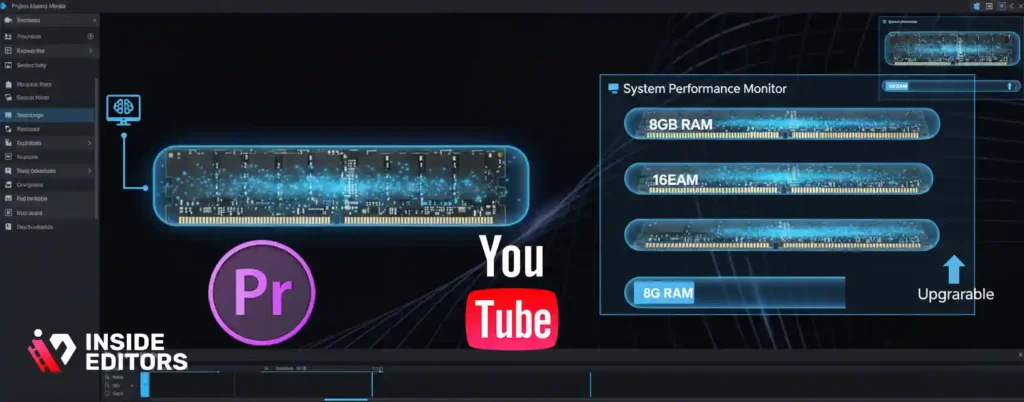
If the processor is the brain, RAM is the workspace your editing software uses. For smooth editing:
- 8GB RAM is the minimum
- 16GB RAM is ideal
- Upgradable RAM is a major advantage
Many budget laptops allow memory upgrades later, giving you more long-term flexibility and better performance as your editing style evolves.
Why SSD Storage Changes Everything
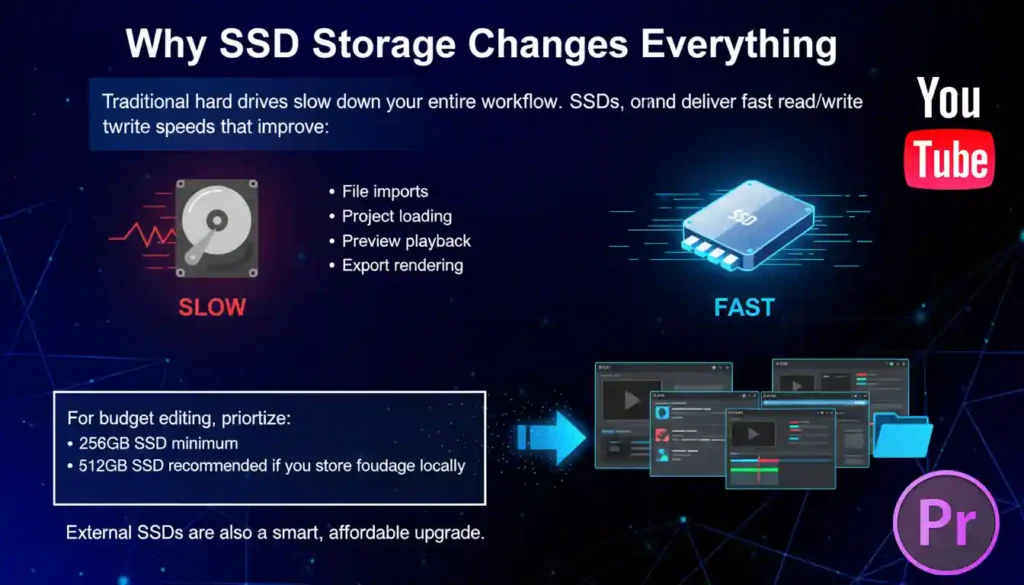
Traditional hard drives slow down your entire workflow. SSDs, on the other hand, deliver fast read/write speeds that improve:
- File imports
- Project loading
- Preview playback
- Export rendering
For budget editing, prioritize:
- 256GB SSD minimum
- 512GB SSD recommended if you store footage locally
External SSDs are also a smart, affordable upgrade.
Integrated Graphics: Better Than People Think
While dedicated GPUs are powerful, integrated graphics like Intel Iris Xe or Radeon Vega have become surprisingly capable. They support hardware acceleration for many editing tools, making budget setups smoother than older generations.
You won’t get ultra-fast 4K rendering, but for YouTube-focused workflows, these GPUs perform admirably – especially when paired with efficient codecs (H.264/H.265).
Balancing Specs With Real Creativity
Once you understand how each component affects editing, choosing becomes much easier. Your goal isn’t to chase the highest specs but to find the right balance that supports your editing style without overspending. In the next section, we’ll explore which laptops deliver the best value based on these principles.
Which Budget Laptop or PC Offers the Best Value in 2026?
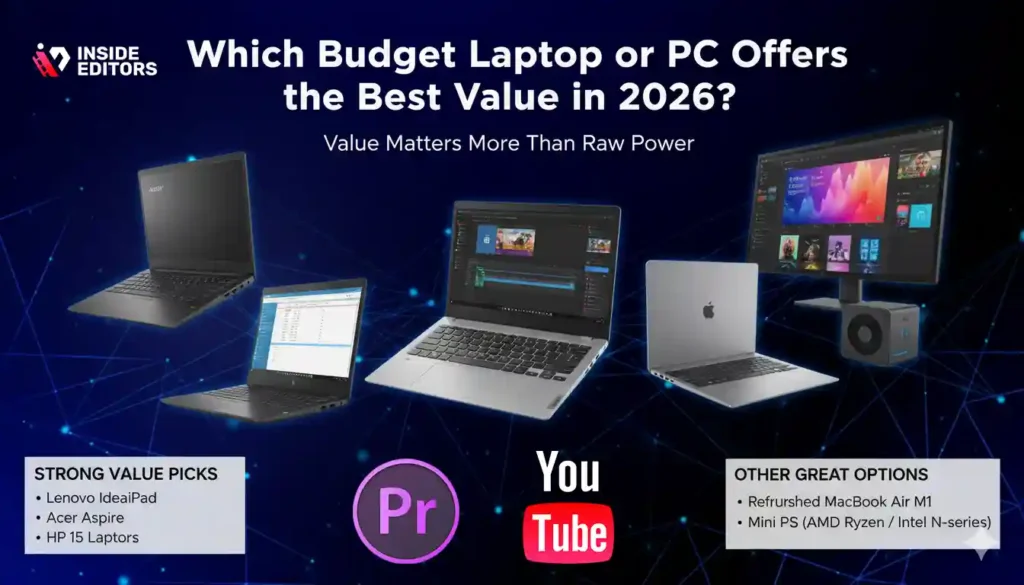
When you’re working with a budget-friendly laptop, the goal is to choose a device that offers the strongest combination of processor speed, memory, and storage – not just the largest number on a spec sheet. Value also comes from features like upgradability, thermals, build quality, and real-world editing performance.
Examples of Strong Value Picks (Contextual, Not Promotional)
Laptops like the Lenovo IdeaPad series, Acer Aspire models, and HP 15 laptops consistently appear in best-value lists for budget creators because they strike the right balance between performance and practicality. They offer mid-range CPUs, decent RAM, and SSD storage – all essential for editing.
Refurbished options (like an older MacBook Air M1) also deliver impressive performance for creators who prefer macOS, thanks to Apple’s highly optimized architecture. Even though they’re not new, they often outperform brand-new Windows laptops in the same price range.
Mini PCs, such as those powered by AMD Ryzen 5 or newer Intel N-series, can also be shockingly good editing machines when paired with a good monitor – often outperforming laptops at the same price point.
How Do You Select the Right Laptop Yourself?
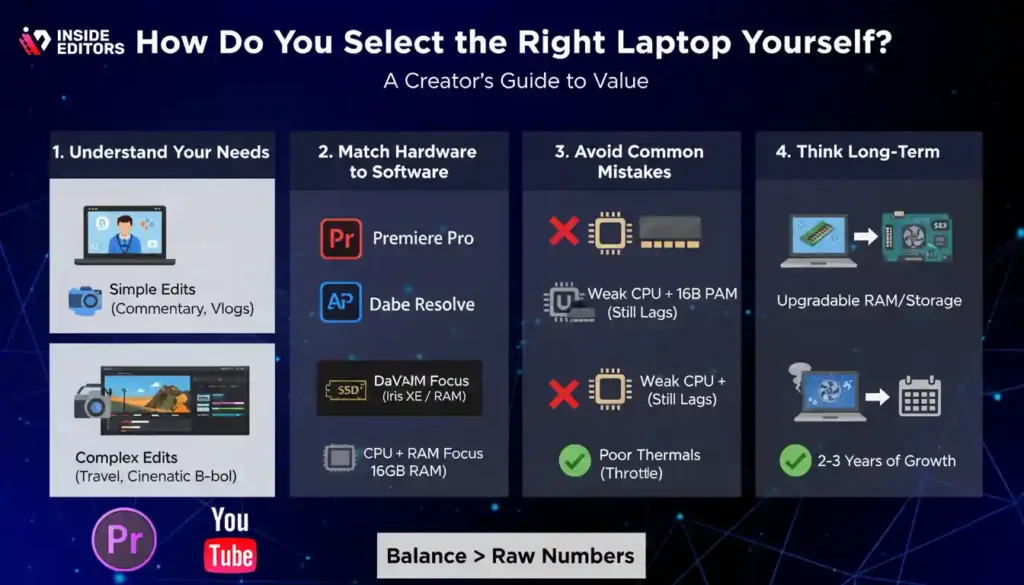
Choosing the best budget laptop for YouTube video editing isn’t about picking the highest number on a spec sheet. It begins with understanding the type of videos you create. A commentary YouTuber has different needs than a travel filmmaker, and a reaction creator focuses on different priorities compared to someone producing cinematic B-roll. The more clarity you have about your content type, the easier the choice becomes.
If your videos rely mostly on screen recordings, talking-head clips, or simple cuts, you can focus more on CPU and fewer on GPU resources. But if you’re incorporating slow-motion shots, color grading, transitions, or multi-layer editing, RAM and storage speed become far more important. One of the best ways to estimate your needs is by analyzing your current editing projects: how many layers you use, how often you add effects, and whether you typically work with 1080p or 4K footage. This self-awareness instantly narrows down your options and prevents overspending.
Match Your Footage and Software to the Hardware
Your editing software plays a major role in laptop selection. Some programs are highly optimized for integrated graphics, while others need more processing power. CapCut, Filmora, VN, and Clipchamp are lightweight and extremely friendly to budget laptops. Adobe Premiere Pro and DaVinci Resolve, on the other hand, demand more RAM and a stronger CPU.
If you’re a Premiere Pro user, you’ll want a laptop with at least 8GB RAM (preferably 16GB) and a mid-range CPU like a Core i5 or Ryzen 5. DaVinci Resolve, while powerful, benefits greatly from GPU acceleration, so laptops with Iris Xe or Radeon graphics perform better. The key is simple: choose the laptop based on the software you’ll actually use, not the one you hope to use someday. This saves money, frustration, and hours of waiting during rendering.
Avoid the Most Common Mistakes Buyers Make
A large number of new creators focus on storage capacity when making their decision. While storage is important, an HDD is one of the worst bottlenecks for video editing. It slows down imports, exports, and timeline scrubbing. An SSD – even at 256GB – will outperform a 1TB HDD every time. Another common mistake is assuming more RAM always equals better performance. RAM only helps if your processor can keep up. A weak CPU paired with 16GB RAM will still lag, so balance matters more than raw numbers.
Additionally, avoid getting distracted by screen size alone. A 15-inch display is comfortable for editing, but a well-calibrated 14-inch device with better internals is still the superior choice. And perhaps the biggest mistake buyers make is ignoring thermals. Cheap laptops with poor cooling can throttle performance dramatically. Always look for models with good ventilation and strong reviews regarding heat management.
Think Long-Term Instead of Short-Term
A laptop that meets your needs today should also support your creative growth for at least the next two to three years. Upgradable RAM and storage can extend a laptop’s life significantly. A device with a mid-range processor today will still handle your future editing needs as your channel grows. If you already know your videos may evolve into multi-camera projects or heavier color grading, opting for a slightly stronger CPU today can save you from upgrading too soon. Smart planning leads to better purchases and fewer regrets.
Inside Editors’ Recommended Picks Budget Laptop for YouTube Video Editing
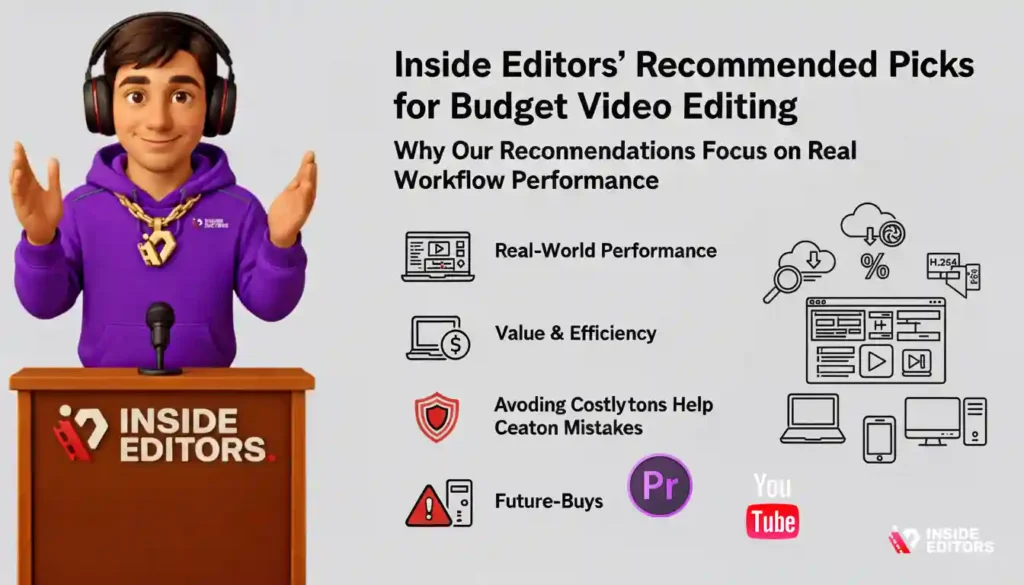
At Inside Editors, we judge devices based on real-world editing experience rather than synthetic benchmarks. A laptop might score high in tests but still struggle during real YouTube workflows – like adding subtitles, syncing audio, trimming reaction footage, or exporting 20-minute commentary videos. We look at sustained performance, not just peak numbers, because YouTube work requires consistency across long editing sessions.
We also test for software compatibility, thermal performance, and export stability. Many budget creators rely on cloud tools like Clipchamp and CapCut Web, which run smoothly even on modest devices. For local editing, we consider how laptops handle H.264 and H.265 codecs, which are standard for YouTube creators. The goal is always the same: smooth editing, predictable performance, and minimal timeline lag.
Strong Budget Options for Most Creators (Contextual Guidance)
While we do not promote brands directly, we can highlight categories and general performance tiers. For instance, laptops with Ryzen 5 3500U–5500U processors consistently perform well for 1080p editing. Intel Core i5 laptops (10th–12th gen) also offer excellent stability and efficiency for YouTube creators.
Refurbished MacBook Air M1 units remain one of the best value options for creators who prefer macOS. Apple Silicon’s efficiency, optimized video engines, and strong battery life make it a favorite among editors who want reliable performance without overspending. Mini PCs powered by newer AMD or Intel chips are another hidden gem – when paired with a decent monitor, they often outperform laptop equivalents at the same price.
The best device for you depends on your workflow, editing style, and personal preference. If portability matters, choose a laptop. If maximum power per dollar is the priority, a mini PC often wins. And if you want the smoothest editing pipeline at the lowest possible cost, refurbished Apple devices provide unmatched optimization.
How Our Recommendations Help Creators Avoid Costly Mistakes
Inside Editors doesn’t recommend devices based on trends. Instead, we observe the real bottlenecks creators face – lagging previews, slow exports, and overheating devices – and choose hardware that minimizes these issues. We prioritize laptops that stay smooth even during long editing sessions because consistency is more important than occasional bursts of speed.
We also help creators avoid overspending. Many people assume they need a gaming laptop for editing, but this isn’t always true. Gaming GPUs are often underutilized during YouTube editing, while strong CPUs and SSDs matter more. Our recommendations ensure you get peak value without paying for hardware you’ll never fully use.
Preparing for Growth With Smart, Scalable Choices
The ideal laptop grows with your editing skill. A device with 8GB of RAM today may become limiting as your workflow expands. That’s why we often suggest laptops with upgradable components. Even a simple upgrade from 8GB to 16GB RAM can transform your entire editing experience, especially with software like Premiere Pro or Resolve.
At Inside Editors, we emphasize sustainability – buying once, upgrading wisely, and avoiding unnecessary waste. A budget laptop that can grow with you will always be a smarter investment than a high-end laptop that limits your long-term flexibility.
Why Your Workflow Matters More Than Your Hardware
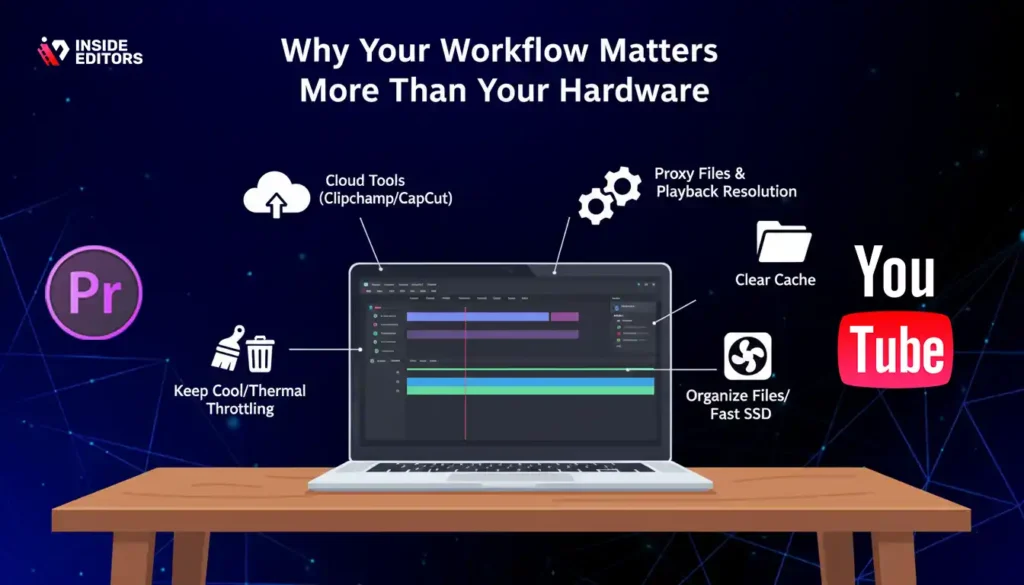
Even the best budget laptop for YouTube video editing won’t perform well if your workflow is inefficient. Simple adjustments can dramatically improve your editing speed. For example, lowering playback resolution while editing doesn’t affect your final export – but it makes timeline preview much smoother. Using proxy files lets you edit 4K footage with the speed of 1080p, even on modest hardware.
Cloud-based tools, like Clipchamp or CapCut Web, offload much of the processing to servers, giving budget laptops a performance boost. AI-powered editing assistants can help speed up repetitive tasks like captioning, noise reduction, or scene detection. Optimizing your storage by organizing footage reduces loading times, and good file hygiene prevents slowdowns over time.
Editing Habits That Improve Speed and Reduce Frustration
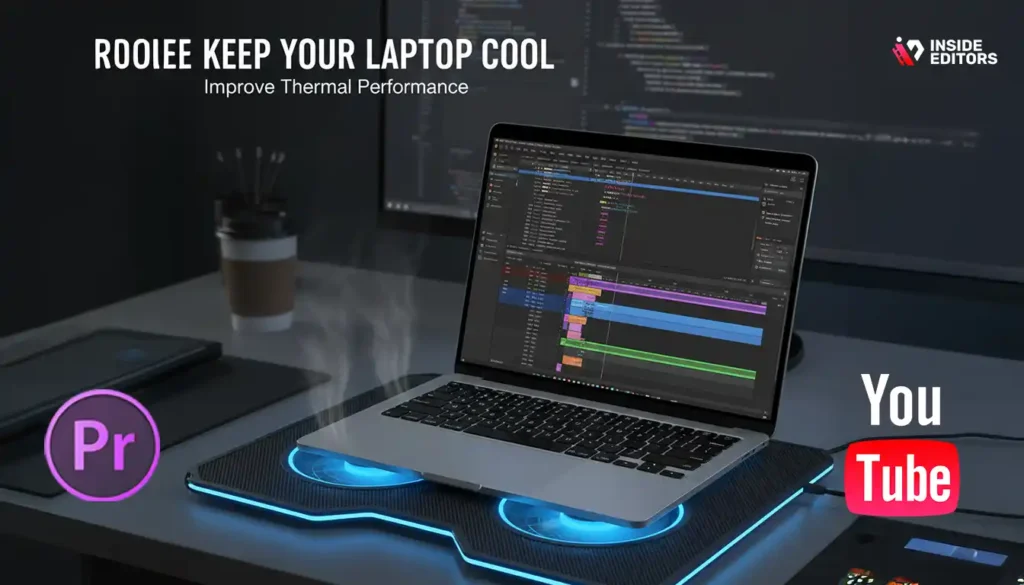
Small habits add up. Closing background apps frees up RAM instantly. Importing footage from a fast external SSD speeds up your entire workflow. Keeping your laptop cool – even with a basic cooling pad – prevents thermal throttling, which is one of the most common causes of timeline lag. Clearing cache files from your editing software every few days can also restore performance that gradually declines during long projects.
Your laptop is only half the equation. Your editing habits determine how efficiently it performs – a truth many new creators overlook.
Common Mistakes New Creators Make When Buying a Budget Editing Laptop
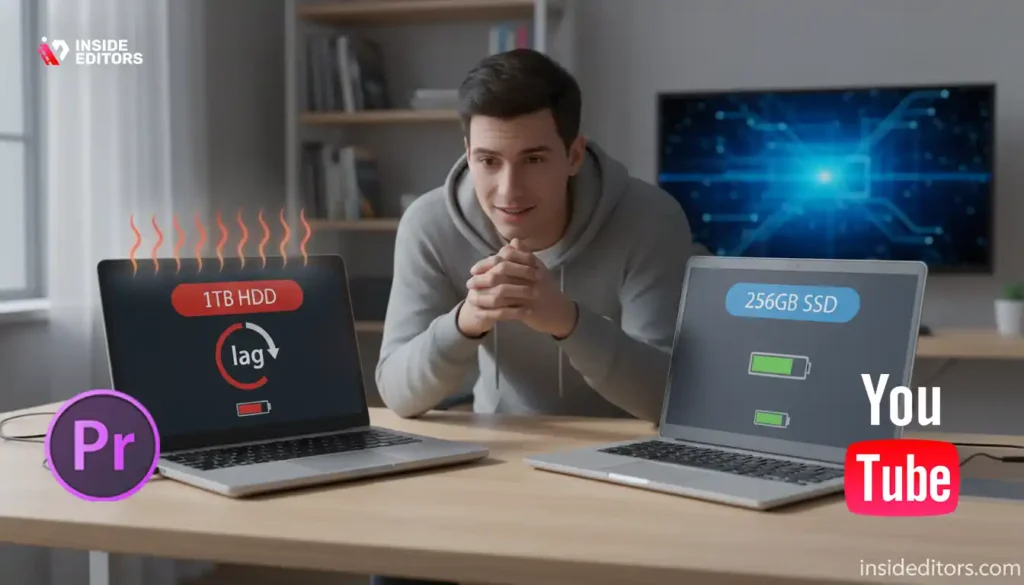
One of the biggest traps new creators fall into is choosing a laptop based on flashy numbers instead of understanding what actually influences editing performance. A laptop with 1TB HDD storage sounds appealing, but it performs significantly worse than a smaller 256GB SSD. Similarly, many beginners assume they need a high-end graphics card for YouTube editing, when in reality, most editors rely more on CPU and RAM than GPU acceleration. This leads to overspending in the wrong areas and struggling in the areas that matter most.
Another common mistake is overvaluing screen size. A 17-inch display might look impressive, but if it comes with a weak CPU, the editing experience will be slow and frustrating. Meanwhile, a 14-inch laptop with strong internals offers far better long-term value. The right choice is always the one that balances power and practicality, not the one that looks biggest or most “professional” at first glance.
Overlooking Battery Life and Thermal Performance
When creators think about editing performance, they often forget about heat. A laptop with a strong CPU but poor thermals can throttle performance dramatically, especially during long editing sessions. This leads to stuttered previews, slow rendering, and even unexpected shutdowns. Budget laptops vary significantly in cooling quality, so thermal efficiency becomes a crucial decision factor.
Battery life is another area beginners overlook. Video editing drains power quickly, and a weak battery limits portability. While budget laptops aren’t known for extraordinary battery performance, choosing models with efficient processors (like AMD Ryzen or Apple Silicon) ensures you can edit on the go without constantly hunting for an outlet.
Ignoring Upgradability and Long-Term Scalability
A budget laptop that you can upgrade later often provides better long-term value than a higher-priced laptop that locks down RAM and storage. Many creators regret buying a device with soldered RAM because it restricts their ability to improve performance as their editing needs grow. When shopping under $500, upgradable laptops remain one of the smartest investments: even a simple RAM upgrade can breathe new life into your editing workflow for years.
Smart Editing Tips to Get Maximum Performance from Budget Laptops
One of the simplest ways to make budget laptops feel powerful is by using proxy files or optimized media. These are lightweight, lower-resolution versions of your original footage used only during editing. They don’t compromise export quality but drastically improve timeline performance. Even 4K footage becomes manageable on mid-range CPUs when proxies are used correctly.
Most major editing software – including Premiere Pro, DaVinci Resolve, and Final Cut Pro – supports automatic proxy creation. This single habit can reduce lag, eliminate timeline stutters, and keep your editing experience smooth even on older or inexpensive laptops.
Adjust Software Settings to Match Your Hardware
Your editing experience improves dramatically when you match software settings to your laptop’s capabilities. Lowering playback resolution during editing, enabling hardware acceleration, adjusting memory usage limits, and clearing cache regularly all contribute to better performance. Many creators unknowingly edit using high-quality preview settings meant for powerful computers. Once they switch to performance-optimized settings, their workflow becomes significantly faster.
Editing software today is remarkably smart. With AI-assisted features like auto-reframe, smart cut detection, and automated masking, you can speed up your workflow even on modest hardware. The key is knowing which tools to enable, which to disable, and how to balance speed with quality.
Keep Your Laptop Cool and Manage Resources Wisely
Heat is the silent performance killer of budget laptops. Even a strong processor will slow down when temperatures rise. Using a simple cooling pad, working in a ventilated space, or elevating the laptop slightly can improve thermal performance. Closing background applications also frees up RAM and CPU cycles during editing, giving your software more power to work with.
Creators who edit in long sessions benefit from short breaks – not only for their own well-being but to give the laptop time to reduce heat buildup. Small habits like this contribute to smoother timelines, fewer crashes, and more stable exports.
Why Choosing the Right Workflow Matters as Much as Choosing the Right Laptop

Even the best budget laptop for YouTube video editing isn’t magic. Its performance depends heavily on how you manage your workspace, organize files, and structure projects. Keeping footage on an external SSD instead of the internal drive frees space and speeds up editing significantly. Organizing projects into separate folders reduces loading times and keeps things clean.
Creating templates for intros, outros, captions, and color grading speeds up your workflow. This isn’t just about saving time – it reduces the CPU load because you aren’t repeatedly applying heavy effects from scratch. Professional editors rely heavily on templates for efficiency, and budget editors should too.
Editing Is a Skill, Not a Hardware Race
Many creators think upgrading their laptop will unlock better videos. But editing skill – storytelling, pacing, transitions, audio awareness – matters far more than the hardware behind it. A strong editor can make a great video on a modest laptop. A weak editor won’t magically improve with a powerful one. Remember: hardware helps speed, not storytelling.
This mindset shift gives you freedom. Instead of chasing expensive devices, you can focus on improving your technique, workflow, and consistency. Hardware simply becomes a tool that supports your creative decisions – not the source of them.
Soft, Natural Promotion: How Inside Editors Helps You Go Beyond Basic Editing
Even with an excellent budget laptop, editing can become overwhelming. Long timelines, tricky transitions, color correction, and audio balancing take time to master. Professional editing brings expertise, speed, and polish into your final videos – something that raw hardware alone can’t accomplish. Many creators eventually realize that outsourcing complex edits lets them focus more on storytelling, filming, and growing their channel.
Inside Editors provides professional video editing services designed for YouTube creators, businesses, coaches, and influencers. Whether you’re producing product videos, travel adventures, gaming clips, reaction content, or educational tutorials, our team helps turn raw footage into polished stories that feel smooth and cinematic.
If you ever feel that editing slows you down or keeps you from publishing consistently, our experts can step in and support your creative vision. Think of it as unlocking your channel’s next level – without needing expensive equipment or countless hours of learning curves.
Conclusion: Your Creativity Matters More Than Your Budget
Editing YouTube videos on a budget isn’t just possible – it’s common. Thousands of creators produce high-quality content every day using affordable laptops, clever workflows, and efficient software. The best budget laptop for YouTube video editing isn’t defined by price or specs alone but by how well it fits your workflow, your footage, and your creative goals.
With the right device, smart editing habits, and a workflow tailored to your needs, you can create professional results without breaking the bank. And when you need extra support, Inside Editors is here to help bring your ideas to life – smoothly, affordably, and with expert precision.
If you’re ready to take your videos from simple to stunning, explore Inside Editors’ professional editing services and let your creativity shine.
FAQs – Best Budget Laptop for YouTube Video Editing
1. Are your edits high quality and do I own the final files?
Inside Editors delivers professional-grade edits with attention to pacing, audio, and color. You retain full ownership of the final deliverables – we deliver MP4/ProRes files and raw project exports on request – and we include a standard revision round so you can request small changes. If you need extra rounds or source-file delivery, those options are listed in the service page and priced transparently.
2. How many revisions are included, and what if I want more changes?
Most packages include one complimentary revision to refine timing, cuts, and basic color/audio adjustments. Additional revisions are available at a fixed hourly rate or as part of a higher-tier package; we’ll always estimate cost before starting extra work. This keeps timelines predictable and ensures you only pay for the additional creative time you actually need.
3. Should I edit myself or hire a pro – what are the trade-offs?
DIY editing saves money and teaches valuable skills, but it costs time – often many hours per video – and can slow your channel growth if quality suffers. Hiring a pro gives faster turnaround, consistent quality, and the freedom to focus on production and promotion; it’s ideal if you value brand polish or need faster publishing cadence. For many creators, a hybrid approach (DIY for simple edits, pro for flagship videos) offers the best balance.
4. What price ranges and packages should I expect for professional editing?
Entry-level packages typically start around $50–$150 per video for short, simple edits; mid-tier services range from $150–$400 for more complex edits with custom graphics and sound design; premium, agency-level packages often exceed $500. Prices vary by video length, turnaround time, and deliverables (captions, thumbnails, project files). We recommend picking a package that aligns with your release cadence and revenue goals.
5. How long does a typical edit take – and are rush options available?
Standard turnaround for a single 5–15 minute YouTube edit is usually 3–7 business days depending on complexity and queue. Rush options are often available for a higher fee and can cut delivery to 24–48 hours, though feasibility depends on current workload and the project’s technical demands (multi-cam, heavy VFX, or long-form audio cleanup require more time). We’ll confirm a guaranteed delivery date before work begins.
6. What simple steps should I follow to prepare footage for faster, cheaper edits?
Organize clips into clearly labeled folders (camera, mic, B-roll), add a short edit brief, and provide a reference video for tone and pacing; this can cut editing time by 30–50%. Export source clips at best quality and, if possible, provide an offload checklist (frame rate, codec, and sync notes). Clear prep reduces revisions and keeps costs down – a small time investment that saves money.
7. How do you handle privacy and sensitive footage?
Inside Editors treats client footage as confidential: transfers use secure file services, editors sign NDAs on request, and files are deleted from active servers after delivery unless you opt for storage. If your project contains sensitive or legal material, tell us up front so we can apply extra controls (restricted access, encrypted storage). Transparency on ownership and privacy is part of our standard workflow.


