

Choosing the Best Computer for Video Editing is one of the most important decisions you’ll make as a creator. Your computer is not just a machine – it’s the engine behind your storytelling. When your timeline scrubs smoothly, your color grading previews instantly, and your renders finish in minutes instead of hours, you stay in the creative flow. But when your computer chokes, lags, or overheats, the creative process becomes frustrating instead of exciting.
This guide breaks everything down into clear, practical steps. We’ll explain what makes a computer “great” for editing, review three of the best machines you can buy right now, compare their real specs, help you choose the right CPU, GPU, RAM, and storage, show you how to future-proof your setup for 2026, and finish with Inside Editors’ expert recommendation based on thousands of real-world editing projects.
What Makes the Best Computer for Video Editing?
When editors ask, “What’s the best computer for video editing?” they often expect a single model – but the truth is more nuanced. The “best” computer is the one where every major component works together to support your editing style and your project demands. Smooth video editing isn’t about having the most expensive hardware – it’s about balance.
A video-editing computer needs four things:
1. CPU Power for Real-Time Timeline Performance
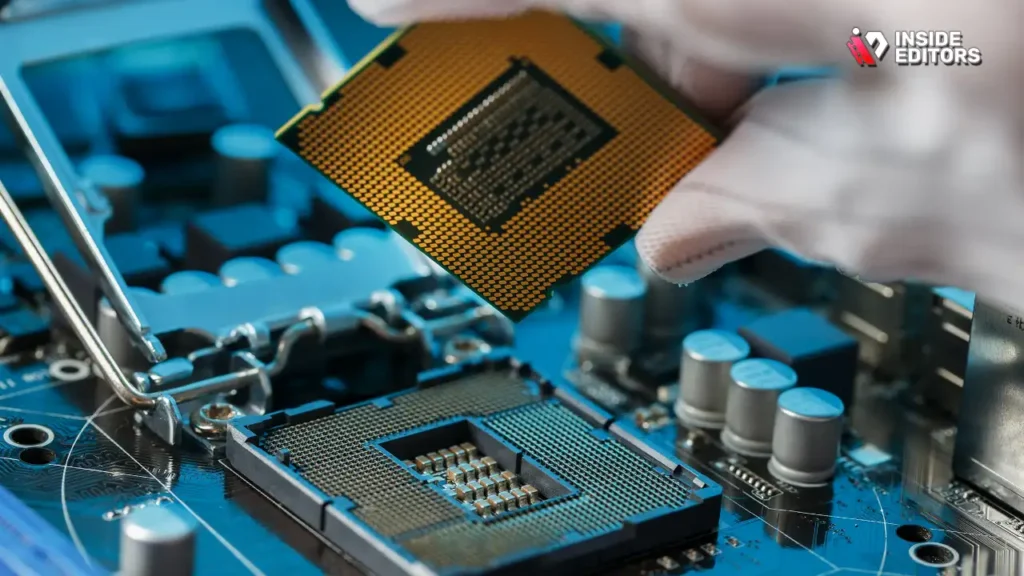
Your CPU handles decoding footage, generating previews, rendering effects, and exporting final files. Faster CPUs with more cores reduce export times and make scrubbing feel fluid. For heavier codecs like 4K H.265, 10-bit 4:2:2 or RAW formats, CPU power becomes essential.
2. GPU Strength for Color, Effects, and VFX
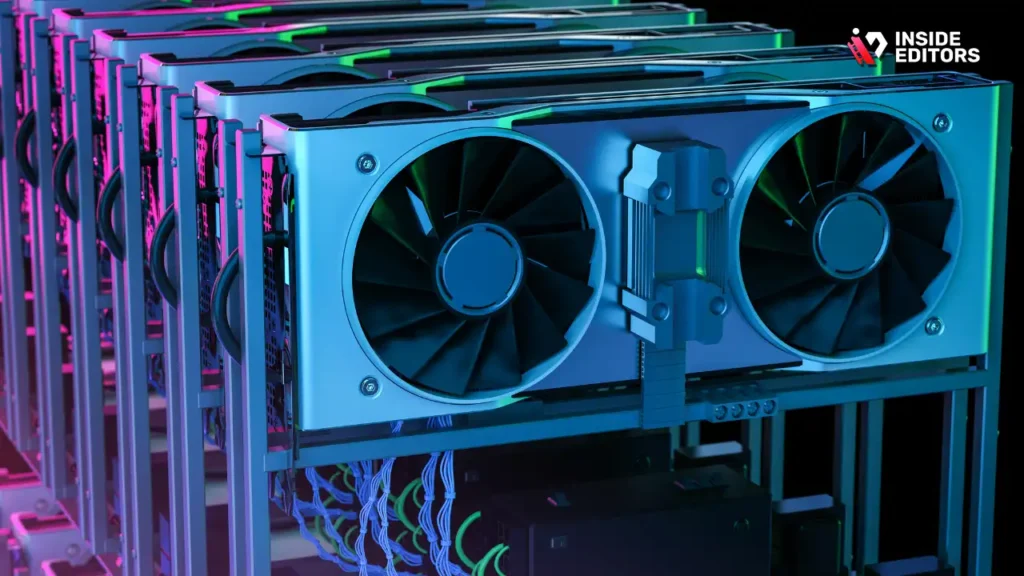
Modern video editing relies heavily on GPU acceleration. Tasks like color grading, stabilization, noise reduction, transitions, and even playback rely on your GPU’s VRAM and compute power. The more layers and effects you use, the more you’ll feel the GPU’s importance.
3. RAM Capacity for Multi-Layer Timelines
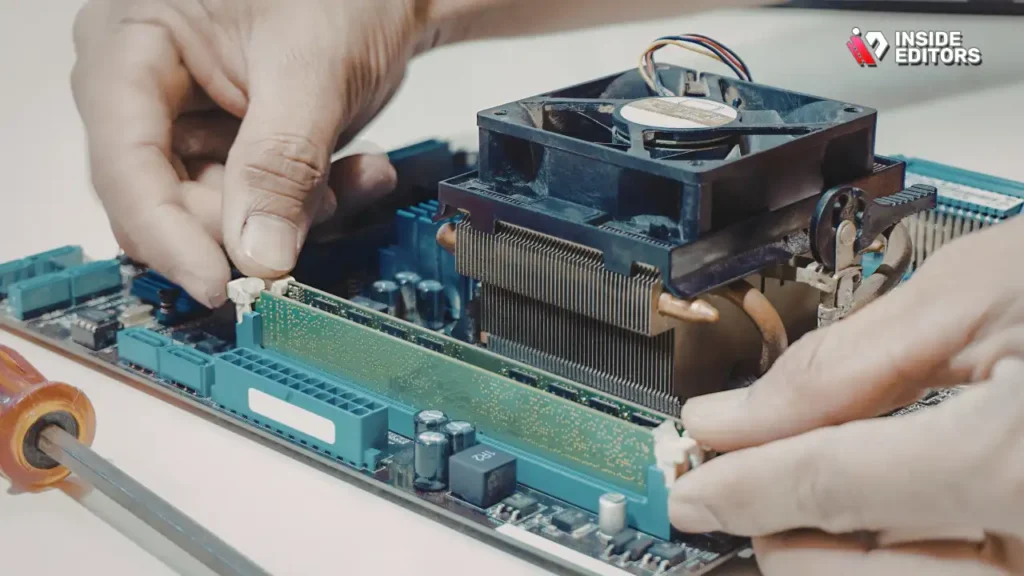
RAM determines how much footage, effects, and project data your system can hold in memory at once. Too little RAM leads to stuttering, cache swapping, and crashes – especially when editing 4K+, multi-cam timelines, or complex projects.
4. Fast Storage for Smooth Media Handling
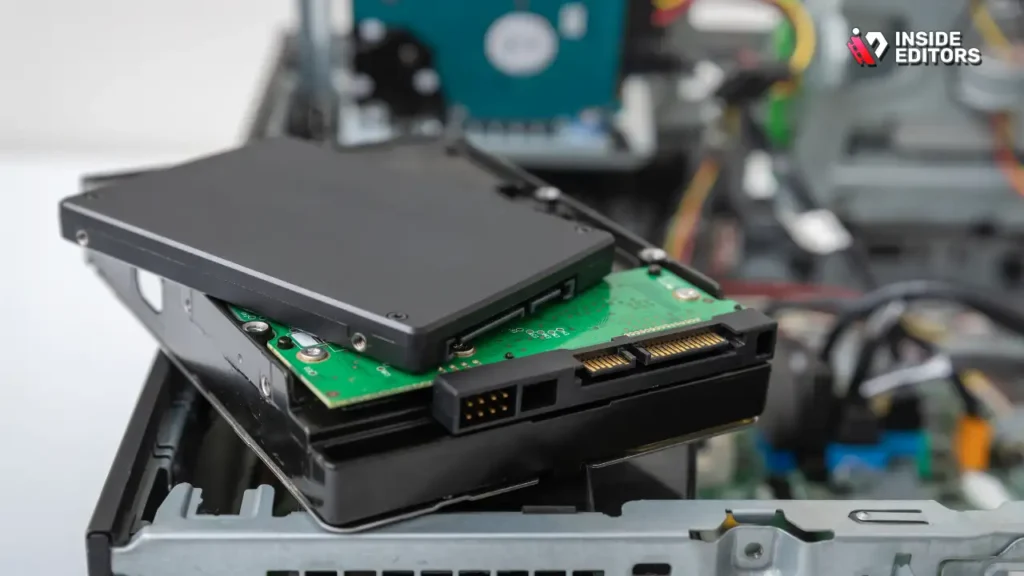
Slow drives are the silent bottleneck in many systems. Modern editors need NVMe SSDs for media cache, projects, and high-bitrate footage. Speed matters as much as capacity.
When all four components align, the result is a system that feels fast, responsive, and creatively empowering. When any one of them is weak, your whole workflow slows down.
Best 3 Computers for Smooth Video Editing

Below are three specific brand-name computers, consistently ranked among the best for editing performance in 2024–2026. Each one offers a unique set of advantages depending on your ecosystem and editing style.
1. Apple Mac Studio (M4 Max / M3 Ultra)
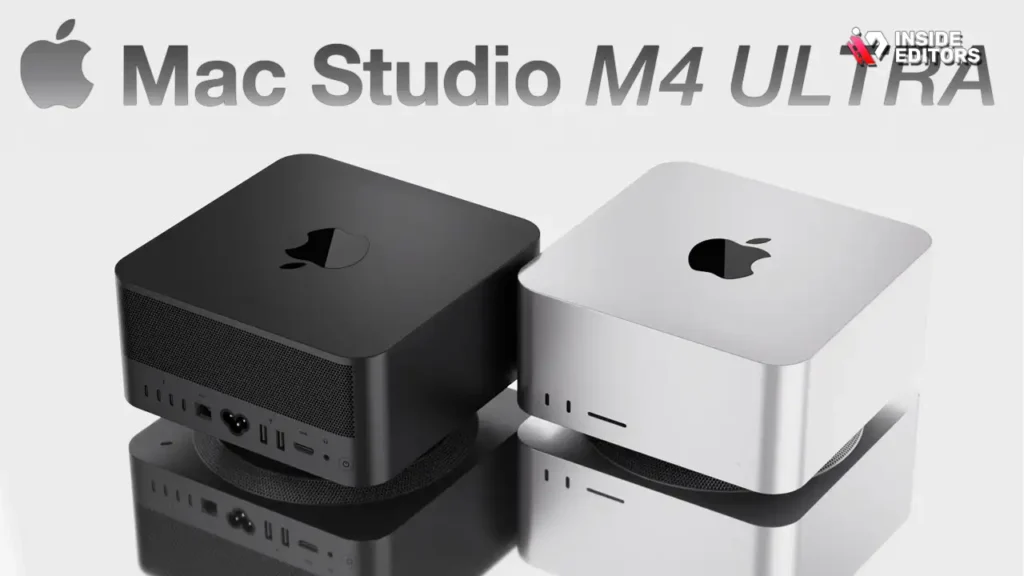
Best for Mac users, Final Cut editors, and ProRes-heavy workflows
The Mac Studio is one of the most powerful compact editing machines ever made. Powered by Apple’s top-tier M-series chips, it offers incredible efficiency, low heat, and real-time performance in apps like Final Cut Pro, Premiere Pro, and DaVinci Resolve.
- CPU: Up to 16-core (M4 Max) / up to 28-core (M3 Ultra)
- GPU: Up to 40-core (M4 Max) / up to 60-core (M3 Ultra)
- Unified Memory: Up to 128GB
- Storage: 512GB–8TB SSD
ProRes and H.265 decode/encode are handled by dedicated media engines, meaning even massive timelines play smoothly. Color grading previews feel instant, even with LUTs, transitions, and effects.
Best for:
Creators who want plug-and-play simplicity, macOS optimization, and top-tier performance with minimal maintenance.
2. Dell XPS Desktop 8960
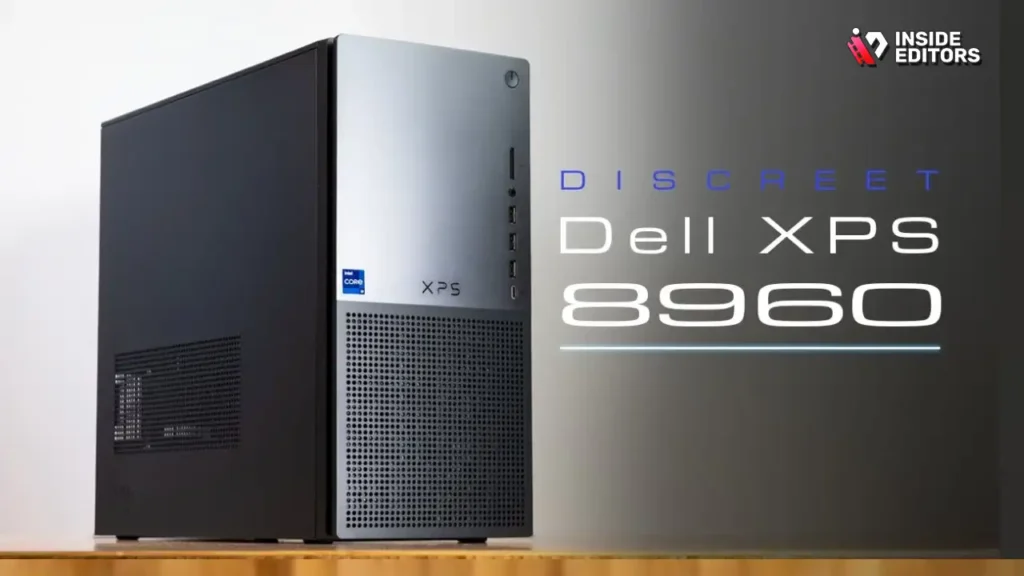
Best Windows workstation for flexibility and upgradeability
The Dell XPS 8960 is a powerhouse tower for creators who want full control over their build. It supports high-end Intel CPUs and NVIDIA GPUs, making it ideal for Premiere Pro, Resolve, After Effects, and any GPU-heavy workflow.
- CPU: Up to Intel i9 (13th-gen)
- GPU: NVIDIA RTX 4070 / 4080 / 4090 options
- RAM: Up to 64GB DDR5
- Storage: NVMe SSD + internal expansion bays
Because this machine is modular, you can upgrade RAM, GPU, and storage anytime – extending the life of your investment. For editors who love flexibility or need huge GPU power, this is often the best value on the market.
Best for:
Professional editors, colorists, or motion designers who want absolute control and upgrade flexibility.
3. HP OMEN 45L
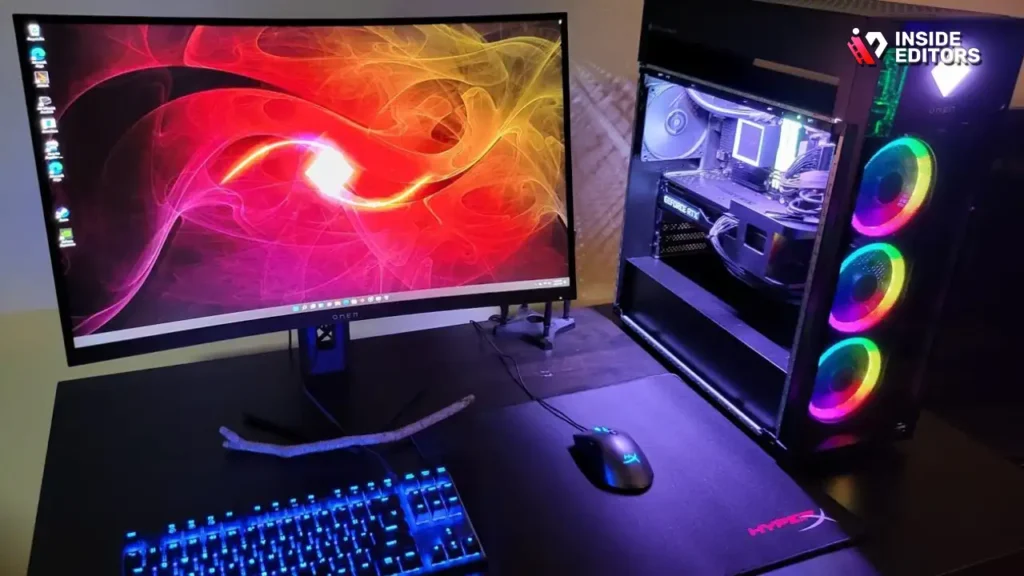
Best for high-end 6K/8K workflows and GPU-heavy editing
Although marketed as a gaming PC, the OMEN 45L is a monster for video editing. Its cooling chamber, high airflow, and GPU options make it incredibly stable under heavy loads – perfect for long exports, multi-hour sessions, and large projects.
- CPU: Intel i9 / Intel Ultra 9 options
- GPU: Up to NVIDIA RTX 4090 / RTX 5090
- RAM: Up to 64GB+
- Storage: Expandable NVMe + HDD bays
The OMEN 45L shines in DaVinci Resolve, After Effects, RED/BRAW editing, and multi-layer grading where GPU thermals normally choke smaller desktops.
Best for:
Filmmakers, VFX artists, multi-cam 6K/8K editors, and creators who want maximum cooling and stability.
Comparison Table – Mac Studio vs Dell XPS 8960 vs HP OMEN 45L
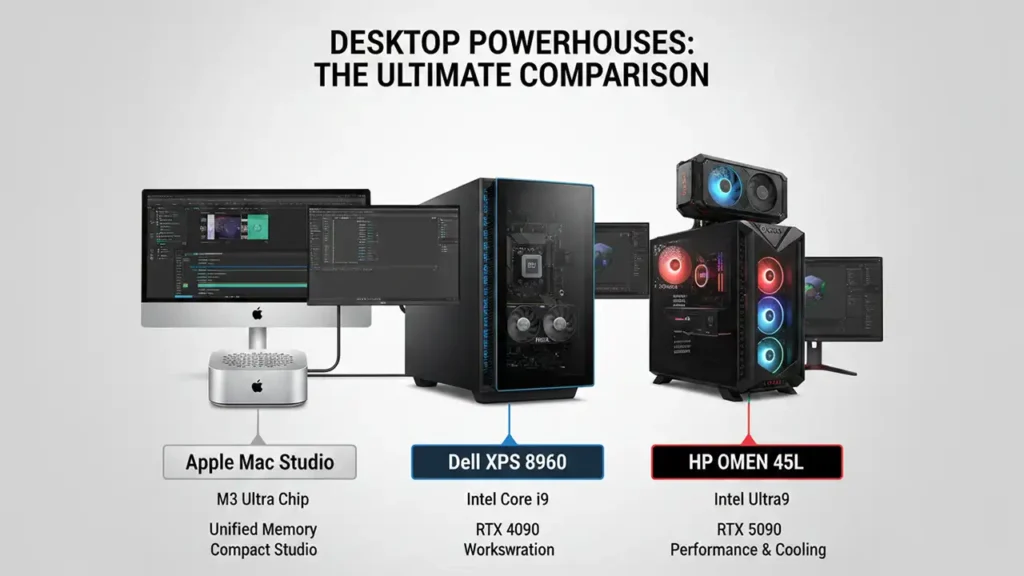
| Model | Typical Max CPU | Typical GPU Options | Max RAM (configurable) | Typical Storage Options | Best for |
| Apple Mac Studio | M4 Max (up to 16-core) / M3 Ultra (up to 28-core) | Unified Apple GPU (up to 60 cores on Ultra) | Up to 128GB unified memory (varies by chip) | 512GB–8TB SSD internal; Thunderbolt 5 | Mac-native workflows, ProRes, compact studio. |
| Dell XPS Desktop 8960 | Intel 13th-gen i7 / i9 (8–24 cores) | NVIDIA RTX (30/40 series) discrete GPUs | Up to 64GB DDR5 (model dependent) | 1TB NVMe + expandable bays | Customizable Windows workstation; upgradeability. |
| HP OMEN 45L | Up to Intel i9 / Intel Ultra9 (24 cores) or Ryzen options | Up to NVIDIA RTX 40/50 series (e.g., 4090/5090) | Up to 64GB+ (varies); high-end configs support 64GB DDR5+ | Multiple NVMe slots + HDD bays; external RAID friendly | High-performance editing & VFX; strong cooling for sustained loads. |
What CPU, GPU, RAM, and Storage Do You Actually Need?
Now, let’s break down the exact components you should look for – based on the type of video you edit.
CPU Requirements
Your CPU determines timeline responsiveness, playback smoothness, and export speed.
- 1080p Editing: 6–8 cores
- 4K Editing: 8–12 cores
- 6K/8K or RAW Footage: 12–16+ cores
More cores help with effects, rendering, multicam, and RAW footage.
GPU Requirements
Your GPU handles color grading, stabilization, effects, motion graphics, and real-time playback.
- 1080p Editing: 6–8GB VRAM
- 4K Editing: 12–16GB VRAM
- 6K/8K Editing: 16–24GB VRAM or more
Resolve users benefit the most from big GPUs.
RAM Requirements
RAM affects how much footage and effects your system can hold in memory.
- 1080p: 16–32GB
- 4K: 32–64GB
- 6K/8K: 64–128GB
If you use heavy effects, go higher.
Storage Requirements
Fast SSDs are essential.
- Primary drive (OS + Apps): 1TB NVMe
- Project & cache drive: 1–2TB NVMe
- Media/Archive: 4TB+ SSD/HDD external or internal
For big projects, external NVMe RAID via Thunderbolt is ideal.
What Is the Most Future-Proof Configuration for 2026?
Want a machine that still feels fast two years from now? Here’s the “future-proof” target:
- CPU: 12–16 cores
- GPU: 16–24GB VRAM
- RAM: 64GB (upgradeable to 128GB)
- Storage: 2TB NVMe + extra NVMe slot
- Ports: Thunderbolt 4/5, USB-C Gen 3, PCIe 5.0
- Cooling: Good airflow for long exports
- Upgradeability: Especially important for Windows builds
This setup ensures you can handle new codecs, AI tools, bigger timelines, and faster workflows.
Inside Editors’ Recommended Best Computer for Video Editing
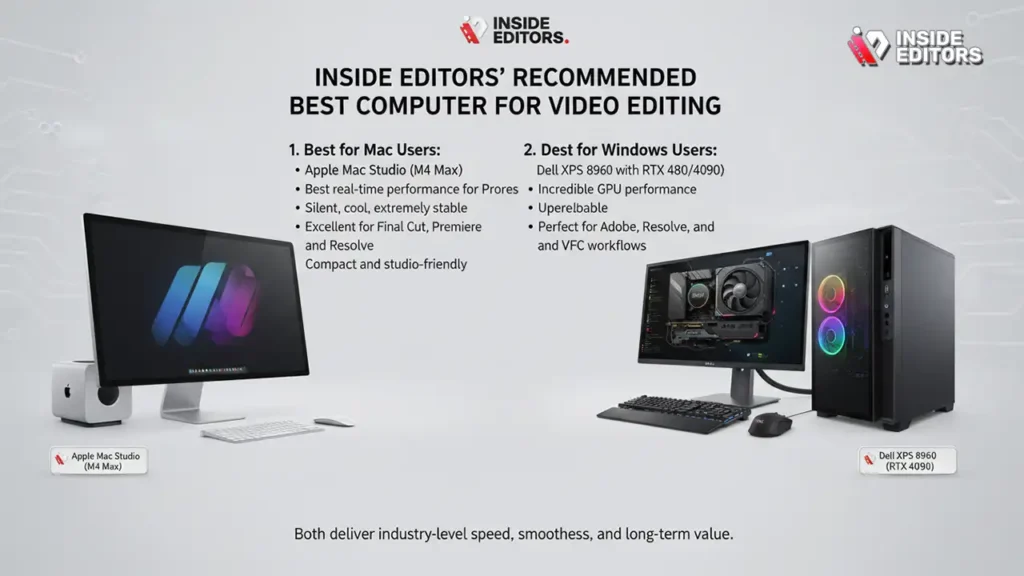
After testing thousands of projects across different platforms, Inside Editors recommends two “best options” depending on your ecosystem.
1. Best for Mac Users – Apple Mac Studio (M4 Max)
- Best real-time performance for ProRes
- Silent, cool, extremely stable
- Excellent for Final Cut, Premiere, and Resolve
- Compact and studio-friendly
2. Best for Windows Users – Dell XPS 8960 with RTX 4080/4090
- Incredible GPU performance
- Upgradeable
- Perfect for Adobe, Resolve, and VFX workflows
Both deliver industry-level speed, smoothness, and long-term value.
Final Thoughts: Picking the Right Computer for Creators
The best computer for video editing isn’t just about raw specs – it’s about choosing a reliable partner for your creative work. Whether you prefer the simplicity of the Mac Studio or the flexibility of the Dell XPS / HP OMEN 45L, what matters most is that your machine helps you focus on the story you want to tell.
If you want a system that feels fast today and continues to perform in 2026, choose balanced components, big RAM, fast NVMe storage, and a strong GPU. And if you ever need help turning your raw footage into polished, professional videos – Inside Editors will be here to help bring your vision to life.
FAQ The Best Computer for Video Editing
1: How can I trust Inside Editors with my footage, and who owns the final files?
Inside Editors keeps client files private and returns final masters; you always retain ownership of the original footage and final deliverables. We offer secure file transfer and optional NDA coverage for sensitive projects; standard policy and rights are explained in the service agreement so you know exactly which usage and revision terms apply. If you need extra privacy (e.g., celebrity or legal content) we recommend the NDA add-on.
2: How does DIY editing compare to hiring a pro editor from Inside Editors?
DIY editing is cost-effective for simple social clips, but pro editors save time and improve storytelling, color grading, and pacing – especially for brand or long-form video. Inside Editors offers tiered packages (basic trims to full creative edits) so you can compare outcomes: DIY might cost only your time, while pro editing typically returns a more polished result faster. For high-stakes content, a pro editor usually gives better viewer retention and conversion.
3: What are typical pricing ranges and what’s included in Inside Editors’ packages?
Pricing varies by scope: basic editing (trim + color) often starts in the low hundreds, mid-tier (multi-camera + motion graphics) in the high hundreds to low thousands, and full post (VFX, grade, deliverables) can be $2,000+. Each package lists deliverables (revisions, formats, duration). Always check what’s excluded (stock music, additional revisions, source footage prep) so there are no surprises.
4: How long does a typical edit take and are rush options available?
Turnaround depends on scope: simple edits typically take 2–5 business days, mid-tier projects 1–2 weeks, and complex edits (VFX, long-form episodes) 2–4+ weeks. Rush delivery is available for an added fee-often reducing lead time to 24–72 hours-but availability depends on current workload and media readiness. Providing organized footage, proxy media, and a clear brief speeds delivery.
5: What common mistakes should I avoid when preparing footage for editors?
Don’t send raw files without organization-label clips, include an edit brief, and supply proxies if files are huge (8K/RAW). Avoid inconsistent frame rates, mixed codecs without notes, or missing audio references; this saves hours of prep time and reduces cost. Also, clearly state ownership, music licenses, and delivery specs to prevent rework.
6: How do I choose the best computer for video editing if I’m starting now?
Choose a balanced video editing computer: prioritize at least an 8-core CPU, a GPU with 12GB+ VRAM for 4K work, 32–64GB RAM, and NVMe SSD storage – this combo handles most YouTube and short-form projects. If you plan to edit 6K/8K or heavy effects, scale RAM to 64GB and the GPU to 16–24GB VRAM. Buying for your workflow prevents overspending on unneeded specs.
7: What revision policy and quality guarantees does Inside Editors offer?
We include a set number of revisions per package (typically 2–3 rounds) and offer a satisfaction workflow to address changes quickly; additional revisions are available at published hourly or package rates. Quality checks include color consistency, audio levels, and deliverable formatting before delivery. If a deliverable fails agreed specs, we prioritize fixes under the revision terms.
8: What’s the simple process to work with Inside Editors (step-by-step)?
Request a quote and share footage (hard drive or secure link), 2) Approve scope and timeline, 3) We deliver a draft for review, 4) You request revisions and we finalize deliverables. This process typically uses proxies for large files, clear revision notes, and final master delivery in requested codecs – a workflow designed to be fast, transparent and predictable.


