


If you’ve ever uploaded a video to YouTube and wondered why it didn’t look as smooth or cinematic as expected, you’re not alone. Many creators focus on camera quality, lighting, and color correction but overlook one of the most underrated building blocks of video clarity: framerate. The framerate you choose doesn’t just affect how your footage looks – it shapes how your audience feels while watching it. Smoothness, motion handling, realism, and even storytelling tone all change dramatically when switching between 24fps, 30fps, and 60fps.
Framerate also impacts file sizes, export times, editing performance, and how YouTube processes your upload. So choosing the “best framerate for YouTube video editing” is not just a technical decision; it’s a creative one that influences your brand identity and audience retention. Many YouTubers discover this only after months of inconsistent uploads, mismatched footage, or shaky-looking clips – issues that could have been avoided simply by understanding the foundation you are about to learn.
Before we explore the technical details, it’s important to understand that there is no single “perfect” framerate for every YouTube channel. Instead, the right framerate depends heavily on your content style, motion intensity, editing workflow, and the expectations of your viewers. That’s what we’ll break down in this guide, step by step.
What Is the Best Framerate for YouTube?

If you’re in a hurry, here’s the quick version: the best framerate for YouTube depends on the type of video you create. YouTube supports a wide range of framerates – 24, 25, 30, 48, 50, 60, and even beyond for select formats – but most creators should stay within the “big three”: 24fps, 30fps, or 60fps.
Here’s the simplest breakdown:
- 24fps gives you a cinematic look – ideal for storytelling, interviews, travel videos, fashion reels, and anything emotionally driven.
- 30fps offers a smoother, more lifelike feel, great for vlogs, tutorials, talking-head content, or business videos.
- 60fps provides ultra-smooth motion – perfect for gaming, sports, fitness, action, and fast-paced scenes where clarity matters most.
But choosing between them is less about which number is “best” and more about which one matches your vision and audience expectations. Viewers get used to a certain rhythm. A gaming channel in 24fps feels sluggish; a cinematic film review in 60fps feels unnaturally sharp. Matching your framerate to your storytelling style is what makes your work look intentional – and professional.
In the sections ahead, we’ll go deeper into how each framerate behaves, the pros and cons, and how top creators use them in the real world.
Understanding 24fps, 30fps and 60fps – What They Actually Mean
Before choosing the best framerate for YouTube video editing, it helps to understand what these numbers really represent. A framerate is simply how many frames (individual photos) appear every second in your video. More frames mean smoother motion; fewer frames create more “cinematic” motion blur.
The real magic happens when you compare them side by side.
24fps – The Cinematic Standard

24fps has been used in film for more than a century. It introduces a slight “judder” that our eyes have learned to associate with movies and storytelling. Travel filmmakers, wedding videographers, commercial directors, and documentary creators still use 24fps because it feels emotional and dramatic.
24fps shines in:
- Cinematic sequences
- Slow pans, controlled movement
- Emotional storytelling
- Fashion and beauty edits
- Scenes with intentional lighting and composition
One reason creators love 24fps is that it hides minor imperfections. A small camera shake or quick gesture looks softer instead of harsh, which can help amateurs and solo creators look more polished.
30fps – The Realistic, Everyday Framerate

30fps is more “true-to-life.” It has less motion blur than 24fps, making movements appear clearer and smoother without losing their natural look. This is why you’ll see many vloggers, business coaches, and tutorial creators use it – the audience feels like they are right there with the creator.
30fps works best for:
- Talking-head videos
- Tutorials and educational content
- Cooking reels
- Tech reviews
- Travel blogs requiring both movement and realism
Because 30fps feels more familiar (similar to smartphone playback), it’s great for creators who want relatability and clarity.
60fps – The Smooth, High-Motion Standard

60fps captures twice as many frames per second as 30fps, delivering incredibly smooth motion. Every movement, even fast action, looks clean and sharp. If your channel includes explosions, quick cuts, rapid gestures, sports motion, or gaming graphics, 60fps is a game-changer.
60fps excels in:
- Gaming videos
- Fitness training
- Adventure and extreme sports
- Reaction videos with chaotic movement
- Outdoor travel with rapid camera motion
However, it comes with one drawback: because 60fps reduces motion blur, your footage may feel “too real” for cinematic storytelling, sometimes even “soap opera”-like. That’s why many cinematic creators avoid it.
Direct Comparison: 24fps vs 30fps vs 60fps
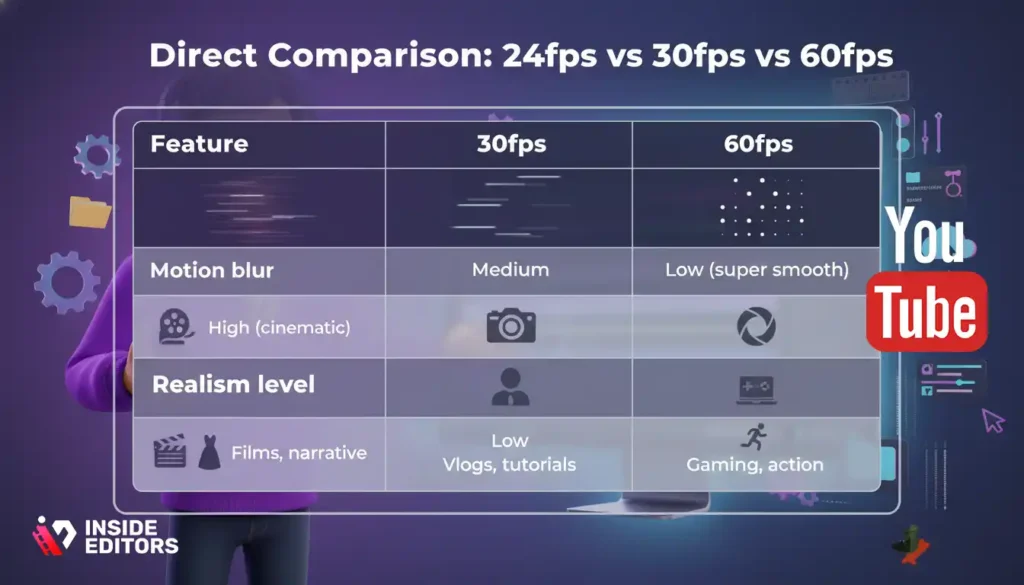
Sometimes it’s easier to see the differences in a simple table. Here’s how the most common framerates compare:
| Feature | 24fps | 30fps | 60fps |
| Motion blur | High (cinematic) | Medium | Low (super smooth) |
| Realism level | Low | Medium | High |
| Best for | Films, fashion, narrative videos | Vlogs, tutorials, business content | Gaming, fitness, action |
| File size | Smallest | Medium | Largest |
| Editing difficulty | Easiest | Easy | Hardest (more data) |
| YouTube compatibility | Excellent | Excellent | Excellent |
| Pros | Emotional, cinematic look | Balanced, natural, familiar | Incredibly smooth, high clarity |
| Cons | Less smooth | Not cinematic | Too smooth for stories |
Understanding this table already puts you ahead of thousands of creators who never think about framerate intentionally. But choosing a framerate is still only half the story – when to use each one matters even more.
24fps, 30fps, or 60fps – Which One Should You Use and When?
Let’s walk through real-world scenarios so you can confidently choose the right framerate every time.
When to Use 24fps (The Cinematic Choice)
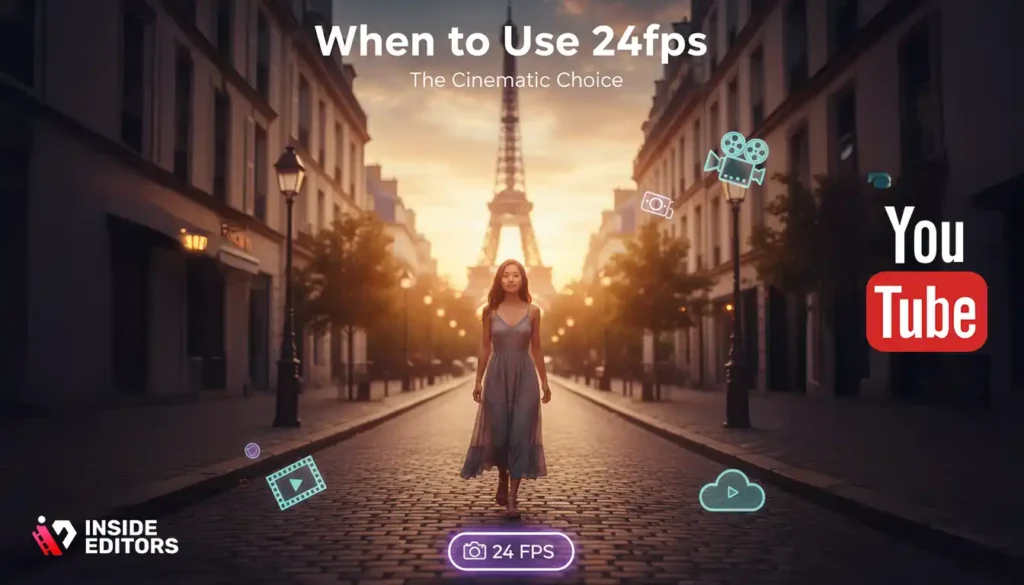
Many creators use 24fps because it feels artistic. If your channel is based on emotion, storytelling, or beautiful visuals, 24fps enhances everything. For example, a travel creator visiting Paris at sunset gets a soft, dream-like look that audiences love. The same applies to sit-down documentary conversations where the mood is more important than motion.
24fps is also great for creators who prefer gentle movement or static shots. If your content has slow pacing, minimal cuts, or carefully composed frames, 24fps adds depth and character that other framerates simply cannot replicate.
When to Use 30fps (The Everyday Standard)
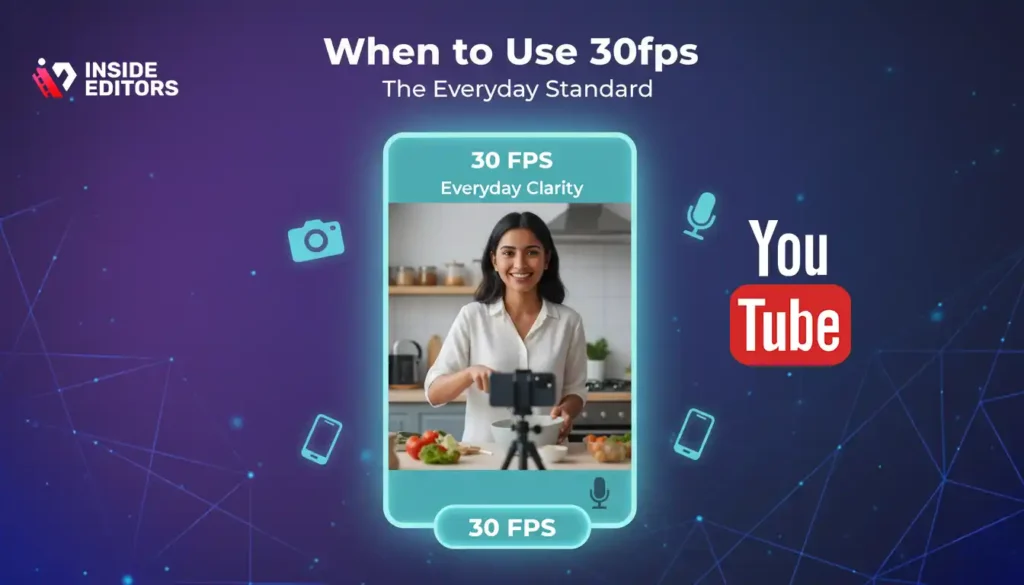
30fps suits creators who want approachable, clear footage without the softness of 24fps or the hyper-reality of 60fps. For example, if you’re filming a cooking video, the rapid hand movements look smoother at 30fps than 24fps, while still maintaining an organic feel. Similarly, coaches who record tutorials or talking-head videos benefit from the clarity and comfort of 30fps.
If your audience watches mostly on mobile phones, 30fps is often the most natural because smartphone cameras record natively at or near this framerate.
When to Use 60fps (The High-Motion Hero)

60fps is the go-to choice for highly dynamic content. A gamer showcasing fast combat sequences or a fitness coach demonstrating rapid workouts will immediately see a difference in smoothness. Viewers also appreciate 60fps when watching content with strong visual motion because it feels both modern and immersive.
Even vloggers sometimes use 60fps for outdoor scenes or sudden movements, then return to 24fps or 30fps for indoors. This flexibility is becoming more common as creators mix framerates to create mood shifts.
The Best Framerate for High-Motion Content

If your videos involve fast movements, sudden cuts, or highly energetic scenes, the question isn’t just “What looks good?” – it’s “What looks clear?” High-motion footage stresses your camera sensor, your editing timeline, and even YouTube’s compression system. When the framerate is too low for the type of motion you’re capturing, your video ends up with stutters, ghosting, or “muddy” motion clarity that viewers notice right away.
This is why so many high-motion creators – fitness trainers, dancers, vloggers who record action shots, gamers, and outdoor adventurers – choose 60fps. At this framerate, every micro-movement is captured clearly, which prevents motion blur from becoming overwhelming or distracting. For example, a fitness coach demonstrating a fast-paced workout needs viewers to see movements accurately; 60fps preserves form and technique in a way that 30fps or 24fps cannot.
That said, not all high-motion scenes require 60fps. Some cinematic creators intentionally use 30fps or 24fps to convey drama or tension. Think of a suspenseful chase in a short film – a slightly blurred look can feel artistic. But if clarity is your priority, especially when the audience might pause or rewind frequently (like in tutorials, gaming, or sports content), 60fps delivers unmatched smoothness.
Whatever you choose, consistency matters. Switching framerates too often within the same video can feel jarring unless used intentionally for stylistic effect. Most successful channels pick one framerate that supports their brand’s visual personality and stick with it.
What You Should Keep in Your Export Settings
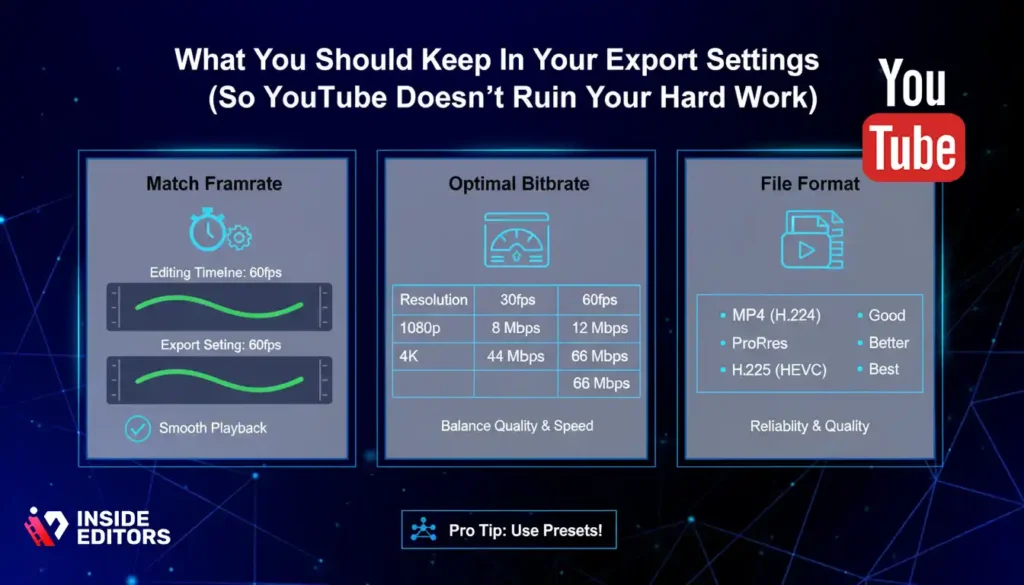
Even if you film at the perfect framerate, your export settings can make or break the final result. Many new creators record in 60fps but accidentally export in 30fps, causing dropped frames and choppy playback. Others go overboard with bitrates that don’t match their chosen framerate, resulting in bloated files and longer upload times without any improvement in quality.
To preserve your chosen framerate, your export settings should always align with your editing timeline. If your sequence is set to 24fps, export in 24fps. If you edited in 60fps, export in 60fps. Keeping these consistent prevents forced conversions that degrade motion quality.
When it comes to bitrate, YouTube offers clear guidelines. For 1080p videos, they recommend around 8 Mbps for 30fps and up to 12 Mbps for 60fps. For 4K uploads, bitrates jump significantly. Following these guidelines ensures a balance between quality and upload speed, while also ensuring YouTube’s compression algorithm doesn’t aggressively downscale your footage.
File format matters too. MP4 with H.264 is still the go-to for most creators because it offers reliability and compatibility. However, if you want the absolute best upload quality and faster HDR processing, formats like ProRes or H.265 (HEVC) can elevate clarity – though they require more powerful hardware.
If you’re unsure, a reliable approach is to use standard presets inside Adobe Premiere Pro, DaVinci Resolve, or Final Cut Pro, then adjust bitrate based on your chosen framerate. A well-matched export setting ensures your content looks crisp, stable, and professional, no matter the viewer’s device.
Inside Editors’ Professional Recommendation for the Best Framerate
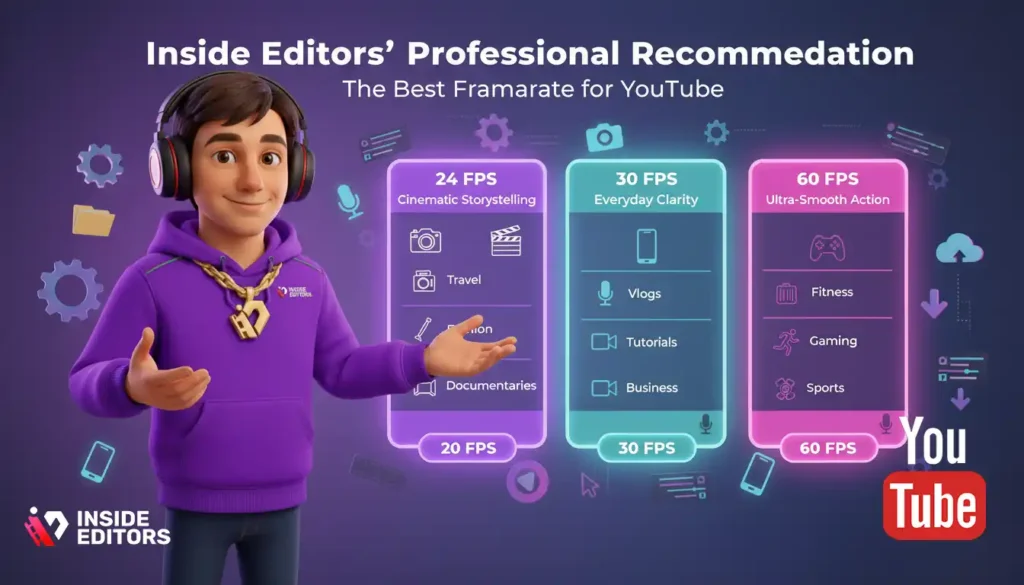
At Inside Editors, we work with creators across every category – travel vloggers, business coaches, gamers, fitness influencers, educators, and more. Each creator has different needs, yet one lesson stays consistent: the best framerate for YouTube video editing depends on what you want viewers to feel.
For storytelling, emotion-heavy content, or anything that feels cinematic, 24fps is usually our top pick. It’s timeless, beautiful, and instantly familiar to audiences who enjoy film-style visuals. This is especially effective for channels focused on travel, weddings, fashion, product stories, and mini-documentaries.
For creators who want a balanced, natural look, 30fps remains the most versatile option. It’s crisp enough for tutorials and vlogs but still grounded enough to feel realistic. Many of our corporate and business clients also use 30fps because it aligns well with professional messaging and looks great in indoor, controlled environments.
For dynamic creators – especially gamers, athletes, performers, reaction channels, and adrenaline-driven vloggers – we often recommend 60fps. The clarity helps retain viewers who appreciate smoothness and movement precision. It also performs extremely well on modern devices where high-refresh-rate screens are common.
What we emphasize most is consistency. Your framerate becomes part of your visual brand. When viewers click your videos, they develop expectations. Meeting those expectations every time leads to better watch time, improved trust, and a more polished identity across your channel.
If you want a personalized recommendation based on your content style, editing workflow, or existing footage, the Inside Editors team is always happy to help – whether you need a single project edited or ongoing monthly support.
Common Mistakes Creators Make When Choosing a Framerate
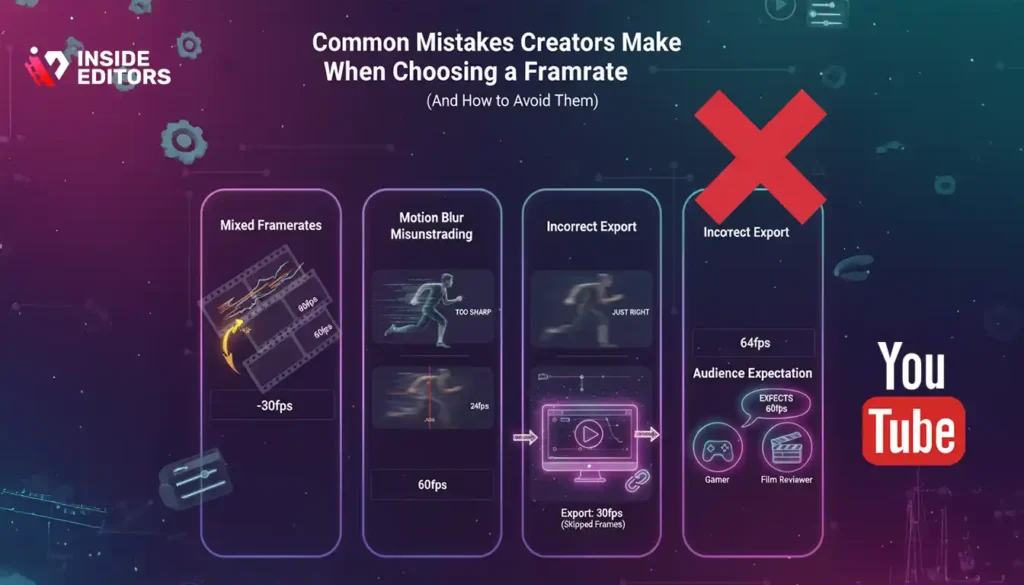
Choosing a framerate isn’t complicated, but small mistakes can cause big problems once your video hits YouTube. One of the most common errors is mixing framerates unintentionally. If your A-roll is shot at 30fps but your B-roll is 60fps, the transition feels jumpy unless you slow the 60fps footage down to match. Similarly, many creators download stock footage in 24fps or 25fps and combine it with content recorded at 30fps, causing mismatched motion.
Another mistake is misunderstanding motion blur. Some creators switch to 60fps thinking it will instantly improve image quality, only to find that their footage looks too sharp, almost artificial. This happens because 60fps reduces natural blur – great for gaming, not great for cinematic scenes. Understanding why a framerate behaves a certain way is essential when crafting a specific visual mood.
Exporting incorrectly is another frequent issue. If your final video exports at a framerate lower than your timeline, YouTube will drop frames, leading to choppy results. Likewise, using bitrates far below recommended levels causes visible compression artifacts, especially in scenes with high detail or rapid motion.
Finally, many creators forget that audience expectation matters. A gaming viewer expects 60fps; a film reviewer expects 24fps. Delivering the wrong feel can impact watch time and viewer engagement. The goal is not just to choose what looks best to you, but what feels right to the people watching your content.
With practice, these mistakes are easy to avoid. Once you understand how framerate ties to your message, style, and storytelling, you’ll feel more confident creating videos that look intentional – rather than accidental.
Your Framerate Is Part of Your Story – Choose It With Intention
By now, you’ve seen that the best framerate for YouTube video editing isn’t a one-size-fits-all answer. It’s a creative choice driven by motion, emotion, clarity, and viewer expectations. Whether you choose the cinematic softness of 24fps, the natural realism of 30fps, or the crisp energy of 60fps, your decision shapes the entire viewing experience.
What matters most is consistency. Your framerate becomes part of your brand – just like your editing style, color grading, and sound design. Choosing it thoughtfully helps your channel feel more polished and professional from the moment viewers hit play.
At Inside Editors, we help creators refine this decision every day. Whether you want cinematic travel stories, smooth gaming edits, polished business videos, or fast-paced fitness content, our professional editors bring clarity, creativity, and precision to every frame.
If you’re ready to take your videos from simple to unforgettable, we’re here to help elevate your story.
Explore Inside Editors’ Video Editing Services
FAQs – Best Framerate for YouTube Video Editing
What is the best framerate for YouTube video editing?
The best framerate for YouTube video editing depends on the style of your content. Most creators use 24fps for cinematic visuals, 30fps for natural talking-head videos, and 60fps for fast-motion scenes. YouTube supports all three, so choose the one that matches your brand style and viewer expectations. Consistency matters more than the number itself.
Is 24fps better than 30fps for YouTube videos?
24fps creates a cinematic look with smoother motion blur, ideal for storytelling or travel content. In comparison, 30fps looks more natural and works better for vlogs, tutorials, and business videos. Neither is objectively better – choose based on whether you want emotion (24fps) or realism (30fps).
When should I use 60fps for YouTube video editing?
Use 60fps when your video contains intense motion, such as gaming, fitness, dance, or sports. The higher framerate keeps movement crisp and reduces motion blur. It also improves viewer experience when they pause or slow down footage. Just remember that 60fps requires higher bitrates and larger file sizes.
Does YouTube prefer 24fps, 30fps, or 60fps?
YouTube does not favor one framerate over another – it processes all supported framerates equally. The best choice depends on how your audience expects your content to look. For example, viewers expect gaming videos at 60fps but films and reviews at 24fps. Matching expectations boosts watch time.
What export settings should I use for the best framerate on YouTube?
Always export in the same framerate as your editing timeline to avoid dropped frames. Use MP4 (H.264 or H.265) with YouTube’s recommended bitrates: around 8–12 Mbps for 1080p and higher for 4K. Keeping bitrate, codec, and framerate aligned ensures cleaner results after YouTube compression.
Can mixing 24fps, 30fps, and 60fps footage cause problems?
Yes – mixing framerates can create stutter or mismatched motion unless handled carefully. You can slow 60fps footage to 24fps or 30fps for smooth slow motion, but converting 24fps clips into 60fps often looks unnatural. For consistent results, match your timeline to the dominant framerate in your project.
Does higher framerate always mean better video quality?
Not necessarily – higher framerate improves clarity in fast motion but can reduce the cinematic feel. For example, 60fps looks hyper-realistic, while 24fps adds emotion and softness. “Better” depends on your storytelling style, audience habits, and editing workflow.
How does framerate affect file size and editing performance?
Higher framerates generate more data, which increases file size and requires more CPU/GPU power. 60fps footage can double your storage and render time compared to 30fps. If you edit on a slower computer, 24fps or 30fps often provides a smoother workflow.
What do professional editors recommend for most YouTube creators?
Most professionals choose 24fps for cinematic content, 30fps for talking-head videos, and 60fps for dynamic or high-motion channels. The key is choosing one framerate for your overall brand and using it consistently. This helps establish a recognizable visual identity across all your uploads.
Do I need a specific camera to record in 60fps?
Most modern cameras and smartphones support 60fps at 1080p or higher. However, older devices may restrict 60fps in low light or at higher resolutions. If your device struggles with noise or exposure at 60fps, 30fps may deliver cleaner results.


