

When it comes to video editing, choosing the right machine can make or break your workflow. Whether you’re producing YouTube content, crafting cinematic sequences, or managing large-scale projects, performance, reliability, and screen quality all matter. That’s where iMacs shine. Apple’s all-in-one desktops combine sleek design with robust hardware, offering smooth performance for creative professionals. But with multiple models and configurations available, it can be daunting to pick the one that fits your needs.
In this guide, we’ll explore the best iMacs for video editing, breaking down their performance, displays, storage options, and real-world usability. By the end, you’ll have a clear understanding of which iMac aligns with your editing style and workflow. Plus, we’ll share tips for optimizing your setup and why professional services, like those from Inside Editors, can elevate your results even further.
Why Choosing the Right iMac Matters for Video Editing
Video editing isn’t just about raw horsepower-it’s about seamless integration between hardware and software. A machine that stutters during playback or struggles with rendering can slow your workflow and hinder creativity. Here’s why selecting the right iMac matters:
Superior Display Quality for Precision Editing
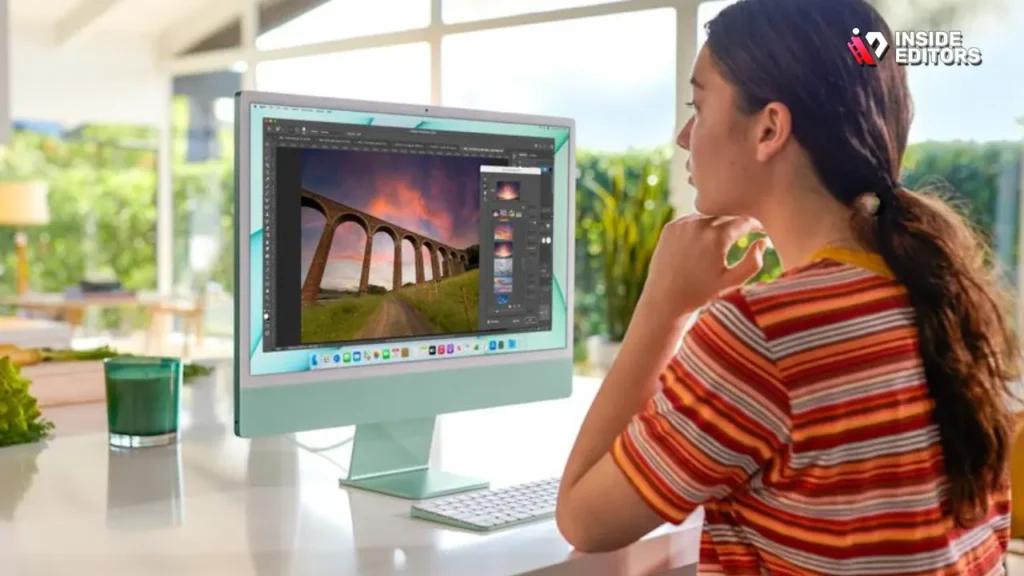
iMacs are renowned for their Retina displays, offering millions of pixels and wide color gamut coverage. Accurate color representation is crucial for color grading and finalizing your projects. For instance, the 24-inch iMac provides 4.5K Retina resolution with True Tone technology, ensuring that the colors you see while editing are true to life. This precision prevents surprises when your videos are published or broadcasted on other devices.
Optimized Hardware for Smooth Workflow
Beyond display, the processor and GPU significantly affect editing performance. Apple’s M-series chips, such as the M4, offer integrated CPU and GPU power that balances efficiency with speed. Editors can scrub through 4K footage, render effects, and apply transitions without lag. Unified memory architecture further ensures that large video files don’t bog down your system, enabling multitasking across software like Final Cut Pro, Adobe Premiere Pro, and DaVinci Resolve.
1. iMac 24-inch M4: The Ideal Starter Pro Setup
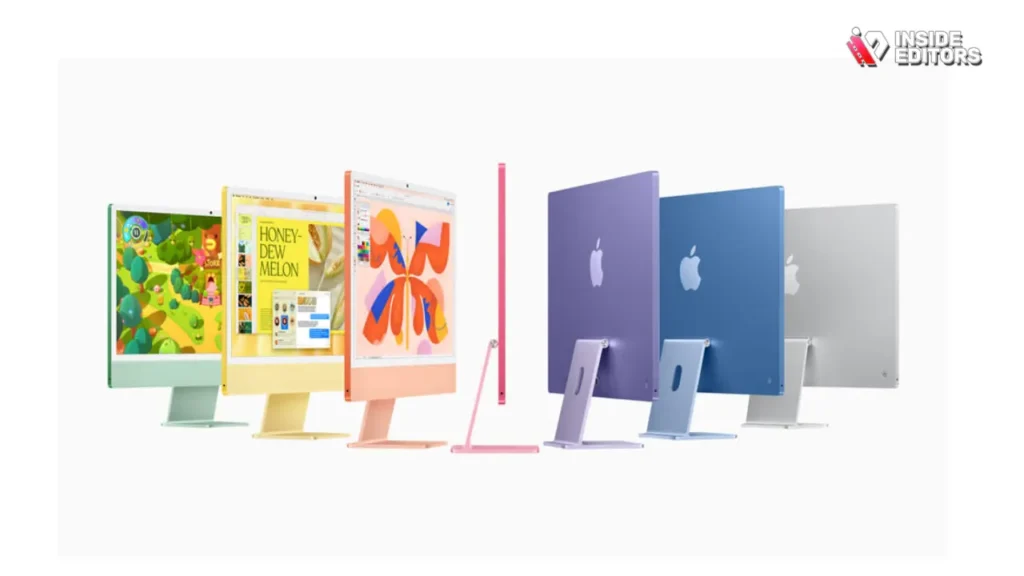
The 24-inch iMac with the M4 chip is a standout for content creators seeking balance between performance, affordability, and portability. Its combination of power and simplicity makes it an ideal choice for small studios or solo editors.
Performance That Handles Everyday Editing
With a 10-core CPU and up to 10-core GPU, this model effortlessly handles 4K footage, multiple layers, and color grading tasks. While it may not match Mac Studio-level performance for extreme rendering, it excels in most professional scenarios, delivering smooth previews and fast exports. For freelance editors or YouTubers, it’s a reliable workhorse that doesn’t overwhelm your desk or budget.
Storage and Memory Options
This iMac supports up to 32GB of unified memory and 2TB of SSD storage. While 8–16GB is sufficient for casual 1080p editing, heavier projects benefit from maximum memory. The SSD ensures lightning-fast file access, reducing lag when moving large clips between applications.
Display and Visual Experience
Its 4.5K Retina display provides vibrant, accurate colors, making it easier to judge skin tones, shadows, and highlights. Coupled with True Tone and wide color support, editors can confidently finalize color grading without second-guessing. For creators who want quality visuals without investing in additional monitors, this all-in-one design is a strong selling point.
Pros:
- Sleek all-in-one design
- Excellent display for color accuracy
- Efficient M4 chip handles 4K editing
Cons:
- Limited upgrade paths beyond RAM and SSD
- Not ideal for heavy 8K workflows
2. iMac 27-inch Intel i9 : Power for Heavy Projects
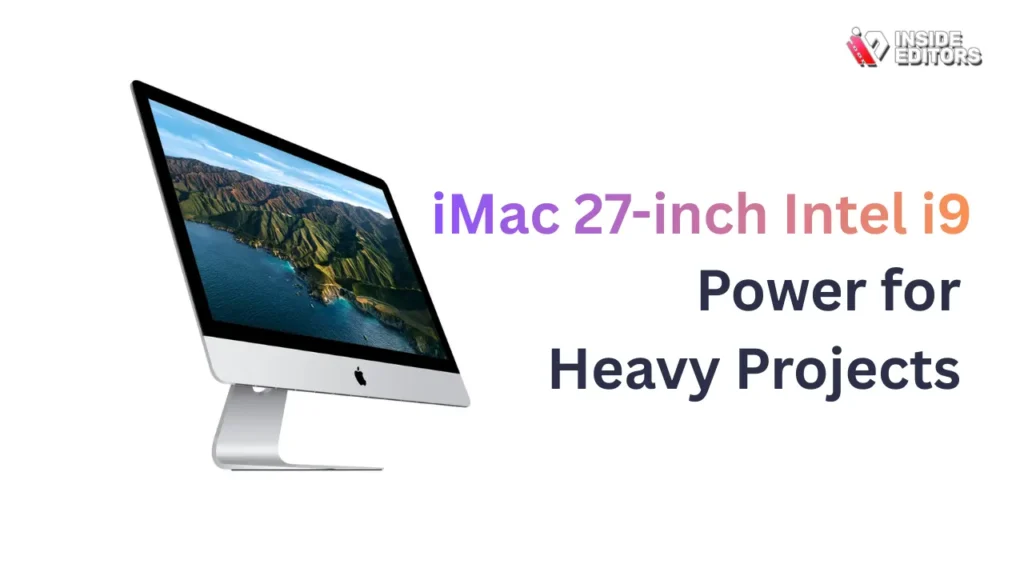
Although Apple has shifted to M-series chips, the 27-inch Intel i9 iMac remains a solid option for editors who need raw CPU and GPU power, especially when handling complex timelines or multi-camera projects.
Raw Computing Muscle
This model features up to a 10-core Intel i9 processor paired with discrete AMD Radeon Pro GPUs. It excels at high-resolution 4K and even 6K footage, offering faster render times and smoother effects previews compared to entry-level M-series iMacs. If you work with heavy color correction, motion graphics, or multi-layered sequences, the Intel i9 iMac delivers the necessary horsepower.
Expandable Storage and Memory
Unlike newer M-series iMacs, this legacy model allows for slightly more flexibility in memory upgrades. Editors can install up to 128GB RAM and multiple internal storage drives. This makes it suitable for studio environments where large media libraries and long-form content are standard.
Large Screen Advantage
The 27-inch 5K Retina display provides an expansive workspace. Larger timelines, sidebars, and multiple windows fit comfortably, enhancing productivity. Color accuracy remains excellent, supporting professional-grade editing and precise grading.
Pros:
- Powerful CPU/GPU combo for complex projects
- Large 5K Retina display enhances productivity
- More upgrade flexibility than newer all-in-one models
Cons:
- Bulkier footprint
- Less energy-efficient than M-series iMacs
3. iMac 24-inch M4 Ultra: Powerhouse for Mobile
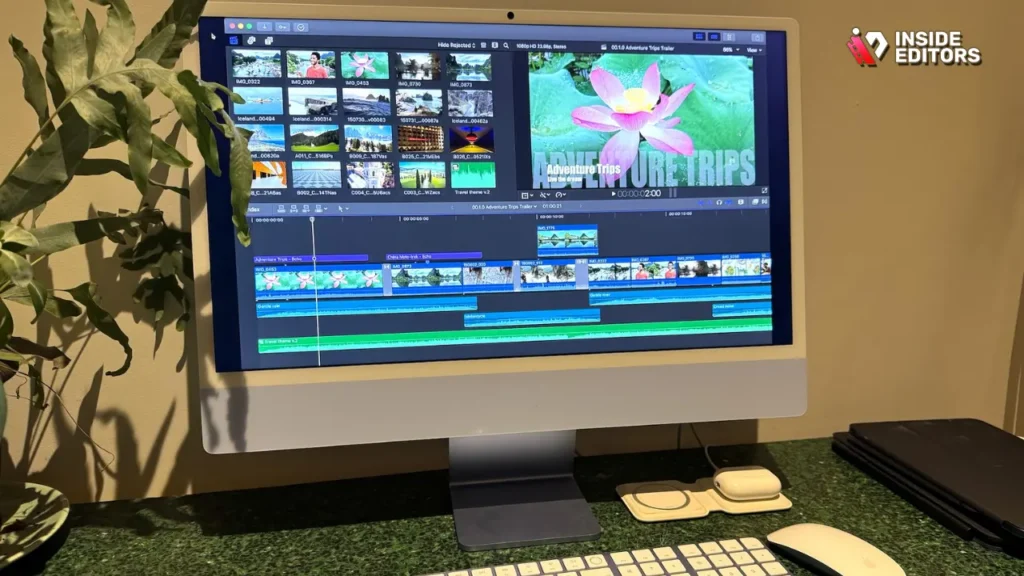
For editors who prioritize portability and energy efficiency without sacrificing speed, the 24-inch iMac M4 Ultra is a compelling option. It may share the same screen size as the standard M4, but its enhanced GPU and memory options make it capable of tackling heavier projects on a more flexible schedule.
Why It Excels for Freelance and Remote Editing
The M4 Ultra’s improved GPU cores handle high-resolution footage and complex effects smoothly, making it ideal for freelancers who move between studios or work from home. Its low power consumption and minimal heat output allow prolonged editing sessions without throttling performance. Imagine finalizing a client’s 4K video from a coffee shop or small home office with consistent speed – this model makes that scenario realistic.
Storage and Memory Considerations
Up to 64GB of unified memory and 4TB SSD storage allow heavy projects to run efficiently. While most hobbyist creators will not need these maxed configurations, professional editors can take advantage of these upgrades for long-form content, 4K/6K footage, and multi-app workflows. Combined with Thunderbolt connectivity, expanding storage via external SSDs remains seamless.
Display and Color Accuracy
The Retina 4.5K display delivers sharp, vibrant visuals that help editors spot minute color differences and subtle lighting issues. Paired with wide color (P3) and True Tone support, it ensures that the final output looks consistent across devices and platforms.
Pros:
- Excellent GPU performance for effects-heavy editing
- Lightweight and energy-efficient design
- High-end memory and storage options
Cons:
- Smaller screen may feel cramped for complex timelines
- Premium configurations can be costly
4. iMac 27-inch M4 Max: Pro-Level Studio Performance
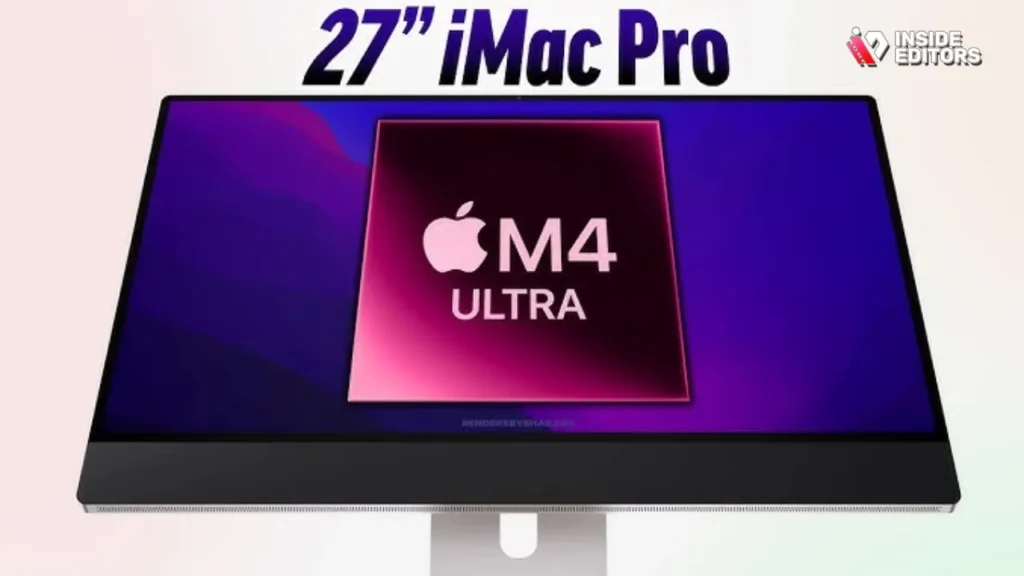
If your work involves 6K footage, advanced motion graphics, or real-time rendering, the iMac 27-inch M4 Max is a dream setup. This iMac targets professionals who demand peak performance, combining Apple’s latest processing power with an expansive display for precise editing.
Maximum Speed and Efficiency
With up to a 12-core CPU and a 16-core GPU, this model handles multi-layer timelines, real-time effects, and high-resolution color grading without breaking a sweat. Rendering times drop dramatically, meaning you spend more time creating and less time waiting. For professionals producing commercials, film projects, or large-scale YouTube content, this speed can save hours per project.
Expansive Storage and Memory Options
The iMac 27-inch M4 Max supports up to 128GB of unified memory and 8TB of SSD storage. This enables editors to store large raw footage libraries, render complex projects, and multitask across several applications without performance issues. Paired with Thunderbolt 4 ports, external expansion and high-speed data transfer are effortless.
Immersive Visual Workspace
A 5K Retina display with accurate color reproduction gives editors a large canvas to arrange timelines, effect panels, and color grading tools simultaneously. This minimizes the need for secondary monitors and allows a focused, immersive editing environment.
Pros:
- Studio-grade performance for high-resolution projects
- Massive memory and storage support
- Large, color-accurate 5K display
Cons:
- High cost, suitable only for professional studios
- Not as compact as smaller iMacs
5. iMac 24-inch M4 Pro: Balanced Setup for Creators
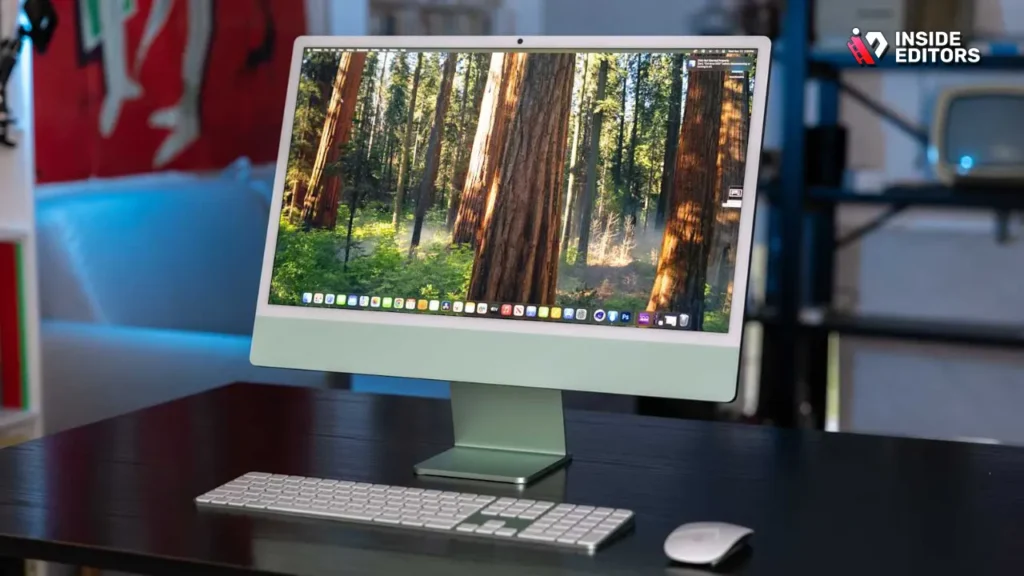
For creators seeking a balance between cost and performance, the 24-inch iMac M4 Pro provides a sweet spot. It’s more powerful than the standard M4 but doesn’t reach the premium price of the M4 Ultra or 27-inch Max.
Reliable Performance for Mid-Level Projects
With 10-core CPU and 12-core GPU options, this iMac handles 4K editing, color grading, and multiple effects layers efficiently. For hobbyists or intermediate creators producing YouTube videos, social media content, or corporate projects, it delivers professional results without overkill.
Memory and Storage Flexibility
The M4 Pro supports up to 64GB unified memory and 4TB SSD storage. Editors working with layered footage, proxies, or collaborative projects will notice smoother performance compared to standard M4 configurations. External SSDs or NAS setups can expand capacity if needed.
Display and Editing Experience
The 4.5K Retina display ensures vibrant and accurate colors, giving confidence during grading and visual checks. The design is compact and efficient, ideal for smaller desks or home offices, while retaining the speed and fluidity required for professional editing.
Pros:
- Balanced price-to-performance ratio
- Reliable for multi-layered 4K projects
- Accurate Retina display
Cons:
- Smaller screen may feel limiting for advanced multitasking
- Upgrade options limited compared to larger iMacs
Optimize Your iMac Workflow for Video Editing
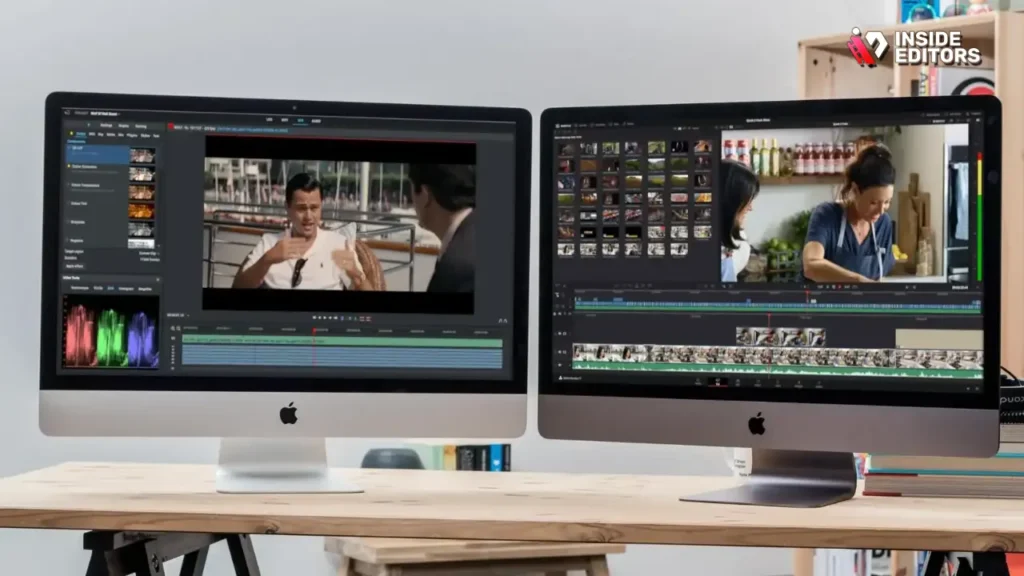
Selecting the right iMac is just the first step. Even the most powerful machine can slow down without an optimized workflow. Here’s how to get the most out of your iMac:
Use External Storage Strategically
While internal SSDs are fast, large video libraries can fill up quickly. Pair your iMac with Thunderbolt 4 or USB-C SSDs to store raw footage and backups. This reduces internal load and improves timeline responsiveness.
Leverage Proxy Files
For 4K and higher resolutions, consider using proxy files during editing. Proxy workflows reduce strain on the CPU/GPU, allowing smooth playback while you cut, arrange, and apply effects. Once your edits are finalized, the software automatically applies the changes to the original high-resolution footage.
Optimize Software Settings
Applications like Final Cut Pro, Adobe Premiere Pro, and DaVinci Resolve have built-in GPU acceleration. Ensure hardware acceleration is enabled, adjust playback resolution, and manage cache settings to maximize speed and minimize rendering delays.
Amplify Your iMac’s Potential with Experts
Even with the best iMac, editing remains time-intensive. Professional services, like Inside Editors, can transform raw clips into polished videos efficiently. By outsourcing complex edits or repetitive tasks, you save hours, maintain quality, and focus on creativity rather than troubleshooting software.
Imagine finishing a shoot with hours of raw footage. A skilled editor can manage color grading, transitions, audio syncing, and effects, delivering a final product that reflects your vision perfectly. For creators who want professional-grade results without investing excessive time in post-production, services like Inside Editors become invaluable.
Explore Inside Editors’ Video Editing Services From travel vlogs to corporate presentations, the team ensures consistent, high-quality results tailored to your goals. Your iMac becomes a tool for creative freedom rather than a bottleneck.
iMac Buying Guide: Final Thoughts
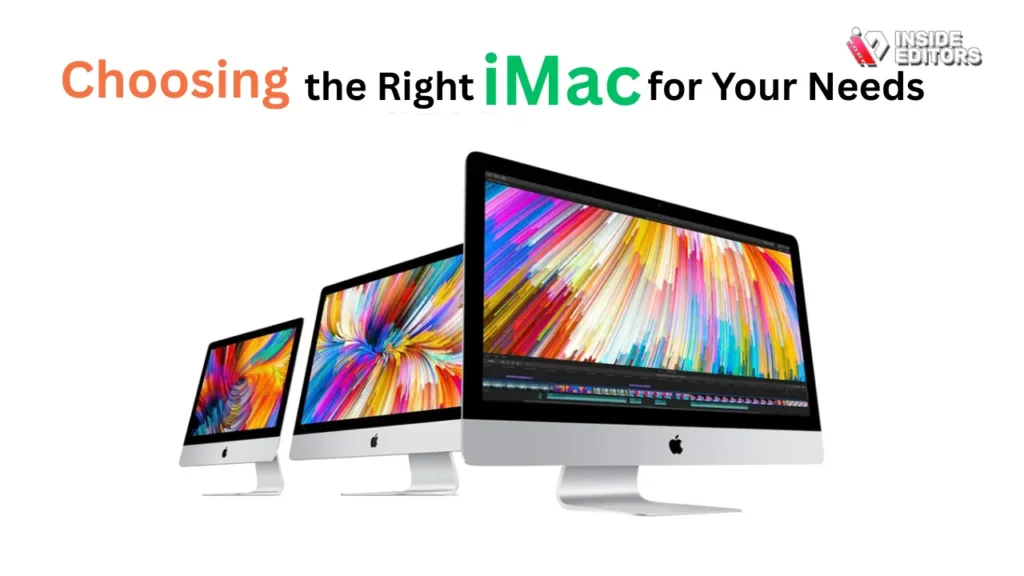
Every editor has unique priorities. If you need an entry-level professional setup, the 24-inch M4 or M4 Pro is sufficient for 4K projects and efficient workflows. Freelancers and mobile creators may prefer the M4 Ultra for its enhanced GPU and energy efficiency. Studio professionals working with large files or advanced graphics will benefit from the 27-inch M4 Max or legacy Intel i9 iMac for maximum power and expandability.
The best iMacs for video editing combine display quality, processing power, and memory/storage options to fit your workflow. Once you understand your project requirements and editing style, selecting the right iMac becomes straightforward. Pair your iMac with optimized workflows, external storage, and professional editing support from Inside Editors, and you’ll elevate every project from raw footage to stunning finished video.
By making an informed choice, you’re investing in tools and strategies that save time, reduce frustration, and ensure your creative vision comes to life. With the right combination of hardware, workflow, and professional guidance, you can focus on storytelling while technology supports your craft seamlessly.
FAQs – Best iMacs for Video Editing
1. How do I know if an iMac is right for my video editing needs?
Choosing the right iMac depends on your footage resolution, effects, and workflow. For 1080p or light 4K projects, a 24-inch M4 iMac is sufficient. Larger 27-inch or M4 Max models are better for 4K/6K projects, motion graphics, or multi-layer editing. Consider RAM, GPU, and storage alongside display quality to ensure smooth playback and rendering.
2. Can I edit professional videos on a standard iMac?
Yes, many iMacs support professional video editing software like Final Cut Pro and Adobe Premiere Pro. Standard models handle 4K editing well, but complex projects with multiple effects may benefit from higher-tier iMacs with more memory and GPU cores. Keep in mind that using proxy files can improve performance on lower-spec machines.
3. What is the typical cost range for a video editing iMac?
iMac prices vary based on screen size, processor, memory, and storage. Entry-level 24-inch M4 models start around $1,300–$1,500, while higher-end 27-inch M4 Max configurations can reach $4,000+. Costs typically include the machine and basic software; additional storage or specialized peripherals are extra.
4. How long does it take to set up an iMac for editing?
Initial setup usually takes 30–60 minutes, including installing editing software and transferring footage. Optimizing settings like GPU acceleration, cache locations, and proxy workflows may add another hour. Once configured, daily editing workflows can run smoothly, and using external SSDs can further speed access to large projects.
5. Should I hire a professional editor or do it myself?
DIY editing gives full creative control but can be time-consuming, especially for multi-hour footage. Professional editors, such as Inside Editors, handle color grading, effects, transitions, and syncing efficiently, saving hours while ensuring consistent quality. A hybrid approach-editing basic cuts yourself and outsourcing advanced touches-is often cost-effective.
6. Who owns the final video files when using a professional service?
With reputable editing services, you retain full ownership of your content. Editors work as contractors, not copyright holders, and deliver final files to you. Always confirm terms of service, but standard practice ensures you control distribution, editing rights, and backups.


