

Choosing the best laptop for photo and video editing is one of the most important decisions you can make as a creator. Whether you’re a photographer refining RAW images, a YouTuber building cinematic sequences, or a freelancer juggling multiple clients, the right machine can cut your workflow time in half – while the wrong one can turn every project into a slow, frustrating chore. In this guide, we’ll walk through what truly matters, how to compare today’s top models, and how you can build a setup that stays future-proof for years. Think of this as the friendly, expert conversation you’d have with a knowledgeable editor who’s already tested dozens of laptops in real-world creative work.
Comparing Today’s Best Laptops for Photo and Video Editing
Now that you understand how each component affects performance, let’s look at the laptops that consistently deliver the best real-world results for creators. The goal here isn’t just to list specs – it’s to understand how each machine feels during actual editing workflows. Whether it’s Lightroom batch edits, 4K timelines, or multi-layer compositions in After Effects, these laptops have proven reliable under demanding conditions.
Apple MacBook Pro (M3/M3 Pro/M3 Max): The Creative Industry Standard
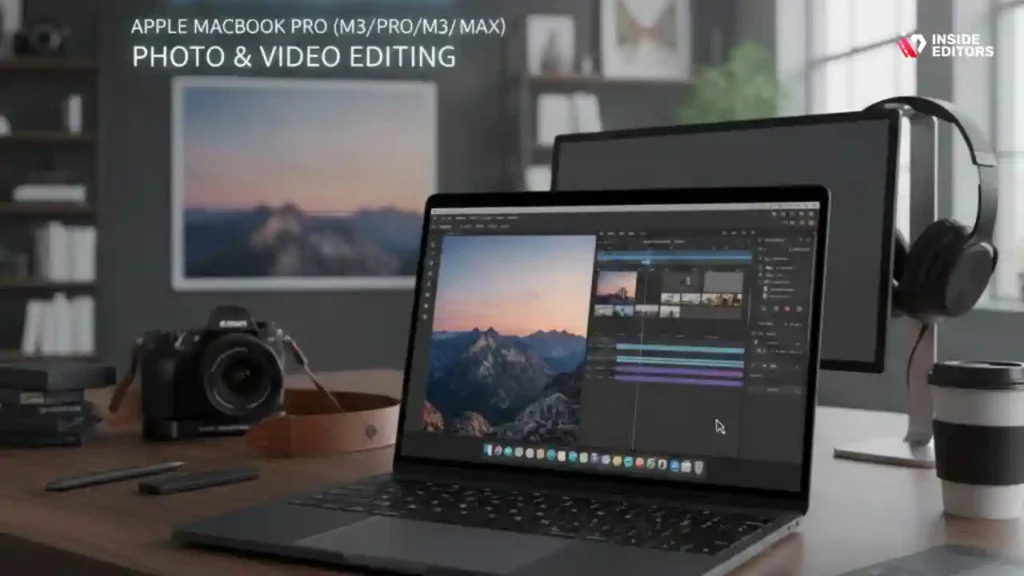
If you’ve spent any time around professional editors or photographers, you’ve probably heard someone say, “Just get a MacBook Pro.” There’s a reason for that. The M-series chips are incredibly efficient, and the integrated GPU cores handle complex timelines with surprising ease. The M3 Pro and M3 Max models, in particular, shine in color grading and RAW-heavy workflows. Final Cut Pro runs flawlessly, Lightroom feels snappy even with massive catalogs, and the mini-LED display offers near-reference-grade color accuracy.
Creators who switch to the M3 lineup usually notice reduced export times and far smoother scrubbing performance. The biggest benefit? Stability. MacBooks rarely crash under pressure, and their thermal design prevents the overheating issues that plague many Windows models. If you rely on consistent, predictable performance – especially in professional settings – the MacBook Pro remains a top pick.
Dell XPS 15 & 17: A Windows Powerhouse for Mixed Creative Workflows
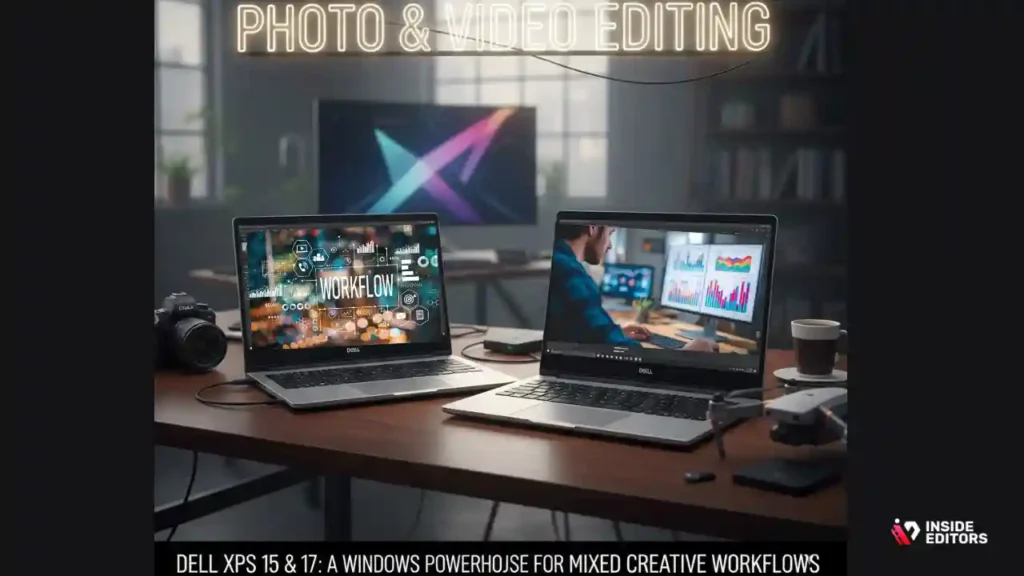
The Dell XPS series has earned a reputation for balancing portability with serious power. Equipped with Intel Core Ultra processors and NVIDIA RTX GPUs, it’s a fantastic option for editors who use DaVinci Resolve or Adobe Premiere Pro, as both programs leverage NVIDIA’s CUDA acceleration for faster rendering and smoother playback. The XPS display options are also excellent, offering high brightness and full DCI-P3 coverage.
One advantage Windows creators love is customization. You can configure your XPS with up to 64GB of RAM and multiple storage options. This makes it ideal if your projects involve heavy After Effects compositions or large 4K multicam edits. The only downside is battery life – under heavy loads, the XPS drains faster than Apple machines. But plugged in, it’s a editing monster.
ASUS Zenbook Pro 16X & ProArt Studiobook: Built Specifically for Creators
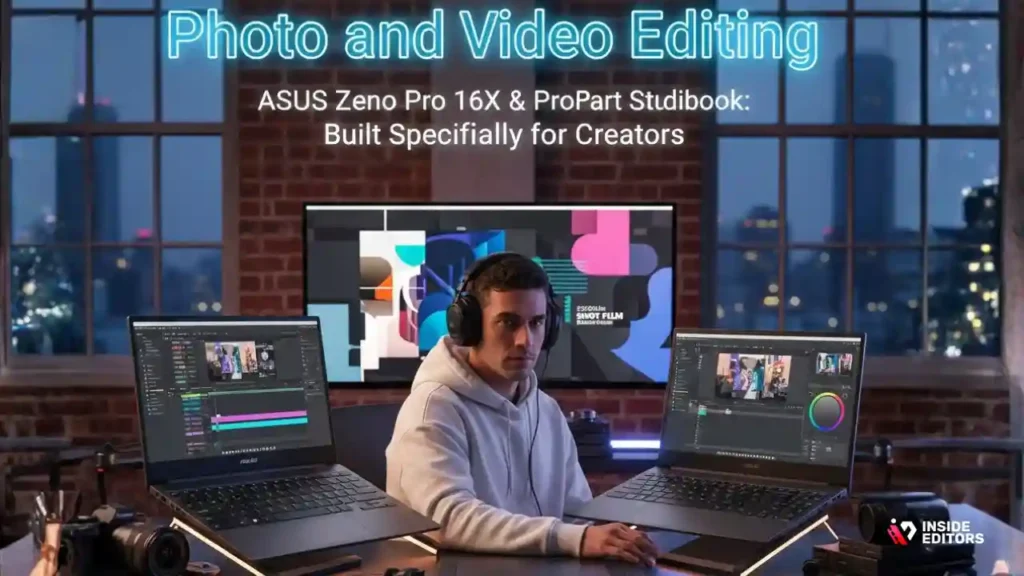
If you’re the type of creator who wants advanced features designed specifically for content production, ASUS offers some of the most innovative laptops available. The ProArt Studiobook includes color-calibrated displays, advanced cooling systems, and even secondary screens for timeline tools or adjustment sliders. Many editors say the second screen alone speeds up their workflow more than any other feature.
The RTX GPUs inside these laptops deliver phenomenal Resolve performance, especially when working with Blackmagic RAW or heavy color correction. ASUS also includes SD card readers and ports you won’t find on thinner laptops – small things that make a big difference on real shoots. These machines are powerful, but also targeted toward working professionals who need reliability and precision.
Why Creatives Need the Right Laptop Today
Before comparing models, it helps to understand why choosing the right laptop is so crucial in 2025 and beyond. Creative software has evolved rapidly in the last two years – Adobe’s AI-powered tools now handle everything from denoising to masking, DaVinci Resolve relies heavily on GPU acceleration, and even Lightroom uses machine learning to speed up global adjustments. All of this demands power. A laptop that seemed adequate in 2022 may struggle significantly today, especially if you work with 4K or 8K video, HDR timelines, or oversized RAW files.
How Today’s Creative Workloads Push Your Hardware
If you’ve ever waited for a 4K export to finish while your laptop fans scream like jet engines, you know exactly what this means. Modern editing programs don’t just use your CPU – they rely on your GPU, fast storage, and high-bandwidth RAM to keep everything smooth. A timeline with color grading, motion graphics, and several correction layers can easily bottleneck weak hardware. This is why creators who upgrade to the right machine often say it feels like they’ve doubled their productivity overnight.
The Hidden Cost of Using the Wrong Laptop
A slow export isn’t just about time lost. It affects creativity. When your machine lags, you experiment less. You hesitate to try new looks, new styles, or advanced visual effects because each adjustment takes too long to preview. Many editors describe feeling “stuck” simply because their laptop can’t keep up. This guide helps make sure that doesn’t happen to you – by choosing a system that encourages creativity instead of limiting it.
Why This Article Goes Deeper Than the Typical Buying Guide
Most comparison guides simply list laptops with short summaries. But photo and video editing is complex – and the needs of a wedding filmmaker, a digital artist, and a YouTuber are all different. That’s why this article breaks down real-world scenarios, performance expectations, and long-term considerations. Your goal isn’t to buy the most expensive laptop. Your goal is to buy the right laptop.
And to understand which one is right, we need to talk about the components that matter most.
Real-World Editing: How These Laptops Stack Up
It’s easy to look at specs and assume one laptop is automatically better. But real-world creative performance feels different depending on the type of work you do. Here’s how the top options above perform in everyday editing tasks – from lightweight sessions to heavy production projects.
Lightroom and Photo Retouching
Photo editing is surprisingly demanding when dealing with 40-megapixel RAW files or batch processing. MacBook Pros tend to feel smoother because Adobe’s optimization for Apple Silicon is excellent. Sliders respond instantly, masks apply faster, and noise reduction previews load more quickly. Windows machines with strong GPUs perform well too, but thermal throttling can sometimes slow things down during long sessions.
4K and 6K Video Editing
Video editing is where the differences become clearer. NVIDIA GPUs – especially in ASUS and Dell laptops – dominate in DaVinci Resolve. Playback is noticeably smoother, and effects previews render several times faster than on most integrated GPUs. Apple’s M-series shines in Final Cut Pro, offering optimized performance and incredible stability. Editors who work in Premiere Pro will find both platforms strong, but GPU-heavy projects favor Windows machines with RTX cards.
Heavy Multitasking Across Creative Apps
If your workflow involves bouncing between Photoshop, Lightroom, Premiere, After Effects, and endless Chrome tabs, RAM becomes the biggest factor. Any laptop with 32GB RAM handles this smoothly. MacBooks tend to manage memory more efficiently, while Windows machines gain raw performance advantages with higher-core GPUs. For complex project juggling, both ecosystems perform well – but plan your RAM carefully if you multitask heavily.
Laptop Buying Mistakes Creators Often Make

Even experienced editors sometimes make buying decisions they regret. It’s not because the laptop is bad – it’s because their workflow wasn’t matched with the right hardware. Avoiding these mistakes can save you money and prevent years of frustration.
Mistake 1: Choosing a Laptop Based on Brand Hype
Instead of Workflow Needs**
Many creators buy MacBooks because everyone else uses them, or they buy an RTX laptop because of YouTuber recommendations. But the smarter approach is to match your laptop to your software. If you’re using Final Cut Pro, Apple is the obvious choice. If you spend most of your time in DaVinci Resolve, an RTX GPU will outperform Apple Silicon on many effects. Understanding your own workflow is always more important than following trends.
Mistake 2: Prioritizing CPU Over GPU
The era of CPU-heavy editing is fading. Adobe, Blackmagic, Apple, and others have shifted to GPU-accelerated pipelines. Choosing a weak GPU to save money is one of the most common mistakes beginners make – and it always catches up with them when timelines start lagging and exports slow to a crawl.
Mistake 3: Ignoring the Display Because “I’ll Use an External Monitor”
Even if you plan to use an external monitor, your laptop display still matters. You’ll do quick edits on the go. You’ll check color balance while traveling. You’ll preview shots on set. Having a color-accurate display ensures your edits look good no matter where you are – something creators only realize after buying a laptop that doesn’t meet their needs.
Mistake 4: Choosing Too Little Storage
Video projects grow fast. Add proxies, renders, download caches, graphics, and audio files – and suddenly 512GB feels tiny. Buying a laptop with at least 1TB SSD prevents constant shuffling of files between drives. And because SSDs affect performance, this decision impacts speed as well as convenience.
Which Laptop Is Truly the Best for You?
There’s no single “best” laptop – only the best one for your workflow. If you want the most stable all-around machine with an excellent display, the MacBook Pro is an incredible investment. If you work heavily in DaVinci Resolve or need GPU power for effects-heavy work, an RTX-equipped Windows machine is often the better choice. And if you want dedicated creative tools built into your machine, ASUS’s ProArt lineup can transform your workflow in ways traditional laptops cannot.
Choosing the Right Laptop for Your Budget and Skill
By now, you’ve seen how different components and systems change your editing experience. But if you’re still wondering, “Okay… which one should I get?” – this section simplifies everything. Instead of drowning in specs, think in terms of your creative identity. Are you a beginner? A growing YouTuber? A full-time professional? Each of these paths requires a slightly different machine. Matching your laptop to your real workflow is the easiest way to avoid overspending – or worse, underspending and slowing yourself down.
For Beginners and Casual Creators
If you’re just starting your editing journey, you don’t need a monster machine. What you need is smoothness. Beginners often stop experimenting because their laptop lags every time they try a new effect or adjustment. Something like the M3 MacBook Air or a mid-range ASUS Zenbook gives you enough performance to explore Lightroom, Photoshop, and Premiere without frustration. These laptops handle 1080p and light 4K footage comfortably, and their color-accurate screens help build good editing habits early. A machine at this level lets you learn, try, fail, and play – without feeling limited.
For YouTubers, Freelancers, and Content Creators
Once you start working with clients, sponsorships, or consistent uploads, your workflow becomes more demanding. You’ll need faster playback, better multitasking, and smoother exports. This is where laptops like the MacBook Pro M3 Pro, Dell XPS 15 (with RTX GPU), or the ASUS ProArt Studiobook shine. They offer the perfect balance between portability and power. Multicams, LUT-driven color grades, speed ramps, and motion graphics all run significantly smoother. And because these machines hold up better under pressure, you’ll spend more time creating and less time troubleshooting.
For Full-Time Video Editors and Colorists
If editing is your profession – or if your projects include long-form timelines, 6K+ RAW footage, or effects-heavy compositions – choose a performance machine. The MacBook Pro M3 Max, ASUS ProArt Studiobook RTX 4070/4080, or XPS 17 are built for this. They minimize interruptions and make your timeline feel fluid even during the toughest sessions. You’ll scrub through heavy sequences effortlessly, export times will drop dramatically, and you’ll be able to work confidently in client-call situations where delays are not an option. Think of this level as an investment: the hours you save each week easily justify the cost.
How Inside Editors Pro Editing Elevates Your Workflow
Even with the best laptop for photo and video editing, there are moments when handing work to a professional editor makes everything easier. This isn’t about outsourcing everything – it’s about knowing when expert help saves you time, enhances your results, or lets you focus on things only you can do.
Imagine you’ve filmed a travel vlog, event, or client shoot. The footage is great, but the story feels loose. You’re tired. The deadline is close. A professional editor can take your raw clips and turn them into something polished: clean transitions, balanced colors, smooth pacing, and a story that actually connects. That’s exactly what we do at Inside Editors.
Instead of spending late nights trimming clips or fixing color inconsistencies, you can rely on an experienced creative who handles it with precision. Whether you’re editing home videos, TikToks, social media content, online courses, lifestyle footage, or GoPro adventures, skilled editors can elevate your material dramatically. You keep the creative control – we bring the polish.
If you ever feel overwhelmed by editing, or if you want your content to look truly professional without upgrading your entire workflow, Inside Editors is here to help you tell stories that stick.
Explore Inside Editors’ Video Editing Services.
Final Recommendations: The Best Laptops for Different Types of Creators
Below is a simple, balanced recommendation table to help you finalize your choice:
| User Type | Best Overall Choice | Alternative (Windows) | Why This Fits |
| Beginner Creator | MacBook Air M3 | ASUS Zenbook 14 | Smooth basic editing, great display, future-ready |
| YouTuber / Freelancer | MacBook Pro M3 Pro | Dell XPS 15 (RTX) | Fast playback, strong multitasking, excellent color |
| Professional Editor | MacBook Pro M3 Max | ASUS ProArt Studiobook (RTX 4070/4080) | Handles heavy timelines, fastest exports, pro-grade displays |
| Photographer | MacBook Pro M3 | Dell XPS 17 | Superb color accuracy and RAW performance |
| DaVinci Resolve User | ASUS Studiobook (RTX) | Dell XPS RTX | Best GPU-driven performance |
This table isn’t about forcing you into a category – it’s about clarifying which machine aligns with the future you want as a creator. When your laptop matches your workflow, everything becomes smoother: your creative flow, your energy levels, and even your joy in editing.
Conclusion: A Laptop That Lets You Create with Ease
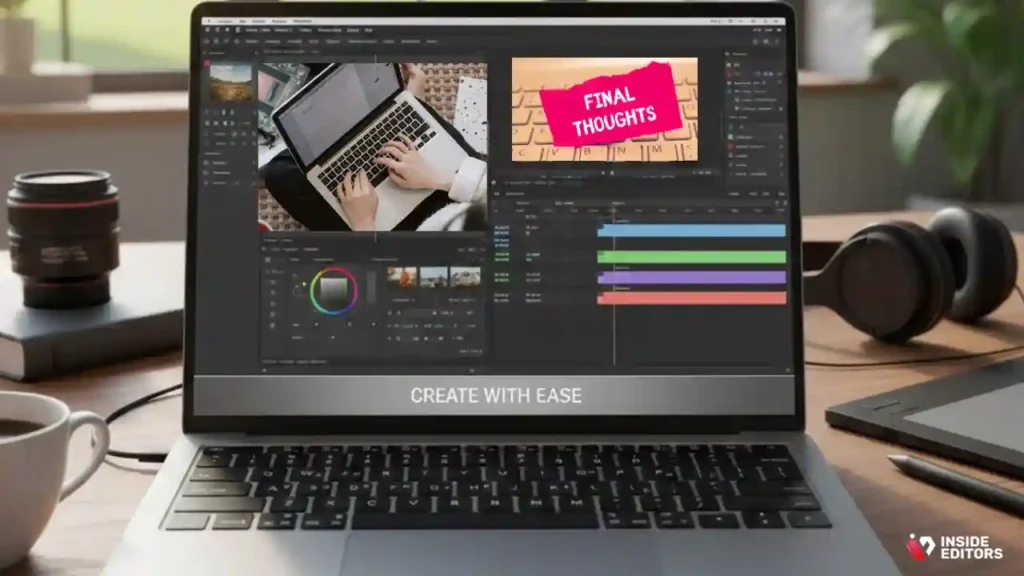
If you take only one thing from this guide, let it be this: the best laptop for photo and video editing isn’t the most expensive one – it’s the one that helps you create without friction. A laptop that keeps up with your ideas. A machine that gives you confidence instead of frustration. A tool that unlocks your potential instead of slowing you down.
You now understand the components that matter, the real differences between top models, and the mistakes to avoid. You’ve seen how each system performs in real workflows and how to choose a machine based on your future, not just your present. Whether you’re editing your first video or finishing your fiftieth client project, the right laptop makes your creative life easier, faster, and more enjoyable.
And when you want help refining your videos, shaping your story, or elevating your content to a professional level – Inside Editors is here to collaborate with you. Your ideas deserve the best tools and the best editing support. With the right laptop and the right creative partner, there’s no limit to what you can create next.
FAQs : Best Laptop For Photo And Video Editing
1. How can I trust Inside Editors to deliver high-quality edits?
Inside Editors uses experienced editors, versioned workflows, and sample reviews so you can confirm quality before final delivery. We provide clear examples and a revision allowance to ensure the final video or photo matches your brief. If you’re also choosing the best laptop for photo and video editing, we can advise on settings and export presets to preserve quality across devices.
2. What is your policy on revisions and final ownership?
Most packages include a set number of revisions (usually 1–3 rounds) to refine edits until you’re satisfied; extra rounds are available for an added fee. Once final payment is complete, you retain full ownership of the delivered files – Inside Editors transfers master files and source exports per the contract. We always recommend clarifying revision scope before work begins to avoid unexpected costs.
3. How does Inside Editors protect my privacy and source files?
We use secure file-transfer methods (SFTP/privately shared cloud folders) and limit access to the editors assigned to your project. Files are stored only as long as necessary for delivery and backups, and sensitive projects can be handled under an NDA. If your material is confidential or contains unreleased assets, specify this at project start so we can apply extra safeguards.
4. Should I edit myself or hire a pro – and when is the best time to consult?
If you’re learning, start with DIY to master basics; but for client work, campaigns, or time-sensitive releases, hiring a pro saves hours and improves polish. For creators unsure which laptop suits them, consulting an editor helps match the best laptop for photo and video editing to real workflow needs – ensuring your rig won’t bottleneck postproduction. A short consultation often prevents costly mistakes later.
5. What package tiers do you offer for different project sizes?
Packages usually range from light edits (trim + basic color + captions) to full-service (multicam editing, color grade, motion graphics, and sound design). Pricing tiers give clarity on deliverables, typical revision rounds, and file formats included; you can upgrade or add à la carte services like voiceover, subtitles, or extra revisions. We recommend selecting a tier that matches the complexity of your brief, not just project length.
6. How much does hiring a professional editor typically cost?
Expect light social edits to start around $50–$200 per video, mid-level freelance edits $200–$800, and full-service or agency-level projects $800+. Price varies by turnaround, complexity (color grading, motion graphics), and rights (commercial license vs. personal use). If you’re budgeting for gear as well, note that the best laptop for photo and video editing often costs more upfront but reduces long-term time and editing fees.
7. What are typical turnaround times, and do you offer rush options?
Standard turnaround is commonly 3–10 business days depending on scope; simple social clips can return in 24–48 hours. Rush delivery is available for an additional fee and depends on editor availability and project complexity; rushes may limit revision rounds. Provide organized media, clear instructions, and reference footage up front to avoid delays.
8. How should I prepare and share files to speed up editing?
Export original camera files (don’t transcode to lower codecs unless requested), include a brief with timestamps for must-have moments, and supply any logos, fonts, or brand guidelines in one shared folder. Use consistent file naming and a short shot list to reduce guesswork; if bandwidth is limited, create low-res proxies and mark the original filenames for relinking. These small steps can cut project time by 30–50%.


