


If you’ve ever sat through a long export or watched your laptop freeze mid-edit, you already know this truth – video editing isn’t just about skill; it’s about hardware.
And when it comes to smooth, reliable editing machines, Macs remain the top choice for YouTube creators around the world.
Apple has built its reputation on stability, color accuracy, and seamless integration with creative tools. But with so many models – MacBook Air, MacBook Pro, Mac Studio, iMac – choosing the best Mac for YouTube video editing can feel confusing. Should you prioritize processing power or portability? Storage or GPU performance?
Let’s break it down step-by-step and find your perfect match.
Why Creators Still Prefer Macs for YouTube Editing
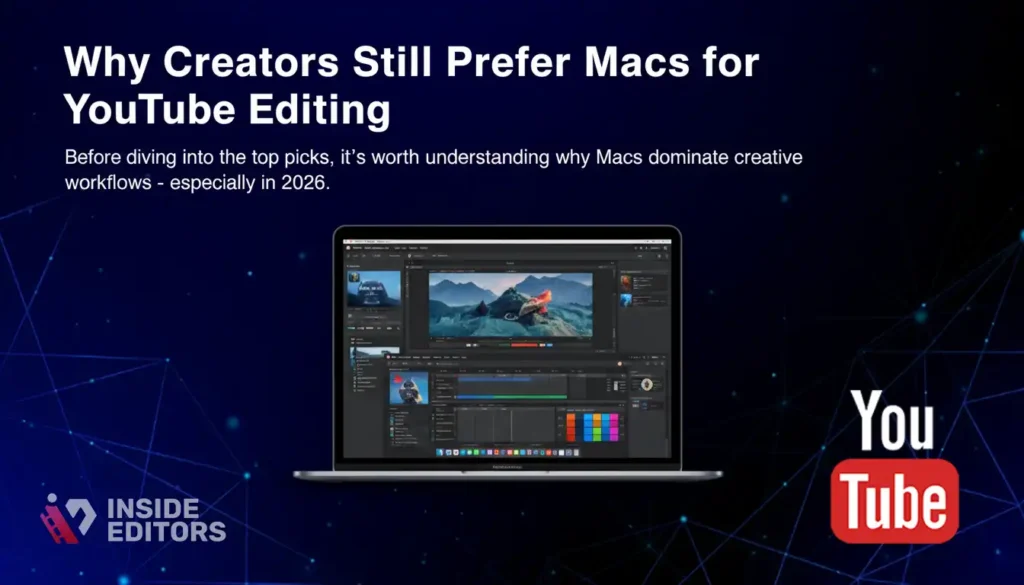
Before diving into the top picks, it’s worth understanding why Macs dominate creative workflows – especially in 2026.
Consistent Performance and Optimization
Apple’s M-series chips (M1, M2, and now M3) have revolutionized editing speed. Unlike traditional Intel-based laptops, these systems-on-a-chip integrate CPU, GPU, and neural engines – meaning smoother real-time playback, faster renders, and better battery efficiency.
Even heavy projects in Final Cut Pro, DaVinci Resolve, or Adobe Premiere Pro run fluidly on mid-tier Macs, something many Windows users still struggle to match without bulky gaming hardware.
Color Accuracy and Display Quality
If you edit for YouTube, color consistency matters more than you think. Macs are known for their Retina displays, P3 color gamut, and True Tone technology – ensuring your final video looks as vivid on screen as it will on viewers’ devices.
That’s why professional editors, cinematographers, and content creators rely on Macs for color-critical tasks.
Ecosystem and Software Synergy
Seamless integration is a big deal. From AirDrop transfers to syncing projects between iPad and Mac via Final Cut Pro for iPad, Apple’s ecosystem eliminates creative friction. You can sketch storyboards on an iPad, shoot with an iPhone 15 Pro in ProRes, and edit instantly on your Mac – all without missing a beat.
Long-Term Value
While Macs are pricier upfront, they age gracefully. A 2019 Intel MacBook Pro can still handle 1080p editing in 2026. Their resale value and consistent software support make them a smart long-term investment – particularly for creators building sustainable YouTube channels.
So, let’s look at which models deliver the best balance of power, portability, and price for different editing needs.
1. MacBook Pro 16-inch (M3 Pro or M3 Max) – The Powerhouse for Professionals
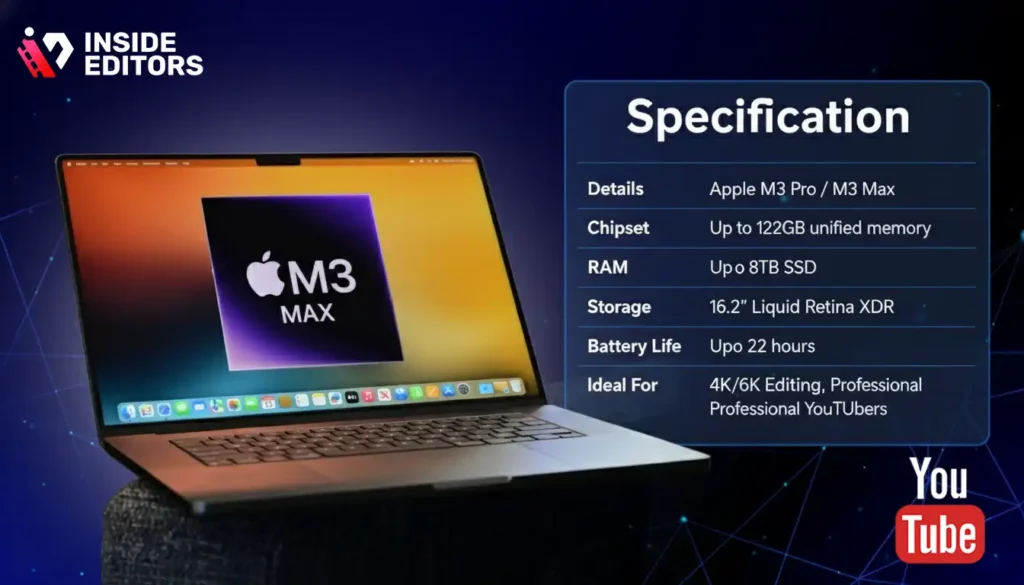
When only the best will do, the MacBook Pro 16-inch is the undisputed champion for YouTube editors in 2026. It’s built for heavy workloads – think 4K, 6K, even 8K footage with multiple layers, effects, and color grades.
Performance That Never Stalls
The M3 Pro and M3 Max chips pack incredible performance cores and GPU efficiency. In benchmark tests, they render 4K videos nearly twice as fast as the previous M2 generation. You can scrub through complex timelines in Final Cut or Premiere without dropped frames – even when applying LUTs or stabilizing shaky footage.
Display That Elevates Every Frame
Its 16.2-inch Liquid Retina XDR display is a visual treat – 1,000 nits sustained brightness, 1,600 nits peak HDR, and perfect blacks thanks to mini-LED technology. For editors focused on cinematic quality, this screen ensures precise tone mapping and color grading.
Built for Creators on the Move
Despite its power, the 16-inch MacBook Pro remains surprisingly portable. The 22-hour battery life is a blessing for travel vloggers and editors who need to work remotely without always being plugged in.
| Specification | Details |
| Chipset | Apple M3 Pro / M3 Max |
| RAM | Up to 128GB unified memory |
| Storage | Up to 8TB SSD |
| Display | 16.2″ Liquid Retina XDR |
| Battery Life | Up to 22 hours |
| Ideal For | 4K/6K Editing, Professional YouTubers |
If you’re running a serious YouTube production setup – with cinematic content, brand clients, or heavy post-production workflows – the 16-inch MacBook Pro is your best Mac for YouTube video editing in 2026.
2. MacBook Pro 14-inch (M3 Pro) – Balanced Power and Portability
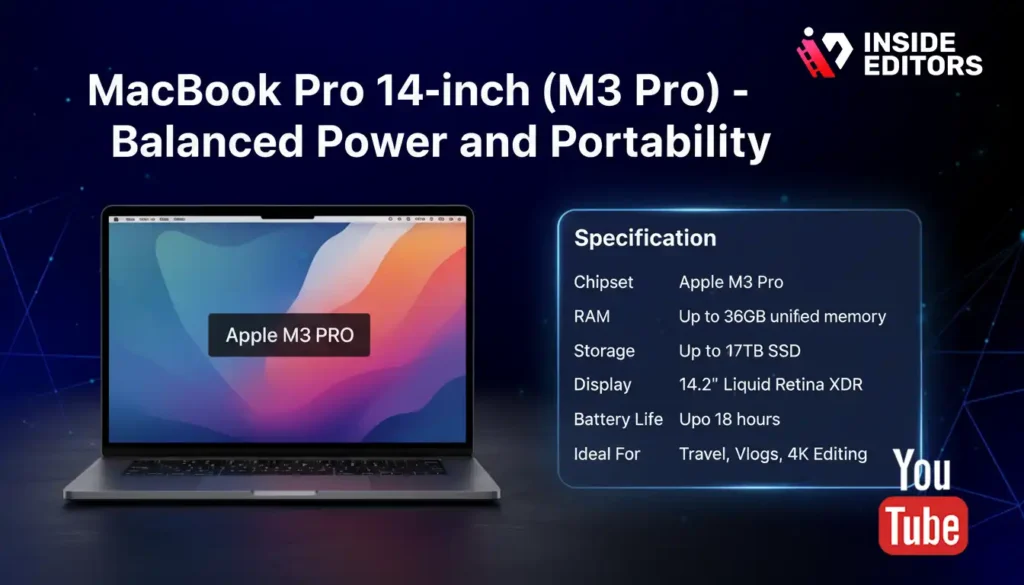
Not everyone needs the raw muscle of the 16-inch version. For many YouTubers, the 14-inch MacBook Pro hits the sweet spot between mobility and power.
Compact Yet Mighty
Powered by the same M3 Pro chip, this model can handle 4K editing and heavy renders without thermal throttling. Its smaller form factor makes it easier to carry for travel vloggers, educators, and creators who film on the go.
Uncompromised Display and Battery
You still get the same Liquid Retina XDR panel as the 16-inch – stunning contrast, HDR support, and accurate colors. Plus, the 18-hour battery life easily covers a day of shooting and editing.
Ideal Use Case
For YouTubers producing regular vlogs, tutorials, reaction videos, or product reviews, this MacBook offers an excellent balance of power and practicality.
| Specification | Details |
| Chipset | Apple M3 Pro |
| RAM | Up to 36GB unified memory |
| Storage | Up to 4TB SSD |
| Display | 14.2″ Liquid Retina XDR |
| Battery Life | Up to 18 hours |
| Ideal For | Travel, Vlogs, 4K Editing |
If you want flagship performance without the size or price tag of the 16-inch, the 14-inch MacBook Pro gives you 90% of the performance in a more portable package.
3. Mac Studio (M2 Ultra) – The Desktop Beast for Full-Time Editors
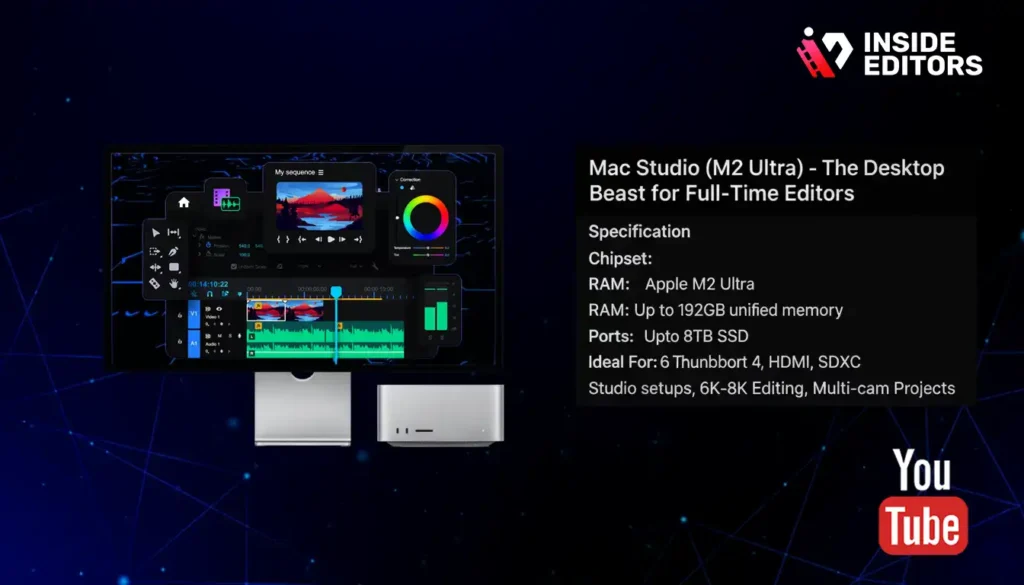
If portability isn’t a concern and you want maximum performance, the Mac Studio (M2 Ultra) is the editing dream machine. It’s a compact desktop powerhouse that rivals high-end workstations – yet it fits neatly on your desk.
Power That Rivals a Studio Workstation
The M2 Ultra combines two M2 Max chips, delivering up to 76 GPU cores and 192GB of unified memory. That’s enough to edit 8K ProRes footage in real time without proxies. You’ll breeze through multi-cam sequences, complex VFX, and heavy motion graphics.
Perfect Companion for Creative Professionals
Pair it with Apple’s Studio Display or a calibrated third-party monitor, and you’ve got a full editing suite that can outperform most PCs twice its size.
Who It’s For
This Mac is ideal for professional editors, production companies, and YouTubers scaling into agency-level output – think documentary makers, music video producers, or tech reviewers who edit daily.
| Specification | Details |
| Chipset | Apple M2 Ultra |
| RAM | Up to 192GB unified memory |
| Storage | Up to 8TB SSD |
| Ports | 6 Thunderbolt 4, HDMI, SDXC |
| Ideal For | Studio setups, 6K-8K Editing, Multi-cam Projects |
For creators who want desktop-grade performance without the clutter, the Mac Studio is easily one of the best Macs for YouTube video editing in 2026.
4. MacBook Air (M3) – The Lightweight Editor’s Choice
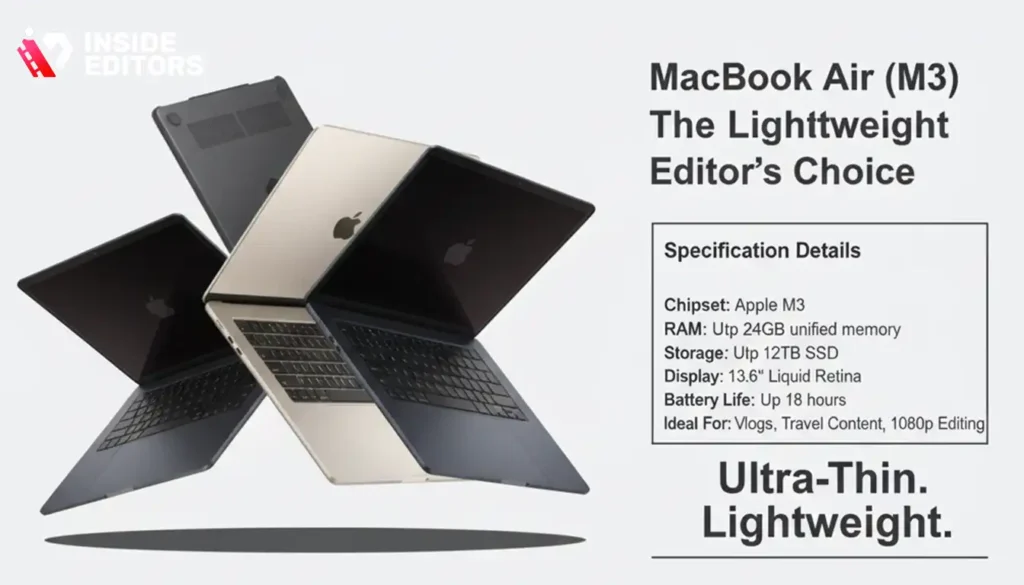
Let’s talk practicality. Not every YouTuber edits 4K cinematic projects. Many creators – lifestyle vloggers, educators, or gaming commentators – simply need a fast, portable laptop that won’t slow down when trimming clips or adding effects. That’s where the MacBook Air (M3) shines.
Performance That Surprises
Thanks to the efficiency of the M3 chip, this fanless laptop delivers smooth performance for 1080p and light 4K edits in tools like Final Cut Pro, CapCut, or DaVinci Resolve. It’s perfect for mobile editing, social media content, or lightweight workflows.
Portability Without Compromise
At just 2.7 pounds, it’s ultra-portable and whisper-quiet. The 13.6-inch Liquid Retina display provides vibrant colors, while the 18-hour battery life makes it perfect for creators on the go.
| Specification | Details |
| Chipset | Apple M3 |
| RAM | Up to 24GB unified memory |
| Storage | Up to 2TB SSD |
| Display | 13.6″ Liquid Retina |
| Battery Life | Up to 18 hours |
| Ideal For | Vlogs, Travel Content, 1080p Editing |
If you’re a YouTuber who values mobility and simplicity – or just starting your creator journey – the MacBook Air (M3) offers unbeatable value for performance.
5. iMac 24-inch (M3) – The All-in-One Editing Setup
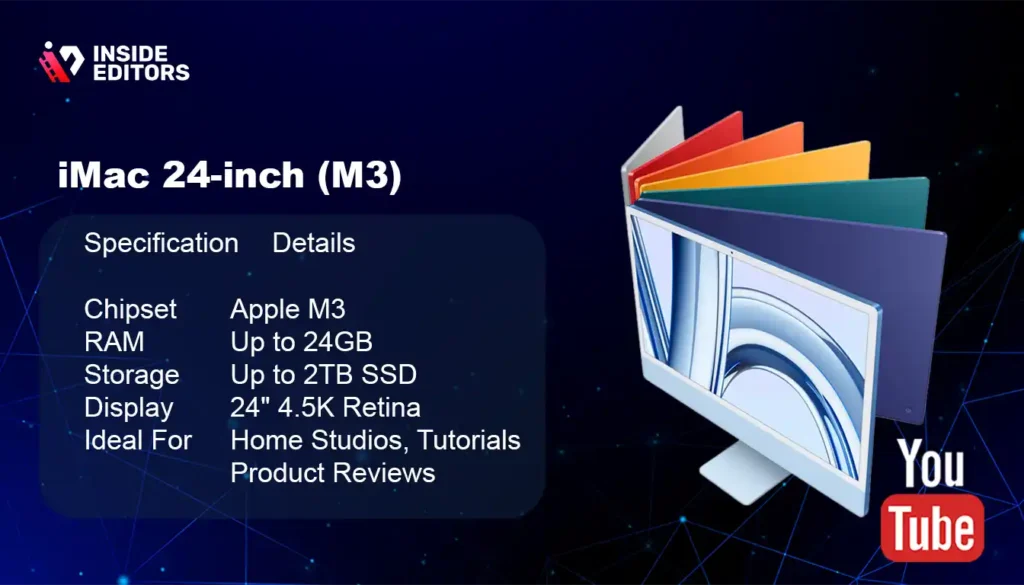
The newly refreshed iMac (M3) is a sleeper hit for YouTube editors in 2026. While it doesn’t match the sheer power of the Mac Studio, it delivers everything you need in a single, elegant package.
Simplicity Meets Power
With its 4.5K Retina display and M3 chip, the iMac easily handles 4K footage and color grading. It’s quiet, energy-efficient, and takes up minimal desk space – perfect for home studios or content creators who prefer a clutter-free environment.
Display That Enhances Storytelling
The iMac’s large 24-inch screen offers excellent clarity and color precision, giving you enough workspace for detailed timeline editing, visual effects, or thumbnails.
Best For Hybrid Creators
If you create a mix of YouTube content – from talking-head videos to product demos – and need an all-in-one solution, this is a great fit. Just plug it in and start editing.
| Specification | Details |
| Chipset | Apple M3 |
| RAM | Up to 24GB unified memory |
| Storage | Up to 2TB SSD |
| Display | 24″ 4.5K Retina |
| Ideal For | Home Studios, Tutorials, Product Reviews |
The iMac 24-inch is the ideal choice for creators who prefer simplicity and style – a complete editing setup in one sleek device.
Comparing the Top Macs for YouTube Editing
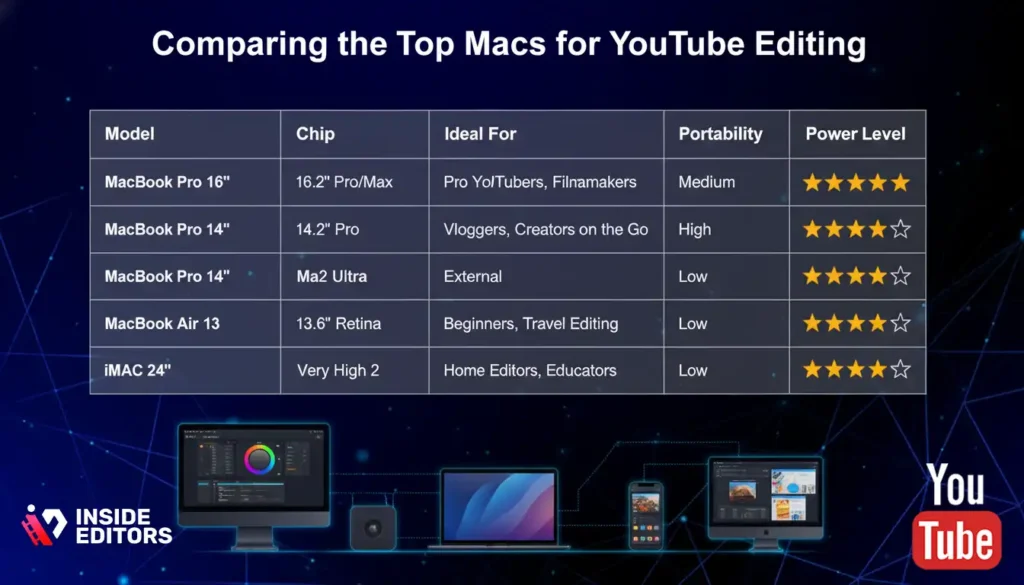
| Model | Chip | Display | Ideal For | Portability | Power Level |
| MacBook Pro 16″ | M3 Pro/Max | 16.2″ XDR | Pro YouTubers, Filmmakers | Medium | ★★★★★ |
| MacBook Pro 14″ | M3 Pro | 14.2″ XDR | Vloggers, Creators on the Go | High | ★★★★☆ |
| Mac Studio | M2 Ultra | External | Professional Editors, Studios | Low | ★★★★★ |
| MacBook Air | M3 | 13.6″ Retina | Beginners, Travel Editing | Very High | ★★★☆☆ |
| iMac 24″ | M3 | 24″ 4.5K Retina | Home Editors, Educators | Low | ★★★★☆ |
To make things easier, here’s a quick comparison table summarizing the top five picks:
How to Choose the Best Mac for Your YouTube Workflow
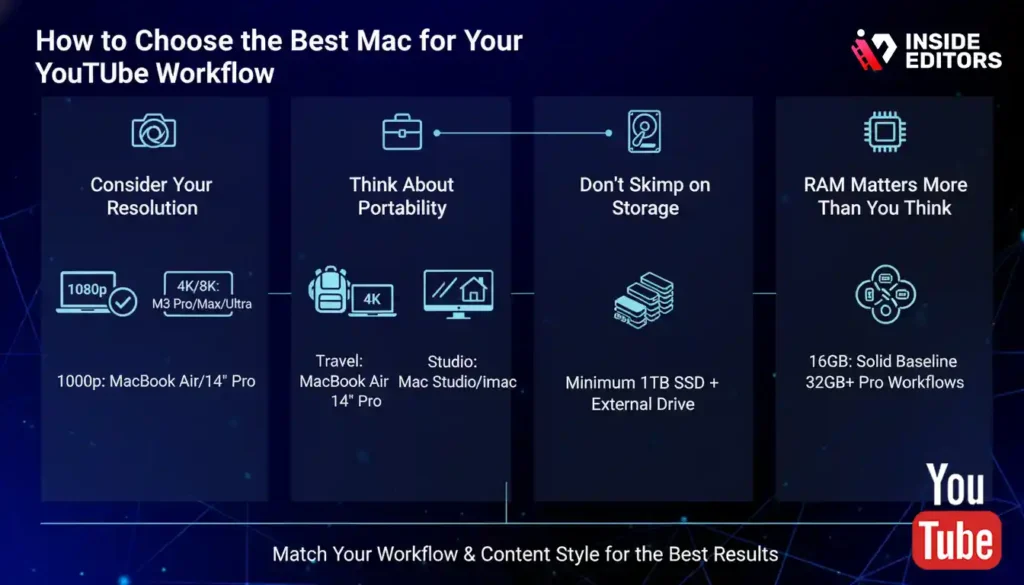
Buying the most expensive Mac doesn’t always mean getting the best results. What really matters is matching your workflow and content style.
Consider Your Editing Resolution
If you’re editing mostly 1080p videos, the MacBook Air or iMac will easily keep up. For 4K or higher, invest in an M3 Pro or M2 Ultra machine for sustained performance.
Think About Portability
Creators who travel or vlog frequently need something light – like the MacBook Air or 14-inch Pro. If you edit mostly from home, the Mac Studio or iMac might offer better ergonomics and cooling.
Don’t Skimp on Storage
Video files grow fast. Aim for at least 1TB SSD if you edit regularly, or connect an external SSD for backups and media caching.
RAM Matters More Than You Think
More memory equals smoother playback and fewer crashes. 16GB is a solid baseline; 32GB or more is ideal for professional workflows involving color grading and motion graphics.
Optimizing Your Mac for YouTube Video Editing
Buying the right Mac is only half the story. The real magic happens when you optimize it for creative performance. Even the most powerful M3 MacBook Pro can slow down if your storage, cache, or software setup isn’t tuned properly. Here’s how to make sure your Mac works with you – not against you.
Clean Storage, Faster Workflow
Video editing consumes enormous amounts of temporary data. Programs like Final Cut Pro and Adobe Premiere Pro create cache files, previews, and render data that pile up over time. If you notice your exports slowing down or playback stuttering, storage may be the culprit.
A simple fix?
- Regularly clear your render cache in your editing app.
- Store large project files on an external SSD instead of your Mac’s internal drive.
- Keep at least 20% of your internal SSD free for macOS optimization.
Using fast, Thunderbolt-connected SSDs can also reduce export time dramatically – especially for 4K and 8K footage.
Tune macOS for Creative Efficiency
macOS Ventura and later versions come optimized for creative apps, but a few manual tweaks help too:
- Disable background indexing (Spotlight) while editing large projects.
- Turn off visual effects or dynamic wallpapers that consume GPU memory.
- Use Activity Monitor to close idle apps before heavy renders.
You’ll be surprised how much smoother your timeline runs when your Mac is focused entirely on the task at hand.
Keep Software Updated
Editing software evolves quickly. Updates often include performance improvements and native M3 optimizations. Always use the latest versions of Final Cut Pro, DaVinci Resolve, or Premiere Pro for full hardware acceleration support.
In 2026, for instance, Final Cut Pro’s AI-assisted background rendering on M3 chips reduces export time by nearly 40% compared to older versions (source: Apple Developer Report, March 2026).
The Best Editing Software for Mac Creators in 2026
Choosing the right Mac is one thing – pairing it with the right software completes the equation. The beauty of macOS lies in its flexibility: whether you’re a beginner YouTuber or a full-time filmmaker, there’s a tool tailored for you.
Final Cut Pro – Apple’s Flagship for Speed and Precision
It’s impossible to discuss Mac editing without mentioning Final Cut Pro. Designed exclusively for macOS, it delivers a seamless editing experience – buttery-smooth timeline performance, real-time previews, and deep M-series optimization.
Its Magnetic Timeline 2 system minimizes clutter and sync errors, while background rendering lets you edit continuously without lag. Plus, the new AI Scene Removal Mask in 2026 saves creators hours during compositing.
Final Cut is perfect for:
- YouTubers who prioritize speed and simplicity
- Creators who want cinematic results without complex settings
- Editors who work across iPhone, iPad, and Mac via Final Cut Sync
DaVinci Resolve – The Colorist’s Dream
If color grading and cinematic looks define your content, DaVinci Resolve is your best friend. It offers an unmatched color correction suite, professional audio tools (Fairlight), and an efficient node-based effects engine.
With Apple Silicon optimization, Resolve now uses Metal GPU acceleration, meaning your M3 Mac can handle multiple 8K streams effortlessly. The free version is powerful enough for most YouTubers, while the Studio version ($295 one-time purchase) adds advanced AI features.
Ideal for:
- Cinematic content creators
- Filmmakers working with RAW or Log footage
- Editors who love creative color grading workflows
Adobe Premiere Pro – For Cross-Platform Creators
For those who also use Windows or collaborate with mixed teams, Adobe Premiere Pro remains the industry standard. Its deep integration with After Effects, Photoshop, and Audition makes it perfect for complex, multi-layered projects.
Adobe’s 2026 update introduced Auto Tone Mapping for HDR and improved GPU-based timeline rendering for Apple M3 Macs, making Premiere finally as fast on macOS as it is on PCs.
Best suited for:
- Teams collaborating across devices
- Editors who rely on Adobe’s creative ecosystem
- YouTubers producing branded content or ads
Real-World Scenarios: Matching the Right Mac to Your Workflow
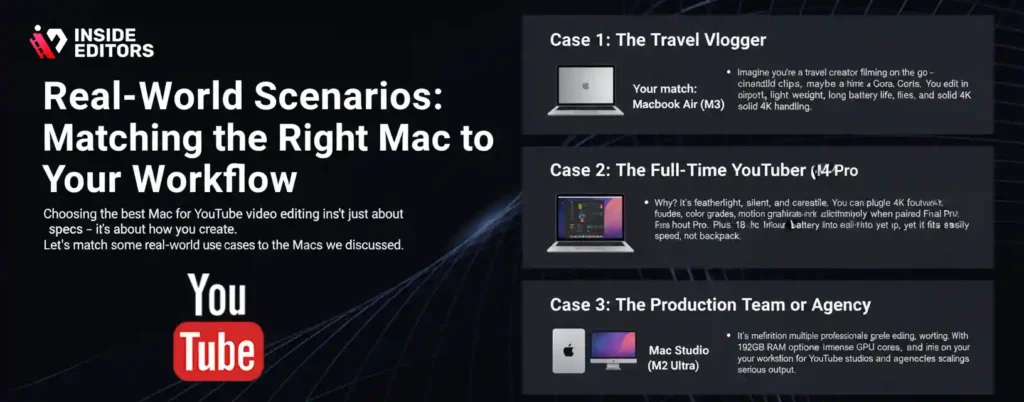
Choosing the best Mac for YouTube video editing isn’t just about specs – it’s about how you create. Let’s match some real-world use cases to the Macs we discussed.
Case 1: The Travel Vlogger
Imagine you’re a travel creator filming on the go – cinematic drone shots, handheld clips, maybe a GoPro. You edit in airports, cafés, or hotels. You need light weight, long battery life, and solid 4K handling.
Your match: MacBook Air (M3)
Why? It’s featherlight, silent, and capable of handling 4K footage efficiently when paired with Final Cut Pro. Plus, its 18-hour battery life keeps you editing even on long flights.
Case 2: The Full-Time YouTuber
You publish 2-3 videos weekly – tech reviews, tutorials, or lifestyle content. You handle 4K footage, color grades, motion graphics, and consistent branding. You want reliability and speed, not compromise.
Your match: MacBook Pro 14-inch (M3 Pro)
It’s portable, powerful, and versatile. You can plug in an external monitor for a home setup, yet it fits easily into your backpack.
Case 3: The Production Team or Agency
You manage multiple channels or client projects, working with multi-cam footage, raw files, and large timelines.
Your match: Mac Studio (M2 Ultra)
It’s the definition of professional-grade editing. With 192GB RAM options and immense GPU cores, it’s a mini workstation for YouTube studios and agencies scaling serious output.
Common Mistakes Creators Make When Choosing a Mac
Even experienced editors make avoidable mistakes when upgrading their gear. Here’s what to watch out for:
Mistake 1: Underestimating Storage
A 256GB Mac may sound tempting, but it fills up within weeks if you edit regularly. Always choose at least 1TB internal SSD, or supplement with high-speed external storage. Running out of space mid-project is a creator’s nightmare.
Mistake 2: Ignoring Display Quality
If you edit color-sensitive content (like beauty or fashion videos), you need accurate color calibration. Opt for Macs with P3 color gamut and XDR brightness, such as the 14-inch or 16-inch MacBook Pro. Otherwise, your colors might look inconsistent across devices.
Mistake 3: Skipping RAM Upgrades
While macOS handles memory efficiently, editing large files and effects still demands more RAM. Investing in 32GB or higher ensures smoother multitasking and export consistency.
Mistake 4: Buying More Power Than You Need
Conversely, don’t overspend on specs you’ll never use. If you mainly edit 1080p lifestyle content, a MacBook Air or iMac will perform beautifully – without the premium of a Pro or Ultra chip.
Pro Tip: Always match your specs to your editing frequency and resolution, not just your ambition.
Professional Workflow Tips for YouTube Editors
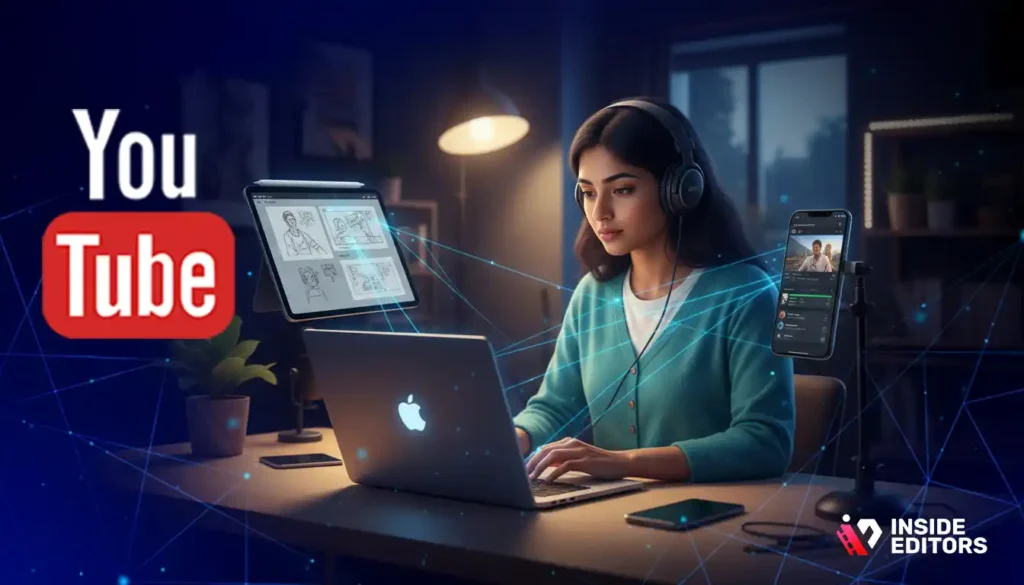
Beyond hardware, it’s your process that defines efficiency. The best editors follow disciplined workflows that save hours weekly.
Organize Before You Edit
Use consistent folder structures for footage, audio, thumbnails, and exports. Label assets by date and type – your future self will thank you. Tools like Post Haste can automate this.
Use Proxies for Heavy Footage
If you’re editing 6K or 8K files, create proxy versions (lighter copies) for smoother timeline playback. Final Cut and Premiere handle this automatically, saving both time and frustration.
Color Grading Comes Last
Don’t color grade early. Finish your cuts first, lock your edit, then move into grading. This avoids wasting time adjusting clips you might later delete.
Leverage Templates
For YouTubers producing regular content, reusing templates for intros, captions, and transitions saves hours. Tools like MotionVFX or Envato Elements integrate directly into Final Cut and Premiere for seamless use.
How Inside Editors Elevates Your YouTube Content
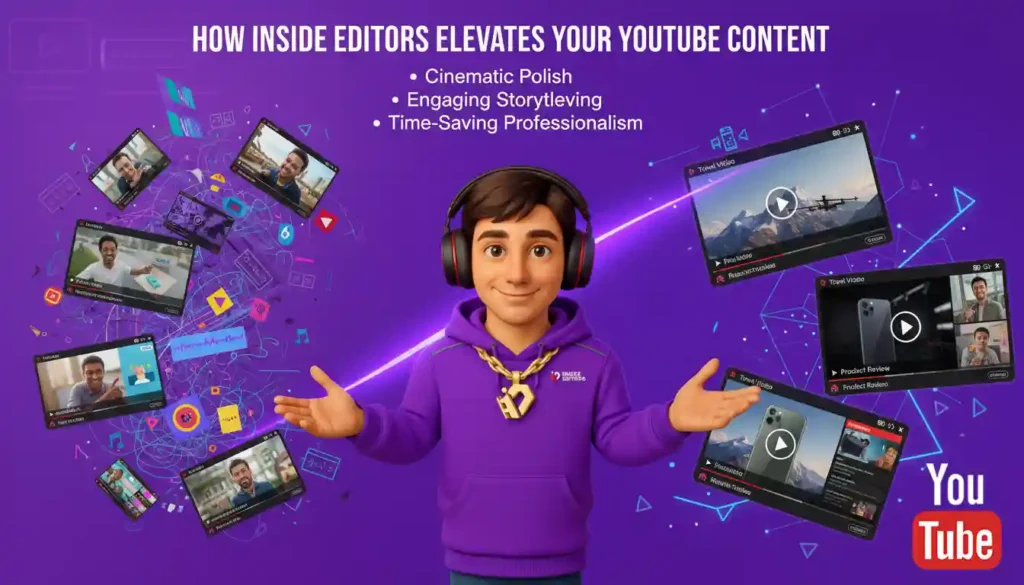
Even with the best Mac and tools, great editing takes time – something many creators lack. That’s where professional help can turn effort into artistry.
At Inside Editors, we specialize in transforming raw footage into engaging, high-quality YouTube videos. Whether it’s travel vlogs, product reviews, or branded collaborations, our team understands the rhythm of storytelling that keeps viewers watching.
We don’t just trim clips – we refine pacing, balance audio, and ensure your visuals shine with cinematic polish. You can focus on filming and storytelling, while we handle the technical perfection.
Explore services like:
Each service is designed to help creators like you save time, maintain brand consistency, and achieve a professional look that stands out on YouTube.
“Even with the best footage, editing can make or break your final result – that’s where professional editors, like those at Inside Editors, can turn raw clips into polished stories that connect with audiences.”
Final Thoughts: Finding Your Perfect Mac for YouTube Video Editing

The best Mac for YouTube video editing isn’t just about performance – it’s about alignment with your creative goals.
If you value mobility, the MacBook Air (M3) is unbeatable for its size and power.
For serious editing work, the MacBook Pro (M3 Pro) or Mac Studio (M2 Ultra) will future-proof your channel for years to come.
And for creators who want simplicity and style, the iMac (M3) offers everything you need in one clean setup.
Ultimately, your Mac is your creative partner. Invest in the one that supports your pace, inspires your ideas, and grows with your ambitions.
If you’re ready to take your YouTube videos from good to exceptional, Inside Editors is here to help you polish every frame – smoothly, affordably, and professionally. Explore Inside Editors’ Video Editing Services
FAQs: Top Macs for YouTube Video Editing
How can I trust Inside Editors with my footage and revisions?
You can expect secure handling and clear revision policies: we keep your files private, deliver a first draft, and include a set number of revisions (usually 1-3) depending on the service tier. All final deliverables are transferred to you and you retain copyright ownership; we only request usage permissions for portfolio or marketing if agreed. For sensitive projects we use encrypted file transfer and can sign NDAs on request.
What’s the difference between DIY editing and hiring a pro editor?
DIY gives control and lower costs but requires time and learning curves for color, audio, and pacing; pros speed up workflows and deliver consistent, platform-optimized output. If you value brand polish, reliable turnaround, and strategy (thumbnails, SEO-ready intros), professional services typically save hours and often pay back via better viewer retention and monetization.
How do the major Mac options compare for YouTube editing?
For portability and light 1080p work, a MacBook Air (M3) is ideal; for heavy 4K timelines and effects, 14- or 16-inch MacBook Pros (M3 Pro/Max) balance power and mobility; for studio-level throughput, Mac Studio (M2 Ultra) wins on raw cores and RAM. Match your camera resolution, multi-cam needs, and whether you edit on the go to choose the best Mac for YouTube video editing.
How much should I expect to pay for professional YouTube editing services?
Pricing varies widely: simple edits and short-form cuts can start around $50-$150 per video, mid-tier packages (including color, audio, basic motion graphics) often range $200-$700, and full production or agency-level editing can exceed $1,000 per video. Always check what’s included-revisions, source file handling, and raw footage backup are commonly extra-and ask for a sample or portfolio before committing.
What’s a typical turnaround time and are rush options available?
Standard turnaround is usually 3-7 business days per video depending on complexity and queue; rush delivery (24-48 hours) is possible for an added fee and when resources permit. Timelines depend on factors like footage size, required graphics, and revision cycles-sharing clear notes and organized media speeds delivery significantly.
What simple steps can I follow to prepare footage before sending it to an editor?
Export a short shot list, label clips by scene or date, include a reference audio track for sync, and put all source files in a single folder or offload to a shared folder (Drive, Dropbox, or WeTransfer) with clear naming. Add a brief creative brief (desired length, style, and example links); this reduces back-and-forth and shortens revision time.
What hardware specs should I prioritize when buying a Mac for editing?
Prioritize unified RAM (16GB minimum, 32GB+ for heavy 4K/8K work), fast SSD storage (1TB+ recommended or external NVMe for media), and higher GPU cores for realtime effects. For most creators, investing in RAM and a fast external SSD yields more real-world benefit than pushing for top-end CPU cores alone.
What’s included in Inside Editors’ standard video editing package?
Standard packages usually cover cutting and trimming, basic color correction (color grading = creative look), audio leveling and noise reduction, simple lower-thirds, and one round of revisions. Add-ons like motion graphics, advanced color grading, thumbnails, or multi-cam sync are available in higher tiers or à la carte fees-details are listed per service page.


