

Choosing the best PC for video editing and gaming is a complex decision. You are looking for a machine that excels in two demanding, yet fundamentally different, tasks. Gamers prioritize high frame rates and low latency, while video editors need raw processing power, fast storage, and massive amounts of RAM to handle complex timelines and high-resolution footage. Finding the perfect balance-a true dual-purpose powerhouse-requires careful component selection and budget allocation. This guide will walk you through the essential hardware requirements, common pitfalls, and expert recommendations to help you build or buy the ultimate hybrid workstation. We will define what makes the best PC for video editing and gaming and how to optimize your system for both creative work and high-performance play.
Understanding the Dual Demand : Why Hybrid PCs Are Challenging

The core challenge in finding the best PC for video editing and gaming lies in the differing demands placed on the CPU and GPU. Modern gaming is heavily reliant on the Graphics Processing Unit (GPU) to render complex 3D environments quickly. While the CPU plays a role, the GPU is often the bottleneck at higher resolutions.
Video editing, particularly rendering and encoding, is often more CPU-intensive, especially when dealing with codecs like H.264 or HEVC, or complex effects like motion graphics. However, modern editing suites like Adobe Premiere Pro and DaVinci Resolve increasingly leverage the GPU for hardware acceleration, color grading, and real-time playback. A balanced system, therefore, needs a robust processor and a high-end graphics card, along with sufficient supporting components. This hybrid requirement means compromise is often necessary, but we aim to minimize it.
CPU: The Engine of Productivity
The Central Processing Unit (CPU) is perhaps the most critical component for video editing performance. When editing, the CPU handles decoding footage, applying effects, and, most importantly, the final rendering process. For gaming, a high clock speed (GHz) is often prioritized for faster single-core performance.
For a dual-purpose machine, you need high core counts and fast clock speeds. Look for CPUs with at least 8 cores, ideally 12 or more, especially if you plan to edit 4K or 6K footage. Intel’s Core i7/i9 or AMD’s Ryzen 7/9 series are the sweet spots.
“For content creation, more cores equal faster rendering times. For gaming, high single-threaded performance is king. The trick is finding the chip that provides the best of both worlds without breaking the bank.” – Dr. Lisa Su, CEO of AMD
GPU: The Graphics Workhorse
While the CPU handles the heavy lifting in rendering, the GPU is essential for smooth timeline scrubbing, real-time effects playback, and, of course, driving high frame rates in demanding games. The VRAM (Video RAM) on the GPU is particularly important for editing, especially when working with multiple layers, 3D elements, or high-resolution textures.
For a machine designed to be the best PC for video editing and gaming, aim for a GPU with a minimum of 12GB of VRAM. NVIDIA’s RTX 4070 or 4080 series, or equivalent cards from AMD, offer excellent performance for both 4K gaming and accelerated video encoding (thanks to dedicated encoders like NVIDIA’s NVENC).
Core Component Breakdown for the Ultimate Hybrid Build
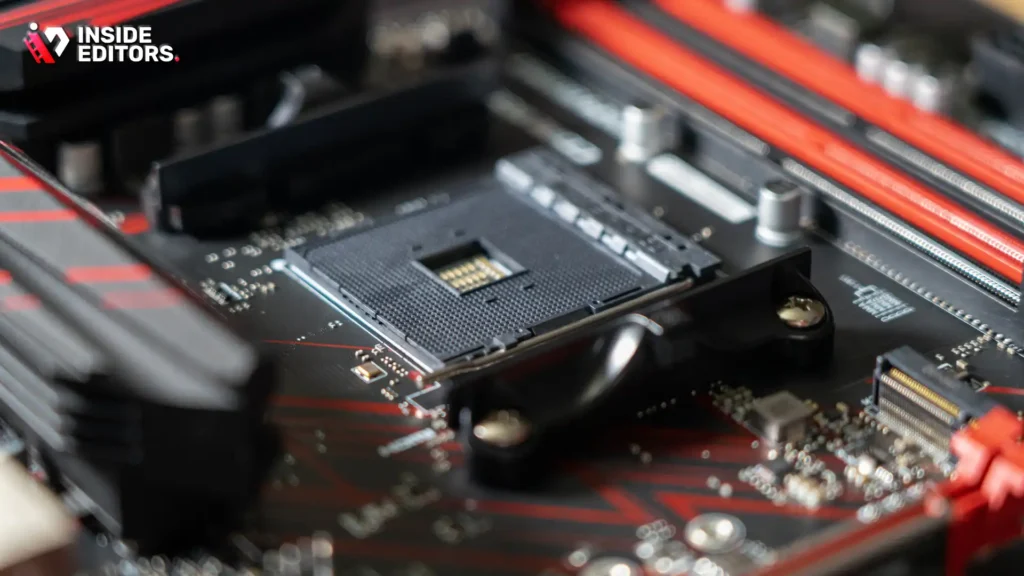
To build the ultimate hybrid PC, every component must be chosen with both editing and gaming in mind. Skimping on one area will inevitably create a bottleneck in the other.
RAM Requirements: Speed and Capacity
RAM (Random Access Memory) acts as the short-term workspace for your computer. For gaming, 16GB is often the minimum, but 32GB is quickly becoming the standard for high-end titles. For video editing, 32GB is the absolute minimum for 4K workflows. If you deal with complex motion graphics, After Effects, or 6K/8K footage, 64GB is strongly recommended.
The speed of the RAM (measured in MHz) also matters. Faster RAM improves communication between the CPU and other components, leading to quicker exports and better gaming frame rates. Look for DDR5 memory rated at 6000MHz or higher, ensuring you check your chosen motherboard and CPU specifications for compatibility.
Storage Solutions: Speed is Everything
Slow storage is a major bottleneck in both editing and gaming. Waiting minutes for large video files to load or experiencing stuttering during gameplay due to texture loading is unacceptable in a high-performance machine.
The ideal setup for the best PC for video editing and gaming involves a multi-drive configuration:
- Primary Drive (OS/Applications): A fast NVMe Gen 4 SSD (1TB minimum) for the operating system, applications (like Premiere Pro and Steam), and project files currently being worked on.
- Scratch Disk/Cache Drive: A secondary, dedicated NVMe SSD (500GB-1TB) used exclusively for video editing cache files, media cache, and temporary renders. This significantly speeds up timeline performance.
- Mass Storage (Archive): A large SATA SSD or traditional HDD (4TB+) for archiving finished projects and storing large game libraries.
The difference between a SATA SSD and a modern NVMe Gen 4 SSD can be massive, especially when importing and exporting large video files. Prioritize NVMe for primary and scratch drives.
Motherboard and Cooling: The Foundation
A high-quality motherboard is essential for stability and future upgrades. Ensure it supports the latest CPU generation, has enough M.2 slots for your NVMe drives, and robust power delivery (VRMs) to handle overclocking or sustained high loads during rendering.
Cooling is non-negotiable. Both intensive gaming and long video renders generate significant heat. A high-end CPU requires either a large air cooler or a 240mm/360mm All-In-One (AIO) Liquid Cooler. Overheating leads to thermal throttling, which dramatically reduces performance-the exact opposite of what you want in the best PC for video editing and gaming.
Side-by-Side Comparison: Editing vs. Gaming Priorities
The following table illustrates the component priorities when optimizing for each task, highlighting where the hybrid build must compromise or exceed basic requirements.
| Component | Priority for Video Editing | Priority for Gaming | Hybrid Recommendation |
|---|---|---|---|
| CPU | High Core Count (12+) | High Clock Speed | High Core Count AND High Clock Speed (e.g., i9 or Ryzen 9) |
| GPU | VRAM Capacity (16GB+) | High Processing Power (RT Cores) | High Processing Power AND High VRAM (12GB+) |
| RAM | Capacity (32GB minimum) | Speed (Low Latency) | 32GB DDR5 @ 6000MHz+ |
| Storage | NVMe Speed (Gen 4) | NVMe Speed (Loading Times) | Multiple NVMe Drives (OS + Scratch) |
| Power Supply | High Efficiency (Sustained Load) | High Wattage (Peak Load) | 850W+ Gold/Platinum Rated |
Building the Best PC for Video Editing and Gaming: Step-by-Step Guidance
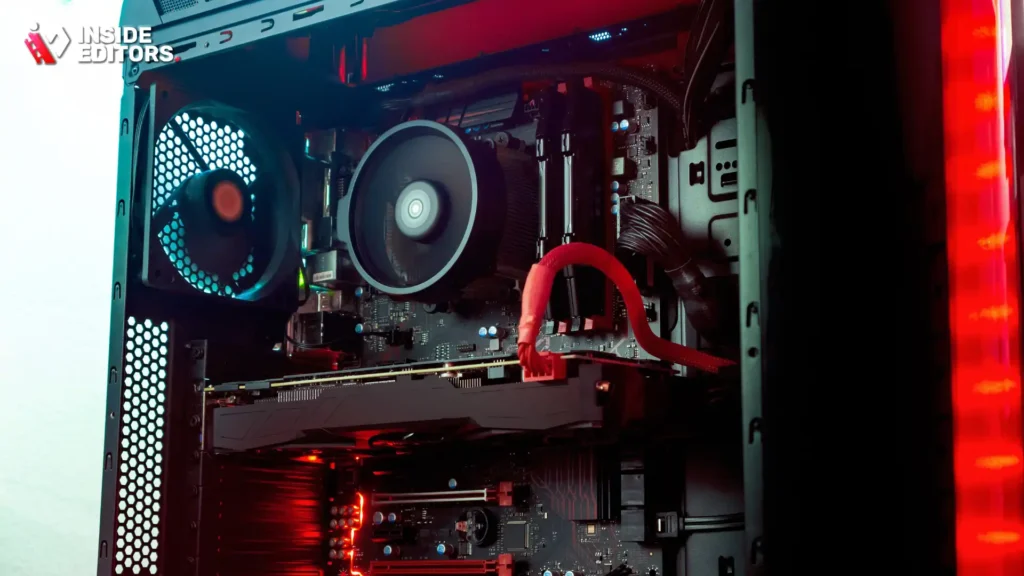
Building a machine that handles both creative and recreational demands requires a methodical approach. Here is a simplified guide to the process, focusing on maximizing performance longevity.
Step 1: Define Your Workflow and Resolution
Before buying parts, determine your primary use case. Will you be editing 1080p footage for YouTube or 6K RAW footage for cinematic projects? Will you be gaming at 1080p, 1440p, or 4K?
- 1080p Editing / 1440p Gaming: You can scale back slightly on the CPU (8 cores) and GPU VRAM (10GB minimum).
- 4K Editing / 4K Gaming: This demands the highest-tier components: 12+ cores, 32GB+ RAM, and 16GB+ VRAM. This is where you truly find the best PC for video editing and gaming.
Step 2: Selecting the Power Supply Unit (PSU)
Never overlook the PSU. It provides stable, clean power to all components. High-end CPUs and GPUs draw significant power under load. Calculate the estimated wattage of your components (CPU, GPU, drives) and add a 20-30% buffer. For a high-end hybrid build, an 850W or 1000W PSU with a Gold or Platinum efficiency rating ensures reliability and safety during long rendering sessions.
“A stable power supply is the silent guardian of your high-performance components. Skimping here risks system instability and component failure under stress.” – Tech Reviewer, Linus Sebastian
Step 3: Optimization and Software Configuration
Once the hardware is assembled, software optimization is key.
- Driver Management: Ensure all drivers (especially GPU drivers) are updated. Many editing suites rely on specific driver versions for optimal hardware acceleration.
- Dedicated Scratch Disk: In your editing software (e.g., Premiere Pro, DaVinci Resolve), explicitly set the dedicated scratch disk drive for media cache and previews. Do not let the software write these files to the same drive as your operating system.
- Power Settings: In Windows, set your power profile to “High Performance” or “Ultimate Performance” to prevent the CPU from clocking down during intensive tasks like rendering.
This careful configuration ensures that your machine operates at peak efficiency, whether you are exporting a feature film or navigating a massive open-world game.
The Importance of Professional Quality Control

Even with the best PC for video editing and gaming hardware, the final quality of your output depends heavily on the editor’s skill and time investment. Many content creators and businesses face the challenge of balancing content creation with the time-consuming nature of post-production.
This is where professional services become invaluable. For instance, Inside Editors offers professional video editing services designed to save you time and ensure a polished, high-quality final product. Our professional editing team, with over 10 years of experience, specializes in transforming raw footage into compelling content.
We offer a fast turnaround (typically 24-72 hours) and unlimited revisions until you are completely satisfied. By leveraging our expertise, you can focus on creating more content or running your business, knowing that the technical aspects of color grading, audio enhancement, and final delivery are handled by experts. Our affordable pricing, starting at just $29 per video, makes professional quality accessible, whether you are a growing YouTube creator, a marketing team, or a course creator.
If you find yourself spending more time rendering and tweaking than filming and creating, consider offloading the post-production work. This allows you to maximize the return on your investment in the best PC for video editing and gaming by using it for generating high-quality raw footage and gaming, while professionals handle the tedious editing process.
Common Mistakes When Choosing a Hybrid PC

When seeking the best PC for video editing and gaming, many users fall into traps that compromise performance in one area or the other. Avoiding these pitfalls will save you time and money.
Mistake 1: Prioritizing Clock Speed Over Core Count
A common gaming mistake is prioritizing a CPU with extremely high clock speeds but fewer than 8 cores. While this is fantastic for competitive gaming, it drastically slows down rendering times for 4K video projects. A balanced CPU, like a modern 16-core chip, offers excellent high clock speeds for gaming while providing the necessary parallel processing power for editing.
Mistake 2: Insufficient VRAM
Video editing software, especially when dealing with complex effects, color grading, or high-bitrate footage, quickly consumes GPU VRAM. If you buy a gaming card optimized for 1080p (e.g., 8GB VRAM), you will experience slow playback and crashes when editing 4K projects. Always aim for a minimum of 12GB VRAM for a dual-purpose machine.
Mistake 3: Poor Cooling Solutions
As mentioned earlier, sustained loads from rendering (often hours long) heat components far more than intermittent gaming sessions. A stock cooler or a small budget air cooler will cause the CPU to throttle, turning your high-end chip into a mid-range performer during crunch time. Invest in premium cooling to maintain maximum performance during long editing exports.
Expert Consensus and Future-Proofing

The technology landscape changes rapidly, but the core principles for the best PC for video editing and gaming remain constant: balance and bandwidth.
Future-Proofing Your Investment
To ensure your investment lasts several years, focus on components that offer high bandwidth and capacity:
- PCIe 5.0: Ensure your motherboard supports PCIe 5.0 for future-generation GPUs and ultra-fast NVMe drives.
- DDR5 RAM: While DDR4 is still viable, DDR5 offers superior speed and scalability for future applications.
- High-End Case: Choose a case with excellent airflow and space for large coolers and long GPUs. A cramped case is a hot case.
“The single most important factor for longevity in a hybrid build is storage bandwidth. The faster you can move data between the CPU, RAM, and storage, the less time you spend waiting.” – Industry Analyst, Tom’s Hardware
The Role of AI Acceleration
Both gaming and editing are increasingly leveraging Artificial Intelligence (AI) and Machine Learning (ML). GPUs from both NVIDIA and AMD feature dedicated AI cores (like NVIDIA’s Tensor Cores) that accelerate tasks like noise reduction, upscaling (DLSS/FSR), and intelligent masking in editing software. Choosing a modern GPU ensures you benefit from these performance boosts in both your creative work and your gaming sessions.
Final Verdict: Defining the Best PC for Video Editing and Gaming
The ideal machine for this demanding dual role is not simply the most expensive; it is the most balanced. It must possess a high-core-count CPU, a GPU with ample VRAM, and a lightning-fast storage array.
If budget allows, the sweet spot for the best PC for video editing and gaming in 2024 involves:
- CPU: Intel Core i9 (14th Gen) or AMD Ryzen 9 (7000/8000 series).
- GPU: NVIDIA RTX 4080 (16GB VRAM) or equivalent.
- RAM: 64GB DDR5 (6000MHz+).
- Storage: 2TB NVMe Gen 4 Primary + 1TB NVMe Gen 4 Scratch Disk.
This configuration guarantees smooth 4K editing, rapid rendering, and high frame rates at 4K resolution in modern games. It is a true workstation that doubles as a high-end entertainment center.
Remember, even the best PC for video editing and gaming can only take you so far. If you are a content creator looking to scale your output without sacrificing quality, consider leveraging professional expertise. Inside Editors is dedicated to providing high-quality, reliable video editing services. We handle the complexity of post-production-from color correction to final delivery-allowing you to maximize your creative output. Our professional editors ensure consistent brand style and quality across all your videos, offering a scalable solution for growing channels.
Inside Editors Services: A Partnership in Post-Production
While your new PC handles the capture and creation, Inside Editors handles the polish. Our services are designed for content creators, businesses, and marketers who need professional results fast.
Key Features of Our Service:
- Professional editing team with 10+ years experience
- Fast turnaround (24-72 hours)
- Unlimited revisions until satisfied
- Affordable pricing starting at $29/video
- Color grading and audio enhancement included
Benefits: Save time and focus on content creation, Professional quality that builds trust, Consistent brand style across all videos, Scalable solution for growing channels.
If you are ready to elevate your video content without spending hours in the editing bay, explore how our professional editors can help you achieve your goals.
Frequently Asked Questions
What CPU is best for hybrid use?
The best CPU for a dual-purpose machine needs both high core counts and fast clock speeds. Look for modern processors like the Intel Core i9 or AMD Ryzen 9 series. These chips provide the necessary parallel processing for video editing while maintaining excellent single-core performance for gaming.
How much RAM is needed for 4K editing?
For smooth 4K video editing, 32GB of RAM is the absolute minimum requirement. However, if you plan to use complex effects, motion graphics, or run multiple applications simultaneously, upgrading to 64GB of fast DDR5 RAM is highly recommended to ensure your best PC for video editing and gaming performs optimally.
Why is VRAM important for this PC?
VRAM (Video RAM) is crucial because it stores textures, effects data, and high-resolution frames for both gaming and editing. For a machine to be the best PC for video editing and gaming, aim for a GPU with at least 12GB of VRAM to prevent bottlenecks during intensive 4K editing and high-resolution gaming.
Should I use multiple storage drives?
Yes, using multiple drives is essential. Dedicate a fast NVMe SSD for your operating system and applications, and a separate, dedicated NVMe SSD as a scratch disk for video editing cache. This configuration dramatically improves timeline performance and overall responsiveness of your best PC for video editing and gaming.
Can I use a gaming PC for editing?
You can use a gaming PC for editing, but true performance requires balancing components. A purely gaming-focused PC often lacks the core count and RAM capacity needed for efficient rendering. The best PC for video editing and gaming requires a strategic balance between CPU cores, GPU VRAM, and RAM capacity.


