


If you’ve ever filmed a great moment on your Best Video Editing Apps for iPhone but struggled to turn it into a polished, engaging video, you’re not alone. Modern iPhones capture incredible footage, yet the real magic happens during editing. Choosing the right app can transform simple clips into cinematic stories – but with so many options available in 2025, picking the best tool often feels overwhelming. That’s exactly why this guide exists. You’re about to explore the Best 10 Video Editing Apps for iPhone, with clear insights, real usability comparisons, and expert recommendations based on what creators actually use.
Inside Editors has spent years helping influencers, brands, businesses, and everyday creators shape their raw footage into professional-quality content. Whether you’re building a YouTube channel, posting on social media, or simply editing personal memories, the right app will save you time, improve your workflow, and unlock creative possibilities you might not even know existed.
Before diving into the apps themselves, let’s start with a foundational question: what actually makes a mobile editor great – and how do you choose the one that fits your goals?
Choosing the Right Video Editing App Saves You Hours of Work

Different apps shine for different reasons. Some make quick social edits effortless. Others offer powerful color grading, advanced transitions, or AI-enhanced automation that normally requires desktop editing. Understanding what matters most to your workflow helps you skip the guesswork and avoid switching apps later.
Why Feature Depth Matters When You’re Editing on the Go
Most creators want an app that balances ease of use with professional features. A clean interface saves time, but the real difference shows when you need precision – trimming audio, matching color tones, adjusting exposure, or stabilizing shaky clips. When these tools are intuitive, editing feels fun instead of frustrating. When they’re hidden or limited, even small adjustments can become slow and repetitive.
When Speed and Convenience Become Your Greatest Assets
If you’ve ever tried editing a long vlog or a brand reel on your phone, you know how important performance is. Some apps handle multiple layers of video effortlessly, while others lag once effects are applied. This difference multiplies when you’re working with 4K clips or transitions that require rendering. A smooth, stable app dramatically reduces wasted time – especially if you publish videos frequently.
Blending Creativity With Practical Workflow
The best mobile editors balance creativity with structure. They offer templates for quick results, manual controls for advanced edits, and export presets optimized for Instagram Reels, TikTok, YouTube Shorts, or cinematic widescreen formats. When a tool aligns with how you work – not the other way around – you edit faster and enjoy the process more. Now that you understand the core factors, let’s explore how these ideas shape real apps in 2025.
CapCut: The Beginner-Friendly Powerhouse for Fast, Trendy Edits

If you’ve spent even ten minutes on TikTok or Instagram Reels, you’ve probably seen videos edited in CapCut. It’s fast, intuitive, and built for creators who want to publish polished videos without diving into complex settings. Even professionals use it for quick social content because it handles transitions, templates, and text animations with impressive ease.
Why CapCut Dominates Short-Form Social Editing
CapCut stands out for its smart templates, pre-synced transitions, and beat-matching music tools. You can drag and drop your clips, choose a style, and get a scroll-stopping edit in minutes. For creators posting several videos a week, this speed is priceless. The app also supports 4K exports, advanced cutout tools, and AI-driven background removal – features usually found in paid desktop software.
Where CapCut Excels and Where It Falls Short
CapCut’s biggest strength is convenience, but it’s not always ideal for long-form projects or advanced color work. Its interface prioritizes speed over depth, which makes sense for social-first creators. If you’re planning cinematic videos, travel vlogs, or brand documentaries, you may eventually outgrow its limitations and look for more granular control.
Who CapCut Is Best For
If your goal is speed, trends, and social-ready content, CapCut is one of the best choices on the list. It’s perfect for influencers, beginners, and anyone who wants high-quality results without a steep learning curve – a major reason it consistently ranks among the Best 10 Video Editing Apps for iPhone today.
LumaFusion: Professional Editing Power in Your Pocket

If CapCut is built for speed, LumaFusion is built for precision. This app is widely considered the gold standard for professional iPhone editing – used by journalists, travel filmmakers, vloggers, and documentary creators who want desktop-level control on a mobile device.
Why Professionals Trust LumaFusion for Serious Projects
What stands out immediately is LumaFusion’s multi-track timeline. You can layer multiple video clips, audio tracks, text, overlays, and effects with smooth performance. Features like color correction wheels, advanced effects, speed ramping, and keyframe animation mirror what you’d expect from Adobe Premiere Pro or Final Cut Pro. The difference? Everything is optimized for touch.
When LumaFusion Outperforms Other Mobile Editors
One of the biggest advantages is stability. Even with multiple 4K tracks and complex effects, LumaFusion holds up far better than most mobile apps. Its export controls are also exceptional – offering precise bitrate, resolution, frame rate, and codec options. This makes it a favorite for mobile creators who deliver work to clients or publish polished content on YouTube.
Who LumaFusion Is Best For
If you’re serious about storytelling, color grading, or multi-layer editing, LumaFusion gives you the creative freedom usually found only on laptops. The learning curve is steeper, but the payoff is huge once you understand the interface.
iMovie: Apple’s Simple, Clean Editing Solution Creators

iMovie is the quiet hero of iPhone editing – simple, stable, and surprisingly capable for everyday videos. It’s perfect for beginners or anyone who doesn’t want to juggle too many features. Apple’s clean design makes it easy to trim clips, add titles, apply music, and export polished videos quickly.
Why iMovie Remains Reliable for Personal Projects
iMovie’s templates, storyboards, and Magic Movie feature help beginners start editing without confusion. While you won’t get advanced color grading or multilayer effects, the app handles basic editing with impressive clarity. Its integration with Apple Photos and iCloud makes importing footage effortless.
When iMovie Might Feel Limiting
If you eventually want advanced transitions, keyframe control, or deep color work, you’ll hit limitations. iMovie is intentionally simple – which is great for quick edits but less ideal for creative experimentation.
Who iMovie Is Best For
Anyone new to video editing, creating family videos, school projects, or simple social content will appreciate iMovie’s clean, stress-free workflow.
VN Video Editor: A Smooth Blend of Simplicity and Power

VN Video Editor has earned a loyal following because it bridges a gap that many creators struggle with. It’s more advanced than iMovie and CapCut, yet far easier to learn than LumaFusion. For many users, VN feels like the “just right” editing app – powerful enough for cinematic storytelling but still lightweight and intuitive for everyday editing.
Why VN Appeals to Both Beginners and Experienced Creators
VN shines with features that feel thoughtfully designed. The timeline is clean, responsive, and offers multiple layers without overwhelming beginners. You can quickly add transitions, filters, speed ramps, and animated text. Many creators appreciate that VN doesn’t hide essential controls behind complicated menus – everything feels accessible even if you’re editing for the first time.
Where VN Strikes a Balance in Performance and Flexibility
VN performs surprisingly well with 4K footage and long-form edits. Its presets for Instagram Reels, TikTok, YouTube, and cinematic widescreen formats make exporting straightforward and error-free. While it doesn’t have the deep color grading tools of LumaFusion, it offers more creative options than many lightweight editors, including customizable LUT support.
Who VN Is Best For
If you want a blend of power, simplicity, and modern design without a subscription fee, VN is one of the strongest options among the Best 10 Video Editing Apps for iPhone. It’s ideal for vloggers, travel creators, YouTubers, and anyone who wants a clean workflow.
InShot: The Social Media Editor Built for Fast Results

InShot has been a favorite for years – and for good reason. It’s designed for social media creators who want speed, convenience, and stylish templates. You’ll find everything from filters to sound effects, transitions, and intuitive cropping tools that help you adapt videos for different platforms.
Why InShot Is a Favorite for Instagram, TikTok, and Reels
InShot’s real strength lies in its simplicity. You can trim clips, adjust speed, add music, overlay text, and publish in minutes. For creators who need to edit several posts per day, speed becomes crucial – and InShot delivers exactly that. The app’s built-in effects and fonts also help beginners achieve polished, trendy results without extra plugins.
Where InShot May Limit Advanced Creators
InShot doesn’t offer multi-layer editing or precision keyframing like LumaFusion or VN. This can feel limiting once you start building more complex sequences. It excels at visual and audio quick edits but not deep storytelling.
Who InShot Is Perfect For
If you prioritize fast, stylish social content, InShot is one of the most enjoyable apps to use. It’s ideal for influencers, marketers, and anyone producing vertical videos frequently.
Adobe Premiere Rush: The Cross-Device Workflow Favorite
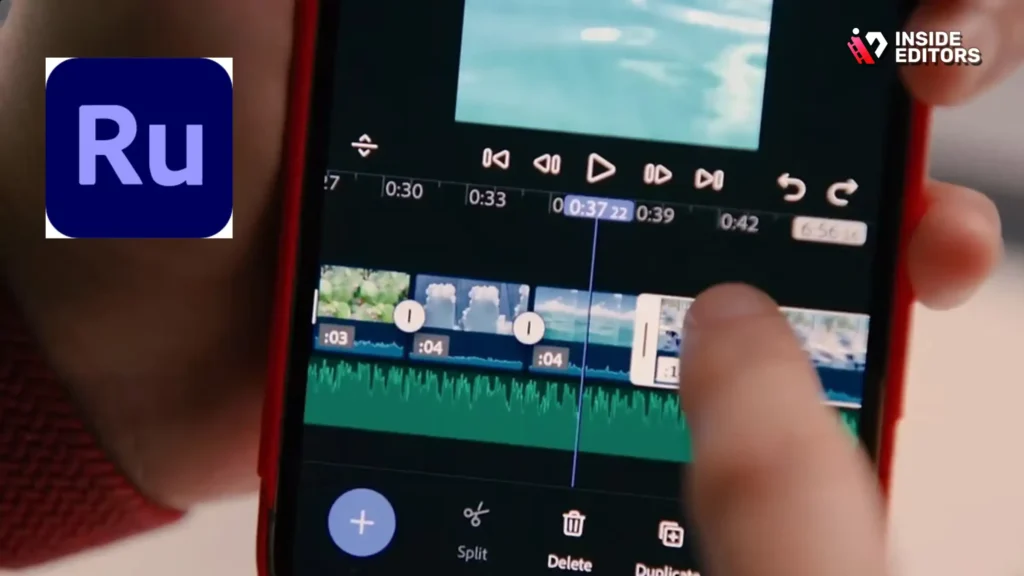
Adobe Premiere Rush brings together the best of Adobe’s professional ecosystem in a simplified mobile package. It’s designed for creators who want consistent cross-platform editing – whether on an iPhone, iPad, or desktop computer.
Why Premiere Rush Stands Out for Brand and Content Teams
Premiere Rush supports multi-track editing, color presets, audio cleanup tools, and cloud syncing. This means you can start a project on your iPhone and finish it on a laptop using Adobe Premiere Pro. For brand marketers, YouTubers, and businesses, this level of flexibility is priceless, especially when collaborating with teams.
Where Premiere Rush Shines in Professional Settings
The interface feels familiar if you’ve used Adobe tools before, and the timeline offers more control than most beginner apps. Features like Auto Ducking, which lowers music volume under dialogue, add a professional touch. Its export settings are also tailored for platforms like YouTube and Instagram.
Who Premiere Rush Is Best For
Rush is ideal for creators who love Apple mobility but still want the option to polish videos on desktop when needed. If you plan to upgrade to Adobe Premiere Pro later, Rush fits seamlessly into that workflow.
KineMaster: A Feature-Rich Option for Mobile Power Users

KineMaster has been around for years, evolving into a powerful tool that gives editors advanced control without needing a laptop. Its multi-layered timeline, precise trimming tools, and wide range of effects make it a strong competitor for mobile creators who want detailed control.
Why KineMaster Feels Like a Mini Desktop Editor
One of KineMaster’s strengths is fine-tuning. You can adjust color, apply blending modes, add chroma key effects, and animate elements easily. Many creators use KineMaster for YouTube tutorials, montages, and educational content because it blends flexibility with a user-friendly interface.
Where KineMaster May Feel Overloaded
Because it packs so many features, beginners might find it overwhelming at first. Some effects and assets are behind a subscription, and the workspace can feel busy compared to cleaner apps like VN or iMovie.
Who KineMaster Works Best For
If you want depth without switching to desktop software, KineMaster offers impressive value. It’s great for serious mobile creators, educators, and editors who need precision tools.
Splice: The Fast Editor With Quality Effects

Splice focuses on speed, attractive templates, and intuitive controls. You can import clips, trim them, add music, and publish almost instantly. Many users choose Splice for short-form videos because it combines ease with higher-quality effects than basic editors.
Why Splice Is Great for Quick, Stylish Videos
Splice includes thoughtful sound effects, overlays, and transitions designed for modern creators. Its audio tools are also better than what you find in many free apps, which helps videos feel polished even without major edits.
Where Splice Limits Advanced Users
It’s not built for long, multi-layered projects. Splice excels at quick edits but isn’t suited for complex workflows or detailed storytelling.
Who Should Use Splice
If your focus is editing short lifestyle clips, product videos, or TikTok-style content, Splice offers a satisfying balance of speed and visual quality.
Funimate: The Visual Effects Playground

Funimate is one of the most underrated apps on this list. While not ideal for full-length videos, it excels at creating unique, eye-catching effects and animations for short clips.
Why Funimate Helps You Create Unique Visuals
Funimate includes thousands of community-created effects, transitions, and animations that feel bold and energetic. If you want to create edits that stand out on TikTok, this app is worth exploring.
Where Funimate Falls Short
Funimate’s workflow isn’t suited for long projects, color correction, or precise cutting. It’s best viewed as a creative effects layer, not a complete editing solution.
Who Funimate Is Best For
Use Funimate if your goal is fun, flashy, highly visual clips – especially for trending challenges or stylized short videos.
DaVinci Resolve for iPad + iPhone Workflow
While DaVinci Resolve isn’t fully available on iPhone, many creators edit clips on their phone and finish projects on DaVinci Resolve for iPad or desktop. This combination opens the door to Hollywood-level color grading and effects.
Why Resolve Is Worth Mentioning in a Mobile Workflow
DaVinci Resolve remains unmatched in color grading and professional finishing. Many creators use iPhone apps like VN or LumaFusion to start their edit, then move to Resolve to finalize color and audio.
Who This Workflow Is For
If you want the most advanced color and sound tools available today, this hybrid workflow gives you unmatched control.
Comparison Table: Best Features of Each App

| App Name | Best For | Skill Level | Strengths | Limitations |
| CapCut | Social media edits | Beginner | Fast, trendy, templates | Limited depth |
| LumaFusion | Professional editing | Advanced | Multi-layer, color grading | Steeper learning curve |
| iMovie | Simple edits | Beginner | Clean, stable, free | Limited features |
| VN | Cinematic mobile edits | All levels | LUTs, clean timeline | Lacks pro color tools |
| InShot | Social content | Beginner | Fast, stylish formats | No multi-layer |
| Adobe Rush | Cross-device editing | Intermediate | Syncs with desktop | Subscription model |
| KineMaster | Precision controls | Intermediate/Advanced | Multi-layer tools | Complex interface |
| Splice | Quick edits | Beginner | Attractive effects | Not for long-form |
| Funimate | Creative effects | Beginner | Unique animations | Not full editor |
| Resolve Workflow | Pro finishing | Advanced | Best color grading | Requires iPad/desktop |
How to Choose the Right App for Your Editing Style

Choosing among the Best 10 Video Editing Apps for iPhone comes down to three questions. What kind of content do you create? How much time do you want to spend editing? And do you prefer speed, simplicity, or precision? Each app has its place – and the right one will make your storytelling easier instead of harder.
If you’re focused on short-form social content, CapCut, InShot, or Funimate will feel perfect. For serious filmmaking, LumaFusion or a Resolve workflow gives you the control you need. VN, Splice, and KineMaster hit the middle ground – flexible, powerful, and user-friendly for a wide range of projects.
What Many Creators Overlook When Editing on iPhone
It’s common to think editing tools alone determine your results, but workflow matters even more. Brightness before contrast. Matching audio levels before transitions. Stabilizing footage before applying filters. These small steps can dramatically improve your final output.
The truth is, even professional editors use multiple tools depending on the project. Don’t limit yourself – experiment until you find the combination that unlocks your best creativity.
When Professional Editing Creates the Biggest Difference
Even with the best apps, mobile editing has limits – especially for brand work, documentaries, YouTube series, or ads. That’s where professional editors can elevate your vision. A skilled editor understands pacing, story flow, color balance, and sound design at a level that even the most advanced iPhone apps can’t fully replicate.
If you want videos that look truly cinematic or need consistent quality for your business, professional help saves time and delivers a polished finish you can trust.
Upgrade Your Content With Inside Editors
Inside Editors helps creators, entrepreneurs, and brands transform raw footage into powerful stories. Whether you’re producing product videos, travel content, fitness tutorials, fashion reels, or business marketing content, you’ll find a service tailored to your goals.
Explore services like:
- Product video editing
- Travel video editing
- Adventure video editing
- Fashion video editing
- Business and comparison videos
- Gaming and fitness edit services
If you’re ready to take your content to the next level – with polished transitions, clean audio, color correction, and storytelling that keeps viewers watching – Inside Editors is here to help sharpen your vision.
Final Takeaway Best Video Editing Apps for iPhone
Your iPhone is one of the most powerful creative tools you own, and with the right editing app, you can produce content that looks professional, polished, and uniquely yours. Whether you choose simplicity, speed, or full creative control, the Best 10 Video Editing Apps for iPhone give you everything you need to tell your story beautifully.
When you’re ready to elevate your videos even further, professional editing is just a message away – helping you turn great ideas into unforgettable visuals.
FAQs Best 10 Video Editing Apps for iPhone
1: Who owns the videos and raw files when I edit on mobile apps?
Ownership generally stays with you – most apps don’t claim ownership of your footage, but check each app’s terms for licensing of uploaded content. If you use cloud backups or auto-sync features, confirm the app’s storage and privacy policy to ensure files are private or removable. For commercial projects, always export a final master file and keep a local backup to protect ownership and future reuse.
2: Should I use the app or hire a pro – what’s the real trade-off?
Using the Best Video Editing Apps for iPhone saves money and gives fast turnarounds, but hiring a pro buys experience, storytelling, and advanced finishing (color, audio, pacing). DIY is great for social clips and speed; professionals are better for brand work, ads, or long-form pieces where polish and consistency matter. Consider a hybrid approach: edit for drafts on your phone then outsource final polish when quality must be highest.
3: What are typical costs and subscription models I should expect?
Many top iPhone editors use a freemium model: core features free, premium filters or export options via monthly or annual plans ($3–$15/month). Professional apps like LumaFusion are often one-time purchases ($20–$50) or pro subscriptions for cloud features, while Adobe tools follow Adobe-style subscriptions ($10–20/month). Factor in add-ons (stock music, LUT packs, plugin assets) – these can add $10–$100+ depending on scale.
4: How long does a typical mobile edit take and are rush options available?
Simple social clips (15–60s) are often finished in 15–60 minutes on mobile apps; short vlogs or multi-clip edits typically take 1–4 hours depending on footage volume and effects. If you hire pro services, standard turnaround ranges from 24–72 hours for short clips, with rush options (same-day or 12–24 hour) costing a premium. Timelines depend on footage quality, revisions, and whether you provide a clear brief and all source files upfront.
5: Will I be able to request revisions and how is quality guaranteed?
Most professional editors and reputable services allow 1–3 rounds of revisions and define deliverables (format, resolution, runtime) in writing; mobile apps themselves don’t offer “revisions” – you re-edit locally. For trust and quality, look for sample work, clear revision policies, and revision windows (e.g., 48–72 hours). If privacy is a concern, request NDA terms and local export of masters to avoid unwanted cloud storage.
6: What’s a simple step-by-step to edit a short iPhone clip fast?
Start by trimming to the story’s spine – remove pauses and dead frames, then arrange clips in story order; this saves the most time up front. Next, balance audio (dialog first, then music), apply a single color grade or LUT for consistency, and add titles/transitions sparingly for clarity. Finally export with platform presets (e.g., 1080×1920 for Reels), review on-device, and keep a master copy for future tweaks.


