

Choosing the right machine is the most critical decision a video editor makes. If your laptop struggles, your creativity stalls. We understand the frustration of dropped frames, endless rendering times, and thermal throttling. That is why we are diving deep into the hardware that truly powers professional video workflows. Finding the Best Windows Laptop for Video Editing requires balancing raw power, portability, display quality, and budget.
This comprehensive guide cuts through the marketing noise. We focus on the specific components and configurations that deliver smooth, reliable performance for applications like Adobe Premiere Pro, DaVinci Resolve, and Vegas Pro. Whether you are a YouTube creator, a professional filmmaker, or a marketing specialist, we will help you identify the perfect Windows machine to elevate your craft.
The Core Requirements for Video Editing Laptops
A standard consumer laptop simply will not cut it for intensive video work. Video editing is one of the most demanding tasks you can ask a computer to perform. It stresses the CPU, GPU, RAM, and storage simultaneously. To find the Best Windows Laptop for Video Editing, you must prioritize these four key areas.
The Central Processing Unit (CPU): The Engine of Rendering
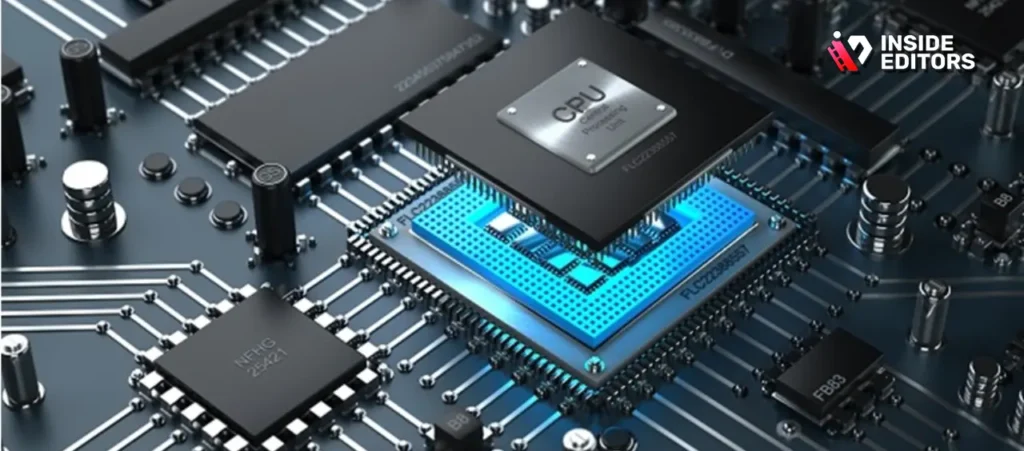
The CPU is responsible for encoding, decoding, and handling most of the timeline operations. For modern video editing, especially 4K and 6K footage, you need a high core count and fast clock speeds. Look for Intel Core i7 or i9 (12th generation or newer) or AMD Ryzen 7 or 9 (6000 series or newer).
More cores mean better performance during multi-threaded tasks like rendering and exporting. However, single-core speed is still crucial for timeline playback responsiveness. A good balance is key.
“For professional 4K editing, aim for a CPU with at least 8 performance cores. Anything less will significantly bottleneck your workflow.” – Puget Systems Hardware Analysis
Graphics Processing Unit (GPU): Acceleration and Effects
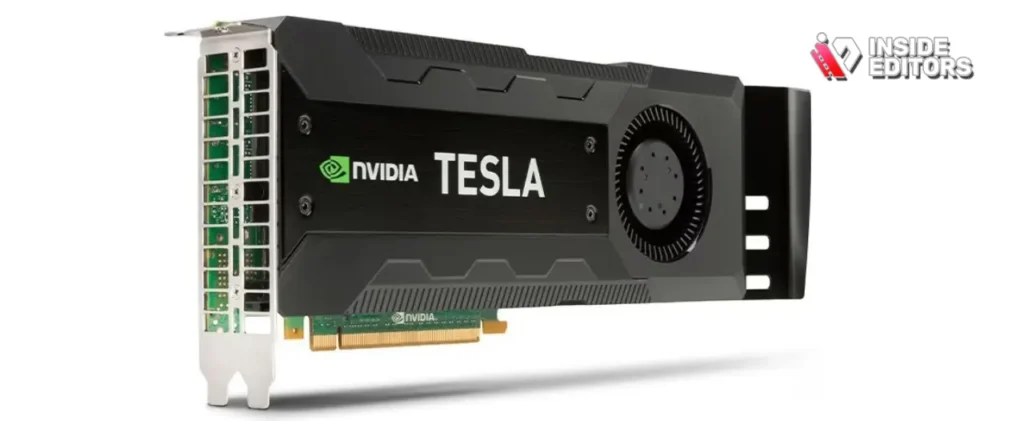
The GPU handles hardware acceleration, rendering complex effects, color correction, and stabilizing footage. While the CPU handles the heavy lifting of encoding, the GPU speeds up the process dramatically. NVIDIA GeForce RTX 30-series or 40-series cards are currently the industry standard for Windows laptops due to their excellent CUDA core performance and driver stability.
For serious 4K editing, an RTX 3060 or better is the minimum recommended. If you work with 6K or 8K RAW footage, an RTX 4080 or RTX 4090 will provide the necessary headroom. DaVinci Resolve, in particular, relies heavily on GPU power.
Random Access Memory (RAM): Smooth Timeline Scrubbing
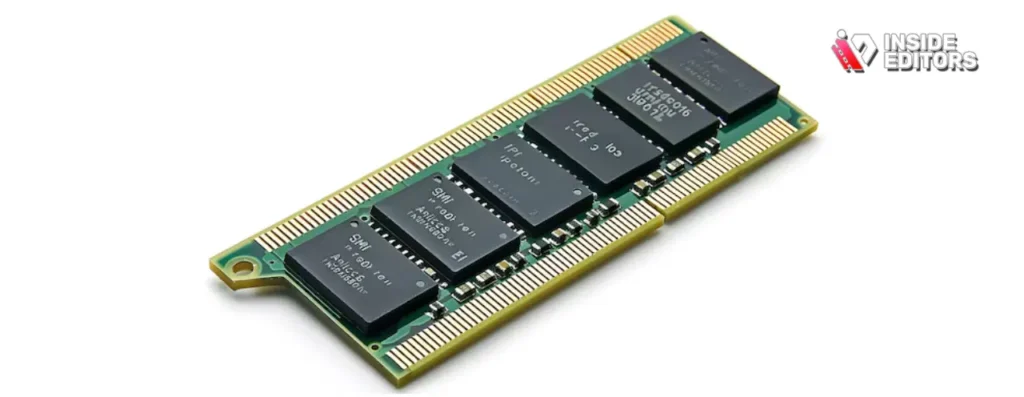
RAM acts as your computer’s short-term memory. When editing video, your software loads footage, effects, and previews into RAM. Insufficient RAM causes stuttering, crashing, and slow performance.
16GB of RAM is the absolute minimum for HD editing. 32GB is the sweet spot for professional 4K editing. If you plan to run multiple applications simultaneously (e.g., Premiere Pro, After Effects, and a web browser), or if you handle high-bitrate RAW files, consider 64GB. Ensure the RAM is fast (DDR5 is preferred in newer systems).
Storage: Speed and Capacity
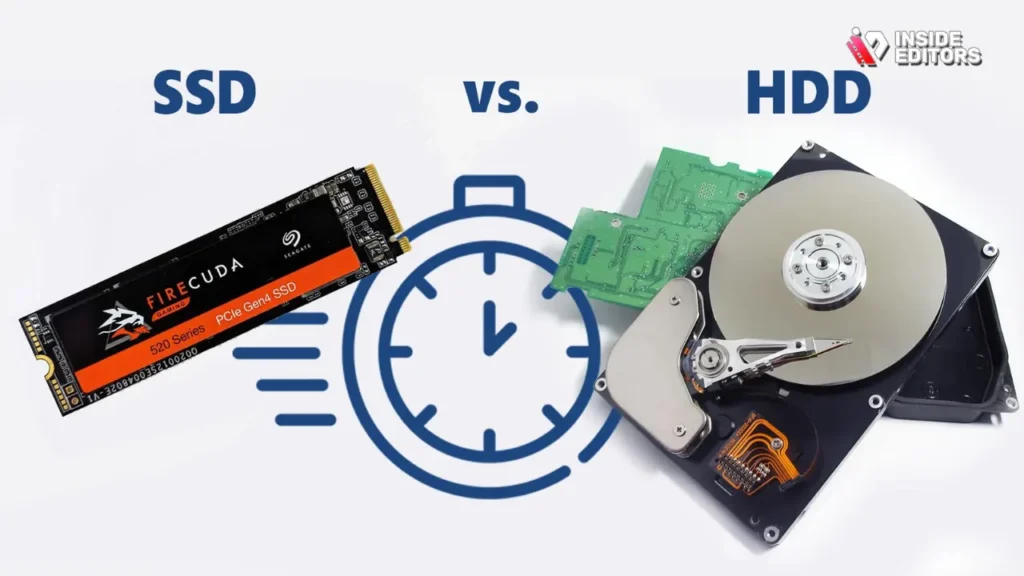
You need two things from storage: speed for quick loading and capacity for large project files. A Solid State Drive (SSD), specifically an NVMe M.2 SSD, is non-negotiable. Traditional Hard Disk Drives (HDDs) are too slow for modern video workflows.
Ideally, your system should have a dual-drive setup:
- Primary Drive (512GB – 1TB NVMe): For the operating system, applications, and cache files.
- Secondary Drive (1TB – 4TB NVMe or SATA SSD): For project files and media assets.
Fast storage minimizes bottlenecks during playback and rendering. According to astudy by Blackmagic Design, disk speed is often the limiting factor in high-resolution workflows.
Top Picks: Windows Laptops for Video Editing
We have evaluated the current market offerings based on performance, display quality, thermal management, and professional reviews. These laptops consistently deliver the power required for demanding video production.
Comparison Table: Leading Windows Editing Laptops
| Model | CPU (Min Spec) | GPU (Recommended) | RAM (Ideal) | Display (Key Feature) | Storage (Type) |
| Razer Blade 16 | Core i9 (13th/14th Gen) | RTX 4080/4090 | 32GB DDR5 | Mini-LED Dual Mode (HDR) | NVMe SSD |
| ASUS ROG Zephyrus G14 | Ryzen 9 | RTX 4070/4080 | 32GB DDR5 | Nebula HDR (OLED Option) | NVMe SSD |
| Dell XPS 17 | Core i9 (13th/14th Gen) | RTX 4070 | 64GB DDR5 | 4K+ Touch (High Color Accuracy) | NVMe SSD |
| MSI Titan GT77 | Core i9 (HX Series) | RTX 4090 | 64GB DDR5 | 4K 144Hz Mini-LED | NVMe SSD |
| Lenovo Legion Pro 7i | Core i9 (HX Series) | RTX 4080 | 32GB DDR5 | High Refresh Rate (165Hz+) | NVMe SSD |
Dell XPS 17: The Professional Workhorse
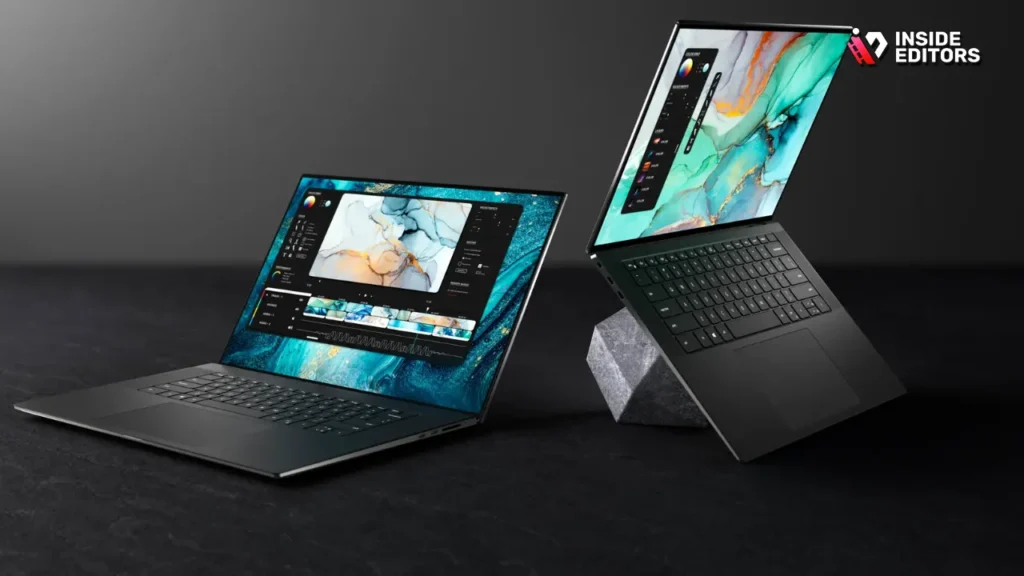
The Dell XPS line has long been favored by creative professionals who need power without the aggressive “gaming” aesthetic. The XPS 17 offers a sleek, minimalist design combined with impressive internal specifications.
The large 17-inch display is a major selling point, often featuring 4K+ resolution with excellent color accuracy (100% Adobe RGB). This precision is vital for color grading. While its GPU options might not reach the absolute peak of gaming laptops, the combination of a powerful Intel i9 CPU and an RTX 4070 is more than enough for most 4K projects.
Strengths and Limitations of the Dell XPS 17
- Pros:
- Exceptional 4K display quality and color accuracy.
- Premium, non-gaming, professional build quality.
- Excellent battery life for a high-powered machine.
- Cons:
- Thermal throttling can occur under sustained, heavy loads.
- Fewer port options than dedicated workstation laptops.
- Higher price point compared to similarly spec’d gaming rigs.
Razer Blade 16: Power and Portability
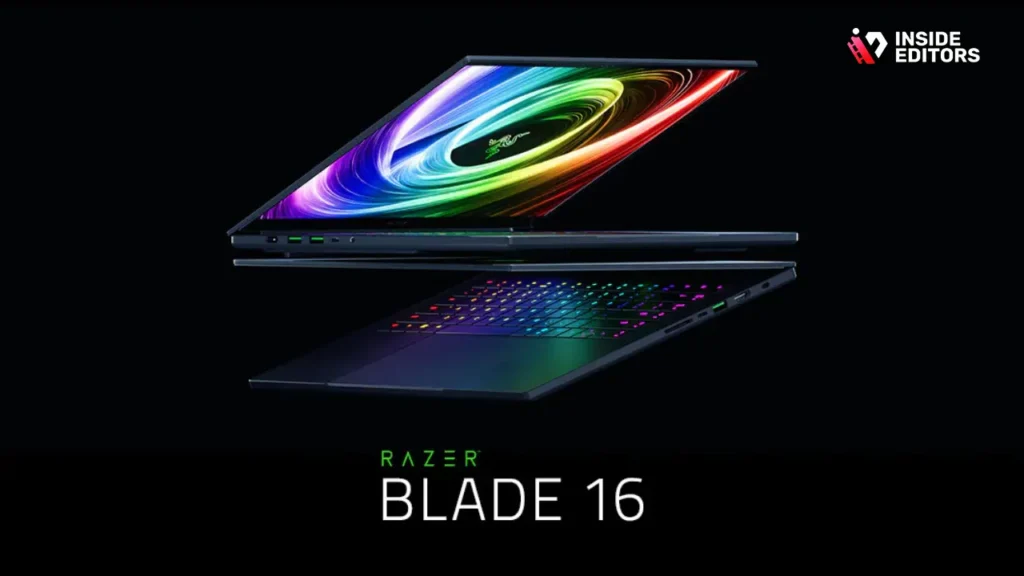
The Razer Blade series is consistently rated among the Best Windows Laptop for Video Editing due to its incredible balance of performance and slim profile. The Blade 16, in particular, offers cutting-edge technology in a beautiful, aluminum chassis.
Its standout feature is often the display. Razer offers configurations with a revolutionary Mini-LED dual-mode panel. This allows users to switch between a high-refresh-rate mode (e.g., 1080p at 240Hz) for gaming and a high-resolution, high-contrast mode (4K at 120Hz) perfect for HDR video editing. Paired with an RTX 4090, this machine handles 6K and even light 8K editing with ease.
Crucial Factors Beyond Raw Specs
While the CPU and GPU steal the headlines, several other components determine the long-term usability and reliability of your editing machine. Ignoring these factors can lead to frustrating bottlenecks.
Display Quality and Color Accuracy

Video editing is a visual medium, making the display arguably the most important component after the core processing units. You need a screen that accurately represents colors and brightness.
Look for panels that cover a high percentage of professional color spaces:
- 100% sRGB: Minimum standard.
- 100% DCI-P3: Essential for cinematic and HDR content creation.
- 100% Adobe RGB: Important for print and professional photography workflows.
OLED and Mini-LED technologies offer superior contrast ratios and true blacks compared to traditional IPS panels, which is a massive advantage when working with HDR footage.
Thermal Management: Keeping Your Cool
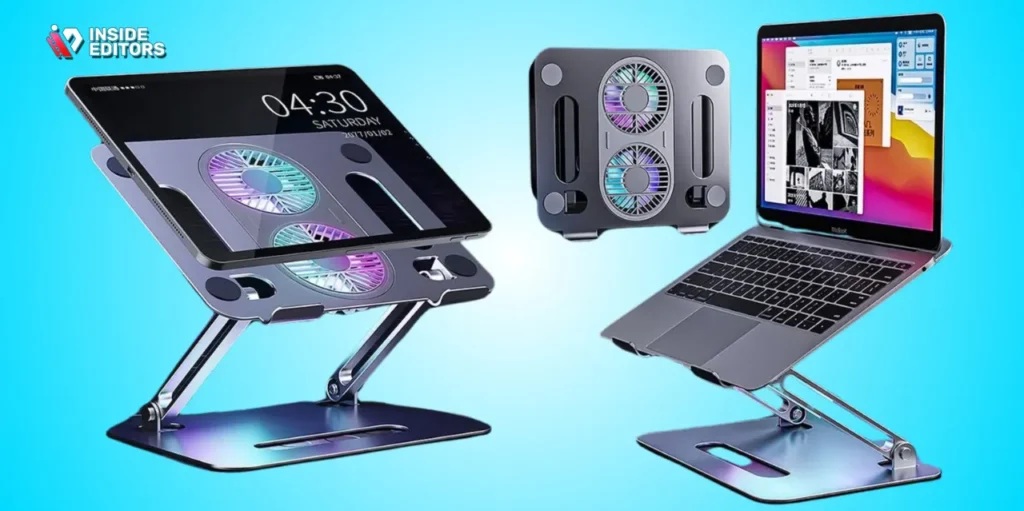
High-performance components generate significant heat. If a laptop cannot dissipate this heat effectively, the CPU and GPU will “throttle” their performance to protect themselves. This means your expensive components run slower than they should.
When researching the Best Windows Laptop for Video Editing, look for reviews that specifically test thermal performance under sustained load (e.g., 30-minute rendering tests). Laptops with large vapor chambers, multiple fans, and robust venting systems (like the MSI Titan or Lenovo Legion) generally perform better in this regard.
Port Selection and Connectivity
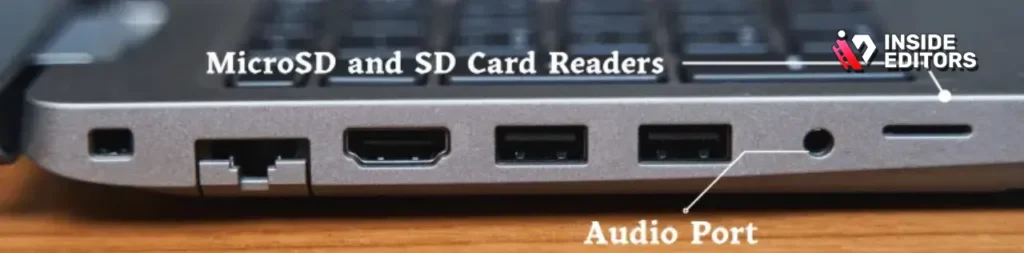
A professional video workflow involves connecting external drives, monitors, and peripherals. Your laptop needs robust connectivity options.
Essential Ports:
- Thunderbolt 4 (or USB4): Crucial for connecting high-speed external NVMe drives and docking stations. This is the fastest way to transfer large media files.
- HDMI 2.1 or DisplayPort: For connecting a high-resolution, color-accurate external monitor.
- SD Card Reader (UHS-II): Saves significant time transferring footage directly from cameras.
If your chosen laptop lacks sufficient ports, you will need to invest in a reliable Thunderbolt dock, which adds cost and complexity.
Matching the Laptop to Your Workflow
Not every editor needs the same machine. Your ideal laptop depends heavily on the type of content you create and your typical project resolution.
Scenario 1: The YouTube Creator and Marketer (HD/4K Standard)
If you primarily edit 1080p or standard 4K footage for YouTube, social media, or marketing videos, you do not need the absolute top-tier GPU.
Recommended Specs:
- CPU: Intel Core i7 or AMD Ryzen 7.
- GPU: RTX 3060 or RTX 4060.
- RAM: 32GB.
- Storage: 1TB NVMe SSD.
A machine like the ASUS ROG Zephyrus G14 or a mid-range Lenovo Legion often provides the Best Windows Laptop for Video Editing in this category, offering great performance without breaking the bank.
Scenario 2: The Professional Filmmaker (4K/6K RAW)
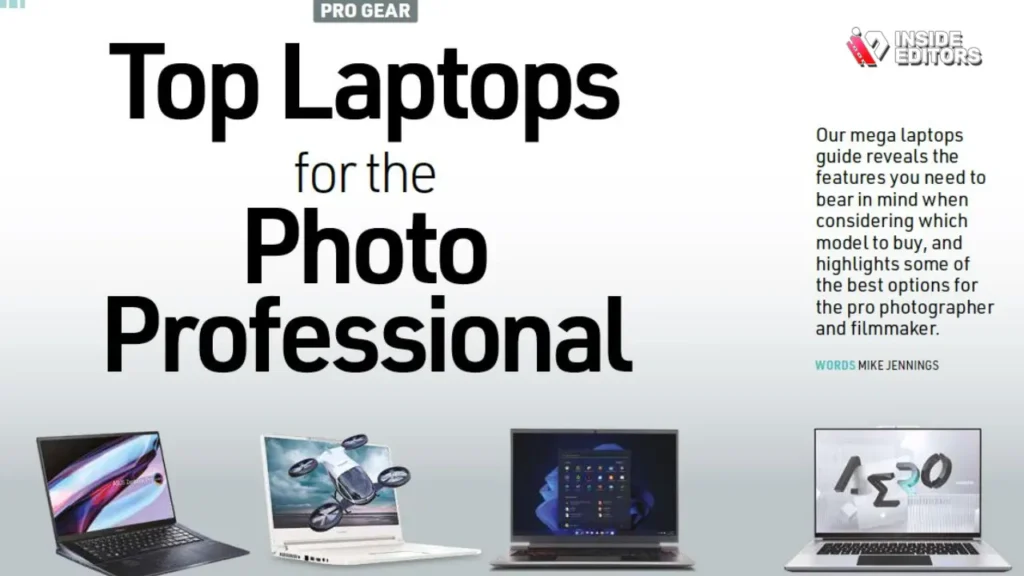
If you handle high-bitrate codecs (like REDCODE RAW, ProRes RAW, or BRAW), color grade extensively, or use heavy effects in After Effects, you need a true mobile workstation.
Recommended Specs:
- CPU: Intel Core i9 HX-series or AMD Ryzen 9.
- GPU: RTX 4080 or RTX 4090.
- RAM: 64GB DDR5.
- Storage: 2TB+ NVMe SSD (preferably two slots).
The MSI Titan GT77 or the high-end Razer Blade 16 are designed for this level of sustained performance. They sacrifice some portability for superior cooling and maximum power.
“The jump from 32GB to 64GB of RAM is often the single most impactful upgrade for editors working with complex timelines and layered effects.” – TechRadar Pro Review
The Importance of Software Optimization
Even the Best Windows Laptop for Video Editing will perform poorly if your software is not configured correctly. Optimization is key to maximizing your hardware investment.
Choosing the Right Editing Software
While the hardware is important, the software you use dictates how that hardware is utilized.
- Adobe Premiere Pro: Excellent all-around editor, but can be CPU and RAM intensive. Benefits greatly from fast NVMe drives.
- DaVinci Resolve: Highly optimized for GPU acceleration. If you do heavy color grading, Resolve will utilize high-end NVIDIA cards more effectively than Premiere Pro.
- Vegas Pro: Known for fast rendering speeds on specific hardware configurations, often favoring Intel Quick Sync.
Ensure you keep your editing software and GPU drivers updated. NVIDIA Studio Drivers are specifically optimized for creative applications and offer better stability than their standard Game Ready drivers.
Optimizing Project Settings
Always utilize proxies when editing high-resolution or high-bitrate footage. Proxies are smaller, lower-resolution versions of your original media. Editing with proxies drastically reduces the strain on your CPU and RAM, allowing for smooth timeline scrubbing even on moderately powerful laptops.
Remember to set your scratch disks and cache files to your fastest secondary NVMe drive. This prevents the system drive from becoming clogged and speeds up rendering and preview generation.
When to Outsource: The Inside Editors Solution
Even with the Best Windows Laptop for Video Editing, there are times when your workload exceeds your capacity or timeline. Perhaps you are traveling, facing a tight deadline, or need specialized color grading that your current setup or skill set cannot handle.
This is where professional support becomes invaluable. Inside Editors offers comprehensive video editing services designed to scale your production without requiring you to buy a new $4,000 laptop or spend endless hours rendering.
Why Choose Professional Video Editing Services?
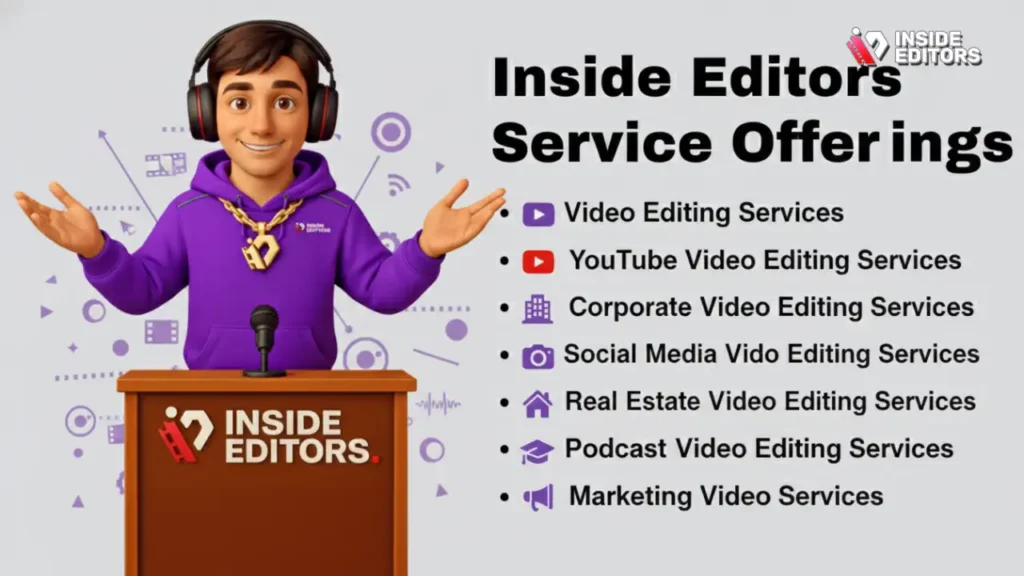
Inside Editors provides a seamless solution for content creators, businesses, and marketers. Our professional editing team has over 10 years of experience, ensuring your final product meets broadcast-quality standards.
Key Benefits of Using Inside Editors:
- Expertise and Quality: Access to professional editors skilled in advanced color grading, audio enhancement, and complex visual effects.
- Fast Turnaround: We understand deadlines. We offer fast turnaround times, typically between 24 and 72 hours, depending on project complexity.
- Affordable and Scalable: Our pricing is affordable, starting at $29 per video. This provides a scalable solution for growing channels or marketing campaigns.
- Unlimited Revisions: We work until you are 100% satisfied, offering unlimited revisions to ensure the final video perfectly matches your vision and brand style.
By leveraging a service like Inside Editors, you save time and can focus on content creation, filming, and strategy, rather than waiting for renders or troubleshooting hardware issues. This professional quality builds trust with your audience and ensures a consistent brand presence across all your video content.
Final Verdict: Choosing Your Ultimate Editing Machine
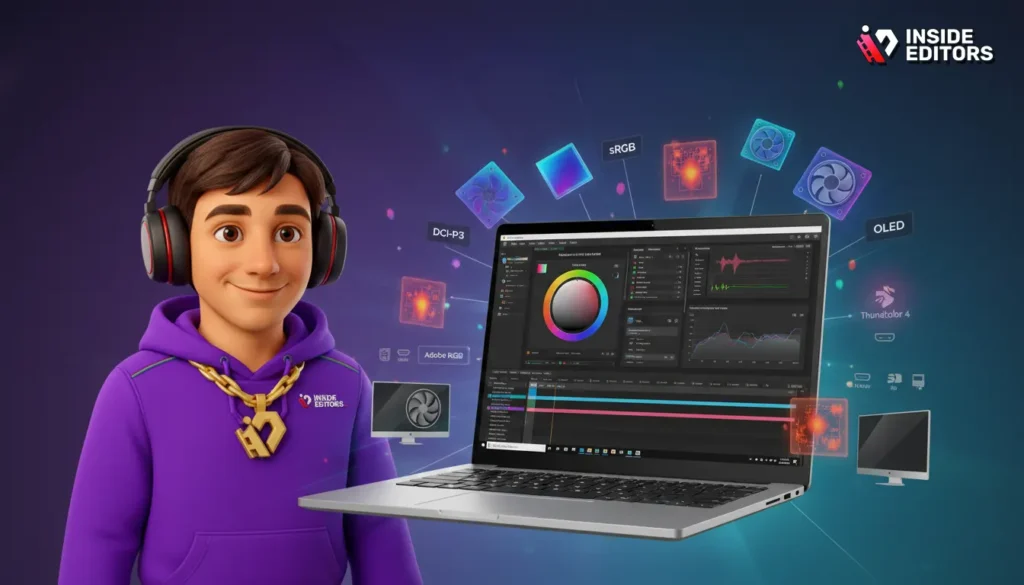
Selecting the Best Windows Laptop for Video Editing is a significant investment that should align with your long-term creative goals. Do not simply buy the most expensive option; buy the one that fits your specific workflow needs.
For the editor who needs the ultimate power for 6K+ RAW footage and complex VFX, the high-end Razer Blade 16 or MSI Titan GT77 provides the necessary GPU and thermal performance.
For the professional who prioritizes a sleek design, excellent screen accuracy, and sufficient power for high-quality 4K projects, the Dell XPS 17 remains an outstanding choice.
Always remember that the best laptop is the one that allows you to spend more time creating and less time waiting. Invest wisely in RAM, fast storage, and a high-quality display. If you find yourself consistently overwhelmed by the editing process, remember that professional help is available. Inside Editors is ready to handle your production needs, ensuring professional quality and fast delivery so you can focus on what you do best: creating compelling content.
Frequently Asked Questions
What is the minimum RAM for 4K editing?
For smooth 4K video editing, 32GB of RAM is strongly recommended. While 16GB is the absolute minimum, 32GB prevents stuttering and allows you to run multiple applications simultaneously, making your workflow much more efficient on the Best Windows Laptop for Video Editing.
How important is the GPU for video editing?
The GPU is extremely important, especially when using modern software like DaVinci Resolve or applying complex effects in Premiere Pro. A dedicated NVIDIA RTX card accelerates rendering and playback, significantly reducing export times and improving overall performance on the Best Windows Laptop for Video Editing.
Should I choose OLED or Mini-LED displays?
Both OLED and Mini-LED offer superior contrast and true blacks compared to standard IPS panels. For critical color grading, either is excellent, but ensure the panel covers 100% of the DCI-P3 color space for accurate cinematic work.
Why do video editing laptops need good cooling?
Video editing pushes the CPU and GPU to their maximum capacity for extended periods during rendering. Good cooling prevents thermal throttling, ensuring your expensive components maintain their high performance rather than slowing down to manage heat.
Can I edit 6K video on a Windows laptop?
Yes, you can edit 6K video, but you require a high-end configuration. Look for a powerful Core i9/Ryzen 9 CPU, an RTX 4080 or better GPU, and 64GB of DDR5 RAM. Using proxies is also essential for a smooth experience on the Best Windows Laptop for Video Editing.


