

Downloading a YouTube video to your iPhone might seem like something only tech-savvy users understand, but the truth is much simpler. Whether you want to save a tutorial for offline viewing, keep a workout playlist handy at the gym, or store inspiration clips for your next project, there are reliable ways to bring YouTube videos directly onto your device. In this guide, we’ll walk through each method step by step – safely, clearly, and without the confusing jargon you might find elsewhere. Our goal at Inside Editors is to help you make smart, informed decisions about your digital workflow, and that starts with understanding exactly how these tools work.
Downloading videos is something millions of users search for every day, and iPhone users often face extra steps because of Apple’s system design. That’s why this guide focuses on clarity and practicality – the exact actions you can take right now, and the ones to avoid. By the end, you’ll know the best ways to download a YouTube video to iPhone, the tools worth trusting, and how to avoid common pitfalls that slow down or endanger your device. Let’s start with the big picture: why people download videos, and what makes the iPhone workflow unique.
Why iPhone Users Want Offline YouTube Videos in the First Place
If you’ve ever tried watching a long tutorial while traveling, you know how unpredictable mobile data can be. Offline viewing solves this problem entirely. By keeping videos on your device, you’re not limited by network speed or environment. This is especially helpful for creators who review editing tutorials, fitness trainers who follow structured routines, or travellers who rely on saved content during long flights. The convenience alone makes the effort worthwhile, and once you learn the right method, it quickly becomes part of your everyday digital habits.
The iPhone Ecosystem Adds Extra Steps – But for Good Reason
Apple prioritizes safety and privacy, which means direct file downloads work differently compared to Android. Instead of saving videos into a “downloads” folder, iPhones route media through the Files app or Photos library depending on the tool you use. While this can feel restrictive, it’s also one of the reasons iPhones are so secure. Understanding these system behaviors helps you choose tools that work seamlessly without exposing your device to risky third-party apps. And once you get used to the workflow, it becomes second nature.
A Growing Number of Users Want Their Own Reference Library
Creators, students, and professionals rely on offline resources for convenience. You might follow a filmmaker’s lighting guide, a cooking recipe, or a technical lecture – all easier to rewatch from your camera roll. When used responsibly, downloading YouTube videos helps build a personalized learning library that travels with you. Whether you edit videos, run a small business, or simply enjoy long-form content, offline files offer flexibility your data plan can’t always guarantee. This need for efficiency is exactly why so many people search for how to download YouTube video to iPhone in the first place.
Understanding Your Options: Legal, Safe, and Practical Paths
It’s tempting to click any website that promises instant downloads, but not all tools are created equal. Many low-quality sites bombard you with pop-ups, install unwanted files, or fail to deliver the video you requested. The iPhone’s closed ecosystem protects you from most of these problems, but you can still encounter unsafe sites if you’re not careful. Safe downloading means choosing reputable platforms, understanding Apple’s restrictions, and avoiding tools that ask for suspicious permissions.
When reviewing tools for Inside Editors, we test functionality, speed, and privacy protections before recommending anything. This ensures your device stays secure while you get the convenience you’re looking for.
The Legal Landscape: What You Should Know Before Downloading
While YouTube itself does not allow downloading without permission, many users save videos for personal use such as studying, reviewing tutorials, or watching offline. YouTube Premium offers built-in offline access, which is one of the safest and most compliant ways to save videos. Third-party tools exist as well, but they should be used responsibly and ethically – especially when dealing with copyrighted content.
Understanding these guidelines doesn’t mean you can’t download videos; it simply helps you do so with respect and awareness. Many creators allow downloads or provide alternatives, and educational content is often shared freely. The key is using the tools responsibly.
Not All Tools Work on iPhone – Here’s Why
Some websites require desktop browsers to process video downloads. Others struggle with Safari’s built-in protections. Because of these limitations, iPhone users benefit most from tools specifically optimized for mobile use. These tools guide the video through Safari – Files – Photos without triggering security blocks. Once you understand which apps and websites support this workflow, downloading becomes smooth and consistent. The best methods require no jailbreaking, no risky installations, and no complicated steps.
The Best Ways to Download YouTube Video to iPhone
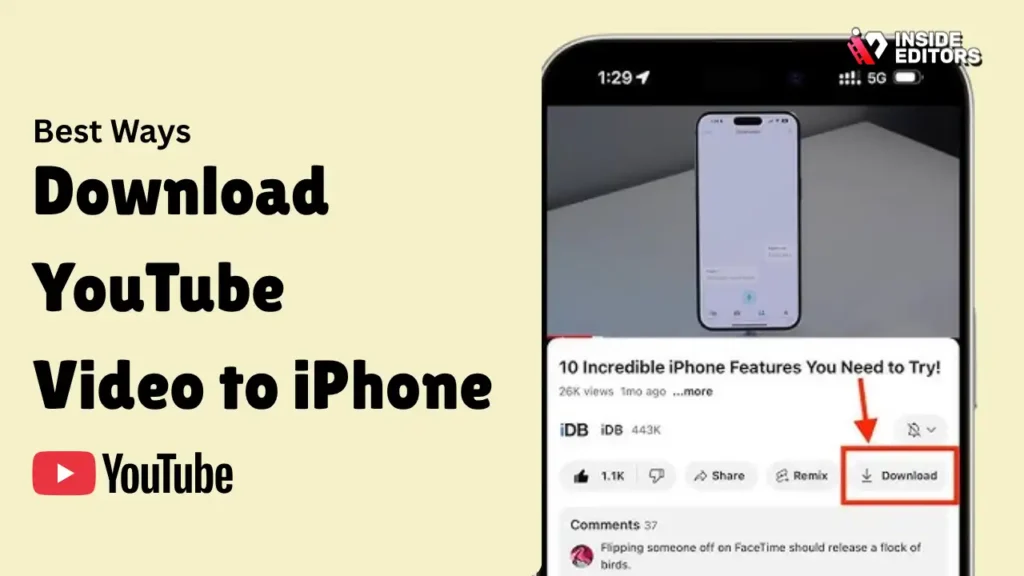
The most reliable method is also the simplest: YouTube Premium. It’s designed specifically for offline viewing, and it works seamlessly across iPhone, iPad, and even Apple TV. When you subscribe, you gain a download button directly inside the app. This bypasses complicated workflows, web tools, or legal questions. Premium also supports background play and ad-free viewing, which makes it valuable even beyond downloads.
However, Premium downloads remain within the YouTube app. You cannot export them to the Photos library or share them as standalone files. If you need full file control – for editing or archiving – you’ll need the other methods listed in this guide. Still, Premium remains the most stable and compliant option, and many users find it more than enough for daily use.
Using Safari-Friendly Downloader Tools for Full Video Files
If you’re looking for a method that gives you complete access to the video file – meaning you can save it, move it, or edit it – then a mobile-compatible downloader site is the most flexible option. These tools allow you to paste a YouTube link, choose a video quality, and download the file directly through Safari. Once the download starts, your iPhone will route the file into the Files app, where you can tap Share – Save Video to move it into your Photos library.
The key here is choosing a reputable downloader. Reliable platforms avoid intrusive ads, offer consistent quality, and support iPhone file formats. If a site demands excessive permissions or attempts to install additional profiles, you should leave immediately. Trusted downloader tools avoid these practices and are designed to work with iPhone’s built-in security requirements. This method gives you full editing control – especially useful if you plan to use the clip in content created for Instagram Reels, TikTok, or YouTube Shorts.
Using File Manager Apps that Support Browser-Based Downloads
Another powerful option involves file management apps that come with built-in browsers. These apps essentially bypass Safari’s restrictions by handling downloads internally. Once the file is saved, you can transfer it to the Photos app with a few taps. For some users, this is easier than dealing with Safari’s file routing. These apps also make it simple to organize multiple downloads, rename files, and create folders for different projects.
This approach works especially well for creators who maintain reference libraries. Whether you’re saving cinematography breakdowns or sound design examples, file manager apps let you store and categorize content effortlessly. The interface feels more like a desktop computer, giving you flexibility beyond iPhone’s default tools. If you regularly save multiple videos, this method might be your most efficient workflow.
Comparing Your Download Options: Choosing What Fits Your Workflow
To help you choose the right approach, here’s a simple comparison of the three main methods covered so far:
| Method | Best For | Limitations | Ideal User |
| YouTube Premium | Offline viewing inside the YouTube app | Cannot export files; subscription required | Everyday viewers, travelers |
| Safari-based downloaders | Saving full video files | Requires careful site selection | Creators, students, researchers |
| File manager apps | Downloading multiple videos, organizing files | Additional app needed | Power users, editors, archivists |
Each of these methods supports different goals. If your priority is safe offline viewing, Premium is unbeatable. If your goal is to download full files for editing or studying later, Safari or a file manager is the way to go. Understanding your needs helps you match them with the right workflow – and as you explore these options, you’ll naturally find the one that feels most comfortable.
Next, let’s dive deeper into why some tools work better than others, and how you can avoid the mistakes many first-time users make.
Common Mistakes People Make
One of the biggest mistakes is trusting the first website that claims it can download any video instantly. Many of these websites are loaded with deceptive ads or malware. iPhones are secure, but they’re not invincible. Choosing sites known for reliability protects you from headaches and keeps your device running smoothly. Bad sites often interrupt downloads halfway or deliver low-quality versions of the video you want.
A good rule of thumb is to trust tools widely recommended by reputable creators or tech educators. These platforms maintain clean interfaces and stable downloads without compromising privacy.
Not Knowing Where the Downloaded Video Goes
New iPhone users often feel confused when they can’t find a downloaded file. Safari saves videos into the Files app by default, not Photos. You must manually transfer the video by tapping Share – Save Video. This simple step makes the file appear in your camera roll. Understanding this small detail makes the entire process frictionless and prevents unnecessary frustration.
Now that we’ve covered the common mistakes, the next section will show you step-by-step workflows, advanced tips, and the professional insights many guides miss – especially if you plan to edit or reuse downloaded videos.
How to Download a YouTube Video to iPhone Step-by-Step
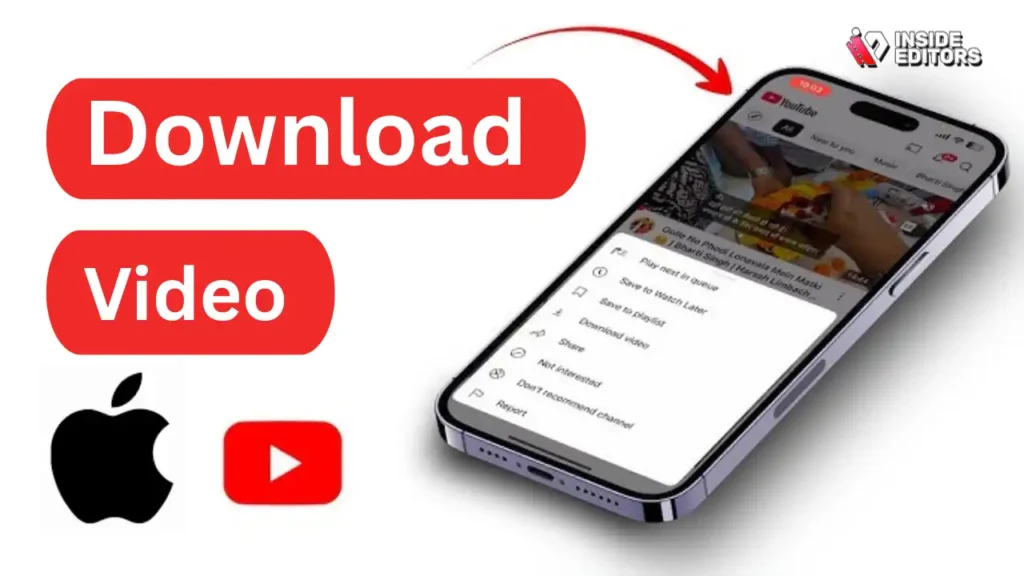
If you’ve chosen YouTube Premium, the process is pleasantly simple. Once you’re logged into the app, open any video and you’ll see a Download button right below the player. Tapping it instantly converts the video into an offline copy stored directly inside your YouTube library. You can choose the quality level you prefer, from basic SD to high-definition formats suitable for larger screens. For many people, this feature alone solves the entire problem, because it lets you watch videos anywhere – even when flying or camping off-grid. The experience integrates so smoothly into Apple’s interface that you’ll forget it wasn’t always there.
The limitation becomes apparent only when you want to use the video outside the YouTube app. Since Premium doesn’t let you export files, creators who want to reuse footage or students who want a personal archive often need more flexibility. That’s where Safari-based tools and file manager apps come in, giving you full control over the downloaded file.
Using Safari-Based Downloaders for Full File Access
If you prefer a method that gives you an actual video file you can edit, organize, or share, Safari is your best friend. Start by opening Safari and navigating to a trusted downloader. Then switch to the YouTube app, tap Share – Copy Link, and paste the link into the downloader’s search field. When you hit the download button, you’ll notice a small arrow icon appear in Safari’s upper corner – this is your iPhone confirming that the file is saving to the Files app.
When the download finishes, tap the arrow to view completed files, then choose the video and tap the Share icon. Select Save Video to move the file from the Files app into your Photos library. This step transforms your video into a standard iPhone-compatible format that works with iMovie, CapCut, your editing apps, or cloud backups. It’s a clean and predictable workflow once you get used to it, and it turns Safari into a powerful media hub.
Using File Manager Apps When You Need More Organization
Some creators collect a lot of reference footage – filmmaking breakdowns, editing tutorials, style inspiration clips – and keeping all of that inside the Files app becomes messy. File manager apps solve this problem by acting like a desktop-style environment. You can create folders, rename files, and even batch-download multiple videos at once. They also come with built-in web browsers that handle download links more gracefully than Safari.
Once you save a video within the app, moving it into your Photos library is simple. Find the file inside the app, tap Share, and select Save to Camera Roll. The process adds an extra step, but the organization benefits are substantial. If you’re someone who studies videos carefully or uses clips for creative work, the structure offered by file managers gives you a level of control Safari can’t match.
Why File Quality and Format Matter More Than You Think
When downloading a YouTube video to iPhone, it’s tempting to choose the highest resolution available – 1080p or 4K, if supported. These formats look stunning on modern iPhones with bright OLED displays. But they also take up more storage, and they aren’t always necessary for offline watching. A simple 720p version may be enough for tutorials, workouts, and educational content where clarity matters more than pixel detail. Higher resolutions are recommended for cinematography studies, reference footage, or when you plan to crop or edit the video later.
If your goal is to edit the downloaded video with tools like VN, iMovie, or CapCut, choosing a higher-quality version ensures flexibility in your workflow. Lower-quality videos introduce noise when resized or color-graded, which can affect your final output. The key is aligning your choice with your intended use – a step many new users overlook.
Understanding File Types and Compatibility on iPhone
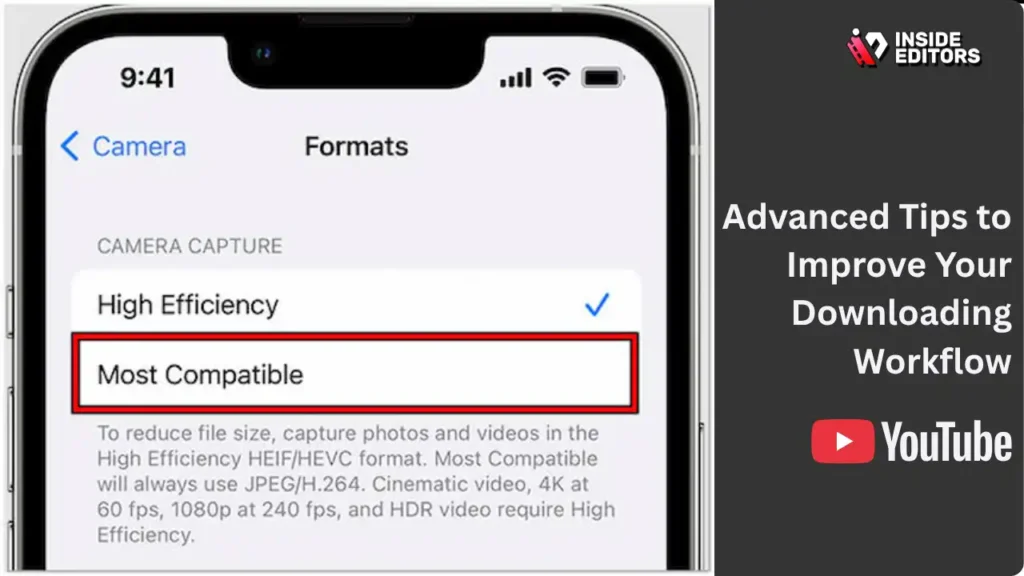
YouTube videos usually convert into MP4 files when downloaded through a web tool. MP4 is widely supported across iOS apps, and it ensures that the video plays smoothly without needing extra codecs. Occasionally, some downloaders offer WebM or other less common formats, which may not work with iPhone. When that happens, the video might not save properly to your Photos library, or it may refuse to open inside editing apps.
That’s why choosing the right downloader matters. Tools that produce consistent MP4 outputs eliminate friction later, especially if you plan to share the video or edit it professionally. Knowing which formats your iPhone prefers will make your entire workflow more seamless and predictable.
Advanced Tips to Improve Your Downloading Workflow
If you’re downloading videos regularly – whether for skill-building or creative reference – organization becomes invaluable. Create folders based on themes like editing techniques, filmmaking tutorials, choreography, or business content. Proper organization saves hours of scrolling and helps you build a personal library that grows as your skills grow. Even small details like naming files or adding dates can make your content far easier to revisit later.
Good organization also helps when you transition videos into editing software. Whether you’re preparing a reference clip for a product demo or planning a video project, knowing exactly where your files live gives you the confidence to move quickly.
Syncing Downloaded Videos Across Devices
If you work across multiple Apple devices – such as an iPhone, iPad, and MacBook – syncing your downloaded videos ensures everything stays consistent. Uploading videos to iCloud Drive is the easiest method. Once your video is stored in iCloud, it becomes accessible across your entire Apple ecosystem. This is particularly useful if you edit on your MacBook but capture ideas on your iPhone throughout the day.
This workflow is common among creators who build short-form content for brands or social platforms. With synced content, you can start planning on your phone and finish editing on your computer without transferring files manually.
Ensuring You’re Using Safe, Reputable Tools
Whenever you introduce third-party tools into your workflow, safety becomes essential. Stick to platforms with clean interfaces, transparent terms of use, and positive reputations. Avoid sites filled with excessive advertising or unusual pop-ups, especially those that ask you to install additional apps or browser profiles. A trustworthy tool will let you paste a link, choose your format, and download – nothing more.
Professional editors often rely on vetted sites and apps that maintain consistency across projects. Following these standards keeps your device safe and your workflow smooth.
What to Do If a Download Fails or Won’t Save Properly
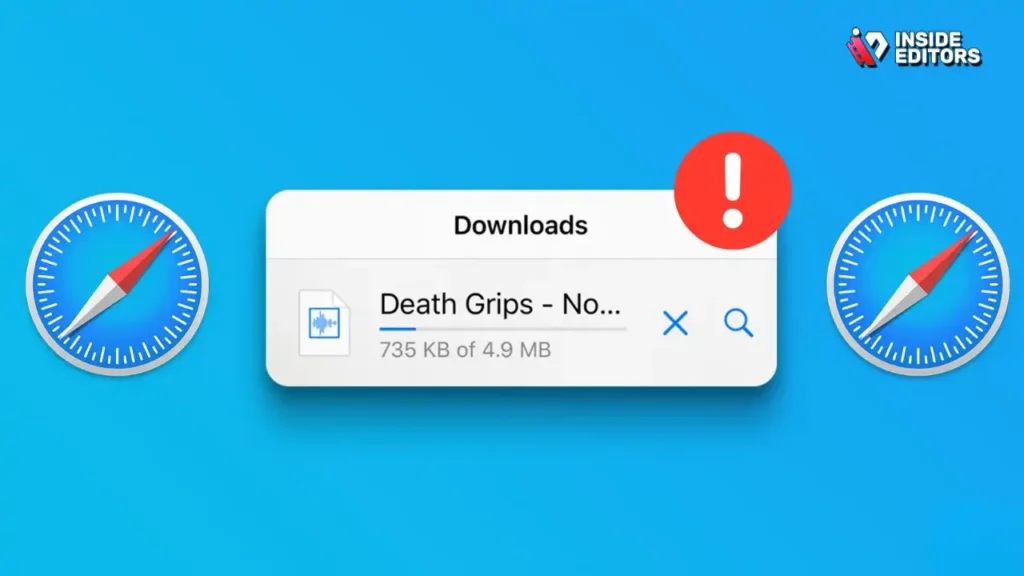
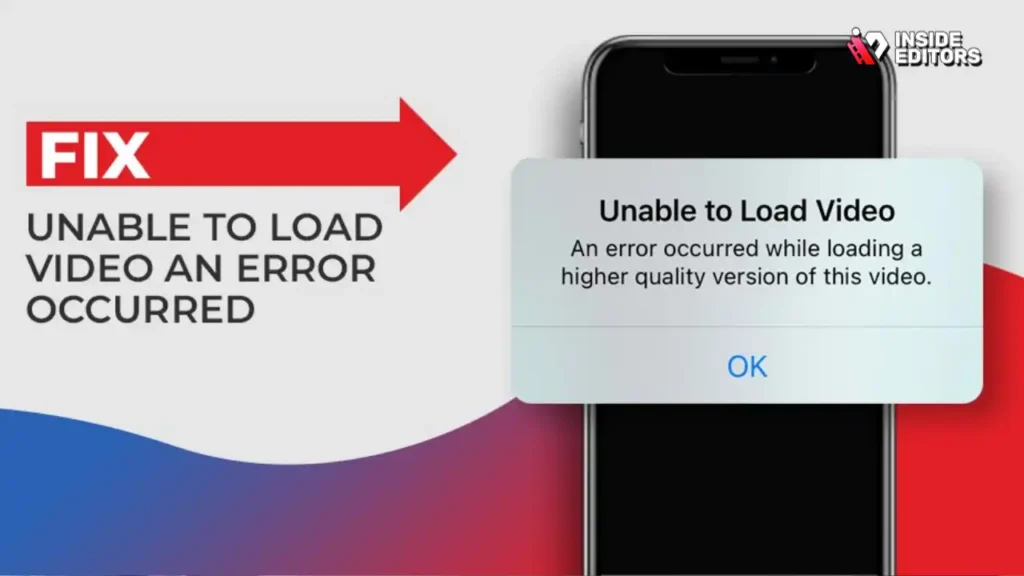
Sometimes Safari blocks a download, the file refuses to transfer to your Photos library, or the video plays without sound. These issues happen, especially when the original video uses unusual formats. The first step is always to try another downloader. Many tools handle file conversion differently, and switching platforms typically solves the issue.
Another common fix is clearing your Safari cache or restarting your iPhone. These simple resets resolve many temporary glitches. If the video still won’t play, you may need to convert it into a more compatible format. While this sounds technical, many mobile apps do it with one tap. iOS is designed to manage media efficiently, so problems rarely persist with the right approach.
Knowing When a Video Cannot Be Downloaded
Some YouTube content is protected or encrypted, which means third-party tools cannot process it. If you repeatedly see errors, the video may simply be restricted. In these cases, YouTube Premium is often the only dependable method for saving the video offline. Understanding these limits saves you time and sets realistic expectations.
How Professionals Use Downloaded Videos in Their Creative Workflow
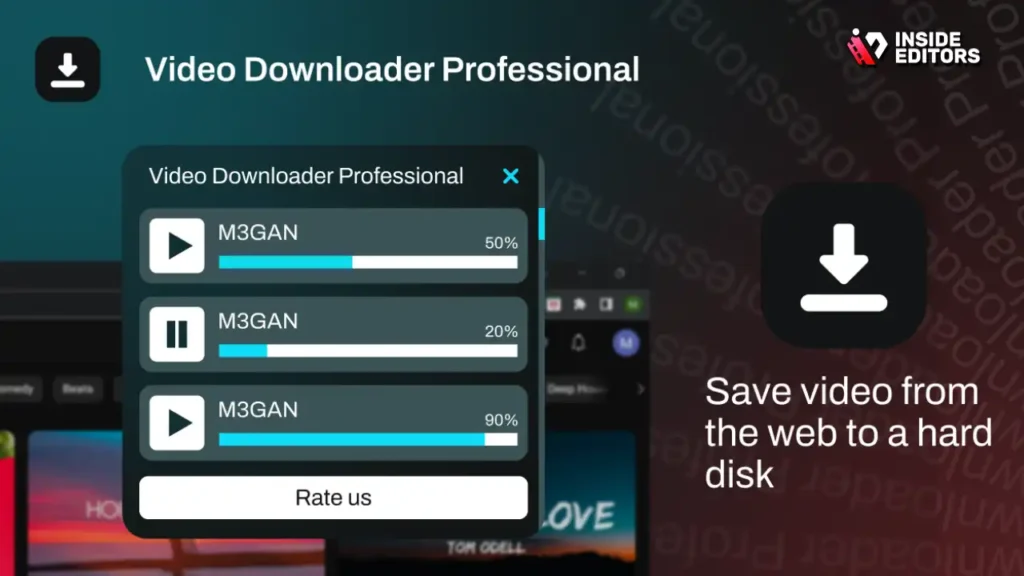
Many video editors use downloaded clips not to repost content, but to study lighting, pacing, color, and storytelling. Saving a tutorial from a respected cinematographer lets you revisit complex techniques whenever needed. Offline access helps you absorb information at your own pace. This is particularly useful when you’re learning transitions, sound design, or advanced editing sequences that require careful observation.
Using Clips for Mood Boards and Creative Planning
Professionals often gather visual references to plan mood boards, pitch ideas to clients, or brainstorm aesthetic directions. Downloaded videos – even short segments – can spark creative breakthroughs. When you combine these clips with your own footage, you create a powerful visual toolkit that informs your work. Inside Editors often receives editing projects from clients who send downloaded videos as reference material for style, pacing, or visual direction.
Inside Editors: When to Use Professional Editing Help
If you’re downloading videos as part of a project or creative process, there comes a point where professional editing can elevate your work dramatically. Maybe you’re producing product demos, fitness tutorials, or travel diaries. Professional editors refine your footage, craft smooth transitions, balance audio, and create visually engaging stories. Even with the best tools, editing takes time – and that’s where Inside Editors helps.
Our team handles everything from product videos and fitness content to gaming, business, and fashion edits. If you’re preparing content for social platforms, we also offer specialized services for Pinterest, LinkedIn, Instagram Reels, and more. With expert editing, your videos not only look better but also communicate your message clearly and confidently. Explore Inside Editors’ Video Editing Services
Conclusion: Your iPhone Is More Capable Than You Think
Downloading a YouTube video to an iPhone is no longer a complicated task. Whether you’re using YouTube Premium, Safari-based downloaders, or file manager apps, each method offers unique benefits depending on how you work. The key is choosing tools that match your goals – whether that’s offline learning, creative exploration, or building your own reference library. With the right approach, your iPhone becomes a powerful device for storing, studying, and shaping video content whenever inspiration strikes.
FAQs How To Download YouTube Video to iPhone
1. Is it safe to download YouTube videos to an iPhone?
Downloading YouTube videos to an iPhone is safe when you use reputable tools like YouTube Premium or trusted browser-based downloaders. Avoid sites that use aggressive ads or ask for unnecessary permissions. iPhones automatically sandbox downloads, which improves privacy, but you should still stick to secure, HTTPS-based sources. If you need full ownership of the file, Safari downloaders offer more control than Premium.
2. What’s the easiest way to download a YouTube video to an iPhone?
The easiest method is YouTube Premium, which adds a built-in Download button and stores videos safely inside the app. If you need an actual MP4 file for editing or offline archiving, Safari-based downloaders work well. These let you paste a link, pick a quality, and save directly to Files – Photos. Both methods are simple, but Premium is the safest.
3. Can I save YouTube videos directly to my iPhone Photos app?
Yes, but only when using a Safari downloader or a file-manager app. After downloading the MP4 file, open it in Files and tap Share – Save Video to move it into Photos. YouTube Premium does not allow exporting to Photos, so this method is preferred by creators who want full file ownership or plan to edit the video later.
4. Do I need a paid subscription to download YouTube videos on iPhone?
You don’t need a subscription unless you want the built-in YouTube Premium download feature. Free tools can save MP4 files via Safari, but they vary in quality and should be chosen carefully for safety. Premium offers ad-free viewing, background play, and stable offline downloads, while free methods provide full file control without cost.
5. Are third-party YouTube downloader apps safe for iPhone?
Some are safe, but many contain intrusive ads or request permissions your device doesn’t need. iPhone users are generally better off using Safari-based downloaders because they don’t require installations. If an app asks for device profiles, background tracking, or account access, avoid it. A safe rule: stick to browser tools unless you need advanced file-management features.
6. Why won’t my downloaded YouTube video save to Photos?
This usually happens when the downloader creates a file format the iPhone can’t process, such as WebM. Switch to a tool that produces MP4 files, which iOS reads reliably. Sometimes Safari needs a restart or cache clearance before transferring large files. Moving the video manually via Files – Share – Save Video typically solves the issue.
7. What video quality should I choose when downloading?
It depends on your purpose. For everyday offline watching, 720p balances clarity and storage size. For color-grading, editing, or cinematic references, 1080p or higher offers more detail. Higher resolutions take longer to download and consume more space, so creators should choose based on their editing workflow and storage availability.
8. How long does it take to download YouTube videos on an iPhone?
Most downloads complete within seconds to a few minutes, depending on file size and internet speed. Higher resolutions like 1080p or 4K take longer and require more storage space. Safari downloads show a progress bar, while Premium handles everything in the background. Rush workflows benefit from pre-selecting lower file sizes when quality isn’t critical.
9. Can I edit downloaded YouTube videos on my iPhone?
Yes. Once saved to the Photos app, the video can be edited in iMovie, VN, CapCut, or any mobile editor. Choose MP4 for best compatibility, especially when trimming, color-grading, or adding transitions. If you need advanced edits, Inside Editors’ professional editing services can refine pacing, audio, and visuals for a polished final result.
10. What’s the difference between using YouTube Premium and a downloader?
Premium allows safe, built-in offline viewing but keeps videos locked inside the YouTube app without export options. Downloaders generate actual MP4 files you can save, edit, and reuse across devices. Premium is best for fast, trusted offline access, while downloader tools serve creators, students, and professionals who need file ownership and editing flexibility.


