


If you’ve ever wondered why two creators can shoot similar footage but one video looks inspiring while the other feels flat, the difference almost always lies in the editing. In today’s content-first world-where short-form videos dominate TikTok, Reels, YouTube Shorts, and nearly every platform-your editing app becomes the engine behind your storytelling. It influences pacing, color, emotion, and even how long viewers stay engaged. For many Android creators, the challenge isn’t lack of tools; it’s choosing the right one from a flood of options.
That’s where this guide comes in. We’re exploring the top 5 free video editing apps for Android, with a focus on real features, practical performance, and actual creator workflow-not hype. This list is built on what creators genuinely need: speed, clarity, professional polish, and flexibility to grow their style. Whether you’re crafting travel stories, product reviews, fitness clips, reaction videos, or business content, the apps covered here will help you improve without spending a single dollar.
Along the way, we’ll also highlight where mobile editing shines and where professional support-from the team at
Inside Editors-can elevate your content when you want that extra level of cinematic polish.
What “Pro-Level” Really Means
The word “professional” gets thrown around a lot in the editing world. But for Android creators, “pro-level editing” doesn’t necessarily mean complicated interfaces or expensive subscriptions. Instead, it comes down to three core elements: speed, precision, and consistency.
Pro Tools Should Still Feel Easy to Use
People often assume that more advanced tools must be harder to learn. In reality, the best editing apps guide you naturally through the process. A professional tool should feel smooth from the moment you begin trimming your first clip. The interface shouldn’t slow you down; instead, it should feel intuitive-like a workspace designed for humans, not engineers.
Let’s say you’re trimming clips. In a good editor, trimming feels fluid; clips snap into place precisely where you want them. Adjusting brightness should be one slider away-not buried under five nested menus. Adding transitions or overlays should take seconds, not tutorials. This kind of intuitive experience marks the difference between an app that just looks “feature-rich” and one that actually improves your workflow.
If you’re brand new to editing and want to understand the storytelling side of the craft, the Inside Editors About Page helps explain how editors shape emotion, clarity, and narrative flow.
Free Apps That Compete With Desktop-Level Software
Today’s best Android editors offer capabilities that once required expensive desktop tools:
- Multiple layers for video, text, and audio
- Clean keyframe animation
- Professional color grading tools
- Precision trimming and splitting
- Motion tracking
- AI-generated captions
- Stabilization for shaky footage
- Green-screen tools
- High-quality 1080p and 4K exporting
For creators building a brand on mobile, this is empowering. You can produce content that looks polished and professional without paying to unlock essential features. The key is choosing the right tool based on what you edit and how you work.
CapCut: The Creator’s All-Rounder
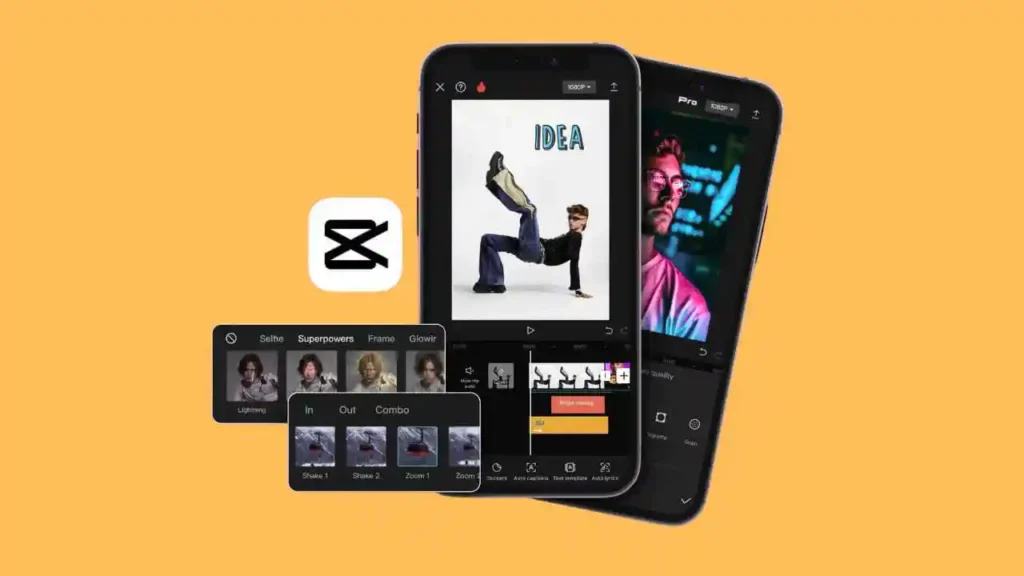
It’s impossible to talk about free video editing apps for Android without discussing CapCut. Over the last few years, CapCut has become the dominant mobile editor for short-form content creators worldwide-and not just because it’s free. It blends ease of use, powerful tools, and AI automation in a way that’s hard to find elsewhere. You can explore the app directly at the
CapCut Official Website.
Why CapCut Feels So Natural for Beginners
Many first-time editors avoid complicated apps because they look overwhelming. CapCut solves that problem with a clean, modern interface designed for speed. You can trim clips smoothly, split sections precisely, add text, adjust lighting, and apply transitions-all within moments. Even if you’ve never edited before, you can produce a polished clip your first day.
That accessibility matters. TikTok and Instagram creators often edit multiple videos per week, and CapCut’s simplicity helps them stay consistent. For anyone focused on vertical-first content, CapCut also pairs well with Vertical Video Editing Services when you need high-quality refinement for brand or commercial use.
AI Tools That Save Time Without Losing Quality
CapCut’s edge lies in its automated features. For example:
- AI captions generate accurate subtitles instantly.
- AI background removal saves hours of masking work.
- Auto beat sync matches clips to music perfectly.
- AI color enhancement upgrades dull footage.
- Stabilization cleans up shaky shots instantly.
These tools turn complex editing tasks into 10-second actions. If you’re editing multiple videos weekly or producing content for clients, this kind of automation is invaluable.
InShot: Fast Social Editing
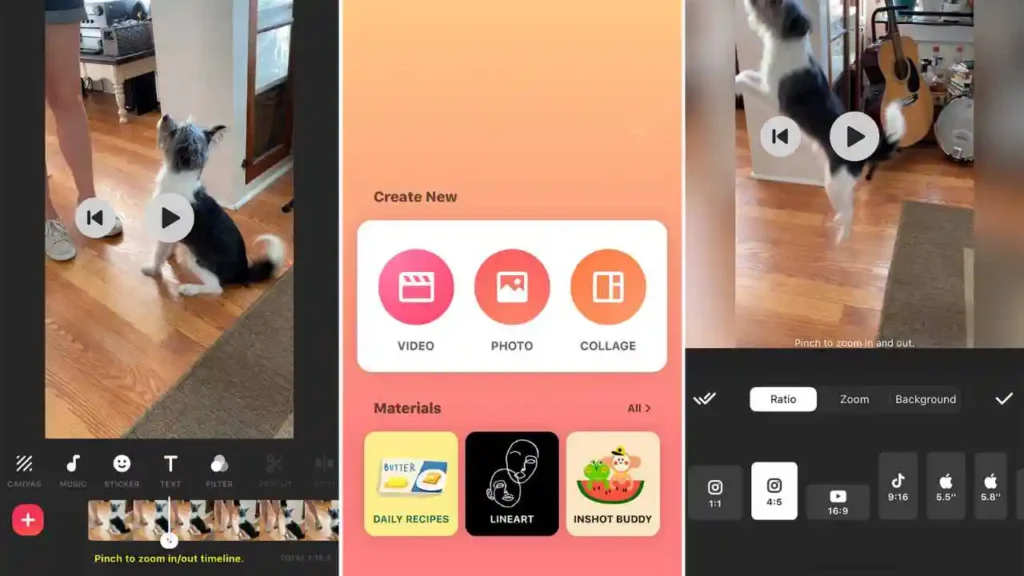
Where CapCut aims for versatility, InShot focuses on speed. It’s the app creators use when they want a fast, polished edit without diving into deep technical controls. The app is available from the InShot Official Page.
Why InShot Works for Social-First Creators
If you focus on Reels, Shorts, or TikTok content, speed is everything. InShot is built for this pace. You can shoot a clip, trim it, color-correct it, add music, and export it in minutes. There’s almost no learning curve. Everything feels immediate and lightweight.
This makes InShot ideal for:
- Fitness creators
- Vloggers
- Food content creators
- Lifestyle influencers
- Daily posting workflows
If you’re in the fitness or coaching niche and need help scaling long-form content, consider pairing your mobile workflow with Fitness Training Video Editing.
Simple Tools, Surprisingly High Output
Despite its simplicity, InShot includes:
- High-quality color correction
- Smooth transitions
- Video speed control and reverse effects
- Clean export formats
- Music trimming
- Text overlays and stickers
- Canvas resizing for vertical formats
InShot’s biggest strength is how quickly it helps you produce high-quality videos. Many creators use it as their everyday editing tool because it stays out of the way and lets them focus on creativity.
KineMaster: Full Control Editing
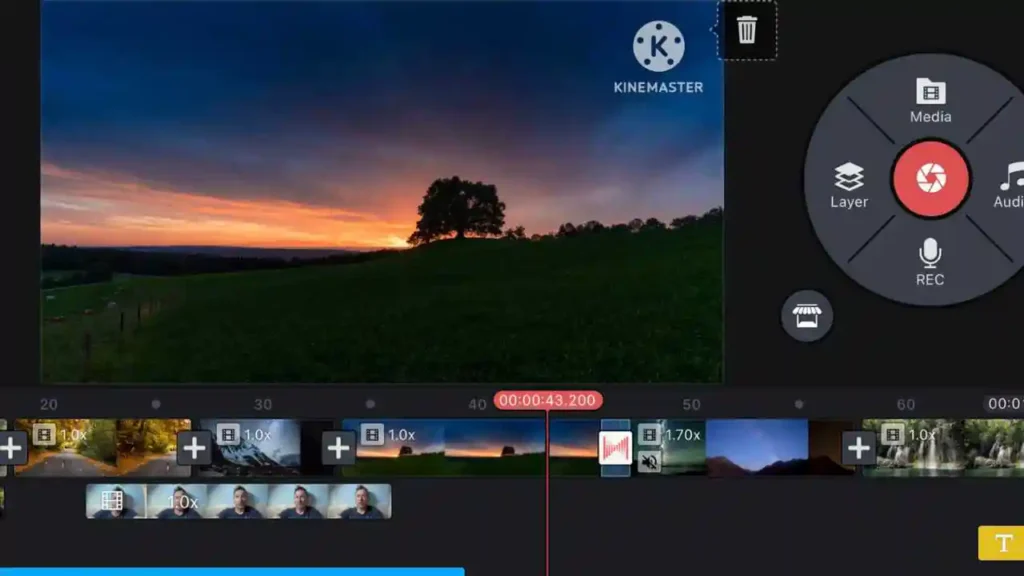
While InShot and CapCut focus on simplicity and speed, KineMaster is the opposite: it gives you deep, layered control that rivals desktop editing software. You can download it directly from the KineMaster Official Website.
Why KineMaster Feels Like a Professional Editing Suite
KineMaster is perfect for creators who enjoy precision. It allows:
- Multi-layer video editing
- Detailed audio mixing
- Chroma key (green screen)
- Advanced transitions
- Keyframe animation
- Blending and compositing
- Custom LUT color grading
- Speed ramp control
In many ways, it offers the most “professional” workflow of any Android editor.
Creators who make commentary, reaction content, or tutorial-style videos often love KineMaster. And if you’re planning to scale your reaction content further, Reaction Video Editing is a great resource.
Audio Tools That Make a Massive Difference
Clean audio is one of the most underrated aspects of editing. Even if your visuals look great, uneven sound can ruin the viewer experience. KineMaster offers:
- EQ adjustments
- Voice filters
- Sound level mapping
- Noise suppression
- Audio ducking
- Layered audio tracks
This level of control is hard to find in any other free mobile editor.
VN: Cinematic Storytelling Made Easy
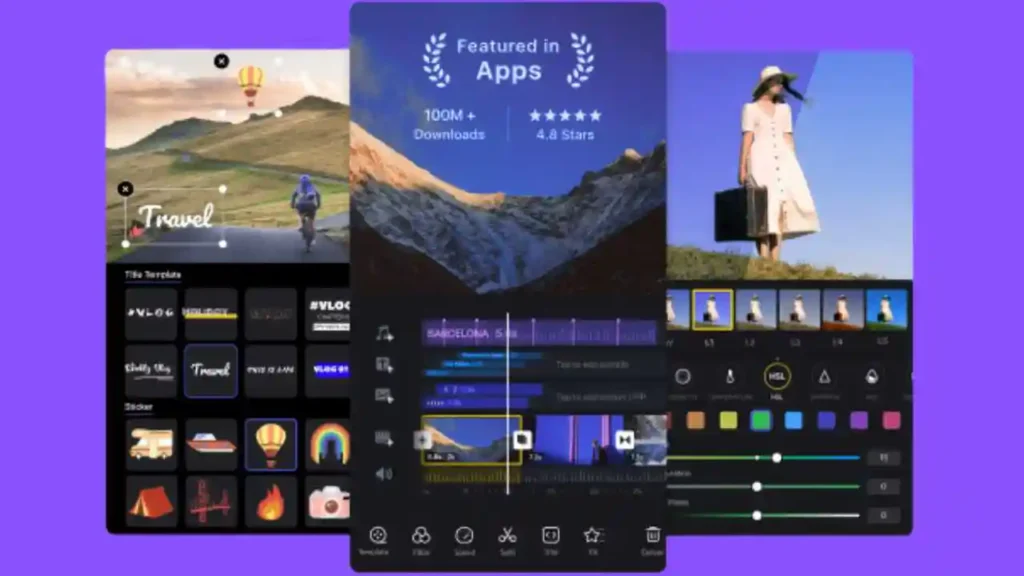
VN-short for VlogNow-is beloved by creators who prefer a minimalist interface with cinematic editing potential. Its official page is available at the VN Official Website.
Why VN Is Ideal for Story-Driven Videos
Unlike InShot’s speed-focused design or KineMaster’s technical nature, VN focuses on simplicity and elegance. Its interface is visually clean, helping you concentrate on pacing and storytelling rather than navigating cluttered menus.
Travel filmmakers, vloggers, and cinematic creators often choose VN for its aesthetic quality. If you create travel or outdoor content, Adventure Video Editing can help refine complex travel stories into polished narrative films.
Advanced Control Without the Learning Curve
VN includes:
- Keyframes for motion animation
- Cinematic color presets
- Smooth transitions
- Custom overlays
- Sound design tools
- Non-destructive editing
- Clean exporting
VN strikes a beautiful balance between intuitive design and creative freedom.
Filmora: Stylish Visual Effects

Filmora Mobile is the perfect blend of creativity and automation. You can explore it directly at the
Filmora Official Page.
Why Filmora Appeals to Visual Content Creators
Filmora is known for its:
- Beautiful transitions
- Dynamic motion titles
- Vibrant filters
- Modern LUT packs
- Animated stickers
- Trend-ready templates
These elements make Filmora a top choice for creators who want their videos to feel visually rich without spending hours building effects from scratch.
If your content includes product reviews or branded visuals, pairing Filmora with
Product Video Editing helps create a consistent, polished aesthetic across your content.
AI Tools That Help You Edit Faster
Filmora offers:
- Beat sync
- Scene detection
- Motion tracking
- Auto audio balancing
These tools help reduce repetitive work, letting you focus on creative decisions rather than manual trimming.
Choosing the Right App
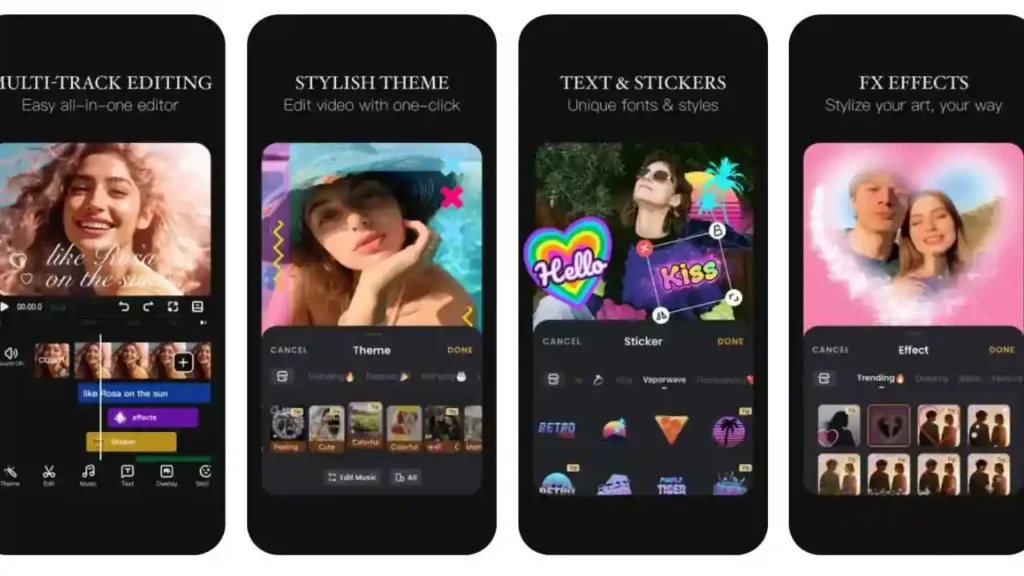
Now that you’ve explored what each editor can do, the next step is deciding which one fits your creative style. Choosing the right app isn’t about picking the most powerful one on the list-it’s about choosing the app that supports your goals, your editing personality, and the type of content you produce most often.
Many creators assume they need the app everyone else uses, but the truth is more personal. A travel filmmaker has different needs than a fitness coach. A reaction creator has different goals than a brand video editor. And someone posting daily short clips has a completely different workflow than someone producing cinematic sequences.
Match the App to Your Editing Style
If your editing style is fast, minimal, and focused on consistency, choosing a heavy, multi-layer editor like KineMaster may slow you down. But if you love crafting sequences, building layers, and customizing visuals, a simple app like InShot might feel limiting.
A simple way to decide is to consider these three questions:
- How long do you spend editing per video?
- If under 10 minutes → InShot or CapCut
- If 20–60 minutes → VN or Filmora
- If over 1 hour → KineMaster
- How many layers do you use in your edits?
- 1–2 layers → InShot
- 3–4 layers → CapCut or Filmora
- 5+ layers → KineMaster
- What matters more: speed or control?
- Speed → InShot
- Balanced workflow → CapCut or VN
- Full control → KineMaster
Thinking about your editing habits helps you choose a tool that works with you, not against you.
Workflows That Benefit From Each App
Let’s break it down even further based on common content categories:
- Daily social media creators → InShot
- Brand or client content creators → KineMaster
- Travel, lifestyle, cinematic editors → VN
- Effect-heavy, trend-based creators → CapCut
- Aesthetic-driven, product-focused creators → Filmora
If your content includes storytelling, branding, or longer visual structure, professional help from
Corporate Video Editing can help you take your edits from good to polished.
Don’t Be Afraid to Use More Than One App
Many creators use a combination of apps, because no single editor is perfect. For example:
- CapCut for AI cleanup + VN for cinematic color grading
- KineMaster for layering + InShot for final export formatting
- VN for rhythm + Filmora for finishing effects
Your workflow doesn’t need to be boxed into one app-use the best parts of each.
Beginner Mistakes to Avoid
Even with powerful mobile editors, beginners often run into predictable mistakes that make their videos feel less polished. The good news? Most of these issues are easy to fix once you recognize them.
1. Overusing Transitions and Effects
The biggest giveaway of beginner editing is the overuse of transitions. When every clip slides, spins, zooms, or flashes, it distracts the viewer from the content. Strong editing is usually invisible-transitions should support your story, not overpower it.
Instead of using dramatic transitions, try:
- Straight cuts
- Soft fades
- Gentle motion blur
- Minimal zoom transitions
These choices feel clean and professional.
2. Ignoring Audio Quality
It’s surprising how many creators focus entirely on visuals but forget about sound. Bad audio ruins a great edit faster than anything else. Uneven levels, harsh noise, distorted voiceovers, or mismatched background tracks instantly make your video feel amateur.
For better audio:
- Lower background music during speech
- Use EQ to clear muddiness
- Normalize volume levels
- Fade tracks gently in and out
- Reduce noise when outdoors
KineMaster, CapCut, and VN all offer solid audio tools. And if your content requires deeper polish, Comparison Video Editing Services can help shape your full audio mix.
3. Inconsistent Color and Lighting
Another common issue is inconsistent color across clips. One shot looks warm, the next is cool, then another is overexposed. Consistency is a huge part of making your video feel cinematic.
To fix this:
- Match exposure levels first
- Balance white temperature
- Apply one color grade across all clips
- Avoid overusing filters
VN and KineMaster allow detailed color control, while Filmora offers beautiful LUT-based presets.
4. Editing Without a Story Structure
Even short videos benefit from structure. Many beginners simply cut clips together without thinking about pacing, mood, or flow. Ask yourself:
- What is the purpose of this video?
- What emotional arc do I want the viewer to feel?
- Is the order of my clips driving the story?
If you build with intention, even simple edits feel more powerful.
5. Exporting at Low Quality
Some creators accidentally export at low resolutions or low bitrates to save space. But platforms like Instagram and YouTube compress uploads heavily. Start with the highest possible quality to protect clarity.
Aim for:
- 1080p minimum
- 4K if your phone supports it
- 8–12 Mbps bitrate
- H.264 or H.265 codec
Great editors protect your quality-but exporting correctly protects your final product.
When Professional Editing Helps
Mobile editors have come incredibly far. But there are times when hiring a professional editor is the smarter-and more effective-choice.
This is especially true if you are:
- Building a brand
- Creating client content
- Producing long-form YouTube videos
- Crafting marketing or product videos
- Designing ads or promotional materials
- Publishing course or tutorial content
What Professional Editors Bring to Your Workflow
Professional editors provide:
- Story structure
- Cinematic pacing
- High-precision color grading
- Clean audio mixing
- Brand consistency
- Motion graphics
- Advanced transitions
- Polished visuals
- Perfect timing and rhythm
These elements dramatically increase viewer retention and engagement.
If you’re ready to elevate your content beyond mobile editing, you can reach out through
Contact Inside Editors to start a project that matches your goals.
Saving Time and Energy
Editing takes time-sometimes hours per video. If you’re posting frequently or creating content for business use, outsourcing can help you:
- Focus on content creation
- Maintain consistent quality
- Scale your output
- Hit deadlines more easily
Many creators use a hybrid workflow: mobile editing for simple videos and professional editing for bigger projects. This approach keeps you flexible while ensuring your high-value content always looks polished.
Why Workflow Matters
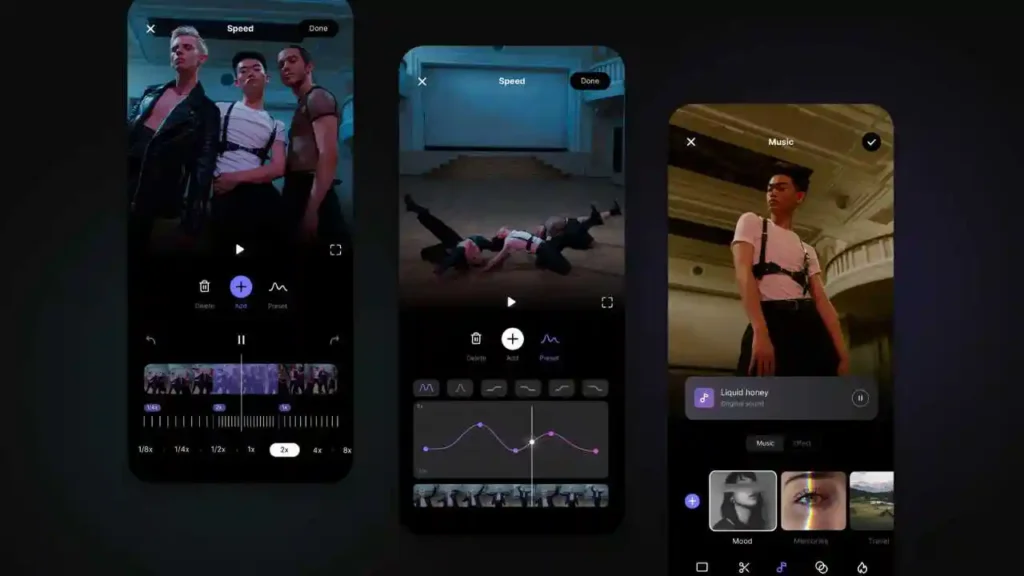
The best editing app won’t matter if your workflow is inconsistent. To grow as a creator, build habits that make editing faster and more enjoyable.
Plan Before You Edit
Planning helps you cut time in half. Decide:
- What clips you’ll use
- The order they should appear
- The music tone and pace
- The color style
Even a rough outline speeds up your editing dramatically.
Organize Your Footage
Name your files, group your clips, and delete bad takes early. CapCut, VN, and KineMaster perform best when your timeline is uncluttered.
Build a Repeatable Style
Your color grade, transitions, fonts, pacing, and sound choices should form your “signature style.” This makes your content instantly recognizable across platforms.
If you ever need help shaping a consistent aesthetic, you can explore Corporate Video Editing Services for more structured editing options.
Conclusion: Choosing Your Best Editor
The world of free video editing apps for Android is richer than ever. Each app in this guide offers something unique:
- CapCut for versatility and AI speed
- InShot for clean, fast edits
- KineMaster for full control
- VN for cinematic storytelling
- Filmora for visual creativity
The right choice depends on your workflow, your style, and your creative goals. And while mobile editors are powerful, there will always be moments when professional editing helps you unlock your potential faster.
Whether you’re producing quick social content or crafting narrative videos, the most important thing is consistency, intention, and creativity. With the right tools-and the right storytelling approach-you can create content that resonates, inspires, and stands out in a world of endless video.
If you’re ready to elevate your editing journey further,Inside Editors is always here to support your growth with expertise, clarity, and world-class editing.
FAQs For Video Editing Apps For Android
1. What are the best free video editing apps for Android if I’m a beginner?
The best free video editing apps for Android depend on your style, but CapCut, InShot, VN, KineMaster, and Filmora are strong starting points. These offer easy trimming, clean templates, and basic color grading without overwhelming you. Beginners usually prefer apps with simple timelines, quick export options, and built-in tutorials. As your skills grow, you can switch to more advanced tools like KineMaster or VN.
2. Are free video editing apps safe to use, and who owns my content?
Most reputable Android editors are safe as long as you download them from official stores. Your content remains your property, but free apps may process files through cloud services for effects or captions. Always review privacy settings and disable cloud syncing if you prefer offline editing. If privacy is crucial, choose apps that allow full offline projects or use professional editors for sensitive footage.
3. Can free mobile editors deliver professional-quality results?
Yes-modern mobile tools offer multi-layer editing, color grading, and AI features similar to desktop apps. However, professional editors still provide stronger storytelling, pacing, sound mixing, and brand consistency. Mobile apps are excellent for short-form content, while larger projects-ads, client videos, or long YouTube content-benefit from expert refinement. Many creators combine DIY editing for drafts and pro editors for final polish.
4. How do free Android editors compare to professional editing services?
Free Android editors are ideal for quick cuts, transitions, simple color grading, and social-media formats. Professional editors deliver deeper narrative structure, advanced audio work, cinematic color grading, and graphics that mobile apps can’t duplicate. DIY editing is fast and cost-effective, while pro editing saves time, improves quality, and ensures consistency across content. The right choice depends on project size and goals.
5. What features should I look for in a high-quality free video editor?
Look for multi-layer timelines, clean trimming, good color grading tools, noise reduction, keyframing, and high-resolution exports. Apps like CapCut and VN also include AI captioning and auto-beat sync, which speed up editing. For more control, choose editors with chroma key, LUT support, or audio EQ. A strong app should balance ease of use with creative flexibility, especially for mobile workflows.
6. How long does it take to edit videos on Android?
Simple social clips may take 5–15 minutes, while cinematic or multi-layer edits can take 45–90 minutes depending on complexity. Apps with AI tools-like auto captions, automated cuts, or color matching-reduce editing time significantly. If you’re producing high-volume content, batching your workflow also speeds things up. Rush projects can still be completed quickly with prebuilt templates and presets.
7. Are there hidden costs in free video editing apps?
Most apps offer full editing tools for free but reserve advanced effects, premium templates, or higher export bitrates for paid plans. Watermarks may appear in some free versions, though many apps-like CapCut and VN-offer watermark-free exports. If you need multi-device syncing or cloud storage, those often require subscriptions. Always check export settings before committing to a workflow.
8. How do I choose between mobile editing and hiring a professional editor?
Choose mobile editing if you need speed, flexibility, or frequent publishing. Hire a professional if you’re producing branded content, ads, long-form videos, or anything requiring advanced storytelling and color grading. Professional editors also save time when deadlines are tight. Many creators handle simple posts themselves and outsource high-stakes or commercial projects for better quality and consistency.
9. What’s the easiest way to start editing videos on Android?
Begin by installing a beginner-friendly app like CapCut or InShot. Import your clips, trim unwanted sections, add music, and apply light color adjustments. Start with straight cuts and avoid heavy transitions. As you improve, explore keyframes, speed ramps, or LUTs. Keep your early workflow simple-record clean footage, stay organized, and build a recognizable editing style over time.
10. How do content creators speed up their mobile editing workflow?
Creators save time by organizing footage before editing, using templates, applying presets, and relying on AI features like auto captions or beat sync. Many keep a “style kit” with favorite fonts, colors, and transitions to stay consistent. Batch-editing multiple videos at once also improves efficiency. For larger projects, creators often draft on mobile and finalize with a professional editor for polish.


