

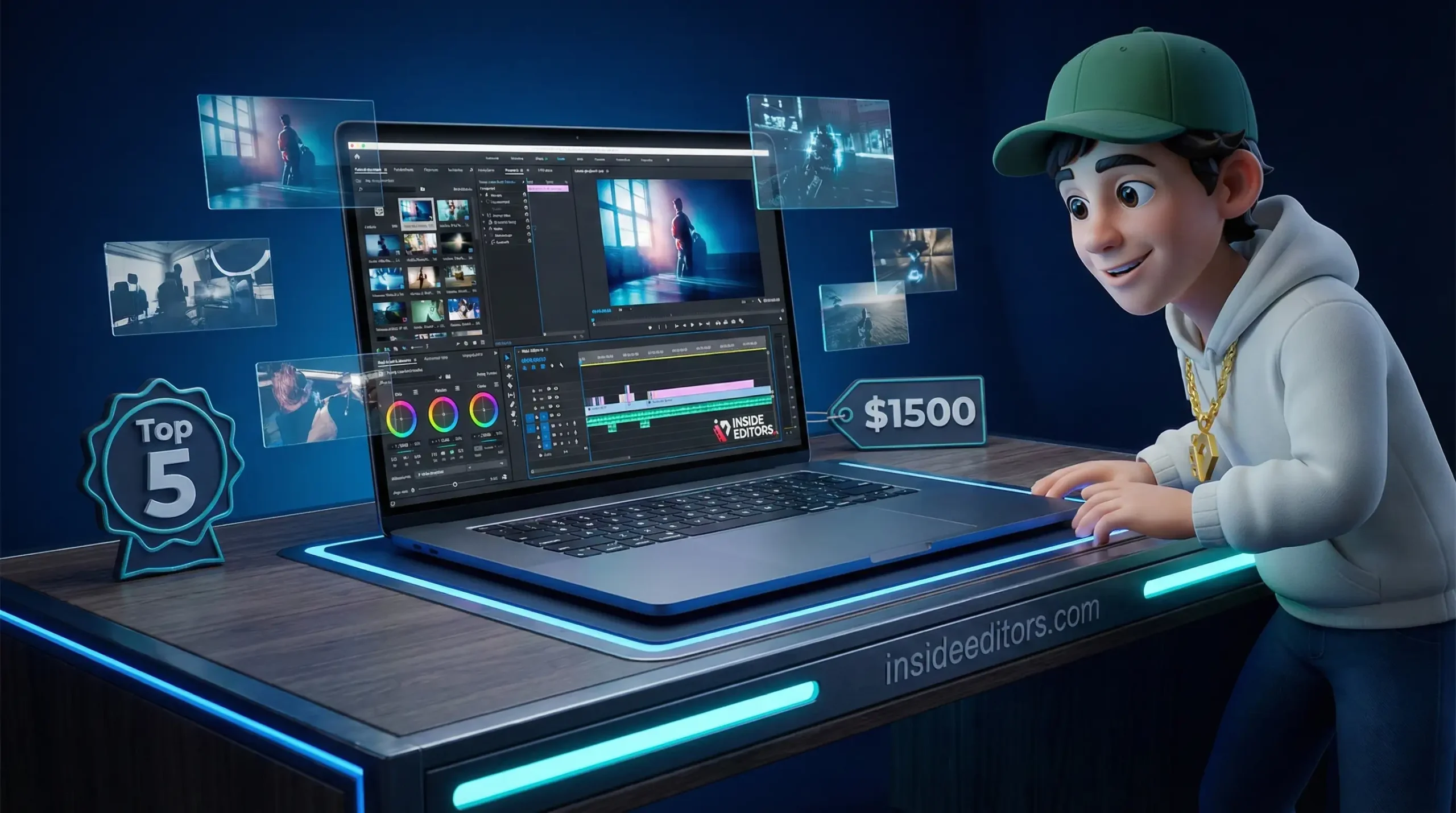
Choosing the right hardware is the foundation of a successful video editing workflow. For aspiring creators, freelancers, and small businesses, the challenge often lies in balancing performance with price. Many believe that professional video editing requires spending thousands of dollars, but that simply isn’t true anymore. Modern technology allows us to identify truly good laptops for video editing that deliver exceptional results without breaking the bank. This comprehensive guide focuses on the sweet spot: powerful machines priced under $1500 that meet the rigorous demands of 4K timelines, complex effects, and fast rendering.
We will explore the crucial specifications, evaluate the top contenders for 2025-2026, and provide expert advice on maximizing performance. If you are searching for good laptops for video editing that offer the best value, you are in the right place. We aim to provide clarity, helping you invest wisely in a machine that will serve your creative needs for years to come.
“The best tool is the one that gets the job done efficiently. For video editing, efficiency is measured in processing power, not necessarily the highest price tag.” – Sarah Chen, Lead Post-Production Consultant
Decoding the Specs: What Makes a Laptop Truly Capable?
Before diving into specific models, it is vital to understand the hardware components that directly impact video editing performance. A budget of $1500 requires strategic component selection, ensuring every dollar contributes to speed and stability.
The Core Pillars of Video Editing Performance
Video editing is intensely demanding on three primary components: the CPU, the RAM, and the GPU.
1. Central Processing Unit (CPU)
The CPU is the brain of your editing machine, responsible for handling timeline scrubbing, effects processing, and, most importantly, rendering. For a good laptop for video editing in this price range, you should aim for the following minimums:
- Intel: Core i7 (13th or 14th Gen) or Core i5 (latest generation, H-series or HX-series).
- AMD: Ryzen 7 (7000 or 8000 series) or Ryzen 9.
- Key Feature: High core count and fast clock speeds (above 4.0 GHz boost). Look for CPUs designed for performance (often indicated by ‘H’ or ‘HX’ suffixes), not ultra-low power consumption (‘U’ suffixes).
2. Random Access Memory (RAM)
RAM acts as the short-term memory, holding the footage, effects, and software instructions currently in use. Insufficient RAM leads to constant stuttering and crashes, especially when working with high-resolution footage (4K or higher).
- Minimum Requirement: 16GB. This is non-negotiable for smooth 1080p editing and basic 4K work.
- Recommended: 32GB. If possible within the $1500 budget, upgrading to 32GB significantly improves multitasking and complex 4K timeline performance. Look for DDR5 memory for faster speeds.
3. Graphics Processing Unit (GPU)
While the CPU handles the core rendering, the GPU accelerates effects, transitions, color grading, and playback. Modern editing software (like Premiere Pro and DaVinci Resolve) relies heavily on GPU acceleration.
- Minimum Requirement: NVIDIA RTX 3050 or AMD Radeon RX 6500M (with at least 4GB VRAM).
- Ideal Target: NVIDIA RTX 4050 or 4060 (with 6GB or 8GB VRAM). Finding an RTX 4060 under $1500 is possible during sales and offers the best price-to-performance ratio for demanding tasks.
Storage and Display Considerations
Beyond the core components, storage speed and screen accuracy are crucial for a professional workflow.
The Need for Speed: SSD Storage
Traditional Hard Disk Drives (HDDs) are too slow for video editing. You must have a Solid State Drive (SSD).
- Requirement: NVMe M.2 SSD (PCIe 4.0 preferred).
- Size: A minimum of 1TB is recommended. If the budget only allows for 512GB, plan to use fast external drives for media storage.
Display Quality and Color Accuracy
A good laptop for video editing must have a display that accurately represents colors. If your colors look great on your screen but terrible everywhere else, the display is the culprit.
- Key Metrics: Look for 100% sRGB coverage or, ideally, 100% DCI-P3 coverage.
- Resolution: 1080p is acceptable, but 1440p or 4K offers better workspace management. Ensure the brightness is at least 300 nits for comfortable indoor use.
Top 5 Good Laptops for Video Editing Under $1500 (2025-2026)
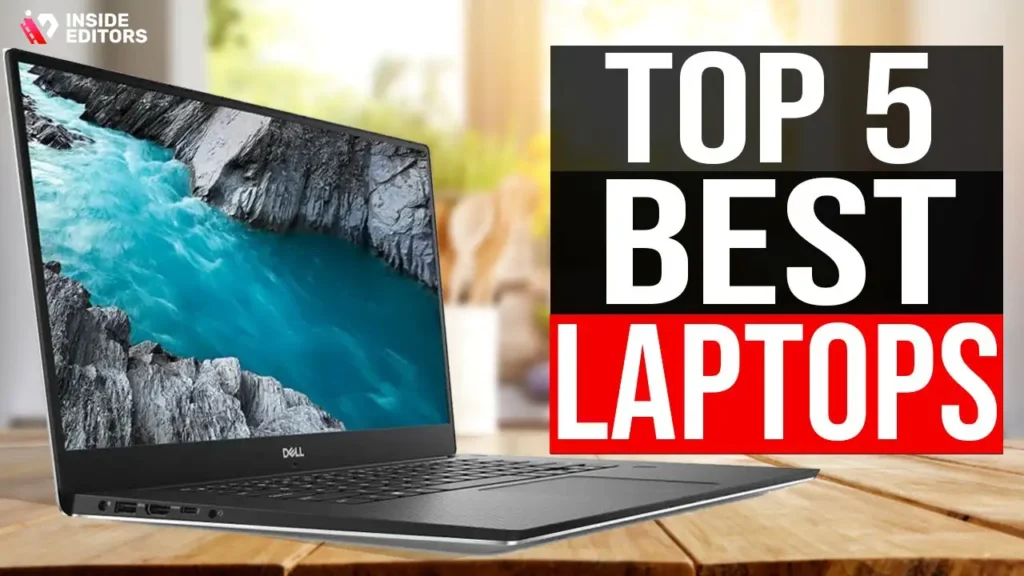
The following selection represents the best combination of performance, portability, and value available in the $1200-$1500 price bracket for the upcoming year. These models consistently feature the robust internals necessary for professional video work.
1. The Performance King: ASUS ROG Zephyrus G14 (AMD Configuration)
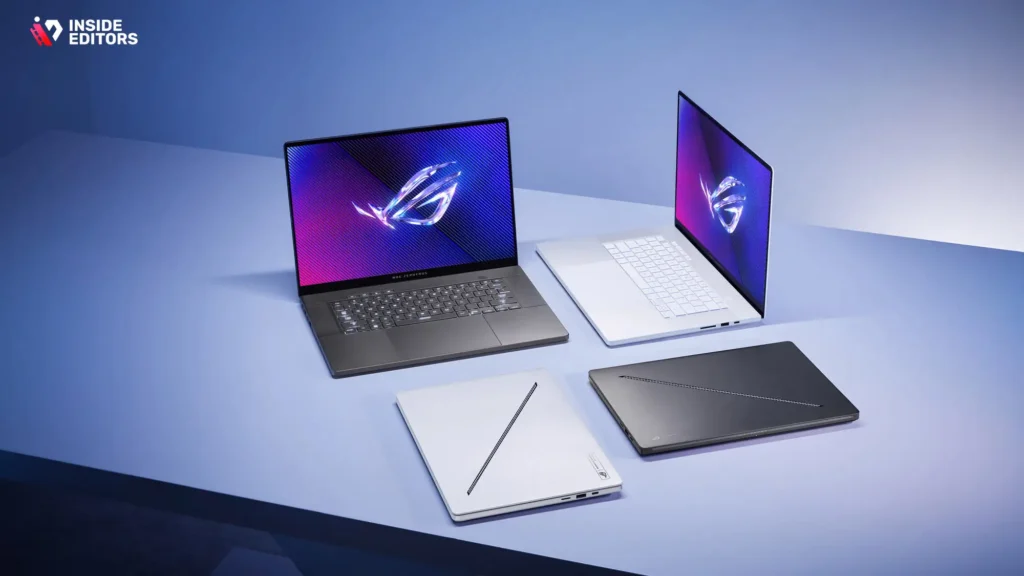
The Zephyrus G14 consistently punches above its weight, offering a blend of gaming-grade power in a surprisingly sleek, portable chassis. Its AMD Ryzen processor excels at multi-core tasks like rendering.
| Feature | Specification (Target) | Pro/Con Summary |
|---|---|---|
| CPU | AMD Ryzen 9 (7000/8000 Series) | Pros: Excellent battery life, great CPU performance. Cons: Smaller screen (14-inch), can run hot under sustained load. |
| GPU | NVIDIA RTX 4060 (8GB VRAM) | |
| RAM | 16GB DDR5 (Upgradeable to 32GB) | |
| Storage | 1TB NVMe SSD | |
| Display | 14-inch QHD+ (165Hz, 100% DCI-P3) |
Why it’s a top choice: The G14 provides desktop-level performance in a package weighing under 4 pounds. The high-refresh-rate, color-accurate display is perfect for both editing and content consumption, making it one of the most versatile and good laptops for video editing available today.
2. The Reliable Workhorse: Lenovo Legion Slim 5
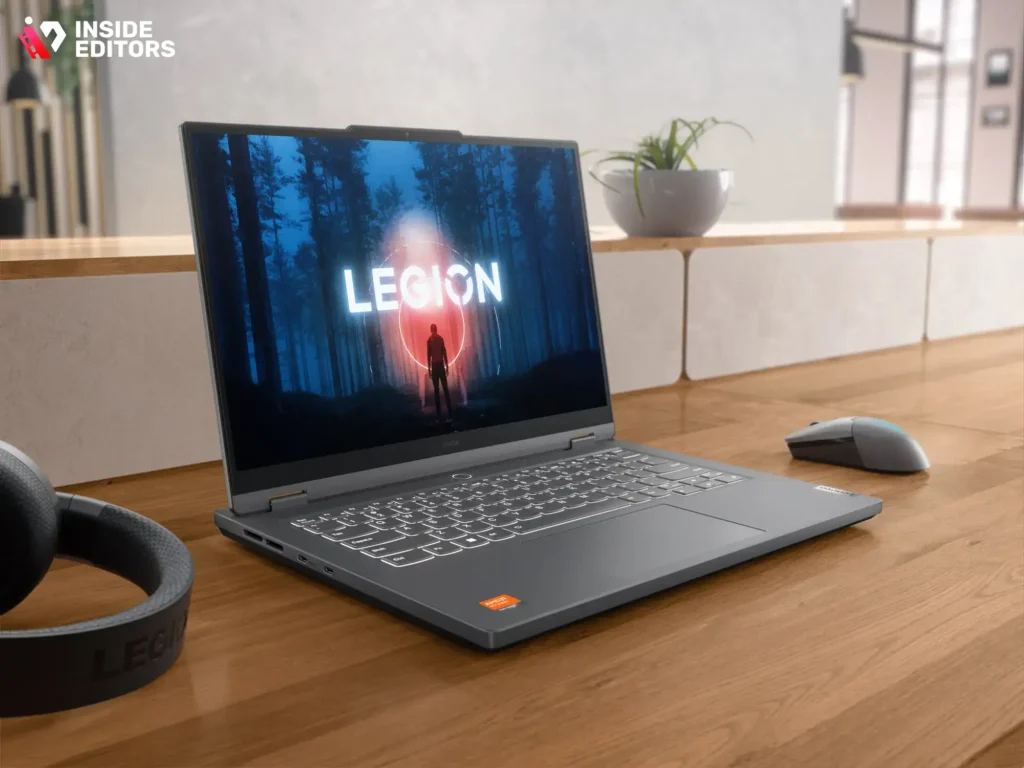
Lenovo’s Legion line is renowned for its excellent thermal management, which is critical for long editing sessions. The Slim 5 variant balances power with a relatively thin profile.
| Feature | Specification (Target) | Pro/Con Summary |
|---|---|---|
| CPU | Intel Core i7 (14th Gen H-Series) | Pros: Superior cooling system, comfortable keyboard, larger screen options. Cons: Heavier and bulkier than the G14, battery life is average. |
| GPU | NVIDIA RTX 4060 (8GB VRAM) | |
| RAM | 32GB DDR5 | |
| Storage | 1TB NVMe SSD | |
| Display | 16-inch WQXGA (165Hz, 100% sRGB) |
Expert Insight: The Legion Slim 5 often includes 32GB of RAM in configurations near the $1500 mark, which provides a significant advantage for complex projects. If stability and thermal performance are your highest priorities, this is an excellent candidate among good laptops for video editing.
3. The Balanced Creator: Dell G15/Inspiron 16 Plus
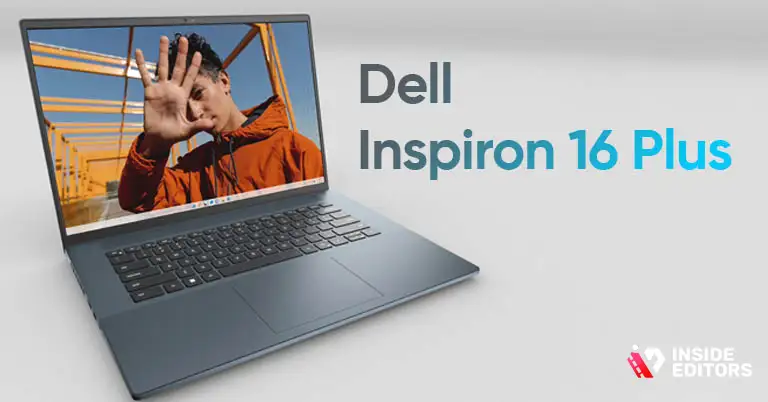
Dell offers robust build quality and often includes higher-end displays in its creator-focused lines. The G15 (or the Inspiron 16 Plus if prioritizing a non-gaming aesthetic) provides solid, dependable performance.
- Target Specs: Intel Core i7, 16GB RAM, RTX 4050/4060, 1TB SSD.
- Key Advantage: Excellent customer support and a professional, understated design suitable for client meetings.
4. The Value Champion: HP Victus 16
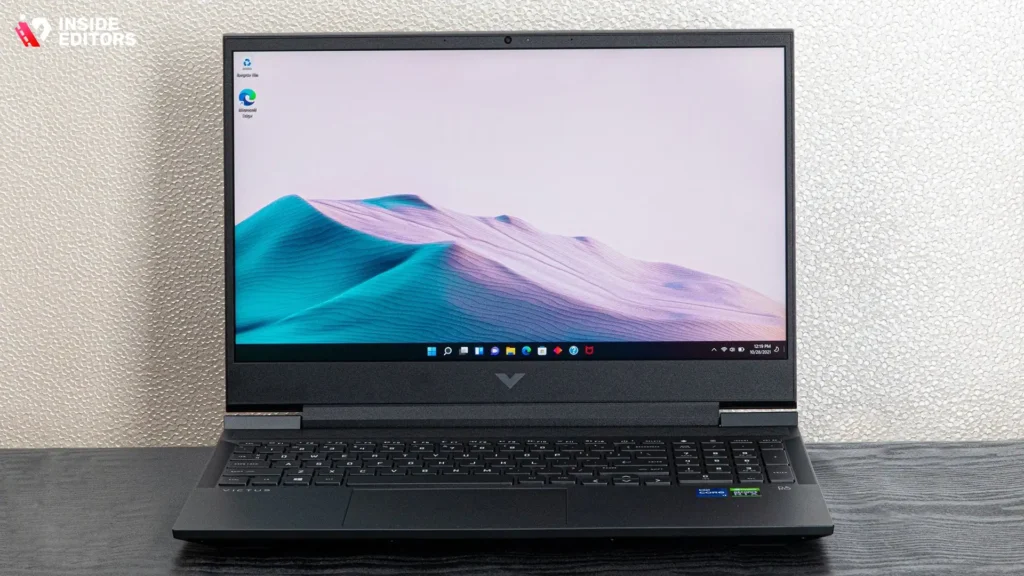
The HP Victus line is designed to hit aggressive price points while maintaining essential performance metrics. It often sacrifices premium materials for internal power, making it a budget-conscious powerhouse.
- Target Specs: AMD Ryzen 7, 32GB RAM (if upgraded), RTX 4050, 16-inch 144Hz display.
- Consideration: While the screen quality is generally good, it might not match the DCI-P3 coverage of the Zephyrus G14, requiring external monitoring for critical color work.
5. The Apple Alternative: MacBook Air M2 (Upgraded Configuration)
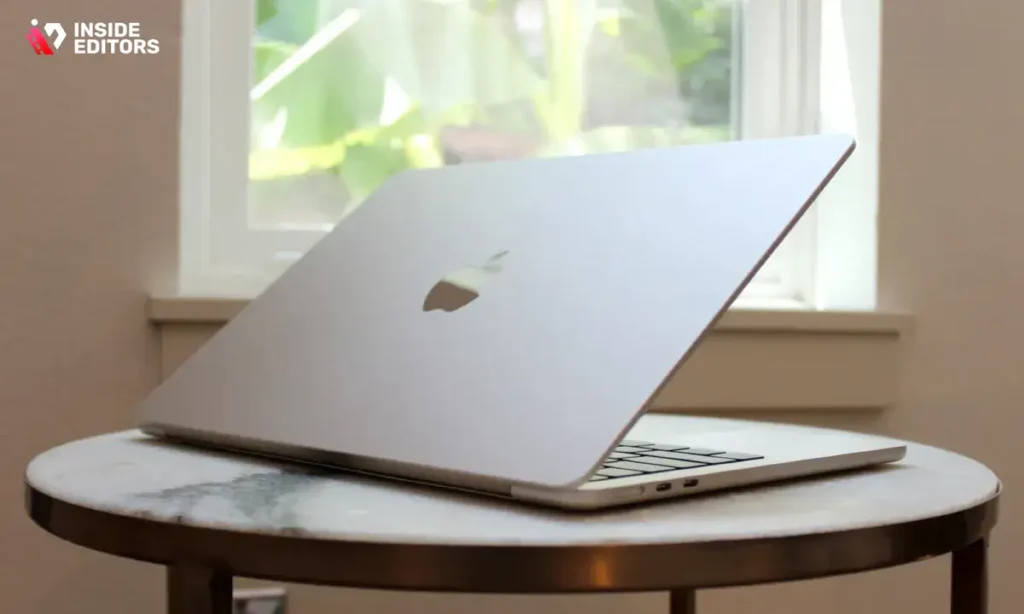
While challenging to find with 32GB RAM under $1500, a well-configured M2 MacBook Air (or a base M3 Pro model during sales) offers unparalleled efficiency for video editing, particularly using Final Cut Pro.
- Target Specs: Apple M2 Chip (10-core GPU), 16GB Unified Memory, 1TB SSD.
- Pros: Exceptional battery life, silent operation (fanless design), highly optimized software ecosystem.
- Cons: Limited port selection, memory and storage are not user-upgradeable, and 16GB of unified memory is the maximum achievable in this price range.
If you are already integrated into the Apple ecosystem, the efficiency and speed of the M-series chips make these good laptops for video editing despite the higher cost of memory upgrades.
Maximizing Your Workflow: Software and Hardware Synergy
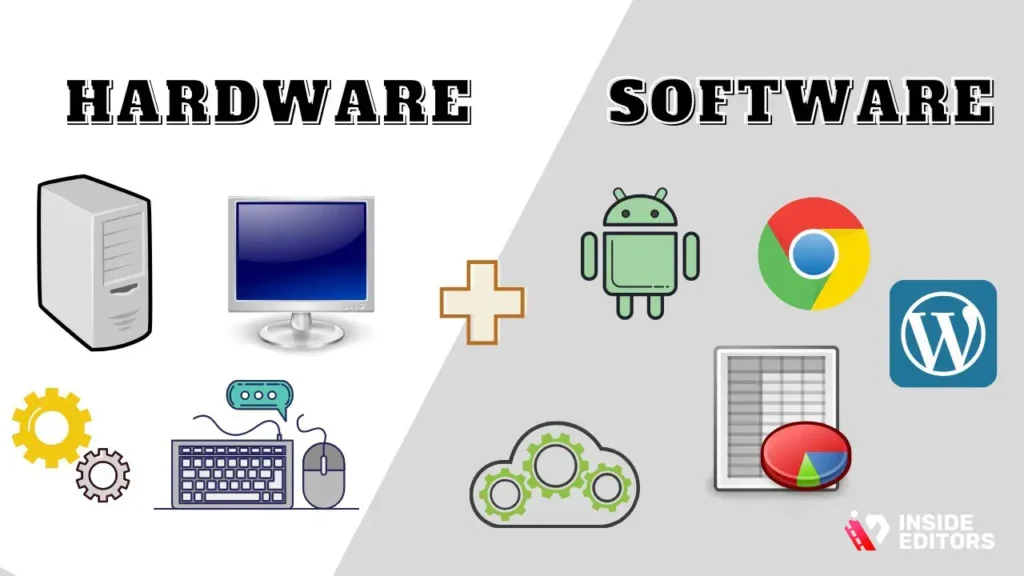
Having one of the best good laptops for video editing is only half the battle. Optimizing your software and workflow ensures you get the maximum performance out of your investment.
The Importance of Proxies and Codecs
One of the most common mistakes new editors make is trying to edit native H.264 or H.265 4K footage directly. These highly compressed formats are difficult for the CPU and GPU to decode rapidly.
Definition Box: Proxies Proxies are low-resolution, easily digestible copies of your high-resolution footage. Editing with proxies drastically reduces the strain on your laptop, allowing for smooth playback and faster scrubbing, even on complex timelines. Always generate proxies for 4K or higher footage if your laptop has 16GB of RAM or less.
Using optimized codecs like ProRes (Apple) or DNxHR (Avid) for intermediate files can also significantly improve timeline performance. When you are looking for good laptops for video editing, remember that software optimization is just as important as hardware specs.
Storage Management and External Drives
Even with a 1TB internal SSD, video projects quickly consume space. Investing in a fast external drive is essential.
Comparison of External Storage Options
| Storage Type | Speed (Read/Write) | Cost/GB | Best Use Case |
|---|---|---|---|
| External HDD | Slow (100-150 MB/s) | Low | Archiving finished projects |
| External SATA SSD | Medium (400-550 MB/s) | Medium | Project files and media storage |
| External NVMe SSD (USB 3.2 Gen 2) | Fast (900-2000 MB/s) | High | Active project media and scratch disk |
For active editing, always use an external NVMe SSD connected via a high-speed USB-C or Thunderbolt port. This ensures your media can be accessed quickly enough to keep up with the demands of the editing software.
When the Workload Exceeds the Hardware: Outsourcing Solutions
Even the best laptop under $1500 may struggle with extremely demanding projects-think feature-length films, heavy VFX work, or continuous 8K editing. If you find yourself spending more time waiting for renders than actually creating, it might be time to consider professional assistance.
For businesses, content creators, and marketers who need consistent, high-quality video output without the constant worry of hardware limitations, outsourcing is a highly efficient strategy.
Inside Editors: Your Professional Video Editing Partner
At Inside Editors, we understand the demands placed on modern creators. While finding good laptops for video editing is crucial for capturing and reviewing footage, the final polish often requires dedicated, high-end workstations and expert eyes.
We offer comprehensive Video Editing Services designed to streamline your production process. Our professional editing team, boasting over 10 years of experience, handles everything from raw footage ingestion to final delivery.
Key Features of Our Service:
- Expertise: Work with professional editors who specialize in color grading and audio enhancement.
- Fast Turnaround: Receive your professionally edited video within 24 to 72 hours.
- Quality Assurance: We offer unlimited revisions until you are 100% satisfied.
- Affordable Pricing: Starting at just $29 per video, we provide a scalable solution for growing channels and businesses.
By partnering with us, you save valuable time, allowing you to focus on content creation and strategy rather than struggling with rendering queues. Our professional quality ensures a consistent brand style across all your videos, building trust with your audience. To learn more about how we can transform your raw footage into polished, professional content, check out our dedicated service page.
“Delegation is not a sign of weakness; it’s a sign of strategic efficiency. Outsourcing complex tasks like editing frees up creative energy for what matters most: storytelling.” – Dr. Elias Vance, Digital Strategy Consultant
Common Pitfalls and Expert Advice for Budget Buyers

When searching for good laptops for video editing in the sub-$1500 category, buyers often make critical mistakes that compromise long-term performance.
Mistake 1: Prioritizing Screen Resolution Over RAM
A beautiful 4K screen is tempting, but if it comes at the expense of upgrading from 16GB to 32GB of RAM, you will regret it. High-resolution screens require more GPU and CPU power just to display the interface, leaving fewer resources for the editing timeline.
Expert Tip: Choose a 1080p or 1440p screen with excellent color accuracy (100% sRGB/DCI-P3) and prioritize 32GB of RAM. You can always connect an external 4K monitor later.
Mistake 2: Focusing on CPU Clock Speed Alone
While clock speed is important, the number of cores and threads matters more for rendering. Video editing software utilizes multiple cores simultaneously. A modern 8-core CPU running at 4.5 GHz boost will outperform an older 4-core CPU running at 5.0 GHz boost for rendering tasks.
Mistake 3: Neglecting Port Selection
Connectivity is crucial. Ensure your chosen laptop has the necessary ports:
- USB-C/Thunderbolt: For high-speed external SSDs.
- HDMI: For connecting an external reference monitor.
- SD Card Reader: A huge time saver for camera footage transfer.
If you are working with a team or need specialized assistance, knowing where to find professional video editors who understand these technical nuances can be invaluable.
The Pros and Cons of Budget Video Editing Laptops
Choosing a machine in the $1500 range involves making calculated compromises. Understanding these trade-offs is key to satisfaction.
| Pros of Laptops Under $1500 | Cons of Laptops Under $1500 |
|---|---|
| Excellent Value: Modern CPUs/GPUs offer performance close to high-end models. | Thermal Management: They often run hotter and louder under sustained load than premium models. |
| Portability: Generally lighter and thinner than older desktop replacements. | Battery Life: Performance-focused components drain batteries quickly; expect 1-2 hours of editing time unplugged. |
| Upgradeability: Many Windows models allow for RAM and SSD upgrades later. | Build Quality: Chassis materials may be less premium (more plastic, less aluminum). |
| Accessibility: Provides a low barrier to entry for aspiring creators. | Display Compromises: Color accuracy might require calibration or an external monitor. |
Future-Proofing Your Investment

When purchasing one of the good laptops for video editing today, you want to ensure it remains relevant for the next 3-4 years.
1. Prioritize Upgradeability
Check reviews to see if the RAM and SSD are socketed (allowing replacement) or soldered (permanent). Laptops that allow for upgrades (like many Lenovo and HP models) offer a significant advantage. Even if you buy 16GB now, knowing you can add another 16GB later extends the machine’s lifespan.
2. Embrace AI Acceleration
Modern GPUs (especially the NVIDIA RTX 40-series) include dedicated cores (Tensor Cores) that accelerate AI-driven tasks like noise reduction, upscaling, and object tracking. These features are becoming standard in editing software. Choosing a laptop with a current-generation GPU future-proofs your workflow against these emerging technologies.
For those focusing on short-form content, understanding how to leverage these features is essential. You might also find valuable insights in our guide on video editing for social media to maximize your output efficiency.
3. Consider Specialized Services
If your editing needs are primarily corporate or instructional, you may need specific expertise. For instance, if you are creating online courses, specialized online course video editing ensures high engagement and pedagogical effectiveness. Alternatively, if you are producing high-volume content, exploring options for affordable video editing services can be a smart business decision.
Conclusion: Finding the Right Balance
The search for good laptops for video editing under $1500 is entirely achievable in 2025-2026. The key is to prioritize internal components-specifically, securing a modern CPU/GPU combination with at least 16GB (ideally 32GB) of fast RAM and a 1TB NVMe SSD. Models like the ASUS Zephyrus G14 and the Lenovo Legion Slim 5 offer the best blend of speed, thermals, and display quality in this competitive price bracket.
By understanding the hardware requirements and utilizing workflow optimizations like proxies and external NVMe storage, you can achieve professional-level results without the premium price tag.
If, however, your focus needs to remain solely on content creation, and you require consistently high-quality output without the technical headaches, remember that Inside Editors is here to support your growth. Our team is ready to handle your projects, ensuring fast, professional results every time. Learn more about our comprehensive support and how we can help you scale your video production by visiting our contact us page, or explore our services, including specialized options like YouTube video editing services for creators.
Investing in one of these good laptops for video editing is the first step; optimizing your workflow, or partnering with experts, is the path to sustainable success.
Frequently Asked Questions
What specs are crucial for video editing?
The most crucial components are the CPU (preferably Intel Core i7/i9 or AMD Ryzen 7/9), a dedicated GPU (like NVIDIA RTX or AMD Radeon), and at least 16GB of RAM. A fast SSD (512GB minimum) is also essential for quick project loading and rendering. These specifications ensure smooth performance when handling 4K footage in demanding video editing software.
Can I edit 4K video on a $1500 laptop?
Yes, modern laptops priced under $1500 are fully capable of editing 4K video, provided they have a dedicated graphics card and sufficient RAM (16GB or 32GB). While rendering times might be slightly longer than on high-end desktop workstations, these machines offer excellent performance for professional video editing workflows in 2025.
Is 16GB RAM enough for editing?
While 16GB RAM is the minimum recommended standard for serious video editing, it is sufficient for 1080p and basic 4K projects. For complex projects involving heavy effects, multi-cam sequences, or 6K/8K footage, upgrading to 32GB of RAM is highly recommended to prevent bottlenecks and ensure smoother playback during scrubbing and rendering.
Should I prioritize CPU or GPU?
For general video editing, the CPU is traditionally more important for encoding and exporting, but the GPU is increasingly vital for effects, playback, and rendering acceleration in programs like Premiere Pro and DaVinci Resolve. Aim for a balanced system; a strong mid-range CPU paired with a dedicated mid-to-high-range GPU offers the best value for video editing under $1500.
Why is screen quality important?
Screen quality is vital for accurate color grading and ensuring your final output looks correct on other devices. Look for high resolution (QHD or 4K preferred) and excellent color accuracy, specifically 100% DCI-P3 or sRGB coverage. Poor color representation can lead to wasted time re-editing once you see the footage on a calibrated monitor.
Do I need a Mac or a Windows laptop?
Both Mac and Windows offer excellent options for video editing under $1500. Windows laptops generally provide better hardware customization and dedicated GPU power at this price point. However, Macs (especially those with Apple Silicon) offer superior efficiency and optimized software performance, making the choice largely dependent on your preferred operating system and specific software needs.
What storage type is best for editing?
An NVMe SSD is the best storage type for video editing due to its extremely fast read/write speeds, which are crucial for handling large video files and quick project loading. Avoid relying solely on slower SATA SSDs or traditional HDDs for your primary project files, as they significantly slow down the entire editing and rendering process.


