

Integrating dynamic media into presentations transforms a static deck into an engaging experience. Few tools are as powerful for this transformation as YouTube videos. If you are preparing a critical presentation-whether for a board meeting, a classroom, or a marketing pitch-knowing How to Add a YouTube Video to PowerPoint effectively is a non-negotiable skill. This comprehensive guide, crafted by the editors at Inside Editors, walks you through the precise steps for seamless integration, ensuring your next presentation captivates your audience without technical glitches.
This article covers the modern, reliable methods for embedding videos, troubleshooting common issues, and leveraging video content to maximize impact. We will show you the best practices for How to Add a YouTube Video to PowerPoint across different versions, focusing on stability and playback quality.
The Two Primary Methods for Video Integration
Before diving into the steps, it is crucial to understand the two main approaches to incorporating video content. PowerPoint offers different levels of integration depending on your version and connectivity needs. The primary search intent for How to Add a YouTube Video to PowerPoint usually involves embedding, but linking remains a viable backup.
Method 1: Direct Embedding (The Preferred Approach)
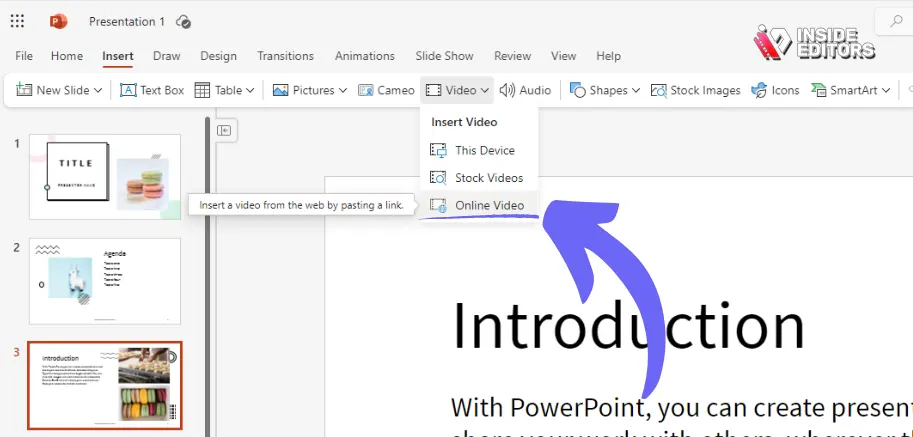
Direct embedding is the superior method. It places the video player directly within your PowerPoint slide. When you click play, the video streams live from YouTube. This method provides a professional, integrated look and feel. However, it requires a stable internet connection during the presentation. Modern versions of PowerPoint (Microsoft 365, PowerPoint 2019/2021) handle direct embedding using the built-in ‘Insert Video’ function, which simplifies the process significantly.
Method 2: Linking to the Video
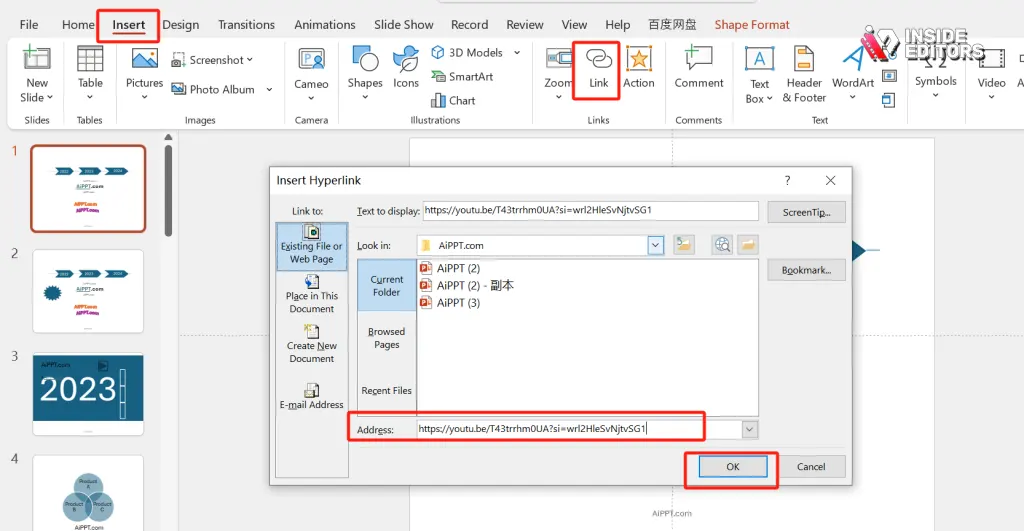
Linking involves placing a hyperlink (or an image thumbnail with a hyperlink) on your slide. Clicking this link opens the video in a separate web browser. While this is the easiest method, it interrupts the flow of your presentation and relies heavily on minimizing and maximizing windows, which can appear unprofessional. We generally recommend linking only as a fallback if embedding fails or if you anticipate unreliable internet access.
“Video integration is no longer a luxury in presentations; it’s an expectation. Audiences demand dynamic content, and embedding video correctly ensures that the technology supports the message, not distracts from it.” – Dr. Eleanor Vance, Presentation Technology Consultant
Add a YouTube Video to PowerPoint: Quick Guide
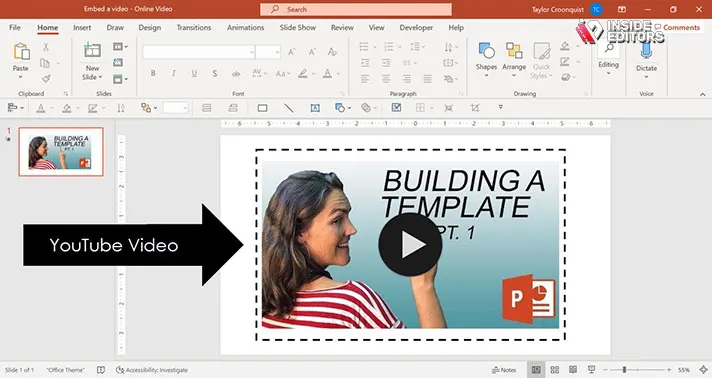
The most reliable way to learn How to Add a YouTube Video to PowerPoint in current versions (Microsoft 365 and PowerPoint 2019+) involves using the ‘Online Video’ feature. This process is straightforward and bypasses the need for manual embed codes, which were required in older software.
Preparing the Video and Slide
First, ensure you have the correct URL for the YouTube video you wish to use. Open the video in your web browser and copy the full URL from the address bar. Next, open your PowerPoint presentation and navigate to the slide where the video should appear. Make sure the slide layout has enough space for the video player without overlapping crucial text or graphics.
Executing the Online Video Insertion
This feature streamlines How to Add a YouTube Video to PowerPoint by handling the necessary coding behind the scenes.
- Navigate to the Insert Tab: In the PowerPoint ribbon, click the Insert tab.
- Select Online Video: Look for the Video dropdown menu on the far right of the ribbon (usually in the Media group). Click it and select Online Video.
- Paste the URL: A dialogue box will appear, prompting you to enter the URL of the online video. Paste the copied YouTube link into the provided field.
- Insert and Resize: Click Insert. PowerPoint will download a thumbnail and embed the video player onto your slide. You can now resize and reposition the video frame just like any other image or object on the slide.
Optimizing Playback Settings
Once the video is embedded, you gain access to crucial playback controls that determine how the video behaves during the presentation. Click on the video frame, and two new tabs will appear in the ribbon: Video Format and Playback.
- Start Setting: Under the Playback tab, locate the Start dropdown menu. You have three options:
- In Click Sequence: The video starts when you click the mouse (default).
- Automatically: The video starts immediately when the slide loads.
- On Click: Requires a specific click on the video player itself.
- Loop and Rewind: Consider checking the Loop until Stopped box if the video is short and needs continuous play. Also, ensure Rewind after Playing is checked if you might need to show the clip again.
Embed Codes in PowerPoint: Advanced Tips
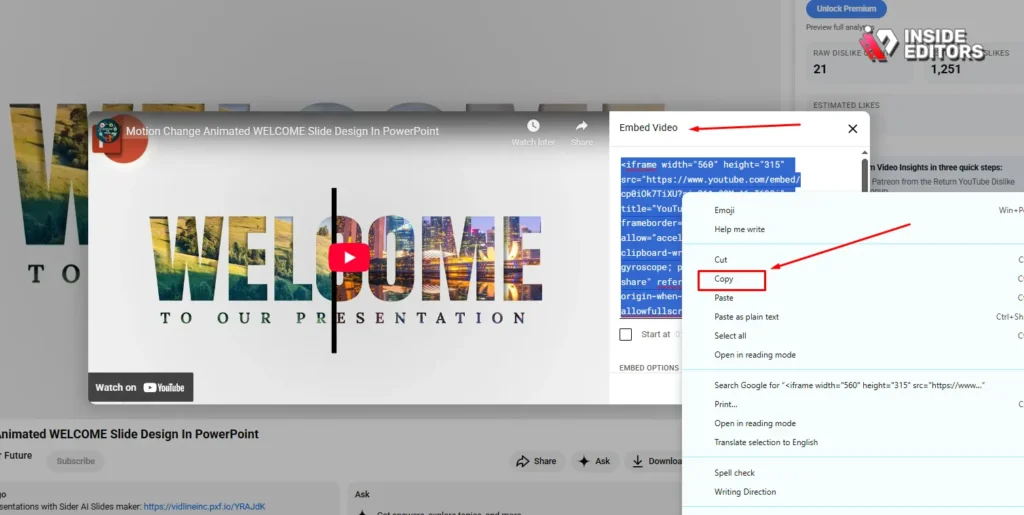
While the ‘Online Video’ feature is standard now, understanding the embed code method is essential for older versions or when troubleshooting connectivity issues. This method relies on the Developer tab and the Shockwave Flash Object, which provides greater control over the embedded media.
Enabling the Developer Tab
If you are using an older version of PowerPoint, or if the direct URL insertion fails, you must first enable the Developer tab.
- Go to File > Options.
- Select Customize Ribbon.
- In the right-hand column under “Main Tabs,” check the box next to Developer.
- Click OK. The Developer tab will now appear in your main ribbon.
Obtaining the YouTube Embed Code
YouTube provides a specific code snippet designed for embedding on external sites.
- Go to the YouTube video page.
- Click the Share button beneath the video.
- Select the Embed option.
- Copy the entire HTML code snippet provided. This code contains the iframe structure necessary for the video player.
Inserting the Embed Code Object
With the Developer tab active, you can now complete the process for How to Add a YouTube Video to PowerPoint using the embed code.
- On your chosen slide, click the Developer tab.
- In the Controls group, click the More Controls icon (it looks like a hammer and wrench).
- Scroll down the list and select Shockwave Flash Object.
- Click and drag a box on your slide to define the size of the video player.
- Right-click the newly placed object and select Properties.
Configuring the Movie Property
This is the most critical step. You must modify the copied YouTube embed code to fit the structure required by the Shockwave Flash Object.
- Find the
srcattribute within the copied YouTube embed code. It usually looks likesrc="https://www.youtube.com/embed/VIDEO_ID". - You need to extract the clean URL, which is typically
https://www.youtube.com/v/VIDEO_ID. (Note the change from/embed/to/v/). - In the Properties window of the Shockwave Flash Object, locate the Movie field.
- Paste the modified URL into the Movie field.
- Close the Properties window. The video is now embedded.
To test the video, you must run the slideshow (F5). The video will not play in the normal editing view.
YouTube Video Insert Issues: Quick Fixes

Even when following the steps precisely, users often encounter errors when figuring out How to Add a YouTube Video to PowerPoint. Most issues relate to connectivity, security settings, or outdated software.
The Problem of Outdated Software and Security
Older versions of PowerPoint (pre-2013) may not support the modern embedding methods due to security updates and changes in YouTube’s API. If you are using an older version, upgrading your software is the most reliable fix.
Another common issue is corporate firewall restrictions. Many organizations block external streaming content. If your video fails to load, check with your IT department to ensure that YouTube domains are whitelisted for streaming within the network.
“A seamless presentation relies on preparation and redundancy. Always test your embedded videos on the presentation machine, and have a downloaded copy of the video ready as a backup.” – Michael Chen, Corporate Presentation Designer
Handling Broken Links and Playback Errors
If the video displays a black box or an error message during the presentation, the link may be broken, or the video may have been removed or set to private by the creator.
- Verification: Re-check the URL. Ensure the video is publicly accessible on YouTube.
- Alternative: If the video is crucial, consider downloading the video (ensuring you comply with copyright laws) and inserting it as a local file instead of an online video.
The Flash vs. HTML5 Transition
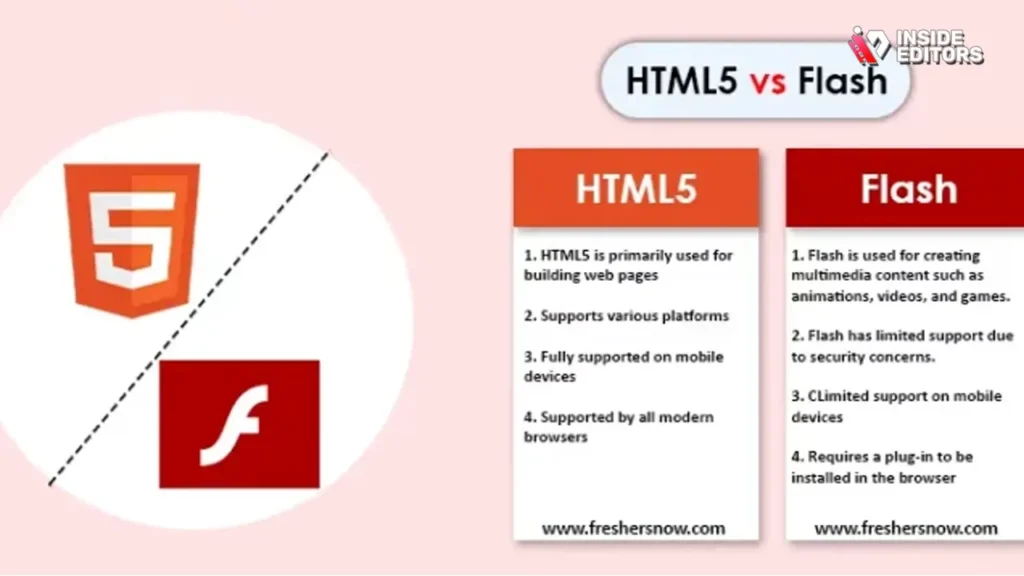
In the past, embedding relied heavily on Adobe Flash. Modern web standards, including YouTube, now use HTML5. If you are using the older Shockwave Flash Object method, you might need to ensure your system has the latest Flash updates, although this method is becoming obsolete. The modern ‘Online Video’ feature automatically uses the HTML5 player, which is far more stable.
| Feature | Direct Online Video (Modern) | Shockwave Flash Object (Legacy) |
|---|---|---|
| PowerPoint Version | 2013, 2016, 2019, Microsoft 365 | 2007, 2010, 2013 (Troubleshooting) |
| Internet Requirement | High-Speed Connection Required | High-Speed Connection Required |
| Ease of Use | Very Easy (Paste URL) | Complex (Requires Developer Tab & Code Modification) |
| Reliability | High (Uses HTML5) | Moderate (Dependent on Flash/ActiveX) |
| Customization | Basic Playback Controls | Advanced Parameter Customization |
The Alternative: Inserting Local Video Files
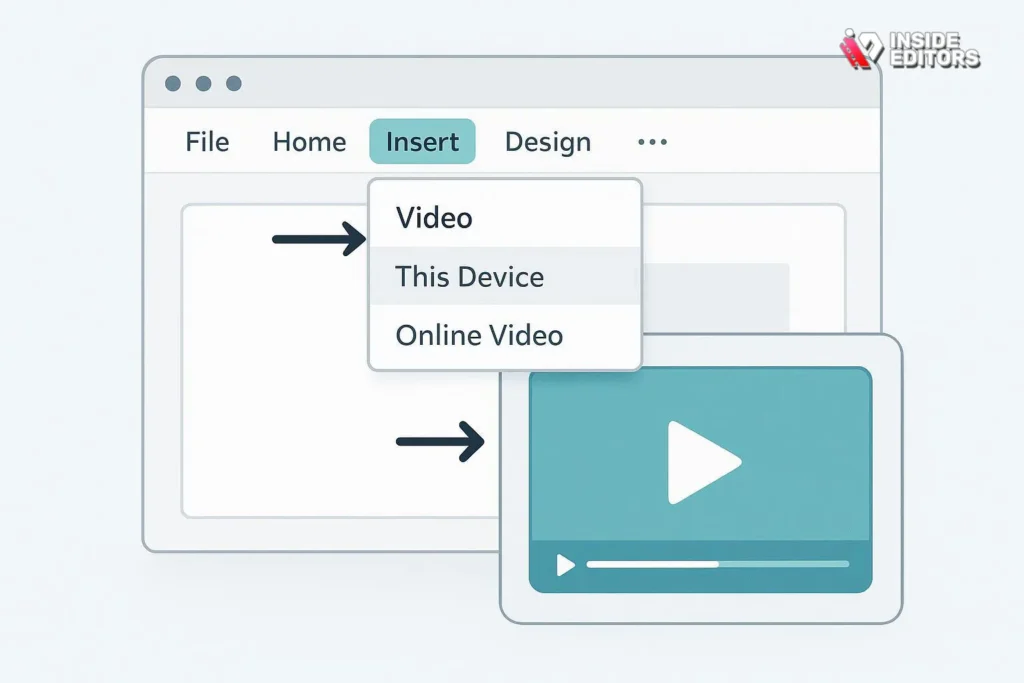
While the goal is often How to Add a YouTube Video to PowerPoint directly, sometimes the most professional solution is to use a local video file. This eliminates all dependency on internet connectivity and ensures perfect playback quality.
Pros and Cons of Local Video Insertion
Pros:
- Zero Internet Dependency: Guaranteed playback, regardless of Wi-Fi stability.
- Higher Quality: Playback quality is determined by the source file, not streaming bandwidth.
- Full Control: Complete control over trimming, fading, and specific start/end points within PowerPoint’s editing tools.
Cons:
- File Size: Large video files can significantly inflate the size of your PowerPoint presentation, making it difficult to email or upload.
- Copyright: You must ensure you have the legal right to download and use the content.
- Format Compatibility: You must ensure the video file (MP4, WMV, MOV) is compatible with the version of PowerPoint being used. MP4 (H.264 video, AAC audio) is the universal standard.
The Local Insertion Process
- Download the Video: Legally obtain the video file in a compatible format (e.g., MP4).
- Insert Video: Go to Insert > Video > Video on My PC.
- Link vs. Embed: PowerPoint will ask if you want to link the file or embed it. Always embed the video file unless the file size is prohibitively large. Linking requires the video file to be in the exact same folder as the PPT file, which often leads to errors when moving the presentation.
Slide Design for Maximum Video Impact
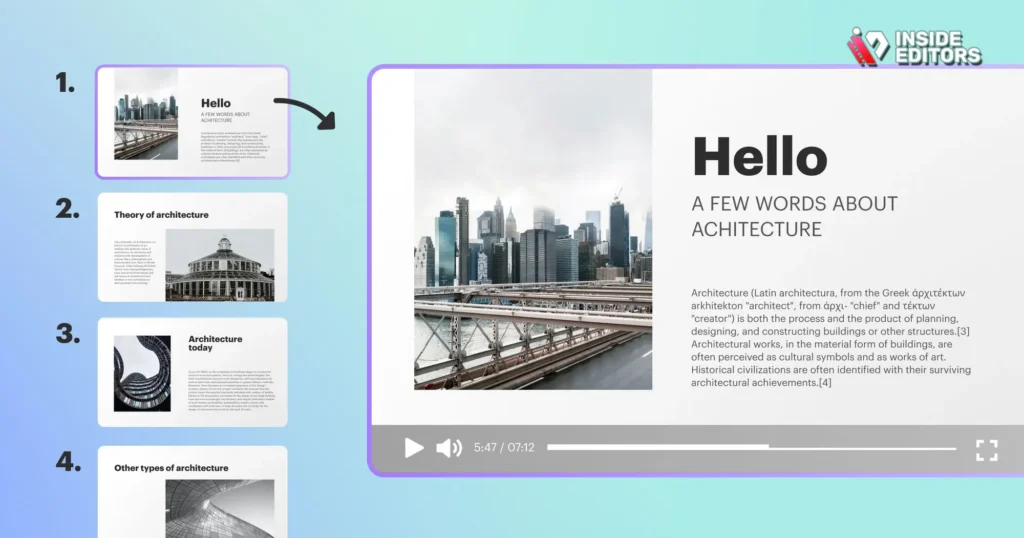
Simply knowing How to Add a YouTube Video to PowerPoint is only half the battle. To maximize the impact, you must design the slide to support the video, not just contain it.
Framing and Context
Treat the video frame as a focal point. Use surrounding text boxes to provide context, introduce the clip, and summarize the key takeaway the audience should look for. Avoid placing busy backgrounds or complex graphics behind the video player, as this causes visual clutter.
- Rule of Thirds: Position the video player slightly off-center to create a dynamic layout.
- Black Space: Use ample white or black space around the video to draw the viewer’s eye directly to the content.
- Timing: Keep video clips short-ideally under 60 seconds-to maintain audience attention. Longer clips should be introduced with specific instructions (“Watch the next 30 seconds for the key finding on market growth”).
The Importance of Professional Video Quality
If you are a business, marketer, or course creator, the quality of the videos you embed reflects directly on your brand. A poorly edited, shaky, or low-resolution video undermines the professionalism of your entire presentation.
This is where professional video editing services become invaluable. At Inside Editors, we specialize in transforming raw footage into polished, high-impact videos perfect for presentations, marketing, and social media. Our services are designed to ensure your visual content is always top-tier.
We offer professional video editing services with a team of editors boasting over 10 years of experience. We guarantee fast turnaround times (24-72 hours) and offer unlimited revisions until you are completely satisfied. This scalable solution ensures consistent brand style and high quality across all your presentations and marketing channels. If you need a video clip optimized, trimmed, color-graded, or enhanced with professional audio before you learn How to Add a YouTube Video to PowerPoint, Inside Editors is your best choice.
Expert Tips for Seamless Presentation Delivery

A successful presentation requires more than just technical proficiency; it requires performance. Here are key tips to ensure your embedded YouTube video enhances, rather than hinders, your delivery.
Test, Test, Test
Never assume an online video will work perfectly on a new machine or network.
- Test the Connection: Before the audience arrives, connect to the venue’s Wi-Fi and test the video playback.
- Test the Volume: Ensure the audio output is properly routed and loud enough for the room.
- Pre-Load: If possible, click the play button once while setting up to allow the video to buffer the first few seconds. This prevents awkward delays when you are ready to show the clip.
Keyboard Shortcuts for Control
During the presentation, use keyboard shortcuts to control the video professionally.
- Spacebar or Enter: Starts/Pauses playback (if the video is selected).
- Alt + P: Plays or pauses the media (universal media shortcut).
- Shift + Right/Left Arrow: Skips forward or backward in the timeline.
Avoiding Common Pitfalls
One major pitfall when learning How to Add a YouTube Video to PowerPoint is relying solely on the embedded link without a backup. If the internet drops, you are left scrambling.
- Back-up Plan: Always have the video downloaded locally (if legally permissible) and ready to insert as a local file, or have a pre-written script ready to explain the video content verbally if technical failure occurs.
- Ad Blockers: Be aware that some corporate presentation computers may have aggressive ad-blocking software that can interfere with the YouTube player loading correctly.
Conclusion: Mastering Dynamic Presentations
Mastering How to Add a YouTube Video to PowerPoint is an essential skill in today’s visually driven communication landscape. Whether you use the simple ‘Online Video’ feature for modern stability or the legacy embed code for specific control, integrating dynamic content elevates your message and keeps your audience engaged.
Remember that technical skill must be paired with high-quality content. If your presentation relies on compelling visuals, ensure those visuals are professionally produced. Inside Editors provides unparalleled video editing services, helping you save time and achieve professional quality that builds trust and maintains a consistent brand style. Our affordable pricing and rapid turnaround make us the ideal partner for all your video needs.
For marketers, course creators, and businesses looking to scale their video production without sacrificing quality, consider partnering with our expert team. We handle the technical complexities of editing, allowing you to focus entirely on your content and delivery.
Frequently Asked Questions
Does embedding a YouTube video require internet?
Yes, when you learn How to Add a YouTube Video to PowerPoint using the embedding method, the video streams live from YouTube. Therefore, a stable internet connection is absolutely required during the presentation for successful playback.
What is the best format for local video files?
The best and most universally compatible format for inserting a local video file after learning How to Add a YouTube Video to PowerPoint is MP4. Ensure the file uses H.264 video encoding and AAC audio for maximum stability across all versions.
Why does my embedded video show a black box?
A black box usually indicates a connectivity issue, a broken link, or a security block. Verify the video link is public and test your internet connection. If using an older method, ensure Flash or ActiveX controls are enabled.
Can I set the video to start automatically?
Yes, after you successfully Add a YouTube Video to PowerPoint, click on the video frame. Navigate to the Playback tab in the ribbon and change the ‘Start’ option from ‘In Click Sequence’ to ‘Automatically’ for immediate playback.
How many times should I use video in a presentation?
To maintain engagement, use video sparingly. Aim for 1-3 short, high-impact clips (under 60 seconds each) in a standard 30-minute presentation. Overusing video can distract from your main message.


