


The digital landscape runs on video. Whether you are a content creator archiving your work, a marketer analyzing competitor material, or a student needing educational resources offline, knowing How to Download a YouTube Video to Computer is an essential skill. However, the process is not always straightforward. YouTube’s terms of service generally discourage direct downloads, pushing users toward official, often paid, methods.
This comprehensive guide cuts through the confusion. We will explore the legitimate, safe, and effective methods for saving YouTube content to your hard drive. We will also cover the critical legal and ethical considerations you must understand before proceeding. By the end of this article, you will know exactly How to Download a YouTube Video to Computer safely and efficiently, ensuring you maintain compliance while building your offline media library.
Legal and Ethical Landscape of YouTube Downloads
Before diving into the technical steps, we must address the elephant in the room: legality. YouTube’s Terms of Service explicitly state that users may not download content unless YouTube provides a specific download button or mechanism. Circumventing these restrictions can violate the terms of service and potentially infringe on copyright.
“The unauthorized reproduction or distribution of copyrighted work is illegal. Copyright infringement is a serious offense.” – U.S. Copyright Office
Copyright, Fair Use, and Permissions
When you search for How to Download a YouTube Video to Computer, you are often seeking to download content created and owned by someone else. Copyright law protects the original creator’s rights. Downloading copyrighted material without permission is generally illegal, except under specific circumstances like Fair Use.
Fair Use allows limited use of copyrighted material without permission for purposes such as criticism, commentary, news reporting, teaching, scholarship, or research. However, Fair Use is complex and subject to interpretation. Always prioritize obtaining direct permission from the creator or using content explicitly labeled as Creative Commons or public domain.
Legitimate Reasons to Download Videos
There are several completely legitimate reasons why you might need to know How to Download a YouTube Video to Computer:
- Archiving Your Own Content: Backing up your channel’s videos for safety.
- Offline Viewing (YouTube Premium): Using YouTube’s official, paid service to download videos within the app for temporary offline playback.
- Educational Use: Downloading public domain or Creative Commons licensed videos for teaching.
- Content Analysis: Marketers downloading competitor videos for internal analysis and study (without redistribution).
Understanding these boundaries is the first step toward responsible content management.
Method 1: The Official YouTube Premium Route
The safest and most legitimate way to understand How to Download a YouTube Video to Computer is through YouTube’s official subscription service, YouTube Premium. While this method primarily offers downloads to mobile devices, the desktop application for Windows and Mac often provides similar functionality, or at least allows for viewing offline within the application itself.
Step-by-Step for Official Downloads (Mobile/App)
While direct desktop file downloads are restricted, the Premium service allows you to save videos for offline viewing within the YouTube application ecosystem. This is the only method fully endorsed by Google.
- Subscribe to YouTube Premium: Ensure your account has an active Premium subscription.
- Locate the Video: Find the video you wish to save.
- Use the Download Button: Below the video player, look for the “Download” button (usually a downward arrow icon).
- Select Quality: Choose your desired video quality (Standard, High, or Full HD).
- Access Offline Library: The video is saved to your “Downloads” section within the YouTube app or browser interface, accessible without an internet connection.
This method does not provide a transferable file (like an MP4) that you can move to a USB drive or edit in software. It keeps the video encrypted within the YouTube environment.
Method 2: Third-Party Software and Download Managers
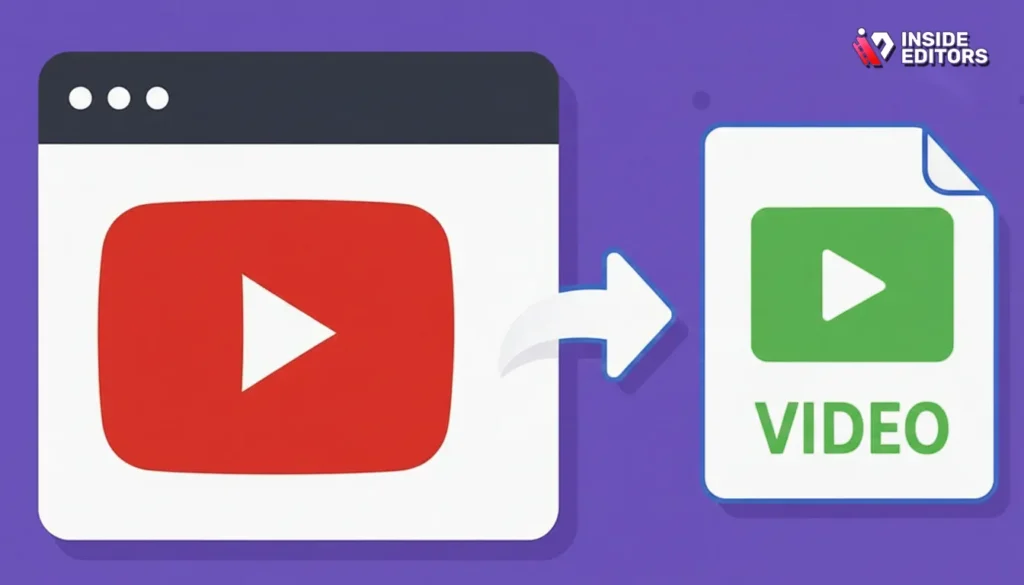
Since the official method limits file mobility, many users look toward third-party software to learn How to Download a YouTube Video to Computer and obtain a usable MP4 file. These tools range from dedicated desktop applications to browser extensions.
Desktop Download Managers (Recommended)
Dedicated desktop software offers the best balance of security, stability, and feature set. They are generally more reliable than web-based tools, which often contain excessive ads or hidden malware.
Key Features of Quality Downloaders:
- Batch Downloading: Saving multiple videos or entire playlists at once.
- Format Conversion: Ability to convert the video directly to MP4, MOV, or MP3.
- Quality Selection: Options for 4K and 8K resolution downloads.
- Speed and Reliability: Consistent download speeds without frequent failures.
When choosing a tool, always download it from the official developer website. Avoid clicking pop-up ads or using cracked versions.
The Risks of Third-Party Tools
While effective, third-party tools carry inherent risks. You are granting an external application access to your internet traffic and potentially your system.
- Malware and Adware: Many free downloaders bundle unwanted software or aggressive advertising.
- Security Vulnerabilities: Poorly coded software can expose your system to security risks.
- Violation of Terms: Using these tools directly violates YouTube’s terms of service, which could theoretically lead to account suspension if detected.
Always use reputable antivirus software and exercise caution when installing new applications.
Method 3: Online Converters (Use with Extreme Caution)
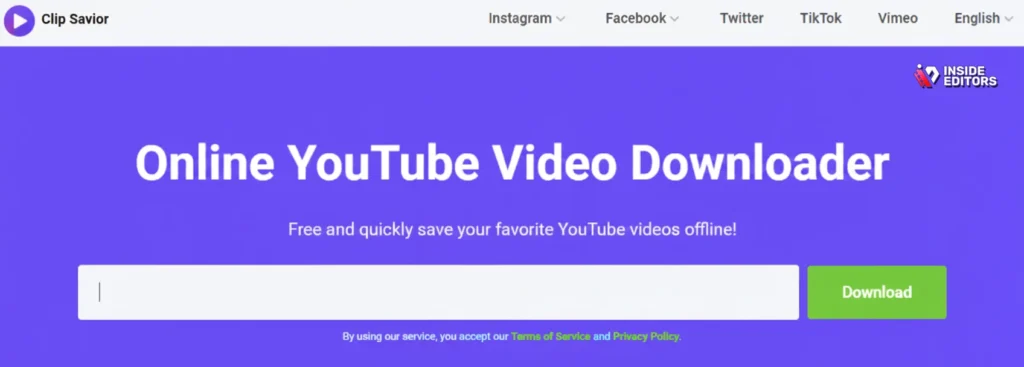
Online converters offer the quickest way to learn How to Download a YouTube Video to Computer without installing any software. You simply paste the URL into a web form, and the service processes the file for download.
Step-by-Step for Online Converters
- Copy the YouTube URL: Navigate to the video and copy the address from your browser bar.
- Paste into Converter: Open a reputable online converter site and paste the URL into the designated field.
- Select Output Format: Choose the desired format (e.g., MP4) and resolution (e.g., 1080p).
- Initiate Conversion and Download: Click “Convert” or “Download.” The site will process the video and provide a direct download link.
Comparison Table: Download Methods
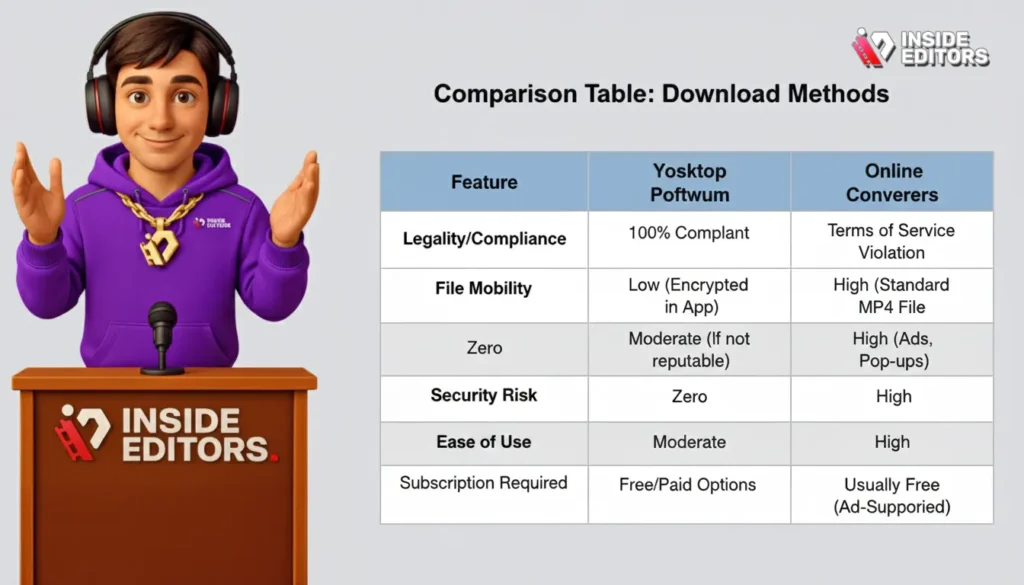
| Feature | YouTube Premium | Desktop Software | Online Converters |
|---|---|---|---|
| Legality/Compliance | 100% Compliant | Terms of Service Violation | Terms of Service Violation |
| File Mobility | Low (Encrypted in App) | High (Standard MP4 File) | High (Standard MP4 File) |
| Security Risk | Zero | Moderate (If not reputable) | High (Ads, Pop-ups) |
| Ease of Use | High | Moderate | High |
| Cost | Subscription Required | Free/Paid Options | Usually Free (Ad-Supported) |
Advanced Considerations for Content Creators
If you are a content creator or a professional editor, knowing How to Download a YouTube Video to Computer is often just the first step. The real work begins after the download.
Why Quality Matters: Bitrate and Resolution
When downloading, always choose the highest available quality. YouTube often compresses videos significantly. Downloading the highest resolution (1080p, 4K, or 8K) ensures you retain the maximum amount of visual data.
“High-quality source material is non-negotiable. If you start with a low-bitrate file, no amount of editing magic can truly restore the lost detail.” – Sarah Chen, Professional Video Editor
Preparing Downloaded Videos for Editing
If your goal is to edit the downloaded video (e.g., for commentary or analysis under Fair Use), you need a clean, high-quality file. Desktop downloaders often allow you to strip out unnecessary audio tracks or metadata, streamlining the file for import into professional editing suites like Adobe Premiere Pro or DaVinci Resolve.
This is where professional video services become invaluable. Once you have successfully determined How to Download a YouTube Video to Computer, the next challenge is transforming that raw footage into polished, professional content.
Partnering with Inside Editors for Professional Video Production

Downloading a video is easy; editing it to professional standards is hard. For businesses, marketers, and serious content creators, time is money. Instead of spending hours struggling with complex editing software, you can leverage professional expertise.
Inside Editors offers comprehensive Video Editing Services designed specifically for YouTube creators, businesses, and marketing teams. Our service takes your raw footage-or the high-quality files you downloaded-and transforms them into engaging, high-impact videos that build trust and drive engagement.
Why Choose Inside Editors?
We understand the demands of modern content creation. Our service is built around speed, quality, and consistency.
- Expertise and Experience: Our professional editing team boasts over 10 years of collective experience, ensuring every cut, transition, and color grade meets industry standards.
- Fast Turnaround: We know deadlines matter. We offer a rapid turnaround time of 24–72 hours, helping you maintain a consistent publishing schedule.
- Quality Assurance: We include professional color grading and audio enhancement in every package. A video might look great, but if the audio is poor, viewers will click away. We ensure crystal-clear sound and visually stunning results.
- Affordable and Scalable: With affordable pricing starting at just $29 per video, we offer a scalable solution for growing channels. Whether you need one video edited or twenty, we can handle the volume.
- Unlimited Revisions: We work until you are 100% satisfied. Our process includes unlimited revisions, guaranteeing the final product aligns perfectly with your vision and brand style.
By choosing Inside Editors, you save valuable time, allowing you to focus on what you do best: creating more compelling content. We provide the professional quality that builds audience trust, ensuring your brand maintains a consistent, polished look across all platforms. If you’ve figured out How to Download a YouTube Video to Computer but need help making that video shine, we are your ideal partner.
Common Mistakes When Downloading YouTube Videos

Even when you know the basic steps for How to Download a YouTube Video to Computer, pitfalls remain. Avoiding these common mistakes will save you time and protect your system.
1. Ignoring Security Warnings
The most common mistake is ignoring browser or antivirus warnings about suspicious websites. Many free online converters are flagged as potentially dangerous due to the aggressive nature of their advertising (malicious redirects, forced pop-ups). Always use a VPN and a robust ad-blocker if you choose this route.
2. Downloading Low-Resolution Files
If you plan to use the video for anything other than quick viewing, downloading the default or lowest resolution (e.g., 480p) is a wasted effort. If the video is 4K, ensure your chosen tool can handle 4K downloads. If you are paying for professional editing services, like those offered by Inside Editors, you want to provide the highest quality source file possible to maximize the final output quality.
3. Assuming All Content is Fair Use
Never assume that because a video is publicly available, you can legally download and reuse it. Always check the licensing. If the video is standard YouTube licensing, you must obtain explicit written permission from the creator for reuse beyond personal, private viewing.
“The principle of ‘better safe than sorry’ applies strongly to copyright. When in doubt, don’t use the material, or seek legal counsel.” – Intellectual Property Lawyer, specializing in digital media.
Troubleshooting and Advanced Tips
Sometimes, the process of figuring out How to Download a YouTube Video to Computer hits a snag. Here are solutions to common problems.
Problem: Download Speeds are Extremely Slow
Solution: This is often due to server overload on the third-party tool’s side or internet throttling. Try switching to a desktop application, which often uses more direct connection methods, or attempt the download during off-peak hours (late night or early morning).
Problem: The Video Downloads, But the Format is Wrong
Solution: Ensure your downloader is set to output MP4. Some older tools default to FLV or WebM, which are less universally compatible. If you already have the file, use a reliable video conversion tool like HandBrake to change the format to MP4.
Problem: The Audio and Video are Out of Sync
Solution: This usually happens when the downloader struggles to merge separate audio and video streams (YouTube often delivers them separately for high-resolution content). Try a different desktop downloader known for robust merging capabilities. If the issue persists, the original source file might be the problem.
Pros and Cons of Different File Formats
When you successfully learn How to Download a YouTube Video to Computer, you will face a choice of output formats.
| Format | Pros | Cons |
|---|---|---|
| MP4 (H.264) | Universal compatibility, excellent compression, high quality. | Slightly larger file size than newer codecs. |
| WebM (VP9/AV1) | Open source, highly efficient compression, great for web use. | Less compatible with older editing software and devices. |
| MP3 | Extremely small file size, perfect for audio-only extraction. | Completely loses all video data and metadata. |
| MOV (QuickTime) | Excellent for Apple ecosystems, high quality, good for editing. | Larger file size, less common on Windows/Android devices. |
For maximum compatibility and ease of use, MP4 remains the industry standard, especially if the video will be further edited by a professional team like Inside Editors.
The Future of Video Downloading and Archiving

As streaming services evolve, so do the methods for accessing content offline. Google and YouTube are continually making it harder for unauthorized third-party tools to function, often by changing their streaming protocols.
This means that relying on the official, paid methods (like YouTube Premium) or partnering with trusted, constantly updated professional tools will become the only sustainable ways to reliably figure out How to Download a YouTube Video to Computer.
For creators, the focus should shift from downloading other people’s content to efficiently managing your own content. Regularly backing up your original source files and leveraging professional editing services ensures your channel remains resilient and consistently high-quality.
Conclusion: Mastering the Art of Offline Video Access

Mastering How to Download a YouTube Video to Computer requires balancing technical knowledge with ethical responsibility. The safest path involves using YouTube Premium for personal offline viewing. If you require a transferable file for legitimate purposes like archiving your own work or Fair Use analysis, proceed with extreme caution using reputable desktop software.
Remember that downloading the video is only the first step. To truly leverage the power of video content, professional editing is crucial. If you are a creator or marketer looking to elevate your downloaded or raw footage into polished, high-performing assets, Inside Editors is here to help. We provide the expertise, fast turnaround (24–72 hours), and quality assurance needed to ensure your videos look professional every time. Stop spending time on tedious editing and start focusing on content creation. Contact Inside Editors today to learn more about our professional Video Editing Services and how we can help you scale your video strategy.
Frequently Asked Questions
Is downloading YouTube videos legal?
Downloading YouTube videos generally violates YouTube’s Terms of Service unless an official download button is provided. It may also infringe copyright if the content is not your own or covered by Fair Use. Always check the licensing before you decide how to Download a YouTube Video to Computer.
What is the safest way to download?
The safest and most compliant method is using the official YouTube Premium subscription service. This allows you to save videos for offline viewing within the YouTube app ecosystem, minimizing security risks when you try to Download a YouTube Video to Computer.
Can I download 4K videos?
Yes, many reputable desktop download managers support 4K and even 8K resolution downloads. However, the quality is dependent on the original upload quality and your selected output settings when you Download a YouTube Video to Computer.
Why do downloaders often fail?
Downloaders often fail because YouTube frequently updates its streaming protocols to block unauthorized access. This requires third-party software developers to constantly update their tools to maintain functionality for those who need to Download a YouTube Video to Computer.
Are online converters safe to use?
Online converters pose a higher security risk due to aggressive advertising, pop-ups, and potential malware bundling. Use them with extreme caution and ensure your antivirus software is active.
What file format is best for editing?
MP4 (H.264 codec) is the best file format for editing due to its universal compatibility, excellent quality retention, and efficient file size. This format is easily imported into professional editing software.
How can Inside Editors help me?
Inside Editors provides professional Video Editing Services with fast turnaround and unlimited revisions. We take your downloaded or raw footage and transform it into high-quality, polished content, saving you time and ensuring brand consistency.


