

The landscape of social media is constantly shifting, but one platform remains a powerhouse for viral content: TikTok. For content creators, businesses, and marketers alike, maximizing the reach of successful videos is paramount. Sometimes, the best strategy isn’t creating something new, but giving proven content a second life. This brings us to a fundamental question many users face: how to repost a video on TikTok effectively and-critically-without sacrificing the visual and audio quality that made it successful in the first place.
Reposting a video on TikTok is more nuanced than simply hitting a share button. It involves understanding the platform’s mechanics, respecting intellectual property, and often, utilizing external tools or strategic re-uploads to bypass common quality degradation issues. At Inside Editors, we specialize in ensuring your video content always looks its best, whether it’s a fresh upload or a strategic repost. This comprehensive guide will walk you through the official methods, the strategic workarounds, and the technical considerations necessary to master the art of the TikTok repost.
The TikTok Repost Feature vs. Re-uploading
Before diving into the technical steps of how to repost a video on TikTok, it is essential to distinguish between the native “Repost” function and the strategic “Re-upload” process. While both achieve the goal of sharing content, they function very differently within the TikTok ecosystem.
The Native TikTok Repost Button
TikTok introduced a dedicated “Repost” button to allow users to quickly share videos they enjoy with their followers. This feature is designed for casual sharing, similar to a “Retweet” on X (formerly Twitter).
What the Repost Button Does:
The native Repost button does not place the video directly onto your profile feed. Instead, it shares the video with your followers’ “For You” page (FYP) when they are scrolling. It also adds a small “Reposted” label above the video, indicating that you shared it.
- Pros: Instantaneous, easy to use, and increases the original creator’s visibility.
- Cons: The video does not appear on your profile grid, limiting its long-term visibility as part of your content library. It is primarily a signal boost, not a permanent content addition.
Why Strategic Re-uploading is Often Necessary
If your goal is to add a video-either your own or someone else’s (with permission)-permanently to your profile and treat it as new content, you must re-upload it. This is particularly relevant for creators who want to leverage a viral trend or ensure consistency across their content themes.
The challenge with re-uploading is maintaining quality. When you save a video directly from TikTok, the platform often compresses the file, adds a watermark, and reduces the resolution. This is where strategic steps become crucial to learn how to repost a video on TikTok while preserving its original clarity.
“In the attention economy, every second of screen time matters. Reposting successful content strategically is not laziness; it’s smart content recycling that maximizes ROI.” – Digital Content Strategist, Anya Sharma
How to Use TikTok’s Repost Native Feature
For those simply looking to share a video quickly with their network, the native Repost button is the simplest solution.
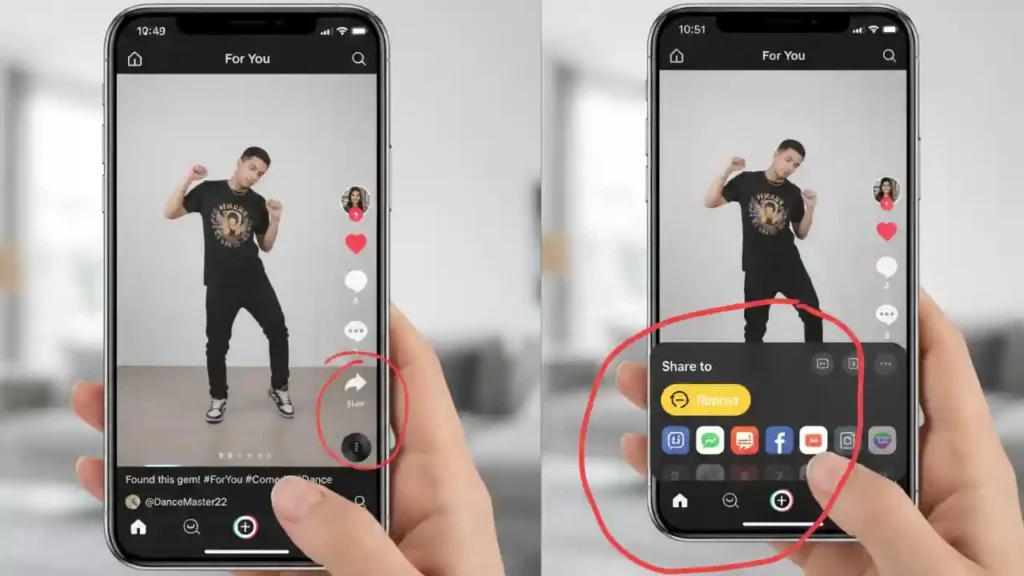
1. Locating the Repost Function
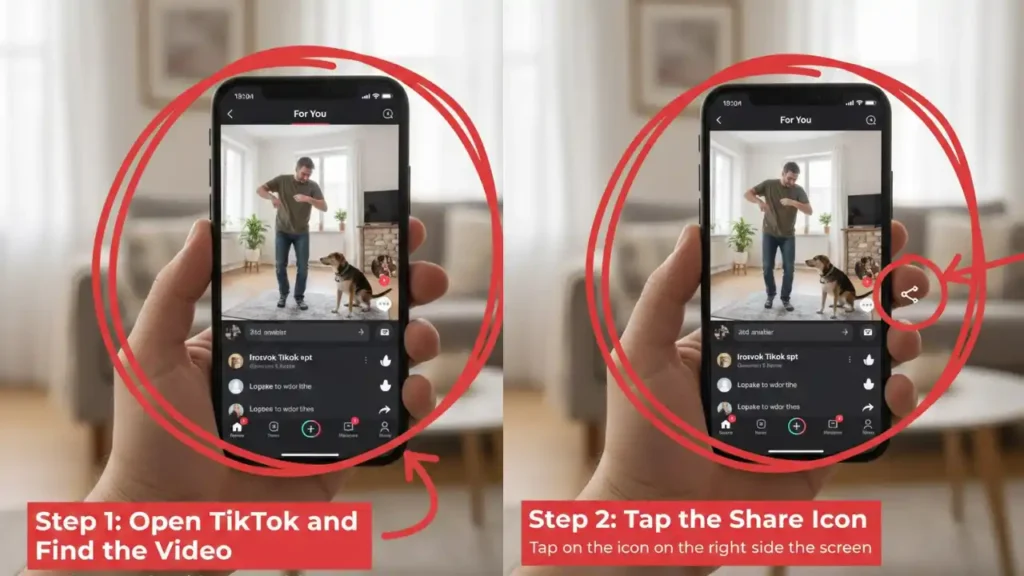
- Find the Video: Scroll through your FYP or search for the specific video you wish to repost.
- Access the Share Menu: Tap the Share button (the arrow icon) located on the right side of the screen.
- Identify the Repost Icon: In the row of sharing options (which includes “Copy Link,” “SMS,” etc.), look for the Repost icon. It typically looks like a curved arrow or a double arrow.
- Confirm Repost: Tap the Repost button. A small confirmation message will appear, and you will see a “Reposted” label appear above the video.
2. Adding Context with a Comment
When you use the native Repost function, TikTok allows you to add a public comment that will appear above the video when your followers see it. This is an excellent opportunity to add context or explain why you are sharing it.
- Engagement Tip: Use this comment to tag the original creator, ask a question to drive engagement, or add a personal reaction.
3. Undoing a Repost
If you realize you made a mistake or the content is no longer relevant, you can easily undo a native repost. Simply return to the video, tap the Share button again, and the Repost button will now say Remove Repost. Tapping this will instantly remove the video from your followers’ FYPs.
Strategic Re-uploads Without Losing Quality

The most common reason creators seek detailed guidance on how to repost a video on TikTok is to add the content to their own profile grid without the quality loss associated with standard downloads. This requires accessing the original file or using advanced editing techniques.
Method 1: Reposting Your Own Content (The Cleanest Way)
If you are reposting your own video, the process is straightforward and guarantees the highest quality.
1. Accessing the Original Source File
The golden rule for quality preservation is to never download the video from TikTok itself if you still have the original file.
- Locate the Original: Find the video file (e.g., MP4, MOV) on your phone’s camera roll, desktop hard drive, or cloud storage where it was initially created and edited. This file retains the highest resolution (e.g., 1080p or 4K) and bitrate.
- Re-edit (Optional but Recommended): Even if you are reposting, consider making minor edits. Change the music, update the text overlay, or trim the beginning/end slightly. This signals to the TikTok algorithm that the content is “fresh,” potentially boosting its reach.
2. Re-uploading with New Optimization
When re-uploading, treat it as an entirely new piece of content:
- Upload: Use the standard TikTok upload process.
- New Caption and Hashtags: Do not reuse the exact same caption and hashtags. Create a new, optimized caption targeting current trends or a slightly different audience segment.
- New Cover Image: Select a new, compelling thumbnail/cover image. This is crucial for encouraging clicks from your profile grid.
Method 2: Reposting Others’ Content (Ethically and Legally)
Reposting content created by others requires permission and careful execution to maintain quality and comply with copyright laws.
1. Obtain Explicit Permission
Always contact the original creator and ask for explicit permission to repost their content. Offer to credit them prominently in the caption. Crediting is not a substitute for permission.
2. Avoiding the Watermark and Quality Loss
If the original creator cannot send you the raw file, you will need to download the video without the TikTok watermark, which is a significant quality drain.
- Ask the Creator: The simplest way is to ask the original creator to send you the raw, unwatermarked file via email or cloud link.
- Use Third-Party Tools (Use with Caution): Several online tools and apps claim to download TikTok videos without watermarks. While these exist, be wary of security risks and ensure the tool does not further compress the video during the download process. Always prioritize getting the original file.
3. Professional Editing for Reposting
If the downloaded video quality is slightly degraded, professional editing can often save it. This is where services like Inside Editors become invaluable.
When you need to ensure a reposted video maintains a professional, high-definition look, our team can assist. We offer professional video editing services designed for creators and businesses. Our experts can perform:
- Upscaling: Improving the resolution of lower-quality source material.
- Color Correction and Grading: Ensuring consistent visual quality, even across different source videos.
- Audio Enhancement: Cleaning up sound quality that might have degraded during the download process.
Our professional editing team, with over 10 years of experience, guarantees a fast turnaround (24-72 hours) and unlimited revisions, ensuring your reposted content looks flawless and maintains your brand’s high standards. If you are serious about content quality, consider how video editing for social media can elevate your reposting strategy.
Why Video Quality Drops When You Repost
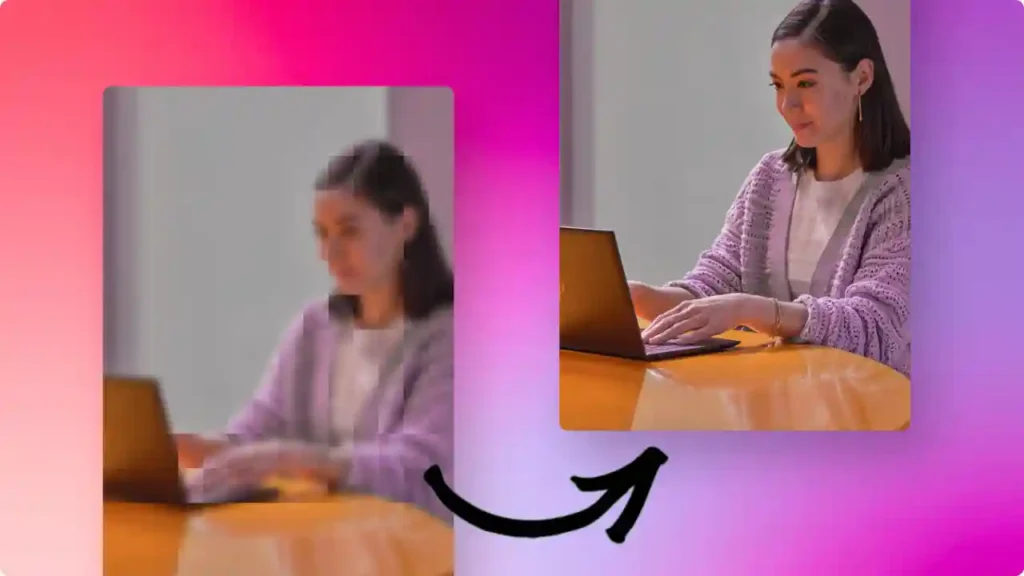
Understanding the technical factors behind quality loss is key to preventing it. When you learn how to repost a video on TikTok, you are fighting against compression algorithms.
Compression and Bitrate Explained
When you upload a video, TikTok processes it to ensure fast loading times for billions of users globally. This process involves compression, which reduces the file size by discarding some data.
| Term | Definition | Impact on Reposting |
|---|---|---|
| Resolution | The number of pixels (e.g., 1080p, 720p). | Lower resolution means fuzzier images. |
| Bitrate | The amount of data processed per second. | Low bitrate causes “artifacting” (blocky pixels) and motion blur. |
| Codec | The technology used to compress/decompress video. | TikTok prefers H.264/H.265. Using a different codec can force re-encoding and quality loss. |
“The biggest mistake creators make when reposting is accepting the platform’s default compression. True quality preservation happens before the upload button is ever pressed.” – TikTok Engineering Blog (Paraphrased)
Avoiding Double Compression
When you download a video from TikTok, it has already been compressed once by the platform. If you then re-upload that compressed file, TikTok compresses it again. This double compression is the primary culprit behind severe quality degradation.
The Solution: Always use the original, uncompressed file for re-uploading. If you must use a downloaded version, ensure it is the highest quality available and consider running it through professional editing software to stabilize the bitrate before the final upload.
Optimizing Your Re-uploaded Video for TikTok
To ensure your re-uploaded video performs well, follow these optimization best practices.
1. TikTok’s Recommended Specifications
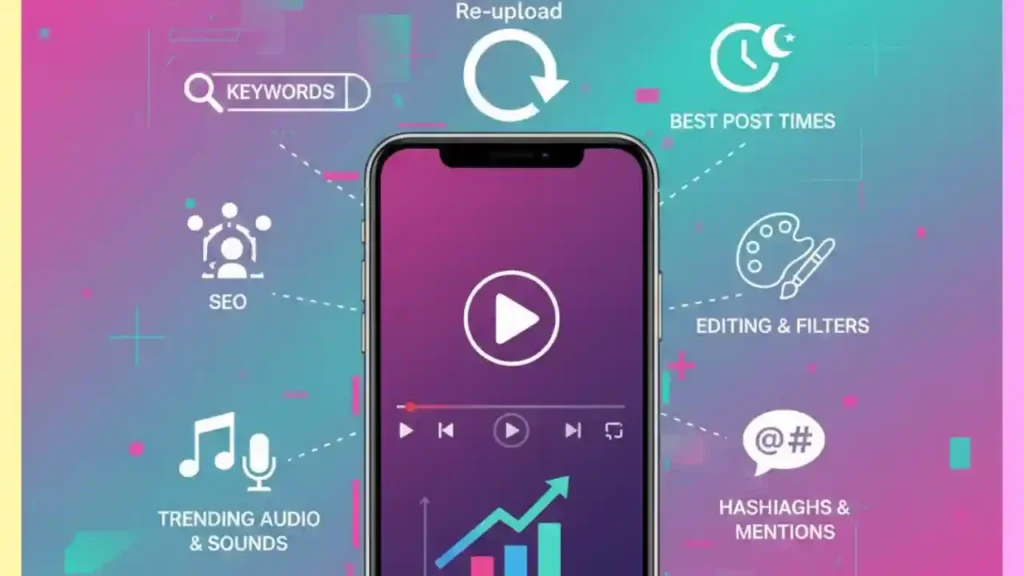
While TikTok is flexible, adhering to these specs minimizes the need for aggressive platform compression:
- Aspect Ratio: 9:16 (Vertical format).
- Resolution: 1080 x 1920 pixels (minimum 720p).
- File Format: MP4 or MOV.
- Frame Rate: 24, 25, 30, or 60 frames per second (fps).
2. Utilizing the “HD Upload” Setting
When you are on the final upload screen, TikTok often provides an optional setting labeled “Allow high-quality uploads” or “HD Upload.” Always ensure this toggle is switched ON. This signals to the algorithm that you are providing a higher-bitrate file and instructs the platform to use a less aggressive compression profile.
3. Strategic Captioning and Timing
A high-quality repost is only effective if it reaches the right audience.
- New Hook: If you are reposting an older video, consider changing the first 3-5 seconds (the “hook”) to grab attention immediately.
- Optimal Timing: Use your TikTok analytics to determine the best time of day to post for maximum initial reach. A repost should be treated like a new launch.
- Engaging the Audience: Encourage interaction in the caption. Ask viewers to share their favorite part of the video or tag a friend. This initial engagement is vital for viral success. If you need help crafting compelling captions and optimizing your content strategy, learning how to hire a social media video editor can provide the expertise you need.
Pros and Cons of Reposting Strategies
Deciding between the native Repost button and a strategic Re-upload depends entirely on your content goals.
| Feature | Native Repost Button | Strategic Re-upload (New Post) |
|---|---|---|
| Quality | Original platform quality (no degradation). | Highest quality (if using the original file). |
| Visibility | Only appears on followers’ FYPs; not on your profile grid. | Appears permanently on your profile grid; treated as new content. |
| Effort | Low effort (one tap). | High effort (requires original file, new caption, and optimization). |
| Algorithm Impact | Boosts the original creator’s reach. | Can boost your own profile reach and follower count. |
| Watermark | No watermark added. | No watermark (if using the original file). |
| Control | Minimal control over presentation. | Full control over cover image, sound, and text overlays. |
When to Choose Which Method
- Choose Native Repost: When you want to quickly endorse a video, participate in a trend, or share a funny clip without cluttering your main profile.
- Choose Strategic Re-upload: When the content is highly relevant to your brand, you own the content, you want to test a different posting time, or you are compiling a “Best Of” series on your profile.
If you are a business or serious creator, the strategic re-upload is almost always the superior choice for building a consistent, high-quality content library. For those who manage multiple channels, knowing how to edit social media videos efficiently is a major time-saver.
Common Mistakes to Avoid When Reposting on TikTok
Even with the best intentions, creators often stumble into pitfalls that hurt their reach or reputation.
Mistake 1: Ignoring Copyright and Attribution
Never repost someone else’s content without their express, written permission. Reposting without permission is theft, regardless of whether you credit them. TikTok takes copyright infringement seriously, and repeated violations can lead to account suspension.
Mistake 2: Reposting the Exact Same Caption and Hashtags
The TikTok algorithm is designed to prioritize original content. If you re-upload a video using the identical metadata (caption, hashtags, sounds), the algorithm may recognize it as duplicate content and suppress its reach. Always write a new, unique caption and refresh your hashtag strategy. For creators needing help with content strategy and execution, learning how to hire a video editor for youtube or other platforms is a smart investment.
Mistake 3: Over-reposting
While recycling successful content is smart, flooding your feed with reposts can irritate followers who expect new material. Maintain a healthy balance. A good ratio might be 4:1 (four new original videos for every one strategic repost).
“Consistency doesn’t mean repetition. It means maintaining a high standard of quality and a predictable rhythm of content delivery. Reposts should enhance, not replace, your original output.” – Marketing Expert, David C. Lee
Elevating Your Content with Professional Video Editing
For creators and businesses focused on growth, ensuring every piece of content-repost or original-is flawlessly executed is non-negotiable. This is where professional video editing services provide a massive competitive advantage.
Why Inside Editors is Your Partner in Quality Reposting
When you need to ensure a reposted video transitions seamlessly into your current content library, our services guarantee quality preservation and enhancement.
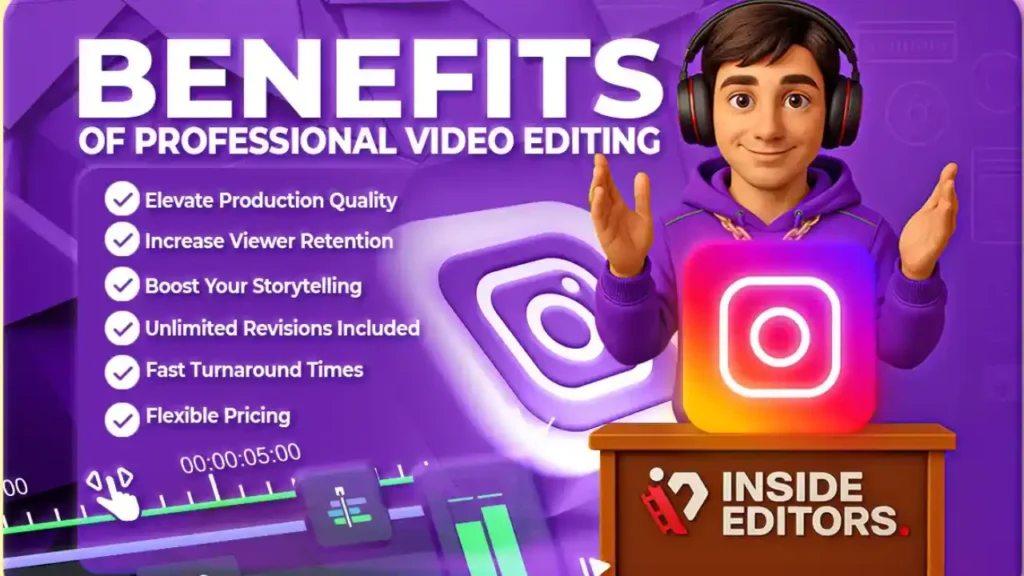
- Quality Assurance: We specialize in maximizing video quality, even when working with less-than-perfect source files. Our team uses industry-standard software to ensure optimal resolution, color fidelity, and audio clarity before the final upload.
- Fast Turnaround: We understand the speed of social media. Our 24-72 hour turnaround time means you can capitalize on trends or quickly deploy a successful repost without delay.
- Affordable and Scalable: Whether you need one quick edit or a continuous stream of content optimized for TikTok, our affordable pricing (starting at $29/video) and unlimited revisions make us the ideal, scalable solution. If you’re running a business, knowing how to find professional video editors who understand social media dynamics is key to maintaining a consistent brand image across all platforms.
If you find yourself spending too much time trying to fix degraded video quality or struggling to maintain a consistent brand look across various reposts, let us handle the technical details. We help you save time and focus on what you do best: creating compelling content. Discover the ease of working with a dedicated team by checking out our video editing services.
Final Takeaways on How to Repost a Video on TikTok
Mastering how to repost a video on TikTok is a critical skill for maximizing content reach and efficiency. Whether you use the quick native Repost button or undertake a strategic, quality-preserving re-upload, the key is intentionality.
For casual sharing, the native Repost button is fast and effective. However, for building a professional, high-quality profile grid, the strategic re-upload-using the original source file, optimizing the upload settings, and ensuring new metadata-is the only way to guarantee quality without compromise.
Remember the three pillars of a successful repost:
- Permission: Always obtain consent for third-party content.
- Quality: Use the original file and toggle the HD upload setting.
- Freshness: Use new captions, hashtags, and a new cover image.
By adhering to these guidelines, you can confidently give your best content a second, third, or even fourth life on TikTok, driving engagement and growth without ever sacrificing the visual integrity your audience expects. If you’re scaling your content production, consider exploring the benefits of a dedicated video editing subscription to keep your content pipeline full and consistently high-quality. For those managing complex projects, understanding how to find a video editor who can handle diverse formats is essential. We are here to help you make every video count.
Frequently Asked Questions
How do I repost a video on TikTok?
To repost on TikTok, use the ‘Share’ arrow icon on the video you want to share. Select the ‘Repost’ button, which looks like two arrows forming a circle. This feature shares the video directly to your followers’ For You Page (FYP) without appearing on your main profile grid. It’s the fastest way to share content you enjoy.
Does reposting reduce video quality?
No, using the native TikTok ‘Repost’ feature does not reduce the video quality. This method simply shares a link to the original high-quality file. Quality loss usually occurs only when you download and re-upload a video, as compression happens during the download process. Always use the official Repost button for best results.
What’s the difference between Repost and Duet?
Repost shares the original video directly to your followers’ FYP, showing appreciation for the creator. Duet, however, allows you to record a new video alongside the original, creating new content. Reposting is quick and passive, while Duetting requires active creation and appears on your profile grid.
Can I remove a video I reposted?
Yes, you can easily undo a repost. Navigate back to the original video you shared and tap the ‘Share’ arrow again. The ‘Repost’ button will now say ‘Remove Repost.’ Tapping this will instantly take the video off your followers’ FYP without leaving a trace on your profile.
Why can’t I see the Repost button?
The Repost button may be missing for a few reasons. First, ensure your TikTok app is fully updated to the latest version. Second, the feature is not available for videos posted by private accounts or videos that have been restricted by the creator. It is also not available in all regions yet.
Does a repost appear on my profile grid?
No, a repost does not appear on your main profile grid alongside your uploaded videos. Reposts are only visible to your followers on their For You Page (FYP) feed. If you want a video to be permanently visible on your profile, you must download and re-upload it, which risks quality loss.
How do I find videos I have reposted?
To view your repost history, go to your profile page. Look for the ‘Reposted’ tab, usually located next to your ‘Liked’ videos tab. This section shows all the videos you have shared using the official Repost button. This is a helpful way to track content you’ve endorsed.


