


Unlocking the potential of AI-powered video creation, this tutorial digs deep into the best ways to use Kling AI – a rising star in text-to-video and image-to-video generation. Whether you’re a beginner or an intermediate creator, the insights shared here – from signing up and earning free credits, to mastering advanced prompt techniques – will level up your visual storytelling game.
Why Kling AI Deserves Your Attention
Kling AI, developed by Kuaishou Technology in Beijing, has swiftly gained recognition as a highly versatile video generator. It supports text-to-video, image-to-video, multi-elements editing, and even lip-sync features – allowing creators to produce up to 10-second (or more in premium) 1080p clips. Its free tier, which includes daily credits, offers an accessible entry point while premium tiers unlock higher quality and longer run times.
Getting Started: Signing Up and Free Credits
- The tutorial begins with a quick walk-through of the Kling AI homepage – clicking “Try It Now” or “Sign Up” leads you to the registration form.
- New users receive 66 free credits for 24 hours – enough for several video creations.
- Sign-up options include email, Google, or Apple authentication, with email verification required to activate credits.

Navigating the Interface
Once logged in, the clean dashboard presents:
The sidebar houses essential tools for creating and managing projects.
Crafting a Video with Text Prompts
Step-by-Step:
- Select “Text-to-Video.”
- Enter your prompt – for instance: “Dog and Cat Running Together on the Road.”
- Adjust the Creativity–Relevance slider to balance imaginative flair with fidelity to the prompt.
- Choose between:
- Standard (free) mode – shorter, basic quality.
- Professional mode – higher quality, requires premium.
- Set Length (5 or 10 seconds) and Aspect Ratio (16:9, 1:1, 9:16).
- (Optional) Add Negative Prompts such as “no blurry, no grainy” for better output quality.
- Press Generate and wait a few minutes.
You’ll receive a finished clip – many users in the tutorial praised how lifelike the motion is, with realistic run sequences for a dog and cat, despite minor imperfections.

Bringing Images to Life
Image-to-video works similarly:
- Tap “Image-to-Video” and upload a picture.
- Add prompt and settings as before.
- Generate, and the AI dynamically animates the image – like adding motion to a child photo or creating environmental movement.
MimicPC integration even offers free daily trials with Kling 1.6, letting users transform their static images into vibrant 5s clips with smooth transitions and rich textures.
Advanced Features: Beyond Basic Clips
- Motion Brush: Draw motion paths to guide element movement within your video – perfect for controlled animation.
- Lip-Sync Tool: Sync a video or image to audio, enabling characters to talk naturally.
- Multi-Elements Editor: Mix and match subjects, add or remove elements in your scene – ideal for story creators.
Best Practices & Credible Insights
According to Tom’s Guide, keep these essentials in mind:
- Use negative prompts to avoid artifacts
- Avoid overloading prompts – focus on a single subject
- The sidebar resources offer further advice and creative prompts.
Reddit discussions emphasize that while the free tier has limits, users appreciate the Enhanced Model, daily credit refresh, and motion brush capabilities – especially impressive is Kling 2.0’s realism.
Pricing Overview: Kling AI
- Free tier: 66 daily credits, shorter clips, watermark included.
- Paid tiers:
- From ~$10/month (HD quality, watermark removal)
- Up to ~$92/month (full professional features).
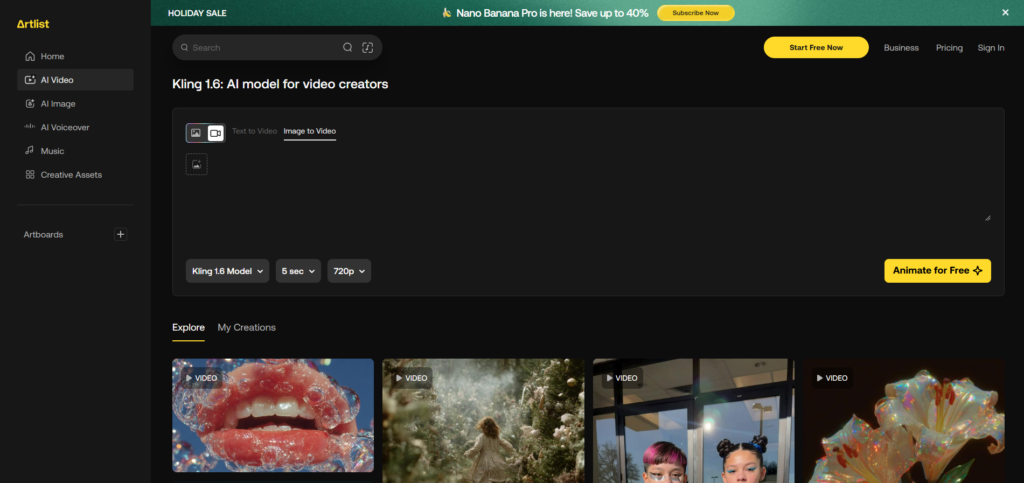
Use Kling-Powered AI on Artlist’s Free Trial
Artlist has introduced Kling-powered video models inside its AI creation suite, giving users another practical way to experiment with Kling-style video generation for free. With models such as Kling 2.5 Turbo built into the platform, creators can turn text prompts or uploaded images into dynamic motion clips without relying only on Kling’s official credit system. Since Artlist typically offers a free trial, new users can access these tools and generate impressive results before committing to any paid plan.
What Is It
Artlist is a creative platform that includes AI-driven text-to-video and image-to-video generators. The addition of Kling-based technology allows you to produce cinematic and stylized motion clips directly within its interface.
Why It Helps You Use Kling AI
Using Artlist provides an alternative interface for running Kling-powered video models. It works similarly to Kling’s own platform but gives you a different workflow and additional creative controls that many users find more intuitive.
Free Access / Trial
Artlist’s free trial or freemium tier lets you test its AI video tools-making it an effective way to try Kling-style generation at no cost. Trial details may change over time, so it’s worth checking the current offer before publishing.
Step-by-Step
- Sign up for an Artlist account.
- Go to the AI Image & Video tools section.
- Choose Text to Video or Image to Video.
- Select the Kling-powered model (such as Kling 2.5 Turbo).
- Enter your text prompt or upload an image.
- Generate your video.
- Preview and download your clip.
Tips
• Use descriptive prompts to guide camera motion and style.
• Keep initial outputs short to conserve your free trial credits.
• Experiment with different prompt variations to understand how the Kling model responds.
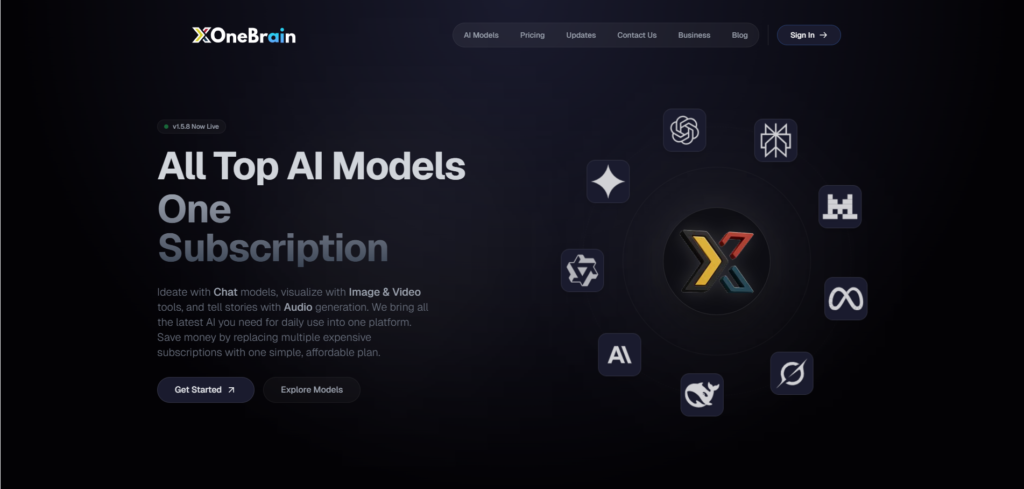
Try Kling-Powered Video Models Through OneBrain’s Free Signup
OneBrain is another accessible way to work with Kling-style video models without paying. This platform integrates multiple AI tools in one place-including video generators powered by Kling’s technology-and offers users a free signup option. This makes it easy to test animated video outputs using text or images, even if you haven’t used Kling directly.
What Is It
OneBrain is an all-in-one AI workspace that brings together chat models, image creation tools, and video generators. Among its available models are video options that use Kling technology to produce high-quality animated clips.
Why It Helps You Use Kling AI
By using OneBrain, you can access Kling-powered video generation through a simplified dashboard. This alternative workflow is especially helpful for beginners or creators who want the flexibility of using multiple AI tools in the same environment.
Free Access / Trial
OneBrain’s free account tier allows users to explore a limited number of tools, including video generation. This gives you a chance to try Kling-style outputs without any cost. The exact features available on the free tier may vary over time.
Step-by-Step
- Create a free OneBrain account.
- Go to the Video AI section.
- Select the Kling-powered video model.
- Choose whether to generate from text or an uploaded image.
- Enter your prompt or upload your photo.
- Generate your video.
- Download the final clip.
Tips
• Combine OneBrain’s image generator with its video tools for a full creative workflow.
• Start with shorter prompts to understand how the model responds.
• Add motion, style, and angle instructions for more accurate animation.
Tips for Beginners: Make High-Quality Clips
- Detailed prompts: Include subject, environment, motion, and camera angle
- Use negative prompts like “no blurry textures” to refine outputs
- For image-to-video, use high-res sources
- Balance creativity settings for a professional look.
Ideal Use Cases for Kling AI
- Social & marketing: Eye-catching animations
- Educational content: Smooth video explanations
- Memories & personal use: Animate family photos
- Professional storytelling: Lip-synced videos, scene building
MimicPC integration is especially helpful for animated transformations at no cost.
Final Thoughts / What to Do Next
Ready to bring your ideas to life? Start with a free account at Kling AI, experiment with text prompts or image animations, and join the growing community of creators. For hands‑on video editing support tailored to your brand, check out Inside Editors’ YouTube video editing guide. For professional polish and longer-term support, explore our video editing services or schedule a call today.
How many free videos can I create daily?
You receive 66 credits on signup – enough for several 5–10s videos. Credits refresh each day.
What’s the advantage of negative prompts?
Including phrases like “no blurry, no grainy” helps guide the AI and improve output quality.
Can I sync audio to make characters talk?
Yes, Kling includes a Lip‑Sync feature to animate faces with custom audio.
What’s the difference between 1.6 and 2.0?
Version 2.0 offers better motion, multi-elements editing, and full HD resolution vs. earlier models.
Where can I see more examples and learn tricks?
Tom’s Guide and Kling’s internal Best Practices are excellent starting points. Also check Reddit for community tutorials.


