

If you’ve ever recorded an amazing moment on your iPhone only to be disappointed by how the final edit turned out, you’re not alone. The top 6 iPhone video editing app stage is where your video either becomes memorable or gets lost behind inconsistency, shaky timelines, and dull visuals. That’s why choosing the right iPhone video editing app matters more than most people realize. The right editor saves you hours, enhances your creative control, and ensures your audience actually feels the story you’re trying to tell.
In 2025, creators have more powerful mobile editing tools than ever before. From cinematic color grading to multi-layer timelines and AI-driven enhancements, today’s apps can replace much of what used to require a desktop. But with so many choices, it’s tough to know which tool matches your style, your workflow, and the kind of videos you want to create.
This guide breaks down the six best iPhone editors of 2025, exploring not just features but what these tools actually mean for your day-to-day editing. Whether you’re a beginner polishing your first travel vlog or a creator producing content for YouTube, TikTok, or Instagram, you’ll find the app that fits you best. As we explore each choice, we’ll compare workflows, highlight strengths and weaknesses, and offer clear, professional insights to help you make confident decisions.
Before diving into the apps, it’s useful to understand why mobile editing workflows have become so dominant – and how the right tool can transform even simple footage into a polished story.
iPhone Video Editing App : Future of On-the-Go Content
The world of content creation has shifted dramatically in the past few years. More than 80% of all short-form videos are now consumed on mobile devices, and creators naturally want to edit where they shoot. This shift isn’t just about convenience – it’s about speed, creativity, and staying ahead of trends. When you can edit instantly after capturing footage, you stay connected to the emotion of the moment, making better editorial decisions.
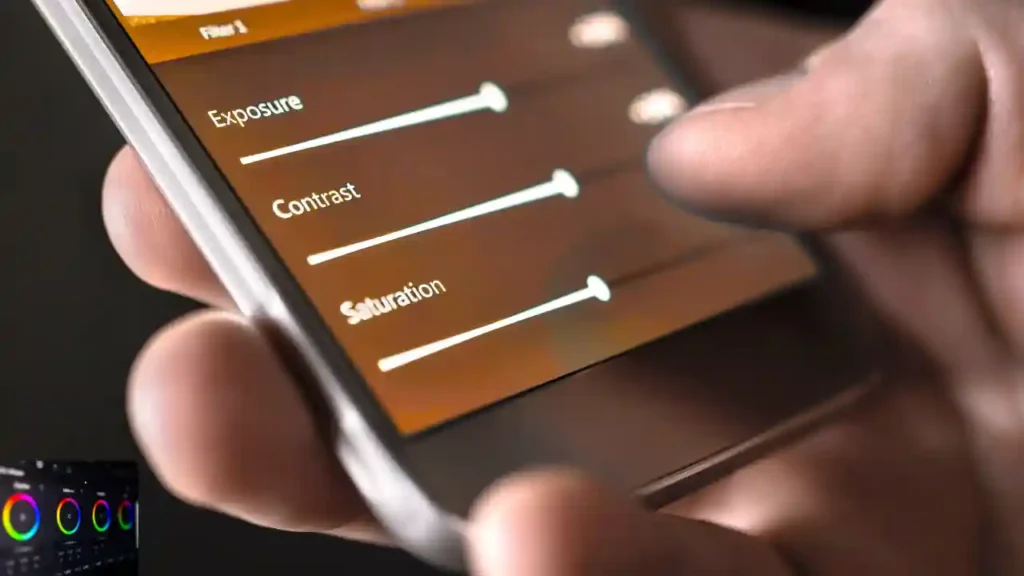
Mobile editors in 2025 offer tools that were once limited to desktop-grade programs. AI-assisted stabilization, auto-subtitles, advanced color grading, LUTs, multi-track audio, and collaborative sharing are now standard features across top apps. What used to require a MacBook and Final Cut Pro can now be done in the palm of your hand.
Another reason mobile editing is taking over is workflow flexibility. Instead of waiting until you get home to begin work, you can edit while traveling, during a commute, or between shoots. This consistent creative continuity helps produce better final results – and reduces the frustration of batch editing all at once.
But with that flexibility comes a challenge: different apps prioritize different workflows. Some are perfect for quick social edits, others focus on professional-level detail, and some offer unique tools you won’t find elsewhere. Understanding these differences is the key to choosing the right editor, and that’s the journey we’re about to take.
1.CapCut: Fast & Flexible for Social Creators
CapCut has continued to evolve in 2025 and remains one of the most powerful free editors available on the App Store. What makes CapCut stand out isn’t just its vast toolset, but how quickly you can move from rough footage to polished video. If you’re editing for TikTok, Instagram Reels, or YouTube Shorts, CapCut almost feels purpose-built for your workflow.
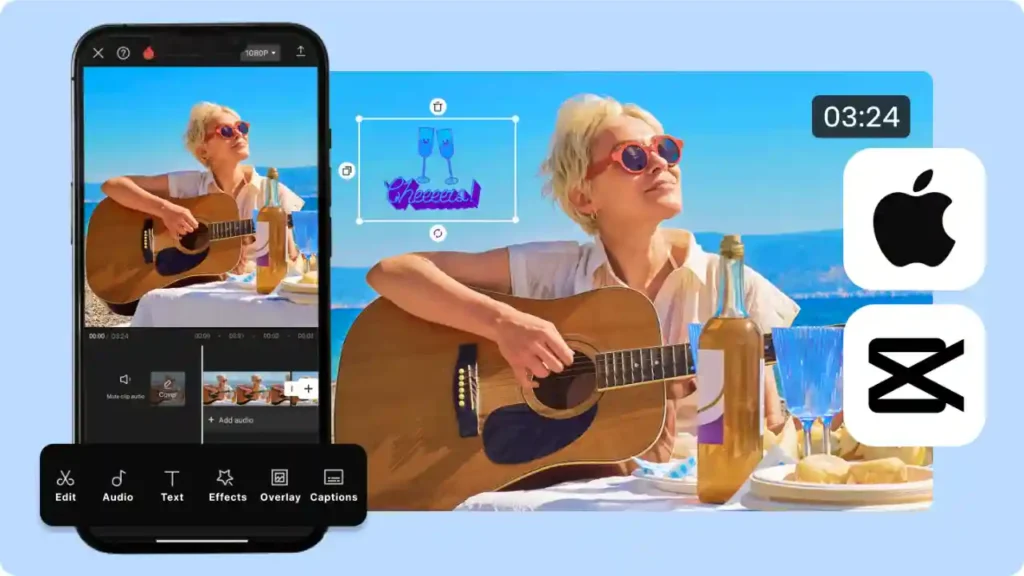
One of CapCut’s strongest advantages is its AI-driven toolkit. Automatic captioning, smart background removal, face enhancement, and motion tracking all operate in seconds. These time-saving features are extremely valuable when you’re producing high-volume content and need fast turnaround without sacrificing quality. It’s one of the reasons many creators treat CapCut as their daily editing companion.
CapCut also excels in template-based editing. While templates may sound limiting, they can be incredibly helpful for maintaining a consistent style across multiple videos. Many creators use templates to speed up transitions, maintain branding consistency, or quickly generate variations for A/B testing. If you work with trends, CapCut keeps you ahead of the curve because new templates and effects are added constantly.
However, CapCut isn’t perfect. For more cinematic or long-form storytelling, its timeline can feel restrictive compared to apps like LumaFusion. You can do complex edits, but the interface is clearly optimized for quick vertical content. Still, the combination of power, speed, and zero cost makes it an unbeatable starting point – and even professionals keep it installed for rapid prototyping.
Understanding these strengths also helps us appreciate where the next app shines, especially for creators who want desktop-level precision.
2. LumaFusion: A Pro-Grade Editing Suite
If CapCut is the fastest way to edit, LumaFusion is the most detailed. Many creators consider it the Final Cut Pro of mobile editing, and for good reason. LumaFusion offers a full multi-track timeline, professional color grading tools, keyframe-level adjustments, and export settings you would normally see only in desktop software.
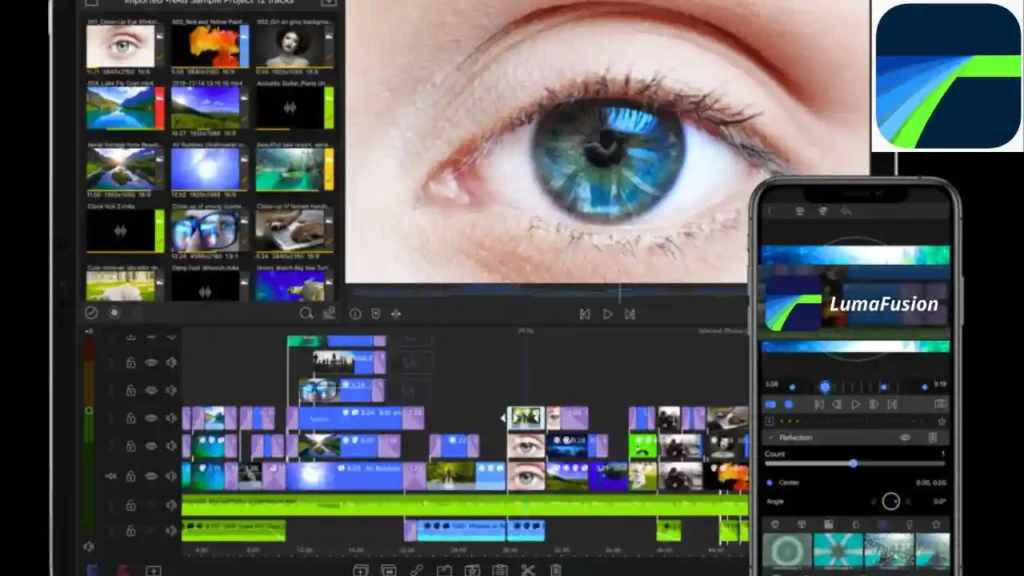
This app is ideal for YouTubers, short filmmakers, travel vloggers, educators, and anyone producing projects where storytelling and precision matter. Instead of relying heavily on templates or AI automation, LumaFusion gives you control over every frame. You can fine-tune transitions, color grade scenes individually, mix audio like a professional editor, and even manage complex layers with ease.
Another standout feature is its media management system. You can import files from cloud storage, external drives, or networked servers. This flexibility is crucial for editors who work with multiple devices or large file libraries. And unlike many mobile apps, LumaFusion handles high-bitrate footage, including ProRes, without lag – something seasoned creators deeply appreciate.
The learning curve is steeper compared to simpler apps, but that’s precisely why professionals love it. Once you understand the interface, editing feels intuitive and powerful. Many creators use LumaFusion as their primary editing platform, traveling with only an iPad or iPhone while leaving their laptops behind.
If CapCut is for speed and trends, LumaFusion is for depth and cinematic control. But sometimes, you want a mix of both worlds – and that’s where our next app comes in.
3. InShot: Easy, Aesthetic, Everyday Editing
InShot is one of those apps that seems simple at first glance but delivers surprising power once you dive in. It strikes a rare balance between ease of use and creative flexibility, making it perfect for lifestyle creators, marketers, small business owners, and casual storytellers.
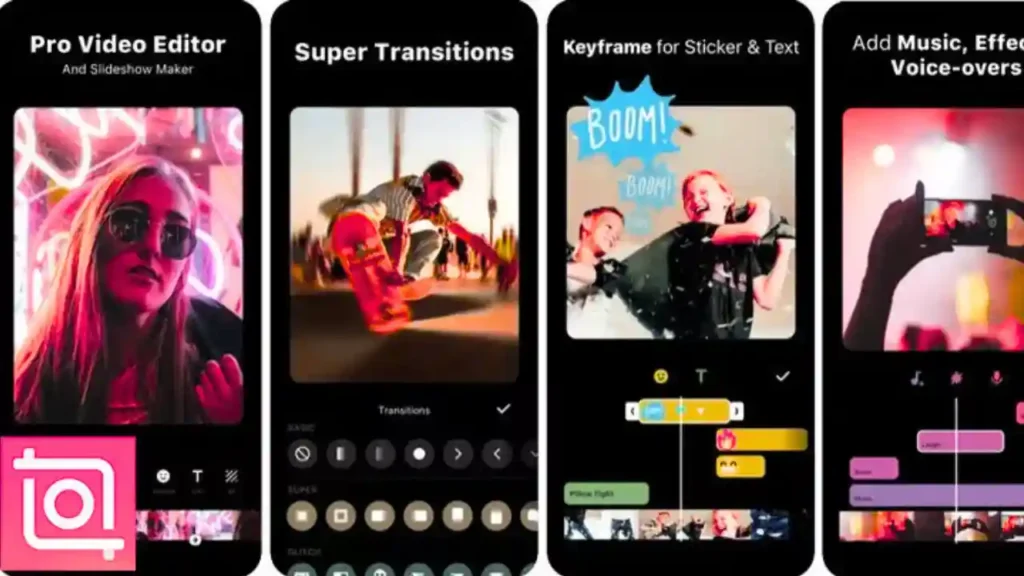
Unlike some editors that overwhelm beginners, InShot keeps its interface clean and approachable. You can trim clips, adjust speed, add transitions, apply filters, or enhance audio within seconds. Its drag-and-drop timeline is friendly for beginners, yet capable enough to support storytelling beyond simple social posts. This blend of usability and capability is what makes InShot a fan-favorite among everyday creators.
What sets InShot apart is its aesthetic-driven editing tools. The filters, color presets, and fonts feel modern and polished – not generic or outdated. Many creators use InShot specifically for reels, travel montages, food videos, or lifestyle vlogs because it produces beautiful results with minimal effort. You can also resize clips effortlessly, ensuring your videos fit perfectly across different social platforms.
However, like CapCut, InShot isn’t designed for deep multi-track editing. It’s not the app you choose for complex projects, but it’s perfect for clean, stylish videos created quickly. If you value aesthetics, simplicity, and speed, InShot fits naturally into your workflow. And as we move to the next section, you’ll see how some apps lean more heavily into AI-driven creativity rather than manual control.
4. VN Video Editor: Clean, Creator-Friendly, Free
VN Video Editor has quietly become one of the best free tools for creators who want a clean interface without ads or watermarks. Many editors appreciate VN because it offers a surprisingly professional workflow while remaining simple enough for beginners. It feels like a middle ground between CapCut’s trend-focused editing and LumaFusion’s professional complexity – making it a natural choice for creators who want both speed and control.
One of VN’s standout strengths is its timeline. It supports multiple layers, marker tools, and keyframe animation without overwhelming the user. This means you can craft cinematic sequences, smooth transitions, and detailed edits without feeling restricted. The customizable speed curves, color grading presets, and overlay features help bring more polish to your videos, especially when you’re trying to create a unique style or aesthetic.
The built-in templates and effects are tasteful and modern, which appeals to creators who want to avoid overused or generic editing styles. VN also allows you to save your own presets, making it easier to maintain brand consistency across multiple videos. And because it doesn’t rely heavily on AI, it gives you more room to refine details manually – perfect for editors who enjoy hands-on control.
While VN might not have the complete pro-level depth of LumaFusion, its balance of quality, flexibility, and cost-free access makes it one of the most reliable editing apps for iPhone users in 2025. For creators who value workflow simplicity and style, VN is an excellent fit.
5. Adobe Premiere Rush: Hybrid Editing Made Easy
If you’re someone who edits across iPhone, iPad, and desktop, Adobe Premiere Rush gives you the smoothest multi-platform experience. As a simplified version of Adobe Premiere Pro, Rush focuses on streamlined workflows while keeping enough editing power for serious creators. The biggest advantage here is its cloud sync: you can start a project on your iPhone, refine it on your laptop, and finish it on your desktop – all without exporting or transferring files manually.
Premiere Rush also offers strong color editing capabilities, especially if you’re familiar with Adobe’s Lumetri color tools. While not as detailed as its desktop counterpart, the mobile version still gives you solid control over exposure, warmth, tint, and creative LUTs. This makes it ideal for creators who want consistency across their projects, especially for branded social content or YouTube videos with a signature look.
Where Rush shines most is its reliability. Many editors choose it because it’s stable, predictable, and built with workflow efficiency in mind. You don’t get as many visual effects or AI-driven features as CapCut, but you do get a clean editing environment geared toward professionals. And for those using Adobe’s broader ecosystem – Photoshop, Lightroom, Premiere Pro – Rush becomes even more powerful thanks to its connected tools and libraries.
The downside is that not all features are free, and some creators feel the subscription model can be limiting. But if you’re serious about cross-platform editing and want a tool that integrates seamlessly into a professional ecosystem, Rush stands out as a dependable choice.
6. iMovie: Easy Editing That Lasts
Despite the surge of newer editing tools, iMovie continues to be one of the most reliable starting points for iPhone editors. It’s simple, intuitive, and – most importantly – completely free. Apple maintains iMovie with a clean interface and solid core features, making it perfect for beginners or anyone who wants to assemble clean, polished videos without dealing with complex settings.
What makes iMovie useful is how well it integrates with the Apple ecosystem. You can start editing on your iPhone and finish on your iPad or Mac without losing quality or features. Everything feels fluid and familiar, especially if you’ve used other Apple apps. The pre-made themes, cinematic filters, soundtracks, and trailer templates help beginners create visually appealing content with minimal effort.
Of course, iMovie isn’t designed for advanced editing. You won’t get multi-layer timelines, detailed keyframes, or high-end color grading. But not every creator needs that level of control. For family videos, school projects, quick edits, and simple social content, iMovie remains dependable and elegant. Many creators eventually outgrow it, but as a learning platform, it continues to deliver strong value in 2025.
Now that we’ve explored the six best apps, let’s look at how they compare side by side to help you choose the perfect fit for your workflow.
Comparing the Best iPhone Video Editing Apps of 2025
Choosing the right editor often comes down to the type of content you want to make. The table below summarizes the key differences to help you decide more confidently.
Quick Comparison Table
| App | Best For | Skill Level | Standout Strength |
| CapCut | TikTok, Reels, Shorts | Beginner–Intermediate | Fast, AI-powered editing |
| LumaFusion | YouTube, documentaries, travel films | Intermediate–Pro | Full multi-track, pro features |
| InShot | Aesthetic lifestyle content | Beginner–Intermediate | Clean filters, easy edits |
| VN Video Editor | Stylish, clean edits | Beginner–Pro | No ads, flexible timeline |
| Adobe Premiere Rush | Cross-device workflows | Intermediate–Pro | Cloud sync + Adobe ecosystem |
| iMovie | Simple projects | Beginner | Easy, intuitive Apple workflow |
This overview helps clarify which app aligns with your editing goals. But to choose the right editor, it also helps to understand common mistakes beginners make – and how to avoid them.
Beginner Editing Mistakes and How Apps Fix Them
One of the biggest mistakes new editors make is overusing transitions and effects. While flashy visuals feel exciting at first, they can quickly distract from your story. Apps like InShot and VN offer tasteful presets that help maintain a clean aesthetic without overwhelming your footage. CapCut’s trending effects also help you stay relevant, but learning restraint is essential for keeping viewers engaged.
Another mistake is ignoring audio. Even a beautifully shot video can feel amateurish if the background audio is noisy or uneven. LumaFusion and Premiere Rush offer strong audio controls that let you mix dialogue, background music, and sound effects properly. VN and CapCut also provide tools like noise reduction and auto-ducking, which help balance audio more naturally.
Beginners also tend to skip color correction. Even small adjustments to brightness, contrast, and saturation can transform footage dramatically. LumaFusion and Rush offer the most advanced options here, while InShot and VN provide easy-access presets that instantly lift your visuals.
Finally, exporting incorrectly is a common issue. Using the wrong resolution or aspect ratio leads to blurry uploads or awkward framing. Most of the apps above include platform presets (like “TikTok 1080×1920”), ensuring your final export is optimized for where you plan to post.
These pitfalls are normal, and every creator goes through them. The key is choosing an editor that helps you avoid these mistakes as you refine your style.
How Professionals Can Boost Your Editing
Even with the best apps, there are moments when professional editing makes a world of difference. Maybe you’re launching a YouTube channel, creating ads for a business, or producing a travel montage you want to feel cinematic. That’s where services like Inside Editors become especially valuable.
Professional editors bring precision, storytelling skills, color mastery, and industry experience you won’t always get through templates or automated tools. They help knit scenes together more smoothly and create emotional pacing that beginners often overlook. Instead of spending hours trying to fix difficult footage, you can trust a professional to transform your raw clips into content that resonates with your audience.
Inside Editors specializes in a wide range of services – including social media video editing, GoPro footage cleanup, lifestyle content editing, and online course video production. This means you can hand over even complex footage confidently, knowing the final result will be polished, consistent, and aligned with your goals.
To explore more about what professional editing can do for your content, you can visit.
Adding professional editing to your workflow doesn’t replace mobile tools – it enhances them. You can still shoot and assemble rough cuts on your iPhone, then send the project for expert refinement when it matters most. Many creators find this hybrid workflow both efficient and creatively liberating.
Final Thoughts: Finding the Right Editor for Your Vision
The best iPhone video editing app is the one that supports your style, your workflow, and your creative goals. If you prefer fast, AI-powered content, CapCut is a perfect match. If you want full control and a cinematic feel, LumaFusion leads the pack. For everyday creators, tools like InShot and VN offer the perfect balance of speed and style. And for cross-device editors, Adobe Premiere Rush remains unmatched.
No matter which tool you choose, remember that editing is ultimately about storytelling – shaping moments into something meaningful. And with the right app in your pocket, you can tell those stories anytime inspiration strikes.
If you ever feel stuck or simply want your content to look more polished without spending hours on revisions, Inside Editors is here to help with expert-level precision and creativity. Explore the full range of services and discover how seamless professional editing can be.
With the right tools, the right workflow, and the right support, you’re already well on your way to creating videos that truly stand out in 2025.
FAQs : Best iPhone Video Editing App
What is the best iPhone video editing app for beginners?
For beginners, the best starting point is usually iMovie because it’s free, simple, and already installed on most iPhones. It offers clean tools for trimming, transitions, and basic color correction without overwhelming menus. Apps like CapCut or InShot work well too if you want templates or social-ready formats. Each provides an easy path to polished videos while you learn more advanced editing skills.
Which iPhone video editing app is best for professional work?
LumaFusion is the strongest pro-level choice because it includes multi-track editing, advanced color grading, keyframing, and high-bitrate export settings. Many mobile filmmakers and YouTubers use it as a Final Cut–style editor on the go. Adobe Premiere Rush is another option if you need cross-device syncing. Both apps give you precise control beyond what free tools typically offer.
Are free iPhone video editing apps good enough for YouTube?
Yes, free apps like CapCut, VN, and iMovie can produce high-quality YouTube videos as long as you manage your footage well. They support 1080p and 4K exports, clean transitions, and simple color tools. However, they may include fewer pro features like detailed audio mixing or advanced grading. Upgrading later to LumaFusion helps if you want more cinematic control.
How much do paid iPhone editing apps usually cost?
Paid apps range from $3.99 to $29.99 for one-time purchases, while subscription-based options typically cost $6–$12 per month. LumaFusion is a flat-fee app, making it cost-effective for long-term use. Adobe Premiere Rush uses a subscription model because it syncs across devices. Always check what’s included – some apps lock LUTs, templates, or cloud storage behind premium tiers.
How long does it take to edit a video on iPhone?
Simple social clips can be edited in 10–20 minutes using apps like CapCut or InShot because templates speed up the process. More detailed YouTube or cinematic edits may take 1–3 hours in LumaFusion, depending on color grading and audio work. Timelines also depend on footage length and device performance. Rush options are available in most apps if you need faster exporting.
Do iPhone video editing apps reduce video quality?
Most modern apps preserve full resolution if you export at the same settings you shot in (like 1080p or 4K). Quality issues usually happen when users pick lower-resolution presets to reduce file size. Apps like LumaFusion and Premiere Rush offer high-bitrate exports that maintain sharpness. Always check the final export settings before publishing.
Is mobile editing better than hiring a professional editor?
Mobile editing is great for quick, everyday content, but professional editors offer storytelling, pacing, and color grading skills that elevate your final result. DIY apps are faster and cheaper, yet they lack the consistency and polish you get from expert hands. For business videos, ads, or important projects, pro editing often saves time and avoids revision cycles. Many creators combine both: rough cuts on iPhone, final polish by a professional.
Who owns the videos I edit in these apps?
You retain ownership of your original footage and exported videos in nearly all reputable apps. Some free editors store cloud projects temporarily, but exports remain yours. Just review privacy and data policies if you upload content to in-app cloud services. LumaFusion, VN, and iMovie process everything locally, offering more peace of mind for sensitive projects.
How do I choose the best iPhone video editing app for my needs?
Start by considering your content type – short-form, YouTube, lifestyle, or cinematic projects. Then match your needs to features: CapCut for trends, LumaFusion for pro work, InShot for aesthetics, VN for clean timelines, or Rush for cross-device workflows. Testing 2–3 apps helps you understand which interface feels natural. Pick the editor that speeds up your workflow, not complicates it.
How do I edit a video on iPhone step-by-step?
Import your clips into your chosen app and place them on the timeline in the order you want. Trim and split shots to tighten pacing, then add transitions, color adjustments, and audio. Add text or captions if needed, and preview the video before exporting in your target resolution. Most apps offer templates and presets to speed up the process for beginners.


