

The iPad has fundamentally changed how content creators approach production. Once limited to basic viewing, this powerful tablet is now a professional-grade mobile studio. For anyone serious about creating high-quality content on the go, finding the right video editing iPad application is crucial. It dictates your workflow, your output quality, and your ability to meet tight deadlines.
At Inside Editors, we understand the demands placed on modern creators, whether you’re a YouTube star, a corporate marketer, or a documentary filmmaker. We’ve tested dozens of applications to determine which ones truly deliver desktop-level performance on a tablet. This comprehensive guide breaks down the top five video editing apps available for the iPad, focusing on features, usability, and professional capability. We’ll help you choose the perfect tool to transform your raw footage into polished, engaging video content.
The Evolution of Video Editing on the iPad
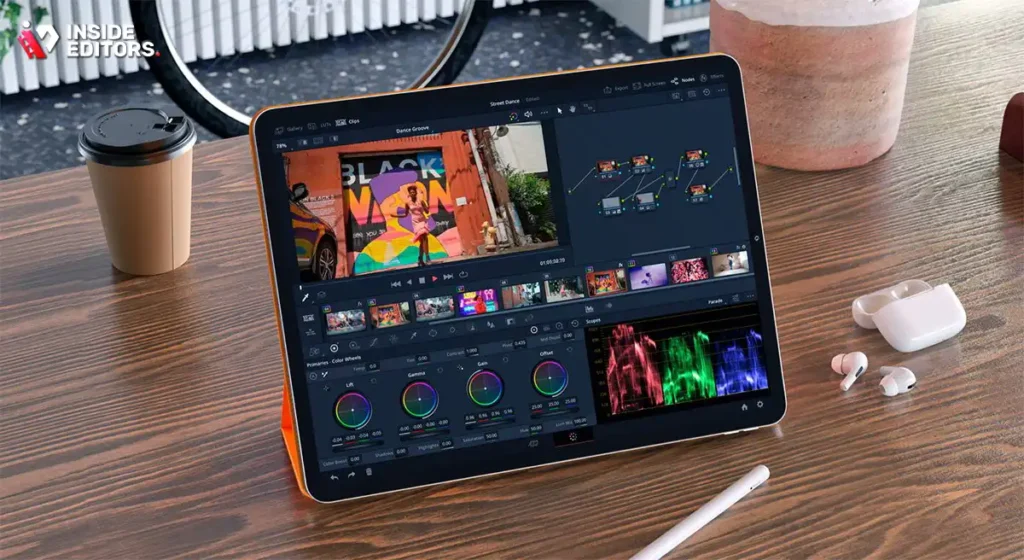
The power of the modern iPad, particularly the Pro models equipped with M-series chips, means that resource-intensive tasks like 4K multi-track editing are now seamless. This shift has driven software developers to create sophisticated apps that rival traditional desktop suites. The best video editing iPad software utilizes the touch interface and Apple Pencil support to offer an intuitive yet deep editing experience.
Choosing the right platform is more than just picking a popular name; it involves evaluating how well the app handles complex timelines, color grading, audio mixing, and export formats. For professionals, reliability and feature parity with desktop versions are non-negotiable requirements. When you are looking for robust video editing iPad solutions, you need tools that won’t crash when rendering a large project.
Why Mobile Editing Demands Specialized Tools
While desktop software offers unparalleled control, mobile editing requires a different approach to user interface design. Touchscreens necessitate larger buttons, gesture-based controls, and streamlined menus. The best apps manage to hide complexity without sacrificing functionality. They allow you to perform precise cuts and sophisticated effects using nothing more than your fingers or a stylus.
“Mobile devices are no longer just consumption tools; they are powerful production hubs. The challenge for developers is translating the precision of a mouse and keyboard into the intuitive flow of touch.” – Sarah Chen, Mobile Workflow Analyst
Furthermore, the integration with the iPad’s ecosystem-accessing the camera roll, cloud storage, and external drives-is essential for a smooth workflow. A truly great app for video editing iPad use must feel like a natural extension of the device itself.
1. LumaFusion: The Professional’s Choice for Video Editing iPad
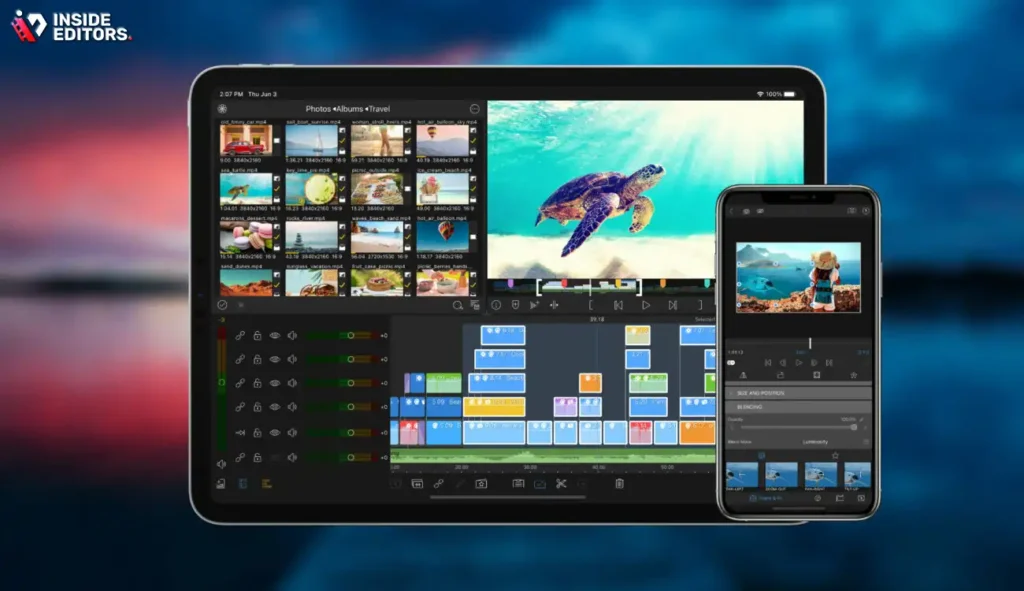
LumaFusion consistently ranks at the top for serious iPad editors, and for good reason. It offers a powerful, multi-track editing environment that feels incredibly close to a desktop NLE (Non-Linear Editor). It is designed for journalists, filmmakers, and advanced content creators who need robust features without the complexity of subscription models.
Deep Dive into LumaFusion’s Feature Set
LumaFusion supports up to six video and audio tracks, plus six additional audio tracks, allowing for complex layering and sound design. Its magnetic timeline is highly responsive, making trimming and moving clips effortless. Key features include advanced title creation, multi-layer effects, and a comprehensive color correction suite with scopes (like histograms and vectorscopes) that professionals rely on.
One standout feature is its precise keyframing capabilities. You can animate virtually any effect, transition, or title element with granular control. This level of detail is rarely found in mobile apps and makes LumaFusion the gold standard for high-end video editing iPad projects. It also handles a wide array of file formats and resolutions, including 4K and even 6K footage, utilizing the iPad’s processing power efficiently.
Pros and Cons of LumaFusion
| Pros | Cons |
|---|---|
| Desktop-Class Timeline: Supports up to 12 tracks for complex projects. | Steep Learning Curve: Features can be overwhelming for beginners. |
| Comprehensive Color Tools: Includes professional scopes and LUT support. | One-Time Purchase Cost: Higher initial investment than subscription models. |
| Excellent Media Management: Integrates seamlessly with external drives and cloud services. | No True Desktop Equivalent: Projects cannot be easily transferred to Premiere or DaVinci Resolve. |
| High Performance: Optimized for M-series chips, ensuring smooth 4K rendering. |
2. DaVinci Resolve for iPad: Unmatched Color Grading Power
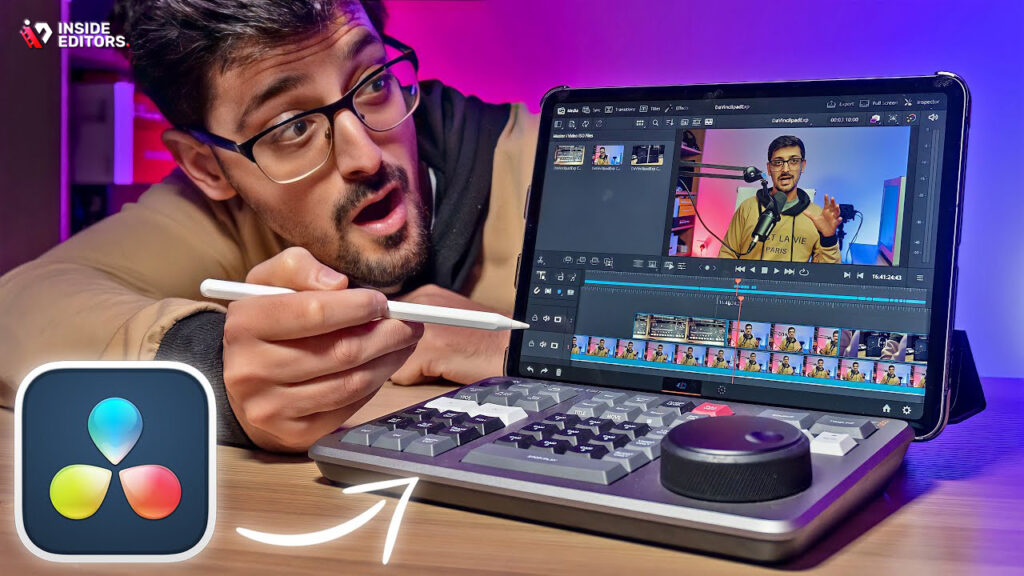
Blackmagic Design’s DaVinci Resolve is the industry standard for color correction and post-production on desktop computers. Its arrival on the iPad Pro marked a significant shift, bringing true Hollywood-grade tools to the mobile platform. This application is specifically tailored for the high-performance iPad Pro models, leveraging the M-series chips for accelerated processing.
Bringing Desktop Sophistication to Mobile
DaVinci Resolve for iPad is not a watered-down version; it’s a remarkably complete port of the desktop software’s core functionality. It focuses heavily on the Cut page and the Color page, allowing users to perform rapid assembly edits and then dive into incredibly detailed color grading. The ability to use the Apple Pencil for node-based color adjustments offers a level of precision that is revolutionary for video editing iPad workflows.
The application supports Blackmagic Cloud, meaning projects started on the iPad can be seamlessly finished on a desktop system, and vice versa. This interoperability is a massive advantage for production houses and serious freelancers who move between mobile and studio environments. If color accuracy and cinematic looks are your priority, Resolve is the clear winner.
“The introduction of DaVinci Resolve on the iPad validates the tablet as a serious post-production device, not just a casual editing tool. It bridges the gap between field work and studio polish.” – Michael Scott, Director of Post-Production at Blackmagic Design
3. Adobe Premiere Rush: Seamless Cross-Platform Workflow
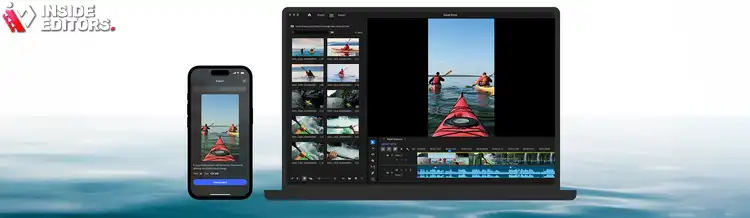
Adobe Premiere Rush is designed for creators who need speed and consistency across multiple devices. As part of the Adobe Creative Cloud ecosystem, Rush focuses on rapid content creation, particularly for social media platforms like YouTube, Instagram, and TikTok. It is an excellent entry point for those who plan to eventually graduate to the full desktop version of Premiere Pro.
The Power of the Creative Cloud Ecosystem
What sets Premiere Rush apart is its cross-platform synchronization. You can start a project on your iPhone, continue editing on your video editing iPad, and then polish the final output on your desktop computer. This flexibility is invaluable for creators constantly moving between locations. The interface is clean, intuitive, and highly focused on efficiency, minimizing the time spent navigating complex menus.
Rush provides essential tools: quick trimming, color presets, titles, and audio mixing. While it lacks the deep complexity of LumaFusion or Resolve, it excels at its core mission: fast, high-quality social media video production. It automatically adjusts aspect ratios for different platforms, ensuring your content looks perfect whether it’s a vertical Reel or a horizontal YouTube video.
Comparison of Top Professional iPad Video Editors
| Feature | LumaFusion | DaVinci Resolve (iPad) | Premiere Rush |
|---|---|---|---|
| Target User | Pro Freelancers, Journalists | Colorists, Filmmakers | Social Media Creators |
| Max Tracks | 12 (6 Video/6 Audio) | Unlimited (Hardware Dependent) | 4 Video, 3 Audio |
| Color Tools | Advanced Scopes, LUTs | Industry-Standard Node Grading | Presets, Basic Sliders |
| Pricing Model | One-Time Purchase | Free (Core), Subscription (Studio) | Subscription (CC) |
| Desktop Integration | None | Excellent (Blackmagic Cloud) | Excellent (Creative Cloud) |
4. iMovie: The Accessible Entry Point for Video Editing iPad
For many iPad users, the journey into mobile editing begins with iMovie. Pre-installed on every Apple device, iMovie offers a user-friendly, streamlined experience that is perfect for beginners, students, and casual creators. It proves that you don’t need complex software to produce watchable, well-edited videos.
Simplicity Meets Apple Integration
iMovie’s strength lies in its simplicity and deep integration with the iOS/iPadOS environment. The interface is clean, with large, easily identifiable controls. It features pre-set themes, trailers, and automatic enhancement tools that can quickly elevate amateur footage. For simple tasks-cutting clips, adding titles, and applying basic transitions-iMovie is incredibly fast and efficient.
While it is limited in advanced features (no multi-cam editing, limited color correction), it handles 4K video and offers smooth performance, even on older iPads. It’s the ideal tool for family videos, school projects, or quick vlogs. If your needs are straightforward, mastering video editing iPad techniques starts here, providing a solid foundation before moving to more complex applications.
5. VN Video Editor: The Free, Feature-Rich Contender
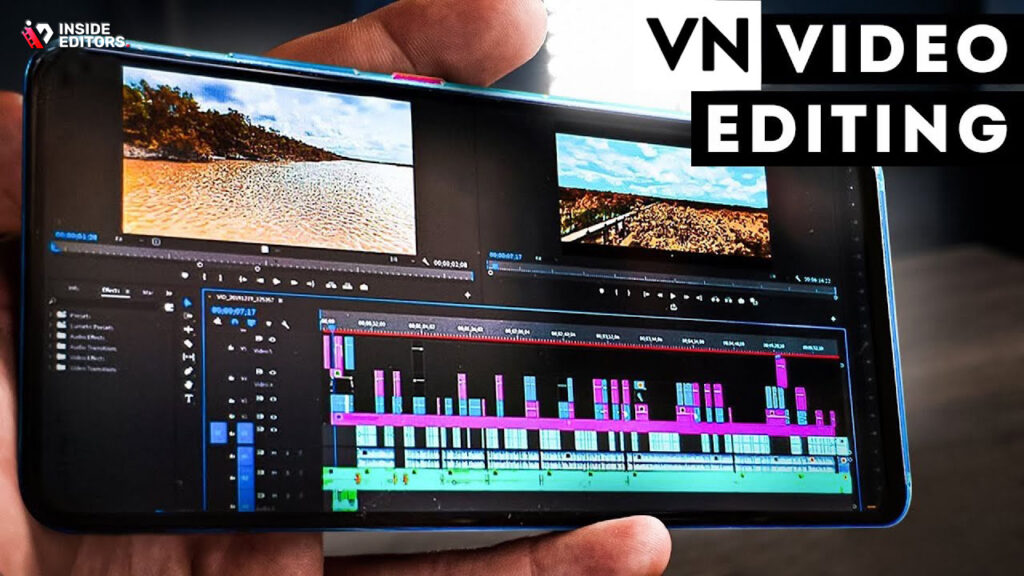
VN Video Editor has rapidly gained popularity as a powerful, free alternative to paid applications. It manages to pack a surprising amount of professional features into an accessible package, making it highly attractive to budget-conscious creators and those experimenting with advanced techniques.
Advanced Tools Without the Price Tag
VN offers a multi-track timeline, keyframe animation, and speed ramping-features usually reserved for premium software. Its intuitive interface makes complex tasks like picture-in-picture (PiP) and chroma key (green screen) surprisingly easy to execute. For a free application focused on video editing iPad use, the lack of watermarks and intrusive ads is a huge bonus.
The editor is particularly strong for music video edits and cinematic looks, offering precise control over speed and timing. While the color grading tools aren’t as sophisticated as Resolve’s, they are more than adequate for achieving polished, stylized results. VN proves that high-quality mobile editing doesn’t require a significant financial commitment.
Enhancing Your Video Editing iPad Workflow
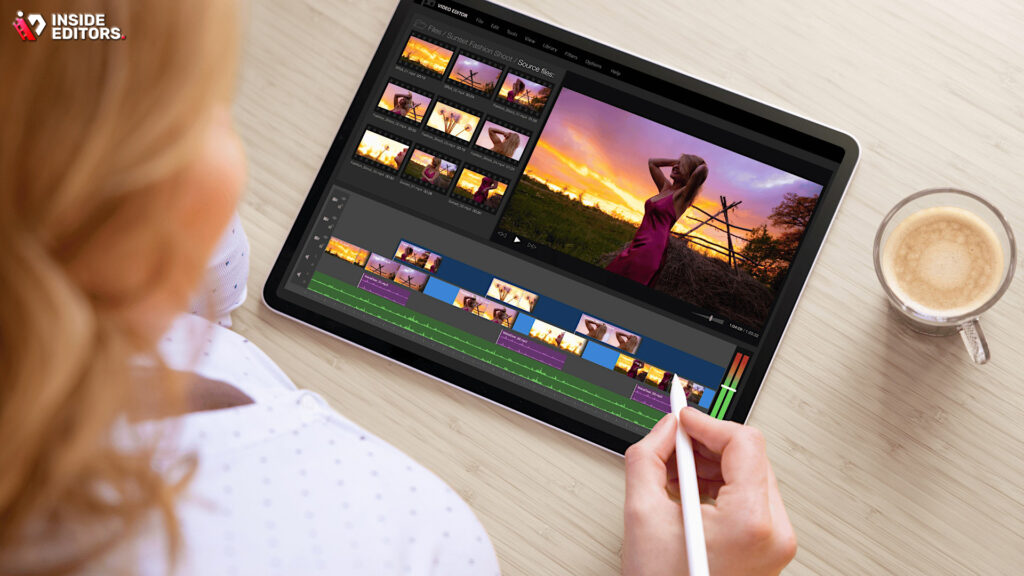
Choosing the app is only half the battle. To truly master mobile filmmaking, you need to optimize your workflow, manage your media effectively, and understand the limitations and strengths of the iPad platform.
Essential Accessories for iPad Editing
To maximize your efficiency, consider investing in a few key accessories:
- Apple Pencil: Essential for precise timeline scrubbing, keyframing, and detailed color work in apps like Resolve and LumaFusion.
- External Storage: High-speed SSDs connected via the iPad’s USB-C or Thunderbolt port are critical for storing large 4K files and preventing internal storage bottlenecks.
- Keyboard and Trackpad/Mouse: While touch is great, a physical keyboard speeds up titling, shortcuts, and general project management.
The Importance of Media Management
One common pitfall in video editing iPad workflows is poor media management. Always import footage to a dedicated project folder, preferably on an external drive. Avoid editing directly from the camera roll, as this can lead to slow performance and lost links if files are moved or deleted. Professional apps like LumaFusion and Resolve offer robust media libraries to keep your assets organized.
When to Outsource Your Video Editing Needs
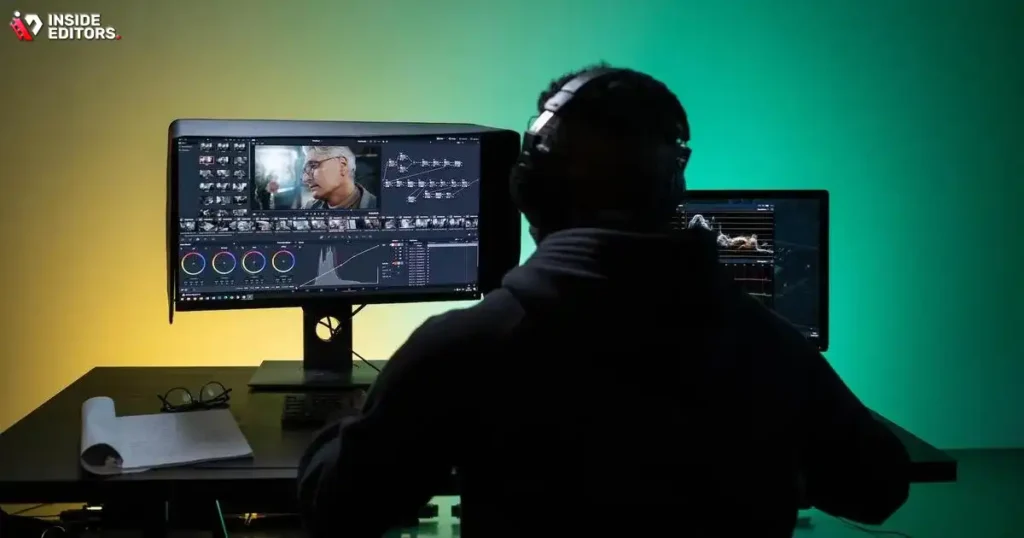
While the iPad offers incredible power and flexibility, there are times when professional projects demand the resources, speed, and expertise that only a dedicated editing team can provide. Complex corporate videos, large-scale marketing campaigns, or projects requiring highly specialized effects often benefit from professional intervention.
This is where Inside Editors steps in. We provide professional video editing services designed for businesses, content creators, and marketers who need high-quality results without the hassle of managing post-production themselves.
Why Choose Inside Editors for Professional Results
Our service is built around delivering exceptional quality, fast turnaround, and consistent brand alignment. We offer a professional editing team with over 10 years of experience, ensuring your footage is handled by experts who understand narrative, pacing, and technical standards.
Our key features include:
- Fast Turnaround: Projects completed in 24–72 hours, ensuring you meet tight publishing schedules.
- Unlimited Revisions: We work until you are 100% satisfied, guaranteeing the final product matches your vision.
- Comprehensive Post-Production: Services include professional color grading, audio enhancement, and motion graphics integration.
- Affordable Pricing: Our scalable solutions start at just $29 per video, making professional quality accessible to growing channels and small businesses.
Outsourcing your video editing iPad footage to Inside Editors allows you to save time and focus entirely on content creation and audience engagement. We ensure a consistent brand style across all your videos, building trust and professionalism for your audience.
“The best use of a creator’s time is creating. Outsourcing the technical complexity of post-production allows them to maximize their creative output and focus on storytelling.” – Alex Turner, CEO of Inside Editors
Mastering Advanced Techniques on Your iPad
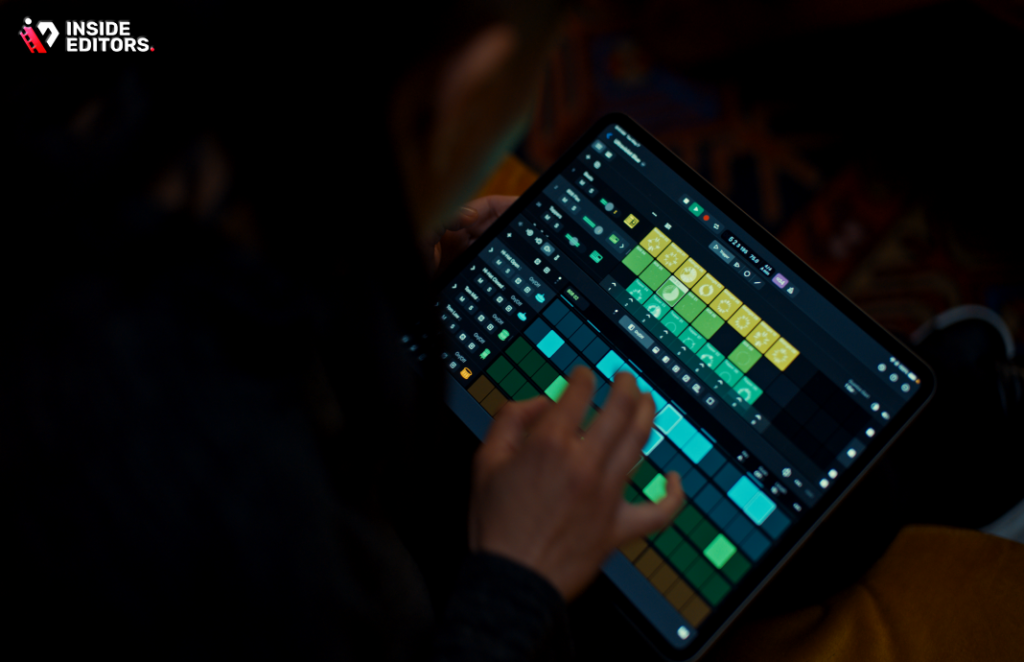
Once you are comfortable with the basics, these applications allow you to explore advanced techniques that elevate your content from amateur to professional.
Color Grading and Correction
Color grading is the process of applying a specific aesthetic or mood to your footage. In high-end apps like DaVinci Resolve, you can utilize vectorscopes and histograms to ensure legal broadcast colors and achieve cinematic looks. Always start with color correction (fixing exposure and white balance) before moving to creative color grading. This technical foundation is crucial for any serious video editing iPad project.
Audio Sweetening and Mixing
Viewers forgive poor video quality more easily than poor audio quality. All top video editing iPad apps offer multi-track audio mixing. Use this feature to balance dialogue, music, and sound effects. Utilize noise reduction tools (available in LumaFusion and Resolve) to clean up field recordings, ensuring your message is clear and professional.
Conclusion: Choosing Your Ideal Video Editing iPad Companion
The iPad has cemented its place as a formidable tool in the video production landscape. Whether you choose the robust, one-time purchase power of LumaFusion, the professional color science of DaVinci Resolve, the cross-platform speed of Premiere Rush, the simplicity of iMovie, or the free functionality of VN, your choice depends entirely on your specific needs and skill level.
For those just starting, iMovie provides a perfect introduction to video editing iPad fundamentals. For ambitious freelancers, LumaFusion offers the deepest feature set in a mobile-first package. And for professionals who prioritize color and desktop integration, DaVinci Resolve is the undeniable king.
Remember that the ultimate goal is to create compelling content. If the technical demands of post-production begin to slow down your creative process or compromise your quality standards, consider leveraging the expertise of Inside Editors. Our professional video editing services provide the speed, quality, and consistency needed to scale your content strategy, allowing you to focus on what you do best: capturing incredible footage.
Frequently Asked Questions
Which iPad video editor is best for beginners?
iMovie is the best starting point for beginners. It is pre-installed, simple to use, and offers basic tools for cutting, titling, and sharing. It provides a solid foundation for learning fundamental techniques before moving to more complex apps for advanced video editing iPad work.
Can I edit 4K video footage on an older iPad model?
While technically possible, editing 4K footage works best on newer iPad Pro models (M1/M2 chips) due to their superior processing power. Older iPads might struggle with rendering and multi-track 4K video editing iPad projects, leading to slower performance.
Is DaVinci Resolve for iPad free to use?
Yes, the core version of DaVinci Resolve for iPad is free and includes powerful editing and color grading tools. A paid ‘Studio’ version unlocks advanced features like noise reduction and HDR support, offering more professional video editing iPad capabilities.
What is the key advantage of LumaFusion over iMovie?
LumaFusion offers a professional, multi-track timeline (up to 12 tracks), advanced color scopes, and precise keyframing controls. This depth of features makes it suitable for complex, professional-grade video editing iPad projects that iMovie cannot handle.
Do professional editors use the iPad for final delivery?
Yes, many professionals use the iPad for field editing, rapid turnarounds, and social media content. For highly complex feature films or broadcast work, the iPad often serves as a powerful pre-production or rough-cut tool, with final polish done on a desktop system.
How important is external storage for iPad video editing?
External storage is critically important, especially when editing high-resolution 4K video. Using an external SSD prevents the iPad’s internal storage from filling up and ensures faster read/write speeds, which improves rendering and overall video editing iPad performance.
Which app is best for social media video creation?
Adobe Premiere Rush is highly optimized for social media. It features quick export presets for various platforms (Instagram, TikTok, YouTube) and offers seamless cross-platform syncing, making it ideal for rapid content creation on your video editing iPad.
What is the typical turnaround time for professional editing services?
At Inside Editors, we offer a fast turnaround time of 24 to 72 hours for most projects. This speed ensures that your professionally edited video content is ready quickly, allowing you to maintain a consistent publishing schedule.


