


Why the Right iPhone Video Editor Matters

If you’ve ever tried to polish a video on your iPhone and felt overwhelmed by tools, layouts, or slow exports, you’re not alone. Choosing the right video editing app for iPhone can completely change the way you work-whether you’re a content creator, business owner, or someone who simply wants better-looking videos for social media. The best apps do more than cut clips; they help you tell a story, elevate your style, and save time in the process.
iPhones have become incredibly powerful in 2025, with camera capabilities that rival semi-pro gear. But even the best footage looks incomplete without thoughtful editing. That’s why selecting the right editing app matters: each one offers a unique workflow, set of tools, and creative advantages. Some focus on speed, some on effects, others excel in color control or AI-assisted workflows. Understanding these differences helps you choose software that supports your goals-not one that slows you down with features you don’t need.
In this guide, we’ll explore the five best editing apps available right now, compare their strengths, and help you understand which one fits your style. You’ll also get pro tips from Inside Editors’ real-world experience working with clients across YouTube, TikTok, business brands, and travel creators. By the end, you’ll have a clear roadmap to elevate your videos instantly.
What to Look For When Choosing an iPhone Video Editing App

Before diving into the top apps, it’s important to understand which features actually matter. Many beginners get distracted by flashy templates or transitions, but more isn’t always better. What you truly need are tools that make editing faster, easier, and more enjoyable.
Why Core Editing Tools Define Your Workflow
Every strong editor relies on the same fundamentals: cutting, trimming, audio control, and transitions. These basics should feel smooth and natural on an iPhone app. If you find yourself fighting the interface or searching too long for simple tools, your creativity suffers. The best apps strike a balance between simplicity and control, allowing you to focus on storytelling rather than technical struggles.
Understanding Performance and Export Quality
A common complaint among new creators is export lag-especially when working with 4K footage. Your editing app must handle high-resolution files efficiently, or you’ll waste time waiting on progress bars. Export settings also matter. Look for apps that offer options like 1080p, 4K, HDR, and variable frame rates. This flexibility ensures your final video matches your platform’s requirements, whether you’re posting a TikTok reel or a cinematic travel montage.
The Importance of Creative Tools and Effects
Once you’ve mastered the basics, creative tools become essential. Color grading, LUT support, motion graphics, overlays, and animations help your videos stand out. Not every app has these features-or they may be locked behind paywalls. Think about your long-term goals. If you plan to grow your brand or YouTube channel, choosing an app with advanced features will save you the cost and frustration of switching later.
This understanding makes it easier to appreciate why the next five apps consistently rank as the best options for iPhone creators in 2025.
CapCut – The Beginner-Friendly Powerhouse for Fast Results
CapCut has exploded in popularity for one simple reason: it helps beginners create polished videos quickly, without feeling overwhelmed. Many viral TikTok and Instagram videos you see every day are edited on CapCut, thanks to its smart templates, trending effects, and intuitive layout.
A Workflow Built for Simplicity and Social Media Speed
Opening CapCut feels familiar even if you’ve never edited before. The timeline is easy to control, the trimming tools are smooth, and the drag-and-drop interface makes editing feel natural. This simplicity is ideal for creators who want to produce clean, eye-catching content without spending hours learning advanced tools.
Templates and AI Tools That Boost Creativity Instantly
CapCut stands out for its impressive library of templates, filters, text animations, and AI tools. You can remove backgrounds, generate captions, enhance audio, and even auto-sync clips with music. These features help beginners achieve professional results quickly. If you’re trying to grow on social platforms, these prebuilt resources save time while allowing you to experiment with different creative styles.
Where CapCut Falls Short for Serious Editing
CapCut isn’t perfect. While it excels in quick edits, its advanced color controls and precision tools are more limited compared to professional apps. If your content demands detailed grading or cinematic storytelling, you may eventually outgrow its simplicity. That said, CapCut remains one of the most accessible ways to start your editing journey.
iMovie – Apple’s Simple, Reliable Editor for Everyday Creators
iMovie has been the default editor for Apple users for years, and its strength lies in reliability. It’s free, clean, and lightweight-ideal for simple cuts, basic transitions, and straightforward storytelling.
A Seamless Experience for Casual and Entry-Level Creators
If you’re creating birthday videos, school projects, or casual YouTube content, iMovie provides everything you need without complicating the process. Apple’s design philosophy ensures intuitive navigation, making it easy for anyone to produce polished content even without prior experience.
Clean Transitions, Titles, and Audio Tools
iMovie’s built-in transitions, text styles, and audio controls are surprisingly effective. They may not be flashy, but they offer a timeless, professional look. For creators who value simplicity and clarity over visual complexity, iMovie delivers consistent results.
Limitations in Advanced Editing
The simplicity that makes iMovie appealing also restricts more sophisticated editors. There are no multi-layer effects, advanced grading options, or professional tools. If your creative ambitions grow, you may find yourself needing more control than iMovie can provide-but as a starter app, it remains unbeatable.
LumaFusion – The Pro-Level Editor for Cinematic Control
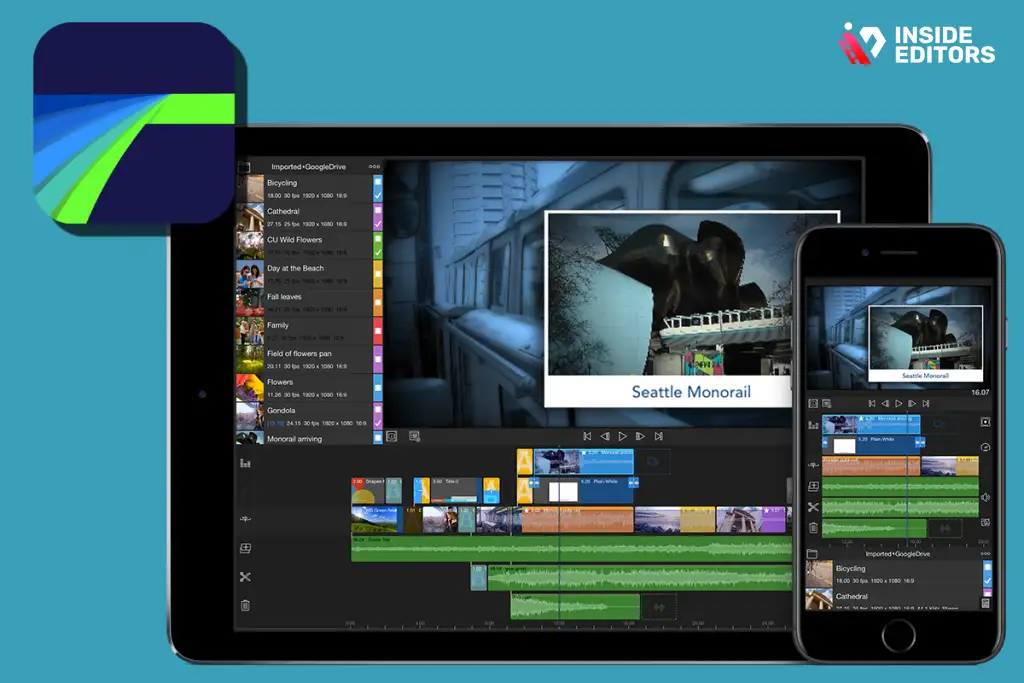
LumaFusion is widely considered the most powerful video editing app for iPhone-and for good reason. It offers professional-grade controls similar to desktop editors like Final Cut Pro or Adobe Premiere.
Multilayer Timelines for Serious Editing Projects
Unlike beginner apps, LumaFusion lets you work with multiple layers of video, audio, graphics, and effects. This opens the door to sophisticated editing techniques such as split screens, picture-in-picture effects, and precise sound design. If you’re a filmmaker, YouTuber, or travel creator aiming for high production value, this control is invaluable.
Advanced Color Grading and LUT Support
Color grading is where LumaFusion shines. You can adjust exposure, balance, saturation, and contrast with precision, or apply LUTs used by professional cinematographers. This lets you create consistent visual styles across your content-whether you prefer warm cinematic tones or bold TikTok-style colors.
A Learning Curve Worth Mastering
LumaFusion requires more effort than CapCut or iMovie, but the payoff is significant. Once you learn the tools, you unlock creative freedom that rival desktop editors. This makes LumaFusion ideal for creators transitioning from casual edits to professional-level content.
VN Video Editor – The Creator-Focused App With a Clean, Modern Workflow
VN has become popular among influencers and YouTubers thanks to its clean interface and strong balance between simplicity and control. It feels lightweight but offers surprising depth.
Smooth Editing With a Modern User Experience
Editing on VN feels fast. Tools are easy to find, the timeline gestures are fluid, and exporting happens quickly. This makes VN ideal for creators who edit frequently and want a comfortable, modern workflow without unnecessary complications.
Strong Templates, Text Controls, and Keyframe Tools
VN includes creative tools that help videos stand out. You can animate clips with keyframes, create custom text animations, and apply stylish presets. These tools make it easy to build a signature editing style without requiring advanced technical skills.
Balanced Features Without Heavy Learning Curve
What sets VN apart is its balance. It’s more advanced than CapCut or iMovie but less intimidating than LumaFusion. For many creators-especially travel and lifestyle editors-it hits the sweet spot between power and simplicity.
Adobe Premiere Rush – The Cross-Platform Editor for Mobile + Desktop Workflows
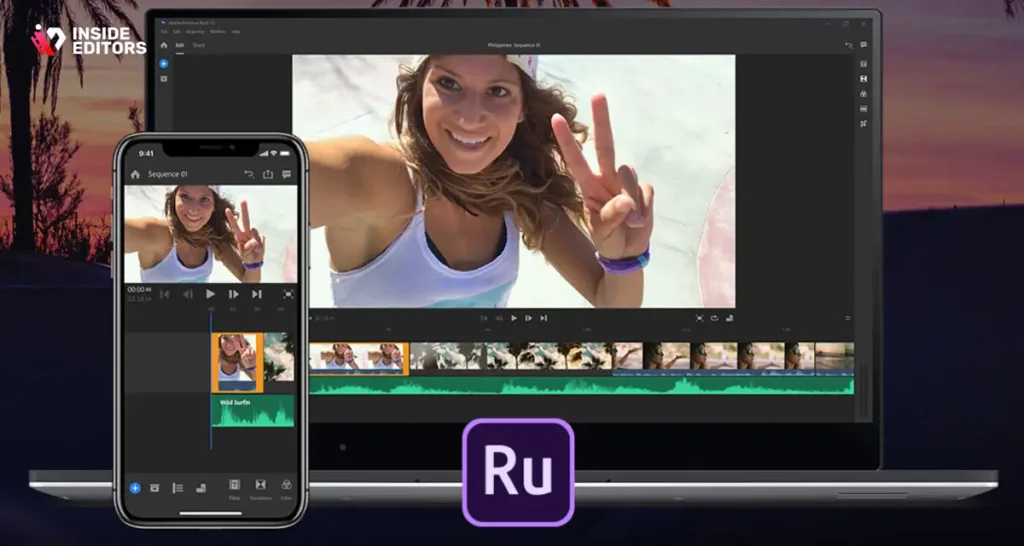
Adobe Premiere Rush is designed for creators who want a simple mobile workflow that connects seamlessly with Adobe’s desktop ecosystem. If you edit on your iPhone but also use Premiere Pro on your computer, Rush becomes an essential tool.
Seamless Syncing Across Devices
Rush syncs projects across devices through your Adobe account. This gives you the flexibility to start an edit on your iPhone and finish it on your laptop. For busy creators or business teams, this cross-platform compatibility is a major advantage.
Clean Design and Reliable Editing Tools
The interface is minimal but powerful enough for social content. You get precise trimming tools, built-in templates, transitions, and color presets modeled after Adobe’s professional suite. These tools help maintain a polished, consistent look across your content.
Limited Advanced Features Compared to LumaFusion
Rush isn’t meant to replace pro software, but rather complement it. If you need deep control, Adobe expects you to finish your edit in Premiere Pro. Still, for creators who value a smooth workflow and cloud syncing, Rush remains a strong choice.
Conclusion: Which Editor Should You Choose?
Finding the best video editing app for iPhone depends on your goals, style, and how much control you want over your final video. CapCut is great for fast social media edits, iMovie offers simple storytelling, VN balances power with ease, Premiere Rush supports cross-device workflows, and LumaFusion delivers full professional control. Each app has its strengths, and your ideal choice depends on the type of videos you want to create.
If you ever reach a point where you want consistent quality without spending hours editing, Inside Editors can help. Our professional team transforms raw clips into polished stories-whether you’re creating travel videos, business content, fitness reels, fashion edits, or comparison-style YouTube videos. You can explore services like product video editing, adventure video editing, business video editing, and more at InsideEditors.com.
With the right tools and support, your iPhone can become a powerful creative studio. And once you master your editor of choice, your videos will start to look exactly the way you imagine them-polished, engaging, and professional.
Comparing the Top Editing Apps Side by Side
Once you’ve explored the strengths of each app individually, it becomes much easier to compare them directly. Many creators struggle not because they choose the “wrong” app, but because they pick one that doesn’t match how they like to edit. A filmmaker and a TikTok creator aren’t solving the same problems, so the software they choose shouldn’t be identical. This comparison helps you see which app truly fits your workflow rather than what’s simply popular online.
Performance, Features, and Pricing at a Glance
To make this easier, here’s a simple table showing the core differences among the five best apps. These aren’t superficial features – they’re the ones that actually shape your editing experience: performance, creative flexibility, ease of use, and cost. Understanding these factors can save you hours of frustration and help you avoid switching apps later.
| App | Skill Level | Best For | Highlights | Limitations | Cost |
| CapCut | Beginner | TikTok, Reels, Shorts | AI tools, templates, fast workflow | Limited advanced tools | Free |
| iMovie | Beginner | Simple videos | Clean interface, stable | No advanced grading or effects | Free |
| LumaFusion | Advanced | Cinematic edits, YouTube | Multi-layer editing, LUTs | Learning curve | Paid |
| VN Editor | Intermediate | Travel, lifestyle content | Keyframes, smooth workflow | Some features lack depth | Free |
| Adobe Premiere Rush | Intermediate | Cross-device editing | Cloud sync, clean design | Fewer pro features | Freemium |
When you see everything side by side, you start to notice that each app fills a specific niche. There’s no true “best” choice. The real question is: Which app gives me the fastest, most enjoyable workflow for the type of videos I love making? Once you know that answer, everything else falls into place.
Real-World Examples: Which App Fits Your Style of Content?
Choosing a video editing app for iPhone becomes much easier when you map your editing needs to real-world scenarios. Not everyone is trying to make cinematic films; sometimes you just need something quick, fun, and easy. By understanding how each app fits different editing personalities, you’ll feel more confident in your choice.
The Social Creator Who Values Speed and Trends
If your main platforms are TikTok, Instagram Reels, or YouTube Shorts, then speed matters more than anything else. You don’t need 12 layers, LUTs, or advanced grading – you need transitions, templates, audio syncing, and fast exports. CapCut becomes your best friend in this scenario. Its AI captioning, face tracking, and trending templates help you keep up with content demand without burning out.
The YouTuber or Filmmaker Focused on Quality and Control
YouTubers, short filmmakers, and travel creators need more than fast tools – they need precision. LumaFusion gives you multi-track timelines, detailed audio control, advanced color tools, and the ability to create different aspect ratios for YouTube, TikTok, and cinematic widescreen. This versatility is important when you want content that looks polished and consistent across platforms.
The Everyday User Creating Personal or Family Videos
If your goal is simply to create beautiful videos of your kids, family events, trips, or celebrations, then iMovie is likely enough. It’s stable, predictable, free, and designed for people who want results without complexity. Apple’s transitions and templates may be simple, but they’re timeless – which is why so many casual users still rely on iMovie today.
Understanding which category you belong to helps narrow down your best options without second-guessing. It also prevents you from spending money on apps that offer features you’ll never use.
Common Editing Mistakes iPhone Users Make – and How to Avoid Them
Even with the right app, many creators fall into a few predictable editing traps. These mistakes can make videos feel amateur even if your footage is great. Knowing what to avoid helps your final output look significantly more professional – regardless of which app you choose.
Overusing Transitions and Effects
It’s tempting to use every transition template and animation available, especially if your app offers dozens. But pros know that simplicity is powerful. Too many effects distract from the story, turning your video into a slideshow. Instead, aim for clean cuts, strategic fades, and purposeful transitions. Let your footage shine instead of cluttering it with gimmicks.
Poor Audio Levels and Inconsistent Sound Quality
Great-looking video with bad audio feels instantly unprofessional. One of the most common editing mistakes is ignoring volume balancing. Most iPhone apps have built-in audio tools – use them. Lower background music, reduce harsh noises, and ensure your voice or dialogue is clear. Good audio can make even simple footage feel cinematic.
Ignoring Color Correction and Lighting Issues
Another mistake is leaving footage ungraded. Even a small boost in brightness, contrast, and saturation can transform your video. Apps like VN, CapCut, and LumaFusion make color adjustments simple. You don’t need to be a colorist – just aim for consistency across clips so the video feels cohesive.
Avoiding these mistakes instantly elevates your content and makes your editing app feel more capable, even without advanced tools.
Expert Insights – How to Build a Faster, More Effective Mobile Editing Workflow
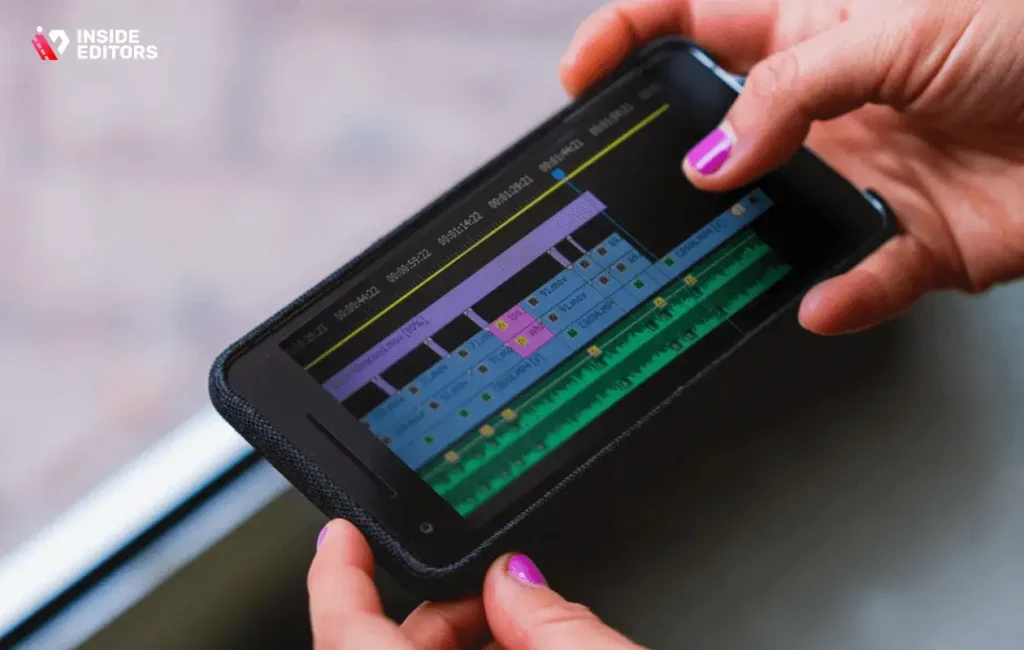
Editing on an iPhone doesn’t have to feel limiting. In fact, many creators produce full videos using only mobile tools because they’ve learned smart workflows that save time and improve quality. These tips come from Inside Editors’ experience editing thousands of videos for clients in different industries.
Organize Your Footage Before Editing
Spending a few minutes organizing clips saves you major headaches later. Delete unusable footage, trim long takes, and create a mental outline before opening your editor. This preparation helps you stay focused and makes the editing phase much smoother.
Create Templates for Repeated Styles
If you create similar videos – like reaction videos, travel vlogs, product demos, or fitness reels – consider building templates inside your app. Consistent intro styles, color settings, and transitions create a recognizable brand identity and reduce editing time by 30-50%.
Export in the Right Format for Your Platform
Each platform has preferred settings. TikTok loves 1080p vertical at 30 or 60fps. YouTube supports 4K widescreen. Instagram Reels prefer 1080×1920. Exporting in the wrong format makes your content look stretched or blurry. Your app’s export settings matter more than most creators realize, and choosing them wisely leads to better engagement.
These small workflow improvements help you edit faster and maintain higher quality – two things both algorithms and audiences reward.
When to Upgrade From DIY Editing to Professional Editing Services
Even the best apps have limits. Many creators eventually reach a point where editing consumes too much time or they need higher-quality output than mobile tools allow. This is often when they consider professional editing services like Inside Editors.
Why Professionals Can Elevate Your Videos Beyond Mobile Tools
Professional editors use advanced software, multi-layer workflows, color grading tools, motion graphics, and audio mixing techniques that mobile apps simply can’t match. If you’re building a brand, business, or YouTube channel, upgrading to professional editing ensures quality, consistency, and speed – three things that dramatically affect growth.
Saving Time So You Can Focus on Creation, Not Editing
Many creators don’t realize how much time they spend trimming clips, aligning audio, and adjusting color. Outsourcing editing lets you focus on filming and storytelling, while experts handle the technical polish. Inside Editors works with creators across niches – travel, fitness, fashion, business, reactions, and more – delivering polished results that help your videos stand out.
If editing feels overwhelming or time-consuming, this upgrade may be the natural next step.
Conclusion: Your Perfect iPhone Video Editor Depends on Your Style
With so many options available, finding the best video editing app for iPhone comes down to your creative style, skill level, and goals. CapCut is perfect for fast social edits, iMovie supports simple everyday videos, VN helps lifestyle creators build aesthetic content, Premiere Rush enables cross-device workflows, and LumaFusion gives professionals the depth they need.
No single app is perfect for everyone – but the right one will make editing feel enjoyable, not stressful. And if you ever outgrow mobile tools, Inside Editors is here to help take your videos to the next level. From cinematic travel edits to polished business videos, our team can transform raw footage into engaging stories that connect with your audience.
If you’re ready to elevate your content, explore Inside Editors’ full range of video editing services and see how professional editing can help bring your creative vision to life.
FAQs
How can I trust a video editor or app with my footage and privacy?
Most reputable apps and services use secure transfers (HTTPS) and clearly stated privacy policies; always check whether the editor stores files in the cloud or only locally. For human editors, ask about NDAs, revision policies, and whether source files are deleted after delivery; Inside Editors offers clear terms on ownership and secure file handling. If privacy is crucial, request an explicit confidentiality agreement and prefer local-only export options or encrypted transfers.
Will I own the final video and source files after an edit?
Ownership terms vary: many apps give you full rights to exported videos, while source projects or licensed assets (music/LUTs) may have restrictions – always read the license. Professional services typically transfer final deliverables to you, but clarify who retains editable project files (some providers charge extra for handing over full project sessions). If you need full ownership, state it up front and include it in the contract or scope of work.
What quality and revision options should I expect from a pro editor vs DIY apps?
DIY apps like CapCut or iMovie let you produce decent quality quickly but have limits in grading, multi-track mixing, and fine audio work; revision cycles are instant but self-managed. Professional editors provide deeper color grading, audio mastering, and motion graphics and usually include 1-3 revision rounds in packaged pricing to ensure satisfaction. If tight control and brand consistency matter, professional services will likely save time and improve final quality despite higher cost.
How do pricing and packages typically work for editing services?
Pricing usually ranges from $30-$150+ per short social video for basic edits, up to $300-$1500+ for long-form or cinematic projects; subscription or bulk-edit discounts are common for regular creators. Packages often define included rounds of revisions, raw footage handling, music licensing, captions, and project files-ask for a clear itemized list to avoid surprises. For app subscriptions, expect free tiers with watermarking and premium plans from $5-$20/month for advanced features.
What are typical turnaround times and rush options for professional edits?
Standard turnaround for a single short (under 5 minutes) is often 48-72 hours, while longer or more complex projects can take 3-10 business days depending on scope. Many services offer rush delivery (24-48 hours) for an added fee-expect a premium of 25-100% depending on complexity and resource needs. To hit deadlines, provide organized footage, clear instructions, and reference examples up front to reduce revision cycles.
How should I prepare footage to make mobile editing or pro editing faster?
Organize clips into labeled folders, trim obvious bad takes, and provide a short creative brief with desired length, tone, and example videos; this saves editors hours. Use consistent naming, deliver a single high-quality export (e.g., 4K/1080p H.264), and include separate audio files if available for clean mixing. A quick shot list or timestamped notes of favorite takes speeds up the process and reduces rounds of revisions.
Is it better to use a video editing app for iPhone or hire a pro for my content?
For one-off social posts or quick edits, a mobile app (CapCut, VN, iMovie) is cost-effective and fast; you’ll trade depth for speed. If you need consistent branding, multiple videos, advanced color grade, or efficient scaling (weekly uploads), hiring pros often saves time and improves performance metrics like watch time and conversions. Consider a hybrid approach: use an app for drafts and outsource polishing or long-form edits when quality or volume demands increase.
What common mistakes should creators avoid when editing on iPhone?
Avoid overusing transitions and presets-simplicity strengthens storytelling-also ensure consistent audio levels across clips to prevent distraction. Don’t export in the wrong aspect ratio; match the platform (vertical for Reels/TikTok, 16:9 for YouTube) to avoid cropping or low engagement. Finally, back up source footage and request clear licensing for music and graphics to prevent post-publish legal problems.


