


Choosing the best Video Editing Software for Chromebook can feel overwhelming, especially if you’re working on a Chromebook. ChromeOS is fast, lightweight, and cloud-focused – but not every editor is built to run smoothly on it. The good news? Today’s creators, students, freelancers, and YouTubers have more powerful options than ever. In this guide, we’ll walk through the best tools, how they perform on ChromeOS, and how to choose the one that fits your workflow, budget, and creative goals. Whether you’re editing a school project or building a content creation business, the right software can make your videos look-and feel-far more professional.
How ChromeOS Handles Video Editing Today

Before jumping into recommendations, it’s worth exploring why choosing the right editor matters so much on a Chromebook. ChromeOS wasn’t originally designed for heavy creative tasks. Early Chromebooks struggled with storage, processing power, and software compatibility. That’s why many creators assumed video editing on ChromeOS could only be “basic” or “limited.”
Why Modern Chromebooks Are Now Capable of Serious Editing
Things changed quickly over the last few years. Chromebooks now support Android apps, Linux apps, cloud editors, and even hardware configurations with advanced processors and 8GB+ RAM. This shift opened the door to real editing tools like CapCut, LumaFusion, Clipchamp, and WeVideo. Many of these apps are optimized for Chromebooks, meaning they offload heavy processing to the cloud or use efficient local rendering that doesn’t overheat your device. This gives creators a surprising amount of power without needing a MacBook or Windows workstation.
How Cloud and Hybrid Tools Improve Performance
Cloud-based editors solve one of the biggest Chromebook limitations: hardware. By processing your clips online, these tools handle tasks like rendering, transitions, and effects on powerful servers. For you, that means smoother performance, fewer crashes, and the ability to edit large 1080p and even 4K files-something earlier Chromebooks couldn’t manage well. As long as you have a stable connection, cloud tools make editing feel fast and reliable.
Why Choosing the Right Tool Saves Time and Boosts Quality
Every editor has a different approach to timeline controls, effects, templates, speed ramps, color grading tools, and export formats. If you pick a tool that doesn’t match your workflow, editing becomes frustrating. But if you choose one designed for ChromeOS, you’ll avoid lag, get smoother previews, and finish projects quicker. As we explore the best video editing software for Chromebook later in this guide, keep in mind how each option fits your creative style and needs.
Now that you understand how ChromeOS handles editing, let’s look at what actually matters when choosing a tool.
Top Video Editing Software for Chromebook in 2025
Creators often ask, “What is the best video editing software for Chromebook right now?” The answer depends on what you prioritize-ease, power, templates, or cloud collaboration. Below, we’ll break down the most popular and reliable editors available today.
LumaFusion: The Most Powerful Professional Editor for Chromebook
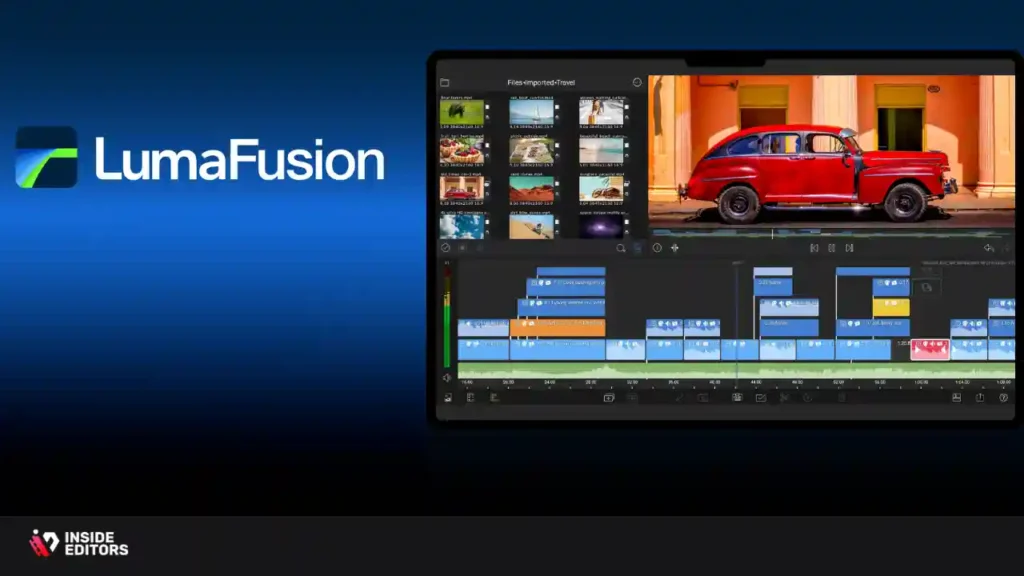
LumaFusion is widely considered the leading professional editor available for ChromeOS. Originally famous on iPad, its Chromebook version brings cutting-edge tools like multi-layer editing, advanced color grading, keyframing, audio mixing, and cinematic transitions. This makes it ideal for YouTubers, freelance editors, and anyone who wants a full studio workflow without switching devices. LumaFusion uses efficient local rendering that makes playback and exporting surprisingly smooth, even on mid-range Chromebooks. If you want power without a monthly subscription, this is one of the best choices available.
Clipchamp: The Best Cloud-Friendly Editor for Beginners
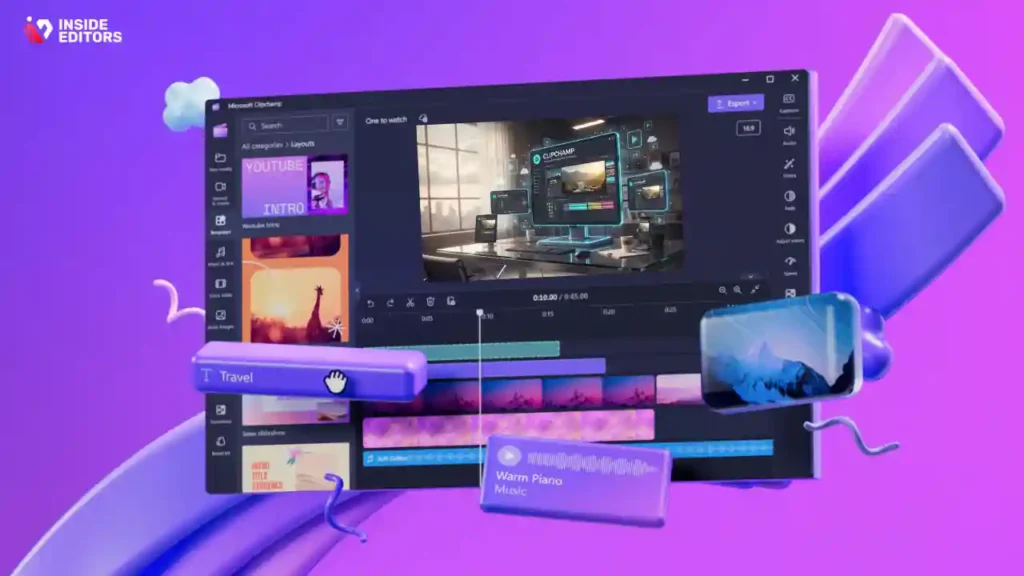
Clipchamp, now owned by Microsoft, is one of the easiest tools for new creators. It offers a clean interface, auto-captions, templates, text animations, and great export quality for social media. Since Clipchamp runs partly in the cloud, it takes advantage of online processing-which is perfect for Chromebooks with limited storage or lower RAM. This editor is ideal for students, small business owners, and casual creators who want fast, simple results without technical complexity.
CapCut: The Most Popular Free Editor for Short-Form Videos
CapCut remains a favorite among TikTokers, YouTubers, and Instagram Reels creators. Its Android app runs smoothly on ChromeOS, giving you access to AI tools like auto-cut, smart captions, beauty filters, transitions, and trending templates. CapCut makes it incredibly easy to produce viral-style videos without a heavy learning curve. The cloud sync between phone and Chromebook is especially useful for creators who shoot on mobile but edit on a larger screen.
WeVideo: A Reliable Cloud Editor Built for Schools and Teams
WeVideo has long been a go-to choice for classrooms, marketing teams, and creators who need cloud backups and collaboration tools. Its biggest strength is its online workflow: everything-timelines, transitions, stock footage, and revisions-lives in the cloud. This makes it incredibly easy to switch devices without losing progress. For Chromebooks, this is a huge advantage because you don’t need heavy processing power to work smoothly. While its effects aren’t as advanced as LumaFusion’s, its convenience, templates, and team accounts make it a strong option for educators, filmmakers working with clients, and anyone who wants reliable cloud storage included.
KineMaster: A Feature-Rich Android App That Works Surprisingly Well
KineMaster may look like a mobile editor at first glance, but its feature set is solid enough for serious projects. The Android version runs well on ChromeOS and supports multi-layer editing, chroma key, blending modes, and a wide range of effects. It’s ideal for users who want flexibility without needing the deepest pro-level controls. Its timeline tools feel familiar to anyone who has used smartphone editors, making it a great middle ground between beginner apps and more complex, professional-focused software.
PowerDirector: Fast Performance and Strong Visual Effects
PowerDirector has been part of the video editing world for decades, and its Chromebook-compatible Android version is optimized for fast rendering. What makes it stand out is its animation tools, transitions, color presets, and ability to export high-resolution videos without heavy lag. Many creators find PowerDirector especially useful for making YouTube intros, cinematic transitions, and quick promotional videos. Its combination of speed and effects makes it a great fit for Chromebook users who want professional visuals without steep learning curves.
How These Chromebook Editors Compare Side-by-Side
Before choosing, it’s helpful to see how these tools line up across performance, ease of use, and export capabilities. Here’s a simple comparison to guide your decision:
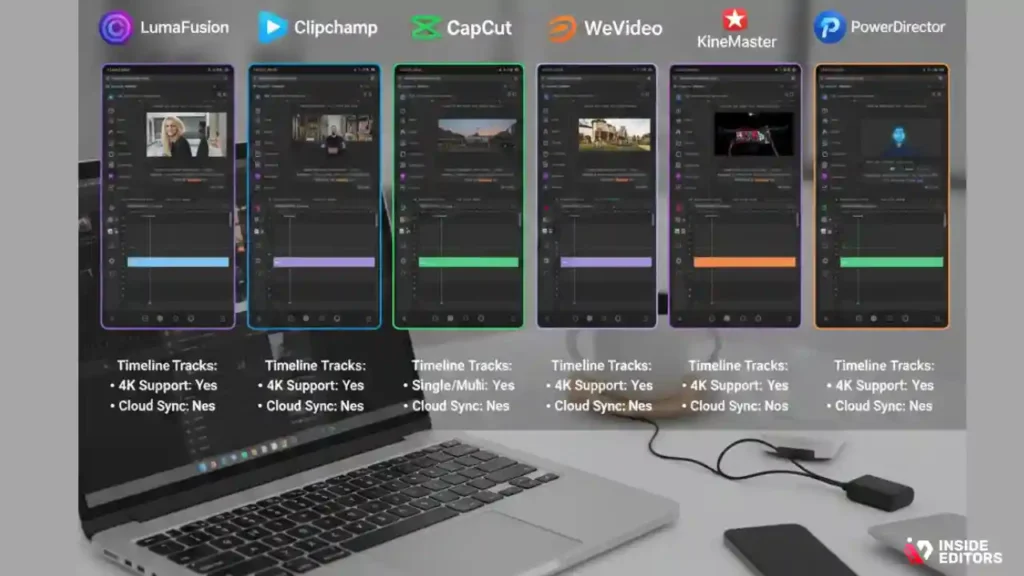
| Editor | Best For | Strengths | Limitations |
| LumaFusion | Professional editing | Multi-layer editing, pro color tools, smooth playback | Higher learning curve, paid app |
| Clipchamp | Beginners & small businesses | Templates, auto captions, cloud processing | Fewer advanced controls |
| CapCut | Short-form creators | AI tools, trending templates, mobile-friendly | Not ideal for long, complex timelines |
| WeVideo | Teams & schools | Collaboration, cloud storage, easy interface | Can feel limited for pro editors |
| KineMaster | Mobile-style workflow | Strong effects, chroma key | Interface feels “mobile-first” |
| PowerDirector | Fast editing & YouTube content | Fast rendering, polished effects | Occasional ads on free tier |
This table reflects how each app fits different needs. Instead of searching for a “perfect” tool, it’s better to think about the kinds of videos you want to make. For example, a YouTuber might prefer LumaFusion or PowerDirector, while a student editing a school project might gravitate toward Clipchamp for its simplicity.
Core Features That Make Chromebook Editing Easier
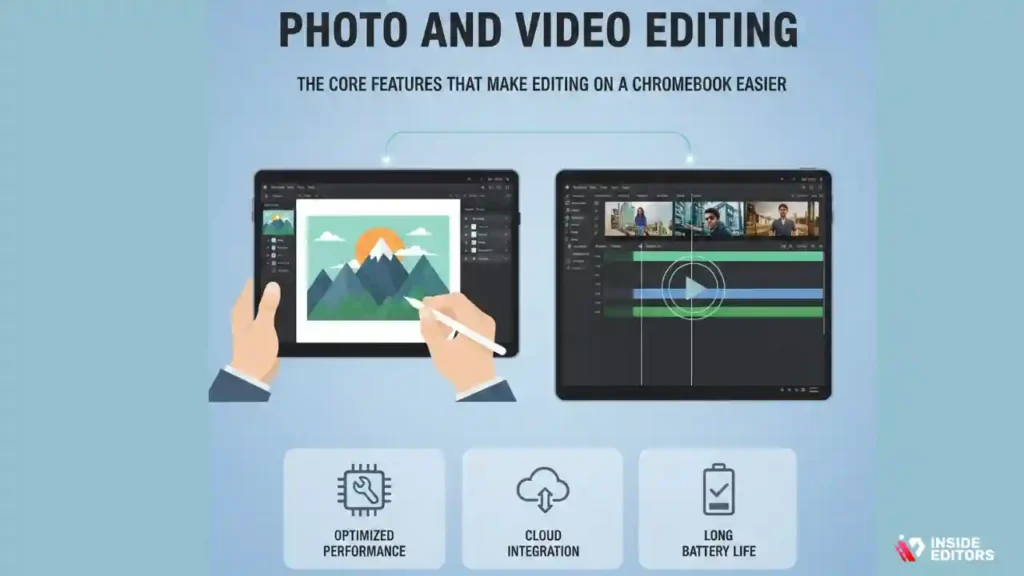
Finding the right editor isn’t just about what features it offers-it’s about how smoothly it runs on ChromeOS. The goal is to find a tool that helps you tell better stories without wasting time waiting for your timeline to render.
Why Interface Simplicity Matters More Than You Think
A clean interface with intuitive controls helps you edit faster and stay focused. Chromebooks are known for their simplicity, and your editing software should match that style. If the layout feels cluttered or overly technical, you’ll spend more time figuring out the app than crafting your story. That’s why many creators prefer cloud editors or Android apps with drag-and-drop timelines and streamlined effect menus.
How Export Quality and Format Support Affect Your Results
Even if your footage looks great during editing, the export quality determines the final result. Tools differ in their ability to render 1080p, 2K, or 4K, and they vary in bitrate control and codec support. For YouTube creators, this can directly impact watch-time and viewer retention. Chromebooks often rely on optimized rendering pipelines, so choosing an editor that maintains sharpness, color accuracy, and smooth motion is essential.
Why Built-In Templates Save Hours of Work
Templates are incredibly useful for beginners and busy creators. Many editors on Chromebook offer ready-made templates for intros, outros, lower-thirds, transitions, and social media formats like 9:16 vertical or 1:1 square. With the rise of reels and short-form content, having quick auto-created templates is a huge time-saver-especially if you don’t want to spend hours creating animations from scratch.
The Importance of Performance Optimization for ChromeOS
ChromeOS handles resources differently than Windows or macOS. Apps that are designed specifically for Chromebooks will feel more stable, load faster, and work better with local storage limitations. If you’re planning to work with multiple layers or 4K files, performance optimization becomes even more important. This is one of the biggest reasons why LumaFusion and Clipchamp have grown so popular among Chromebook editors.
With these features in mind, we can now explore the actual apps that deliver the best experience on ChromeOS today.
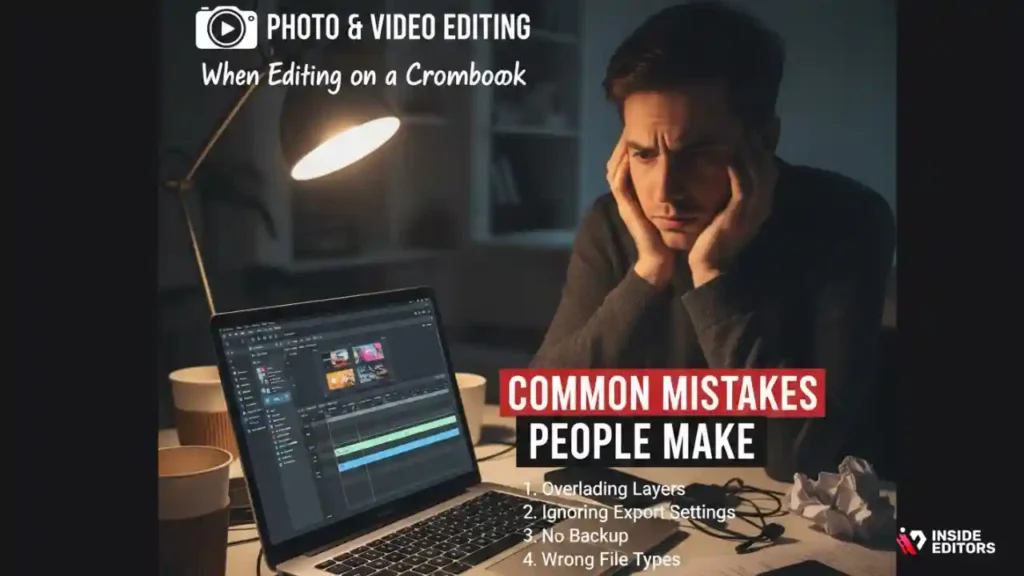
Common Chromebook Editing Mistakes
Even the best software won’t help if your workflow gets in the way. Many creators struggle not because the app is bad, but because Chromebook-specific challenges catch them off guard. Here are a few common mistakes you can easily avoid.
Relying Too Much on Local Storage
Chromebooks typically include 32GB to 128GB of internal storage. If you download large 1080p or 4K clips, your device fills up quickly. Many users forget this and end up with slow performance. A better approach is using cloud storage (Drive, Dropbox, WeVideo’s built-in storage) or an external SSD. This keeps your Chromebook running smoothly and gives your editing software breathing room.
Expecting Desktop-Level Performance on Low-End Models
ChromeOS is efficient, but a low-end model with 4GB RAM won’t match a MacBook Pro’s performance. Some beginners assume every editor will run flawlessly on any Chromebook. While cloud apps help, heavier editors like LumaFusion still benefit from faster processors and more memory. If your Chromebook struggles, lowering preview quality or switching apps can make a huge difference.
Ignoring Rendering and Export Settings
Many creators export their videos with default settings without understanding how bitrate, resolution, and codecs affect quality. On Chromebooks, the right export settings can prevent freezing, crashes, and long wait times. Choosing the correct export format-like MP4 with H.264-ensures smooth playback on most devices and platforms.
Using Too Many Effects in One Timeline
Because Chromebooks have limited GPU power, adding excessive transitions, filters, and overlays can slow down playback. It’s tempting to add every effect available, but keeping things simple often produces cleaner, more professional videos. Less is more, especially when telling a story.
Chromebook Video Editing: How to Choose Software
Now that we’ve explored the best options and common mistakes, it’s time to combine everything into a clear, confident decision-making process.
Start With Your Goal
Ask yourself what type of videos you’ll be making. If your goal is cinematic travel videos, opt for advanced editors like LumaFusion or PowerDirector. If you’re focusing on short-form content, CapCut is built for speed and creativity. For educational or collaborative projects, WeVideo remains one of the easiest choices.
Consider Your Chromebook’s Performance
Your Chromebook’s hardware matters. A device with 8GB RAM can easily handle multiple layers and 1080p editing. Lower-end devices may run better with cloud-based editors like Clipchamp or WeVideo. Matching your device to your app ensures a far smoother editing experience.
Think About Cloud vs. Local Editing
Cloud editors lighten the load on your ChromeOS hardware, but they need strong internet. Local editors like LumaFusion give you deeper control but rely more on your Chromebook’s processor. If you often edit on the go or offline, choose local editors; if you want the least lag, cloud apps might serve you better.
Review Template Availability
Templates can be a lifesaver when you’re busy. If you want ready-made intros, transitions, and social layouts, Clipchamp and CapCut offer extensive libraries. If customization is more important, PowerDirector and LumaFusion provide detailed manual controls.
Choosing the right editor becomes easy when you match your goals, device performance, and preferred workflow. When all three align, editing feels natural-almost effortless.
How Inside Editors Helps Creators Using Chromebooks
At Inside Editors, we work with creators, brands, students, and YouTubers from all over the world-including many who edit on Chromebooks. Because ChromeOS has limitations, our services fill in the gaps where software alone isn’t enough.
We help with:
- Polished cuts that improve pacing
- Color correction that enhances mood
- Professional sound design
- Cinematic transitions and effects
- Social media formatting (TikTok, YouTube, Reels)
- Story-first editing that keeps viewers watching
Many creators shoot on their mobile phones, do rough cuts on their Chromebooks, and rely on our editors to transform their project into a final, high-quality product. It’s a powerful workflow: simple tools on your end, advanced expertise on ours.
If you’re curious to see how professional editing can transform your videos, explore our services here:
Inside Editors Video Editing Services
Chromebook Video Editing: Final Thoughts
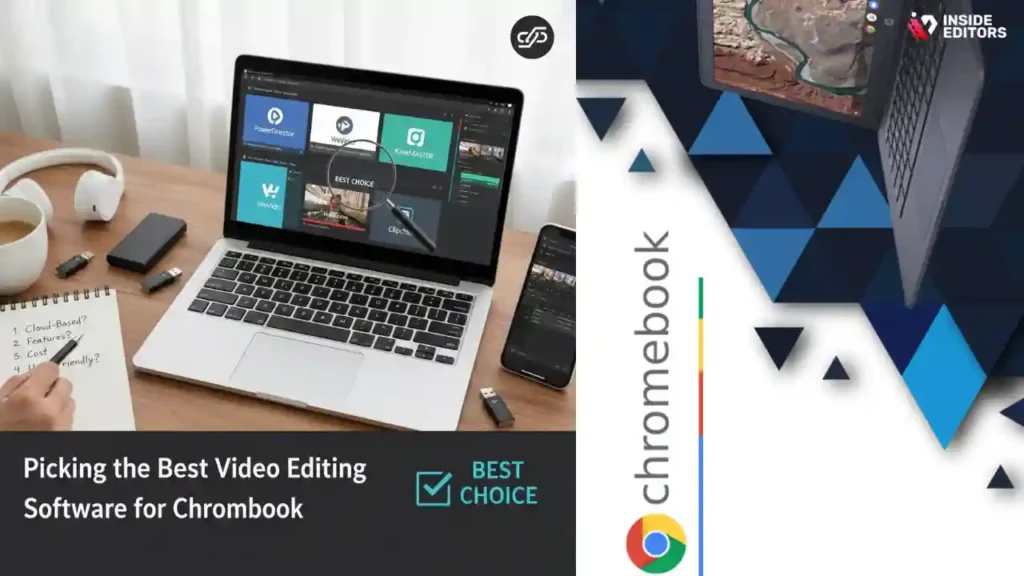
Choosing the best video editing software for Chromebook isn’t about finding the most advanced app-it’s about finding the tool that lets you create confidently. Chromebooks may not have the raw power of desktop workstations, but today’s editors offer impressive performance, intuitive controls, and enough creative tools to produce seriously polished results.
If you’re editing short-form videos, CapCut is unbeatable.
If you want professional control, LumaFusion leads the way.
If you prefer cloud convenience, Clipchamp and WeVideo are ideal.
With the right software and a clear workflow, your Chromebook becomes a powerful creative studio.
And if you ever want your video to look cinematic, polished, and consistent across all platforms, Inside Editors is here to help. We take your creative vision and bring it to life with professional editing that feels effortless on your end.
You’ve now got everything you need to choose the right editor, avoid common mistakes, and start producing videos you’re proud of. Happy editing!
FAQs : Best Video Editing Software for Chromebook
How secure is my footage when I use cloud-based Chromebook editors?
Cloud editors generally store files on encrypted servers and use HTTPS for transfers, but security varies by vendor and plan. If privacy is critical, choose a paid plan with private storage, enable two-factor authentication, and read the provider’s data policy; free tiers sometimes scan or use media for training. For extra control, keep master files on your own cloud (Drive/Dropbox) and only upload work copies to the editor.
Can Chromebook apps produce professional-quality exports for YouTube and clients?
Yes – several Chromebook-capable tools export broadcast-quality MP4/H.264 or HEVC files at 1080p and even 4K when the app supports it. The key is using the right export settings (bitrate, codec) and a reliable editor like LumaFusion, PowerDirector, or Clipchamp; those apps balance ChromeOS limits with high-quality render pipelines. Test a short clip at target settings to confirm color and audio fidelity before batch-exporting.
Should I edit videos on my Chromebook myself or hire a pro editor?
If your needs are simple-social clips, vlogs, or quick promos-doing it yourself with CapCut or Clipchamp saves money and teaches useful skills. For brand videos, sales pages, or projects where pacing, color, and sound matter, hiring a pro reduces revisions and achieves a cleaner result faster. A hybrid approach (do rough cuts, outsource polish) often minimizes cost while getting pro-level finishes.
What does professional video editing cost if I outsource from a service like Inside Editors?
Costs vary by scope: simple trims and subtitles typically start at about $50–$150 per video, while full edits with color grading, motion graphics, and sound mixing can range $300–$1,200+. Turnaround, number of revisions, and rush delivery add to price; always ask for a package breakdown showing what’s included (revisions, formats, source-file handling) to avoid surprises.
How long does a typical edit take, and are rush options available?
Turnaround depends on complexity: a short social clip (1–3 minutes) often takes 24–72 hours, a polished 8–12 minute piece can take 3–7 business days, and larger projects may need 2+ weeks. Most professional services offer rush options (24–48 hour delivery) for an extra fee; expect higher rates and limited revision windows on rush jobs.
Which file formats, resolutions, and codecs should I use from my phone or camera?
Use MP4 with H.264 for wide compatibility and good compression; HEVC (H.265) gives smaller files at similar quality but may need compatible export support. Record at your target delivery resolution (1080p or 4K) and a consistent frame rate (24/30/60fps). Keep original, high-quality master files and create lower-bitrate working copies for Chromebook editing if storage or performance becomes an issue.
How should I prepare my Chromebook before starting a big edit?
Free up local storage by moving raw footage to cloud or an external SSD, close unnecessary apps, and, if available, boost performance with a Chromebook that has 8GB+ RAM. Use lower preview quality in your editor while cutting, and keep backups in two places (cloud + external). These small steps reduce crashes and speed up rendering or cloud uploads.
How do revisions, ownership, and privacy typically work when using an editing service?
Most reputable services include a set number of revisions (commonly 2–3) and deliver final masters in agreed formats; confirm revision limits and turnaround upfront. Ownership usually transfers on final payment, but confirm rights for re-use, distribution, and source footage handling in the contract. For privacy, request NDA options and secure transfer methods if footage is sensitive.


