


The frustration is universal. You click play on a highly anticipated tutorial, a crucial business presentation, or the latest viral sensation, and all you get is silence and a dark void. The YouTube Video Black Screen issue is one of the most common and persistent playback errors encountered by viewers globally. It’s an irritating glitch that halts your viewing experience, often leaving you wondering if the problem lies with your device, your browser, or YouTube itself.
This comprehensive guide from Inside Editors will walk you through the precise steps needed to diagnose and permanently resolve the YouTube Video Black Screen problem. We will cover everything from simple quick fixes to deep-dive technical solutions involving hardware acceleration and network configuration. Understanding the root cause-whether it’s a client-side rendering issue, a server connection hiccup, or a software conflict-is the first step toward enjoying uninterrupted viewing. Let’s restore clarity to your screen and get your videos playing again.
Why YouTube Videos Show a Black Screen
Before diving into solutions, it helps to understand why you are seeing a YouTube Video Black Screen. This issue rarely stems from a single source; instead, it is usually a combination of factors related to your device’s ability to process and display the video stream.
The black screen typically indicates that the audio track might be loading (or sometimes not even that), but the video rendering component has failed. This failure often occurs during the handshake between your browser’s video player (HTML5 or Flash, though mostly HTML5 now) and your device’s graphics processing unit (GPU).
Why Does the Screen Go Dark?
The most common culprits fall into three categories: client-side issues (your device/browser), network issues, and server-side issues (rare, but possible).
Client-side problems are the most frequent. These include outdated or corrupted browser caches, conflicting browser extensions (especially ad blockers or VPNs), or issues with your computer’s graphics drivers. If your drivers are old, they might not correctly interpret the complex video decoding instructions sent by YouTube’s player, resulting in the YouTube Video Black Screen.
“In the digital age, video playback errors are often symptomatic of a mismatch in communication protocols between the client device and the streaming server. The black screen is the system’s default failure state when it cannot render the visual data.” – Dr. Evelyn Reed, Digital Media Analyst
A less common but important cause is network instability. If the connection drops momentarily while the video buffer is loading, the player might fail to initialize correctly, leaving the display blank even after the connection stabilizes.
Comparison: Common Black Screen Scenarios
| Scenario | Primary Cause | Quick Fix Recommendation |
|---|---|---|
| Random Black Screen (Occurs intermittently) | Browser Cache/Cookies or Extension Conflict | Clear cache and disable extensions temporarily. |
| Consistent Black Screen (Always happens) | Hardware Acceleration or Graphics Driver Issue | Update drivers or toggle hardware acceleration settings. |
| Black Screen with Audio (Video fails to load) | Video Decoder Failure or DRM Conflict | Check for browser updates or try a different browser. |
| Mobile Black Screen | App Data Corruption or Connectivity Fluctuation | Clear app data or switch between Wi-Fi and Cellular data. |
Quick Fixes for YouTube Black Screen
When faced with the YouTube Video Black Screen, start with the simplest solutions. These often resolve 80% of playback issues without requiring deep system changes.
1. Refresh and Restart
The simplest solution is often the most effective. First, try refreshing the YouTube page (F5 or Ctrl+R). If the black screen persists, close the tab entirely and open a new one. If that fails, restart your entire web browser. This clears temporary memory allocations and forces the browser to re-establish a fresh connection to the YouTube server.
If you are using the YouTube app on a mobile device or smart TV, close the app completely (force quit it, do not just minimize it) and then relaunch it. This resets the application state.
2. Clear Browser Cache and Cookies
A corrupted cache is a prime suspect for the YouTube Video Black Screen. The cache stores temporary files to speed up loading times, but if these files become corrupted or outdated, they can interfere with the video player’s ability to initialize.
Steps to Clear Cache (Example for Chrome/Edge):
- Go to your browser settings.
- Find “Privacy and security” or “Clear browsing data.”
- Select “Cached images and files” and “Cookies and other site data.”
- Choose a time range (e.g., “All time”) and click “Clear data.”
Once cleared, restart your browser and check if the video loads correctly.
3. Check for Conflicting Extensions
Browser extensions, particularly ad blockers, privacy enhancers, and VPN extensions, are notorious for causing the YouTube Video Black Screen. While ad blockers are useful, they sometimes mistakenly block essential scripts required for the HTML5 player to render the video element.
Temporarily disable all extensions and reload the video. If the video plays, you have identified the culprit. Re-enable the extensions one by one until the black screen returns, allowing you to pinpoint the conflicting extension. You can then configure an exception for YouTube within that extension or remove it entirely.
Advanced Browser and System Solutions
If the quick fixes fail, the problem likely resides deeper within your browser settings or operating system configuration. These steps address rendering and compatibility issues that lead to the persistent YouTube Video Black Screen.
4. Adjust Hardware Acceleration Settings
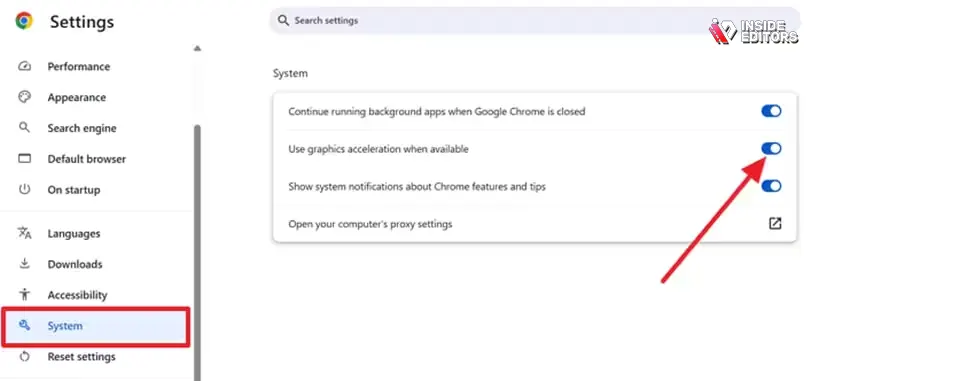
Hardware acceleration allows your browser to offload complex tasks, like video decoding, to your computer’s dedicated graphics card (GPU). While this usually improves performance, sometimes the interaction between an older GPU driver and the browser can cause conflicts, resulting in the YouTube Video Black Screen.
How to Toggle Hardware Acceleration (Example for Chrome/Firefox):
- Go to your browser settings.
- Search for “Hardware acceleration.”
- Toggle the setting “Use hardware acceleration when available” off.
- Restart your browser immediately.
If disabling it fixes the issue, your graphics driver needs updating. If it was already disabled, try enabling it instead, as sometimes the browser needs the GPU assist to handle the video stream correctly.
5. Update Graphics Drivers and Browser
Outdated software is a major contributor to playback errors.
Graphics Drivers: Your graphics card manufacturer (NVIDIA, AMD, Intel) frequently releases driver updates to improve performance and fix compatibility issues. Visit the manufacturer’s website or use your operating system’s device manager to ensure your drivers are current. A freshly updated driver often resolves the underlying cause of the YouTube Video Black Screen.
Browser Updates: Ensure your web browser (Chrome, Firefox, Safari, Edge) is running the latest version. Developers constantly push updates to fix bugs, enhance security, and ensure compatibility with modern web standards, including YouTube’s video player.
6. Flush DNS and Reset Network Settings
Sometimes, the black screen is a symptom of a network routing problem, preventing your computer from establishing a stable connection to YouTube’s content delivery network (CDN). Flushing your DNS cache can force your system to look up the correct IP addresses again.
Steps to Flush DNS (Windows Command Prompt):
- Open Command Prompt as Administrator.
- Type
ipconfig /flushdnsand press Enter. - Type
netsh winsock resetand press Enter. - Restart your computer.
This ensures that your network stack is clean and ready to handle streaming data efficiently.
Addressing Video File Integrity and Editing Issues
While most black screen issues are client-side, sometimes the problem originates with the video file itself, particularly if the video was recently uploaded or poorly rendered. This is where professional expertise becomes invaluable.
The Role of Professional Video Editing
If you are a content creator and your viewers are consistently reporting a YouTube Video Black Screen on your specific videos, the fault might lie in the encoding or rendering process. Improper codec selection, incorrect frame rates, or corrupted files during the export phase can lead to playback failures on certain devices.
If you find yourself constantly battling technical glitches that affect viewer experience, consider leveraging professional services. Inside Editors specializes in ensuring video integrity and optimal playback performance.
Inside Editors Professional Video Editing Services:
We understand that technical issues, like the black screen error, can erode viewer trust. Our professional video editing services are designed to eliminate these problems before they reach your audience. Our team of professional editors, with over 10 years of experience, handles everything from color grading and audio enhancement to ensuring perfect encoding and rendering compatible with all major streaming platforms like YouTube.
Our workflow is designed for speed and quality:
- Fast Turnaround: Get your professionally edited videos back in 24-72 hours.
- Quality Assurance: We guarantee professional quality that builds trust and maintains a consistent brand style.
- Affordable Pricing: Services start affordably at $29/video, making professional quality accessible.
- Unlimited Revisions: We work until you are 100% satisfied.
By outsourcing your editing to Inside Editors, you save time, focus on content creation, and ensure a seamless viewing experience for your audience, eliminating potential rendering errors that cause the YouTube Video Black Screen.
Self-Troubleshooting vs. Professional Review
| Aspect | Self-Troubleshooting (DIY) | Professional Review (Inside Editors) |
|---|---|---|
| Time Investment | High (Requires research and system changes) | Low (Focus on content creation) |
| Expertise Required | Basic to Advanced Technical Knowledge | None (Handled by 10+ year veterans) |
| Root Cause Identified | Often misses encoding/rendering faults | Guaranteed identification of file integrity issues |
| Cost | Free (but costs time and frustration) | Affordable, scalable pricing starting at $29/video |
“The quality of the final video file is paramount. A small error in the encoding parameters can lead to a cascade of playback failures across different devices. Ensuring compliance with YouTube’s recommended specs is non-negotiable.” – Sarah Chen, Senior Video Engineer at a major streaming platform
Troubleshooting Specific Scenarios
The context of the black screen matters. Is it happening only in full-screen mode? Only on one specific video? Addressing these nuances requires targeted solutions.
7. Full-Screen Mode Issues
If the YouTube Video Black Screen only occurs when you switch to full-screen mode, the issue is almost certainly related to your display scaling or graphics card overlay settings.
Solution: Try adjusting your display scaling settings in your operating system (Windows Display Settings or macOS System Preferences). Sometimes, setting the scaling to 100% temporarily resolves the conflict. Also, check if any third-party screen overlay software (like gaming overlays or screen recorders) are running and disable them.
8. Testing in Incognito Mode
Incognito or Private Browsing mode is an excellent diagnostic tool because it disables all extensions and prevents the use of stored cookies and cache data.
If the video plays perfectly in Incognito mode but fails in your standard browser window, the cause is definitively a conflicting extension or a corrupted cache/cookie file. This confirms that the solution lies in steps 2 and 3 (clearing cache and managing extensions). This is a crucial step in isolating the cause of the YouTube Video Black Screen.
9. Checking Flash Player Status (Legacy Content)
While YouTube primarily uses HTML5, some older embedded videos or specific legacy content might still rely on Adobe Flash Player. If you encounter the YouTube Video Black Screen on very old content, ensure Flash is enabled (if your browser still supports it) or that the content provider has updated the embedding code.
For modern viewing, however, focus entirely on HTML5 compatibility, which is governed by your browser and graphics drivers.
Final System Checks and Prevention

To prevent the YouTube Video Black Screen from recurring, adopt proactive maintenance habits for your system and browser.
Keeping Your System Optimized
Regularly run system maintenance checks. Malware or excessive background processes can consume resources needed for video decoding, leading to playback failure. Ensure your operating system is regularly updated, as these updates often include critical security patches and improved compatibility libraries necessary for smooth streaming.
Utilizing Alternative Browsers for Comparison
If you have exhausted all troubleshooting steps on your primary browser (e.g., Chrome) and the YouTube Video Black Screen persists, try playing the video in a completely different browser (e.g., Firefox or Edge).
If the video plays flawlessly in the second browser, the issue is isolated to the settings or installation of your primary browser. If the black screen appears across all browsers, the problem is likely deeper, residing in your network configuration, operating system, or graphics drivers.
The Value of Reliability in Content
For creators, the reliability of your content is key to audience retention. A viewer who encounters a YouTube Video Black Screen multiple times on your channel is likely to move on. Ensuring technical perfection is part of professional content delivery.
Inside Editors offers the expertise to guarantee that your videos are technically flawless from export to upload. We handle the technical complexities-like ensuring the correct bitrates, resolutions, and codecs-so you never have to worry about rendering issues causing a black screen for your viewers. Our professional editing team provides fast turnaround (24-72 hours) and unlimited revisions, delivering professional quality that builds viewer trust.
If you are a YouTube creator, business, or marketer looking for a scalable solution to maintain consistent, high-quality video output, Inside Editors is the best choice. We offer affordable pricing starting at $29/video, ensuring you get professional quality editing, color grading, and audio enhancement without the high cost or long wait times.
To learn more about how we can help you maintain professional quality and consistency across your channel, visit our service page.
Frequently Asked Questions
What causes the YouTube video black screen issue?
The YouTube video black screen issue is often caused by browser cache/cookies, outdated graphics drivers, or hardware acceleration conflicts. Sometimes, poor internet connectivity or an extension (like an ad-blocker) interferes with video loading. Checking these common culprits usually resolves the black screen problem quickly, restoring normal playback.
How do I fix the YouTube black screen on my browser?
First, try clearing your browser’s cache and cookies, then restart the browser. If the black screen persists, disable any browser extensions, especially ad-blockers, one by one to isolate the conflict. If neither works, try temporarily disabling hardware acceleration in your browser settings, as this frequently fixes display issues on older systems.
Should I update my graphics driver to fix the black screen?
Yes, updating your graphics driver is a highly recommended step. Outdated or corrupt drivers often fail to render video content correctly, resulting in the black screen problem. You should check your manufacturer’s website (NVIDIA, AMD, Intel) for the latest stable version and install it for optimal YouTube performance.
Does disabling hardware acceleration help fix the black screen?
Disabling hardware acceleration often helps resolve the YouTube video black screen, particularly on older computers or those with specific driver conflicts. Hardware acceleration delegates video processing to the GPU, but when misconfigured, it can cause display errors. Turning it off forces the CPU to handle rendering, which usually stabilizes playback.
What if the black screen only happens on one video?
If the black screen only appears on a single YouTube video, the issue likely lies with the video file itself or YouTube’s processing, not your system. Try refreshing the page multiple times or checking back later. If it persists, report the video to YouTube, as the creator may need to re-upload the content.


