


Downloading a YouTube video in 4K might sound technical, but once you understand the steps and the right tools, the process becomes surprisingly simple. If you’ve ever tried saving a high-quality clip for inspiration, research, or offline viewing, you’ve probably noticed how many tools claim to do the job – yet very few deliver the clarity and consistency you actually want. In this guide, we’ll walk through everything you need to know, from how 4K video works to which methods are most reliable today. Think of it as your friendly walkthrough, written to help you choose confidently rather than guess your way through unclear instructions.
Along the way, we’ll also explore a few common mistakes people make when dealing with 4K video downloads – such as choosing the wrong format, overlooking bitrate settings, or trusting low-quality tools. And if you’re creating your own content, this guide will help you understand how professionals think about resolution, quality loss, and workflow – essential concepts for anyone working with video in 2026 and beyond.
Why High-Resolution Videos Matter More Than Ever

Before we dive into the practical steps of youtube video download 4k, it’s helpful to understand why so many creators and viewers prefer 4K today. You’ve probably noticed how streaming platforms keep increasing their quality standards. That’s because audiences expect crisp details, vibrant colors, and visuals that hold up on large screens.
How 4K changed viewer expectations
A decade ago, 1080p felt more than enough. But today, with 4K TVs and high-resolution phone screens becoming mainstream, anything lower can seem slightly blurry or soft. The difference becomes even more noticeable when you compare text, motion, and wide shots side by side. If you’ve ever watched nature documentaries or tech reviews, you know how much detail 4K brings out – from the texture of a landscape to the metallic edges of a gadget.
And it’s not just about beauty. Higher resolution often means better professional usability. Editors, marketers, and educators prefer working with the sharpest version of a video because it provides room for reframing, cropping, or adding effects without losing clarity.
Why creators and editors rely on 4K footage
Let’s say you’re working on a product showcase, a travel montage, or a reaction video. Using 4K source footage gives you much more freedom in the editing room. You can zoom in slightly, adjust compositions, or match footage across multiple cameras with less visible degradation. This is exactly why many professional editors on platforms like Inside Editors build their entire workflow around high-resolution material.
When you download 4K videos for reference, study, or offline viewing, this same advantage applies. Everything from color grading to stabilizing footage works better when you start with the highest quality available.
Understanding How YouTube Handles 4K Quality
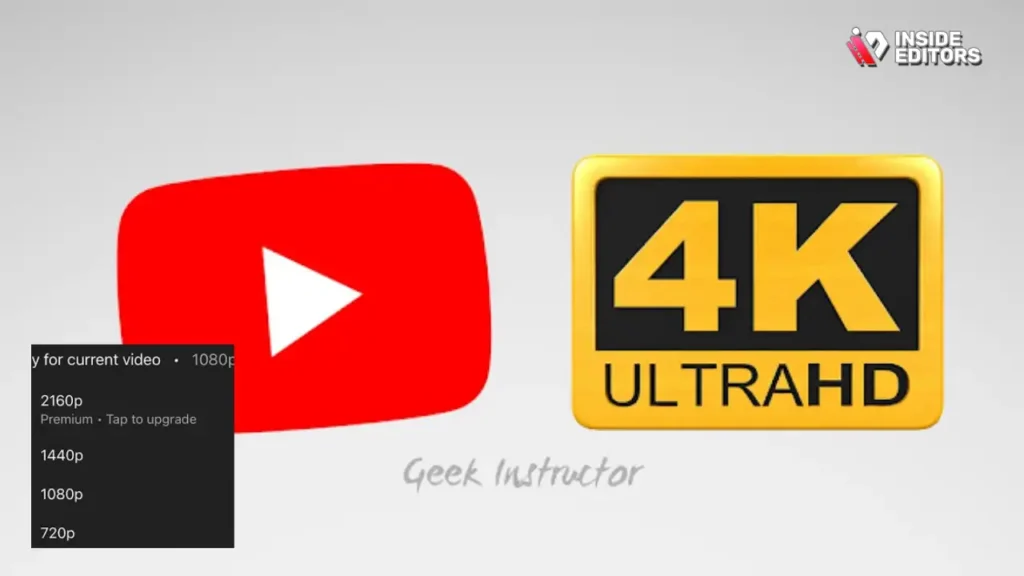
Before exploring the methods for downloading, it helps to understand how YouTube stores and processes 4K videos. Many people assume YouTube streams one single file per resolution – but the actual system is far more complex.
The hidden truth about YouTube’s 4K formats
YouTube uses a method called adaptive bitrate streaming, meaning video and audio are stored separately. This lets YouTube adjust quality in real time depending on your internet speed. So when you watch a video, your device isn’t playing a single neatly packaged 4K file – it’s playing a combination of video streams and audio tracks.
This has two important implications for downloading:
- You often need to merge audio and video when saving in 4K.
- Some tools struggle with the special codecs YouTube uses, especially VP9 or AV1.
This is why certain converters only support 720p or 1080p for download – they simply can’t process the higher-resolution streams or merge tracks cleanly.
Why some tools fail to deliver real 4K quality
If you’ve ever downloaded a video labeled as “4K” only to find it looks worse than the stream, you’re not alone. Many tools downscale the video or compress it heavily to keep file sizes small. They might give you a 4K file in name, but the quality often resembles 1080p or worse.
Real 4K should maintain:
- Crisp edges
- High bitrate
- Smooth motion
- Sharp text and graphics
Understanding this difference helps you choose tools that don’t compromise quality. The goal is to get as close as possible to the original uploaded resolution.
Choosing the Best 4K Downloading Method in 2026
In 2026, there are several ways to download YouTube videos in 4K, and each has its pros and cons. The best method for you depends on your device, your goals, and how often you need high-resolution downloads.
Web-based downloaders: Quick and convenient
Online platforms are often the easiest choice because they don’t require installing software. You simply paste a link and choose your quality settings. These tools work well for casual users who only need occasional downloads and prefer simplicity over advanced features.
However, convenience comes with limits. Many web-based tools can’t handle 4K reliably because of YouTube’s separate audio and video streams. They might be perfect for 1080p, but if true 4K quality is essential to you, it’s worth checking whether the service merges streams cleanly. When a site labels a format as “4K,” confirm whether the file size aligns with typical 4K bitrates – larger file sizes generally indicate better quality.
Web-based converters also vary in speed. If you’re dealing with long videos or 60fps content, tools with server limits may take much longer to process the download. That’s something to keep in mind if you work in tight deadlines or need consistent reliability.
Desktop software: The most reliable long-term option
If you’re downloading 4K videos frequently, or you work with long form content, professional tools often provide better performance. Desktop applications typically support higher bitrates, multiple codecs, and batch downloads. They also tend to offer cleaner audio/video merging and fewer compression issues.
Another key advantage is that desktop apps don’t rely on a web browser’s processing power. This means faster downloads, higher stability, and more control over formats like MP4, MKV, or WebM. For editors, this level of control can save hours – especially when preparing footage for tools like Adobe Premiere or DaVinci Resolve.
These tools also allow you to customize frame rate, subtitles, and even advanced metadata. And while this might sound technical, the result is simple: you get a file that behaves consistently in your editing software, without unexpected color shifts or audio sync problems.
Browser extensions: Lightweight but limited
Browser extensions might look appealing because they blend directly into your workflow. A simple button appears under YouTube videos, allowing quick downloads without leaving the page. But despite the convenience, these extensions often face restrictions due to browser policies and YouTube updates.
In many cases, browser tools max out at 1080p. Only a handful can truly process 4K, and even then, compatibility changes as platforms update their streaming rules. Extensions are great for occasional use, but if you need stable, long-term 4K support, they rarely outperform dedicated software.
The main advantage here is speed – the experience is seamless. But the trade-off is reliability and quality control. If you’re working on professional-level projects, extensions may not be the best fit.
Step-by-Step Look at How 4K Downloads Actually Work
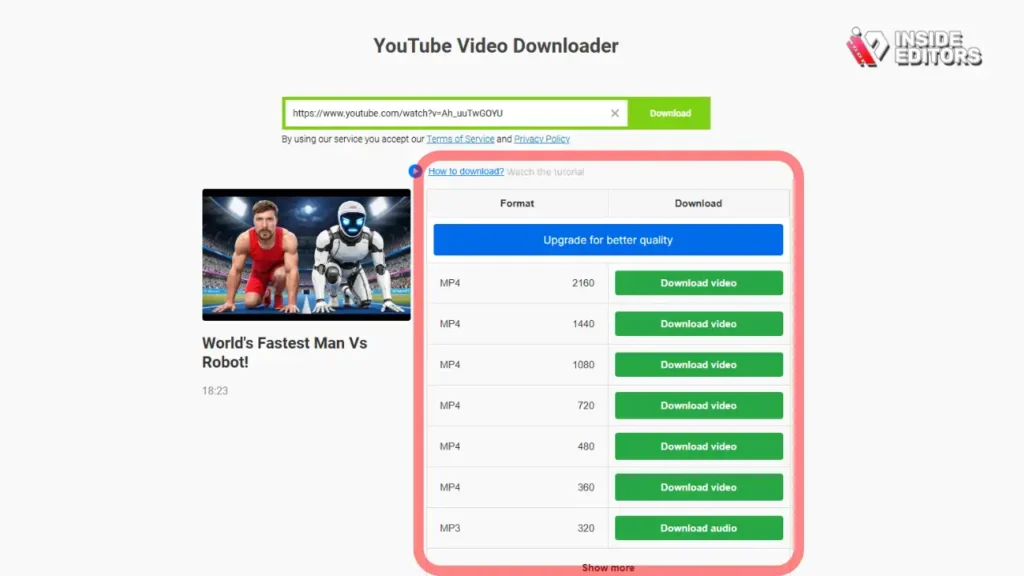
Understanding the workflow helps demystify what’s happening behind the scenes when you save a video in 4K resolution. Even though many tools simplify the process to a single click, it’s helpful to know how these steps unfold.
Locating the correct 4K video stream
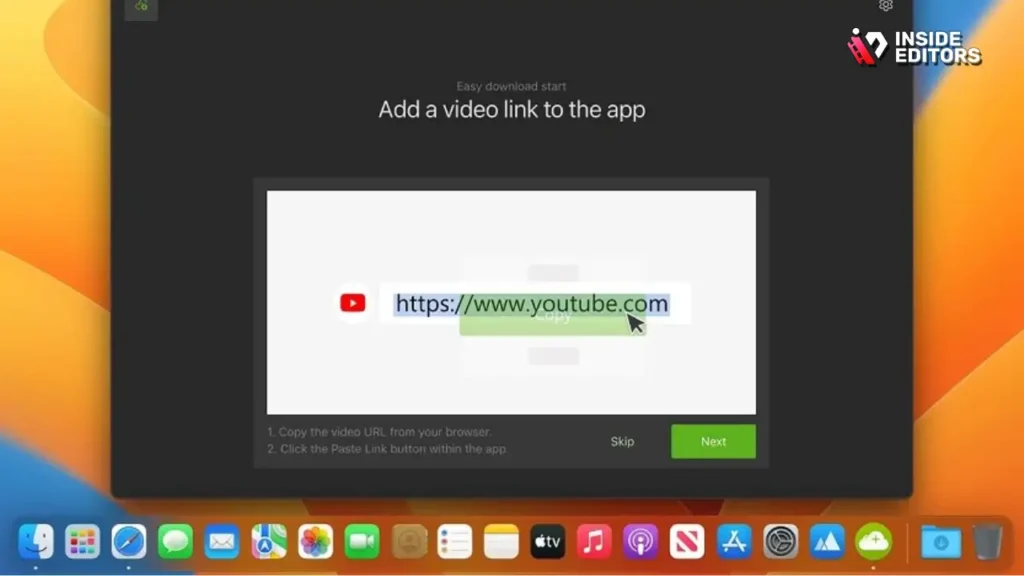
When you paste a YouTube link into a download tool, the software analyzes the available formats behind the video. YouTube provides different versions based on:
- Resolution
- Codec (typically VP9 or AV1 for 4K)
- Bitrate
- Frame rate
Good tools identify the best available 4K stream rather than choosing a lower-quality fallback. This matters because YouTube sometimes offers multiple “4K” options – and only one represents the true, highest-quality source.
Once the stream is identified, the software prepares to download it alongside the audio track, which is stored separately. This dual-download process ensures that you’re getting the full experience – picture and sound – without compromise.
Merging audio and video into a single file
The next step is merging. Since YouTube splits media into separate tracks, your tool needs to combine them into a unified MP4 or MKV file. High-quality downloaders use lossless merging, meaning there’s no recompression or quality loss during the combination.
Poor-quality tools, however, sometimes recompress the output to reduce file size, resulting in lower sharpness or washed-out colors. When choosing a downloader, it’s worth checking whether it supports “direct merging” or “lossless output” – these terms indicate that your 4K quality is preserved.
Once merged, the file is ready for use. You can store it, share it, or load it directly into editing software. This is especially useful for creators, reviewers, and educators who rely on consistent high-quality reference material.
Comparing Free vs Paid 4K Downloading Tools

Choosing the right tool often depends on your purpose. Someone who downloads one video per month has very different needs from a content creator who saves high-resolution videos daily for editing or research.
Free tools: Good for occasional use
Free platforms can be a good starting point if you only need the basics. Many provide quick access to 1080p or 4K downloads, especially for shorter videos. They’re perfect when you’re saving clips for offline viewing or personal study.
But while free tools offer convenience, they often limit:
- 4K support
- Batch downloads
- File format customization
- Speed and priority access
Some sites also rely on aggressive ads or impose download caps. These limitations may not matter if you’re downloading casually, but they can become frustrating during complex projects or frequent downloads.
Paid software: Worth it for professionals and frequent users
If you handle video weekly – or even daily – investing in a premium downloader is often a good decision. Paid tools offer stable performance, higher speeds, no intrusive ads, and reliable 4K compatibility. They typically update more frequently too, ensuring compatibility with YouTube’s evolving stream formats.
For creators and editors, the biggest benefit is control. Paid software allows you to choose bitrate, file type, frame rate, and even codec – essential for workflows involving color grading, transitions, or multi-camera editing. If your goal is to maintain maximum quality from download to final export, premium tools provide a consistent foundation.
And when your downloaded file enters a professional editing environment – whether you’re cutting reaction videos, travel montages, or comparison content – having a clean, stable 4K source improves everything downstream.
Legal and Ethical Considerations
Before you download any YouTube video – especially in 4K – it’s important to be aware of YouTube’s rules and general copyright laws. Many people misunderstand what’s allowed, so let’s clarify things in a practical, honest way.
Why respecting YouTube’s guidelines matters
YouTube’s Terms of Service explicitly state that users should not download content unless the platform provides a download button or the content is available through YouTube Premium. While this rule sounds strict, it’s designed to protect creators’ work. Think of it this way – if someone downloaded your video, re-uploaded it, or used it commercially without permission, you’d probably feel your effort was taken advantage of.
This doesn’t mean you can’t ever download videos. There are fair, acceptable use cases:
- Personal offline research
- Educational analysis
- Studying editing styles or techniques
- Comparing color grading or camera work
But the key is non-commercial, private use. As long as the content stays on your device and isn’t re-uploaded or distributed, you’re typically within acceptable guidelines. Many creators openly allow viewers to study their videos privately – some even encourage it.
When permission becomes important
If you’re planning to incorporate someone else’s 4K footage into a monetized project, client work, or a published video, you should always ask for permission. Some creators are happy to share their raw files; others may require credit or a license.
This might sound like extra work, but it protects your channel, builds good relationships, and avoids copyright strikes that can harm your long-term growth. And honestly, most creators appreciate the respect.
Choosing the Right 4K Format: MP4, MKV, or WebM?
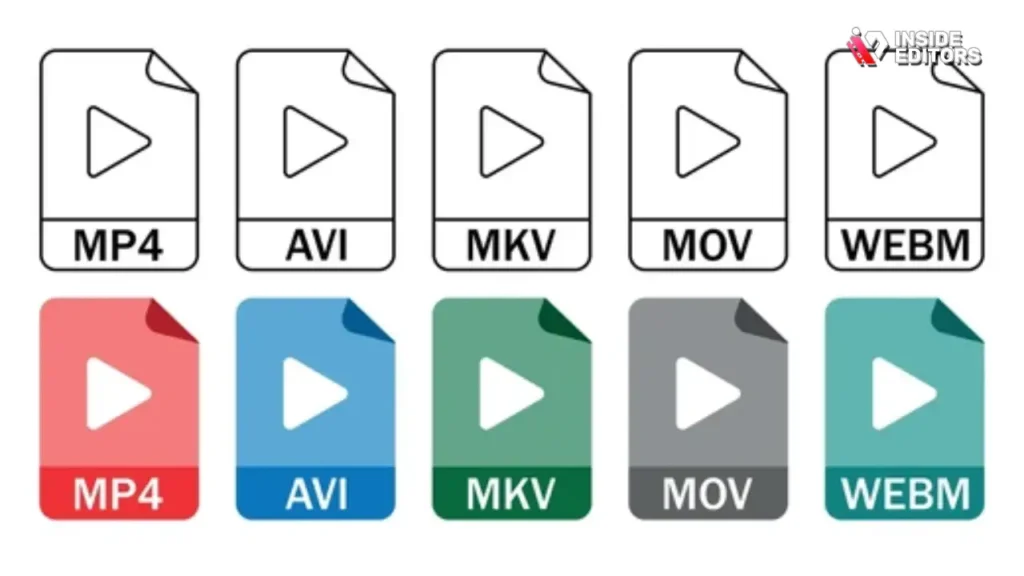
Once you’ve found your tool and downloaded your 4K video, the next question is: which format should you choose? The wrong format can lead to editing issues, playback errors, or color problems. Let’s break it down in a simple, human way.
Why MP4 is the most universal choice
Most people default to MP4 because it works almost everywhere – laptops, phones, TVs, editing software, social media, and more. If you’re downloading a clip for basic viewing or reference, MP4 is the safest choice. It strikes a good balance between compatibility and quality.
Professionally, MP4 also integrates well with editing programs such as Adobe Premiere Pro, Final Cut Pro, and DaVinci Resolve. This makes it ideal for creators who need quick imports without converting files.
When MKV becomes useful for 4K
MKV is a container that holds more data and supports more advanced features than MP4. While it’s less common for everyday viewing, editors love it because it preserves:
- High bitrate
- Multiple audio tracks
- Subtitles
- Metadata
If you’re planning to analyze color grading, stabilize shaky footage, or perform advanced edits, MKV gives you more control and precision. Think of it as MP4’s more flexible cousin – especially valuable when quality is your top priority.
Why WebM is important for certain devices
WebM is a format Google developed, and YouTube often uses it internally, especially for codecs like VP9 or AV1. That means if you’re looking for the most “native” version of the 4K stream, WebM sometimes captures it more accurately.
However, WebM isn’t as universally compatible. Some video editors struggle with it unless you have the right codecs installed. If you’re a creator or professional editor, you can still use WebM, but you might have to convert it first.
When in doubt:
- MP4 = best for general use
- MKV = best for editors
- WebM = best for purists who want YouTube’s original stream
Common Mistakes People Make When Downloading 4K Videos

Even experienced creators sometimes run into quality or workflow issues when working with 4K content. These mistakes can lead to blurry footage, glitchy playback, or large files that slow your device. Knowing what to avoid will save you hours of frustration.
Choosing fake 4K downloads
One of the biggest mistakes is trusting tools that label a video as “4K” but actually provide a low-resolution file upscaled to 2160p. The file might technically say “3840 × 2160,” but if it looks soft, the tool probably recompressed it.
Real 4K should show sharp details, especially in:
- Text overlays
- Building edges
- Nature shots
- Skin texture
- Shadows and highlights
If the file looks muddy compared to the YouTube stream, it’s probably fake 4K. Avoid any tool that reduces file size significantly – true 4K files are usually large.
Ignoring the bitrate
A video’s resolution is only part of the story. Bitrate determines how much visual information the file contains. Low-bitrate 4K will still look worse than high-bitrate 1080p.
Most solid 4K downloads should fall between:
- 20–60 Mbps for standard footage
- 60–120 Mbps for high-motion scenes or 60fps
If your file is unusually small or low bitrate, it won’t look as clean as you expect.
Not checking frame rate
If the original video was uploaded at 60fps but your downloader only gives you 30fps options, you lose motion smoothness. This is especially noticeable in:
- Gaming footage
- Sports content
- Fast-moving travel videos
- Cinematic B-roll
Always check the available fps options before downloading.
Storing huge files without compression planning
4K videos take space – sometimes several gigabytes per file. If you’re downloading often, your storage can fill quickly. External drives or cloud storage can help, but for long-term archiving, consider compressing files using tools like HandBrake or exporting proxies for editing.
A Comparison of Popular 4K Download Tools in 2026
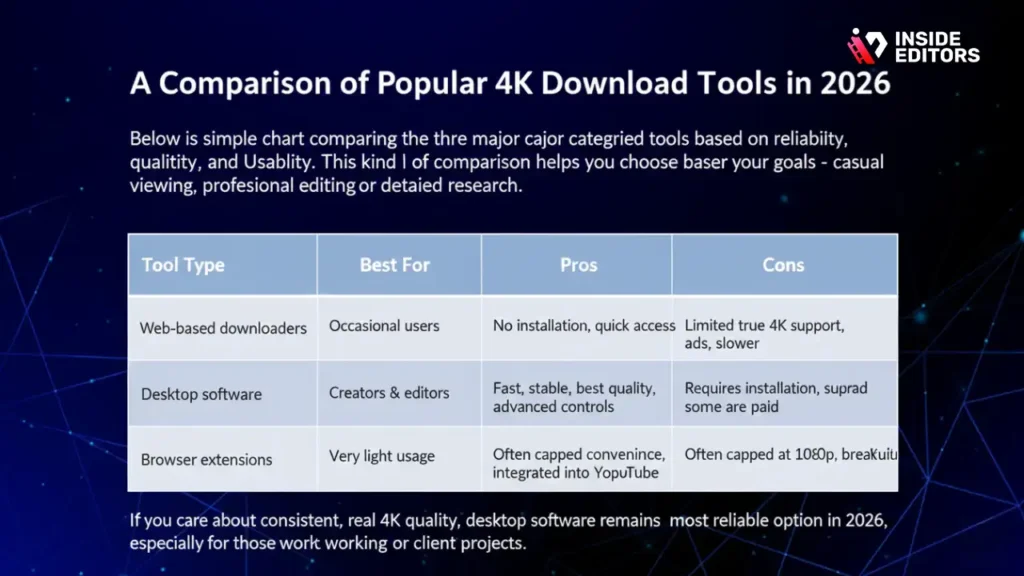
Below is a simple chart comparing the three major categories of download tools based on reliability, quality, and usability. This kind of comparison helps you choose based on your goals – casual viewing, professional editing, or detailed research.
| Tool Type | Best For | Pros | Cons |
| Web-based downloaders | Occasional users | No installation, quick access | Limited true 4K support, ads, slower |
| Desktop software | Creators & editors | Fast, stable, best quality, advanced controls | Requires installation, some are paid |
| Browser extensions | Very light usage | One-click convenience, integrated into YouTube | Often capped at 1080p, breaks with updates |
If you care about consistent, real 4K quality, desktop software remains the most reliable option in 2026, especially for those working on personal or client projects.
Tips for a Smooth 4K Workflow (Especially for Editors)

Once you download your 4K file, your workflow plays a big role in how smoothly things run. Many creators underestimate how demanding high-resolution files can be, especially on older devices.
Organizing your 4K library
You’ll likely accumulate dozens of gigabytes over time. Good organization helps you access files quickly, especially when referencing footage for editing practice or comparison content.
Try grouping videos by:
- Project
- Subject
- Creator
- Shooting style
- Year
A clean folder structure saves you time and reduces mistakes – especially if you’re storing files across multiple drives.
Working with proxies to improve editing performance
Even powerful laptops can struggle with 4K playback during intense edits. This is where proxy files come in. Proxies are low-resolution versions of your footage that editors use for real-time previewing. When you export the final video, the software switches back to the original 4K files.
This improves:
- Preview smoothness
- Export reliability
- Color-grading response
- Rendering times
Tools like Adobe Premiere Pro and DaVinci Resolve build proxies automatically.
Avoid transcoding too early
Many users convert 4K downloads into lower formats before editing, thinking it will save space. While this works, it reduces flexibility later. It’s usually better to keep the full-resolution file and depend on proxies instead. That way, your final export preserves as much quality as possible.
Why Professional Editors Care About Quality Sources

Even if you’re only downloading videos for personal study, it’s helpful to understand how professionals think about quality. Editors value high-resolution sources because they make every part of the job easier – from stabilizing shaky footage to enhancing lighting in post-production.
How starting with high-quality footage elevates your work
Imagine working on a travel reel. If your downloaded 4K reference clips show vibrant colors and crisp details, you naturally compare your own work to a higher standard. Over time, this improves your editing instincts – your eye becomes trained to expect clean shadows, smooth gradients, and natural motion blur.
At Inside Editors, our team often explains to clients that better footage gives editors more room to enhance the final video. Whether you’re creating a product short, a gaming montage, or a fashion piece, your results improve when you start with the best possible material.
If you ever decide to move from studying videos to creating your own, investing in high-quality footage – and partnering with experienced editors – can dramatically speed up your growth.
A Gentle Look at How Inside Editors Helps Creators Move Forward
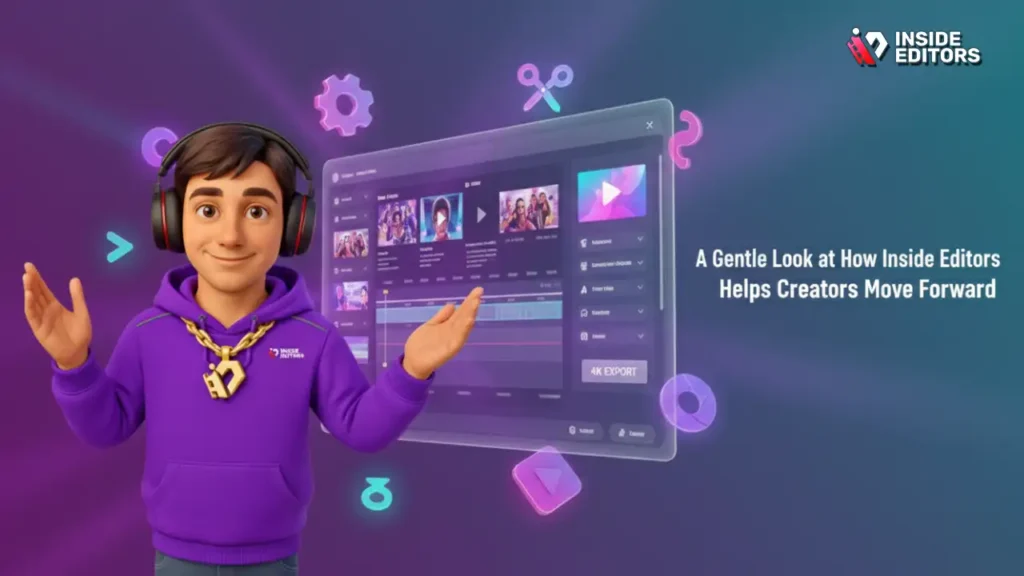
Editing is where many creators struggle. Even if you download beautiful 4K clips for reference, bringing your own footage to that level takes time, experience, and the right tools. That’s why many YouTubers, marketers, and small businesses trust professional editors when they want their videos to stand out.
Inside Editors helps creators turn scattered clips into polished stories. Whether you’re making product videos, travel content, comparisons, gaming edits, or business reels – having someone handle the technical work frees you up to focus on creativity.
And the best part? You don’t need a big budget to get professional quality. Our editors craft everything from simple cuts to cinematic grade visuals, guided entirely by your vision.
If you ever reach a point where you want your own videos to look as clean as the 4K footage you download, you can explore our services here:
Explore Inside Editors’ Video Editing Services
This isn’t a sales push – just a resource if you want help turning raw footage into something truly eye-catching.
Final Thoughts: Your 4K Download Journey Starts Here
Learning how to master youtube video download 4k isn’t just about saving a file – it’s about understanding how resolution, bitrate, codecs, and workflow all work together. With the right tools and a little awareness, downloading high-quality videos becomes incredibly easy, whether you’re studying editing techniques, gathering inspiration, or simply watching offline.
What matters most is choosing reliable methods that preserve the original detail. Good source material helps you learn faster, edit smarter, and produce cleaner results – whether you’re experimenting for fun or creating content professionally.
By now, you should feel confident navigating the different download tools, formats, and best practices. And if you ever want your own videos to look just as sharp as the clips you admire, professionals at Inside Editors are always here to help you polish your storytelling.
Your journey with 4K content starts with the right file – and continues with the skills you build from it. Enjoy exploring, learning, and creating.
FAQs How to youTube video download 4k
1: Can I trust downloaded 4K files to match the original quality?
You can, but trust depends on the tool you use. Reliable desktop apps and reputable paid services will download native 4K streams and merge audio losslessly, preserving bitrate and color detail; many free web tools downscale or recompress, which reduces clarity. Always check file size, codec (VP9/AV1), and bitrate – real 4K files are typically large and sharp compared with upscaled versions.
2: Will downloading a YouTube 4K video harm my device or privacy?
Not if you use trusted software and good practices. Avoid shady sites that request unnecessary permissions, and use antivirus for any installer. For privacy, prefer desktop tools with no account sign-in; cloud-based converters may temporarily store files, so review their privacy policy before uploading sensitive content.
3: Should I use a free tool, paid software, or hire a pro for 4K downloads?
For occasional personal downloads, free web tools can suffice, but they often limit real 4K support. Paid desktop software gives consistent true-4K downloads, batch processing, and advanced format control. If you need files ready for editing, or regular high-volume downloads and post-production, hiring a pro or subscribing to a premium tool is usually faster and less error-prone.
4: How much storage will 4K downloads require and how should I manage it?
Plan for large files: a 4K video can range from ~1GB per minute at moderate bitrate to 5GB+ for high-motion 60fps content. Use external SSDs for active projects and cloud archival for long-term storage; create proxies (lower-res copies) for editing to save local space. Regularly prune unused clips and keep a simple folder system by project and date.
5: What does it cost to get consistent, high-quality 4K downloads?
Costs vary widely: free tools cost $0 but may compromise quality and speed. Mid-tier desktop apps are often $30–$80 one-time or $5–$15/month subscription; professional suites and enterprise options cost more. If you hire editors (e.g., Inside Editors), expect project pricing that includes download and editing work – typically from a few hundred dollars upward depending on scope and turnaround.
6: How long does a 4K download and prep usually take?
Download speed depends mostly on your internet and file length – a 10-minute 4K file might take 5–30 minutes on a typical home connection; merging and verification add a few extra minutes. Converting or transcoding large files can take longer (30–90 minutes) depending on CPU/GPU power. For urgent needs, paid tools with faster servers or professional services offer rush options.
7: Quick steps to download a 4K YouTube video safely (simple how-to)?
Choose a reputable desktop downloader, paste the YouTube link, select the 4K stream (check codec and fps), download both video and audio if separate, then use the tool’s “merge” or ffmpeg to combine tracks losslessly. Verify resolution and bitrate by opening the file in a media inspector; keep the original until you confirm quality and backup to external storage.
8: What common problems occur and how do I fix them?
Typical issues include missing audio (separate streams), mislabeled “fake 4K” files, or codec incompatibility. Fixes: ensure the downloader supports the video’s codec (VP9/AV1), use a tool that merges audio/video correctly or run ffmpeg to combine tracks, and avoid files with unusually small sizes (likely recompressed). For editing, create proxies to avoid playback lag.


