


Welcome to 2026. The landscape of online video consumption has shifted dramatically, driven by higher resolution screens and faster internet speeds. If you are creating content for YouTube, understanding the optimal YouTube Video Size settings is no longer optional-it is essential for audience retention and professional presentation. Creators must master the technical specifications for both High Definition (HD) and Ultra High Definition (4K) to ensure their videos look crisp, load quickly, and pass YouTube’s rigorous processing standards. This comprehensive guide breaks down everything you need to know about dimensions, aspect ratios, file formats, and advanced encoding settings to future-proof your channel.
The quality of your video directly impacts viewer engagement. A poorly formatted video, even if shot professionally, will suffer during YouTube’s compression process. We will dive deep into the precise pixels and parameters that guarantee the best viewing experience, ensuring your content stands out in a crowded digital world. Mastering the nuances of YouTube Video Size optimization is the first step toward building a successful, high-quality video brand.
Understanding Aspect Ratios and Optimal YouTube Video Size

Before discussing resolutions like 4K or 1080p, we must establish the foundation: the aspect ratio. The aspect ratio describes the proportional relationship between the width and the height of the video frame. YouTube primarily operates within a specific ratio standard.
The 16:9 Standard: The Default for YouTube
The 16:9 aspect ratio is the universal standard for modern video and cinema. It perfectly matches the screens of most computers, smartphones, and televisions. YouTube is optimized entirely around this ratio. When you upload a video that adheres to 16:9, it fills the player perfectly without any black bars (letterboxing or pillarboxing).
If your video uses a different ratio-say, a square 1:1 format popular on Instagram, or a vertical 9:16 format typical of TikTok-YouTube will automatically add black bars to the sides or top/bottom to force it into the 16:9 player frame. While YouTube handles vertical video better now, the gold standard for long-form content remains 16:9.
“Aspect ratio is the canvas upon which your story is painted. Choosing the wrong canvas means sacrificing valuable screen real estate and potentially distracting the viewer.” – Lia K., Digital Cinematography Expert
Defining Key Resolutions for YouTube Video Size
Resolution refers to the number of pixels displayed horizontally and vertically. Higher resolutions offer sharper detail but require larger file sizes and more processing power. When discussing YouTube Video Size, we typically focus on the vertical pixel count.
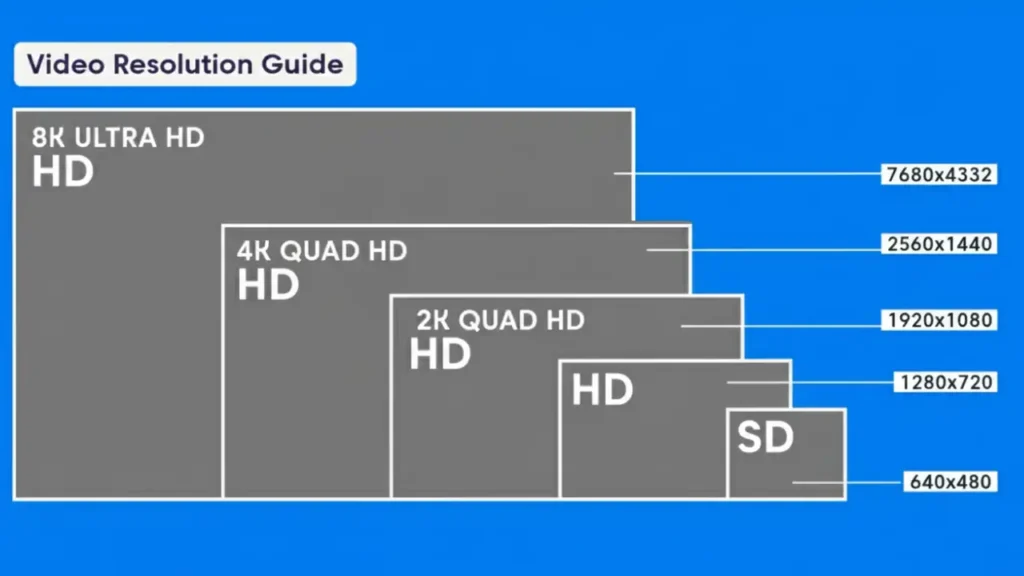
The most common resolutions for YouTube, all maintaining the 16:9 aspect ratio, are:
- 2160p (4K UHD): 3840 x 2160 pixels
- 1440p (2K/QHD): 2560 x 1440 pixels
- 1080p (Full HD): 1920 x 1080 pixels
- 720p (HD): 1280 x 720 pixels
For creators serious about quality in 2026, targeting 1080p as the minimum and 4K as the ideal upload standard is crucial. Uploading in 4K, even if most viewers watch in 1080p, provides YouTube with the highest quality source file for compression, resulting in a better-looking 1080p stream.
Optimal Settings for 4K YouTube Video Size (3840 x 2160)
4K Ultra High Definition (UHD) has become the benchmark for professional content creators. It offers four times the resolution of 1080p, providing incredible detail and clarity. However, achieving optimal 4K quality requires careful attention to encoding parameters, especially the bitrate.
Bitrate Recommendations for 4K Uploads
Bitrate is the amount of data encoded per second, measured in megabits per second (Mbps). A higher bitrate retains more detail but results in a larger file. YouTube recommends specific bitrates based on frame rate (FPS).
| Resolution | Standard Frame Rate (24-30 FPS) | High Frame Rate (48-60 FPS) |
|---|---|---|
| 4K (2160p) | 35-45 Mbps | 53-68 Mbps |
| 2K (1440p) | 16-25 Mbps | 24-38 Mbps |
| 1080p (HD) | 8-12 Mbps | 12-19 Mbps |
When exporting your video, aim for the higher end of these ranges. This gives YouTube’s compression algorithm the best possible data to work with. If your source file has a low bitrate, YouTube’s subsequent compression will introduce noticeable artifacts and blockiness, defeating the purpose of shooting in 4K.
Choosing the Right Codec: H.264 vs. VP9
The codec determines how the video data is compressed and decompressed. For years, H.264 (AVC) was the standard. However, YouTube heavily favors the VP9 codec for high-resolution content.
The VP9 Advantage: When you upload a 4K video, YouTube will usually encode it using the VP9 codec, which provides superior quality at lower bitrates compared to H.264. Crucially, YouTube prioritizes channels and videos uploaded in 4K for VP9 encoding. This is a significant quality advantage. If you upload in 1080p, your video is more likely to be compressed using the older, less efficient H.264 codec, leading to a noticeable drop in perceived quality.
Pro Tip: Always render your final output in H.264 (or the newer H.265/HEVC) at the highest recommended bitrate. Uploading a high-bitrate 4K file forces YouTube to assign it the premium VP9 codec treatment, ensuring maximum visual fidelity for your audience, regardless of the final viewing resolution.
Mastering 1080p HD YouTube Video Size Settings
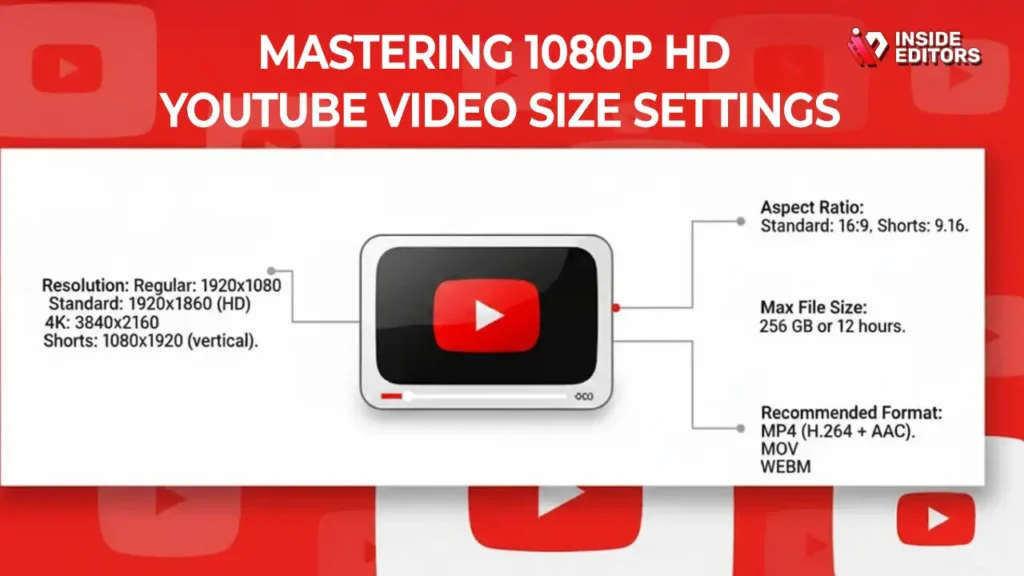
While 4K is the gold standard, 1080p (1920 x 1080) remains the most common viewing resolution globally. Optimizing your 1080p uploads ensures crisp playback for the majority of your audience who may be watching on mobile devices or standard monitors.
Frame Rate and Progressive Scanning
The frame rate (FPS) is the speed at which images are displayed, usually 24, 30, or 60 frames per second.
- 24 FPS: The cinematic standard, ideal for films and narrative content.
- 30 FPS: The standard for most web content, vlogs, and interviews.
- 60 FPS: Essential for gaming, sports, and fast-action footage where smooth motion is critical.
Always match your export frame rate to your source footage frame rate. Do not try to convert 30 FPS footage to 60 FPS in post-production; this only duplicates frames and adds no real value.
Interlaced vs. Progressive Scanning
When setting up your export, ensure you select Progressive Scanning (p), not Interlaced Scanning (i).
- 1080p: Progressive scanning draws every line of the frame sequentially. This is the modern standard for digital displays and provides a sharp, clear image.
- 1080i: Interlaced scanning draws odd lines, then even lines, which can cause motion artifacts or “combing” in fast-moving scenes.
Always confirm your export settings specify 1080p, ensuring the best possible YouTube Video Size quality for HD viewers.
File Format and Container
YouTube accepts a wide variety of container formats, but the most reliable and widely used is .MP4.
The MP4 container, combined with the H.264 codec, offers the best balance of quality, compression efficiency, and universal compatibility. While other formats like .MOV or .WMV are supported, MP4 is generally the fastest to upload and process.
Advanced Encoding Parameters for Professional Results
To truly maximize the quality of your YouTube Video Size and appearance, you need to look beyond the basic resolution and frame rate and focus on advanced encoding parameters. These details separate amateur uploads from professional-grade content.
Color Space and HDR Support
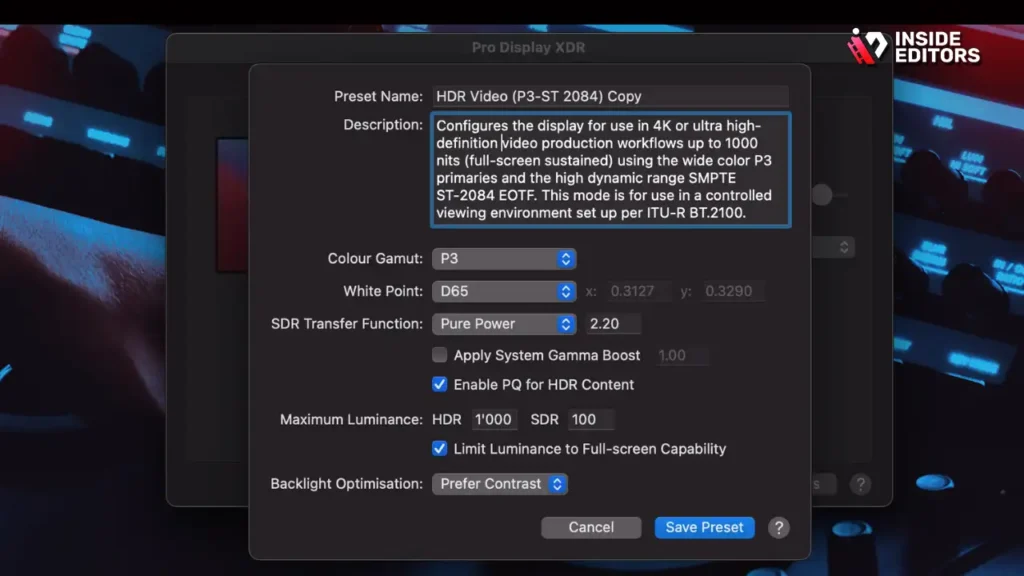
Color space defines the range of colors available in your video. Most traditional video uses the Rec. 709 color space. However, modern cameras and displays support High Dynamic Range (HDR), which utilizes the wider Rec. 2020 color space.
If you shoot and edit in HDR, ensure your export settings reflect this. YouTube fully supports HDR uploads, which offer brighter highlights, deeper blacks, and a significantly richer color palette. If you are not shooting HDR, stick to Rec. 709 and an 8-bit or 10-bit color depth.
“The future of video quality isn’t just about more pixels; it’s about better pixels. HDR and wider color gamuts are the next frontier for engaging the viewer’s eye.” – Dr. Anya Sharma, Video Technology Researcher
Constant Bitrate (CBR) vs. Variable Bitrate (VBR)

When exporting your video, you must choose a bitrate mode:
- Constant Bitrate (CBR): Maintains a fixed bitrate throughout the entire video. Simple and fast, but inefficient for scenes with low complexity (e.g., static shots).
- Variable Bitrate (VBR): Adjusts the bitrate based on the complexity of the scene. Complex scenes (fast motion, detailed textures) get a higher bitrate, while simple scenes get a lower one.
Recommendation: Always use Two-Pass Variable Bitrate (VBR). This method analyzes the entire video twice, ensuring the highest quality is applied precisely where it is needed most, leading to better compression and a smaller file size for the same visual quality compared to CBR. Set the target bitrate (e.g., 40 Mbps for 4K) and the maximum bitrate (e.g., 50 Mbps).
Common Mistakes in Setting YouTube Video Size and How to Avoid Them
Even experienced creators sometimes make simple mistakes that compromise their video quality.
| Mistake | Description | Solution |
|---|---|---|
| Re-encoding Uploads | Uploading a video that has already been compressed multiple times. | Always upload the highest quality, master export file directly to YouTube. |
| Low Bitrate Export | Exporting a 4K video at a 1080p bitrate (e.g., 10 Mbps). | Use the recommended high bitrates (35-45 Mbps for 4K) to preserve detail. |
| Mismatched Frame Rates | Shooting at 24 FPS but exporting at 30 FPS. | Ensure the source and export frame rates are identical to prevent stuttering. |
| Interlaced Scanning | Using the ‘i’ setting (e.g., 1080i) instead of ‘p’ (1080p). | Always select progressive scanning for modern web video. |
Avoiding these pitfalls ensures that the effort you put into filming translates directly into the best possible viewing experience for your audience.
The Importance of Professional Video Editing Services

While understanding the technical specifications of YouTube Video Size is vital, the actual process of editing, color grading, and exporting a perfectly optimized file can be incredibly time-consuming and complex. This is where professional support becomes invaluable.
Why Outsource Your Video Production Workflow?
Content creation demands consistency. Managing shooting schedules, scripting, and audience engagement leaves little time for meticulous technical editing and export optimization. Many creators find themselves bogged down by the technical requirements of codecs and bitrates.
This is why services like those offered by Inside Editors are essential for scaling channels. We specialize in taking your raw footage and delivering a perfectly optimized, high-quality final product ready for immediate upload, adhering strictly to the optimal YouTube Video Size and encoding standards discussed here.
Inside Editors: Your Partner in Quality Video Production

Inside Editors provides professional video editing services for businesses, content creators, and marketers focused on maximizing their digital presence. Our team of professional editors brings over 10 years of experience in optimizing video for platforms like YouTube.
Key Features of Our Service:
- Expertise: Professional editing team with 10+ years experience ensuring technical perfection.
- Speed: Fast turnaround (24-72 hours) means your content goes live quickly.
- Satisfaction: Unlimited revisions until you are completely satisfied.
- Affordability: Affordable pricing starting at $29/video, making professional quality accessible.
- Enhancements: Color grading and audio enhancement included to polish your final output.
Benefits for Creators: By partnering with Inside Editors, you save time and can focus entirely on content creation and audience engagement. You gain professional quality that builds trust and a consistent brand style across all your videos, providing a scalable solution for growing channels. We handle the complex encoding requirements, ensuring your 4K or HD video always meets the highest standards for YouTube Video Size and quality.
We understand the nuances of VP9 encoding, optimal bitrate settings, and color space conversion. We act as your quality assurance team, guaranteeing that the technical specifications of every upload are flawless.
Future-Proofing Your Content: Beyond 4K
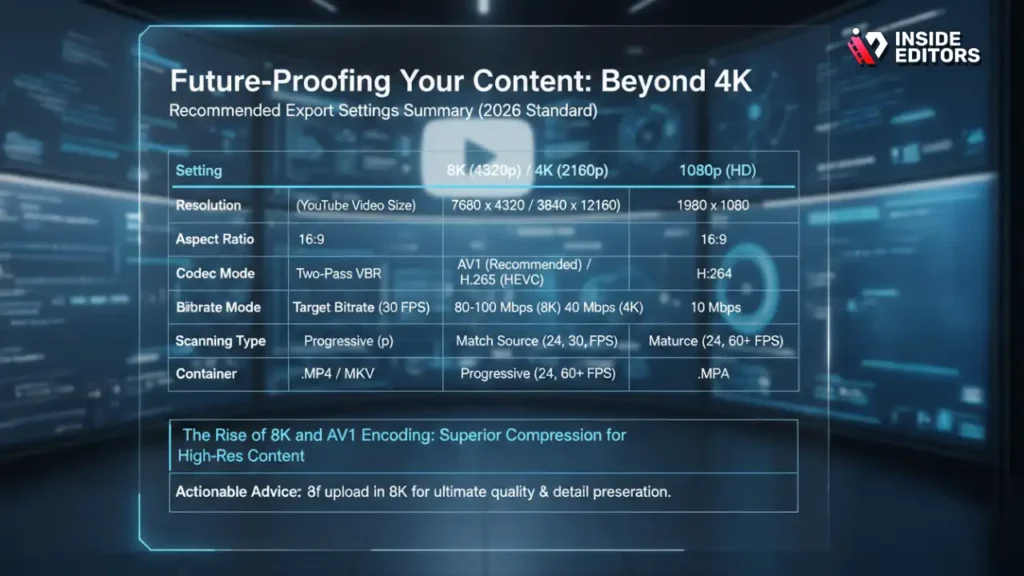
As we move toward 2026, the industry is already looking beyond 4K. While 8K (7680 x 4320) is currently niche, understanding its implications for YouTube Video Size is crucial for long-term planning.
The Rise of 8K and AV1 Encoding
YouTube already supports 8K uploads. Although few viewers have 8K displays, uploading in 8K offers the ultimate source file quality. The compression benefits are even more pronounced than with 4K.
To handle these massive files efficiently, the industry is adopting the AV1 codec. AV1 is the successor to VP9 and H.265, offering significantly better compression efficiency-up to 30% better than VP9 at the same quality level. YouTube is actively pushing AV1 adoption, especially for high-resolution and high-frame-rate content.
Actionable Advice: If your camera supports 8K capture, consider uploading in 8K. Even if you downscale the final output to 4K, the initial 8K source provides superior detail preservation when compressed by YouTube.
Recommended Export Settings Summary (2026 Standard)
| Setting | 4K (2160p) Recommendation | 1080p (HD) Recommendation |
|---|---|---|
| Resolution (YouTube Video Size) | 3840 x 2160 | 1920 x 1080 |
| Aspect Ratio | 16:9 | 16:9 |
| Codec | H.264 or H.265 (HEVC) | H.264 |
| Bitrate Mode | Two-Pass VBR | Two-Pass VBR |
| Target Bitrate (30 FPS) | 40 Mbps | 10 Mbps |
| Frame Rate | Match Source (24, 30, or 60 FPS) | Match Source (24, 30, or 60 FPS) |
| Scanning Type | Progressive (p) | Progressive (p) |
| Container | .MP4 | .MP4 |
Adhering to these specifications ensures that your content is optimized for the highest quality playback on any device, securing the longevity and professional appearance of your channel.
Finalizing Your Upload and Metadata

The technical specifications of your YouTube Video Size are only half the battle. To ensure YouTube accurately processes and displays your high-quality video, proper metadata is essential.
File Size Limits and Upload Speed
While YouTube doesn’t have a strict file size limit (it supports files up to 256 GB or 12 hours, whichever is less), extremely large files can take excessive time to upload and process. A highly optimized 4K, 10-minute video should generally be under 4 GB.
If you are dealing with very large files, ensure your internet connection is stable. Uploading during off-peak hours can sometimes speed up the process.
Processing Time and Quality Assurance
When you upload a high-resolution video, YouTube processes it in stages. The lower resolutions (360p, 720p) become available first. The full HD (1080p) and 4K (2160p) options take significantly longer, sometimes several hours, especially for long videos.
Crucial Step: Wait until the 4K or 2160p option is available in the quality settings of your uploaded video before making it public. This confirms that YouTube has completed the VP9 encoding process for your high-quality source file.
“Patience is key in the upload process. Rushing to publish before 4K processing is complete means your viewers might miss out on the intended quality.” – YouTube Creator Support Documentation
Conclusion: Elevating Your YouTube Video Size and Quality

Optimizing your YouTube Video Size settings for 4K and HD is a critical component of professional video production in 2026. By adhering to the 16:9 aspect ratio, utilizing high bitrates, and prioritizing progressive scanning and the MP4 container, you guarantee that your content looks its absolute best. Remember that uploading a 4K source file, even if viewers watch in 1080p, is the most effective way to trigger YouTube’s superior VP9 encoding.
For creators who want to maintain this level of technical excellence without sacrificing time, professional editing support is the answer. Inside Editors stands ready to handle the complexity of encoding, color correction, and final delivery. We offer professional video editing services with fast turnaround and guaranteed quality, allowing you to focus on what you do best: creating compelling content.
If you are ready to elevate your channel’s production value and ensure every upload is perfectly optimized, consider partnering with our expert team. We provide a reliable, scalable solution to maintain consistent, high-quality video output.
Frequently Asked Questions
What is the best YouTube Video Size resolution?
The best resolution for YouTube is 4K (3840 x 2160 pixels). Uploading in 4K ensures the highest quality source file, which triggers YouTube’s superior VP9 codec compression, resulting in a cleaner final stream, even for viewers watching in 1080p.
How important is the 16:9 aspect ratio?
The 16:9 aspect ratio is the industry standard and YouTube’s preferred format. Using this ratio ensures your video fills the player perfectly without distracting black bars, optimizing the overall YouTube Video Size display and viewer experience.
Why should I use Two-Pass VBR encoding?
Two-Pass Variable Bitrate (VBR) encoding is recommended because it analyzes the video twice. This process allocates higher bitrates to complex scenes (like fast action) and lower bitrates to simple scenes, maximizing visual quality while minimizing the final file size.
What bitrate is needed for 4K video?
For 4K video at standard frame rates (24-30 FPS), the recommended upload bitrate is between 35 and 45 Mbps. If you are using a high frame rate (60 FPS), aim for 53 to 68 Mbps to maintain optimal YouTube Video Size quality.
Can I upload an 8K video to YouTube?
Yes, YouTube supports 8K video uploads (7680 x 4320). While few viewers have 8K screens, uploading in this resolution provides the absolute highest quality source file, future-proofing your content and maximizing compression benefits.
Should I use H.264 or VP9 for export?
You should export using H.264 or H.265 (HEVC). YouTube automatically converts high-resolution uploads to the superior VP9 codec internally. Uploading a high-bitrate H.264 file ensures YouTube uses the best available compression technology.
How long does 4K processing take?
Processing time for 4K video varies based on length and traffic, often taking several hours. You must wait until the 2160p option appears in the quality settings before making the video public to ensure full, high-quality YouTube Video Size processing is complete.


