

If you’re a YouTube creator serious about crafting polished, professional videos, the iMac has likely caught your eye. Its blend of performance, sleek design, and seamless software integration makes it one of the most reliable all-in-one computers for video editing. But with multiple configurations, chip options, and display sizes, finding the best iMac for YouTube video editing can feel overwhelming – especially if you’re trying to balance budget, performance, and long-term value.
That’s exactly where this Inside Editors Guide comes in. Whether you’re a beginner filmmaker or a full-time content creator, this guide will help you identify which iMac fits your workflow best in 2026 – and why investing wisely now will pay off for years to come.
Why the iMac Is Still a Creator’s Favorite in 2026
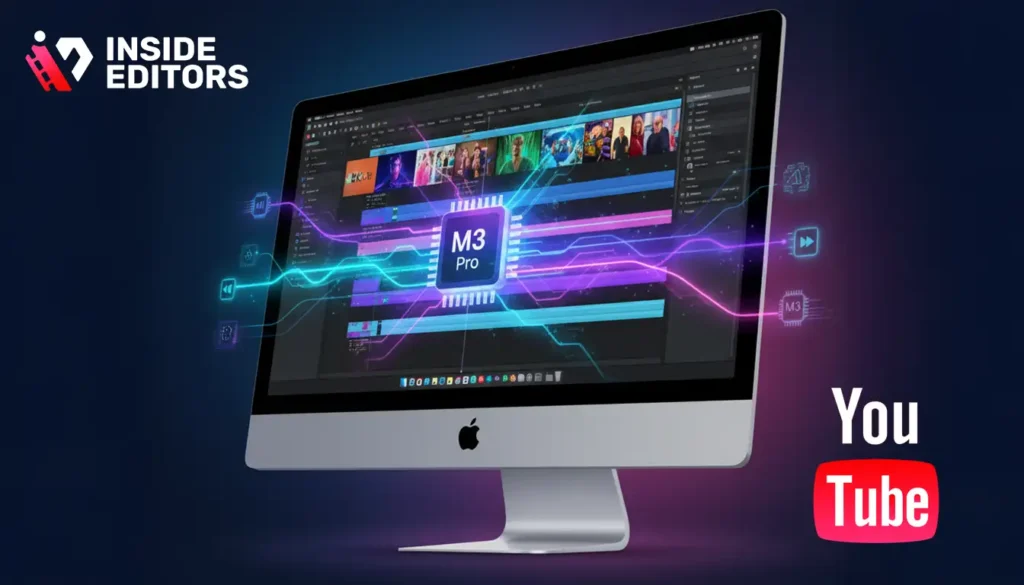
The iMac’s dominance in creative industries didn’t happen overnight. Apple’s ability to blend powerful hardware with intuitive software has made it a go-to workstation for editors who demand reliability and performance. The all-in-one form factor also means you’re not juggling multiple cables, external displays, or mismatched peripherals – everything simply works.
Apple Silicon Changed the Game
When Apple introduced its M-series chips, it redefined what editing performance meant on a desktop. The older Intel-based iMacs struggled with thermal throttling and slow render speeds, but Apple Silicon – particularly the M3 Pro and M3 Max chips – brought efficiency, speed, and near-instant responsiveness to creative workflows.
For video editors, this means:
- Faster rendering in Final Cut Pro, Premiere Pro, and DaVinci Resolve.
- Smoother timeline playback even with 4K or 8K footage.
- Silent performance, thanks to advanced thermal management.
As of 2026, Apple’s iMac lineup runs on M3 chips, offering a perfect mix of power and energy efficiency – ideal for YouTubers editing on tight deadlines.
Ecosystem Integration for YouTubers
Another key reason creators love iMacs is Apple’s ecosystem synergy. If you shoot on an iPhone, store footage on iCloud, and manage projects on MacBook or iPad, everything syncs effortlessly. AirDrop makes transferring clips instant, while features like Universal Clipboard and Sidecar (using your iPad as a secondary display) make multitasking smoother than ever.
In short, the iMac isn’t just a device – it’s the central hub of a creative workflow built for efficiency and collaboration.
What Makes an iMac Ideal for YouTube Video Editing
Before jumping into specific models, it’s worth understanding what separates a good editing computer from a great one. Every editor’s needs differ, but a few universal elements matter most.
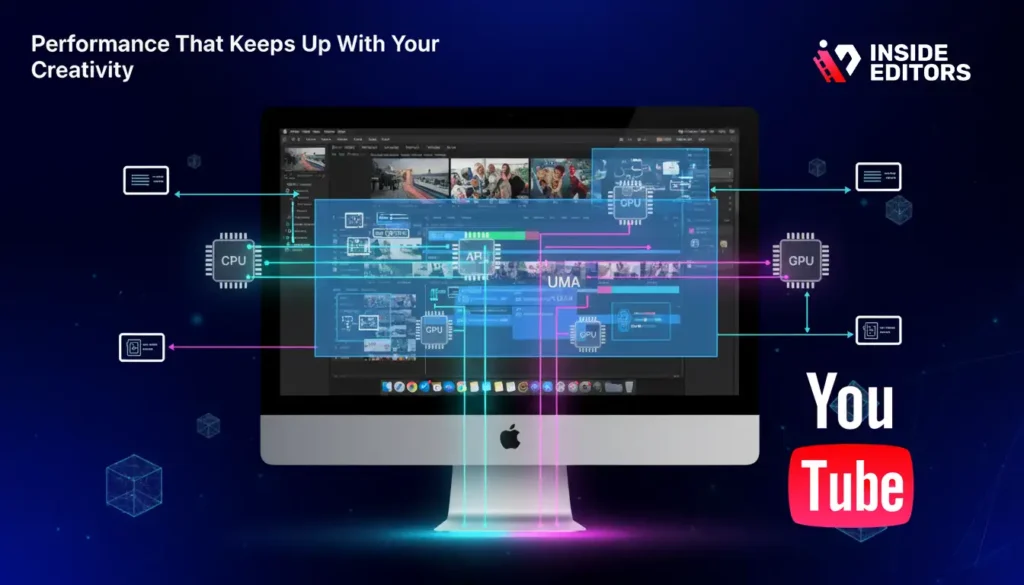
1. Performance That Keeps Up With Your Creativity
Video editing demands processing power. Rendering transitions, color grading, and exporting high-resolution footage are resource-heavy tasks. The iMac’s unified memory architecture (UMA) allows the CPU and GPU to share memory seamlessly, reducing lag and improving efficiency.
For YouTube creators editing 4K footage, the M3 iMac’s 8-core CPU and 10-core GPU configuration offers remarkable real-world performance. Tasks that took minutes on Intel-based systems now happen in seconds.
2. Display Quality That Reflects Reality
Your monitor is where you make every creative decision. The 24-inch 4.5K Retina Display on the latest iMac delivers over 1 billion colors and 500 nits of brightness – essential for accurate color grading. For editors producing cinematic or branded content, color fidelity can make or break the final result.
Even if you later upgrade to a studio monitor, the built-in display ensures a professional-grade editing experience from day one.
3. Storage and Memory That Future-Proof Your Workflow
Editing large files requires both space and speed. SSDs on the latest iMac models offer lightning-fast access to media libraries, while unified memory configurations of 16GB or 24GB handle multitasking with ease. If you often run heavy plugins, motion graphics, or multiple browser tabs, opt for 24GB – it’ll extend the iMac’s lifespan for years.
Top iMac Models for YouTube Editing in 2026

Choosing the right iMac depends on the kind of videos you produce and how complex your edits are. Let’s break down the best options for different creator levels.
1. iMac (M3, 24-inch) – Best for Most YouTubers
For 80% of creators, the M3 iMac (2025–2026 model) strikes the perfect balance between price and performance. It’s powerful enough for 4K editing, thumbnail design, and content batching – all while looking gorgeous on any studio desk.
Key Specs:
- Apple M3 chip (8-core CPU, 10-core GPU)
- 24-inch 4.5K Retina Display
- Up to 24GB Unified Memory
- Up to 2TB SSD Storage
Best For: YouTubers, vloggers, educators, and small business creators who edit regularly in Final Cut Pro, DaVinci Resolve, or Premiere Pro.
Why It Works: Its thermal efficiency means you can edit for hours without fan noise or overheating, and the integrated GPU handles color correction effortlessly.
If your channel revolves around lifestyle, tutorials, or interviews, this iMac offers enough power to handle multi-cam editing and heavy rendering – without needing a separate workstation.
2. iMac with M3 Pro (Expected Late 2026) – For Heavy Video Editors
While Apple hasn’t officially released a Pro-tier iMac as of early 2026, all indicators point toward a 27-inch iMac with M3 Pro or Max chip launching later this year. Based on the MacBook Pro’s M3 Pro benchmarks, this will likely deliver a 40–60% performance boost compared to the M3 base model.
Ideal Use Case: Full-time editors producing cinematic or long-form content, such as documentaries or branded videos.
Why Consider It: The M3 Pro or M3 Max chips provide extra GPU cores, faster memory bandwidth, and better heat management – crucial for handling complex projects with multiple effects and 8K footage.
When it launches, this model will likely become the new standard for professional editors seeking a larger screen and studio-grade performance.
3. Refurbished iMac (M1, 24-inch) – Best Budget Option
If you’re a beginner or hobbyist, a refurbished M1 iMac is still a fantastic entry point. Despite being two generations old, the M1 chip continues to outperform many Intel-based systems and handles 4K editing comfortably.
Pros:
- Affordable (often under $1,000 refurbished)
- Still compatible with macOS Sonoma and future updates
- Great energy efficiency
Cons:
- Limited to 16GB unified memory
- Slightly slower export times for heavy projects
If you’re on a budget, invest in more storage rather than more cores. 1TB SSD storage will serve you better long-term than a minor GPU upgrade.
Real-World Scenarios: Matching the Right iMac to Your Workflow
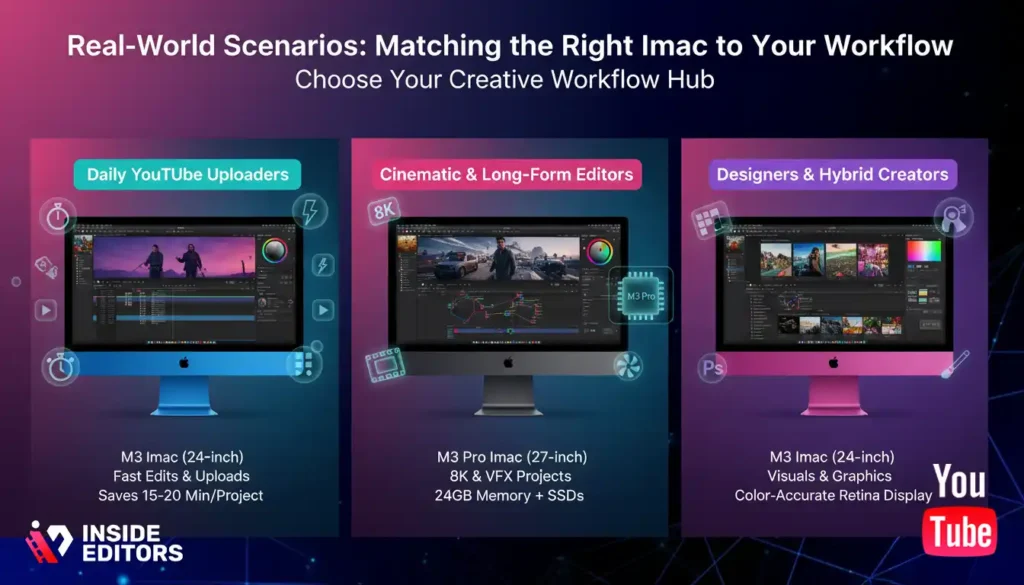
Let’s translate specs into real-world experiences – because choosing the right machine isn’t just about numbers; it’s about how it feels when you’re in the editing zone.
For Daily YouTube Uploaders
If you’re posting 3–5 videos a week, speed matters more than raw power. The M3 iMac offers instant wake times, fast app switching, and consistent rendering speeds – saving you 15–20 minutes per project. Over a month, that’s hours of regained productivity.
For Cinematic or Long-Form Editors
Creators who work with cinematic b-rolls, LUTs, and multiple camera angles will benefit from more unified memory (24GB) and external SSDs for smooth 8K playback. The expected M3 Pro iMac or a Mac Studio setup paired with a 5K display would be ideal.
For Designers and Hybrid Creators
If you also design thumbnails, intros, or branding graphics, you’ll appreciate the iMac’s color-accurate Retina Display and seamless integration with Affinity Designer, Photoshop, and After Effects. The M3 iMac’s 10-core GPU handles these visual tasks effortlessly.
Each scenario shows one thing clearly: the best iMac for YouTube video editing depends on your workflow intensity, not just your budget.
Editing Software Compatibility: Why macOS Shines for Creators
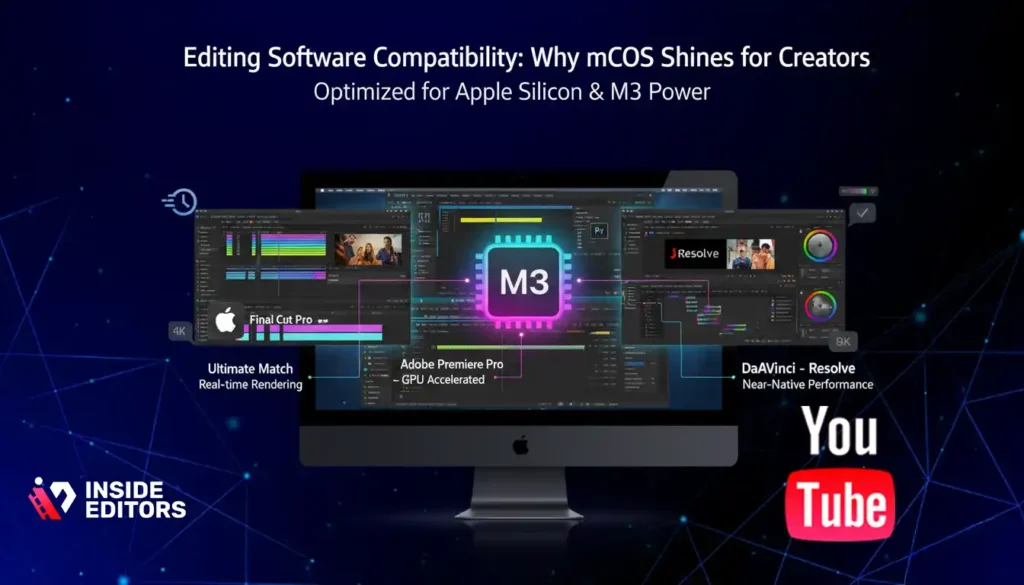
A modern editing desk featuring an iMac running Final Cut Pro on macOS – highlighting seamless software compatibility, smooth performance, and creative efficiency for YouTube creators.
You can have the best machine, but without optimized software, your workflow won’t reach its full potential. One major advantage of the iMac is how well macOS handles video editing applications.
Final Cut Pro – The Ultimate Match
Apple’s own Final Cut Pro is optimized to use every bit of the M3 chip’s power. Real-time rendering, background exporting, and machine learning-driven effects (like Smart Conform and Voice Isolation) make editing smooth and efficient.
Creators report that exporting a 10-minute 4K video takes under 3 minutes on the M3 iMac – a huge leap from previous Intel versions.
Adobe Premiere Pro and DaVinci Resolve
Both Adobe and Blackmagic Design have fully optimized their software for Apple Silicon. You can expect near-native performance, smooth GPU acceleration, and faster encoding times – even with heavy color correction or motion graphics layers.
For creators using multiple platforms, setting up a proxy workflow (editing low-res versions, then exporting in full-res) maximizes efficiency and prevents slowdowns during live previews.
Common Mistakes Creators Make When Choosing an iMac
Even experienced creators can slip into common traps when buying or configuring their iMac. Avoiding these pitfalls ensures your investment pays off for years.
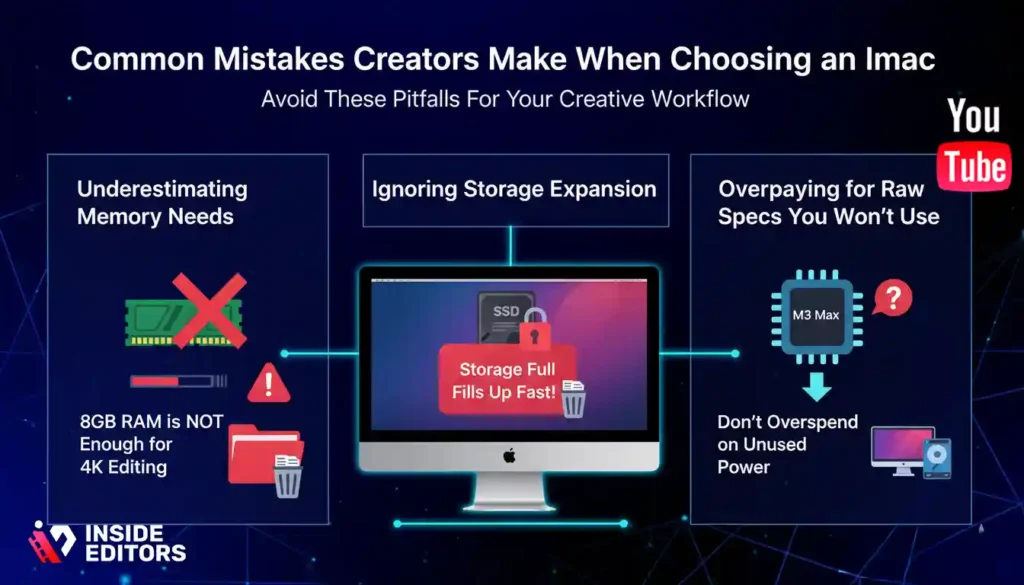
1. Underestimating Memory Needs
Many buyers settle for the base 8GB RAM, assuming Apple’s optimization compensates for it. While macOS does handle memory efficiently, video editing eats RAM fast. For consistent 4K editing, always aim for 16GB or higher.
2. Ignoring Storage Expansion
Footage files, cache data, and renders add up quickly. It’s tempting to save money by choosing 256GB storage, but you’ll fill that up within weeks. Always choose 512GB or 1TB, especially if you’re editing high-resolution videos regularly.
3. Overpaying for Raw Specs You Won’t Use
If your workflow doesn’t involve heavy visual effects or 3D motion graphics, you may not need an M3 Max-level system. Investing in better storage and display accessories can often yield more tangible results than raw processing power alone.
Optimizing Your iMac Setup for YouTube Editing
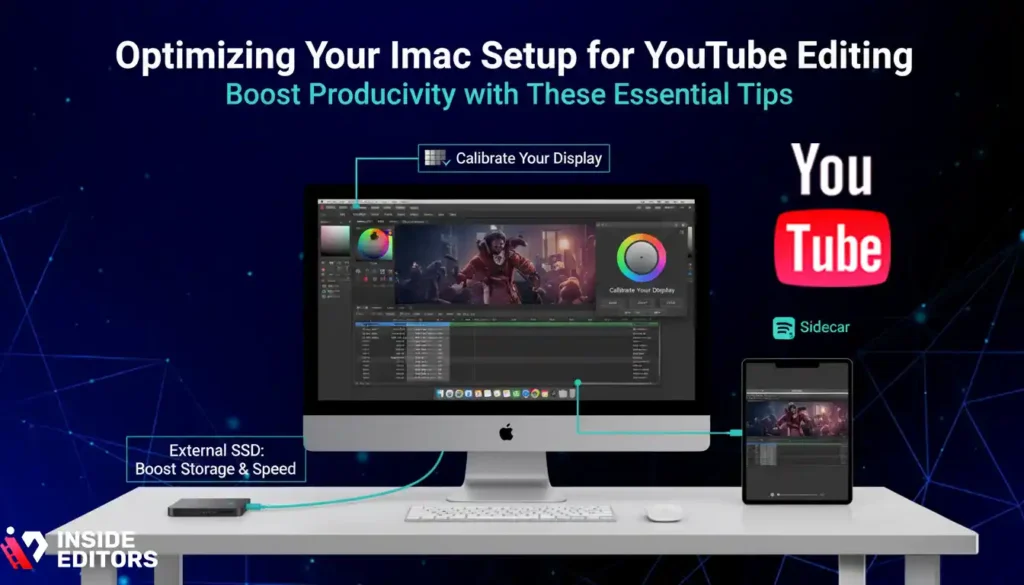
Once you’ve picked the right iMac, your next goal is to optimize your workspace so every click, cut, and render feels effortless. Even the most powerful machine can underperform without the right setup, accessories, and workflow habits.
Calibrate Your Display for True-to-Life Color
If you’re producing branded content, tutorials, or cinematic vlogs, color accuracy is everything. A slightly off tint on your iMac display could make your skin tones look unnatural or your brand colors inconsistent.
Use Apple’s built-in Display Calibration Assistant or external tools like X-Rite i1Display Pro to ensure your footage looks the same on all screens – from smartphones to TVs.
Regular calibration not only enhances your color grading precision but also ensures client satisfaction if you deliver commercial projects.
Boost Storage and Speed with External Drives
Video editors live and die by storage speed. Even with a 1TB internal SSD, you’ll soon run out of space when editing 4K or 8K projects. Invest in a Thunderbolt 4 SSD like the Samsung T9 or SanDisk Extreme Pro for fast read/write speeds and reliable backups.
A good workflow is to store raw footage externally while keeping your project files and cache on your iMac’s internal SSD. This minimizes lag during playback and ensures faster exports – a strategy many professionals at Inside Editors follow in studio projects.
Leverage Dual Displays or Sidecar with iPad
Having a second screen dramatically improves your editing workflow. You can dedicate one screen to your timeline and another to effects or full-screen playback. If you own an iPad, Apple’s Sidecar feature lets you extend your iMac’s display instantly – no extra cables needed.
This setup boosts focus and productivity, especially when you’re color grading or reviewing footage side-by-side with your editing timeline.
Software Tools That Maximize Your Editing Efficiency
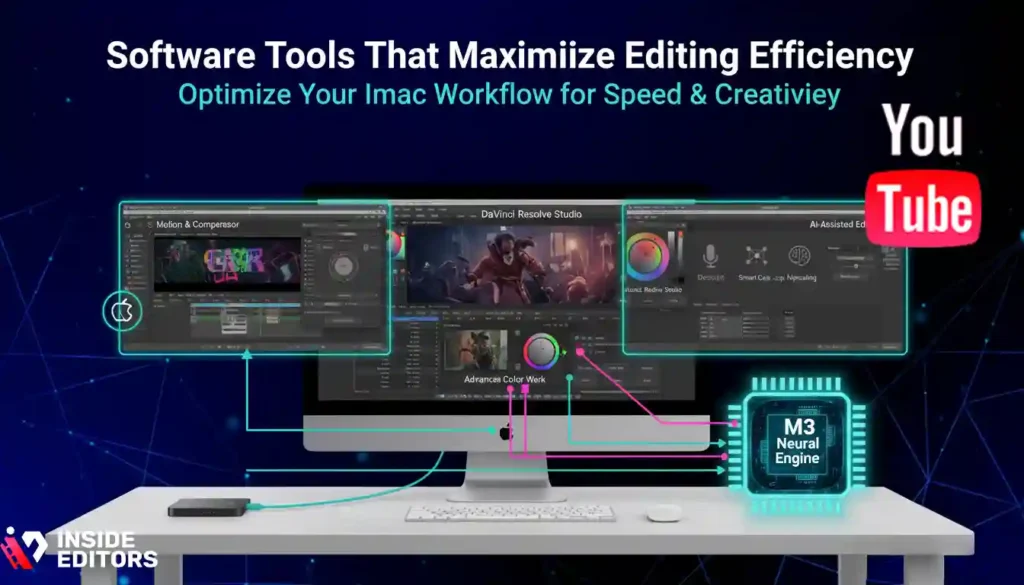
Beyond Final Cut Pro or Premiere Pro, your software ecosystem determines how fast and creatively you can work. Let’s explore the must-have tools every iMac editor should consider in 2026.
1. Motion and Compressor for Apple Editors
If you’re using Final Cut Pro, adding Motion (for animations) and Compressor (for encoding) is a game-changer. Motion enables dynamic text animations and visual effects that would otherwise require After Effects, while Compressor allows you to export directly in YouTube-optimized codecs like H.264 or HEVC.
2. DaVinci Resolve Studio for Advanced Color Work
For editors seeking cinematic depth, DaVinci Resolve Studio offers industry-leading color correction and grading. Apple Silicon optimization ensures buttery-smooth playback even with multiple LUTs applied.
Its Color Management System lets you adjust tonal ranges with precision, making it perfect for lifestyle, fashion, or travel vloggers aiming for filmic looks.
3. AI-Assisted Editing Tools
AI-driven plugins are transforming how creators work. In 2026, tools like Runway ML, Topaz Video AI, and Descript automate repetitive tasks such as noise removal, captioning, and smart cutting.
For example, Descript’s “Overdub” lets you edit spoken audio like text – perfect for correcting small narration errors without re-recording. Meanwhile, Topaz Video AI enhances resolution and sharpness, saving countless hours in post-production.
Inside Editors Insight: The future of editing is hybrid – human creativity powered by AI precision. iMacs, thanks to their neural engine, handle these smart tools more efficiently than many Windows PCs.
Accessories That Elevate Your Editing Experience
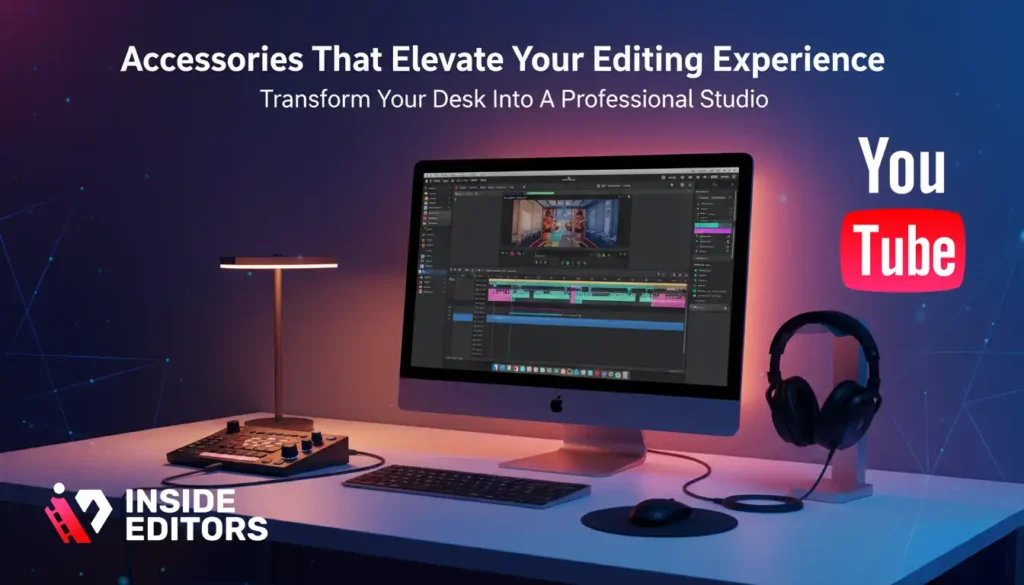
A well-chosen accessory can turn a good workstation into a professional editing suite. Here are a few essentials that bring comfort and efficiency to your setup.
Ergonomic Keyboard and Editing Controllers
Apple’s Magic Keyboard works well for general use, but professional editors often prefer customizable shortcut devices like the Loupedeck+ or TourBox Elite. These tools let you assign editing actions – trimming, color grading, zooming – to physical dials, saving precious time.
Studio-Grade Headphones
Accurate sound monitoring is just as important as sharp visuals. The Sony WH-1000XM5 or Audio-Technica M50x headphones deliver neutral, detailed sound, ensuring your voiceovers and music layers blend perfectly before upload.
Comfortable Lighting and Eye Care
Editing long hours under bright displays strains the eyes. Install adjustable bias lighting behind your iMac or use warm desk lamps to reduce contrast stress. It not only improves focus but also helps maintain consistent color perception during night sessions.
Comparing iMac vs Mac Studio vs MacBook Pro for YouTubers
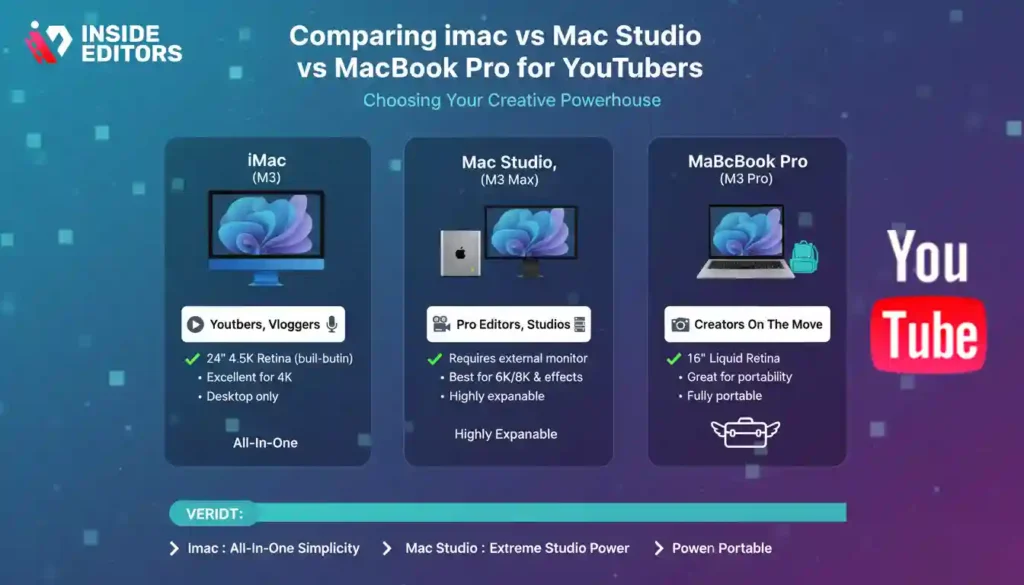
Some creators wonder if they’d be better off with a Mac Studio or MacBook Pro instead of an iMac. Let’s make a clear, professional comparison.
| Feature | iMac (M3) | Mac Studio (M3 Max) | MacBook Pro (M3 Pro) |
| Display | 24” 4.5K Retina (built-in) | Requires external monitor | 14” or 16” Liquid Retina |
| Performance | Excellent for 4K | Best for 6K/8K & effects | Great for portability |
| Expandability | Limited | Highly expandable | Moderate |
| Portability | Desktop only | Desktop only | Fully portable |
| Ideal For | YouTubers, vloggers | Pro editors, studios | Creators on the move |
If you prioritize all-in-one simplicity and beautiful display quality, the iMac remains unbeatable for YouTube creators.
If you need extreme performance for studio-grade productions, Mac Studio wins – but you’ll need an external monitor.
For hybrid creators who film on location, the MacBook Pro (M3 Pro) is ideal for mobility without sacrificing power.
Professional Workflow Tips from Inside Editors
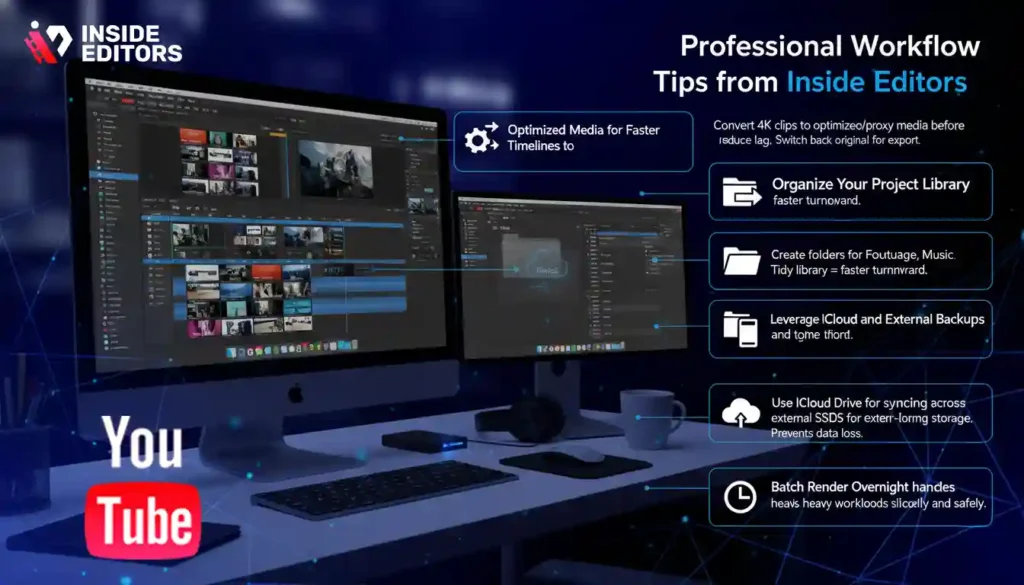
At Inside Editors, we work daily with YouTubers, brands, and agencies creating high-impact content. Over time, our editors have developed proven workflows to maximize speed and quality when editing on iMac.
Use Optimized Media for Faster Timelines
When editing multiple 4K clips, convert them to optimized or proxy media before starting. This reduces playback lag and keeps the creative flow uninterrupted. Once the edit is complete, switch back to original media for export.
Organize Your Project Library
Save hours of confusion by organizing your library early:
Create folders for Footage, Music, Graphics, and Exports before importing files. A tidy library means fewer missing clips and faster project turnaround – crucial for weekly uploads.
Leverage iCloud and External Backups
Use iCloud Drive to keep project files synced across your devices and external SSDs for long-term storage. Cloud redundancy protects you from data loss – a mistake even experienced editors have made once.
Batch Render Overnight
Rendering can consume hours. Queue multiple projects and let your iMac process them overnight. Thanks to Apple Silicon’s energy efficiency, it handles heavy workloads silently and safely while you rest.
Common Pitfalls That Slow Down Your Editing
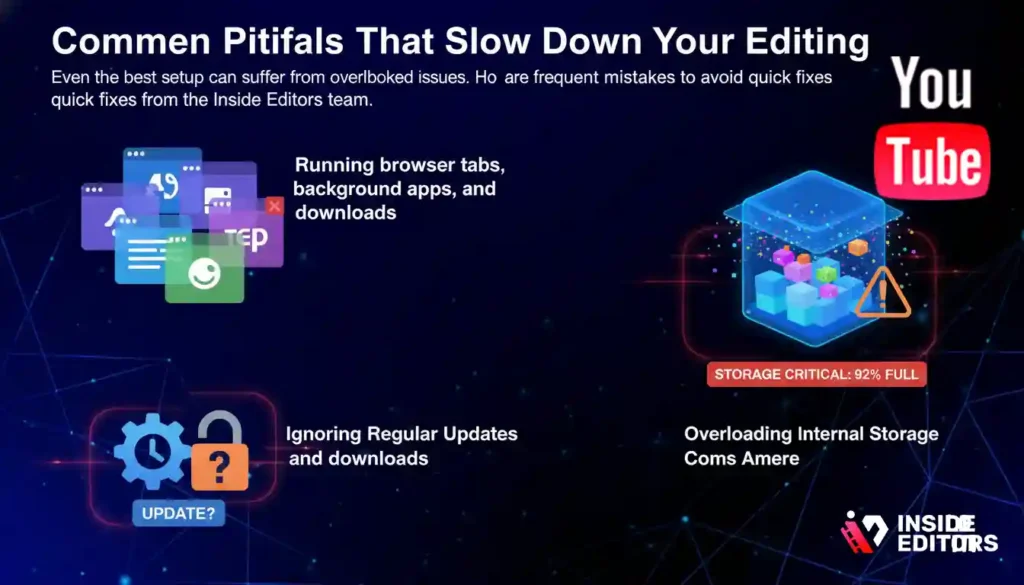
Even the best setup can suffer from overlooked issues. Here are frequent mistakes to avoid and quick fixes from the Inside Editors team.
Forgetting System Optimization
Running browser tabs, background apps, and downloads during editing slows your system. Before opening Final Cut Pro or Premiere, close all unnecessary programs. A clean macOS session ensures consistent performance.
Ignoring Regular Updates
Many creators delay macOS and software updates fearing instability – but newer patches often fix performance bottlenecks and GPU optimization bugs. Always back up your projects, then update safely to the latest stable version.
Overloading Internal Storage
Once your SSD exceeds 80% capacity, performance can drop sharply. Move old projects to external drives monthly to maintain editing speed and OS responsiveness.
Why Investing in the Right iMac Saves You Time and Money
Think of your iMac not as a cost but as a creative investment. The right setup doesn’t just make editing faster – it improves consistency, reduces errors, and frees your energy for storytelling instead of troubleshooting.
For YouTube creators, time is currency. Every hour saved in post-production can go into brainstorming new ideas, improving thumbnails, or engaging with your audience. That’s why Inside Editors always recommends choosing quality over short-term savings – your growth depends on it.
How Inside Editors Elevates Your YouTube Workflow
Even with the best iMac, editing can become overwhelming – especially when deadlines pile up or brand quality expectations rise. That’s where Inside Editors helps creators bridge the gap between creativity and consistency.
Our professional editors handle everything from YouTube vlog editing to corporate storytelling and short-form reels. We don’t just trim clips – we enhance pacing, emotion, and visual flow to help your videos stand out in a crowded feed.
Imagine focusing on filming and storytelling while our experts polish transitions, color balance, and sound design.
That’s not outsourcing – that’s collaboration with professionals who understand YouTube’s pulse.
Explore Inside Editors’ Video Editing Services.
Whether you create fitness content, travel documentaries, or product reviews, Inside Editors offers customized editing that fits your brand voice and schedule – ensuring every video reflects your vision with cinematic precision.
Final Thoughts: Finding Your Perfect iMac for YouTube Editing
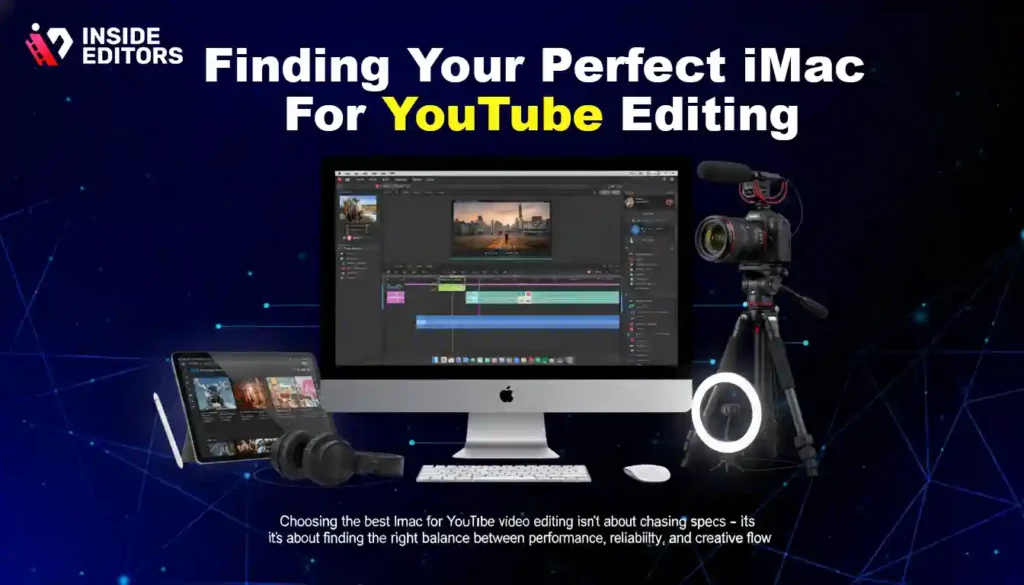
Choosing the best iMac for YouTube video editing isn’t about chasing specs – it’s about finding the right balance between performance, reliability, and creative flow.
If you’re a casual creator or starting your YouTube journey, the M3 iMac (24-inch) delivers everything you need to edit, render, and upload efficiently.
For professionals or filmmakers working on complex projects, the upcoming M3 Pro iMac or a Mac Studio setup will future-proof your workflow.
Whichever route you take, remember: tools are only half the equation. The real magic lies in how you tell your story – and with the right iMac, that storytelling becomes smoother, faster, and infinitely more rewarding.
Ready to Take the Next Step?
If you’re ready to elevate your channel with consistent, professional-grade edits, Inside Editors is here to help. Our team understands both the creative vision and the technical precision YouTube demands.
Let us handle the editing – you focus on creating. Explore: Inside Editors – Video Editing Services
FAQs – Best iMac for YouTube Video Editing
Is the iMac really good for YouTube video editing?
Yes – the iMac is one of the best all-in-one computers for YouTube editing. With Apple’s M3 chip, unified memory, and 4.5K Retina display, it handles 4K/8K footage smoothly while maintaining accurate colors. It’s a top choice for creators who value speed, simplicity, and long-term reliability.
How much does a good iMac for video editing cost?
The M3 iMac (2026) starts around $1,299, while higher-end models with more RAM and storage can reach $2,499–$2,999. Most YouTubers find the mid-tier configuration (16 GB RAM, 1 TB SSD) ideal. Costs exclude accessories like external drives or calibration tools, which can add $200–$400 depending on setup.
What’s the difference between editing on an iMac vs MacBook Pro?
The iMac offers a larger built-in 4.5K display, ideal for color grading and detailed editing, while the MacBook Pro provides portability for creators on the go. Both use Apple Silicon, but the iMac gives better value for stationary studios, and the MacBook Pro suits hybrid or travel workflows.
How long does video editing typically take on an iMac?
Editing speed depends on your footage and workflow. A 10-minute 4K YouTube video usually takes 1–2 hours to edit and under 5 minutes to export on an M3 iMac using Final Cut Pro. Rush projects can be completed faster with proxy media or by offloading rendering to overnight batches.
Who owns the final edited content when using Inside Editors’ services?
You retain full ownership and rights to all delivered files. Inside Editors only accesses your footage securely during the project. Once complete, final assets and source files are transferred to you, and temporary working copies are deleted to protect your privacy.
What’s included in Inside Editors’ video editing packages?
Each package includes cutting, color grading, sound balance, and basic motion graphics. Revisions are typically offered 1–2 times per project based on plan level. Add-ons like captioning, subtitles, or advanced animation are available separately for a small fee – keeping pricing flexible for creators.
Can I edit YouTube videos myself instead of hiring professionals?
Absolutely – many creators start with DIY editing using Final Cut Pro or DaVinci Resolve. However, professional editors save time and elevate polish through advanced storytelling, pacing, and visual design. If you’re growing fast, outsourcing helps maintain consistency without burning out.
How secure is my footage when working with Inside Editors?
Inside Editors follows strict privacy protocols. All client files are stored in encrypted cloud environments and deleted after delivery. NDAs are available upon request for sensitive projects, ensuring complete confidentiality throughout the editing process.


