

The world of content creation is dominated by video. Whether you are a professional filmmaker, a YouTube creator, or a marketing specialist, having the right equipment is non-negotiable. The core of your production workflow is the machine you use to render, color grade, and finalize your projects. Choosing the right desktop computer for video editing is perhaps the most crucial hardware decision you will make. This guide provides expert, step-by-step advice to help you navigate the technical specifications and build or buy the perfect workstation tailored to your specific video editing needs.
A powerful desktop computer for video editing must handle intensive, multi-threaded tasks, manage massive file sizes, and render complex effects quickly. If you are currently struggling with slow playback or endless rendering times, it is time to upgrade. We will break down the essential components, evaluate performance trade-offs, and ensure you invest wisely in a system that maximizes your creative output.
Understanding the Demands of Modern Video Editing
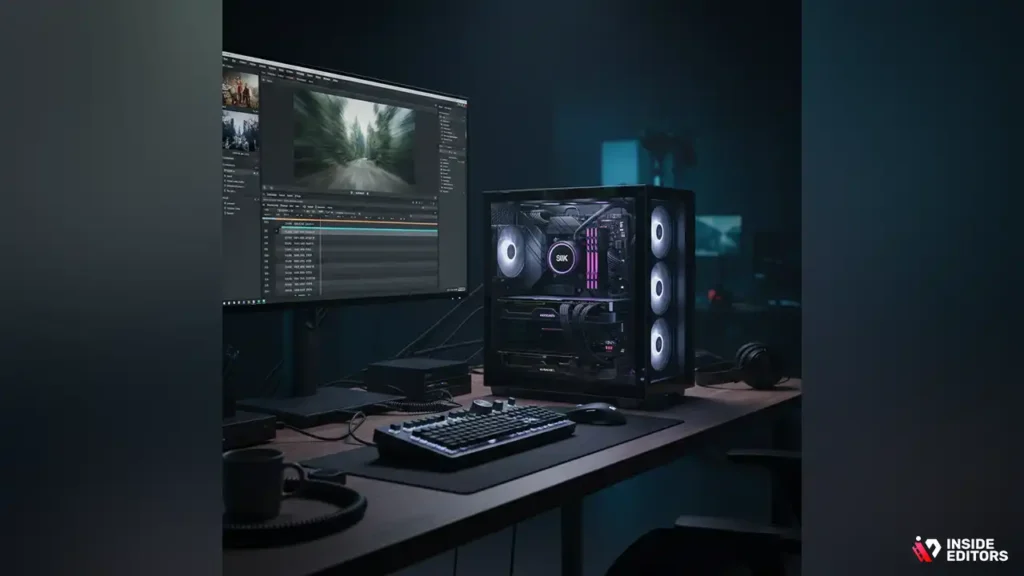
Video editing is one of the most demanding tasks you can put a computer through. It requires sustained performance across multiple components simultaneously. Unlike simple tasks, editing high-resolution footage (like 4K or 8K) stresses the CPU, GPU, RAM, and storage all at once.
Why Standard Desktops Fall Short
Many consumers purchase general-purpose desktop computers thinking they can handle video work. While basic editing of 1080p footage might be possible, these systems quickly buckle under the pressure of professional workflows. Standard desktops often lack the necessary cooling, dedicated graphics power, and high-speed storage required for smooth timeline scrubbing and rapid exporting. If you plan to work with demanding codecs like H.265 or RAW formats, a specialized desktop computer for video editing is essential.
“A video editing workstation isn’t just a fast computer; it’s a balanced ecosystem where every component is optimized to reduce bottlenecks and maximize creative flow.” – Linus Sebastian, Tech Reviewer
Defining Your Editing Workflow and Needs
Before selecting hardware, you must first define your typical workflow. Are you editing short, social media clips in 1080p, or are you tackling feature-length projects in 4K or even 8K resolution? The resolution, frame rate, and complexity of your projects directly dictate the minimum specifications required for your desktop computer for video editing.
| Workflow Level | Typical Resolution | Required CPU Cores | Minimum RAM | Storage Need |
| Entry-Level | 1080p (HD) | 4 to 6 | 16 GB | 500 GB SSD |
| Professional 4K | 4K (UHD) | 8 to 12 | 32 GB | 1 TB NVMe + Bulk HDD |
| High-End/8K | 6K/8K/RAW | 16+ | 64 GB+ | Multiple High-Speed NVMe Drives |
This initial assessment prevents overspending on unnecessary power or, worse, underspending on a machine that will frustrate you daily.
Core Component Deep Dive: The CPU and GPU
The central processing unit (CPU) and the graphics processing unit (GPU) are the twin engines of any high-performance desktop computer for video editing. Understanding their roles is key to making the right investment.
The Central Processing Unit (CPU): The Timeline Master

The CPU handles the heavy lifting of decoding video files, processing effects, and managing the overall operating system. For video editing, you need a CPU with a high core count and strong single-core performance. While many editing tasks benefit from multiple cores (multi-threading), tasks like timeline scrubbing and basic playback rely on single-core speed.
Key CPU Considerations:
- Core Count: Aim for at least 8 cores for 4K editing. More cores mean faster rendering times, as the software can distribute the workload across more processors.
- Clock Speed: Higher clock speeds (measured in GHz) improve responsiveness and timeline fluidity.
- Cache Size: A larger cache helps the CPU access frequently used data faster, significantly speeding up complex calculations.
For a serious desktop computer for video editing, look at the mid-to-high-end lines from Intel (Core i7/i9) or AMD (Ryzen 7/9). These chips offer the ideal balance of core count and clock speed necessary for sustained editing sessions.
The Graphics Processing Unit (GPU): Acceleration and Effects
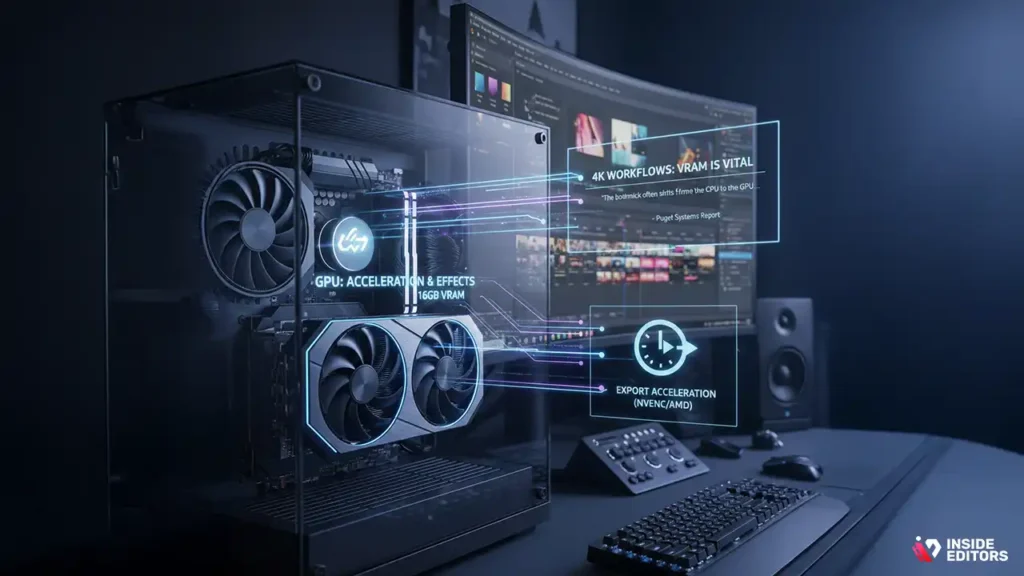
The GPU, once considered secondary, is now critical. Modern editing software (like DaVinci Resolve, Premiere Pro, and Final Cut Pro) heavily utilizes the GPU for hardware acceleration, especially for tasks like complex color grading, visual effects (VFX), stabilization, and encoding/decoding specific codecs.
VRAM is Vital: The amount of dedicated video memory (VRAM) is often more important than the raw processing power of the GPU chip itself. For 4K Long Form Video Editing, 8GB of VRAM is the minimum, and 12GB or 16GB is highly recommended, particularly if you plan on using multiple layers of effects or working in 6K/8K.
“The bottleneck in modern 4K workflows often shifts from the CPU to the GPU when complex effects or intensive color correction are applied. Investing in sufficient VRAM is non-negotiable for high-end work.” – Puget Systems Report
When selecting a desktop computer for video editing, prioritize GPUs with strong encoding capabilities (like NVIDIA’s NVENC or AMD’s equivalent) as this dramatically accelerates the final export process.
Memory and Storage: Speed and Capacity
If the CPU and GPU are the engines, RAM and storage are the fuel lines and the workspace. Insufficient memory or slow storage will create frustrating bottlenecks, regardless of how powerful your processor is.
Random Access Memory (RAM): The Active Workspace
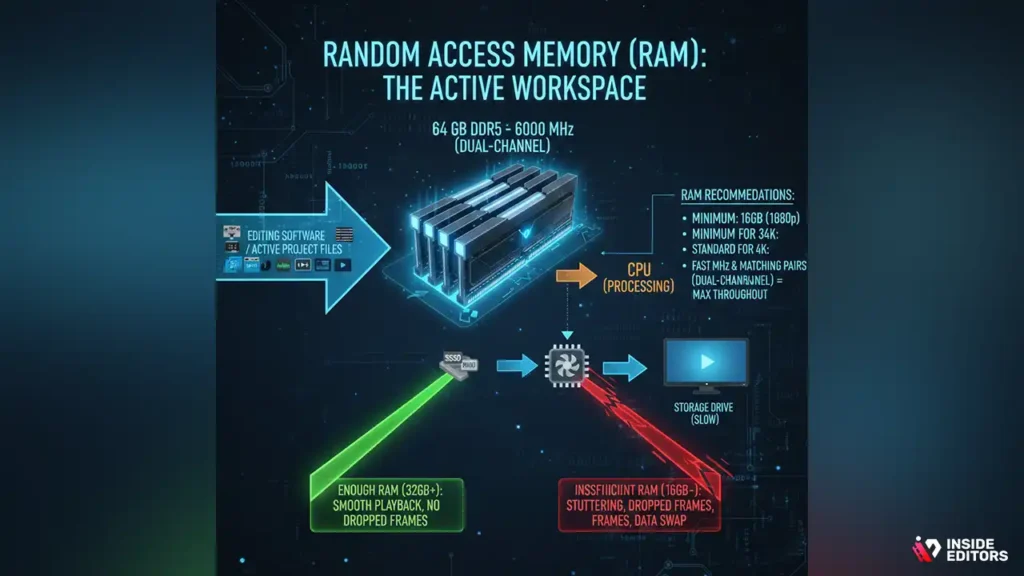
RAM is where your editing software holds the active project files, rendered preview clips, and application data. When you scrub the timeline, the data is pulled from RAM. If you don’t have enough, the system must constantly swap data with the much slower storage drive, leading to dropped frames and stuttering playback.
RAM Recommendations:
- Minimum: 16 GB (acceptable for 1080p).
- Standard for 4K: 32 GB (the sweet spot for most professional editors).
- High-End/8K/Motion Graphics: 64 GB or more.
Always ensure your RAM modules are fast (high MHz) and installed in matching pairs (dual-channel configuration) to maximize data throughput to the CPU.
The Storage Hierarchy: A Multi-Tiered Approach
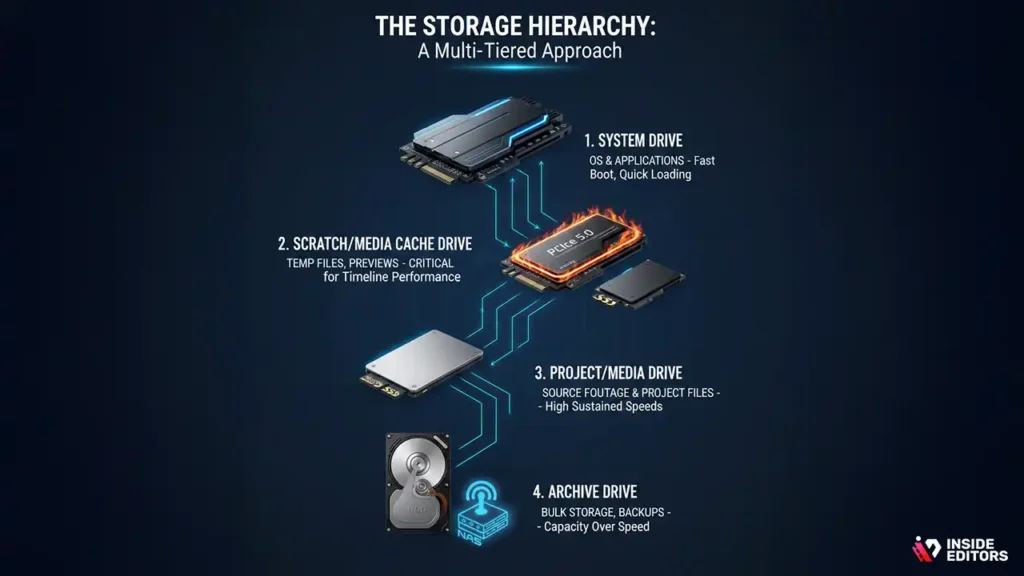
A successful desktop computer for video editing relies on a strategic, multi-tiered storage system. You cannot rely on a single drive.
1. The System Drive (OS and Applications)
This drive should be a fast NVMe M.2 SSD. This is where your operating system and editing applications (like Premiere Pro) reside. Fast boot times and quick application loading are essential for efficiency.
2. The Scratch/Media Cache Drive
This is perhaps the most critical drive for performance. The media cache stores the temporary files, peak files, and rendered previews generated by your editing software. If this drive is slow, your timeline playback will suffer immensely. Use a dedicated, high-speed NVMe SSD (PCIe 4.0 or 5.0) for this purpose..
3. The Project/Media Drive
This drive holds the actual source footage and project files. While it doesn’t need to be as fast as the cache drive, it must have high sustained read/write speeds. A large SATA SSD or a second, large NVMe drive is ideal.
4. The Archive Drive (Bulk Storage)
This is typically a large, affordable Hard Disk Drive (HDD) or a Network Attached Storage (NAS) system used for backing up finished projects and storing older, less frequently accessed media. Speed is secondary to capacity here.
This tiered approach ensures that the most performance-critical operations (caching and application loading) are handled by the fastest possible hardware, making your desktop computer for video editing incredibly responsive.
Selecting the Right Motherboard and Power Supply
While less glamorous than the CPU or GPU, the motherboard and power supply unit (PSU) are the foundational elements that ensure stability and future compatibility for your desktop computer for video editing.
The Motherboard: The System Backbone
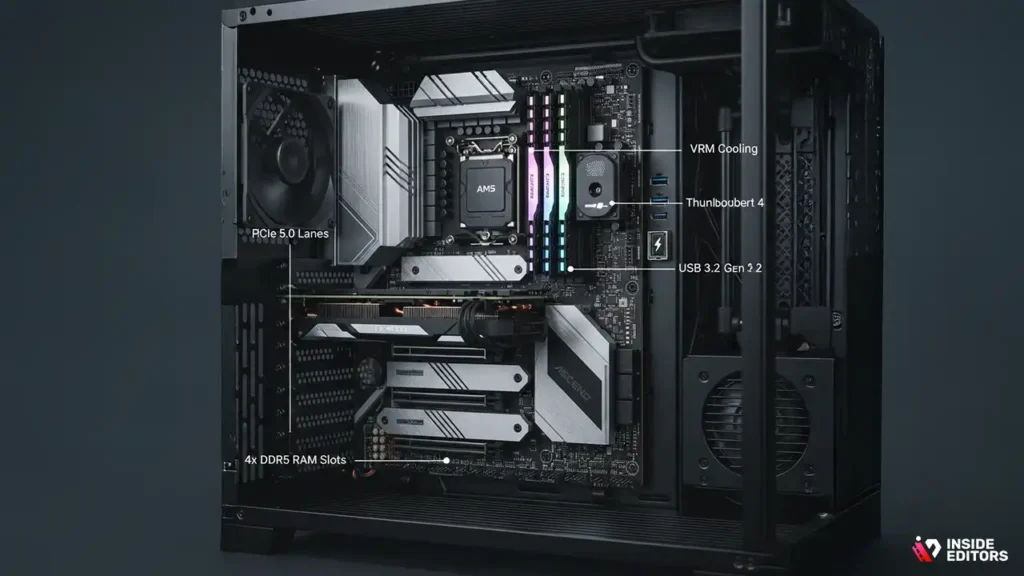
The motherboard must be compatible with your chosen CPU socket (e.g., LGA 1700 for Intel or AM5 for AMD). Beyond compatibility, look for features that support high-end video editing:
- PCIe Lanes: Ensure it supports the latest PCIe standard (currently 5.0) and offers enough lanes to run your GPU and multiple NVMe drives at full speed simultaneously.
- RAM Slots: Look for four or more RAM slots to allow for future memory upgrades.
- Connectivity: High-speed USB ports (USB 3.2 Gen 2 or Thunderbolt 4) are crucial for connecting fast external drives and peripherals.
- Cooling: High-end motherboards often have better VRM (Voltage Regulator Module) cooling, which is essential for maintaining CPU performance under sustained heavy loads.
The Power Supply Unit (PSU): Stability is Key
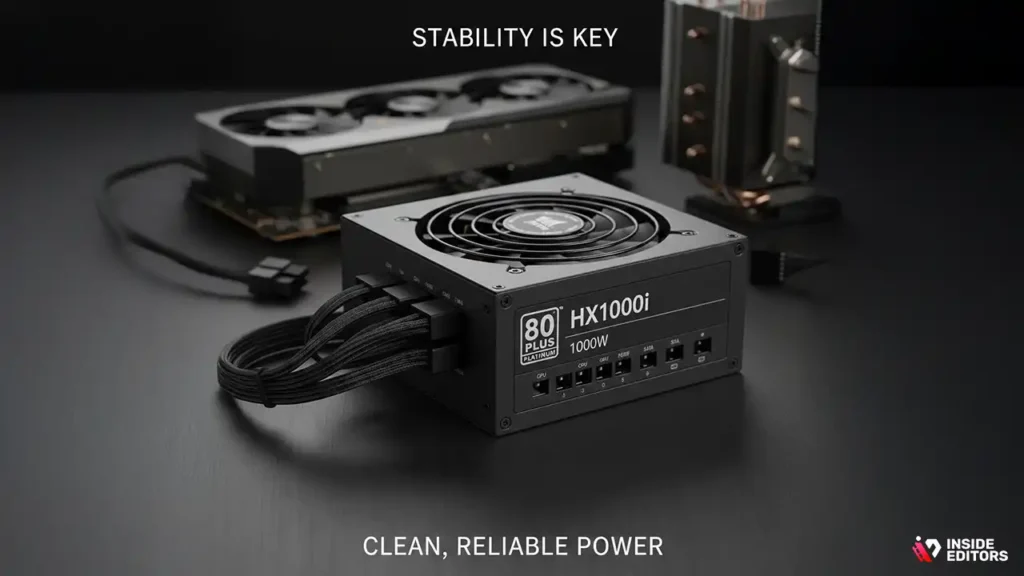
A video editing system draws significant power, especially when the CPU and GPU are rendering simultaneously. A cheap or undersized PSU can lead to instability, crashes, and even damage to components.
PSU Requirements:
- Wattage: Calculate the total power draw of your components and add a 20-30% buffer. For a high-end desktop computer for video editing, 850W to 1000W is common.
- Efficiency Rating: Look for 80 PLUS Gold or Platinum ratings. These PSUs are more efficient, generate less heat, and provide cleaner, more reliable power to your sensitive components.
Never compromise on the PSU. It is the lifeblood of your entire system.
The Role of Cooling in Video Editing Workstations
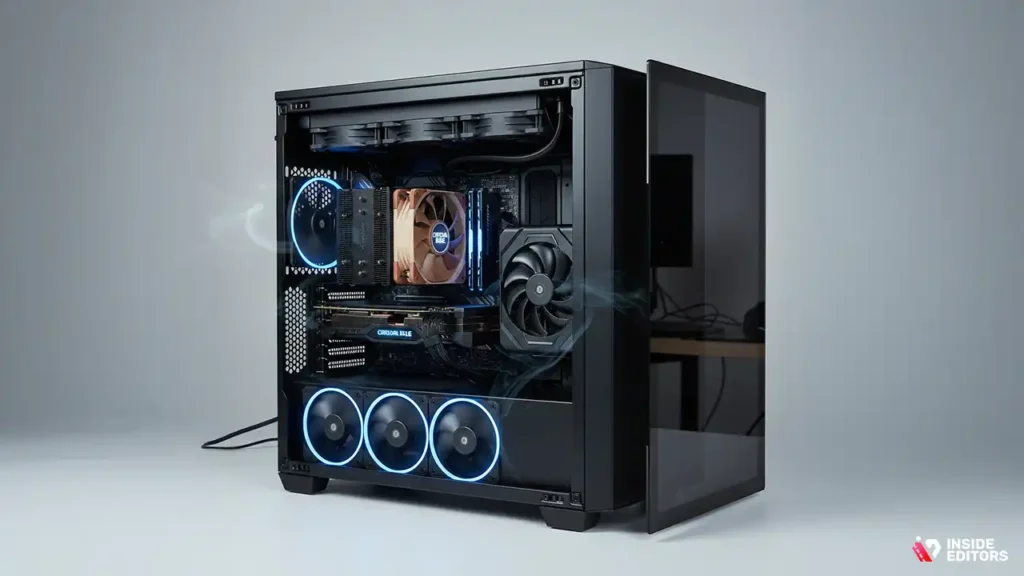
Sustained heavy workloads generate immense heat. If a desktop computer for video editing overheats, the CPU and GPU will automatically reduce their clock speeds-a process called “thermal throttling”-to protect themselves. This dramatically slows down rendering and editing performance. Effective cooling is therefore paramount.
CPU Cooling Solutions
For modern multi-core CPUs used in video editing, the stock cooler is simply insufficient. You must invest in robust cooling:
- Air Coolers: High-end air coolers (large heatsinks with powerful fans) are reliable, effective, and generally quieter than liquid solutions.
- Liquid Coolers (AIO): All-in-One (AIO) liquid coolers offer superior thermal dissipation, especially for overclocked or extremely high core-count processors. A 240mm or 360mm radiator is standard for professional builds.
Case Selection and Airflow
The computer case is more than just a box; it is part of the cooling solution. Choose a mid-tower or full-tower case that offers excellent airflow. Look for cases with mesh panels, dedicated fan mounts (front intake and rear/top exhaust), and ample space for cable management. Good cable management is essential because tangled wires obstruct airflow, trapping heat inside the chassis.
Software Optimization and Ecosystem Considerations
Hardware is only half the battle; the software ecosystem must also be optimized for peak performance. Choosing the right operating system and understanding codec compatibility will maximize the efficiency of your new desktop computer for video editing.
Operating System Choice (Windows vs. macOS)
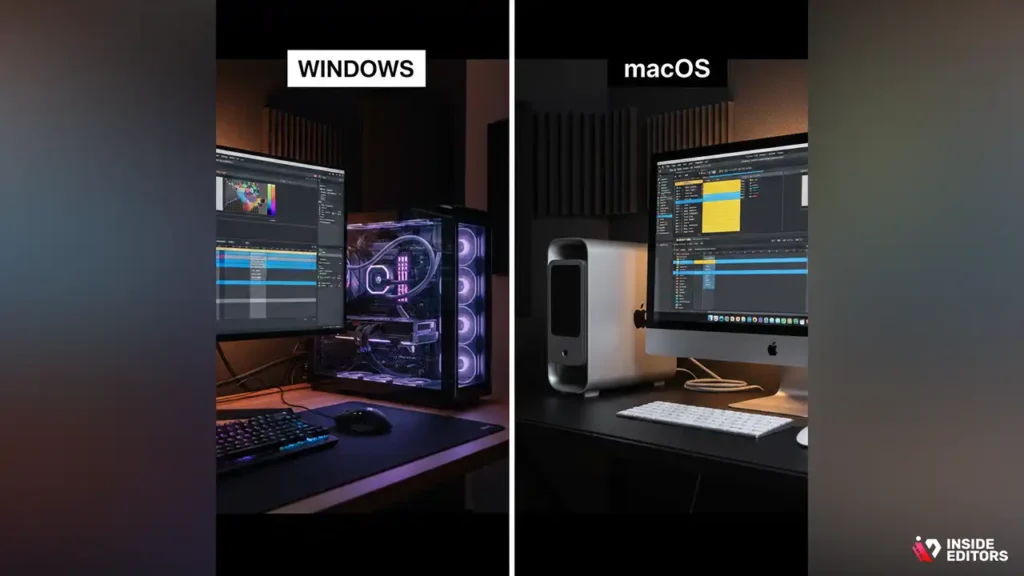
While macOS has historically been popular in creative industries, modern Windows workstations offer unparalleled customization, power-per-dollar, and flexibility.
- Windows: Offers the widest range of hardware choices, allowing you to tailor your desktop computer for video editing precisely to your budget and needs. It excels in compatibility with various professional software and specialized hardware.
- macOS: Excellent for users already invested in the Apple ecosystem. While Apple Silicon Macs are highly efficient, traditional desktop towers offer greater upgradeability and often better raw rendering speeds for complex, multi-threaded tasks.
Codecs and Proxy Workflow
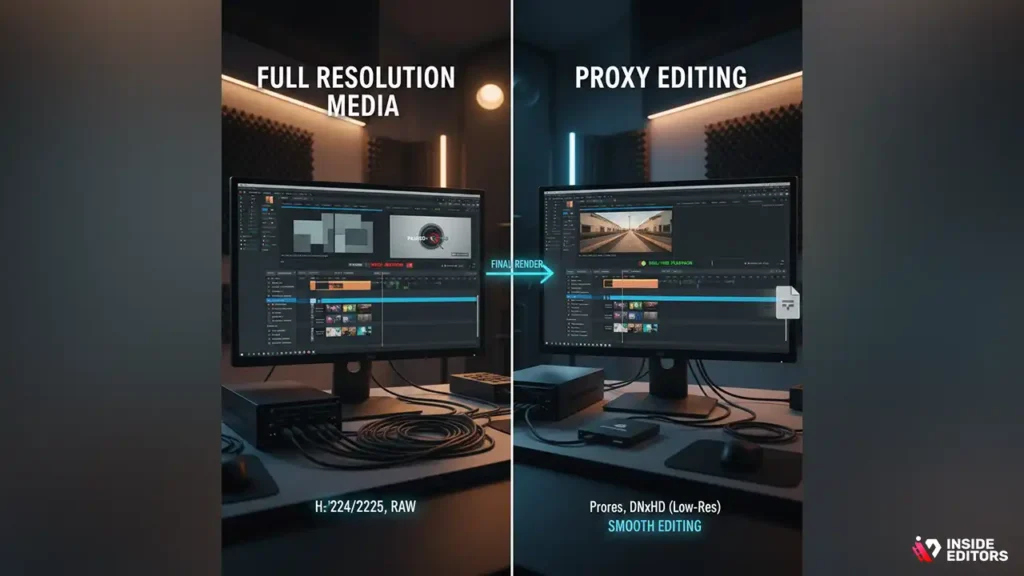
Understanding video codecs (like H.264, ProRes, DNxHD, and RAW) is crucial. Highly compressed codecs (like H.264/H.265) are difficult for the CPU to decode in real-time, even on a powerful machine.
The Proxy Solution: If you are editing high-resolution, compressed footage, implement a proxy workflow. This involves creating lower-resolution, easily decoded versions of your media for the editing process. This allows even a mid-range desktop computer for video editing to maintain smooth playback, with the full-resolution files only used during the final render.
Step-by-Step Purchasing Guide for Your Workstation

Building or buying a desktop computer for video editing can be broken down into a series of logical steps.
Step 1: Define Your Budget and Priorities
Be realistic about what you can afford. A professional-grade 4K editing system starts around $2,000–$2,500 for components alone, not including monitors or peripherals. Decide whether raw speed (CPU/GPU) or storage capacity is your highest priority.
Step 2: Select the CPU and Motherboard Platform
These must be chosen together. If you prioritize high core count for heavy rendering, choose a platform that supports high-end chips (e.g., AMD Ryzen 9 or Intel Core i9). Ensure the motherboard has the necessary features (PCIe 5.0, sufficient NVMe slots).
Step 3: Determine GPU Requirements (VRAM Focus)
Select a GPU based on the resolution and complexity of your projects. Remember the VRAM minimums: 8GB for standard 4K, 12GB+ for complex effects or higher resolutions.
Step 4: Calculate RAM and Storage Needs
Start with 32GB of RAM. Plan for at least three separate storage drives: OS/Apps (NVMe), Cache (Fast NVMe), and Media (Large SSD/NVMe).
Step 5: Choose the Case, Cooling, and PSU
Select a high-airflow case. Pair your CPU with an appropriate cooler (AIO or high-end air cooler). Calculate the necessary PSU wattage and ensure it has an 80 PLUS Gold rating or better.
Step 6: Assembly or Pre-Built Decision
If you are comfortable with hardware assembly, building your own offers the best value and customization. If not, purchase a pre-built workstation from a reputable vendor specializing in professional systems.
Comparison: Pre-Built vs. Custom-Built Desktop
The decision between buying a pre-built system and assembling a custom desktop computer for video editing is a common dilemma. Both options have distinct advantages and disadvantages.
Pros and Cons of Custom-Built
| Feature | Custom-Built |
| Pros | Maximum customization, better value for money, easy upgrades, precise component selection. |
| Cons | Requires technical knowledge, time commitment for assembly, self-reliance for troubleshooting. |
Pros and Cons of Pre-Built Workstations
| Feature | Pre-Built |
| Pros | Immediate use, professional assembly, single point of contact for warranty/support, often optimized cooling. |
| Cons | Higher cost, limited component choices, potential for proprietary parts that limit future upgrades. |
For most professional content creators who prioritize reliability and time efficiency, a high-quality pre-built workstation often makes the most sense, provided it meets the component specifications outlined above.
Buying a Video Editing PC: Pitfalls to Avoid
Many first-time buyers make mistakes that compromise the performance of their new system. Being aware of these pitfalls can save you time and money.
Pitfall 1: Skimping on the Cache Drive
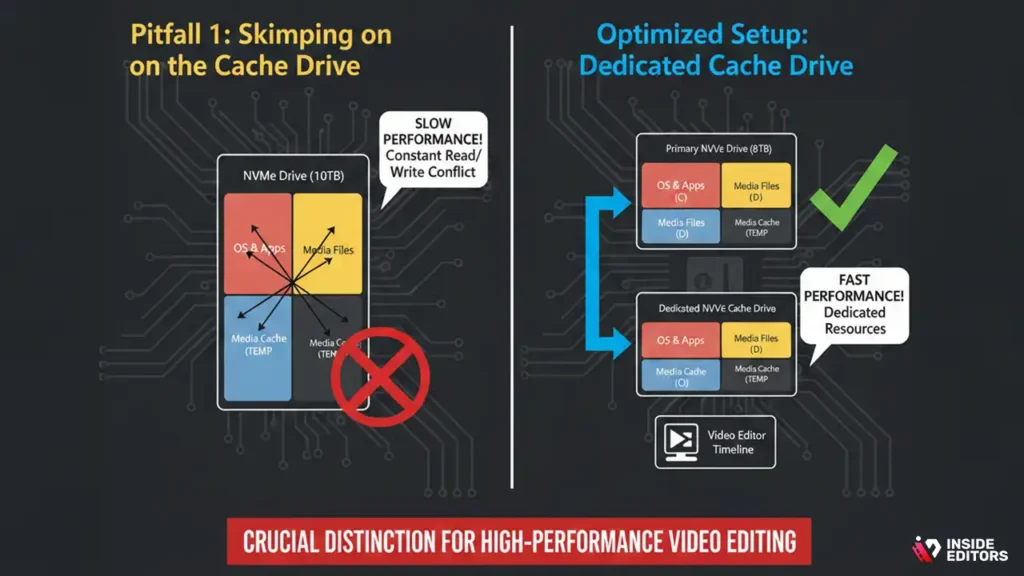
Many people buy a single, large NVMe drive and use it for everything (OS, apps, cache, media). This forces the drive to constantly read and write simultaneously, dramatically reducing performance. Always use a dedicated, separate drive for your media cache. This is a crucial distinction for any high-performance desktop computer for video editing.
Pitfall 2: Neglecting Cooling
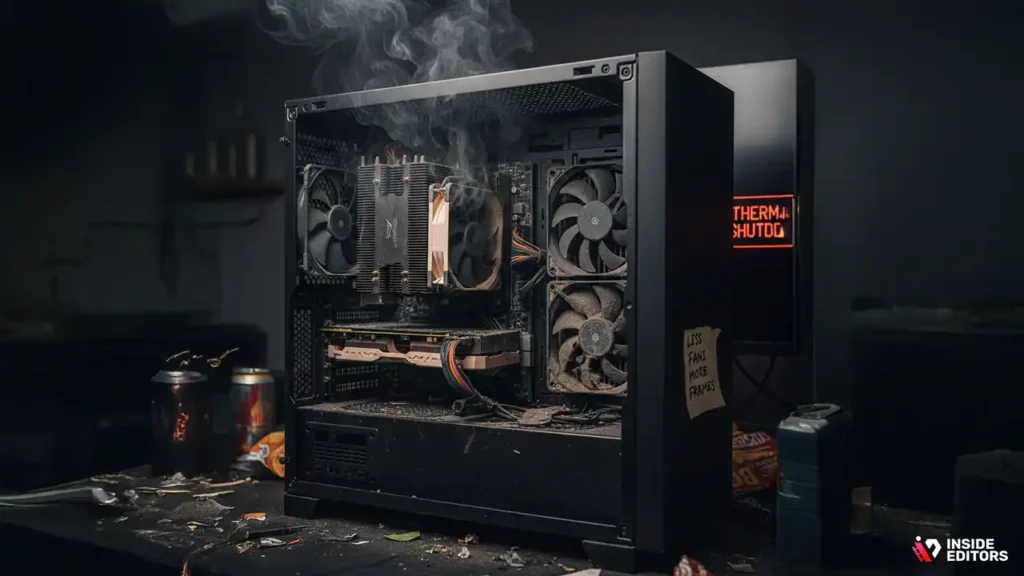
A powerful CPU/GPU combo without adequate cooling will perform worse than a slightly slower, well-cooled system. Invest in proper fans, a quality CPU cooler, and a case designed for airflow.
Pitfall 3: Focusing Only on Clock Speed
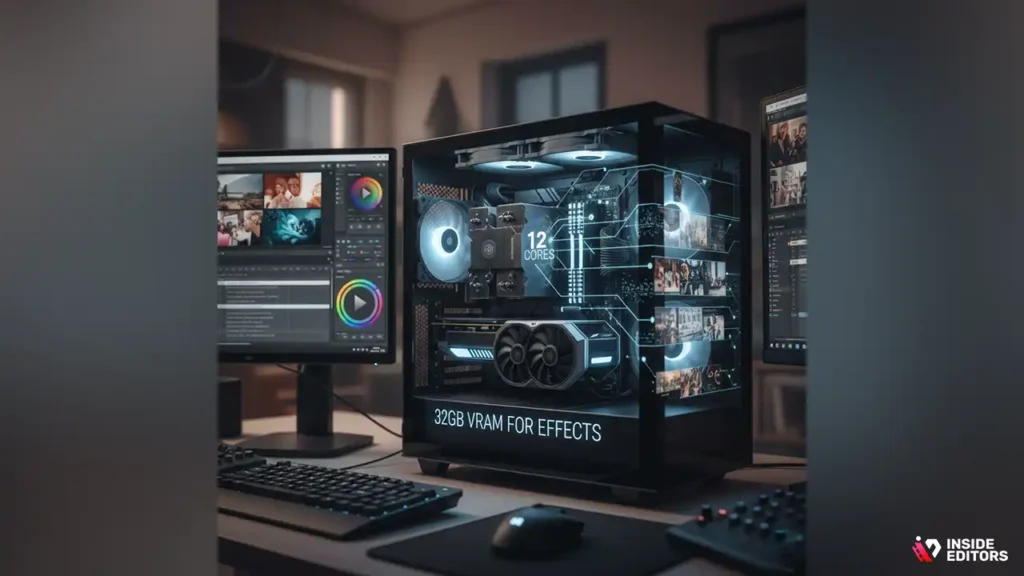
While clock speed is important, core count (for rendering) and VRAM (for effects) are often more critical metrics for a desktop computer for video editing. A CPU with 12 slower cores will usually outperform a CPU with 4 faster cores in a rendering task.
Pitfall 4: Ignoring Power Supply Quality
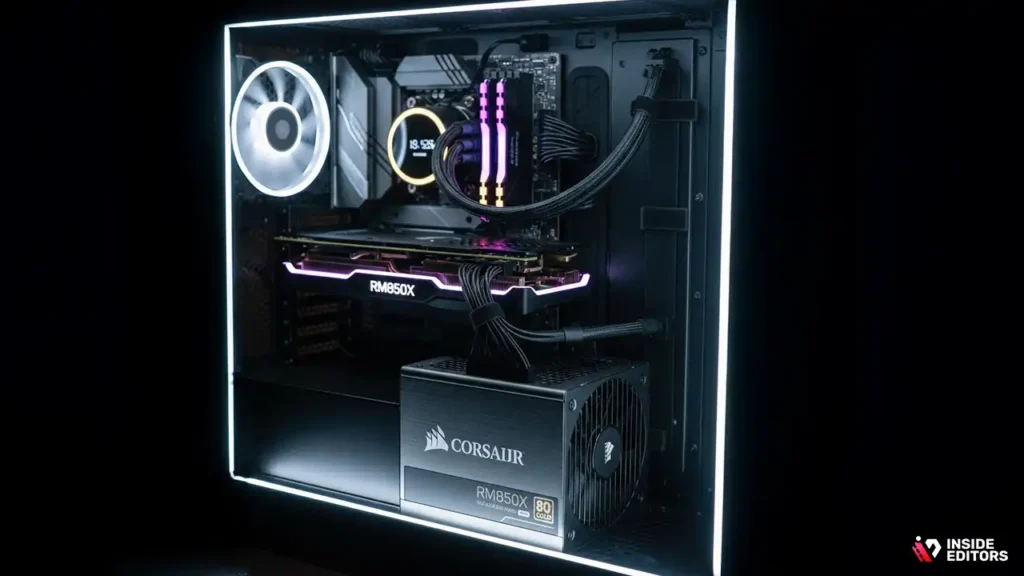
As mentioned, a cheap PSU can introduce instability. Look for reputable brands and high efficiency ratings (Gold or Platinum).
“The difference between a good editing machine and a great one often comes down to component balance-ensuring no single part is throttling the performance of the others.” – Tech Industry Analyst
When Outsourcing Makes Sense: Focusing on Creation

Even with the perfect desktop computer for video editing, the process of post-production remains time-consuming and complex. Many content creators, marketers, and businesses find that outsourcing their editing allows them to focus entirely on content creation, marketing, or core business operations.
If you find yourself spending more time rendering and troubleshooting than shooting and planning, consider leveraging professional video editing services.
Inside Editors offers professional video editing services designed for businesses, content creators, and marketers. Our professional editing team has over 10 years of experience, ensuring your footage is transformed into polished, high-quality content that builds trust and maintains a consistent brand style. We handle everything from complex color grading and audio enhancement to final delivery.
Our workflow is designed for speed and reliability: we offer a fast turnaround (typically 24-72 hours) and unlimited revisions until you are completely satisfied. This scalable solution allows growing channels and busy marketing teams to maintain a high volume of output without the headache of managing internal post-production staff or constantly upgrading hardware. Our affordable pricing, starting at $29 per video, makes professional quality accessible.
If you want to save time and ensure professional quality that aligns with your brand, exploring a partnership with a dedicated editing service is a smart business decision.
Workstation Peripherals and Connectivity
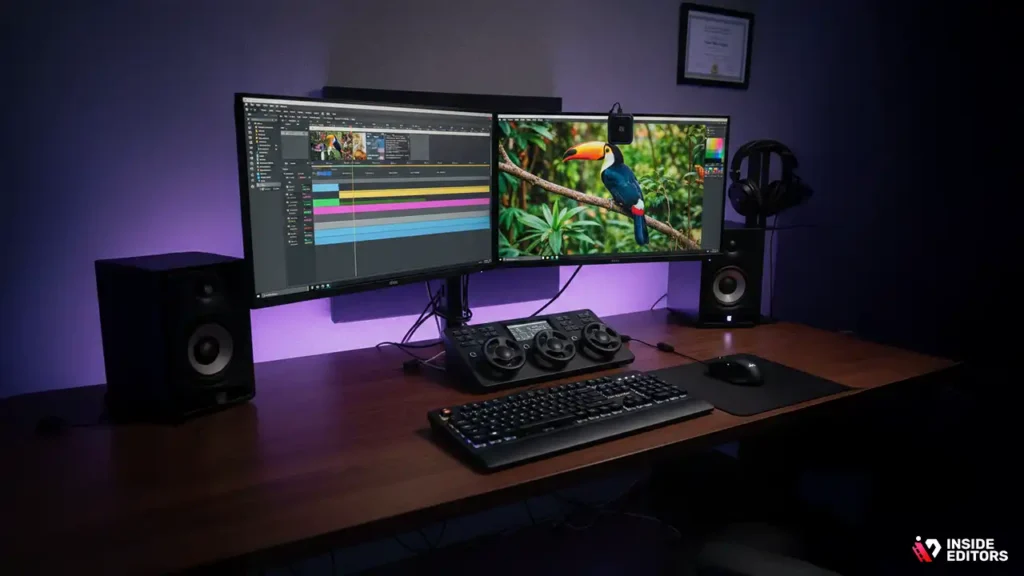
Once you have selected the core components for your desktop computer for video editing, consider the peripherals that enhance your workflow and E.E.A.T. (Expertise, Experience, Authority, Trust).
Monitors: Color Accuracy is Non-Negotiable
For video editing, monitor quality is paramount. You need a monitor with high color accuracy (ideally 100% sRGB and high coverage of DCI-P3 or Adobe RGB). Look for monitors that are factory-calibrated or can be calibrated using external tools. A minimum of 4K resolution is recommended for viewing high-resolution footage natively. Many professionals use a dual-monitor setup: one for the timeline/interface and a second, color-accurate monitor for full-screen preview.
Input Devices: Precision and Comfort
Consider specialized input devices. A comfortable, ergonomic mouse and keyboard are essential for long editing sessions. Some editors benefit greatly from control surfaces (like those used for color grading in DaVinci Resolve or programmable macro pads, which can significantly speed up repetitive tasks.
Audio Monitoring
Accurate audio is crucial. Invest in quality studio monitor speakers or professional closed-back headphones. These provide a flat frequency response, allowing you to mix and master your audio without artificial enhancement, ensuring the final product sounds correct on all playback devices.
Conclusion: Building a Foundation for Creativity
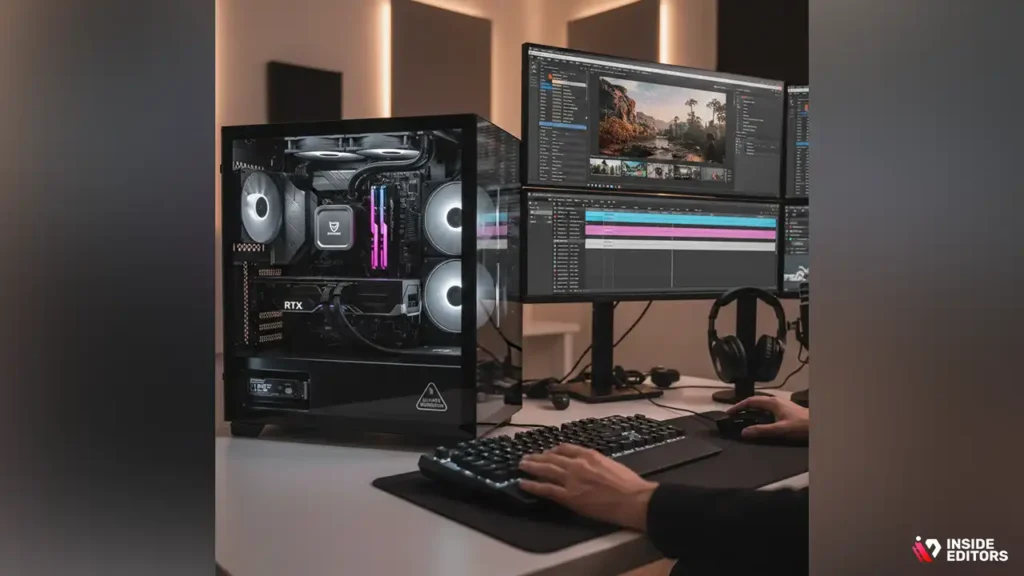
Investing in a powerful desktop computer for video editing is an investment in your productivity and the quality of your final product. By prioritizing the CPU core count, sufficient VRAM in the GPU, and a strategic, high-speed storage hierarchy, you can build a workstation that handles demanding 4K and 8K workflows with ease. Remember that balance is key: a system is only as fast as its slowest component.
If the technical complexity of hardware selection or the time commitment of post-production seems overwhelming, remember that professional support is available. Inside Editors provides expert, reliable video editing services, allowing you to bypass the hardware concerns and focus entirely on creating compelling content. Whether you build your ultimate desktop computer for video editing or partner with professionals, the goal remains the same: transforming your vision into high-quality video content efficiently and reliably.
Internal Service Integration
For those who prefer to focus on filming and content strategy, leaving the technical demands of post-production to experts, Inside Editors offers comprehensive solutions. Our Video Editing Services provide professional editing with a team of 10+ years experienced editors, ensuring fast turnaround (24-72 hours) and unlimited revisions. This service is ideal for YouTube creators, businesses, and marketing teams seeking consistent, professional quality without the hardware overhead.
Frequently Asked Questions
What is the best CPU for editing?
The best CPU for a desktop computer for video editing balances high core count (8+) and fast clock speeds. Look for Intel Core i7/i9 or AMD Ryzen 7/9 series processors to handle the multi-threaded rendering tasks efficiently.
How much RAM is needed for 4K video?
For professional 4K video editing, 32 GB of RAM is strongly recommended. This provides enough workspace for the editing software to manage large project files and rendered previews without relying on slow disk swapping.
Is a dedicated GPU necessary?
Yes, a dedicated GPU is necessary for any serious desktop computer for video editing. It accelerates rendering, visual effects, and encoding. Prioritize VRAM, aiming for 8GB minimum for 4K work.
What is the most critical storage drive?
The most critical storage drive is the dedicated NVMe SSD used for the media cache and scratch files. Keeping this separate from the OS drive prevents bottlenecks and ensures smooth timeline playback.
How many times should I use the keyword?
The target keyword ‘desktop computer for video editing’ should be used naturally and contextually throughout the article, appearing at least 15 times to meet SEO density requirements for this length.
Should I choose air or liquid cooling?
For a high-performance desktop computer for video editing, liquid cooling (AIO) generally offers superior thermal dissipation, which is crucial for maintaining maximum CPU clock speeds during long rendering sessions.
What is thermal throttling?
Thermal throttling is when a CPU or GPU automatically reduces its performance (clock speed) to prevent overheating. Adequate cooling is essential to avoid this and maximize the performance of your desktop computer for video editing.
Can I edit 8K video on a standard PC?
Editing 8K video requires a highly specialized desktop computer for video editing with 64GB+ RAM, a high core count CPU, and a powerful GPU (16GB+ VRAM). A standard PC will not handle 8K workflows effectively.


